SMTP error code · permanent failure (5xx)
SMTP error 550 5.7.57: client was not authenticated to send mail

By Samuel Chenard · CEO & Co-Founder, Palisade · Reviewed November 10, 2026
550 5.7.57 means a printer, scanner, or application connected to smtp.office365.com and tried to send mail without signing in first. That endpoint only accepts mail from a device that authenticates with a licensed Exchange Online mailbox. Enter the mailbox credentials and confirm TLS works, or move the device to direct send or SMTP relay.
550 5.7.57 at a glance | |
|---|---|
| Code | 550 5.7.57 |
| Class | Permanent (5xx): the message was refused and will not retry |
| Category | Authentication |
| Side at fault | Sender |
| Auth-related | Sign-in only: the device skipped the mailbox login. SPF matters afterwards if you move it to direct send or relay |
What the bounce actually says
The exact wording varies by provider. These are the documented strings, verbatim. Match yours to pin down which variant you hit.
Microsoft 365 (Exchange Online)
550 5.7.57 Client was not authenticated to send anonymous mail during MAIL FROMSource: learn.microsoft.com
Microsoft 365 (Exchange Online), printers and scanners guidance
5.7.57 Client not authenticated to send mailSource: learn.microsoft.com
Why you're seeing 550 5.7.57
Microsoft's fix page for this code is short and specific: when you connect to the smtp.office365.com endpoint to submit or relay messages, you need to authenticate with the credentials of a user who has an Exchange Online mailbox, and this bounce means the connecting device or application is configured wrong. In practice the device opened the connection and issued MAIL FROM without ever completing a sign-in. The three usual reasons are that no credentials are configured at all, that the device can't negotiate TLS (which Microsoft requires before it will authenticate), or that the device was meant to use direct send but points at the client submission endpoint instead of your tenant's MX endpoint. Microsoft notes the line between user and admin is blurred here, because the fix is always in the device's own settings.
Likely causes, ranked
| Likely cause | What's happening |
|---|---|
| No mailbox credentials are configured on the device | Microsoft's printers page says this error occurs when the printer connects to the client submission endpoint but no mailbox logon credentials were entered in its settings. If the device has no place to enter credentials at all, Microsoft says it doesn't support client SMTP submission. |
| The device can't negotiate TLS, so it never gets to sign in | Microsoft's fix page says TLS is required in order to authenticate, and its device guide says client SMTP submission needs TLS 1.2 or 1.3. An older printer that offers only TLS 1.0 or no encryption reaches the server, can't start the secure session, and falls through to an anonymous MAIL FROM. |
| Direct send is pointed at the wrong endpoint | Direct send doesn't sign in, and Microsoft documents it against your tenant's MX endpoint, which ends in mail.protection.outlook.com. Pointing a direct-send device at smtp.office365.com instead produces this bounce, because that endpoint expects a mailbox login. Before fixing the endpoint, check direct send is the right choice: Microsoft recommends it only as a last resort for legacy devices that can't use the other methods. |
| SMTP AUTH or a legacy sign-in block stops the mailbox from authenticating | Microsoft lists 5.7.57 beside 535 5.7.3 under the same authentication checklist: SMTP AUTH enabled on the mailbox, no MFA on it, and no security defaults or Conditional Access policy blocking legacy authentication. This applies when the device does try to sign in and 5.7.57 still appears: if credentials and TLS are both correct, work through that list next. |
How to fix 550 5.7.57
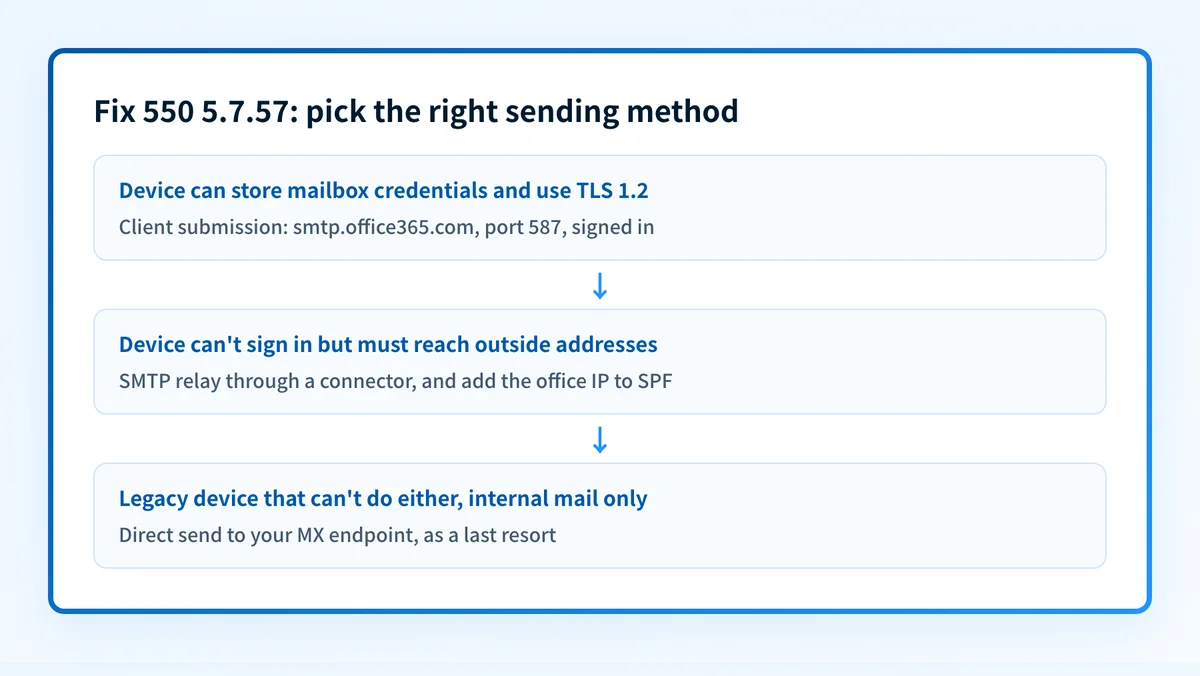
Decide which of Microsoft's device sending methods to use
Client submission signs in to
smtp.office365.comon port 587 with a licensed mailbox. SMTP relay uses a connector to reach anyone without a sign-in. Direct send needs no sign-in but only reaches recipients inside your organization, and Microsoft recommends it only as a last resort for legacy devices, says it needs SPF, DKIM and DMARC set up correctly, and is working on turning it off by default. Microsoft's guide also covers High Volume Email for internal bulk mail. If the device can store credentials and do TLS 1.2, client submission is the simplest; otherwise, read Office 365 SMTP settings and prefer relay.For client submission, enter the mailbox credentials and turn on TLS
Set the server to
smtp.office365.com, port 587, with TLS or STARTTLS enabled, and enter the full email address and password of the licensed mailbox the device sends as. Microsoft's fix page asks you to verify the credentials are correct and that the device can negotiate TLS.Sources: Microsoft: fix NDR error 5.7.57
Check SMTP AUTH and legacy sign-in blocks on that mailbox
Run
Get-CASMailbox -Identity <EmailAddress> | Format-List SmtpClientAuthenticationDisabledin Exchange Online PowerShell and set it to False if it reads True. Then check MFA, security defaults, and Conditional Access policies that block legacy authentication, the same checklist Microsoft gives for 535 5.7.3.Sources: Microsoft: printers, scanners and LOB apps · Microsoft: enable or disable SMTP AUTH
If you keep direct send, point the device at your Microsoft 365 MX endpoint
Take the endpoint from the Microsoft 365 admin center under Settings > Domains > your domain > DNS records, the MX row's Points to address value, which ends in
mail.protection.outlook.com. Use it on port 25 with no credentials. Don't copy the host from a public MX lookup if your MX points at a third-party filter, because that returns the filter, not Microsoft. Direct send only delivers to recipients in your own organization.Send a test, then make sure SPF covers the path you chose
Send a test message: to an internal mailbox if you chose direct send, or to an outside mailbox for client submission or relay. Read its headers with the email header analyzer. For relay and direct send, Microsoft asks you to add your office's static public IP to your domain's SPF record; check it with the SPF checker.
Related free tools: MX lookup · SPF checker · Email header analyzer · Microsoft compliance checker
Why it matters for MSPs
5.7.57 is a classic onboarding ticket: a client's copier or line-of-business app was set up against smtp.office365.com by whoever installed it, with no credentials or with TLS off. Standardize on one method per client and write it down: client submission with a dedicated mailbox, or SMTP relay through a connector tied to the office's static IP. Microsoft asks you to add the office's static IP to SPF for both relay and direct send. For direct send it has to be there before the domain's DMARC policy reaches enforcement, or internal mail from the device fails DMARC. Palisade reads each client domain's DMARC reports, identifies every source sending as that domain, and files the ones failing SPF or DKIM as tickets in ConnectWise, HaloPSA, or Autotask. Your own MSP domain is a free NFR domain.
Questions readers ask