Office 365 SMTP settings and authentication
 ChatGPT
 Claude
 Gemini
 Perplexity
 Grok
GrokIn brief
Use current Office 365 SMTP settings, choose OAuth and mailbox policy safely, then validate SPF, DKIM, DMARC, safe sending limits, and delivery.
Office 365 has three SMTP sending methods. Prefer OAuth-capable client SMTP submission at smtp.office365.com on port 587 when an application sends as a mailbox. Use direct send for devices that only address recipients in your Microsoft 365 organization. Use SMTP relay when a connector can identify the sender and the application must reach external recipients. Microsoft documents the three methods and their different requirements.
At a glance
Quick takeaways
- Client SMTP submission authenticates as a mailbox; direct send and SMTP relay do not use a mailbox sign-in.
- Direct send is limited to recipients in your Microsoft 365 organization, while SMTP relay can reach external recipients through an approved connector.
- Tenant security policy and the mailbox's Authenticated SMTP setting can block otherwise correct values.
- Prefer OAuth. Any Basic-authentication exception for Client Submission (SMTP AUTH) needs an expiry because Microsoft is retiring that path.
- Exchange Online documents
30messages per minute and10,000recipients per day for a mailbox. - SMTP acceptance does not prove DMARC alignment or inbox placement.
What should I check before configuring Office 365 SMTP?
Confirm whether the application must send outside the organization, whether it can authenticate as an Exchange Online mailbox, and whether its network has a stable identity for a connector. For client submission, confirm that the application supports STARTTLS and an approved authentication method. Record the visible From address, expected recipient volume, message type, and any Send As requirement.
Microsoft's current client-submission guidance lists smtp.office365.com, port 587 recommended or port 25, TLS/STARTTLS enabled, and mailbox credentials. It also says the application should send from the same address used to authenticate unless the account has Send As permission (Microsoft: Client SMTP submission).
Check policy before changing the application. Microsoft says SMTP AUTH supports modern OAuth, can be disabled at the organization level, and can be enabled for mailboxes that still require it. Security defaults can disable SMTP AUTH, while authentication policies can block basic authentication (Microsoft: Enable or disable authenticated client SMTP submission). Do not disable a tenant-wide security control merely to make a legacy client connect.
Which setup method should I use?
Microsoft's three methods are not interchangeable:
- Client SMTP submission (SMTP AUTH): The application signs in as a licensed mailbox and submits through
smtp.office365.com, normally with STARTTLS on port587. Pick it for a mailbox-scoped sender that supports OAuth and fits the documented mailbox limits. - Direct send: The device or application sends to the tenant's Microsoft 365 MX endpoint on port
25without a mailbox sign-in. It can address recipients in the same Microsoft 365 organization, but it cannot relay to external recipients. Pick it for internal-only notifications from a device that cannot use SMTP AUTH. - SMTP relay: The device or application sends to the tenant's Microsoft 365 MX endpoint on port
25without a mailbox sign-in. An inbound connector identifies the source by a static public IP address or TLS certificate and permits relay to internal or external recipients. Pick it for an application-wide sender that needs external delivery and can meet the connector requirements.
The current Microsoft settings table anchors the endpoint and transport values.
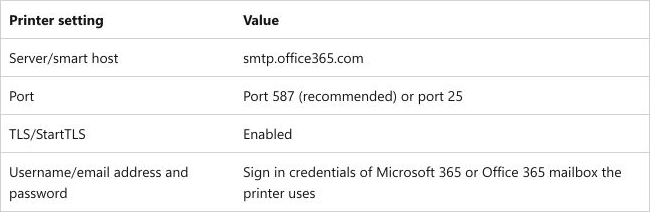
Confirm client submission is the intended method before changing SMTP AUTH. A working test at low volume does not make a mailbox, direct-send path, or connector suitable for a marketing platform.
How do I configure Office 365 SMTP?
1. Define one controlled sender
For a worked example, suppose alerts@example.com is an Exchange Online mailbox. The application will send 240 transactional alerts per day, use visible From alerts@example.com, and send one test to Microsoft 365 plus one mailbox outside the tenant. Run identifier o365-smtp-630184 contains no customer data.
2. Enter the endpoint and transport
Set server smtp.office365.com, port 587, and STARTTLS. Require certificate validation. Do not choose implicit SSL merely because another provider uses port 465; Microsoft's client-submission table specifies TLS/STARTTLS for this workflow.
3. Configure OAuth or an approved credential
Use the application's documented Microsoft OAuth flow when supported. Tenant ID, application registration, client identifiers, scopes, secrets, certificates, and tokens are account-specific. Never copy a registration from another tenant or store a client secret in source control.
Do not treat Basic authentication as a permanent Client Submission design. Microsoft's current timetable, published in January 2026, is specific: behaviour is unchanged until December 2026, and at the end of December 2026 SMTP AUTH Basic authentication is disabled by default for existing tenants. Tenants created after December 2026 do not get it at all. Microsoft will announce the final removal date in the second half of 2027 (Microsoft: updated Exchange Online SMTP AUTH Basic authentication deprecation timeline).
Read "disabled by default" precisely, because the distinction decides how much time an application really has. It is not removal. A tenant can still re-enable SMTP AUTH after December 2026, and OAuth-based SMTP AUTH is unaffected throughout (Microsoft: Basic authentication deprecation in Exchange Online). What disappears on that date is the assumption that a Basic-auth client keeps working without anyone deciding to keep it working. So give any Basic-auth exception an owner, an OAuth migration target, and an expiry no later than December 2026 — the date the default flips, not the date support ends, because that is the point at which an unattended exception starts failing silently after a tenant change.
4. Limit SMTP AUTH to the required mailbox
If organization-level SMTP AUTH is disabled but the approved application requires it, an authorized administrator can enable Authenticated SMTP for the specific mailbox. Microsoft documents the Microsoft 365 admin center path through Users, Active users, the user, Mail, Manage email apps, then Authenticated SMTP (Microsoft SMTP AUTH controls). Tenant security defaults or authentication policy can still take precedence.
The first-party Admin Center capture shows the material control in a sample mailbox.
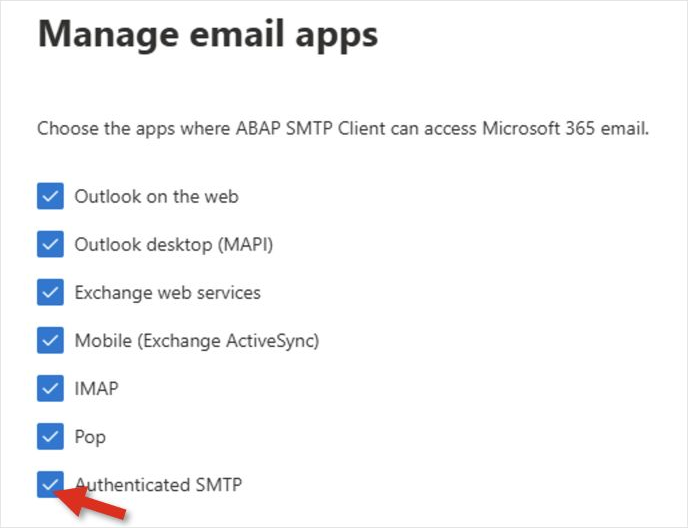
Apply account-specific authorization only to the required mailbox.
5. Confirm the From identity and Send As permission
Keep From equal to alerts@example.com for the first test. If the application authenticates as service@example.com but sends as alerts@example.com, grant the narrow Send As permission through the authorized Exchange workflow. Microsoft says the service returns 5.7.60 when the authenticated account lacks that permission in this client-submission scenario (Microsoft client submission).
6. Send one traceable test
Use subject SMTP validation 2026-08-25 14:30 UTC and include o365-smtp-630184 in a non-secret diagnostic line. Record connection time, server response, authenticated mailbox, From, recipient, and application version. Never record a password, access token, client secret, or private message body.
How does the setup affect DMARC?
SMTP AUTH controls application access to Exchange Online. DMARC evaluates whether SPF or DKIM authentication aligns with the visible From domain. One can succeed while the other fails.
Microsoft's SPF guidance says most Microsoft 365 organizations that send only through the service use an SPF policy containing include:spf.protection.outlook.com. The full illustrative value is v=spf1 include:spf.protection.outlook.com -all, but a domain with other senders must combine all authorized sources into one SPF record and remain within the 10-lookup limit (Microsoft SPF configuration). Do not publish a second SPF record or copy a policy that omits real senders.
Microsoft 365 DKIM uses two selector CNAMEs so one selector can sign while the other supports rotation. Current Microsoft documentation tells administrators to retrieve tenant-specific CNAME targets from Defender or Exchange Online PowerShell and warns against copying the example values because newer domains can use a different target format (Microsoft DKIM configuration). Never use another tenant's targets.
RFC 9989 Section 4.4 define alignment and the DMARC pass condition: at least one supported mechanism must authenticate and align with the RFC5322 From domain (RFC 9989). A message accepted from alerts@example.com can still fail DMARC if the observed SPF and DKIM identifiers do not align with example.com.
How do I validate the setup?
Check DNS values
Query the single SPF record, both Microsoft DKIM selector CNAMEs, and _dmarc.example.com from public resolvers. Compare tenant-specific targets exactly. DNS presence does not prove the application used the intended path or that Microsoft signed the message.
Check vendor and mailbox status
Confirm the approved mailbox exists, SMTP AUTH state matches the documented exception, tenant policy permits the chosen method, and Send As permission exists only where required. For any basic-authentication exception, record who approved it, which OAuth-capable replacement will take over, and the expiry date from Microsoft's verified current retirement timetable.
Check the delivered message headers
Open the raw source and use the receiver-added Authentication-Results. RFC 8601 Section 1.2 explains the receiver trust boundary; do not trust a field merely because it is present (RFC 8601, Section 1.2). Confirm the actual smtp.mailfrom, DKIM header.d, visible header.from, and reported DMARC result. Use Palisade's Email Header Analyzer to parse supplied headers; it cannot inspect Entra credentials or tenant policy.
Check DMARC reporting and delivery
Confirm the authorized Microsoft source appears in aggregate DMARC data for the visible From domain. Send the same controlled test to an external mailbox and examine acceptance, authentication, folder placement, and any enhanced status code. The Office 365 DMARC setup guide covers policy deployment, while DKIM for Office 365 covers signing in more depth.
If the message-level test works but the tenant still lacks source-wide visibility, Palisade's DMARC Agent can organize aggregate DMARC evidence for the domain. Smart DNS Deployment can write only DNS records a human approves. It does not change Exchange, Entra, mailbox, or SMTP AUTH settings and cannot guarantee placement. Start with Palisade after the controlled send establishes that monitoring is the next gap.
Troubleshooting
The server rejects authentication
Confirm the server and STARTTLS settings, then determine whether security defaults, organization-level SMTP AUTH, mailbox state, or authentication policy blocks the chosen method. Do not repeatedly retry a secret or weaken tenant policy without an approved exception.
Send As returns 5.7.60
Keep the From equal to the authenticated mailbox or grant the narrow Send As permission to the required identity. Do not grant broad impersonation rights to solve one sender mismatch.
The client is throttled
Microsoft documents 30 messages per minute, 10,000 recipients per day, and up to 3 concurrent SMTP connections for client submission. Its SMTP improvements page shows 432 4.3.2 Concurrent connections limit exceeded for excess concurrency and a SubmissionQuotaExceededException after the recipient limit (Microsoft SMTP submission limits). Queue and pace mail rather than opening more connections.
The message sends but DMARC fails
Compare the From domain with header.d and smtp.mailfrom. Verify the Microsoft DKIM selectors and the actual return path. Do not relax DMARC policy as a substitute for repairing an unaligned sender.
The message is accepted but does not land as expected
Check the exact recipient outcome, service responses, authentication, reputation, consent, and message purpose. Exchange acceptance is not an inbox guarantee, and changing the port will not repair reputation or targeting.
When does this setup not apply?
The worked procedure covers client SMTP submission. A production SMTP relay still needs a deliberately scoped Exchange Online connector, and direct send still needs a controlled internal-recipient test. This guide does not cover on-premises Exchange connectors, high-volume email architecture, consumer Outlook.com accounts, or software that cannot meet the tenant's transport and authorization policy.
Evidence
Sources and further reading
Questions readers ask
Frequently asked questions
Is smtp.office365.com the Office 365 SMTP server?
Yes. Microsoft documents smtp.office365.com for authenticated client SMTP submission to Exchange Online. Other Microsoft sending methods use different endpoints and authorization models.
Should Office 365 SMTP use port 587?
Yes. Microsoft recommends port 587 with STARTTLS for client submission and also lists port 25. Match the documented method and transport rather than substituting port 465 from another provider.
Can Office 365 SMTP use OAuth?
Yes. Microsoft documents OAuth support for SMTP AUTH. The tenant registration, permissions, and token flow are account-specific, so follow the application's current Microsoft integration instructions.
Does enabling Authenticated SMTP override security defaults?
No. Microsoft says security defaults can disable SMTP AUTH, and authentication policies can block basic authentication. A mailbox checkbox does not silently override every tenant control.
What are the three Office 365 SMTP sending methods?
Microsoft documents client SMTP submission, direct send, and SMTP relay. Client submission authenticates as a mailbox. Direct send has no mailbox sign-in and is limited to recipients in the organization. SMTP relay uses an approved connector instead of a mailbox sign-in and can send to external recipients.

Written by
Samuel ChenardCEO & Co-Founder, Palisade
Samuel Chenard is the CEO and co-founder of Palisade, agentic DMARC software for IT teams and MSPs, from one domain to thousands.
More from Samuel →