Gmail SMTP settings: ports, auth, and alignment
 ChatGPT
 Claude
 Gemini
 Perplexity
 Grok
GrokIn brief
Compare Google's three Gmail and Workspace SMTP methods, pick the right authentication model for your device, and verify SPF, DKIM, DMARC, and delivery.
Google Workspace documents three device and app sending methods. Use the SMTP relay service at smtp-relay.gmail.com for administrator-controlled sending, the Gmail SMTP server at smtp.gmail.com when one mailbox can authenticate, or the restricted Gmail SMTP server at aspmx.l.google.com for mail addressed only to Gmail or Google Workspace recipients. Google documents the three options and their different requirements. After a test connects, validate the visible From domain, SPF, DKIM, DMARC, and actual delivery.
At a glance
Quick takeaways
- Google recommends the SMTP relay service for devices and apps; it authenticates messages by IP address and can send inside or outside the organization.
- The Gmail SMTP server authenticates with a complete Gmail or Google Workspace address and an account-approved credential.
- The restricted Gmail SMTP server uses no SMTP authentication and can send only to Gmail or Google Workspace recipients.
- Google documents a
2,000-message daily limit for the authenticated Gmail SMTP server in this device and app workflow. - Never copy another tenant's DKIM value; Google generates an account-specific TXT record.
- A successful SMTP send does not prove DMARC alignment or inbox placement.
What should I check before configuring Gmail SMTP?
Confirm whether the sender is a personal Gmail account or managed Google Workspace tenant, whether it must reach recipients outside Gmail and Google Workspace, and whether the application can use account credentials, a stable public IP address, TLS, or only unauthenticated port 25. Record the visible From address, expected daily volume, message type, and whether users need to send as another address.
Google's current device and app instructions name three methods: the SMTP relay service, the Gmail SMTP server, and the restricted Gmail SMTP server. They recommend relay for Google Workspace devices and apps, list smtp.gmail.com with the complete email address and an app password for the authenticated mailbox workflow, and reserve aspmx.l.google.com for messages addressed only to Gmail or Google Workspace users (Google: Send email from a device or app). An app password requires 2-Step Verification and may be unavailable under account or organization policy. Do not weaken account policy simply to make an old client connect.
Estimate volume before testing. The same Google page documents a 2,000-message daily limit for the Gmail SMTP server and explains that SMTP relay has its own limits. These are vendor limits for the described methods, not a safe bulk-mail target or a promise of inbox delivery.
Which setup method should I use?
Use Google's three methods this way:
- SMTP relay service (recommended): Use
smtp-relay.gmail.comon port25,465, or587. Google authenticates messages by IP address, so the administrator must configure relay policy and may need a static public IP address. Pick it for managed devices or applications that need to send inside and outside the organization. Google documents up to10,000recipients per user per day for this option. - Gmail SMTP server: Use
smtp.gmail.comwith TLS on port587or SSL on port465, then authenticate with the complete Gmail or Google Workspace address and an account-approved credential. Pick it when one application sends as one mailbox. Google documents a2,000-message daily limit for this option. - Restricted Gmail SMTP server: Use
aspmx.l.google.comon port25. It does not require SMTP authentication or TLS, but it can send only to Gmail or Google Workspace recipients. Google instructs administrators to verify and allowlist the device or application IP address. Pick it only for older devices that cannot meet the other methods' authentication or TLS requirements and do not need to reach other recipients.
Google's current documentation separates the choices and their values.
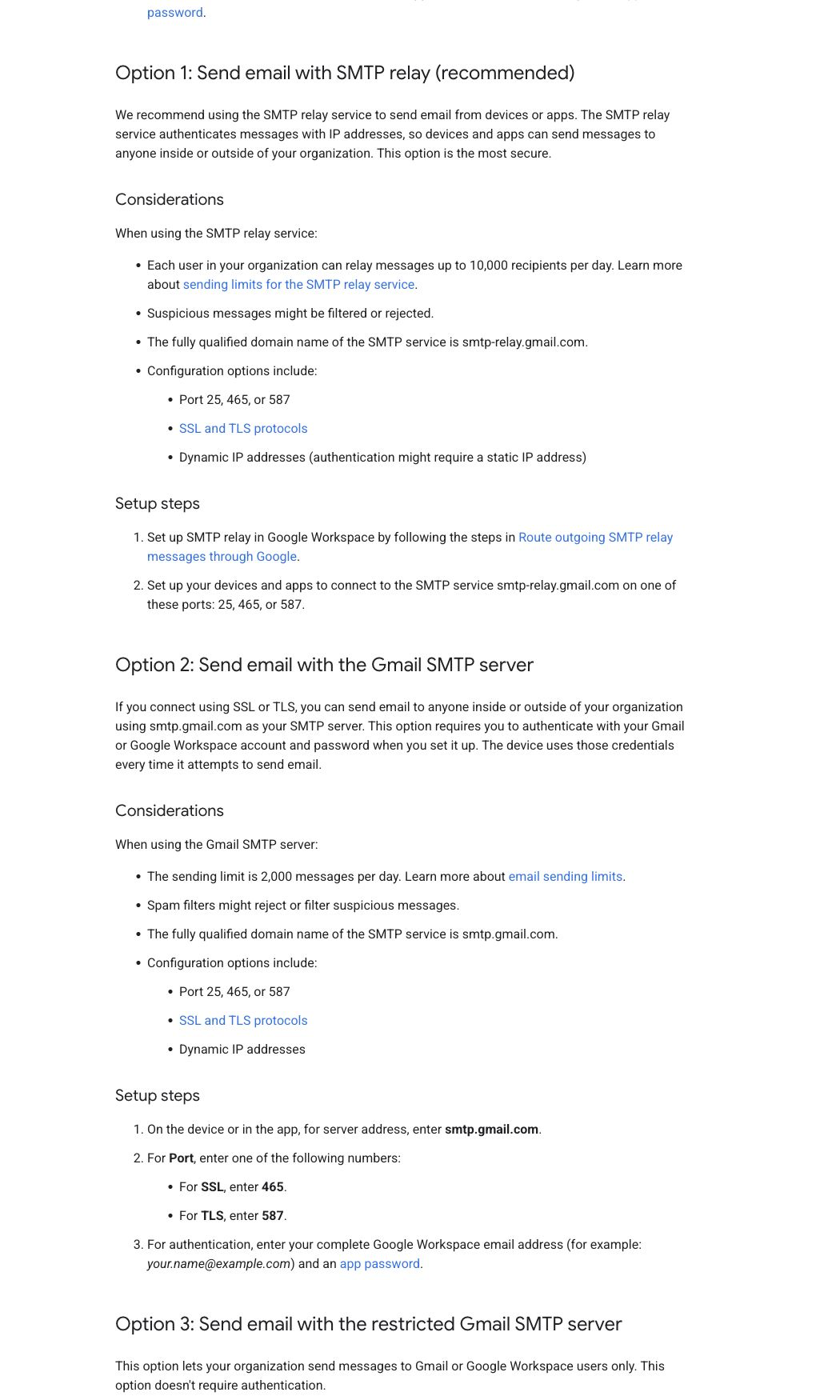
Choose the method from the account and sending pattern, not the port alone.
If the software supports a current Google OAuth flow, use the product's official Google integration instructions rather than translating an app-password example into OAuth parameters. OAuth clients, scopes, consent, and tokens are account-specific and are outside a generic host-and-port table.
How do I configure the Gmail SMTP server?
1. Fix the test identity and scope
Use one controlled mailbox and one visible From address. For a worked example, suppose the application sends from alerts@example.com, authenticates as alerts@example.com, sends fewer than 300 transactional notices per day, and will deliver one test to a Gmail recipient and one mailbox the organization controls. Do not start with a production mailing list.
2. Enter the endpoint and transport values
For authenticated submission, enter host smtp.gmail.com, port 587, and STARTTLS or the client's equivalent TLS-upgrade setting. If the client specifically requires implicit SSL, use port 465. Require authentication and enter the full account address as the username. Do not use port 25 for this worked authenticated-submission example.
3. Use an approved account credential
Follow the account's current authentication policy. If Google and the application explicitly support an app password, create it for that application after 2-Step Verification is enabled and store it as a secret. Never paste a normal Google password into an unsupported device, commit an app password to a repository, or include it in a screenshot. If policy blocks the method, stop and select a supported integration or relay design.
4. Authorize the visible sender
Keep the authenticated mailbox and visible From address the same for the first test. A different From identity may require a verified alias, delegation, relay policy, or application-specific authorization. A 235 authentication success or SMTP 250 acceptance does not grant Send As permission for an arbitrary domain.
5. Send one traceable message
Use a subject such as SMTP validation 2026-08-25 14:30 UTC and include a non-secret run identifier such as gmail-smtp-630184. Record the application time, endpoint, port, From, recipient, and server response. Do not include credentials or customer data in the record.
How does this setup affect DMARC?
SMTP authentication answers whether the application may use Google's submission service. DMARC answers whether an authenticated domain aligns with the domain in the visible From address. They are different controls.
If Google Workspace is the only sender for example.com, Google's SPF instructions give v=spf1 include:_spf.google.com ~all as the starting record (Google Workspace SPF setup). A domain with other senders must build one combined SPF policy within the lookup budget instead of publishing a second SPF record.
Google Workspace DKIM uses a tenant-generated TXT value. Google's setup flow offers a 2048-bit key by default and documents selector google as the default. Copy the account-generated hostname and value from your Admin console. Never reuse the example value or another account's key. Google notes that a newly activated Gmail tenant may need 24 to 72 hours before a DKIM key can be generated (Google Workspace DKIM setup).
The current vendor-published workflow shows where the tenant generates the record.
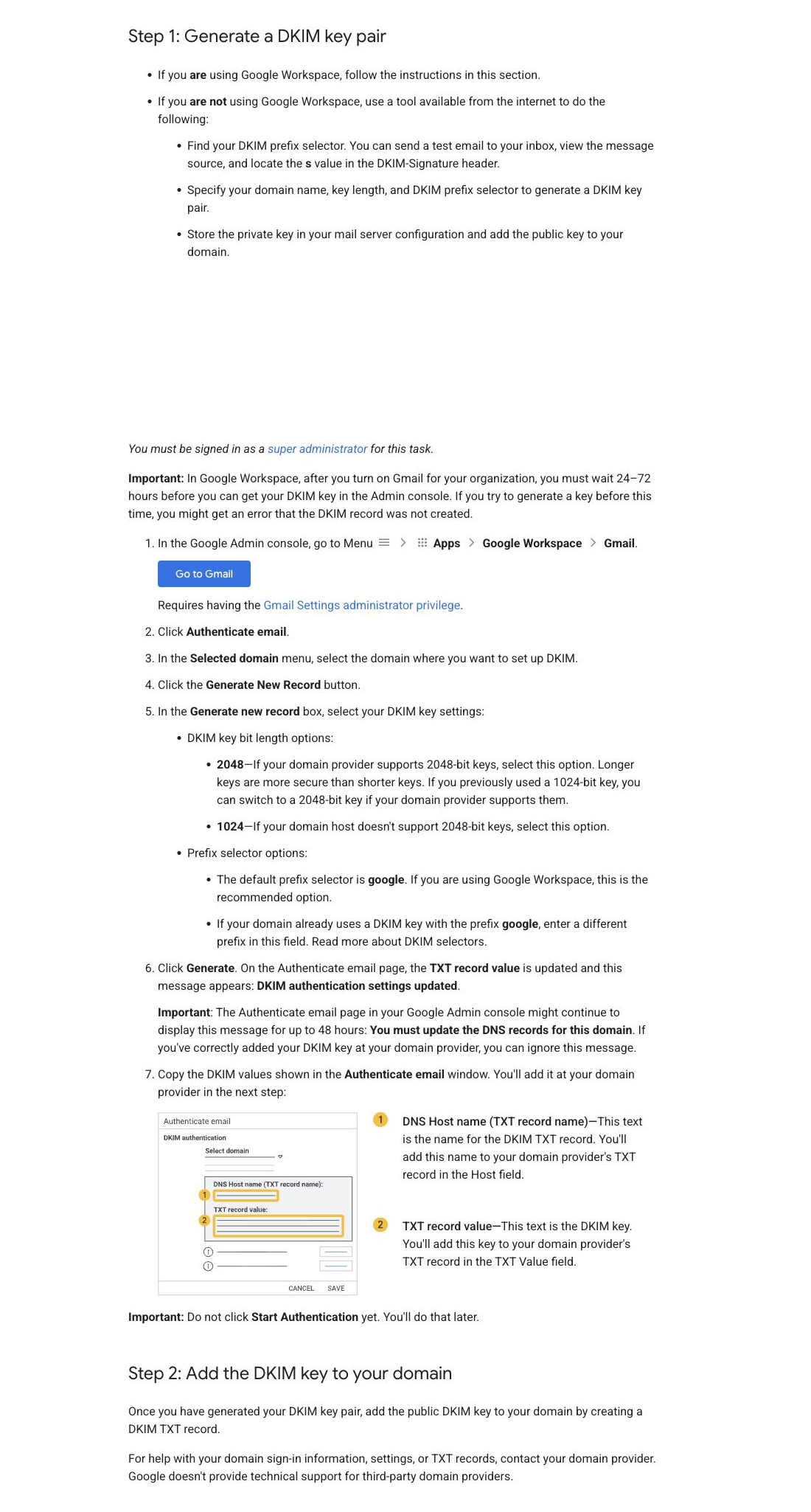
Use account-generated values. Do not copy the schematic's sample record.
RFC 9989 defines relaxed and strict alignment for DKIM and SPF. DMARC passes when at least one supported mechanism authenticates and its identifier aligns with the RFC5322 From domain (RFC 9989, Section 4.4). A Google-signed message can therefore be accepted by SMTP yet fail DMARC for example.com if neither the DKIM signing domain nor the SPF-authenticated domain aligns.
How do I validate the setup?
Check DNS values
Query the SPF, DKIM selector, and _dmarc.example.com records from more than one public resolver. Compare the exact tenant-generated DKIM hostname and value. DNS presence alone does not prove Google is signing the test message.
Check vendor status
In the Google Admin console, confirm that the intended domain shows DKIM authentication enabled after DNS is published. Google's instructions say to use Start authentication and describe the status Authenticating email with DKIM (Google DKIM validation). Labels can change, so use current tenant guidance rather than a remembered screenshot.
Check the delivered message headers
Open the raw source of the controlled message and locate the receiver-added Authentication-Results. RFC 8601 Section 1.2 explains why a field added outside the receiver's trust boundary is not authoritative (RFC 8601, Section 1.2). Confirm spf=pass, dkim=pass, and dmarc=pass, then compare smtp.mailfrom, header.d, and header.from rather than reading pass tokens alone. Use Palisade's Email Header Analyzer to parse headers you supply; it cannot test the credential or guarantee placement.
Check DMARC reporting and delivery
Confirm that the authorized Google source appears in aggregate DMARC data for the From domain and that unexpected sources do not increase after launch. Then compare Gmail delivery and placement for the intended traffic. Google requires SPF or DKIM for all senders to personal Gmail accounts and SPF, DKIM, and DMARC for senders over 5,000 messages per day to Gmail accounts under its current guidelines (Google email sender guidelines).
If the one-message test passes but the team still cannot see every production source, Palisade's DMARC Agent can organize aggregate DMARC evidence across the domain. Smart DNS Deployment can write only DNS changes a human has approved. It does not configure Google credentials, test an unsent application, or guarantee placement. Start with Palisade after the controlled header test establishes that ongoing visibility is the remaining problem.
Troubleshooting
Authentication is rejected
Confirm the full account address, approved credential type, 2-Step Verification and app-password eligibility, and any Workspace policy. Do not repeatedly retry a locked or policy-blocked credential.
TLS negotiation fails
Match port 587 with STARTTLS and port 465 with implicit SSL. Update a client that cannot support the required transport security rather than disabling certificate or TLS verification.
The message sends but DMARC fails
Compare the visible From domain with header.d and smtp.mailfrom. Repair signing, alias authorization, or sender configuration at the actual source. The Gmail authentication guide covers DNS controls.
The server accepts mail but delivery degrades
Check rate and daily limits, complaints, sending changes, and Google Postmaster evidence. Server acceptance is not a placement promise. Do not rotate ports or rewrite content randomly while leaving the sending source unexplained.
When does this setup not apply?
The worked procedure covers the authenticated Gmail SMTP server. This guide compares the relay and restricted methods, but it does not provide a complete tenant relay-policy deployment, generic unauthenticated direct-to-MX delivery, high-volume marketing architecture, inbound Gmail settings, or consumer account recovery. A device that cannot meet the authenticated method's policy may need the administrator-controlled relay or the restricted internal-recipient path, not a weaker Gmail account.
Evidence
Sources and further reading
Questions readers ask
Frequently asked questions
Is smtp.gmail.com the Gmail SMTP host?
Yes. Google documents smtp.gmail.com for authenticated Gmail SMTP submission. Google Workspace SMTP relay uses the separate host smtp-relay.gmail.com and an administrator-controlled configuration.
Should I use port 587 for Gmail SMTP?
Yes, when the client supports STARTTLS. Google also documents port 465 for SSL. Match the security mode to the port instead of trying both without recording the result.
Can I use my normal Google password for SMTP?
No, not as a generic workaround. Use the authentication method allowed by the account, organization, and application. An app password requires eligible 2-Step Verification, while supported OAuth integrations have their own account-specific setup.
What are the three Google Workspace SMTP options?
Google names them the SMTP relay service, Gmail SMTP server, and restricted Gmail SMTP server. Relay uses administrator policy and IP-based authentication. The Gmail SMTP server uses a mailbox credential. The restricted server has no SMTP login but can address only Gmail or Google Workspace recipients.
Does a successful Gmail SMTP login make DMARC pass?
No. SMTP login authorizes submission. DMARC requires an SPF or DKIM authenticated identifier to align with the visible From domain on the delivered message.
Can personal Gmail use Google Workspace SMTP relay?
No. The relay service is a Google Workspace administrator feature. A personal Gmail account should use a supported Gmail account submission method and remain within that account's current policy and limits.

Written by
Samuel ChenardCEO & Co-Founder, Palisade
Samuel Chenard is the CEO and co-founder of Palisade, agentic DMARC software for IT teams and MSPs, from one domain to thousands.
More from Samuel →