Set up DMARC for Office 365 (Microsoft 365)
 ChatGPT
 Claude
 Gemini
 Perplexity
 Grok
GrokIn brief
Set up DMARC for Office 365 and Microsoft 365: publish a monitoring record, validate aligned SPF or DKIM, and raise policy only after report evidence.

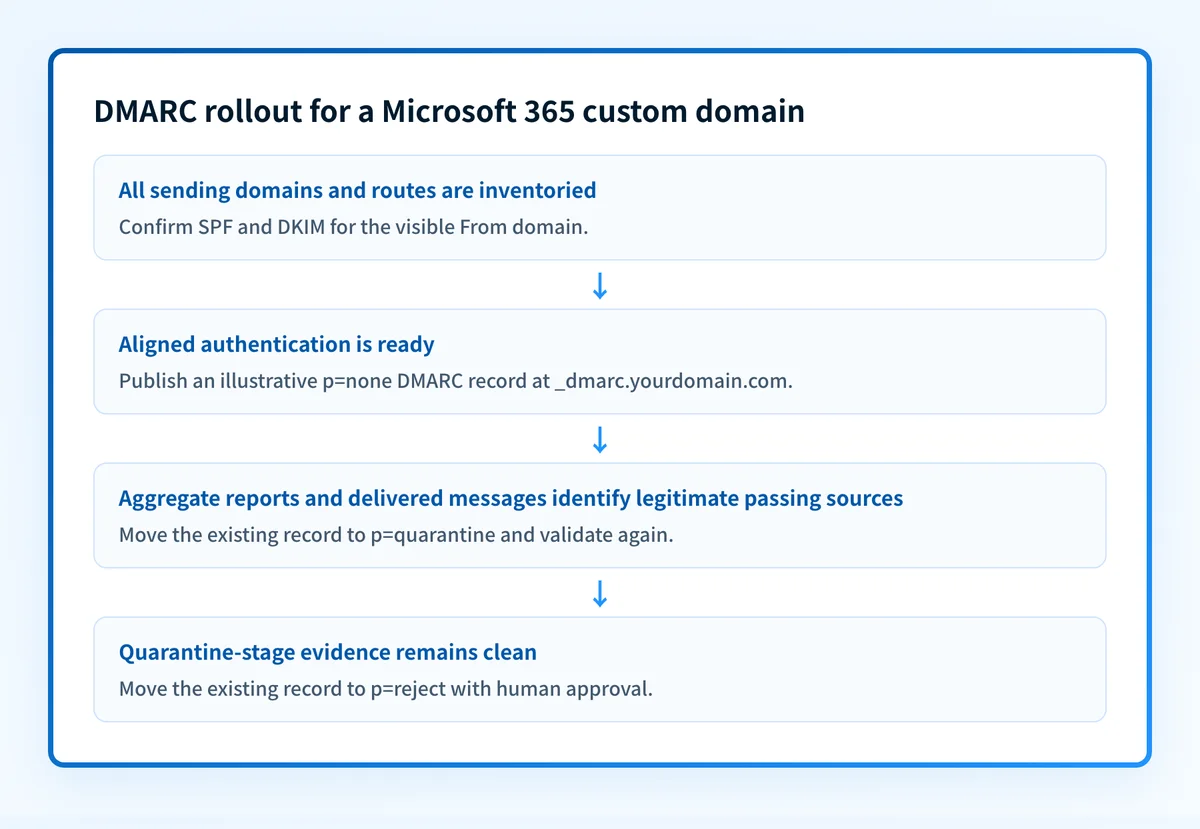
To enable DMARC for Microsoft 365, still widely called Office 365, publish a DMARC TXT record for each sending custom domain in public DNS after confirming that its production mail can pass aligned SPF or DKIM. Begin with the monitoring policy, p=none, review aggregate-report and delivered-message evidence, then move to p=quarantine and p=reject only when legitimate senders are accounted for. Microsoft documents DMARC configuration for custom domains in its DMARC configuration guidance.
At a glance
Quick takeaways
- Microsoft 365 custom-domain DMARC policies are published in the domain's public DNS zone.
- DMARC passes when SPF or DKIM passes and aligns with the visible From domain.
- Start active sending domains at
p=noneso aggregate reports can reveal legitimate senders. - Do not publish more than one DMARC TXT record at the same
_dmarcowner name. - A public DNS result does not prove that a Microsoft 365 message passes DMARC.
- Move from monitoring to quarantine and reject only after report and message evidence supports the change.
Scope and prerequisites
This setup applies to a custom domain that sends mail through Microsoft 365, such as yourdomain.com. It does not create a DMARC policy through an Exchange admin setting. The record belongs in the authoritative public DNS zone for the visible From domain, as described in Microsoft's DMARC configuration guidance.
Before publishing the record, identify the domains and subdomains that appear in outbound From addresses. Include Microsoft 365 mailbox traffic, shared mailboxes, applications, ticketing systems, marketing platforms, and any outbound gateway. Each production route needs separate validation because a domain's DNS record does not prove how every sender authenticates.
Assign clear owners for:
- The DNS zone change.
- Microsoft 365 domain and DKIM configuration.
- The shared mailbox or service that receives aggregate reports.
- Test-message delivery and header inspection.
- Approval for policy changes and rollback.
Set a rollback condition before changing policy. If a legitimate production source fails DMARC after a policy increase, return to the last known-good policy while you correct that sender and gather new evidence.
Do not replace an existing DMARC record without reviewing it first. A domain should publish one DMARC record at _dmarc; adding a second TXT value can produce an invalid or ambiguous result for receivers.
For background on policy tags and alignment, use the Palisade DMARC learning hub.
Choose the implementation approach
Use the domain's sending role to choose the first policy:
- For an active domain with known and unknown senders, publish
p=noneand collect evidence before enforcement. - For a domain that is registered but must never send mail, use a restrictive policy only after confirming that no legitimate source uses it.
- For a subdomain with a distinct mail stream, publish and validate its own DMARC record when you need a separate policy or reporting scope.
- For a parent domain whose subdomains do not publish their own records, understand that DMARC policy inheritance can affect those subdomains. Validate their actual sending use before relying on the parent policy.
none, quarantine, and reject. The safe sequence for an active Microsoft 365 domain is monitoring first, then quarantine, then reject. Do not treat this as a calendar-based rollout. Advance only when aggregate reports and production-path messages show that legitimate mail authenticates and aligns.
If aggregate reports should go to an address outside the protected domain, check the external-report authorization requirements in RFC 9989. An external reporting destination may need an authorization record before receivers send reports to it.
How to configure DMARC for Office 365 and Microsoft 365
1. Inventory the domains and production senders
Create an inventory for each visible From domain. Record the Microsoft 365 tenant or mail route, expected SPF identity, expected DKIM signing domain, DNS owner, and a test recipient for each route.
Keep Microsoft 365 mailbox traffic separate from other senders that use the same From domain. A CRM or transactional service can use the same brand domain while authenticating through different infrastructure.
2. Confirm SPF and DKIM are ready for the domain
Look up the domain's published TXT records to confirm it has the intended SPF record, and check that Microsoft 365 DKIM signing is configured for the custom domain. Microsoft directs organizations to configure SPF and DKIM before deploying DMARC for sending domains in its DMARC configuration guidance.
Do not merge records by guesswork. SPF has one policy record per domain, and DMARC has one record at its owner name. Preserve the existing SPF value and update it only after reviewing every authorized sender.
3. Publish an initial monitoring record
Create one TXT record at _dmarc.yourdomain.com. In many DNS consoles for yourdomain.com, the host field is _dmarc, but confirm whether the console appends the zone name automatically.
The following record is illustrative only. Replace the report address with a mailbox or reporting service your organization controls.
_dmarc.yourdomain.com TXT "v=DMARC1; p=none; rua=mailto:dmarc-reports@yourdomain.com"The p=none policy asks receivers to monitor DMARC evaluation without requesting quarantine or rejection. The rua tag requests aggregate reports. Record syntax and policy behavior are defined in RFC 9989.
Do not copy an address, authorization value, or DNS host from another organization. If the report address uses another domain, obtain the required authorization from the owner of that destination domain.
4. Verify the published DNS answer
Query the fully qualified record name at the authoritative DNS provider and with at least one public resolver. Confirm that the answer contains one intended DMARC policy beginning with v=DMARC1, the tag that identifies a DMARC record.
dig +short TXT _dmarc.yourdomain.comA resolver can show cached data after a DNS update. Compare the expected value with the authoritative answer before changing the record again. A TXT lookup proves only public DNS publication. It does not show whether Microsoft 365 signs a new message correctly or whether a receiver will accept the message.
5. Send a new message through Microsoft 365
Send a new message from the exact Microsoft 365 mailbox and custom From domain under review. Deliver it to a mailbox where you can inspect the full received headers.
Look for the receiver's Authentication-Results header. RFC 8601 defines Authentication-Results and explains that its results are assertions made by the receiving system. Confirm the delivered message reports dmarc=pass and that the passing SPF or DKIM identity aligns with the visible From domain.
An old message cannot validate this configuration. Send after the DNS and Microsoft 365 signing state are in place.
6. Review reports before increasing policy
Allow normal traffic to generate aggregate-report evidence. Compare reporting sources and domain identifiers with the sender inventory. Investigate legitimate sources that fail alignment before requesting enforcement. Reports show sending sources and outcomes over time, not tenant configuration. Office 365 DMARC monitoring covers how the DNS, message, and report layers differ.
When the evidence is clean, update the existing DMARC record from p=none to p=quarantine. Repeat the DNS, delivered-message, and report checks. Move to p=reject only after quarantine-stage evidence shows that legitimate senders remain accounted for.
How to validate the setup
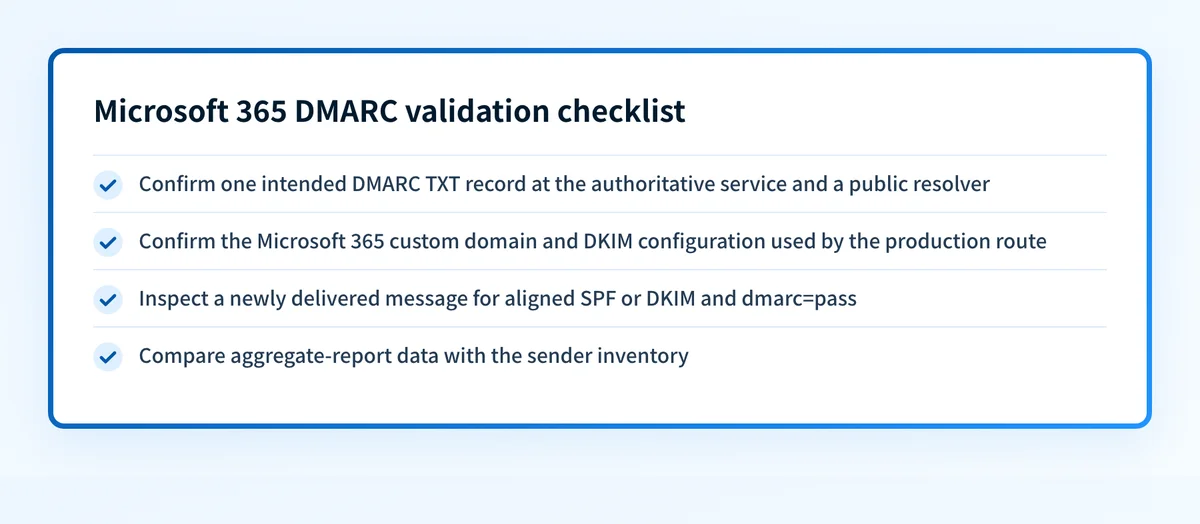
Validation has four separate layers:
- DNS: query
_dmarc.yourdomain.comat the authoritative service and a public resolver. Confirm one intended DMARC TXT record. - Microsoft 365 sender state: confirm the custom domain and its DKIM configuration are the ones used by the production mailbox route. A green configuration status is useful evidence, but it is not message evidence.
- Delivered message: inspect a newly delivered production-path message. Confirm the receiver reports an aligned SPF or DKIM pass and
dmarc=pass. - DMARC reporting: compare aggregate-report data with the sender inventory after normal traffic accumulates. This identifies sources a one-message test did not cover.
Record the result for each route:
from_domain: yourdomain.com
sending_route: Microsoft 365 mailbox
dns_record: v=DMARC1; p=none
delivered_message: dmarc=pass
aligned_identifier: example.com
aggregate_report_status: reviewed
policy_stage: monitoring
Use the DMARC checker to inspect the public record before raising policy. The checker cannot confirm a tenant's DKIM state, a specific delivered message, future receiver decisions, or every production sending path.
Troubleshooting
The DMARC record does not resolve
Check the DNS console's handling of zone suffixes. Entering _dmarc.yourdomain.com into a console that automatically appends yourdomain.com can create the wrong owner name. Query the full record owner and compare it with the DNS provider's displayed name.
Also check for multiple TXT records at _dmarc. DMARC expects one policy record at the queried owner name.
SPF or DKIM passes but DMARC fails
Inspect alignment. SPF uses the authenticated MAIL FROM identity, while DKIM uses the signing d= domain. A message can pass SPF or DKIM and still fail DMARC when that identity does not align with the visible From domain. RFC 9989's alignment rules explain this distinction.
Test the exact Microsoft 365 path again after correcting the domain configuration. Do not infer alignment from a DNS record alone.
Legitimate Microsoft 365 mail fails after a policy increase
Return to the last known-good DMARC policy while you investigate the affected sender. Preserve the evidence: the published record, message headers, route owner, and report rows. Then correct the SPF, DKIM, or visible From-domain mismatch before retrying the policy change.
If recipients report Microsoft 365 delivery failures, compare the message evidence with guidance on Microsoft 365 outbound blocking and Microsoft 365 550 5.7.x rejections. Those outcomes can require receiver-specific evidence beyond a DMARC DNS lookup.
Aggregate reports do not arrive
Confirm the rua address exists and can receive mail. If it is external to the protected domain, verify the applicable authorization record. Reports are generated by participating receivers, so an empty mailbox does not prove that the DMARC record is unused or that all senders pass.
Check the DMARC record before raising the policy
Use the Palisade DMARC checker to inspect the public record that receivers can resolve. Compare the result with your intended DNS value and the delivered-message header before changing from monitoring to quarantine or reject.
Check the Microsoft 365 domain's DMARC record
A public lookup does not identify every sender using the domain, repair an alignment failure, monitor later DNS drift, or predict a receiver's private delivery decision. For an ongoing Microsoft 365 rollout across multiple domains, Palisade is agentic DMARC software that analyzes aggregate-report data, identifies sources and alignment issues, creates prioritized remediation tickets, and proposes the next policy step for human review. It does not autonomously change the DMARC policy.
Evidence
Sources and further reading
Questions readers ask
Frequently asked questions
Do I enable DMARC in the Microsoft 365 admin center?
No. For a Microsoft 365 custom domain, publish the DMARC TXT record in the domain's public DNS zone. Microsoft documents the DNS-based configuration in its DMARC guidance.
Should I start Microsoft 365 DMARC with p=reject?
No. Start an active sending domain with p=none while you identify legitimate sending sources and verify alignment. Move to quarantine and reject after aggregate reports and delivered-message tests support each change.
Does passing SPF mean Microsoft 365 DMARC is configured correctly?
No. SPF must both pass and align with the visible From domain to provide a DMARC pass. DKIM can also provide the aligned pass when its signing domain aligns.
Can one DMARC record cover Microsoft 365 subdomains?
Only when a subdomain does not publish its own DMARC record and the parent policy applies to it. Review each subdomain's sending use before relying on inherited policy, because a subdomain can have separate senders and risk.
Does a DMARC checker prove Microsoft 365 mail will be delivered?
No. A DMARC checker can inspect public DNS. It cannot prove that Microsoft 365 uses the expected signing configuration, that every sending route aligns, or that a recipient will make a particular delivery decision.
Check your domain against Microsoft’s sender requirements
Enter your domain.

Written by
Samuel ChenardCEO & Co-Founder, Palisade
Samuel Chenard is the CEO and co-founder of Palisade, agentic DMARC software for IT teams and MSPs, from one domain to thousands.
More from Samuel →