Microsoft
Set up DMARC for Microsoft 365 (Office 365)
 ChatGPT
 Claude
 Gemini
 Perplexity
 Grok
In brief
Set up DMARC for Microsoft 365 and Office 365: publish a p=none record in DNS, confirm aligned SPF or DKIM, then raise policy only on report evidence.

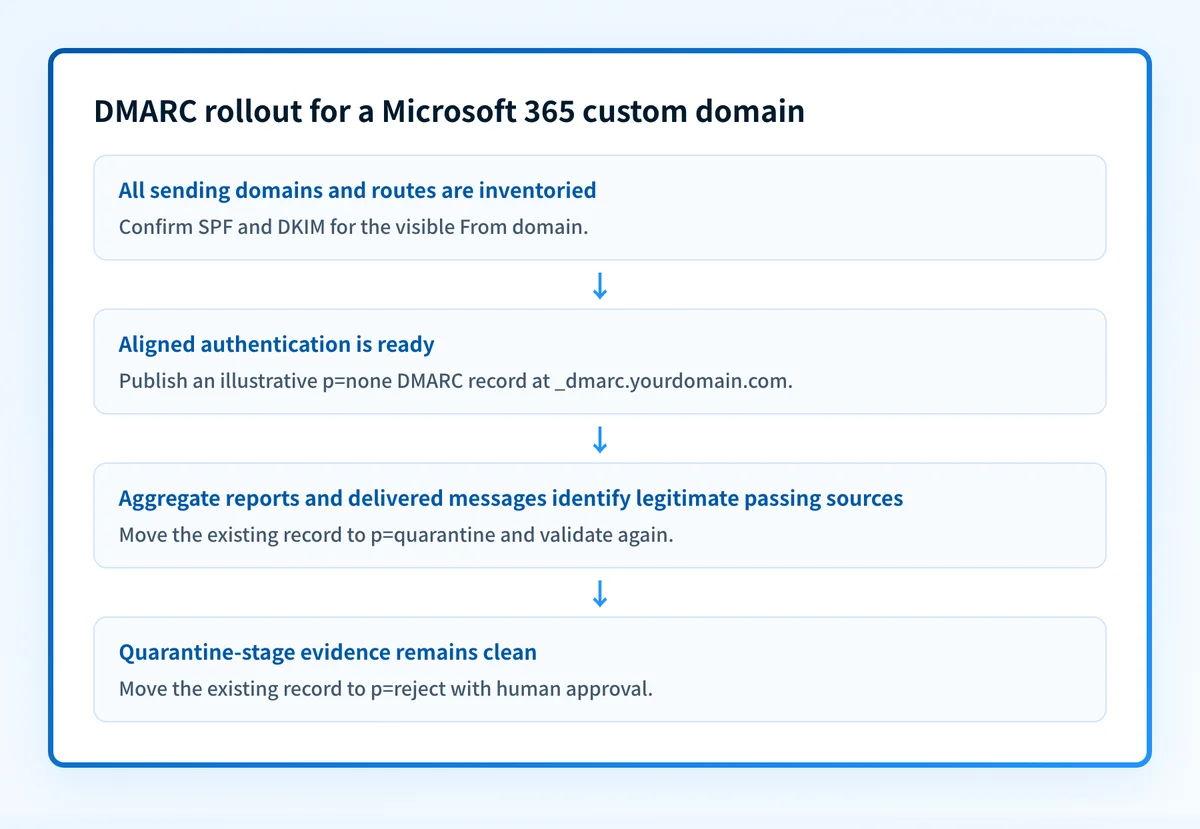
To set up DMARC for Microsoft 365, still widely called Office 365, publish one DMARC TXT record at _dmarc for each custom domain you send from, in that domain's public DNS zone, after its mail passes aligned SPF or DKIM. Start at p=none, read the aggregate reports and a real delivered message, then move to p=quarantine and p=reject once every legitimate sender is accounted for. Microsoft has no admin setting for a custom domain's DMARC record; you create it at your DNS host, as its DMARC configuration guidance states. The one exception is the *.onmicrosoft.com domain, whose record you add in the Microsoft 365 admin center.
At a glance
Quick takeaways
- A custom domain's DMARC record lives in its public DNS zone, not in Exchange or the admin center.
- An
*.onmicrosoft.comdomain gets its DMARC record in the Microsoft 365 admin center instead. - DMARC passes when SPF or DKIM passes and aligns with the visible From domain.
- Start an active sending domain at
p=noneso aggregate reports reveal every legitimate sender. - Publish exactly one DMARC TXT record at each
_dmarcowner name. - A DNS lookup proves publication, not that a Microsoft 365 message passes DMARC.
Custom domain or onmicrosoft.com?
Which setup you follow depends on the domain in the From address.
A custom domain such as yourdomain.com needs SPF and DKIM configured for it before DMARC. Microsoft says to set up SPF and configure DKIM signing for every custom domain and subdomain that sends mail first. The DMARC record then goes in at your registrar or DNS host. Microsoft 365 has no portal or PowerShell cmdlet that manages it for you.
The *.onmicrosoft.com domain every tenant starts with, which Microsoft calls the MOERA domain, already has SPF and DKIM configured. Its DMARC record is the one you add inside Microsoft 365, and the steps are in the onmicrosoft.com section below.
Before you publish anything
List every domain and subdomain that appears in an outbound From address. Include Microsoft 365 mailboxes, shared mailboxes, applications, ticketing systems, marketing platforms and any outbound gateway. Each route needs its own check, because one domain's DNS record says nothing about how each sender authenticates.
Name an owner for each of these:
- The DNS zone change.
- Microsoft 365 domain and DKIM configuration.
- The shared mailbox or reporting service that receives aggregate reports.
- Test-message delivery and header inspection.
- Approval for policy changes and rollback.
Decide your rollback condition before you change policy. If a legitimate source fails DMARC after a policy increase, go back to the last known-good policy while you fix that sender.
Review any existing DMARC record before you replace it. A domain publishes one DMARC record at _dmarc, and a second TXT value there leaves receivers with an invalid or ambiguous answer.
For background on policy tags and alignment, use the Palisade DMARC learning hub.
Choose the first policy for each domain
Pick the starting policy from what the domain does:
- An active domain with known and unknown senders starts at
p=noneand collects evidence before enforcement. - A registered domain that never sends mail, a parked domain, gets
v=DMARC1; p=reject;once you confirm nothing legitimate uses it. Microsoft gives that record for parked domains and says the same applies to your*.onmicrosoft.comdomain when you do not send from it. - A subdomain with its own mail stream can publish its own record when it needs a separate policy or reporting address.
- A subdomain without its own record inherits the parent domain's policy. Check what each subdomain actually sends before you rely on that.
If aggregate reports go to an address in a different domain, that domain must publish an authorization record before receivers will send to it. RFC 9989 defines the check.
How to set up DMARC for a Microsoft 365 custom domain
1. Inventory the domains and production senders
Record each visible From domain with its Microsoft 365 tenant or mail route, expected SPF identity, expected DKIM signing domain, DNS owner and a test recipient.
Keep Microsoft 365 mailbox traffic separate from other senders on the same From domain. A CRM or transactional service can use your brand domain while authenticating through different infrastructure.
2. Confirm SPF and DKIM are ready
Look up the domain's published TXT records to confirm it has the intended SPF record. Then check that Microsoft 365 DKIM signing is turned on for the custom domain, so the signing d= domain aligns with your From address.
Do not merge records by guesswork. A domain has one SPF policy record and one DMARC record. Keep the existing SPF value and change it only after reviewing every authorized sender.
3. Publish a monitoring record
Create one TXT record at _dmarc.yourdomain.com. In many DNS consoles the host field takes just _dmarc, because the console appends the zone name. Check which form yours expects.
This record is an example. Replace the report address with a mailbox or reporting service your organization controls.
_dmarc.yourdomain.com TXT "v=DMARC1; p=none; rua=mailto:dmarc-reports@yourdomain.com"p=none asks receivers to evaluate DMARC and report, without quarantining or rejecting anything. The rua tag asks for aggregate reports. Microsoft recommends a dedicated shared mailbox or Microsoft 365 Group for them, not a person's inbox.
4. Check the published DNS answer
Query the full record name at your authoritative DNS provider and at one public resolver. The answer should hold one DMARC policy that begins with v=DMARC1, the tag that identifies a DMARC record.
dig +short TXT _dmarc.yourdomain.comA resolver can serve cached data for a while after a change. Compare against the authoritative answer before you edit the record again.
5. Send a new message through Microsoft 365
Send a new message from the exact mailbox and custom From domain you are setting up. Deliver it to a mailbox where you can read the full headers.
Find the receiver's Authentication-Results header. RFC 8601 defines that header as the receiving system's own assertion. Look for dmarc=pass, and confirm the SPF smtp.mailfrom domain or the DKIM header.d domain aligns with header.from. A message sent before the change cannot validate it.
6. Read the reports before raising policy
Let normal traffic produce aggregate reports, then compare the sources in them with your sender inventory. Fix legitimate sources that fail alignment before you ask for enforcement. Office 365 DMARC monitoring explains how the DNS, message and report layers differ.
When the evidence is clean, change the existing record from p=none to p=quarantine and repeat the DNS, message and report checks. Microsoft's guidance also describes stepping the pct= value from 10 up to 100. The pct tag comes from RFC 7489, and RFC 9989 retires it, so receivers that follow the newer standard may ignore it, and each step still has to be driven by report evidence. Move to p=reject only after the quarantine stage stays clean.
Add DMARC for your onmicrosoft.com domain
Microsoft documents these steps for the *.onmicrosoft.com domain in its DMARC configuration guidance:
- In the Microsoft 365 admin center, open Settings, then Domains (select Show all first if Settings is hidden).
- Select the
*.onmicrosoft.comdomain, then open its DNS records tab. - Select Add record. Keep the type as TXT, enter
_dmarcas the TXT name, and enterv=DMARC1; p=rejectas the value, with arua=mailto:address added if you want reports. - Leave the TTL at one hour and save.
p=reject is Microsoft's own value here, because this domain is usually not a From address anyone should see. If people or systems do send from it, start that domain at p=none like any other active domain.
How to validate the setup
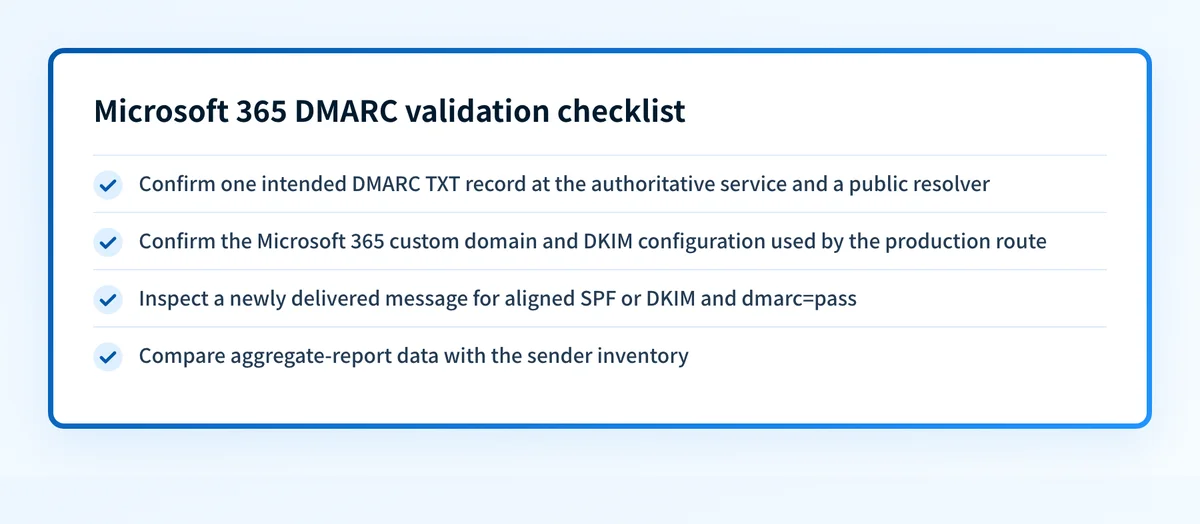
Validation has four separate layers, and each one proves something different:
- DNS: one intended DMARC TXT record at
_dmarc, the same at the authoritative service and a public resolver. - Microsoft 365 sender state: the custom domain and DKIM configuration are the ones the production mailbox route actually uses. A green status is useful, but it is not message evidence.
- Delivered message: a new message from the production route shows an aligned SPF or DKIM pass and
dmarc=pass. - Aggregate reports: after normal traffic builds up, the sources in the reports match your sender inventory. This finds the routes a one-message test missed.
Keep a short record for each route:
from_domain: yourdomain.com
sending_route: Microsoft 365 mailbox
dns_record: v=DMARC1; p=none
delivered_message: dmarc=pass
aligned_identifier: yourdomain.com
aggregate_report_status: reviewed
policy_stage: monitoring
Troubleshooting
The DMARC record does not resolve
Check how your DNS console handles the zone suffix. Typing _dmarc.yourdomain.com into a console that appends yourdomain.com creates _dmarc.yourdomain.com.yourdomain.com. Query the full owner name and compare it with what the console shows.
Also check for more than one TXT record at _dmarc. A DMARC lookup expects exactly one policy record there.
SPF or DKIM passes but DMARC fails
That is an alignment failure. SPF is checked against the MAIL FROM domain and DKIM against the signing d= domain. Either can pass for a domain that does not match your From address, and DMARC still fails. Microsoft's own example is a third-party service that uses its bounce domain for MAIL FROM and signs DKIM with its own domain. Fix it by having the service sign DKIM with your domain, or by moving its MAIL FROM onto your domain or a subdomain.
Send another message through the same route after the fix. Do not infer alignment from a DNS record.
A header shows dmarc=bestguesspass
Microsoft adds dmarc=bestguesspass when the From domain publishes no DMARC record, and infers a result. Publish an explicit record so every receiver evaluates the same policy.
Legitimate mail fails after a policy increase
Go back to the last known-good policy while you investigate. Keep the evidence: the published record, the message headers, the route owner and the report rows. Fix the SPF, DKIM or From-domain mismatch, then retry the change.
Microsoft adds one more reason to get this right before enforcing. Outbound Microsoft 365 mail that fails DMARC at the destination, from a domain at p=quarantine or p=reject, is routed through its high-risk delivery pool, with no override. If recipients report delivery failures, compare the message evidence with Microsoft 365 outbound blocking and Microsoft 365 550 5.7.x rejections.
Aggregate reports do not arrive
Confirm the rua mailbox exists and accepts mail. If it sits in another domain, check that domain publishes the authorization record. Reports come only from receivers that send them, and Microsoft says coverage is typically 70 to 90 percent of mail volume, so an empty mailbox does not prove the record is unused or that every sender passes.
Check the record before you raise the policy
Use the Palisade DMARC checker to read the public record receivers resolve, and compare it with your intended value and a delivered message's headers before you move from monitoring to quarantine or reject.
Check your Microsoft 365 domain's DMARC record
A lookup reads public DNS only. It cannot confirm your tenant's DKIM state, the result for a specific delivered message, a receiver's future decision, or every sending route that uses the domain. For a rollout across several domains, Palisade reads the aggregate reports, names each sending source, drafts the SPF and DKIM fixes it needs, and proposes the next policy step. You review and approve each change before it ships.
Evidence
Sources and further reading
- Microsoft: Set up DMARC to validate email in Microsoft 365
- Microsoft: Set up SPF for custom cloud domains
- Microsoft: Set up DKIM to sign mail from your cloud domain
- RFC 9989: Domain-based Message Authentication, Reporting, and Conformance
- RFC 8601: Authentication-Results header field
- Palisade DMARC checker
Questions readers ask
Frequently asked questions
Do I enable DMARC in the Microsoft 365 admin center?
Not for a custom domain. Its DMARC record is a TXT record you publish at your DNS host, and Microsoft 365 has no setting that creates it. The only DMARC record you add in the admin center is the one for your *.onmicrosoft.com domain, under Settings, Domains, DNS records.
Does Microsoft 365 require DMARC?
Microsoft 365 does not require DMARC as a tenant setting. The requirement comes from receivers: since May 5, 2025, Outlook.com rejects high-volume mail, more than 5,000 messages a day to its consumer addresses, with 550 5.7.515 unless it passes SPF and DKIM, with at least one aligned to the From domain, and publishes a DMARC record of at least p=none. Microsoft's sender authentication requirements cover the details.
Should I start Microsoft 365 DMARC with p=reject?
No, not for a domain that sends mail. Start at p=none while you find every legitimate source and confirm alignment, then move to quarantine and reject as the reports support it. p=reject from day one fits only a domain that never sends, such as a parked domain or an unused *.onmicrosoft.com domain.
Does passing SPF mean Microsoft 365 DMARC is configured correctly?
No. SPF has to pass and align with the visible From domain to give a DMARC pass. DKIM can give the aligned pass instead when its signing domain matches.
What are DKIM and DMARC in Office 365?
DKIM adds a signature to outgoing mail so a receiver can confirm the message came from your domain unaltered. DMARC reads the SPF and DKIM results, checks whether either aligns with your From domain, and tells receivers what to do when neither does. You turn DKIM on inside Microsoft 365; the DMARC record for a custom domain is a DNS change you publish yourself.
Can one DMARC record cover Microsoft 365 subdomains?
Yes, when a subdomain publishes no record of its own, the parent's policy applies to it. Each subdomain that sends mail still needs an SPF or DKIM identity that aligns with it, either its own or, under the default relaxed alignment, the parent domain's. Check what each one sends before relying on the inherited policy.
Does a DMARC checker prove Microsoft 365 mail will be delivered?
No. A DMARC checker reads the record your domain publishes in public DNS. It cannot show whether Microsoft 365 signs with the expected DKIM configuration, whether every sending route aligns, or how a recipient will treat your next message. Confirm those with the tenant's DKIM status, a delivered message's headers and your aggregate reports.
Does Microsoft 365 send DMARC reports for mail it receives?
Microsoft 365 sends aggregate reports to any domain with a valid rua address, but only for mail received by organizations whose MX record points directly at Microsoft 365. If a third-party gateway or an on-premises hybrid server receives the mail first, that organization sends no aggregate reports. Microsoft 365 never sends forensic (failure) reports, even when a ruf address is published.
Check your domain against Microsoft’s sender requirements
Enter your domain.

Written by
Samuel ChenardCEO & Co-Founder, Palisade
Samuel Chenard is the CEO and co-founder of Palisade, agentic DMARC software for IT teams and MSPs, from one domain to thousands.
More from Samuel →