Provider deliverability · Microsoft 365 / Exchange Online
Why is Microsoft 365 blocking outbound emails?

By Samuel Chenard · CEO & Co-Founder, Palisade · Reviewed September 19, 2026
Microsoft 365 blocks outbound mail for three tenant-side reasons: a user or connector exceeded outbound sending limits and landed on the Restricted entities page; the tenant hit Exchange Online's service limits; or an onmicrosoft.com From domain passed the 100-external-recipient cap and Microsoft returned 550 5.7.236. Three more depend on how the receiving provider treats the mail once Microsoft has sent it: unsigned custom-domain mail, mail routed through the high-risk delivery pool, and mail sent through the relay pool.
The 30-second check
Start with the domain, because half of these blocks end there. The free Microsoft compliance checker tests your tenant's sending domain against the SPF, DKIM, and DMARC checks Microsoft and every major recipient now apply, and tells you which record is missing or misaligned before you go spelunking in the Defender portal.
Check your domain now
Enter your sending domain and the check runs instantly on the next page. Free, no signup.
Why Microsoft 365 is blocking your email
| Likely cause | What's happening |
|---|---|
| A user or connector is on the Restricted entities page | When an account exceeds Exchange Online's outbound sending limits or the thresholds in an outbound spam policy, Microsoft blocks it from sending (it can still receive) and lists it under Restricted entities in the Defender portal. Every send attempt then bounces with 550 5.1.8. Microsoft's restricted-entities documentation says the restriction is typically the result of a compromised account (checked 2026-07-17), and the pattern fits: one phished mailbox blasting spam, and the tenant's outbound mail stops. |
| Outbound mail was classified as spam and routed through the high-risk delivery pool | Exchange Online marks suspicious outbound messages as spam regardless of their spam confidence level and sends them from a separate IP pool reserved for low-quality mail, to keep the normal Microsoft 365 IPs off blocklists. Microsoft's own doc says delivery from that pool isn't guaranteed because many receiving systems refuse it. Your message technically left the tenant; it just left through the door recipients slam. |
| You hit Exchange Online's service sending limits | The fixed caps are 10,000 recipients per mailbox per 24 hours and 30 messages per minute via SMTP client submission, with up to 1,000 recipients on a single message. On top of that sits the Tenant External Recipient Rate Limit (TERRL), a license-based tenant-wide daily cap on external recipients; trial tenants get 5,000 a day. Distribution groups in personal contacts count each member individually, which is how a modest send hits the ceiling. |
| Your custom domain has no DKIM signing, so recipients reject the mail | Microsoft's DKIM documentation is blunt: currently, no DKIM signing occurs for outbound mail from custom domains until an admin enables it (checked 2026-07-17). Only the *.onmicrosoft.com domain is signed automatically. Pair that with a stale SPF record and your tenant's mail fails the sender requirements Gmail (February 2024) and Outlook.com (May 2025) now enforce, so the block arrives from the recipient's side. |
| You're still sending from the onmicrosoft.com domain | Microsoft throttles outbound mail from default onmicrosoft.com domains to 100 external recipients per organization in a rolling 24-hour window; past the cap, sends bounce with 550 5.7.236. The domain also carries zero reputation with recipients. New tenants and quick app integrations hit this constantly. |
| Forwarded or relayed mail is leaving through the relay pool | Mail forwarded or relayed through Microsoft 365 goes out via a special unpublished relay pool unless the outbound sender is in one of your accepted domains or SPF passed when the message arrived. Auto-forwards to external addresses and on-premises relay through connectors are the usual triggers; note the default outbound spam policy setting Automatic - System-controlled now disables external auto-forwarding outright. |
Confirm the pattern in Microsoft 365's own sender data
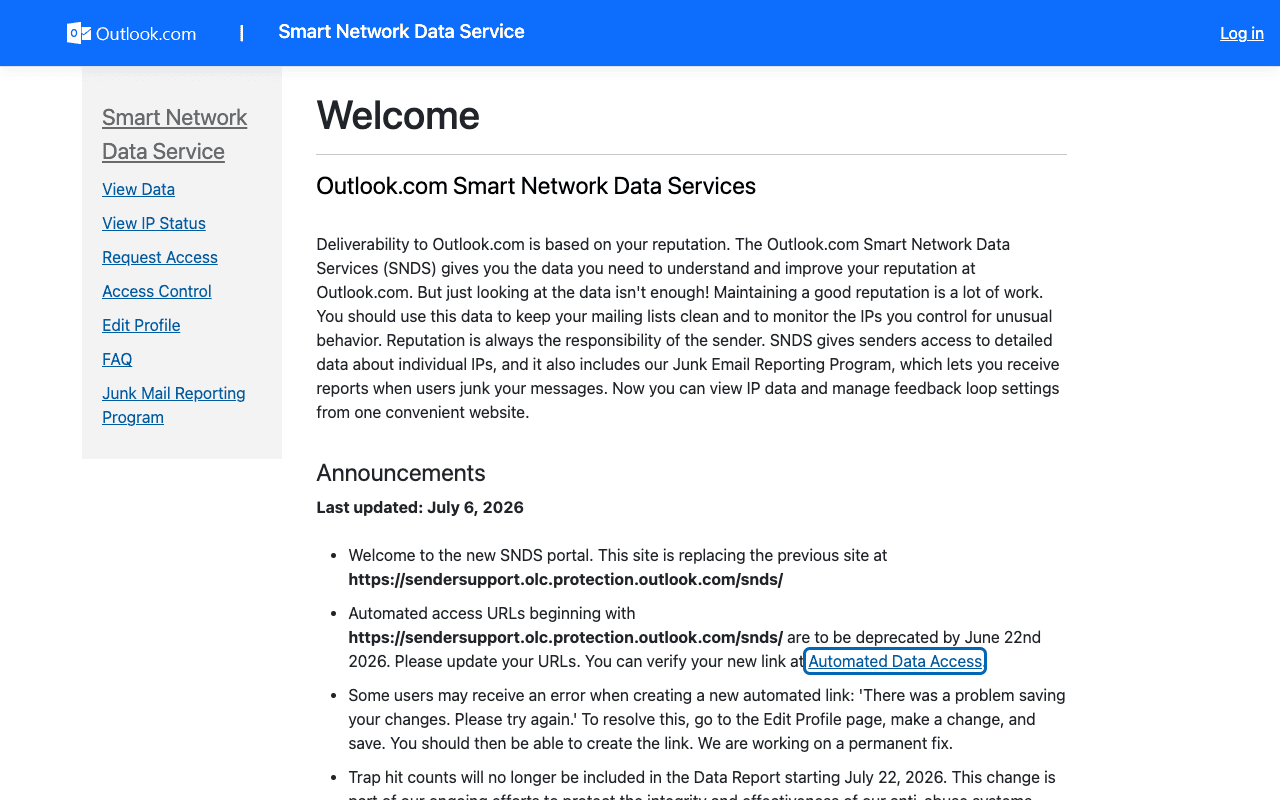
Microsoft 365 publishes its own sender data separately from your DNS. Use it to confirm the provider-side symptom after you have checked the public authentication records below.
Check the public signals before changing settings
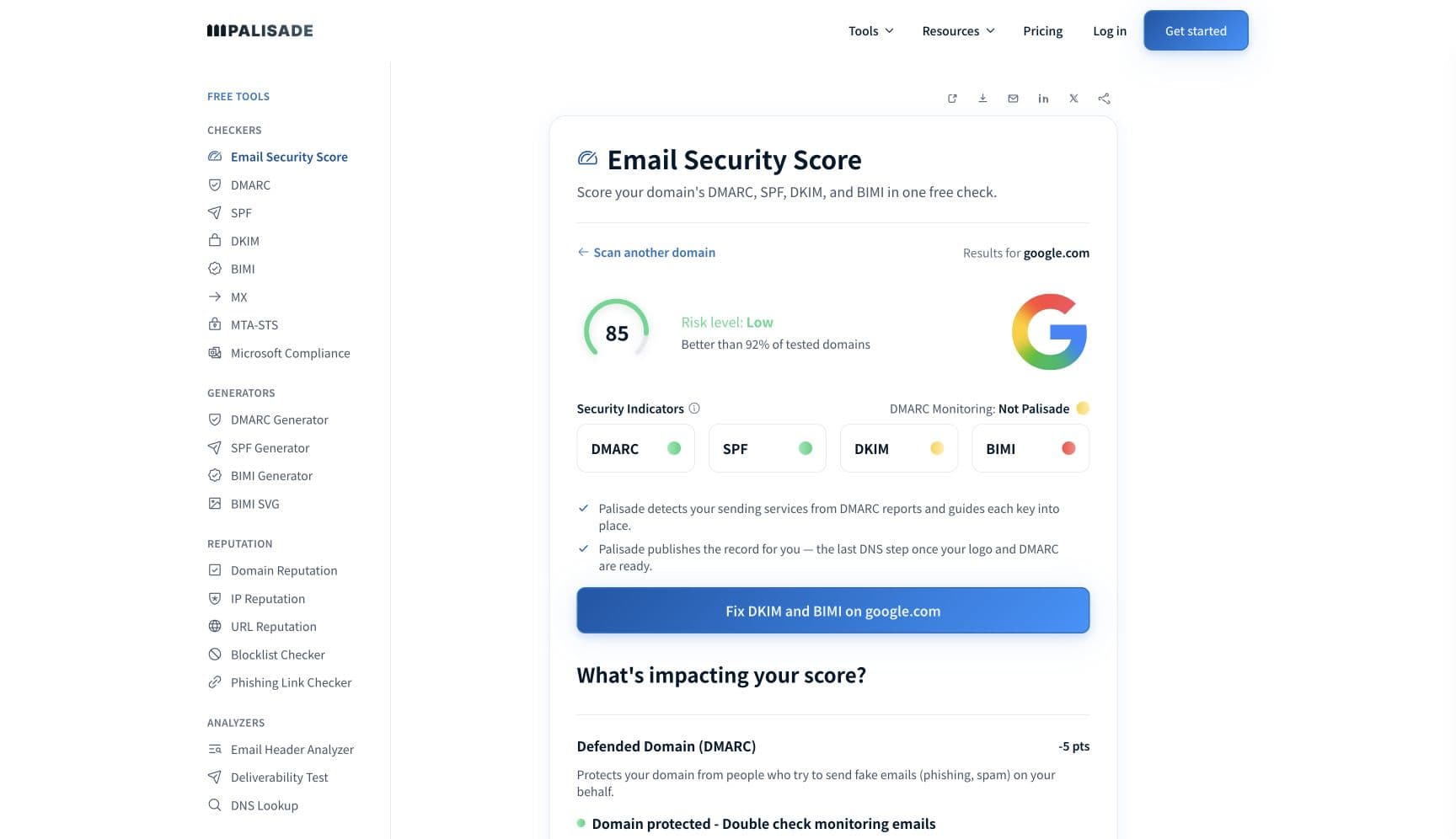
The free check above gives you a fast public baseline for how Microsoft 365 sees your mail. It does not replace the provider's private reputation or placement data, but it tells you whether the problem is visible from outside before you edit a sending platform.
How to fix it, step by step
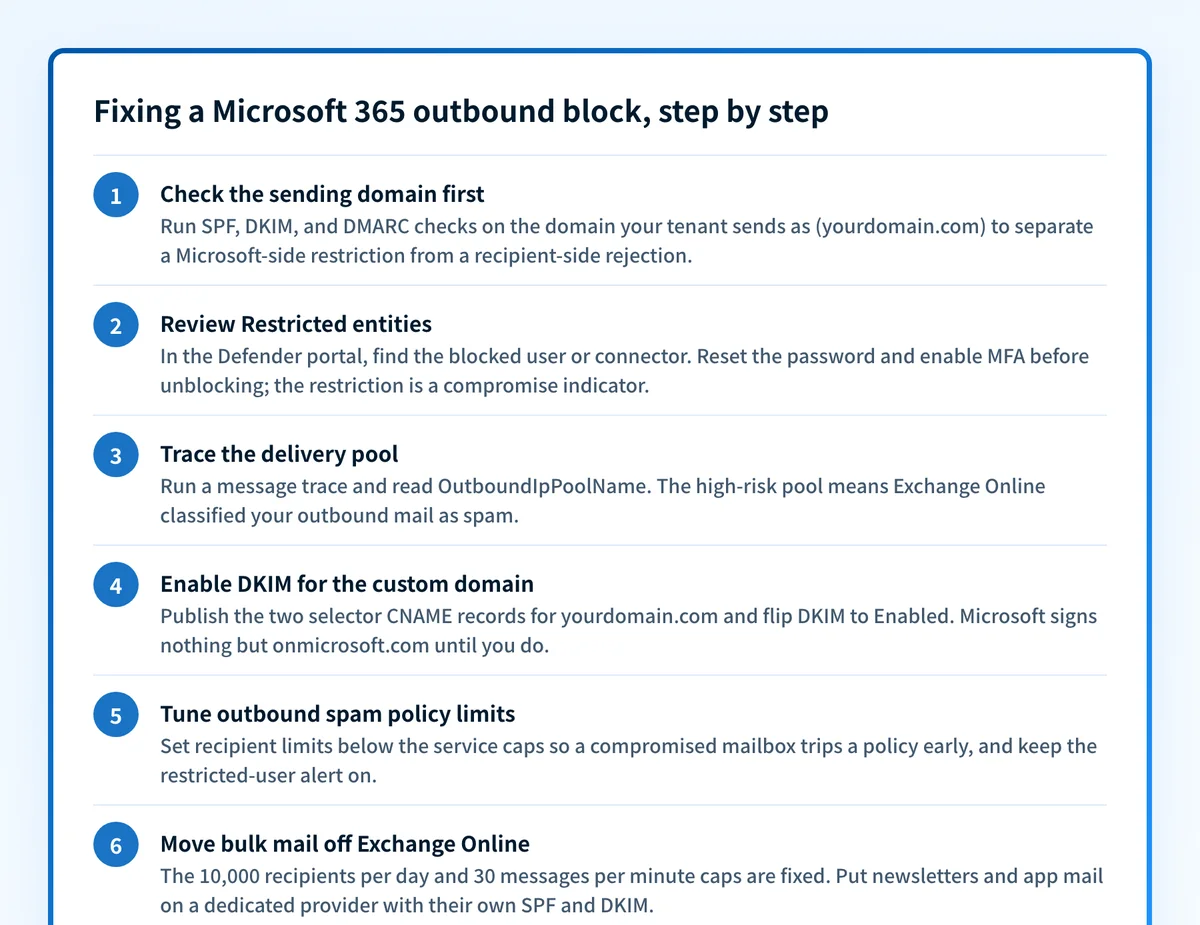
Run the Microsoft compliance check on your tenant's domain
Use the free checker above, or open the Microsoft compliance checker page directly. It verifies SPF, DKIM, and DMARC for the domain your tenant sends as and pinpoints which record is missing or misaligned, which separates a Microsoft-side restriction from a recipient-side authentication rejection in about thirty seconds.
Check the Restricted entities page, secure first, then unblock
In the Defender portal go to Email & collaboration, Review, Restricted entities (security.microsoft.com/restrictedentities). Before unblocking, reset the password, enable MFA, and follow Microsoft's compromised-account steps; the restriction exists because the account looks hijacked. Unblock via the flyout, or Remove-BlockedSenderAddress in PowerShell. Restrictions normally clear within an hour.
Run a message trace and read OutboundIpPoolName
In the Exchange admin center, trace a recent outbound message and check the OutboundIpPoolName property. If it names the high-risk pool, Exchange Online is classifying your mail as spam, and the fix is upstream: find the compromised or misbehaving sender, not the recipient's filter.
Enable DKIM for the custom domain and align SPF and DMARC
On the Email authentication settings page (security.microsoft.com/authentication), publish the two selector CNAME records for your domain and flip DKIM to Enabled; Microsoft won't sign custom-domain mail until you do. Confirm SPF covers every sending service with the SPF checker, then publish DMARC and verify with the DMARC checker.
Tune outbound spam policy limits and alerts
In the Defender portal's anti-spam policies, set external, internal, and daily recipient limits below the service caps (0 to 10,000; 0 means service defaults) so a compromised mailbox trips a policy long before it burns your tenant's reputation. Keep the User restricted from sending email alert on so admins hear about restrictions from Microsoft, not from users.
Move bulk and application mail off Exchange Online
The 10,000-recipient and 30-message-per-minute caps are fixed, and Microsoft's own guidance for higher volumes is Azure Communication Services or a dedicated provider. Put newsletters and automated sends on a subdomain with its own SPF and DKIM, then watch DMARC aggregate reports so the next failing sender surfaces in a report instead of a restriction.
Related free tools: SPF checker · DKIM checker · DMARC checker · Domain reputation · Email security score
If you send in volume: Microsoft 365's published rules
Microsoft publishes hard outbound caps for Exchange Online: 10,000 recipients per mailbox per day, 30 messages per minute over SMTP client submission, and a license-based Tenant External Recipient Rate Limit on external recipients per day (trial tenants: 5,000). Default onmicrosoft.com domains are capped at 100 external recipients per organization per 24 hours. Microsoft's limits page states plainly that customers needing legitimate bulk email should use third-party providers, and recommends Azure Communication Services for high-volume external sending (checked 2026-07-17). Separately, if your tenant sends 5,000+ messages a day to Outlook.com consumer addresses (outlook.com, hotmail.com, live.com), Microsoft's May 2025 sender requirements demand passing SPF, passing DKIM, and a DMARC record of at least p=none aligned with SPF or DKIM.
Check your standing with Microsoft 365
- Restricted entities page (Microsoft Defender portal)
The list of users and connectors Microsoft has blocked from sending. The unblock flow lives here; secure the account first.
- Email authentication settings (DKIM tab)
Where you enable DKIM signing per custom domain; Microsoft signs nothing but the onmicrosoft.com domain until you do.
- Anti-spam policies (outbound)
Outbound spam policy limits, the restriction action, and automatic-forwarding controls for the tenant.
- Message trace (Exchange admin center)
Per-message delivery detail; the OutboundIpPoolName property reveals whether mail left via the normal, relay, or high-risk pool.
Bounce codes you may be seeing
A block from Microsoft 365 surfaces as a specific SMTP code. Some lists below also carry codes returned by the systems receiving your mail; each line names its issuer. Match yours below; where a code has a full guide, it is linked.
- 550 5.1.8 (Access denied, bad outbound sender): the mailbox is on the Restricted entities page; unblock in the Defender portal after securing the account Full guide →
- 550 5.7.236: the default onmicrosoft.com domain hit Microsoft's 100-external-recipients daily cap
- 550 5.7.515 (Access denied, sending domain does not meet the required authentication level) from Outlook.com recipients: your tenant's domain fails Microsoft's May 2025 sender requirements; Microsoft junk-folders non-compliant high-volume mail first and has announced outright rejection with this code
- 550 5.7.26 from Gmail recipients: the tenant's custom domain is sending unauthenticated mail Full guide →
- 550 5.7.1 from recipient systems: policy or reputation rejection, common for mail leaving via the high-risk delivery pool Full guide →
The real root cause: unenforced authentication
Trace any of these blocks back far enough and you land on the same two facts: an account that could be abused, and a domain whose authentication doesn't prove who may send as it. A compromised mailbox gets restricted because nothing else stops it from spending your reputation; unauthenticated custom-domain mail gets refused because recipients can't tell it from spoofing. The two need different work. Correct SPF and DKIM for every sending service, DMARC alignment on the From domain, and enforcement at p=reject shut down the impersonation branch: nobody outside your tenant can send as your domain. A hijacked mailbox is inside the tenant and sends aligned, authenticated mail, so enforcement does not touch it — MFA, credential hygiene and outbound spam policy limits are what contain that one, with DMARC reports as the detection signal rather than the prevention. Monitoring those reports tells you which senders are failing; enforcement is what turns the impersonation half of the restriction-and-delist cycle into a solved problem.
DMARC software that does the work
Palisade's AI agent takes domains all the way to enforcement: hosted SPF, DKIM, DMARC, and MTA-STS records on paid plans, DMARC reports monitored continuously, and every policy step drafted for your approval on the way to p=reject. The full product is open for a 15-day trial, and nothing is charged until it ends.
15-day full-product trial. Nothing is charged until it ends.
Fixing this across every client domain
For an MSP, the failure mode multiplies: every tenant needs its own DKIM enablement, its own SPF hygiene, its own outbound spam policy tuning, and its own 2 a.m. restricted-user incident when a client mailbox gets phished. Palisade collapses that into one workflow: it hosts and manages the SPF, DKIM, DMARC, and MTA-STS records for every client domain, surfaces failing or unknown senders from DMARC reports before Microsoft or a recipient starts refusing mail, and carries each domain to p=reject, with your team approving each step. Alerts land in ConnectWise, HaloPSA, or Autotask through native PSA integrations, pricing is per client domain with rates that improve as the portfolio grows, and your own MSP domain is a free NFR domain to prove it on.
Questions readers ask
Frequently asked questions
Why can a Microsoft 365 user receive email but not send it?
What are the Office 365 outbound sending limits?
What is the high-risk delivery pool in Microsoft 365?
How do I unblock a user from sending email in Microsoft 365?
Why are recipients rejecting email from my Microsoft 365 tenant?
Can I raise the Microsoft 365 sending limits?
Why is mail from my onmicrosoft.com domain being blocked?
Does a blocked connector also stop outbound mail in Microsoft 365?
Sources and last verified
Every claim about Microsoft 365 on this page links to the source it came from, each with the date it was last checked. Provider policies change; if a detail looks off, the linked source is authoritative.
- Users exceeding outbound sending limits or outbound spam policy limits are blocked from sending (still receive), added to the Restricted entities page, and their mail bounces with '550 5.1.8 Access denied, bad outbound sender'; exceeding limits is a compromise indicator; unblock via Defender portal or Remove-BlockedSenderAddress; restrictions normally lift within one hour, up to 24learn.microsoft.com · checked 2026-07-17
- Suspicious outbound messages are marked as spam regardless of SCL and routed through the high-risk delivery pool; outbound spam policy recipient limits accept 0-10,000 (0 = service defaults); restriction actions are restrict-until-next-day (default), restrict-entirely, or alert-only; 'Automatic - System-controlled' forwarding is now equivalent to disabled; alert policies: Email sending limit exceeded, Suspicious email sending patterns detected, User restricted from sending emaillearn.microsoft.com · checked 2026-07-17
- The high-risk delivery pool is a separate IP pool for outbound mail determined to be spam; delivery from it isn't guaranteed; domains with no A and no MX record always route through it; forwarded/relayed mail uses the relay pool unless the sender is in an accepted domain or SPF passed on arrival; OutboundIpPoolName in message trace shows the pool usedlearn.microsoft.com · checked 2026-07-17
- Exchange Online sending limits: recipient rate limit 10,000/day, message rate limit 30/minute (SMTP client submission), recipient limit customizable up to 1,000; TERRL is license-based with trial tenants capped at 5,000 external recipients/day; onmicrosoft.com domains limited to 100 external recipients per org per 24 hours with 550 5.7.236 NDRs; bulk senders directed to third-party providers / Azure Communication Serviceslearn.microsoft.com · checked 2026-07-17
- 'Currently, no DKIM signing occurs for outbound mail from custom domains' until configured; *.onmicrosoft.com mail is automatically DKIM signed; custom domains need selector1/selector2 CNAME records and enablement on the Defender portal's Email authentication settings pagelearn.microsoft.com · checked 2026-07-17
- Microsoft's Outlook postmaster page: domains sending 5,000+ messages/day must meet stricter email authentication standards (SPF, DKIM, DMARC); non-compliant mail is routed to the junk folder, with rejection to followsubstrate.office.com · checked 2026-07-17
- Microsoft's high-volume-sender announcement: applies to Outlook.com consumer domains (outlook.com, hotmail.com, live.com); domains sending over 5,000 emails/day must pass SPF and DKIM and publish DMARC at least p=none aligned with either SPF or DKIM; after May 5, 2025 non-compliant mail routes to Junk, and Microsoft has announced rejection designated '550; 5.7.515 Access denied, sending domain [SendingDomain] does not meet the required authentication level'techcommunity.microsoft.com · checked 2026-07-17
- Google's Email sender guidelines (effective February 1, 2024): all senders to Gmail must authenticate with SPF or DKIM; bulk senders (5,000+ messages/day) must pass both SPF and DKIM and publish DMARC with the From: domain aligned to the SPF or DKIM domainsupport.google.com · checked 2026-07-17
Related guides
550 5.1.8550 5.7.708550 5.7.26550 5.7.1550 5.7.509p=rejectinclude:adkim / aspf