Barracuda DMARC setup
 ChatGPT
 Claude
 Gemini
 Perplexity
 Grok
In brief
Barracuda DMARC setup: configure Domain Fraud Protection in reporting mode, verify account-specific DNS, and validate the vendor, message, and reports.
Barracuda DMARC setup starts in Barracuda Domain Fraud Protection: sign in, select Domain Fraud Protection in the left navigation, and locate an associated domain marked Not Configured. Barracuda documents that first-time configuration begins in reporting mode. Use DNS values generated for your own tenant and domain. Do not reuse values from an example or another Barracuda account.
At a glance
Quick takeaways
- Barracuda Domain Fraud Protection starts newly configured domains in reporting mode.
- Barracuda says all three steps of its Domain Fraud Protection process are required before DMARC enforcement is enabled.
- Barracuda Email Security Gateway DMARC Verification is a separate inbound-mail workflow that requires Barracuda Technical Support to enable.
- Email Security Gateway requires published SPF and DKIM records before DMARC policies can be set.
- A public DNS lookup can confirm a published DMARC record, but it cannot prove Barracuda configuration, message authentication, or receiver decisions.
- Use a real message and later DMARC reporting to validate the production sending path.
What should I check before configuring Barracuda?
Confirm which Barracuda product you use before changing anything. Barracuda Domain Fraud Protection is the documented workflow for configuring a domain toward enforcement. Barracuda Email Security Gateway DMARC Verification is an inbound-message feature that uses the Cloud Protection Layer and has different prerequisites and controls.
For Domain Fraud Protection, confirm that you can sign in to the Barracuda sign-in endpoint, can access the domain list, and can make approved DNS changes for the visible From domain. Connected Microsoft 365 or Google Workspace domains can appear as associated domains. Domains outside that connected account must be manually added and verified in the standalone workflow, according to Barracuda's Domain Fraud Protection setup documentation.
Also identify every sending path that uses the domain. That can include employee mail, marketing platforms, transactional services, and application alerts. DMARC fundamentals and the vendor email authentication hub can help separate general protocol work from vendor-specific configuration.
Copy DNS values from the account and domain you are configuring. Do not publish selectors, targets, tokens, or hostnames from another account or from an online example.
Which setup method should I use?
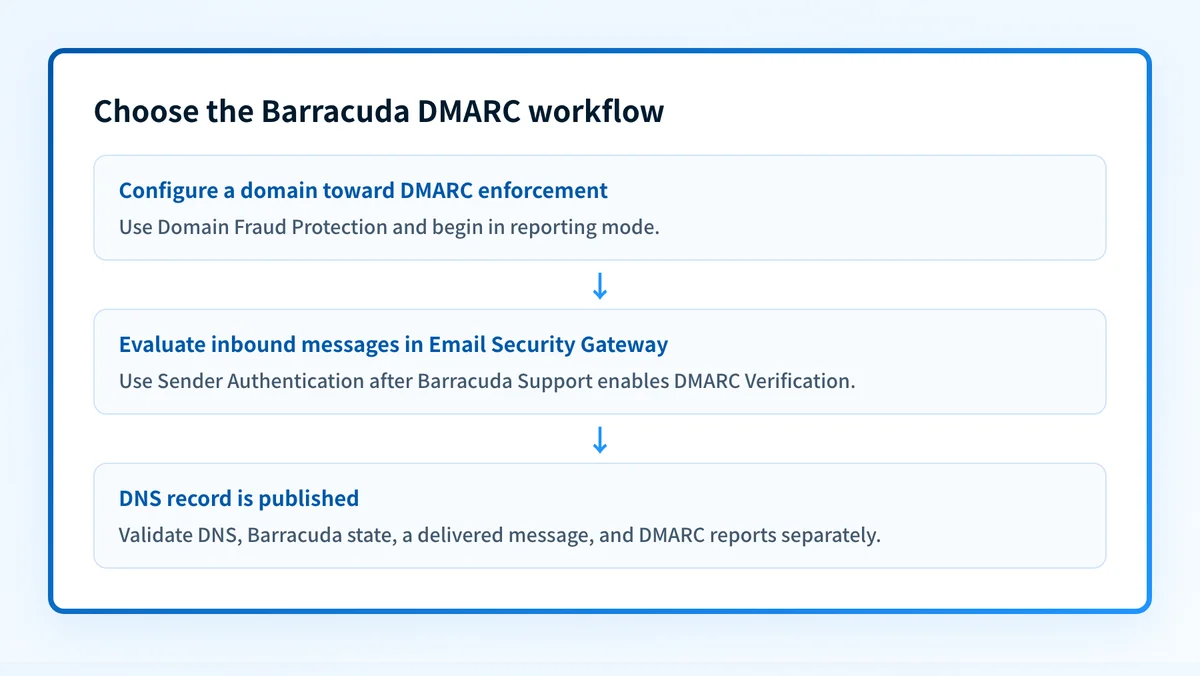
Use Barracuda Domain Fraud Protection when the goal is to configure a domain's DMARC progression and investigate its reporting-mode results. Barracuda says this flow starts in "Reporting Mode only" and requires all three documented steps before enforcement.
Use Email Security Gateway DMARC Verification only when you administer that gateway's inbound protection controls. Barracuda documents the path as Inbound Settings > Sender Authentication, with an Enable DMARC setting. This is not a substitute for configuring the domain's own DMARC DNS record.
The current documentation does not establish the exact later Domain Fraud Protection controls for record presentation, report recipients, or enforcement policy. Follow the settings and values shown in the authenticated tenant for the selected domain rather than assuming that the Email Security Gateway controls apply.
How do I configure SPF and DKIM for Barracuda?
This section covers what must be in place first. Set up SPF and DKIM with each system that sends your mail. For the DKIM side, see Barracuda DKIM setup.
Email Security Gateway explicitly requires both SPF and DKIM records before DMARC policies can be set. The exact DNS records for each mail system come from the system that sends and signs mail, not from a reusable Barracuda example.
1. Open the correct Barracuda product
For Domain Fraud Protection, sign in at Barracuda Networks, then select Domain Fraud Protection from the left navigation. For Email Security Gateway DMARC Verification, use the documented Inbound Settings > Sender Authentication path.
Do not merge these workflows. Domain Fraud Protection concerns your domain's DMARC progression. Email Security Gateway DMARC Verification evaluates inbound messages.
2. Select the sending domain
In Domain Fraud Protection, find the associated domain with a Not Configured status. Confirm that it is the domain shown in production From addresses.
If the domain is not associated with the connected Microsoft 365 or Google Workspace account, use Barracuda's documented manual-add-and-verify process. Barracuda's documentation does not describe the labels that appear after selection, so use the labels shown in your tenant.
3. Publish the DNS values for the selected domain
Publish only the records displayed for the selected domain and generated by the relevant sending platform. Barracuda's available documentation does not provide reusable DMARC TXT syntax or tenant DNS values.
For Email Security Gateway DMARC Verification, ensure the sending domain already has both SPF and DKIM records before setting a DMARC policy. Barracuda's DMARC Verification documentation makes that prerequisite explicit.
Use this command only to inspect an existing public DMARC owner:
dig +short TXT _dmarc.yourdomain.comDo not publish a sample DMARC record as production configuration. Copy the exact record and verification values shown for your domain, then have the DNS change reviewed before saving it.
Check how the DNS provider handles host names. Some providers append the zone name automatically. Entering a fully qualified name where the provider expects only _dmarc can create a duplicated owner name such as _dmarc.yourdomain.com.yourdomain.com.
4. Verify the domain in Barracuda
Return to the Domain Fraud Protection domain entry and confirm its status after the DNS change. Barracuda documents domain statuses including Not Configured, but the available documentation does not establish every current success or failure label.
For Email Security Gateway, enable Enable DMARC only after support has enabled the feature and the prerequisite SPF and DKIM records are published. Barracuda states that setting Enable DMARC to No means it does not run DMARC checks for inbound messages and instead uses SPF and DKIM policy settings.
5. Send a real test message
Send a new message through the production path from the selected domain to a mailbox where raw headers can be inspected. A message sent before DNS or Barracuda changes is not a valid test.
Keep a redacted copy of the message headers with the change record. Check the receiver-added authentication results and compare the visible From domain with the domains used by SPF and DKIM. A Barracuda domain status alone does not prove the sender used the intended authentication path.
How does this setup affect DMARC?
DMARC evaluates whether an authenticated SPF or DKIM identity aligns with the visible From domain. Barracuda Email Security Gateway documents that DMARC can override its SPF and DKIM settings only when DMARC is enabled, the sender is not exempt, the domain has a valid DMARC DNS TXT record, and the policy is quarantine or reject.
That gateway behavior applies to its inbound-message checks. It does not prove that your outbound services have published valid records or that every message from the domain will pass DMARC. For a general setup process outside the Barracuda interface, use the DMARC setup guide.
The same sequencing appears in the mail platforms' own guidance. Google says you must turn on SPF and/or DKIM before using DMARC and recommends starting with a policy of none (Google Workspace: Set up DMARC). Microsoft's rollout plan for Microsoft 365 domains also starts at p=none, then moves to quarantine and reject while reviewing reports (Microsoft Learn: Set up DMARC).
How do I validate the setup?
Check public DNS
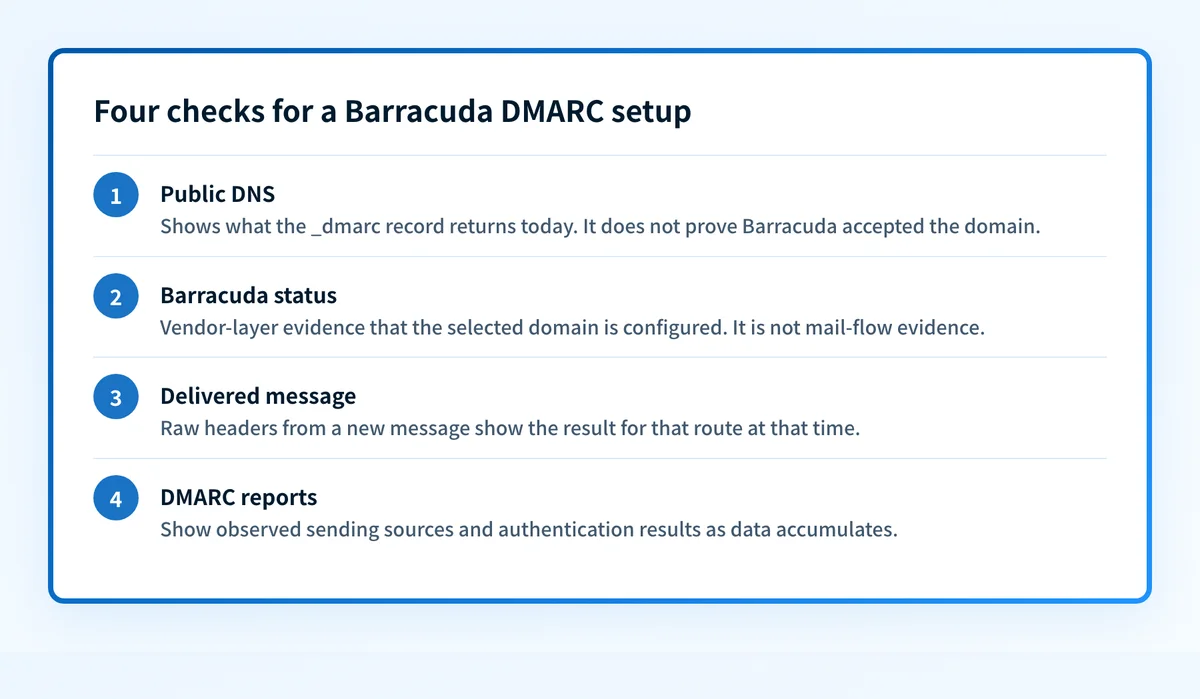
Query the authoritative DNS provider and at least one public resolver for _dmarc.yourdomain.com. Palisade's DMARC checker can inspect the publicly visible record.
A public lookup shows what DNS currently returns. It does not prove that Barracuda accepted the domain configuration, that an application signs mail correctly, or that a receiver will deliver a future message.
Check the vendor status in Barracuda
Return to the relevant Barracuda product and verify the selected domain's current state. In Domain Fraud Protection, confirm that the intended domain no longer needs the same configuration action. In Email Security Gateway, confirm the enabled state only after Barracuda Technical Support has enabled DMARC Verification.
Treat this as vendor-layer evidence, not mail-flow evidence.
Inspect a delivered message
Inspect raw headers from a newly delivered message sent through the exact production route. Confirm that the visible From domain is the intended domain, then review the receiver's authentication result for the message.
A passing message is evidence for that route at that time. It does not establish that every application, user, subdomain, or later DNS change will behave the same way.
Review DMARC reports
After reporting data accumulates, review the domain's observed sending sources and authentication results. Barracuda documents reporting mode as the first Domain Fraud Protection stage. Reporting-mode findings should guide later policy decisions, rather than being treated as enforcement itself.
Troubleshooting
The domain still shows Not Configured
Check that the selected Barracuda domain matches the domain edited in DNS. Then query the full _dmarc owner publicly and compare the returned result with the approved change request.
Do not copy a record from another tenant to force verification. The documented manual-add-and-verify path indicates that configuration is domain-specific.
Enable DMARC is unavailable in Email Security Gateway
Contact Barracuda Technical Support. Barracuda states that Email Security Gateway DMARC Verification requires support to enable it.
Barracuda cannot apply a DMARC policy
Confirm that SPF and DKIM records exist for the sending domain. Barracuda says both are required before DMARC policies can be set in its Email Security Gateway workflow.
Then confirm that the work is occurring in the correct product. A Domain Fraud Protection domain status and the Email Security Gateway Enable DMARC setting are separate controls.
The public record looks correct but mail still fails
Inspect a new delivered message from the failing production route. A DNS result does not show whether the sender signed with DKIM, whether SPF used an aligned identity, or whether an intermediary changed the message.
Keep the investigation on the observed route. Do not change the DMARC policy based only on a public lookup.
DMARC is enabled but inbound policy behavior is unexpected
For Email Security Gateway, check whether DMARC is enabled, whether the domain is exempt, whether a valid DMARC TXT record exists, and whether the published policy is quarantine or reject. Barracuda documents those conditions for DMARC to override its SPF and DKIM settings.
Check the record, then close the ongoing visibility gap
Run the sending domain through the DMARC checker to inspect the record that public DNS returns before changing anything else. Compare that result with the selected Barracuda domain status and a real message from the production sender.
A correct public record does not inventory every sending source, show later DNS drift, or prove alignment across all Barracuda-managed domains. Palisade is agentic DMARC software that analyzes aggregate-report data, identifies sending sources and alignment issues, and creates prioritized remediation tickets. It can propose when a domain appears ready for the next policy stage, but a human reviews the evidence and applies the DNS change.
Evidence
Sources and further reading
Questions readers ask
Frequently asked questions
How do I set up DMARC correctly?
Start with SPF and DKIM records for the sending domain, then configure the domain in Barracuda Domain Fraud Protection's reporting-mode workflow. Barracuda says all three steps are required for enforcement. The documented material does not establish a universal record value or final enforcement policy, so use the account-specific values and later workflow in the Barracuda tenant.
Do I need to set up DMARC?
Not as a Barracuda requirement. Barracuda's documentation does not set one. Whether you need DMARC depends on your senders and on the rules of the mailbox providers you send to.
What should DMARC be set to?
Only reporting mode is documented for a newly configured Barracuda Domain Fraud Protection domain. Do not choose a universal final policy from that starting point without reviewing authenticated sending results and the later Barracuda workflow.
Is Barracuda Domain Fraud Protection the same as Email Security Gateway DMARC Verification?
No. Barracuda documents Domain Fraud Protection as a domain configuration process that begins in reporting mode. Email Security Gateway DMARC Verification is an inbound-message feature that uses the Cloud Protection Layer and requires Barracuda Technical Support to enable.
Can a DMARC checker prove Barracuda is configured correctly?
No. A DMARC checker can inspect the public DNS record for a domain. It cannot prove the Barracuda tenant's domain state, the authentication result of a real message, continuous behavior, or a receiver's delivery decision.

Written by
Samuel ChenardCEO & Co-Founder, Palisade
Samuel Chenard is the CEO and co-founder of Palisade, agentic DMARC software for IT teams and MSPs, from one domain to thousands.
More from Samuel →