Barracuda DKIM setup: what to verify first
 ChatGPT
 Claude
 Gemini
 Perplexity
 Grok
In brief
Barracuda DKIM setup starts by confirming the outbound sender, obtaining account-generated DNS values, and validating DNS, messages, and DMARC results.
Barracuda Email Gateway Defense documentation confirms that it can apply sender-authentication policies using sender-domain SPF, DKIM, and DMARC records. It does not document an outbound DKIM key-generation path, DNS record format, selector, or activation control, so do not publish a Barracuda DKIM record until the authenticated account shows the exact values for the sending domain.
At a glance
Quick takeaways
- Barracuda Email Gateway Defense supports policies based on sending domains' SPF, DKIM, and DMARC records.
- The documented Sender Authentication page describes inbound sender-authentication policy support, not a verified outbound DKIM-signing workflow.
- A DKIM selector, DNS host, public key, and activation action must come from the account and domain being configured.
- Confirm which system signs the outbound message before making a DNS change.
- Public DNS, vendor status, a delivered message, and DMARC reports answer different validation questions.
- A public DNS check cannot prove that Barracuda signed a production message.
What should I check before configuring Barracuda?
First, establish whether Barracuda Email Gateway Defense is the outbound system that signs the mail in scope. The available Barracuda Sender Authentication documentation describes policies based on authentication records from sending domains. It does not establish that Email Gateway Defense generates DKIM keys or signs outbound mail for every deployment.
Identify the exact mail path before changing DNS:
- The visible From domain used by the messages.
- The platform that originates the message, such as a mailbox service, marketing platform, or transactional sender.
- Any gateway that modifies messages after the originating platform signs them.
- The person who can access the authenticated Barracuda account and the authoritative DNS zone.
- A destination mailbox where you can inspect the raw source of a newly delivered message.
Copy DNS values from the account and domain you are configuring. Do not publish selectors, targets, tokens, or hostnames from another account or from an online example.
Which setup method should I use?
Use a Barracuda-specific workflow only when the authenticated Barracuda account documents that it creates or manages DKIM signing for the outbound path you are testing. If the account does not expose that capability, configure DKIM in the service that actually sends and signs the message instead.
Do not infer the correct method from an inbound-policy screen. Barracuda states that Email Gateway Defense supports policies based on SPF, DKIM, and DMARC records from sending domains, along with Sender Spoof Protection. That confirms its policy capability, but it does not confirm an outbound key-generation or DNS-publication process.
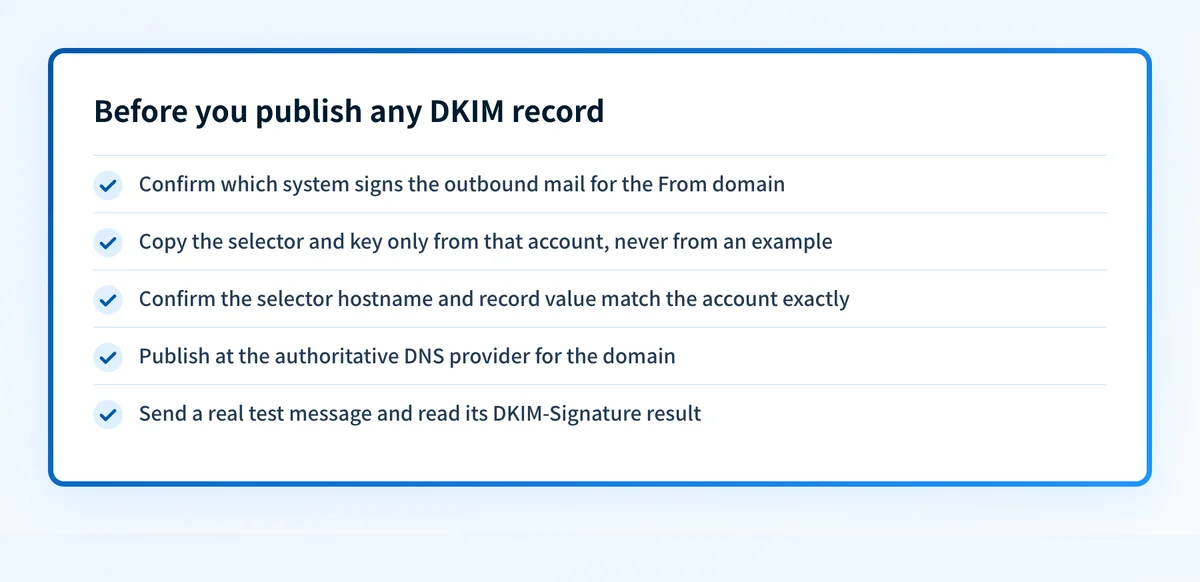
The checklist below summarises the checks to complete before any DKIM record is published.
Do not choose a dedicated IP, automatic DNS method, or manual DNS method based on this page alone. The available Barracuda material does not document those choices for DKIM signing. Ask the account owner or Barracuda support for the current outbound-authentication documentation that applies to the licensed product and sending route.
How do I configure SPF and DKIM for Barracuda?
A verified five-step Barracuda procedure is not available from the documented Sender Authentication material. The sequence below is a safe control process for finding the applicable workflow without publishing guessed DNS data.
1. Open the documented Sender Authentication page
Open Barracuda's Sender Authentication documentation and confirm that the product in your account is Email Gateway Defense. The documented page describes sender-domain authentication policy support.
Do not treat that documentation path as an authenticated UI path for outbound DKIM configuration. A current account-specific screen or Barracuda documentation is required before any setup action.
2. Select the sending domain and sending platform
List the domain shown in the From address and the system that sends the message. A marketing platform, employee mailbox service, and transactional application can all use the same visible domain while signing through separate systems.
Document each path separately. A DNS record that belongs to one sender cannot be copied to another sender merely because both use the same From domain.
3. Obtain the account-generated DNS records
Only publish a DKIM DNS record when the responsible outbound platform displays the exact record for the selected domain. The available Barracuda documentation does not provide a selector, owner name, public-key value, key length, or record type for an outbound Barracuda DKIM setup.
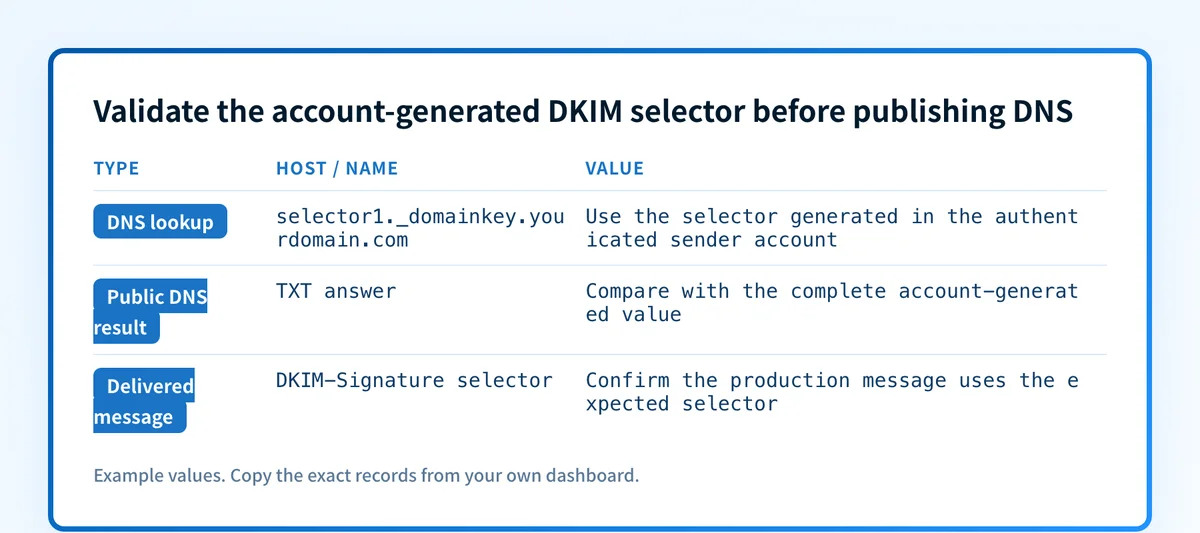
The following lookup shape is illustrative only. It is not a Barracuda record and must not be published as DNS configuration.
Lookup owner shape, illustrative only:
selector1._domainkey.yourdomain.comDo not publish this example. Copy the complete owner name and DNS value from the authenticated sender account that generated the key.
Some DNS providers append the zone name to the host field. Check the final fully qualified name before saving. Entering selector1._domainkey.yourdomain.com into a DNS interface that automatically adds yourdomain.com can create a duplicated owner name.
4. Verify the configuration in the responsible sender account
After DNS answers publicly, return to the platform that generated the DKIM values and use its documented verification status. If Barracuda is confirmed as that platform, record the exact account, domain, status text, and verification time.
A successful status in a vendor console shows that the current account accepted a configuration. It does not prove that the production mail path signs messages or that its signature aligns with the visible From domain.
5. Send a real test message
Send a new message through the exact production path to a mailbox where raw source is available. Do not use an older message sent before the DNS change or one sent through a different platform.
Inspect the message for a DKIM signature and then inspect the receiver-added authentication result. Keep a redacted copy with the change record. This distinguishes a published DNS record from actual signing on the mail path.
How does this setup affect DMARC?
DKIM only helps DMARC when the delivered message has a passing DKIM result that aligns with the visible From domain. A signing result for another domain does not establish that the message passed DMARC through DKIM.
Use Palisade's DMARC checker to inspect the published DMARC record before making policy changes. The record check cannot show whether the specific Barracuda or third-party sender signed a delivered production message.
How do I validate the setup?
Check public DNS
Query the exact selector and domain shown by the authenticated sender account. Keep the owner name account-specific.
dig +short TXT <selector>._domainkey.<sending-domain>You can also check a DKIM record with Palisade. A public check can inspect published DNS data, but it cannot prove which system generated the key, whether the sender holds the matching private key, or whether production messages use it.
Check the vendor status
Check the vendor status only in the authenticated account that generated the DNS values. Capture the selected domain, observed status, and time. If Barracuda does not provide an outbound DKIM status for your product, do not substitute an inbound Sender Authentication policy screen as proof of signing.
Inspect a delivered message
Inspect a newly delivered message from the exact production route. Confirm that the message contains a DKIM signature from the expected signing domain and selector, then review the receiver's authentication result.
This is the first layer that tests the actual mail path. A green DNS result or vendor status does not replace a delivered-message check.
Review DMARC reports
After DMARC aggregate reports have accumulated, review whether traffic from the relevant sender passes authentication and aligns with the visible From domain. Separate this sender from other services using the same domain.
For an ongoing multi-sender workflow, Palisade is agentic DMARC software that analyzes DMARC aggregate-report data, identifies sending sources and authentication or alignment issues, and creates prioritized remediation tickets. Palisade proposes the next DMARC policy step based on evidence, while a human reviews the evidence and applies any change.
Troubleshooting
The only Barracuda material available is Sender Authentication
The documented page supports sender-authentication policy claims, not an outbound DKIM setup path. Do not guess a menu location, selector, or DNS value.
Confirm the licensed Barracuda product, the outbound sending service, and the authenticated account that controls the sender. Obtain current documentation or account access for that path before changing DNS.
A DKIM record is visible in DNS but messages do not show DKIM
A public record alone does not cause mail to be signed. Compare the queried selector with the selector in the new message, then confirm that the message used the intended production sender.
If the message came from a different sender, configure DKIM in that sender's account rather than editing an unrelated record.
The DNS record cannot be found publicly
Compare the final authoritative owner name with the value displayed by the account that generated it. Check for a duplicated domain suffix in the DNS provider interface and for a truncated or altered DNS value.
Do not replace the record with an example from a guide. Re-copy the account-generated record after confirming the selected domain.
DKIM appears to pass but DMARC still fails
Compare the DKIM signing domain with the visible From domain. A valid DKIM signature does not by itself establish DMARC alignment.
Check the DMARC record separately and inspect the delivered message from the same sender. Keep the policy change separate from the signing investigation.
You need Barracuda email encryption setup
Barracuda email encryption is outside the documented Sender Authentication workflow. The available Barracuda material does not support an encryption procedure, configuration path, or DKIM-to-encryption mapping. Use product-specific Barracuda encryption documentation for that task.
Check the published DKIM record before expanding the rollout
After the responsible sender account provides its exact selector and DNS value, use Palisade's DKIM checker to inspect the public record. Compare the result with a newly delivered message from the same sender before treating the setup as complete.
A DNS lookup does not prove that Barracuda generated the key, that every sender uses it, or that a receiver will accept future messages. If your team manages several domains or senders, Start with Palisade to analyze DMARC report data, identify sources that still have authentication or alignment issues, and prepare prioritized remediation work. Human review and approval remain required for DNS and DMARC policy changes.
Evidence
Sources and further reading
Questions readers ask
Frequently asked questions
How does DKIM work Barracuda?
Barracuda Email Gateway Defense supports policies based on sender-domain DKIM records, according to Barracuda's Sender Authentication documentation. That documentation does not explain an outbound Barracuda DKIM key-generation, DNS-publication, or activation workflow.
How do I set up DKIM?
Only set up DKIM after the system that sends your mail provides account-specific DNS values and an activation workflow. For Barracuda Email Gateway Defense, the available Sender Authentication documentation does not provide those outbound setup details, so confirm the actual outbound sender before publishing DNS.
How to set up Barracuda email encryption?
Barracuda email encryption setup is separate from the documented Email Gateway Defense Sender Authentication workflow. The available material does not document encryption settings, so use the official documentation for the specific Barracuda encryption product in your account.
How do I activate my DKIM key?
Only activate a DKIM key through the authenticated sender account that generated its DNS values. The available Barracuda Sender Authentication documentation does not identify an activation control, status label, or activation procedure for an outbound DKIM key.
Can a public DKIM check prove Barracuda is signing my mail?
No. A public DKIM check can show whether a selector record is visible in DNS, but it cannot prove which platform generated the key or whether a production message was signed. Inspect a newly delivered message from the exact sending path.
Check the DKIM public key for the selector
Enter your domain and selector.

Written by
Samuel ChenardCEO & Co-Founder, Palisade
Samuel Chenard is the CEO and co-founder of Palisade, agentic DMARC software for IT teams and MSPs, from one domain to thousands.
More from Samuel →