Mimecast DKIM setup
 ChatGPT
 Claude
 Gemini
 Perplexity
 Grok
GrokIn brief
Set up Mimecast outbound DKIM signing: create the DNS Authentication definition, publish its generated TXT key, apply a policy, and validate mail.

To set up DKIM for Mimecast outbound mail, create an outbound DNS Authentication definition for each internal sending domain, generate its key pair, publish the displayed DNS Address and Public Key as a TXT record, validate it in Mimecast, then attach the definition to an outbound policy. Copy the DNS values from your own account. The selector and public key are account-specific, so another tenant's record cannot authenticate your mail.
At a glance
Quick takeaways
- This guide covers mail that exits through Mimecast Email Security Cloud Gateway, not a separate marketing or transactional platform.
- Mimecast generates a DNS Address in the form
selector._domainkey.domainand a public key for the outbound definition. - Publish the generated values as a TXT record, then use the definition's DNS check before saving it.
- A saved definition does not sign mail until an outbound DNS Authentication policy selects it.
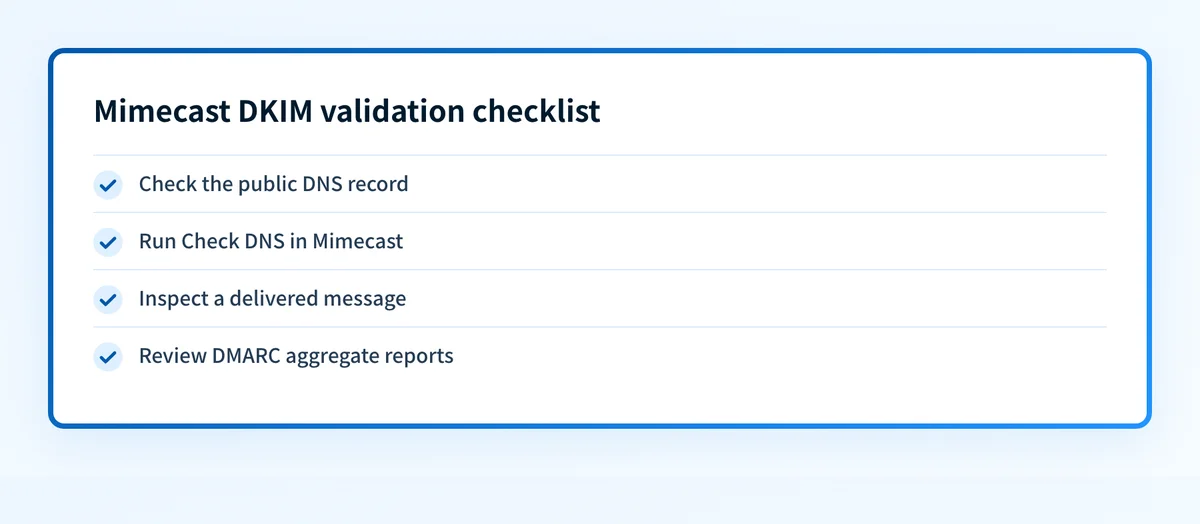
- Validate four things separately: public DNS, the Mimecast definition, a delivered message, and DMARC aggregate-report data.
What should I check before configuring Mimecast DKIM?
Confirm that the stream you are configuring actually leaves through Mimecast. Mimecast says that when all outbound mail goes through its service, Mimecast should be the signer; mail signed before reaching Mimecast can fail after delivery because the earlier signer did not deliver the message. Read Mimecast's DNS Authentication overview alongside your outbound routing before changing DNS.
You need access to the Mimecast Administration Console, an internal domain available to select in the definition, and permission to add a TXT record at that domain's authoritative DNS host. A separate sending platform needs its own signing path and selector. For the protocol background, see what DKIM is.
Copy the DNS Address and Public Key only from the Mimecast definition for the domain you are configuring. Do not publish a selector, hostname, or key copied from another account, domain, or online example.
Which setup method should I use?
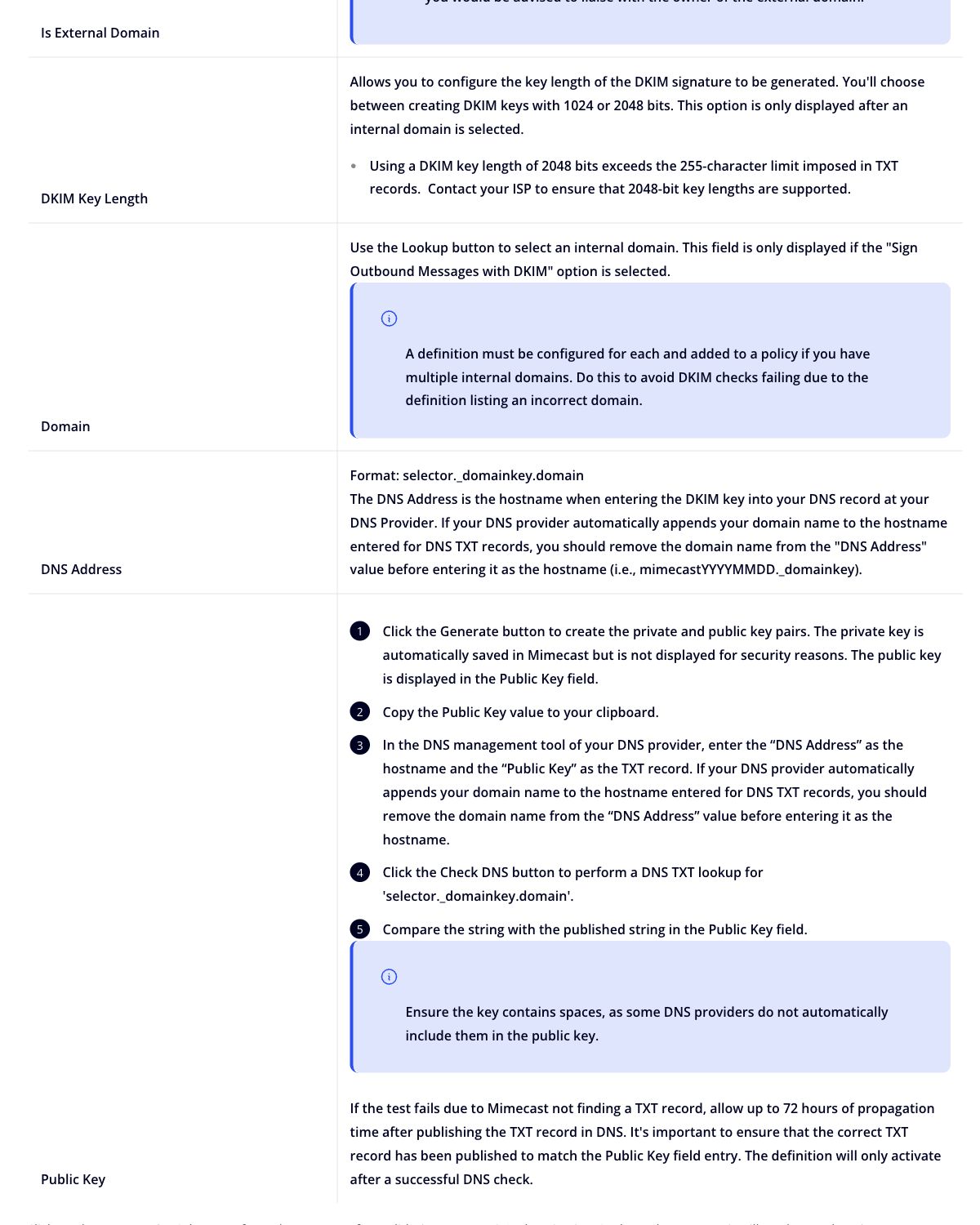
Use this workflow when Mimecast is the final outbound gateway for the messages in scope. In Mimecast's documented definition, selecting Sign Outbound Messages with DKIM exposes the internal-domain selection, key length, DNS Address, and Public Key. Mimecast documents 1024-bit and 2048-bit key choices for an internal domain. Choose the value your DNS host and organization support, then publish exactly what the console generates rather than adapting a sample record. Mimecast's DNS Authentication Definition guide is the authority for the current fields and labels.
How do I set up Mimecast DKIM?
1. Open the outbound DNS Authentication definition
In the Mimecast Administration Console, open the DNS Authentication definition workflow for outbound mail and select Sign Outbound Messages with DKIM. Select the internal domain that sends through Mimecast. Mimecast says that each internal domain needs its own definition and policy association, which prevents the wrong domain from being used for a signing check. Confirm the current controls against Mimecast's definition instructions.
2. Generate the key pair for the selected domain
Choose the available DKIM key length, then use Generate to create the key pair. Mimecast keeps the private key and displays the public key, so the only value that belongs in DNS is the displayed public key. Record the displayed DNS Address and Public Key before leaving the definition.
3. Publish the account-specific TXT record
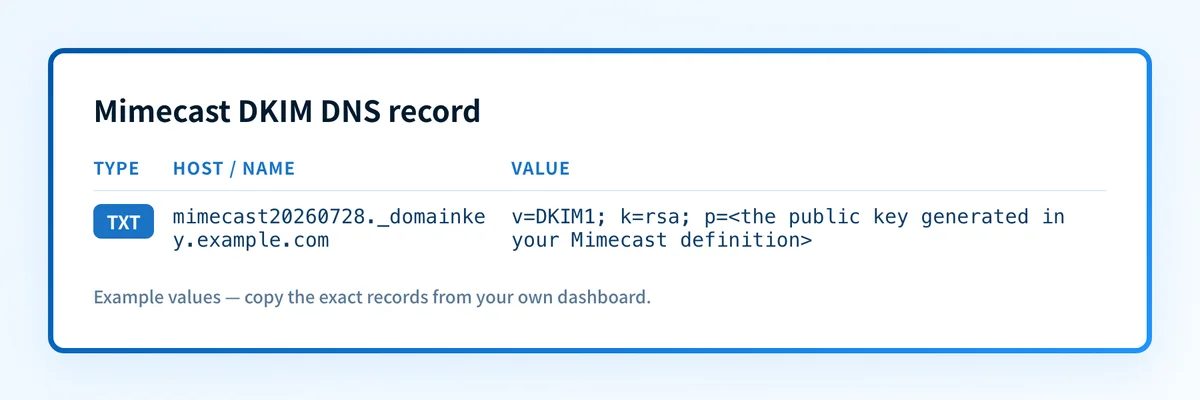
At the DNS provider for the selected domain, add one TXT record using the DNS Address as the host and the Public Key as the value. Mimecast documents the address format as selector._domainkey.domain; if your DNS provider appends the domain automatically, enter only the hostname portion it expects. This structural example is illustrative only:
Record type: TXT
Host, illustrative only: mimecast20260728._domainkey.example.com
Value, illustrative only:
v=DKIM1; k=rsa; p=<the public key generated in your Mimecast definition>Do not publish this example or any key from another account. Copy the exact DNS Address and Public Key generated in your own Mimecast definition. Mimecast also notes that some DNS providers need spaces preserved in the public key and that a 2048-bit key can exceed a provider's single-string TXT limit. Review the DNS Address and Public Key instructions before saving.
4. Check DNS and save the definition
Return to the definition and use Check DNS. Mimecast says this performs a TXT lookup for the generated selector._domainkey.domain name and compares it with the Public Key field. If the check cannot find a TXT record, Mimecast advises allowing up to 72 hours for propagation, then comparing the published value with the definition. Save the definition after the DNS check succeeds, because Mimecast says an unsaved validated key is not used for outbound signing.
5. Apply an outbound DNS Authentication policy
Create or update the outbound policy under Policies | Gateway Policies, then select the DNS Authentication definition you created. Mimecast's current policy instructions say to choose DNS Authentication - Outbound, select an existing policy or New Policy, and select the required definition in Select Option. Scope the policy to the intended sender and validity period before enabling it. Mimecast's policy guide documents the path and policy fields.
How does this setup affect DMARC?
A valid Mimecast signature helps DMARC only when its d= signing domain aligns with the visible From domain. Mimecast explains that a DKIM signature can pass while still being unaligned when the signing domain does not match the From domain. Inspect a delivered message's DKIM-Signature and Authentication-Results values after the policy takes effect, then compare d= and header.from. Mimecast's alignment guidance describes that distinction.
Before changing enforcement, use the DMARC checker to inspect the published policy. A public record check cannot establish which signer handled a particular delivered message.
How do I validate the setup?
Check public DNS
Query the generated
Check the Mimecast vendor status
Use Check DNS in the saved definition and confirm it succeeds. Mimecast says the definition activates only after a successful DNS check. This confirms Mimecast can resolve the generated key, but it does not prove that the outbound policy matched a real message.
Inspect a delivered message
Send a message through the exact production route to an external mailbox and inspect the receiver-added authentication results. RFC 8601 defines the Authentication-Results header fields used to report results. Look for dkim=pass, the expected selector, and a DKIM-Signature with the expected d= domain.
Authentication-Results: receiver.example;
  dkim=pass header.d=example.com header.s=mimecast20260728;
  dmarc=pass header.from=example.com
DKIM-Signature: v=1; a=rsa-sha256; d=example.com; s=mimecast20260728;
The example is illustrative only. The selector and signing domain must come from your delivered message and Mimecast definition.
Review DMARC reports
Use aggregate-report data or a DMARC monitoring service after normal traffic has flowed. One delivered message establishes one path. Report data helps identify whether other sources using the From domain remain unaligned or unsigned. RFC 9989 defines DMARC's alignment model, and RFC 9990 defines aggregate reporting.
Check the public key before changing more DNS
If the DNS check fails, first inspect the exact public key that is published at the selector from your Mimecast definition. The Palisade DKIM checker can inspect that public record. It does not prove Mimecast is applying the outbound policy, validate a particular message, or repair the record.
Check the published Mimecast DKIM record
Watch the signing paths beyond this change
The public-key check confirms that one selector resolves. It cannot show whether another sender uses the same From domain, whether a later routing change bypasses Mimecast, or whether every production stream remains aligned. Palisade's DMARC Agent analyzes aggregate-report data, identifies sending sources and authentication or alignment issues, and creates prioritized remediation tickets. Your team reviews the evidence and applies any DNS or DMARC policy change.
Palisade’s DKIM Audit verifies DKIM records and key configuration for a supplied selector and domain. Use that DNS evidence alongside the Mimecast definition and a delivered-message authentication check.
Troubleshooting
Check DNS cannot find the TXT record
Compare the host saved at your DNS provider with the DNS Address in Mimecast. A provider that appends the domain can create a doubled hostname when given a fully qualified value. If the host and public key match, allow the propagation period Mimecast documents before regenerating anything.
The definition is validated but mail is unsigned
Check that you saved the definition after validation and that the outbound DNS Authentication policy selects it. Then verify the policy scope against the actual sender and route. A DNS record alone does not cause Mimecast to sign mail.
DKIM passes but DMARC fails
Compare the signature's d= value with the visible From domain. A valid signature from an unrelated signing domain can pass DKIM and fail DMARC alignment. Correct the signing-domain relationship or the From-domain design instead of generating another key.
A message was signed before reaching Mimecast
If the message is modified after an earlier signer applies DKIM, the receiver can report a failed signature. Confirm which gateway is the final outbound sender. Mimecast's overview specifically cautions against a separate server signing before it hands mail to Mimecast when Mimecast is the final sender.
Evidence
Sources and further reading
- Mimecast: Configuring DNS Authentication Definition
- Mimecast: Configuring DNS Authentication Policy
- Mimecast: DNS Authentication Overview
- Mimecast: DMARC Analyzer 2.0 Alignment
- RFC 8601: Message Header Field for Indicating Message Authentication Status
- RFC 9989: Domain-based Message Authentication, Reporting, and Conformance (DMARC)
Questions readers ask
Frequently asked questions
Does Mimecast create the DKIM key?
Yes. In Mimecast's documented outbound definition workflow, the Generate action creates the key pair. Mimecast stores the private key and displays the public key for you to publish in DNS. The DNS Address and Public Key must come from the definition for the domain you are configuring.
Can I copy a Mimecast DKIM record from another domain?
No. A DKIM public key has to match the private key held by the signer. Copying another account's selector or public key does not give Mimecast the matching private key for your domain and can leave your production mail unsigned or failing verification.
Does a successful DNS check prove outbound mail is signed?
No. It shows that Mimecast can resolve the public key for the definition. Confirm actual signing with a message sent through the production route and receiver-added authentication results that show dkim=pass.
Why does DKIM pass but DMARC fail?
DKIM can pass for a signing domain that does not align with the visible From domain. DMARC requires aligned SPF or DKIM identity, so compare header.d or the signature's d= value with the From domain in the delivered message.
How long should I wait for Mimecast DNS validation?
Mimecast documents allowing up to 72 hours after publishing a TXT record when its DNS check cannot find the record. Before waiting or regenerating a key, compare the DNS Address and Public Key in the definition with the record saved at the authoritative DNS host.

Written by
Taylor TabusaCo-Founder & Head of Business Development, Palisade
Taylor Tabusa is the co-founder and Head of Business Development at Palisade, helping managed service providers turn email security into a practical, valuable service.
More from Taylor →