GoDaddy DKIM Record: How to Add and Verify It
 ChatGPT
 Claude
 Gemini
 Perplexity
 Grok
GrokIn brief
Add a GoDaddy DKIM record: publish your sender's exact TXT or CNAME values, verify public DNS, enable signing, and confirm a delivered message is signed.
To add a DKIM record in GoDaddy DNS, copy the exact record type, host, and value generated by the email service that sends your mail. In GoDaddy Domain Portfolio, select the domain, open DNS, choose Add New Record, enter every required TXT or CNAME record, and save. The selector, public key, and CNAME target are specific to your sender account and domain, so do not reuse values from another account or an online example.
At a glance
Quick takeaways
- GoDaddy publishes DKIM DNS records, but the sending service generates the required record type and values.
- A DKIM configuration can require a TXT public-key record or one or more CNAME records.
- TXT and CNAME are sender-specific alternatives. Do not replace one type with the other.
- A required pair of CNAME records must both be published before sender verification can succeed.
- Public DNS proves that a record can be queried. It does not prove the sender enabled DKIM or signed a delivered message.
- DKIM can satisfy DMARC only when the DKIM
d=domain aligns with the visible From domain.
What should I check before configuring GoDaddy?
Confirm that GoDaddy is authoritative for the domain. GoDaddy's DNS record management guidance distinguishes domains using GoDaddy nameservers from domains whose DNS is managed elsewhere. If another provider hosts the authoritative zone, add the DKIM record there instead.
Identify the sending path before editing DNS. A marketing platform, transactional sender, hosted mailbox provider, and Microsoft 365 tenant can each use different DKIM selectors and records for the same visible From domain. GoDaddy is the DNS interface, not necessarily the system that signs the mail.
You need access to the sender's domain-authentication settings and permission to edit the DNS zone. Collect the sender-provided record type, Name or Host field, Value or Target field, record count, TTL guidance, and any sender-side verification or enable action. For DKIM record anatomy, see how to check a DKIM record and interpret the result. Read what DKIM is first if the difference between a selector, public key, and signing domain is unclear, and DKIM for subdomains if the sending domain is a subdomain of the zone you are editing.
Copy DNS values from the account and domain you are configuring. Do not publish selectors, targets, tokens, or hostnames from another account or from an online example.
Which setup method should I use?
Use the method required by the sending service. GoDaddy's hosting email authentication instructions document a TXT-record workflow. Its Microsoft 365 DKIM instructions document two CNAME records followed by a separate sender-side enable action.
Choose TXT only when the sender supplies a DKIM public-key value. Choose CNAME only when the sender supplies a target hostname. The sender determines the selector, record type, record count, and target.
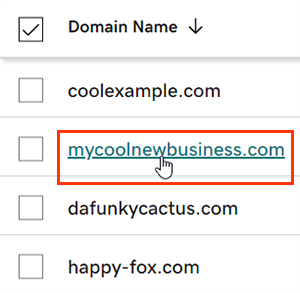
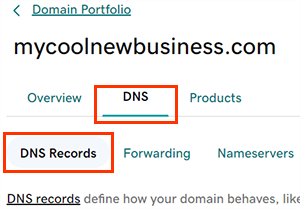
The GoDaddy path below was verified from official documentation. It shows selecting the domain before opening its DNS controls.
_Source: Add or edit an A record, checked 2026-08-12._
_Source: Add or edit an A record, checked 2026-08-12._
How do I configure SPF and DKIM for GoDaddy?
SPF and DKIM are separate DNS changes. This procedure covers sender-generated DKIM records. Do not add another SPF policy or replace an existing SPF TXT value unless the sending service provides a specific SPF update and instructions for merging it with the existing policy.
1. Open the sender's domain-authentication settings
Open the service that sends the messages and find its domain, sender, or authentication settings. Select the exact domain that appears in the visible From address, then copy the DKIM instructions generated for that account.
DKIM key records in RFC 6376 use the s= selector and d= signing domain to locate a public key below _domainkey. GoDaddy does not generate those values.
2. Select the sending domain in GoDaddy
Sign in to GoDaddy Domain Portfolio, select the sending domain, then open DNS. GoDaddy documents this Domain Portfolio DNS path in its hosting email record setup guide.
Check the selected domain before adding records. The parent domain, a subdomain, and another brand domain can use different zones and sender configurations.
3. Publish each sender-generated DKIM record
Select Add New Record, choose the exact type the sender supplied, enter its Name and Value fields, choose the sender-required or GoDaddy-accepted TTL, and save. GoDaddy's documented workflow uses these DNS record fields.
Use these record shapes only to identify the fields.
Record type: TXT or CNAME, exactly as required by the sender
Host (illustrative only):
selector1._domainkeyValue (illustrative only):
TXT: v=DKIM1; k=rsa; p=<sender-generated-public-key>
CNAME: selector1._domainkey.yourdomain.com.sender-example.net
Do not publish these examples. Copy the complete record type, host, and value generated by the sending service for your domain.
Some DNS interfaces append the zone name automatically. If GoDaddy appends yourdomain.com, entering selector1._domainkey.yourdomain.com can create a duplicated owner name. Compare the final fully qualified record name with the sender's requirement before saving.
Do not overwrite an active selector to match an example. Use the sender's rotation procedure if the selector already exists. A CNAME cannot coexist with other DNS data at the same owner name.
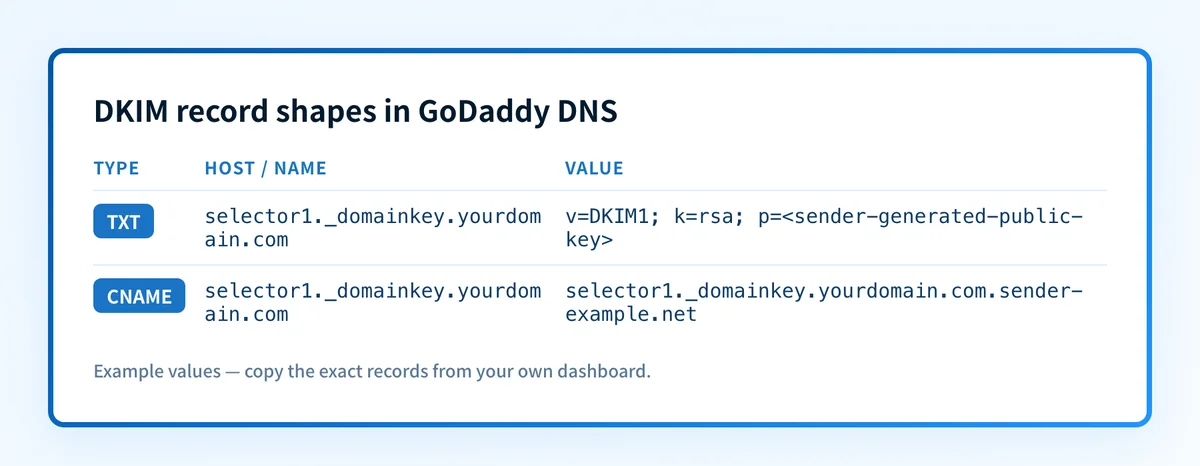
_Source: Palisade._
4. Save every required record before returning to the sender
Save every record the sender requires. GoDaddy's Microsoft 365 procedure requires two generated CNAME records, then a sender-side DKIM enable action. Adding one record from a required pair does not complete that configuration.
If a saved record does not appear in the DNS list, stop before retrying sender verification. Reopen the zone and compare the record type, owner name, and complete value with the sender-generated values.
5. Verify in the sending service and send a real test message
Wait until a public DNS lookup returns the record, then return to the sending service and use its verification or enable control. GoDaddy's Microsoft 365 DKIM process separates DNS publication from enabling DKIM.
Send a new message through the exact production path to a mailbox where you can inspect full headers. Do not use a message sent before sender verification completed. A green sender indicator shows what the sender detected. It does not prove that the delivered message was signed.
GoDaddy hosting email DKIM in cPanel
If the domain sends through GoDaddy cPanel hosting email rather than an external platform, the record comes from cPanel itself. Open cPanel > Email Deliverability, find the domain, and use the suggested DKIM record shown for that account. GoDaddy documents this path in Set up SPF, DKIM, or DMARC records for my hosting email.
Use the value currently shown in cPanel for that account and domain. Do not reuse a selector or public key from another hosting account, and do not paste an example key. If cPanel offers to install the record for you, that action writes into the same zone you would edit by hand, so check afterwards that only one DKIM selector exists for the owner name.
Microsoft 365 DKIM in GoDaddy
Microsoft 365 custom domains use two CNAME records, not a TXT public-key record. In the Microsoft Defender portal, open Email authentication, choose the custom domain on the DKIM tab, and copy the two exact CNAME values Microsoft provides for selector1._domainkey and selector2._domainkey. Add both records in GoDaddy before enabling signing in Microsoft 365.
Do not construct the CNAME targets from an online example. Microsoft assigns values per tenant and changed its new-domain CNAME format in 2025, so the values displayed for your own domain are the only ones to publish. Microsoft documents that the second selector is used for future key rotation, which is why both records are required even though only one selector is active at a time. Microsoft's DKIM guide has the current path and record requirements.
In GoDaddy, enter only the selector host (selector1._domainkey or selector2._domainkey) if the DNS form appends the domain automatically. After Microsoft detects both public CNAME records, return to the DKIM settings and enable signing. A public CNAME answer alone does not complete that final sender-side action.
Google Workspace DKIM in GoDaddy
Google Workspace uses a sender-generated TXT record. In the Google Admin console, generate the DKIM record for the sending domain, copy its selector and TXT value, then add that exact TXT record in GoDaddy. The selector is commonly google._domainkey, but treat it as an example: publish the selector your own Workspace account generates.
After the TXT record resolves publicly, return to Google Workspace and start authentication. Do not reuse a TXT record from Microsoft 365, another Workspace tenant, or a blog post. Google publishes the current DKIM setup sequence in its Admin Help documentation. This section covers the GoDaddy side of the publish; see the full Google Workspace DKIM setup for the Admin console steps and key-length options.
How does this setup affect DMARC?
Publishing a DKIM record makes the selector's public key or sender-managed key location available to receivers. It does not sign mail by itself.
For DKIM to satisfy DMARC, the receiver must validate the signature and the DKIM d= domain must align with the visible From domain. A DKIM pass from an unrelated signing domain can leave DMARC without an aligned DKIM result. If your sender supplied targets rather than a public key, see what a DKIM CNAME record is and how to set it up.
Use the DMARC checker to inspect the published DMARC policy before changing enforcement. A public policy lookup cannot show every production sender, a receiver's private decision, or whether one message was accepted.
How do I validate the setup?
Check public DNS
Query the complete selector name supplied by the sender. For a TXT setup, confirm the TXT answer. For a CNAME setup, confirm the CNAME answer and follow the destination as the sender requires. Check the authoritative DNS answer and at least one public resolver.
dig +short TXT selector1._domainkey.yourdomain.com
dig +short CNAME selector1._domainkey.yourdomain.com
Use the DKIM checker to inspect the public selector record after publishing it. Keep the direct query for the exact selector because public DNS checks do not access the private key or prove a message was signed.
Check the sender's verification or enable status
Return to the sender's domain-authentication page and confirm that it reports the selected domain as verified or DKIM as enabled, where the sender provides that status. For Microsoft 365 from GoDaddy, this is a separate step after the required CNAME records are detected.
This confirms that the sender accepted the current public DNS configuration. It does not prove that every production route signs mail with the same selector.
Inspect a delivered message
Open the raw source of a new message sent through the path you configured. Confirm the expected d= domain and s= selector in DKIM-Signature, then inspect the trusted receiver-added authentication result. RFC 8601 defines the Authentication-Results field and its trust boundary.
Accept the configuration only when the expected selector and signing domain are present, a trusted result reports dkim=pass, and the signing domain aligns with the visible From domain when DKIM is expected to satisfy DMARC. Save a redacted header copy with the DNS change record.
Review DMARC reports
After DMARC aggregate reports arrive, check whether traffic from this sender passes DKIM and aligns with the From domain. Keep this sender separate from other sources that use the domain. A valid selector record today does not identify a different sender that later fails alignment.
Troubleshooting
No DKIM selector appears in public DNS
Compare the full owner name in GoDaddy with the sender's required host. A duplicated domain suffix, a missing _domainkey label, or an unsaved record can prevent the expected answer. Confirm the authoritative answer before changing the sender configuration again. For more diagnosis, see how to check a DKIM record and interpret the result and what to do when no DKIM record is found.
GoDaddy cPanel shows a different suggested record
Use the value currently shown in cPanel Email Deliverability for that account and domain. Do not reuse a prior selector or public key from another hosting account. If the old selector still signs mail in transit, follow the sender's rotation guidance before removing it.
The sender expects CNAME but GoDaddy has a TXT record
Delete nothing until you compare the sender's current generated instructions with the existing record. A public-key TXT record and a CNAME delegation are different DKIM designs. Publish the type required by the active sender configuration, then remove or rotate a conflicting old record only through the sender's documented process.
The final record name contains the domain twice
GoDaddy may append the zone name when you enter a relative host. If the sender supplied selector1._domainkey.yourdomain.com, determine whether GoDaddy expects only selector1._domainkey. Compare the saved fully qualified owner name with the sender requirement, then correct the host field if it was duplicated.
Sender verification is still pending
Confirm every required record answers publicly and matches the generated type, host, and value exactly. A Microsoft 365 setup that requires two CNAME records remains incomplete when either record is absent. If DNS is correct but the sender still reports pending status, use that sender's documented verification path rather than changing a working record repeatedly.
DKIM passes but DMARC does not
Compare the DKIM d= domain in the delivered message with the visible From domain. A receiver can report dkim=pass while DMARC does not receive an aligned DKIM result. Check the sender's configured signing domain and the From-domain design before changing the DMARC policy.
Keep sender changes visible after the DNS check
Use the DKIM checker to inspect the public selector before retrying sender verification. A single selector check does not reveal later DNS drift or other sending services that still fail authentication or alignment.
When recurring DMARC reports show additional sources or alignment issues, Palisade can analyze aggregate-report data, create source-specific authentication tickets, and propose recommended actions for human review. Start with Palisade if you need that ongoing evidence workflow. Records you approve can be written into your own GoDaddy zone through a one-time sign-in in GoDaddy's own window, after which Palisade keeps no access. GoDaddy accounts large enough to get API access from GoDaddy can use an account connection instead, with a personal access token you create and can revoke. Palisade does not enable a sender or guarantee delivery.
Once you have verified signing and alignment for your sending services, use the GoDaddy DMARC setup guide to publish and verify the domain’s DMARC record. Start with monitoring while you identify legitimate senders; a passing DKIM test alone is not a reason to enforce a stricter policy.
Evidence
Sources and further reading
- GoDaddy: Manage DNS records
- GoDaddy: Set up SPF, DKIM, or DMARC records for hosting email
- GoDaddy: Enable and add DKIM to my domain for Microsoft 365
- Microsoft: Set up DKIM for a custom domain
- Google Workspace Admin Help: Set up DKIM
- RFC 6376: DomainKeys Identified Mail
- RFC 8601: Authentication-Results
- Palisade guide to fixing authentication issues
Questions readers ask
Frequently asked questions
Can I use the same DKIM record for every email sender?
No. Each sender can generate different selectors, public keys, CNAME targets, and record counts. Publish the records generated for the sender account and domain in scope.
Does GoDaddy create my DKIM public key?
No. GoDaddy publishes the DNS record. The sending service creates the DKIM configuration and supplies the TXT public-key value or CNAME target.
Should I add a TXT record or a CNAME record for DKIM?
Only use the type supplied by the sending service. A TXT record normally contains a DKIM public key, while a CNAME record points the selector to a sender-managed location.
Does a visible DKIM record prove that my mail is signed?
No. A public DNS answer proves that the record can be queried. Check the sender's status and inspect a newly delivered message for the expected DKIM-Signature and trusted dkim=pass result.
Can DKIM pass while DMARC fails?
Yes. DKIM can pass for a signing domain that does not align with the visible From domain. DMARC needs an aligned SPF or DKIM result.
What is DKIM status in GoDaddy?
GoDaddy DNS can show that a record was saved, but DKIM signing status belongs to the mail sender that generated the record. Check the sender's authentication page for its verification state, then inspect a delivered message to confirm the receiver reports dkim=pass.
Does GoDaddy support the 2048 DKIM key?
Yes. GoDaddy DNS can publish a DKIM TXT record containing the public key supplied by a sender. Use the key length and complete value the sender generates. GoDaddy does not choose the key size or create the matching private key for an external mail platform.
Can I add more than one DKIM record in GoDaddy?
Yes. Different senders can use different selectors under the same domain, each with its own owner name such as selector1._domainkey. Do not publish conflicting TXT and CNAME data at the same selector, and do not remove a selector until you know no active sender uses it.
Check the GoDaddy DKIM public key for the selector
Enter your domain and selector.

Written by
Dominic LandryDeliverability & DNS
Dominic Landry works on email deliverability and DNS configuration at Palisade, from SPF and DKIM records through to DMARC enforcement.
More from Dominic →