Why emails go to spam instead of the inbox
 ChatGPT
 Claude
 Gemini
 Perplexity
 Grok
GrokIn brief
Why emails go to spam instead of inbox: failed or unaligned SPF or DKIM, an uninventoried sending app, or spam complaints. Here is what proves which.

Emails go to spam instead of the inbox when SPF or DKIM fails or does not align with the From domain, when an application nobody inventoried sends as the domain, when recipients report the mail as spam, or when a new sending domain or IP has no history behind it. No major mailbox provider publishes its reason for an individual placement, so which of those applies is settled by evidence tied to the affected message and its sending path, not by the folder alone. Separate a one-message issue from a broader sending problem and keep the message itself. For the Gmail-specific causes and the fix for each, see why your emails are going to spam in Gmail.
At a glance
Quick takeaways
- A message in the spam folder is evidence of placement, not evidence of one specific technical cause.
- The same visible symptom can require different evidence for a recipient-side issue and a sender-side issue.
- A single public DNS result cannot prove the authentication state of the production message that reached the provider.
- A delivered message's headers can preserve evidence that a public record lookup cannot show.
- Broader email deliverability work requires evidence from the real sending path.
The causes that put mail in spam, and what proves each one
No provider publishes its reason for an individual placement, so the list below is not a ranking and not a verdict. It is the set of causes that leave evidence you can actually check, paired with the evidence that separates each one from the others. Work down it with the affected message in hand; the cause you can prove is the cause to fix.
| Cause | What it looks like | What evidence proves it |
|---|---|---|
| SPF or DKIM did not pass on the path the message took | Placement varies by sending application rather than by recipient | Authentication-Results in the delivered message's headers, which records the result for that message rather than for the domain |
| SPF or DKIM passed but did not align with the From domain | Public DNS lookups look correct, yet mail still lands in spam | The d= value in the DKIM signature, or the SPF-authenticated domain, compared with the From header domain; RFC 7489 §3.1 defines that comparison |
| A sending application nobody inventoried | One application's mail is affected and the rest is not | The sending application named in the headers, compared with the list of services authorised to send as the domain |
| Recipients reporting the mail as spam | Placement worsens over time across many recipients at once | Complaint data from the provider's own sender tools, not from the message |
| A sending domain or IP with no established history | A new domain, a new platform, or a volume increase precedes the change | The date the sending path started, compared with the date placement changed |
| Recipients who never asked for the mail | Low engagement and complaints concentrated in one list or campaign | The acquisition record for the affected addresses |
Two of these leave evidence in the message itself, two leave it in the provider's sender tools, and two leave it in your own records. That is why the folder alone settles nothing: it is one observation, and the six causes above are distinguished by six different sources.
Why the spam folder does not explain the cause
The spam folder tells you where a message was placed. It does not expose a complete, universal explanation for that placement. Treat the folder location as the beginning of an investigation. Gmail is the worked example throughout this page because it is the provider most readers are looking at, but the evidence discipline is the same wherever the message landed.
The first decision is whether the observation concerns a recipient's mailbox or mail sent by an organization. A recipient who sees one wanted message in Spam has a mailbox-level question. A sender who sees messages from a production domain reach Spam has a sending-path question. Those are different problems, and neither should be reduced to an assumption based only on the Spam label.
This distinction matters because the available evidence changes with the question. A sender can retain the message, inspect the sending configuration, and compare results across recipients or campaigns. A recipient may only have the message and Gmail's mailbox controls. The evidence must match the claim you want to make.
Use this rule:
Do not name a cause for spam placement until you can connect a specific message, its sending path, and the evidence available for that path.
That is an operational inference, not a published classification rule from any provider. It prevents a common error: treating a visible outcome as proof that one particular record, service, or message property caused it.
For broader context on the evidence that affects inbox-placement investigations, see the email deliverability guide.
When the answer changes
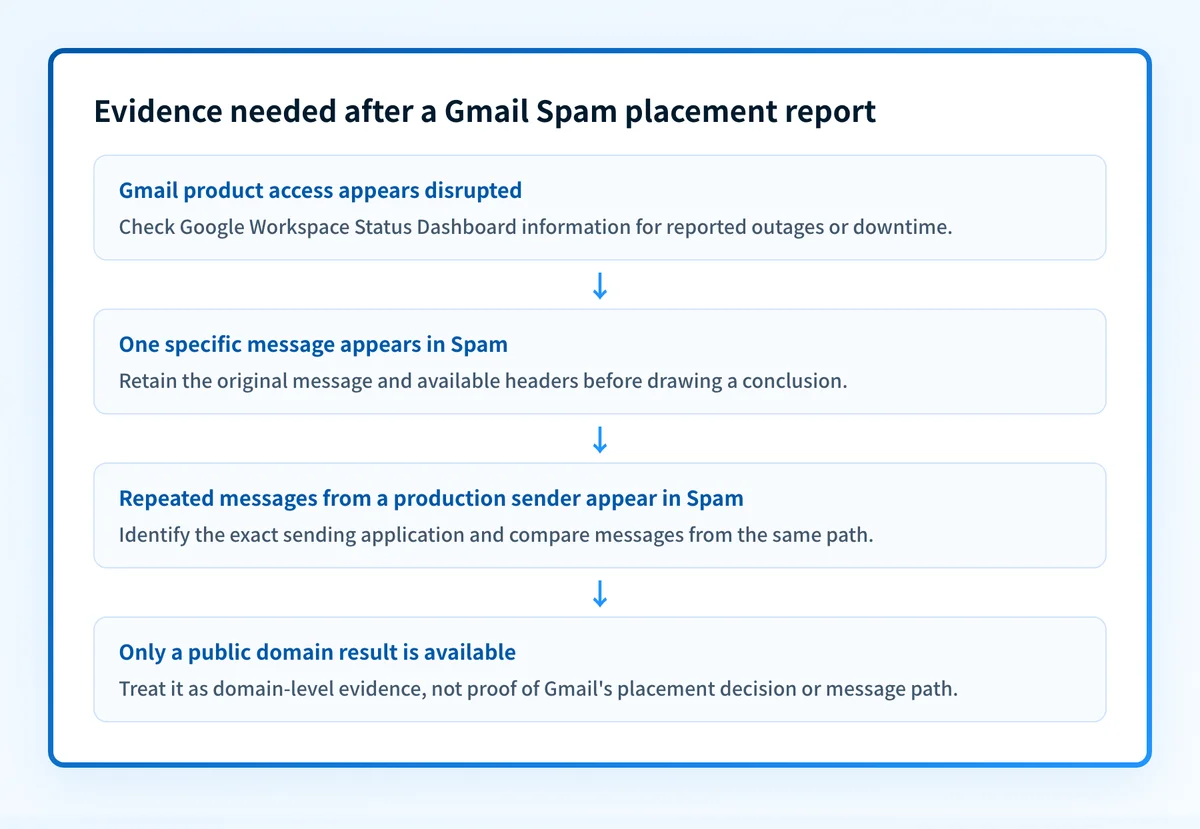
The right next action changes with the evidence you have.
If you are a Gmail recipient and the issue appears to be access to Gmail or another Google product, first check the Google Workspace Status Dashboard for reported outages and downtime. An outage check can help distinguish a product-access issue from a message-placement investigation. It does not explain why an individual email appeared in Spam.
If you are responsible for sending the message, preserve the exact message and identify the production path that produced it. Do not substitute a different test email, a marketing preview, or a public DNS lookup for the message that was actually placed in Spam. Those checks can still be useful, but they answer narrower questions.
If the issue affects a newsletter, use the evidence from that campaign and compare it with the broader discussion in why newsletters go to spam. If it concerns a Mailchimp message, the adjacent Mailchimp spam-placement guide is a more specific starting point. A provider-specific symptom is not proof that the same cause applies to Gmail.
If a message reaches Gmail Inbox but has different placement at another mailbox provider, do not treat one provider's result as a verdict for the other. See why email goes to spam in Outlook but not Gmail for that separate comparison.
A worked evidence record for a Gmail Spam report
Record the observation before making configuration changes. The following is an illustrative incident note, not a Gmail header or a documented Gmail diagnostic format.
Incident: Message appeared in Gmail Spam instead of Inbox
Affected mailbox: recipient@yourdomain.com
Message identifier: retain the message-specific identifier
Observed time: 2026-08-13T12:00:00Z
Sender visible From domain: yourdomain.com
Sending application: identify the actual production application
Evidence retained: original message and available headers
Scope: one message, one recipient, or repeated placement
Google service status checked: yes or no
This record keeps the observation separate from an explanation. It also makes later comparison possible. For example, if multiple messages from the same production application show the same result, retain examples from that exact path. If only one message is affected, record that limitation instead of asserting a broad sending problem.
Avoid publishing or sharing unredacted message content, recipient addresses, private headers, credentials, or account-generated values. Use redacted copies when an internal team needs help reviewing the issue.
What to do next with the evidence you have
Start with the evidence closest to the observed problem.
- If Gmail access itself seems disrupted, check the Google Workspace Status Dashboard. It reports product outages and downtime, not Spam classification.
- If you are investigating a single message, preserve the original message and its available headers before moving or deleting it.
- If you send from a domain or multiple applications, document which production application sent each affected message. A public DNS result cannot prove that the application used the expected authentication path for that message.
- If the issue is recurring, compare the affected messages with messages from the same sender that reached the Inbox. Keep the comparison scoped to the same production path.
- If you need a wider framework for the work, use the email deliverability guide to choose the next topic based on the evidence you have.
Once you have that evidence, move to the page that acts on it. If you are the sender and you know which layer failed, why your outbound emails go to spam and how to fix it walks the repair loop: read the header, fix the failing layer, retest the same path. This page stops at the diagnosis on purpose.
If you know the affected provider, move to the page that names its causes. For Gmail, the gates in Google's sender guidelines and the fix for each covers authentication and alignment, the user-reported spam rate, domain reputation in Postmaster Tools, one-click unsubscribe, and the infrastructure basics Google requires.
Check the domain's visible security posture
If you administer the sending domain, use Palisade's Email Security Score tool as a domain-level starting point before deciding what to investigate next. Compare any public result with the affected message and the actual production sender.
Check your domain's Email Security Score
A domain-level check cannot prove why Gmail placed one message in Spam, inspect Gmail's private placement decision, or confirm the state of every production sending path.
For an ongoing DMARC investigation across one or more domains, Start with Palisade. Palisade analyzes DMARC aggregate-report data, identifies sending sources and authentication or alignment issues, and creates prioritized remediation tickets. A human reviews the evidence and applies any policy change. This does not control Gmail's private inbox-placement decision or guarantee inbox placement.
Evidence
Sources and further reading
Questions readers ask
Frequently asked questions
What evidence identifies why an email went to spam?
The evidence that identifies why an email went to spam is the message itself, its full headers, and the production application that actually sent it. Those three establish whether SPF and DKIM passed and aligned with the domain in your From address on that exact path. Comparing a message that reached the inbox with one that did not narrows it further. A public DNS lookup is not a substitute for any of them.
Why do only some of my emails go to spam?
Only some of your emails go to spam when the affected messages differ on something the filter scores, and the usual difference is the application that sent them. Mail from a service that authenticates correctly reaches the inbox while mail from one nobody added to DNS does not, even though both carry the same From domain. Compare the headers of a message that reached the inbox with one that did not; the first line that differs is where to look. For Gmail specifically, why your emails are going to spam in Gmail names the gates and the fix for each.
How do I change emails from spam to inbox?
If you are the recipient, open the message in Spam and mark it as not spam with Gmail's own control, which moves it and trains your own mailbox. If you are the sender, there is no switch to flip: you have to find and fix whatever failed on the sending path. Keep the original message either way, because its headers are the only hard evidence you have.
Why do emails go to spam instead of the inbox?
The receiving provider judged the message to look more like spam than wanted mail, and no major provider publishes its reason for a single placement. The usual places to look are authentication that fails or does not align with your From domain, a sending application nobody accounted for, and recipients who never asked for the mail. Narrow it down with the affected message, its headers, and whether the problem hits one recipient or many.
Can a public domain check prove a message will reach the inbox?
No, because a domain check reads public DNS and nothing else. It cannot see your production sending path, the provider's private decision, or what happens to your next message. It is a good way to spot a missing or broken record, not a placement forecast.

Written by
Johanie DupontBrand & Ecommerce Email
Johanie Dupont works on brand and ecommerce email at Palisade: BIMI and verified marks, sender requirements, and getting marketing mail into the inbox.
More from Johanie →