What is the maximum size for an email attachment?
 ChatGPT
 Claude
 Gemini
 Perplexity
 Grok
GrokIn brief
There is no universal maximum email attachment size. Gmail and Outlook.com publish 25 MB, but encoding and the recipient's limit decide what lands.
There is no universal maximum size for an email attachment. Gmail allows up to 25 MB of attachments and Outlook.com publishes a 25 MB file-attachment limit, but work accounts, gateways, and recipient systems can set different caps. The lowest limit on the delivery path wins. File size is also smaller than final message size because encoding, the message body, headers, and other attachments add overhead.
At a glance
Quick takeaways
- Gmail publishes 25 MB for personal accounts. Outlook.com publishes 25 MB, but the Outlook client caps internet accounts at 20 MB and Exchange accounts at 10 MB by default.
- Base64 encoding adds about 33%, so under a 25 MB cap measured on the encoded message, plan on roughly 18 MB of raw file.
- Check both the sender's limit and the recipient system's limit.
- A provider may limit total attachments, the complete encoded message, or both.
- Base64 encoding expands binary data before the message travels over email.
- An accepted upload does not prove the receiving gateway will accept the message.
- Use a controlled file-sharing link when the file is close to a published limit.
How attachment size and message size differ
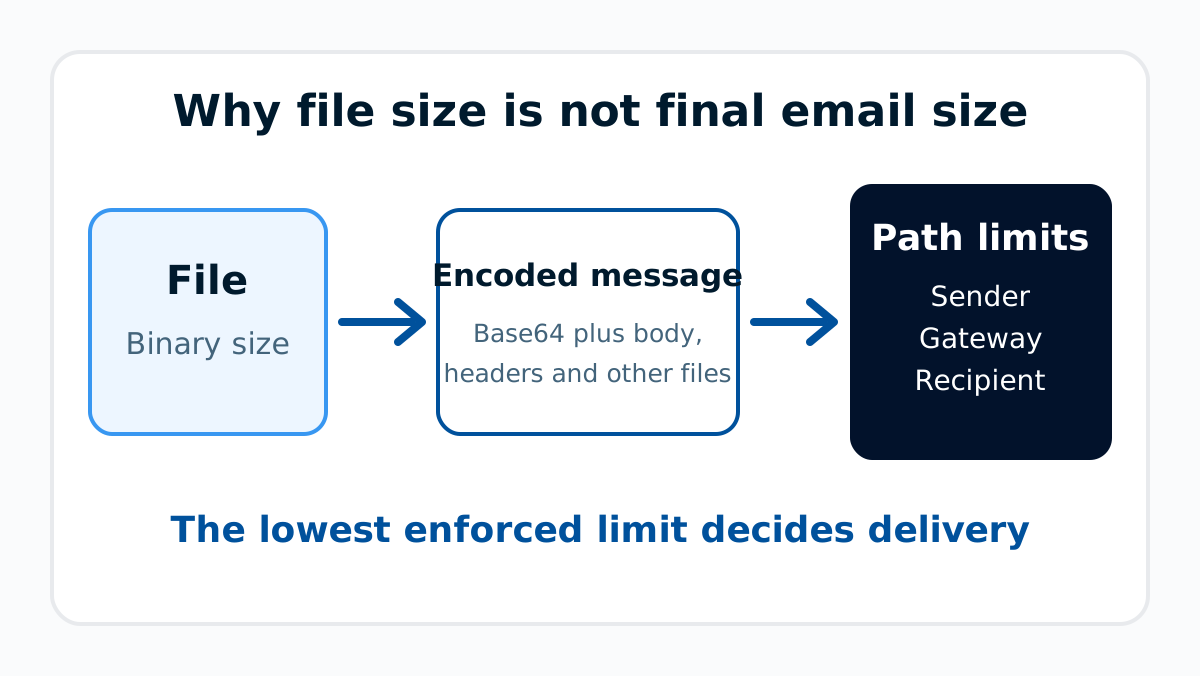
An attachment starts as a binary file, but email normally carries that file as encoded MIME content. RFC 4648 defines Base64 encoding in groups that turn 3 input octets into 4 encoded characters. That makes the encoded payload about one-third larger before MIME boundaries, filenames, message headers, body text, signatures, and any other files are added.
This illustrative calculation shows why the file shown in Finder or File Explorer is not the final message size:
Binary attachment:            18,000,000 bytes
Base64 payload, approximate:  24,000,000 characters
Still added by the message:   MIME fields, body, signature, headers, other files
Limit that decides delivery:  Lowest enforced limit on the sender-to-recipient path
Inverted, that is the number worth remembering: under a 25 MB cap measured on the encoded message, plan on roughly 18 MB of raw file. The exact result depends on the sending client and message construction. Use it as a planning model, not as a promise that an 18 MB file will pass every provider.
What limits do common providers publish?
Gmail
Google's Gmail attachment guidance sets a 25 MB total attachment limit for personal Gmail accounts. For work and school accounts, a Google Workspace administrator sets both the sending and receiving attachment limits, so the personal-account number is the wrong one to plan a business send around. When a file is larger, Gmail can add it as a Google Drive link instead of attaching the binary file to the message.
The recipient can still have a lower limit or block the file type. A Drive link also introduces its own access permissions, so confirm that the intended recipient can open it without exposing the file more broadly.
Outlook.com
Microsoft's Outlook.com sending-limits guidance publishes a 25 MB file-attachment limit. Outlook can offer OneDrive sharing for larger files, but the file's sharing permissions still control who can retrieve it.
The Outlook client enforces its own, lower cap first. Microsoft's guidance on reducing attachment size states that for internet email accounts such as Outlook.com or Gmail the email size limit is 20 MB, and for Exchange business accounts the default is 10 MB, counting the attachment and the message together. That is a live example of this page's whole point: the service published 25 MB, and the client stops you before you reach it.
Microsoft 365 and other work accounts
Business mail can have service, organization, connector, gateway, mailbox, and recipient limits. Microsoft's Exchange Online limits service description separates message-size limits from recipient, rate, mailbox, and tenant limits. The article on Exchange Online sending and receiving limits explains those other counters.
That service description publishes the figures worth planning against:
- Default maximum message size: 35 MB sending, 36 MB receiving, which an administrator can set anywhere between 1 MB and 150 MB.
- Ceiling: 150 MB in Outlook, 112 MB in Outlook on the web.
- File attachments per message: 250.
- Messages routed outside Microsoft datacenters carry "an additional 33% translation encoding increase", which is why the outbound ceiling lands at 112 MB. That is the same encoding overhead this page describes, confirmed by the vendor.
Sizing an attachment is one of the routine email deliverability checks that decide whether a message lands at all.
When does the answer change?
The published attachment limit changes with the complete delivery path:
- The sender application may stop the upload before submission.
- The sending mail server can reject a message that exceeds its configured size.
- A security gateway or relay can apply another message-size policy.
- The recipient provider or tenant can enforce a lower receiving limit.
- A policy can block a file type even when the message is small enough.
How should you send a file without hitting the limit?
1. Check the sending account's published limit
Use the documentation for the actual account and client. Separate a consumer Outlook.com mailbox from a Microsoft 365 work account, since they do not share one universal configuration.
2. Check the recipient path
Ask the recipient or their administrator about the receiving limit when the file is business-critical. Include any secure email gateway or ticketing system that receives the message before the mailbox.
3. Leave room for encoding and message content
Do not compare the raw file size directly with a full-message limit. Account for Base64 expansion, body content, signatures, headers, and all other attachments. If the file is close to the documented cap, use an approved sharing service instead.
4. Share the file with controlled permissions
Restrict the link to the intended recipients when the service supports it, set an appropriate expiry, and confirm access through the recipient's real account. Do not upload confidential material to an unapproved public service.
If an unexpected message asks you to open a shared file, use the same safe attachment-handling process you would use for a binary attachment.
5. Retest the same path after a rejection
Preserve the original failure, then send a small plain-text control message to the same recipient. If that succeeds, retry with a smaller approved file or a controlled link. An Outlook or Exchange NDR should be classified from its exact code and diagnostic text using the Outlook bounce-back guide.
What does an attachment-size rejection tell you?
A size rejection describes one attempted message and path. It does not mean the recipient address is invalid, the sender is blocklisted, or email authentication failed. Keep the original NDR or SMTP response, the file size, the sender application, the recipient domain, and the time of the attempt.
If the same message reaches one provider but fails at another, compare the receiving limits and gateway policies. If a small control message also fails, return to the diagnostic text instead of assuming attachment size is still the cause.
When the NDR includes the original message headers, Palisade's email header analyzer can organize the route and authentication results for review. It cannot show a provider's private size configuration or prove which limit rejected the message.
Evidence
Sources and further reading
Questions readers ask
Frequently asked questions
Can I send a 25 MB attachment to every email provider?
No. A 25 MB raw file encodes to roughly 33 MB on the wire, so it clears no 25 MB cap that is measured on the encoded message. Gmail and Outlook.com both publish 25 MB, but the Outlook client, a gateway, or the recipient system can enforce less.
Does compressing a file always make it small enough to email?
No. Some file formats are already compressed, and the final email still includes encoding and message overhead. Check the resulting file and the complete delivery path.
Is a cloud-storage link automatically safer than an attachment?
No. A link avoids attaching the binary file, but access permissions, account compromise, phishing, and data-handling rules still apply. Use an approved service and restrict access.
Is the published limit always per attachment?
No. A provider can count all attachments together or enforce a limit on the complete encoded message. Read the rule for the actual sending and receiving services.
Can a Microsoft 365 administrator raise the attachment limit?
Only within the service and organization controls available for that tenant. A higher sending limit does not override a lower gateway or recipient limit.

Written by
Dominic LandryDeliverability & DNS
Dominic Landry works on email deliverability and DNS configuration at Palisade, from SPF and DKIM records through to DMARC enforcement.
More from Dominic →