How can you safely handle malicious email attachments?
 ChatGPT
 Claude
 Gemini
 Perplexity
 Grok
GrokIn brief
How can you safely handle malicious email attachments? Do not open them, verify the request separately, report it, preserve evidence, and stay safe.
Yes, you can handle a suspected malicious email attachment safely by leaving it unopened, verifying the request through a separate trusted channel, reporting it through your organization's security process, and preserving the original message for review. A sender name, familiar logo, or expected-looking filename is not enough to establish trust. If you already opened the attachment, stop further interaction and follow your incident-response process promptly.
At a glance
Quick takeaways
- Do not open, preview, download, reply to, or forward an attachment you did not expect.
- Verify a request through a known phone number, chat account, or ticketing channel, not by replying to the suspicious email.
- Report the original message using your email service or organization's reporting process before deleting it.
- A malicious attachment can arrive in an email that looks like it came from a known person or business.
- Email authentication can help identify unauthorized use of a domain, but it does not inspect an attachment for malware.
- If an attachment was opened, preserve the message and contact the security team with the time, device, and actions taken.
How safe attachment handling works
Safe handling separates two questions: whether the message is genuinely expected, and whether the file is safe to open. A familiar display name or signature does not answer either question. The Cybersecurity and Infrastructure Security Agency's phishing guidance advises people to avoid clicking links or opening attachments in suspicious messages, then independently verify unexpected requests.
The safest default is to treat an unexpected file as untrusted until its sender and business purpose are confirmed through a separate channel. That channel matters. Replying to the same message, calling a number in its signature, or using a link inside it may keep you in contact with the attacker.
Your mail provider and endpoint protections may scan or quarantine files before they reach you, but those controls do not remove the need for verification. Microsoft's guidance for responding to phishing also recommends reporting suspicious messages rather than interacting with their content.
Email authentication helps with a narrower trust signal. DMARC evaluates whether SPF or DKIM authenticated a message with alignment to the visible From domain. RFC 9989 defines DMARC as a mechanism for domain owners to publish handling requests for authentication failures. It does not inspect attachment contents, prove that an attachment is harmless, or prevent a compromised legitimate mailbox from sending malware.
For the authentication context behind that distinction, see the email authentication learning center.
When the response should change
The immediate rule is straightforward: if the attachment is unexpected or the request cannot be verified independently, do not open it. The next action changes based on what happened.
- You have not opened the file: Report the message through the approved reporting path. Keep it available for the security team if your policy asks users to preserve suspected phishing.
- You downloaded but did not open the file: Do not move, rename, share, or upload it to unapproved services. Tell the security team where it was saved so they can advise on handling.
- You opened the file or enabled content: Stop interacting with it. Disconnect only if your incident-response process instructs you to do so, then contact the security team immediately and preserve the message.
- The request appears to come from a known contact: Verify the business request using contact details you already know. A real person's mailbox can be compromised, so a familiar sender is not sufficient evidence.
- You administer the sending domain: Investigate whether the message authenticated and whether it was authorized to use your domain, while treating attachment analysis as a separate security-control task.
Do not forward a suspicious attachment to coworkers for a second opinion. Forwarding can spread the file and can remove evidence needed for investigation.
A message may pass DMARC and still contain a malicious attachment if it came from an authorized but compromised sender. Conversely, a DMARC failure does not by itself prove that an attachment contains malware. Keep these findings separate in the incident record.
A worked response checklist
Use this checklist when an unexpected attachment arrives:
Attachment received: invoice.zip from a known display name
1. Leave the file unopened.
2. Do not reply to the message or use its contact details.
3. Verify the request through the sender's known phone number, chat account, or ticket system.
4. Report the original email using the organization's security process.
5. Record whether the file was downloaded, opened, or whether content was enabled.
6. Preserve the message unless the security team tells you otherwise.
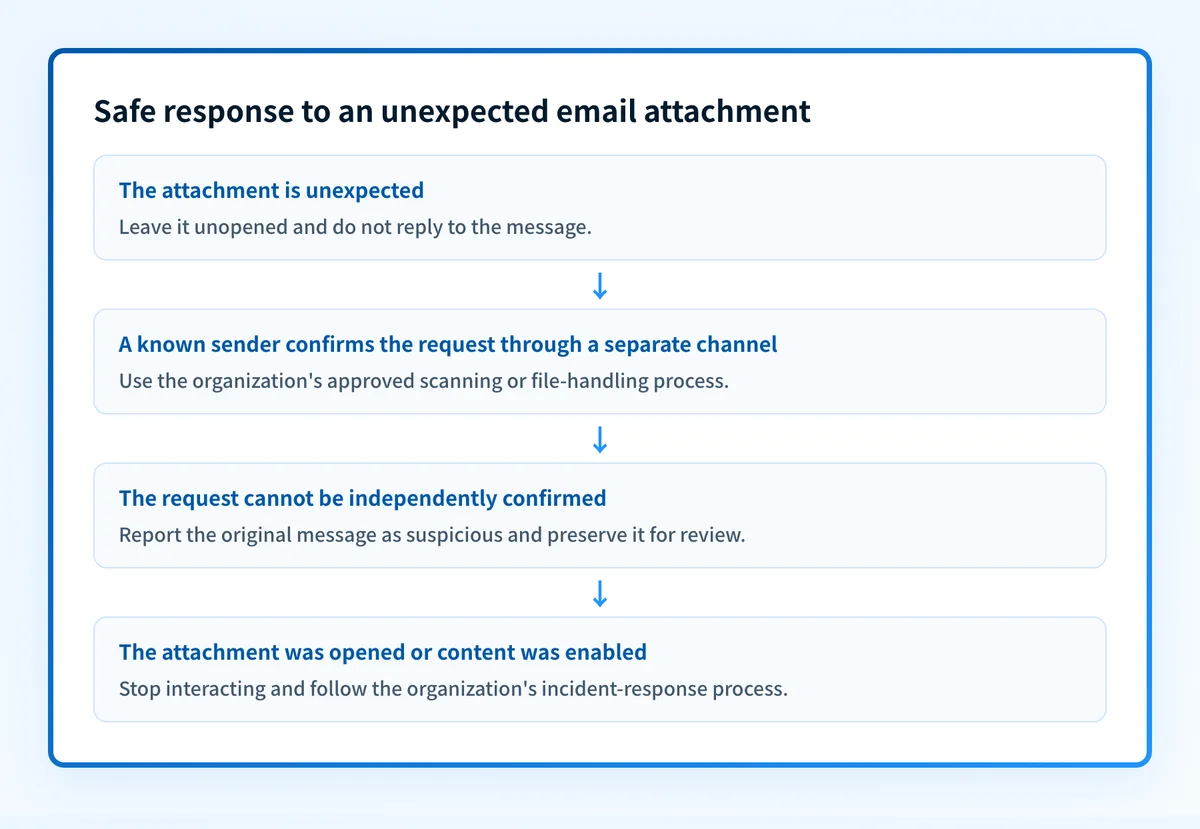
The verification result determines the safe outcome:
- If the known sender confirms the request and your organization's policy permits the file type, follow the approved scanning or file-transfer process before opening it.
- If the sender cannot confirm the request, or you cannot reach them through an independent channel, report the message as suspicious.
- If you already interacted with the file, report that fact clearly. It helps the security team decide what evidence to collect and what containment steps may be appropriate.
For broader employee guidance, see Palisade's tips for protecting yourself from malicious email attachments.
What to check next, based on your evidence
If you have the original message and need to understand its authentication signals, inspect the raw message headers. The Authentication-Results header field defined by RFC 8601 can show results such as SPF, DKIM, and DMARC that the receiving system recorded. Those results can help an administrator assess whether the visible From domain authenticated, but they do not identify malware in the attachment.
If you only have the attachment, do not upload it to a public scanning service unless your organization's policy explicitly permits that. The file may contain confidential information, customer data, or evidence relevant to an investigation. Use your approved security team or endpoint-security workflow.
If the message impersonates your organization, preserving the raw headers and attachment details can support investigation of the sending path. How Palisade handles DMARC for inbound emails explains the boundary between inbound-message authentication evidence and domain-level DMARC operations.
Inspect the suspicious message's authentication evidence
When you have a redacted copy of the original message headers, use Palisade's header analyzer to inspect the authentication results before drawing conclusions about sender identity.
A header analysis cannot scan the attachment, prove that a sender's mailbox was not compromised, explain every mailbox provider decision, or replace your organization's incident-response process.
For teams that need to identify legitimate sources using their own domains over time, Palisade is agentic DMARC software that analyzes DMARC aggregate-report data, identifies authentication and alignment issues, and creates prioritized remediation tickets. A human reviews the evidence and applies any DNS or DMARC policy change.
Palisade does not inspect inbound attachments, automatically repair every sender, or guarantee that future messages will authenticate or reach an inbox.
Evidence
Sources and further reading
Questions readers ask
Frequently asked questions
Should I open an attachment if it comes from someone I know?
No. Verify an unexpected request through a separate trusted channel first. A known person's mailbox can be compromised, and a display name can be impersonated.
Can antivirus scanning guarantee that an attachment is safe?
No. Scanning is an important control, but it does not guarantee that a file is harmless. Follow your organization's process when a file is unexpected or cannot be independently verified.
Should I delete a suspicious email attachment immediately?
Only after following your organization's reporting and evidence-preservation process. Reporting the original message can help the security team investigate the sender, message headers, and affected recipients.
Can DMARC block malicious attachments?
No. DMARC helps receivers evaluate whether a message is authorized to use a domain in the visible From field. It does not inspect an attachment for malware, and it cannot stop a malicious file sent from a compromised authorized account.
What should I tell the security team if I opened an attachment?
State the message sender, the time you received it, whether you downloaded or opened the file, whether you enabled any content, and the device involved. Preserve the original message and follow the team's instructions.

Written by
Samuel ChenardCEO & Co-Founder, Palisade
Samuel Chenard is the CEO and co-founder of Palisade, agentic DMARC software for IT teams and MSPs, from one domain to thousands.
More from Samuel →