Bounce back email Outlook: diagnose and fix the NDR
 ChatGPT
 Claude
 Gemini
 Perplexity
 Grok
GrokIn brief
Bounce back email Outlook errors are non-delivery reports. Read the exact SMTP code and diagnostic text, apply the narrow repair, then retest.
Bounce back email Outlook errors are usually an Outlook or Exchange Online non-delivery report, also called an NDR. The NDR's exact SMTP status code and diagnostic text determine the next action. Preserve that evidence before changing DNS, recipient details, message content, or policy. A bounce can indicate a bad recipient address, a temporary route problem, a size or quota limit, or a receiver policy decision.
At a glance
Quick takeaways
- An Outlook or Exchange Online NDR is evidence about one attempted delivery path, not a general verdict on your domain.
- SMTP replies beginning with
4are temporary failures, while replies beginning with5indicate a permanent failure for that attempt. - The enhanced status code and diagnostic text are more useful than the word "bounce" alone.
- A recipient, quota, malware, tenant-policy, or private filtering decision often needs action from an administrator or the recipient organization.
- Retest with a new message through the same application, account, recipient domain, and route after the repair.
- A passing public DNS check cannot explain every Outlook NDR or prove that a recipient will accept the next message.
What does the failure mean?
Microsoft describes an NDR as a message returned when Exchange Online cannot deliver a message. Its Exchange Online NDR reference directs senders to use the error code and diagnostic information to identify the cause.
An NDR normally includes a reply shaped like this. The fields below are a redacted evidence pattern, not a diagnosis:
Delivery has failed to these recipients or groups:
recipient@recipientdomain.com
The email address you entered couldn't be found. Please check the recipient's email address and try to resend the message.
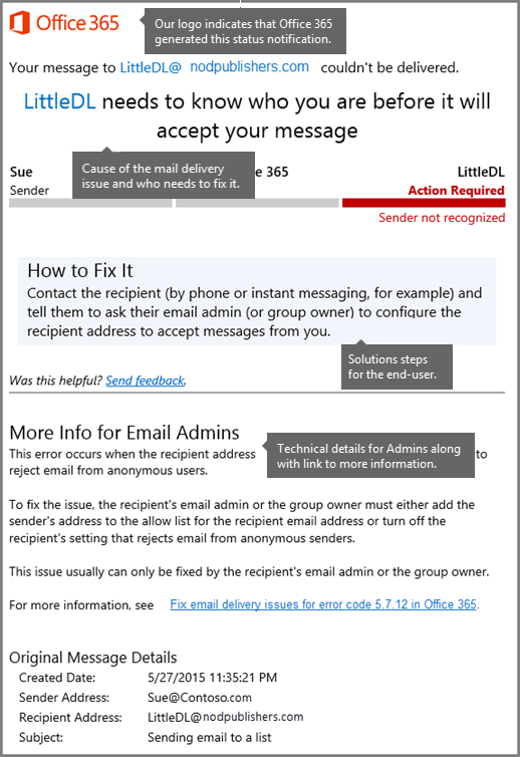
Do not treat this example as proof that every Outlook bounce means an invalid address. Save the complete NDR, including the recipient, sending time, status code, and diagnostic text. If you administer the sender tenant, preserve the message ID and the original sender and recipient addresses in an access-controlled incident record.
SMTP defines reply classes: a 4xx reply is a transient negative completion reply, while a 5xx reply is a permanent negative completion reply. Enhanced mail-system status codes add detail about whether the failure concerns an address, mailbox, system, network, protocol, content, or security policy.
The code still does not prove every underlying cause. A 5xx response can show that the same unmodified attempt will not succeed, but the receiver's diagnostic text and the responsible administrator determine the repair.
What usually causes it?
The recipient address or mailbox is unavailable
An NDR that explicitly says the recipient address could not be found points first to the address, alias, group membership, or recipient mailbox. Microsoft lists recipient-related NDR causes and recommended actions in its Exchange Online NDR troubleshooting reference.
Check the address against a current directory entry or confirm it directly with the recipient. Do not substitute a guessed alias. If the address is correct but the NDR identifies a recipient-side restriction, the recipient organization's administrator may need to investigate.
The failure is temporary
A 4.x.x reply indicates a transient condition under SMTP. The cause may involve routing, a temporary server condition, or a resource issue. The correct action depends on the returned diagnostic text, not on assuming that every temporary failure is caused by the sender.
Wait for the sender's normal retry behavior where it applies, then resend only after the stated temporary condition has cleared or the responsible administrator confirms a change. Repeated manual sends can create noise without adding evidence.
The message exceeds a size, quota, or content limit
Microsoft's NDR guidance includes failures related to message size, mailbox capacity, and message restrictions. An attachment, recipient limit, blocked file type, transport rule, or recipient mailbox quota can stop a message even when the address and DNS records are correct.
Compare the failed message with a smaller plain-text test sent through the same account. If the smaller test succeeds, add the production content back in stages. That result is evidence of a message-specific difference. It does not identify a precise size threshold unless the NDR or administrator documentation provides one.
A sender or recipient policy rejected the message
Some NDRs identify a transport rule, security policy, authentication policy, or sender restriction. Read the Microsoft diagnostic text literally and use the named policy owner or administrator path. Do not infer that a policy rejection means spam, a compromised account, or a DMARC failure unless the NDR says so.
When the NDR explicitly identifies DMARC policy, use the DMARC rejection troubleshooting guide. That workflow is specific to authentication and alignment evidence, not a substitute for a recipient, quota, or Exchange tenant-policy investigation.
The message was accepted but later placed in Junk
Mail placed in Junk is different from an NDR. An NDR means the recipient system did not accept the message for delivery in the reported attempt. A message that Outlook accepted and later filtered remains a placement issue. See why email can go to spam in Outlook but not Gmail when the message was accepted rather than rejected.
How do I diagnose the failure?
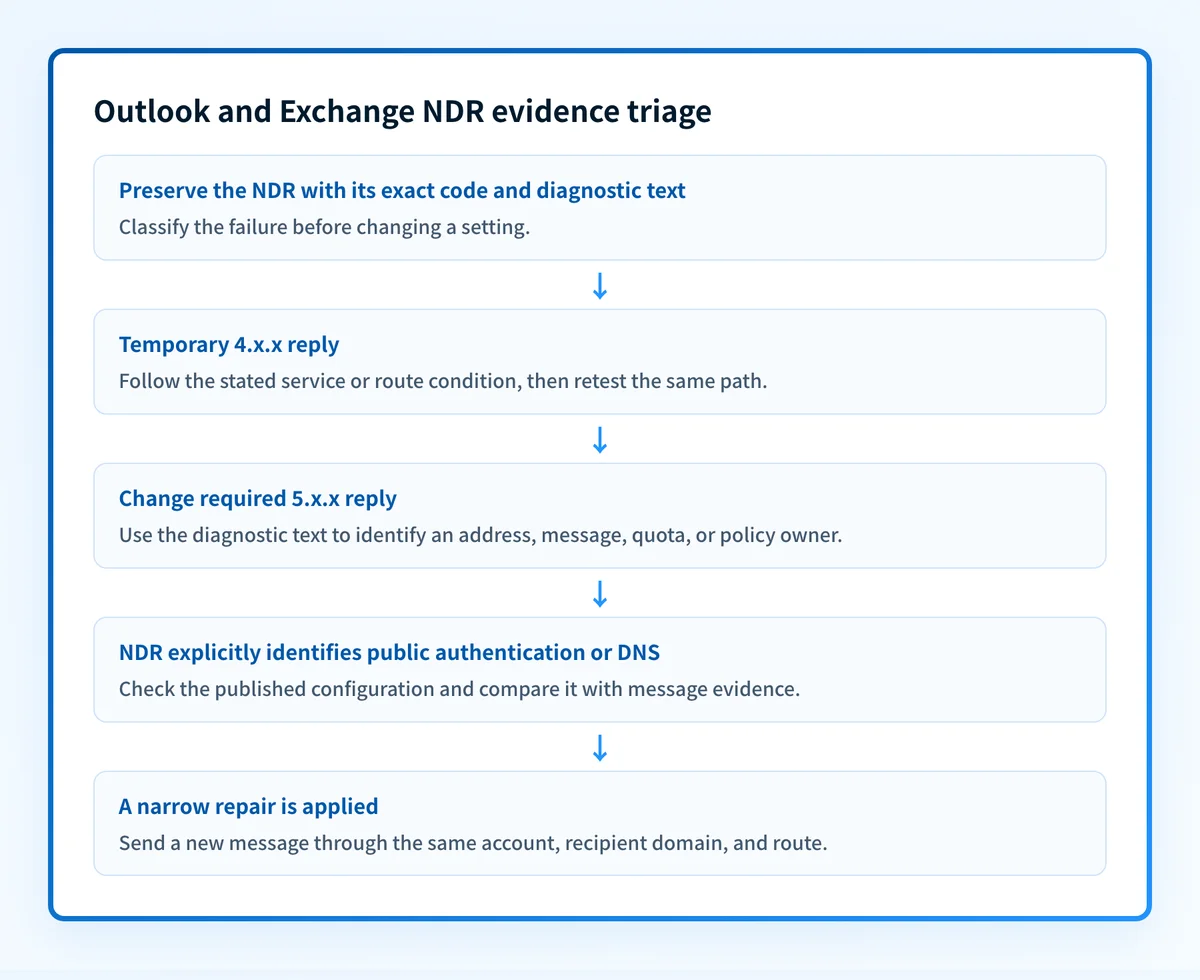
1. Preserve the original NDR
Forwarding an NDR can remove context, so retain the original returned message and, where available, its full headers. Record:
- The exact SMTP and enhanced status code.
- The complete diagnostic text.
- The failed recipient address or group.
- The sending account, application, time, and message ID.
- Whether the message had attachments, external links, encryption, or an unusual recipient count.
2. Classify the reply before changing anything
Start with the leading SMTP class. A 4.x.x status means the server reported a temporary failure. A 5.x.x status means the sender needs a change, a correction, or action from the relevant administrator before retrying the same attempt.
Then classify the diagnostic text into one of these investigation paths:
- Address or recipient path: confirm the mailbox, alias, distribution group, or recipient restriction.
- Route or server path: examine the sending and receiving route, then use the diagnostic text to identify the service owner.
- Message or quota path: compare message size, attachments, recipients, and content restrictions.
- Policy path: identify the named policy and who administers it.
- Authentication path: preserve the message headers and confirm the NDR actually names an authentication failure.
3. Check the sender-side trace when you administer Exchange Online
For an Exchange Online tenant, Microsoft documents message trace as a way for authorized administrators to investigate a message's path. Search using the original sender, recipient, time range, and message details captured from the NDR.
Use trace results to establish whether Exchange Online submitted, routed, deferred, or failed the message. Do not use a trace result as proof of the recipient provider's private filtering decision unless the available diagnostic evidence states that decision.
If you do not administer the tenant, give the NDR and original send time to the organization that does. Do not request credentials or make tenant-wide policy changes for one unexplained bounce.
4. Run the narrowest controlled test
Use the same sending account and application, but reduce variables only when the NDR points to a message, recipient, or route distinction. For a suspected attachment or size issue, send a small plain-text message to the same recipient. For a suspected recipient issue, confirm the address and retry with no changed content.
Do not remove authentication controls or loosen the DMARC policy as a general response to an Outlook bounce. That changes requested enforcement and does not repair an address, quota, route, or recipient-policy failure.
If a controlled test changes the outcome, record exactly what changed. If it does not, keep the original NDR as the strongest evidence and follow the provider-specific diagnostic guidance.
5. Separate public DNS evidence from private delivery evidence
A public check can help only when the NDR explicitly points to a public authentication or DNS configuration issue. It cannot inspect the recipient mailbox, Exchange queue, private tenant policy, message trace, or original account-specific NDR.
For a broader explanation of delivery-status notifications across providers, see Bounce-back email: how to read the error and fix the cause. Keep the Outlook or Exchange NDR beside that general guidance because its exact code and text remain the deciding evidence.
How do I fix it?
Correct the recipient detail or recipient-side setting
When the NDR identifies an invalid or unavailable recipient, correct the address from an authoritative contact or directory source. If the recipient is a group, confirm that external senders are permitted and that the sender is allowed to use it.
This repair changes recipient addressing or access, not authentication or DMARC enforcement. If the recipient organization controls the restriction, send the NDR to its administrator rather than changing your sender domain.
Reduce the confirmed message-specific trigger
When the evidence identifies size, attachment, or content restrictions, remove or replace only the confirmed trigger. A secure file-sharing method may be appropriate when an attachment is too large, but use the recipient organization's approved process where required.
This repair changes message construction, not domain authentication. Test the adjusted message through the same sending account and recipient route before treating it as resolved.
Repair the documented route or service condition
For a transient route or service error, follow the owner and action stated in the NDR. If Microsoft guidance identifies an Exchange Online configuration or service condition, an authorized administrator should make the minimum change supported by that evidence.
Keep the previous configuration available for rollback. A route adjustment can affect other mail flows, so verify a representative message path after the focused retest.
Investigate an explicitly named authentication failure
Only treat authentication as the cause when the NDR or trusted received-message evidence identifies it. Check the domain's published records, then compare those records with the exact sending path and message headers. A public record can be correct while an application still uses a different return path or fails to sign its messages.
This repair may affect authentication or alignment. It is separate from a policy relaxation. Do not lower p= to make an NDR disappear.
How do I validate the repair?
Send a new message through the same Outlook or Exchange account, application, recipient domain, and message path that produced the NDR. Preserve the new result. For a recipient repair, confirm that the corrected recipient accepted the message. For a message-specific repair, repeat the original content case after changing only the confirmed trigger.
Validate at the applicable layers:
- DNS: if the failure named public authentication or DNS, check the authoritative record and at least one public resolver.
- Vendor: use the relevant administrator evidence, such as message trace, only when an authorized tenant administrator can access it.
- Message: inspect the new delivered message and its trusted receiver-added authentication results when authentication is in scope.
- DMARC: after authentication-related changes, review aggregate reports once enough production data has accumulated.
Check the public security posture only when the NDR points to it
If the returned evidence explicitly identifies a public email-authentication or DNS issue, check your domain's email security posture before making a record change. Compare the result with the original NDR and a newly delivered message.
An email security score cannot inspect a recipient mailbox, repair an Outlook tenant policy, view private message trace data, or prove why one recipient rejected one message.
Evidence
Sources and further reading
Questions readers ask
Frequently asked questions
How to fix email bounce back in Outlook?
Read the exact Outlook or Exchange NDR first. Correct the specific cause it identifies, such as a recipient address, message restriction, temporary route condition, or named policy, then send a new message through the same path. Do not change DNS or DMARC unless the NDR specifically points to authentication or a public configuration issue.
How do I recall a message in Outlook that's already sent?
Only Outlook recall can attempt to retrieve a message after it has been sent, and its result depends on the recipient environment and whether the message has been read. Recalling a sent message does not repair an NDR because an NDR means the reported delivery attempt was not completed.
How to set a bounce back email in Outlook?
Only an administrator can configure many Exchange Online delivery and transport behaviors. A sender cannot set a generic bounce-back destination to solve an NDR. Use the returned NDR to identify whether the issue belongs to the sender, recipient, message, route, or a tenant policy owner.
How long does it take for an email to bounce back in Outlook?
It depends on the SMTP response and retry behavior. A permanent 5xx failure can produce an NDR promptly, while a temporary 4xx failure may be retried before a final result is returned. The delivery-status notification provides the evidence for that specific attempt.
Does an Outlook bounce mean the message went to spam?
No. An NDR indicates that the recipient system did not accept the message for delivery in the reported attempt. Spam or Junk placement applies when the message was accepted and then filtered into a mailbox folder.
Can changing DMARC to p=none fix an Outlook bounce?
No. Changing the DMARC policy changes the domain's requested handling for DMARC failures. It does not correct an invalid recipient, attachment restriction, mailbox quota, route problem, or recipient tenant policy.

Written by
Dominic LandryDeliverability & DNS
Dominic Landry works on email deliverability and DNS configuration at Palisade, from SPF and DKIM records through to DMARC enforcement.
More from Dominic →