How do Exchange Online sending and receiving limits work?
 ChatGPT
 Claude
 Gemini
 Perplexity
 Grok
GrokIn brief
Exchange Online sending and receiving limits use separate recipient, message, mailbox, and tenant counters. See which limit applies and how to verify it.
Exchange Online sending and receiving limits are separate service protections with different counters and time windows. A recipient can hit an hourly receiving threshold, a sender can hit per-message, per-minute, or rolling recipient limits, and a tenant can hit an external-recipient limit. Use the NDR, message trace, and Microsoft reporting to identify the exact counter before changing mail flow or assuming an authentication problem.
At a glance
Quick takeaways
- Exchange Online does not use one universal sending quota.
- The receiving limit and sender-recipient pair limit protect the destination mailbox, group, or public folder.
- The recipient rate limit counts recipients, not messages, in a rolling 24-hour period.
- A tenant can exceed its external-recipient allowance even when individual mailboxes remain below their own limits.
- A temporary SMTP response is evidence of a retry condition, while an NDR or Microsoft report can identify a more specific service limit.
- Public DNS and message-header checks cannot prove an Exchange Online tenant's current capacity or reset time.
How Exchange Online limits work
Microsoft documents Exchange Online limits by the object being protected: an individual recipient, a submitting mailbox, a single message, or the tenant. The current Exchange Online limits service description is the source of record for the applicable plan, scope, and current value.
For the pre-send file-size question, see the maximum email attachment size. That article separates raw file size, encoded message size, and the lowest enforced limit on the route.
For receiving, Microsoft publishes an overall limit of 3,600 messages per hour for an Exchange Online recipient. The limit applies to users, groups, and public folders. Microsoft also publishes a sender-recipient pair limit of 33% of the overall receiving limit. That pair limit controls how much one sender can send to one recipient during the same period.
For outbound mail, Microsoft separates several counters:
- The recipient rate limit is 10,000 recipients per user in a rolling 24-hour period for the Exchange Online plans listed in Microsoft's current limits table.
- The recipient limit controls the number of recipients on one message. Microsoft documents that it can be customized up to 1,000 recipients for a mailbox.
- The message rate limit is 30 messages per minute. Microsoft says excess outbound volume can be throttled into later minutes.
- The Tenant External Recipient Rate Limit, or TERRL, is a separate rolling 24-hour allowance for external recipients across the tenant.
When the answer changes
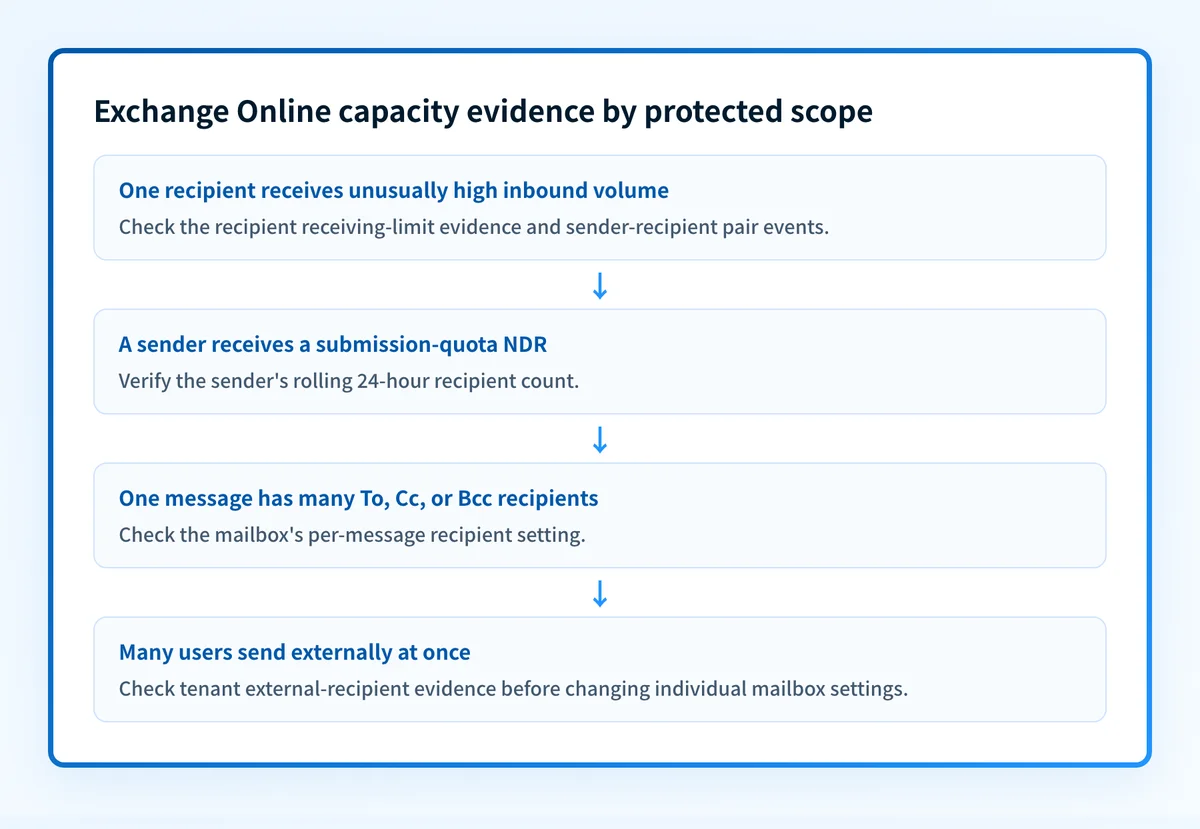
Start with the direction of the affected message, then identify what Exchange Online is counting.
A recipient who stops receiving internet or on-premises mail after unusually high inbound volume may have reached the receiving limit. Microsoft states that internal messages still count toward the threshold, but the receiving limit does not block internal messages in the same way it blocks internet and on-premises delivery. A notification storm, mail loop, scanner, or ticketing system can create this pattern without indicating a DMARC failure.
One sender failing only for one recipient points more narrowly to the sender-recipient pair limit or another sender-specific control. Microsoft’s mailboxes exceeding receiving limits report distinguishes overall receiving-limit events from sender-recipient pair events. Its Warm limit is a logging threshold, while its Hot limit indicates the mailbox exceeded the receiving threshold.
For outbound mail, a submission NDR provides stronger evidence than a count inferred from sent items. Microsoft’s submission quota troubleshooting guidance identifies the recipient rate limit when the NDR states:
The message can't be submitted because the sender's submission quota was exceededThat condition is a rolling recipient-count problem. It does not mean the mailbox sent 10,000 separate messages, and it does not reset automatically at midnight. If the sender did not produce the observed volume, Microsoft advises investigating possible account compromise.
A temporary SMTP response has a different meaning. A 421 response normally tells the sending system to retry later, subject to the SMTP server's response and the sender's retry policy. It does not, by itself, prove which Exchange Online counter was reached. See what SMTP error 421 means and how to fix it before treating a temporary response as a permanent block.
Do not raise connection concurrency or repeatedly resubmit the same message to work around a service limit. Retries can add volume to the same protected scope and make the evidence harder to interpret.
Worked capacity-evidence example
Use a short evidence record before choosing an operational response. This example is illustrative only. Replace every value with evidence from the affected Exchange Online tenant.
Direction: outbound
Observed object: submitting mailbox
Observed response: "The message can't be submitted because the sender's submission quota was exceeded"
Counter to verify: rolling recipients addressed by that sender
Time window: rolling 24 hours
Additional evidence: message trace, sent-message recipient counts, delegate activity
Do not infer: the tenant's TERRL state or a recipient's hourly receiving state
The next action follows the evidence available:
- If an NDR identifies a submission quota, count recipients addressed by the actual submitting user. A personal contact list can expand into individual recipients, while a distribution group in the shared address book has different counting behavior under Microsoft’s documented rules.
- If a recipient is missing inbound internet mail, review the receiving-limits report and compare timestamps with the recipient's inbound volume. Do not diagnose it from the sender's sent folder.
- If many mailboxes fail when sending to external domains, check the tenant-level external-recipient evidence in the Microsoft 365 admin experience and Exchange reporting. A single mailbox's history cannot establish TERRL status.
- If the sending system received a temporary SMTP response, preserve the exact response, timestamps, retry attempts, and source IP. Treat it as transport evidence until Microsoft reporting or the NDR narrows the cause.
Check the evidence before changing mail flow
Collect the original NDR or SMTP response first. Then inspect the affected mailbox, recipient, or tenant at the scope the response names. Microsoft’s limits page establishes what the service can enforce, but it does not prove that a particular tenant reached a specific threshold.
If you have a delivered message or an NDR with raw headers, use Palisade's email header analyzer to inspect the message path and authentication results alongside the Exchange Online evidence. This can help separate a submission or delivery limit from a message-path authentication issue.
A header analysis cannot reveal Exchange Online's tenant counters, reset a quota, prove a receiver's private decision, or confirm that future messages will be accepted.
If recurring mail-flow incidents expose unknown sending systems or SPF and DKIM alignment failures, Start with Palisade. Palisade analyzes DMARC aggregate-report data, identifies sending sources and authentication or alignment issues, and proposes prioritized remediation work for human review. It does not change Exchange Online limits, alter Microsoft tenant settings, or guarantee delivery.
Evidence
Sources and further reading
Questions readers ask
Frequently asked questions
Does the 10,000 Exchange Online recipient rate limit mean 10,000 messages?
No. The recipient rate limit counts recipients addressed by a user in a rolling 24-hour period. One message addressed to 100 recipients counts as 100 recipients.
Does the Exchange Online receiving limit block internal messages?
No. Microsoft states that internal messages count toward the receiving threshold, but the receiving limit does not block internal messages in the same way it blocks messages from internet and on-premises senders.
Can one sender be limited while other senders can still reach the same mailbox?
Yes. Microsoft documents a sender-recipient pair limit that is separate from the recipient's overall hourly receiving limit. The receiving-limits report can help distinguish the two conditions.
Does a 421 SMTP response prove that Exchange Online reached a quota?
No. A 421 response is temporary SMTP evidence that the sending system should retry according to the response and its retry policy. Use the exact NDR, message trace, and Microsoft reporting to identify the applicable Exchange Online limit.
Does a correct SPF or DKIM record increase Exchange Online sending limits?
No. SPF and DKIM authenticate mail and can support deliverability, but they do not change Exchange Online recipient, message-rate, receiving, or tenant external-recipient limits.

Written by
Dominic LandryDeliverability & DNS
Dominic Landry works on email deliverability and DNS configuration at Palisade, from SPF and DKIM records through to DMARC enforcement.
More from Dominic →