What do Google's updated DMARC reports reveal?
 ChatGPT
 Claude
 Gemini
 Perplexity
 Grok
GrokIn brief
Google’s DMARC aggregate reports now include diagnostic details about why an email fails sender authentication requirements.

Google’s DMARC aggregate reports now include diagnostic details about why an email fails sender authentication requirements. This new information appears in the
This matters because, since Google and Yahoo tightened their bulk sender rules in February 2024, unauthenticated mail is increasingly rate-limited or rejected outright rather than quietly slipped into spam. Previously the only clue was a bounce (NDR) landing in the sender's own mailbox, invisible to anyone monitoring a domain at scale. Now the same diagnostic rides along in the aggregate (rua) feed, so whoever watches your DMARC reports can see why Google is throttling a source without waiting for a user to forward a rejection notice.
What new information does Google add to DMARC reports?
The updated XML feedback adds a Sender requirement failed: 550-5.7.1. The “Sender requirement failed:” prefix is constant, while the trailing SMTP error code identifies the specific issue, such as SPF, DKIM, alignment, or other deliverability problems.
Which error codes should I watch for?
- 421-4.7.27 – Rate limiting due to SPF failure.
- 421-4.7.29 – Rate limiting because TLS was not used.
- 421-4.7.30 – Rate limiting when DKIM authentication failed.
- 421-4.7.32 – Rate limiting due to lack of alignment.
- 550-5.7.25 – Blocked because of missing PTR or DNS mismatch.
- 550-5.7.27 – Blocked because SPF failed.
- 550-5.7.30 – Blocked because DKIM failed.
- 550-5.7.1 – General block (spam, reputation, RFC-5322 non-compliance, etc.).
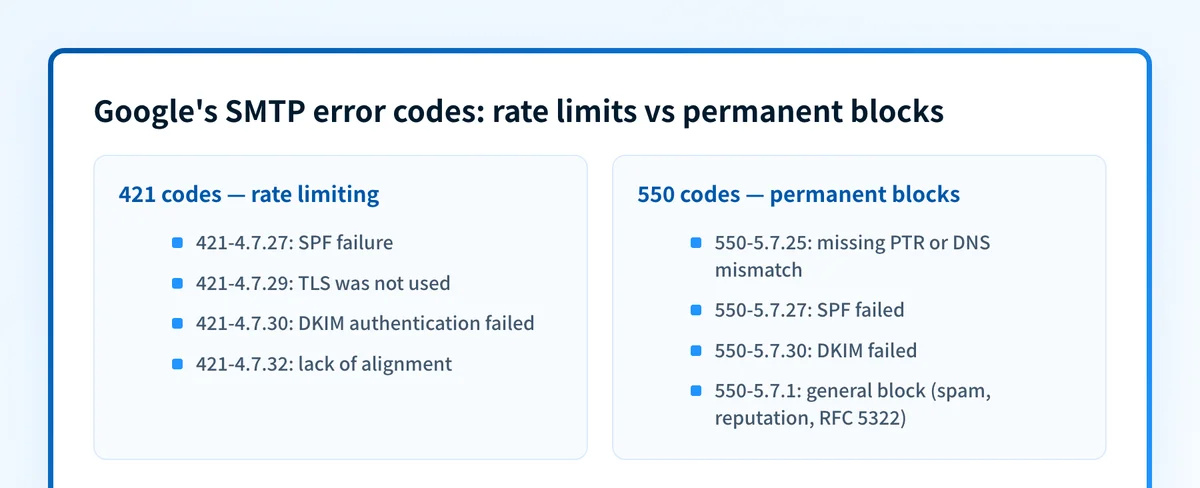 Codes starting with 421 signal rate limiting; 550 codes are permanent blocks.
How can I turn these codes into actionable insight?
Each code points to a concrete authentication or configuration problem. By mapping the code to its meaning, you can quickly identify whether you need to fix SPF records, update DKIM signatures, align domains, or address deeper DNS and header issues.
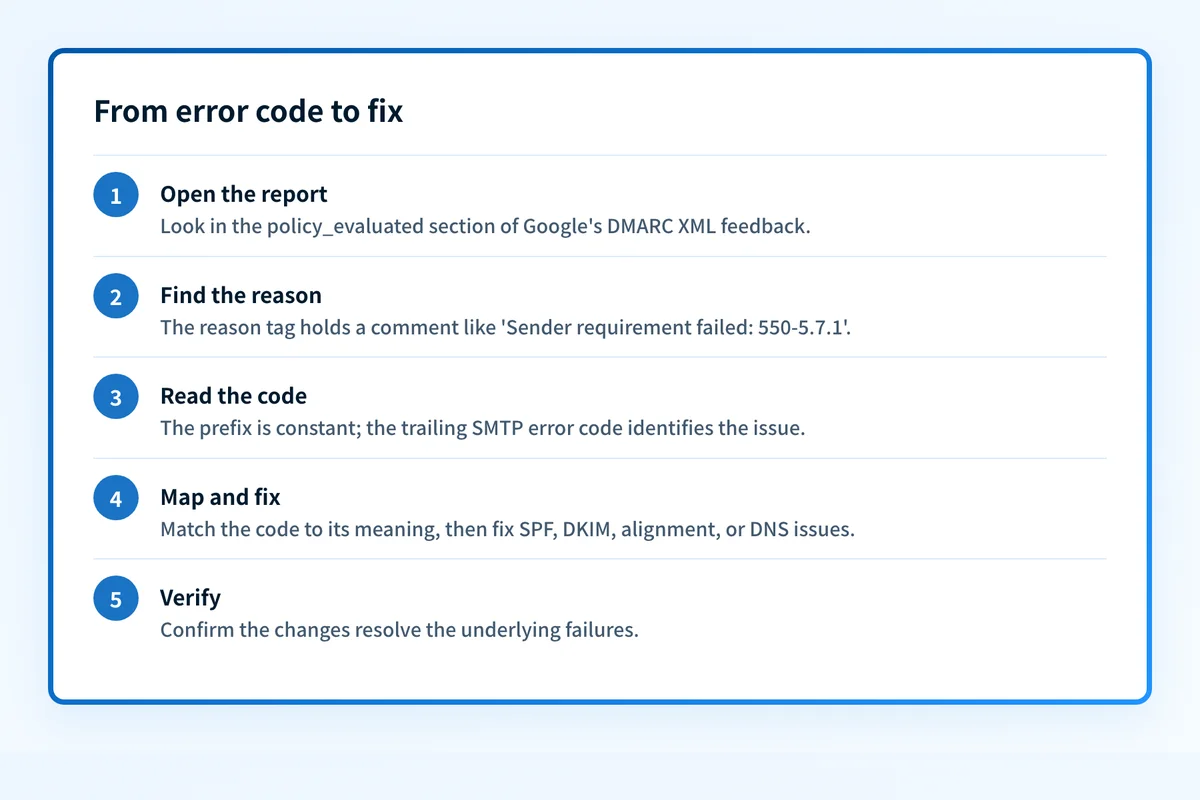
Map each code to a fix
The value of the code is that it names the exact control to repair. Work through them in this order:
421-4.7.27/550-5.7.27(SPF). The sending IP isn't authorized in your SPF record. Audit the record with the SPF checker and add the missing sending service. Watch the 10-lookup limit.421-4.7.30/550-5.7.30(DKIM). Mail isn't carrying a valid signature that aligns with your domain. Confirm signing with the DKIM checker and republish the selector if the key rotated.421-4.7.32(alignment). SPF or DKIM passes, but on a domain that doesn't match your visible From address. Fix the alignment domain rather than the auth mechanism itself.421-4.7.29(TLS). The connection wasn't encrypted. Ensure your outbound mail server offers STARTTLS, and consider publishing MTA-STS to enforce it.550-5.7.25(PTR / DNS mismatch). The sending IP has no valid reverse-DNS (PTR) record, or it doesn't match forward DNS. This is set on the IP owner's side. A shared platform may need to fix it for you.550-5.7.1(general block). A catch-all for reputation, spam signals, or RFC 5322 non-compliance. Check message formatting and sending reputation rather than a single auth record.
How does Palisade help you act on the new data?
Palisade captures the new Sender requirement failed details in real time and surfaces them in the Email Security Score dashboard. The DMARC reporting tool now includes a Sender Requirements Failure Report that highlights which domains, IPs, or sending services are triggering each error.
With these insights, you can prioritize remediation, automate alerts, and verify that changes resolve the underlying failures.
What should I do if I’m still struggling with Google’s sender requirements?
Use Palisade’s BIMI and SPF checkers to validate your DNS setup. If you need hands-on assistance, book a demo to fast-track full DMARC enforcement and compliance.
At a glance
Quick Takeaways
- Google now adds a
Sender requirement failedcomment with an SMTP error code to DMARC reports. - The error codes reveal specific SPF, DKIM, TLS, alignment, and DNS problems.
- Palisade’s reporting suite ingests these details and presents a clear Failure Report.
- Map each code to a remediation step to reduce rate-limiting and blocks.
- Use Palisade’s DMARC, SPF, DKIM, and BIMI tools for continuous validation.
- Book a demo for end-to-end compliance.
Questions readers ask
FAQs
What does the Sender requirement failed comment mean?
It indicates that Google rejected the message because it didn’t meet one of its sender authentication requirements, such as SPF, DKIM, or alignment.
Where can I find the new error codes?
They appear in the
How do I differentiate between rate-limiting and hard blocks?
Codes starting with 421 are rate-limiting signals, while 550 codes represent permanent blocks.
Can Palisade automatically alert me when a specific code spikes?
Yes, you can configure thresholds in the Email Security Score dashboard to receive real-time alerts.
Do I need to change anything in my existing DMARC record?
No changes to the DMARC record are required; the update is purely on Google’s reporting side. However, you should address the underlying authentication failures the codes reveal.
Ready to gain full visibility and take action? Schedule a demo today and see how Palisade can turn Google’s new DMARC data into deliverability wins.
For a provider-specific implementation of these authentication checks, see What Exactly Is a DMARC Failure Report and Why Should You Care?.

Written by
Samuel ChenardCEO & Co-Founder, Palisade
Samuel Chenard is the CEO and co-founder of Palisade, agentic DMARC software for IT teams and MSPs, from one domain to thousands.
More from Samuel →