Gmail report phishing steps and what happens next
 ChatGPT
 Claude
 Gemini
 Perplexity
 Grok
GrokIn brief
Follow Gmail's current report phishing steps, learn what Google receives, preserve useful evidence, and know when your security team must be involved.
On a computer, open the suspicious message in Gmail, choose More next to Reply, then choose Report phishing. Do not click a link, download an attachment, reply, or call a number in the message first. A Gmail report can help Google improve protection, but it does not replace your organization's security process. Preserve the original message when policy requires it, especially after credential, payment, or device activity.
At a glance
Quick takeaways
- Use Gmail's own More menu, not a link or button inside the suspicious email.
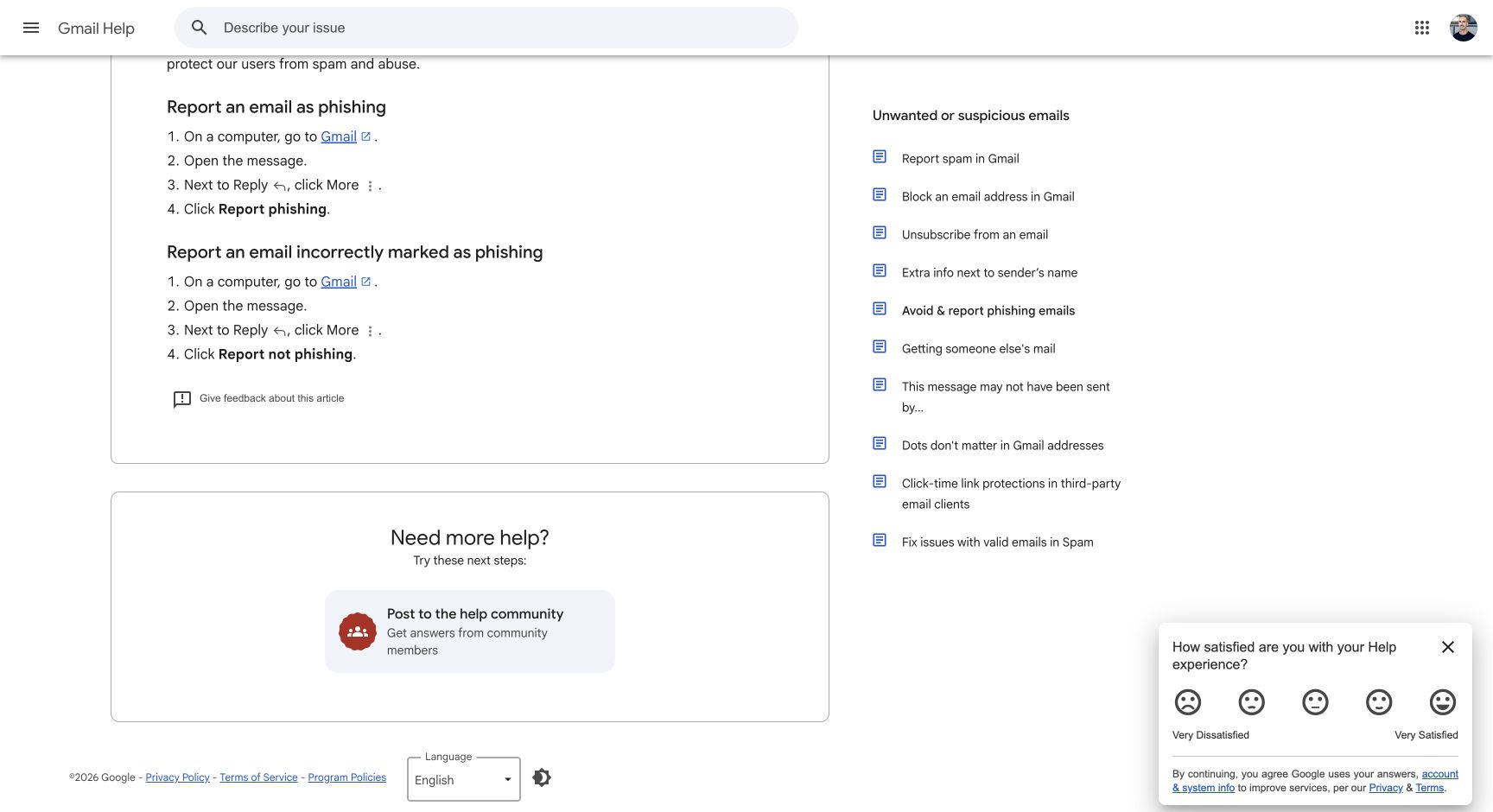
- Google's current computer workflow is Open message, More next to Reply, Report phishing.
- Google says it receives a copy, including attachments, when mail is manually moved into Spam and may analyze it.
- Reporting phishing in Gmail may not satisfy your employer's separate incident-reporting requirement.
- If you chose the action by mistake, Gmail also provides Report not phishing from the More menu.
How do I report phishing in Gmail?
1. Stop interacting with the message
Leave links, attachments, QR codes, phone numbers, and reply fields alone. A suspicious message may be designed to move you into a site or conversation the sender controls. If you already entered credentials, approved a sign-in, installed software, or sent money, move directly to the incident steps below rather than treating reporting as the complete response.
2. Open the message in Gmail on a computer
Google's current help instructions specify the computer experience. Open the message so Gmail's message-level controls are available. Do not open an attachment to confirm what it contains. If the organization requires evidence preservation before mailbox actions, follow that policy first.
3. Choose More next to Reply
Use the More control in Gmail's own interface next to Reply. This matters because a phish may include a graphic that imitates a security or unsubscribe control. Gmail chrome is outside the message body; the sender does not control it.
4. Choose Report phishing
Select Report phishing and complete Gmail's report flow. Google's help page lists these exact steps and also provides the inverse action, Report not phishing, from the same menu when a message was marked incorrectly (Google: Avoid and report phishing emails).
The official page shows the current wording and menu context.
After submitting, preserve evidence required by your organization.
What happens after I report phishing?
Google's help page places an important note above the reporting workflow: when a person manually moves an email into the Spam folder, Google receives a copy of the email and any attachments and may analyze them to protect users from spam and abuse (Google phishing-reporting help). Treat that as a disclosure about Google's handling, not a promise about what one report will cause.
The page does not promise that Google will remove the message from every mailbox, block the sender everywhere, notify your employer, open a case you can track, or determine criminal intent. Report success in Gmail means the Gmail action completed. Organizational containment and investigation are separate outcomes.
For example, suppose a message has this fictional summary:
From: Payroll Access <reset@payroll-review.invalid>
Subject: Ticket 630184 expires in 27 minutes
Requested action: Scan a QR code and enter Microsoft 365 credentials
Recipient: finance-team@example.com
Reporting it in Gmail addresses the mailbox-provider channel. The organization may still need ticket 630184, the original headers, the displayed QR destination, sign-in logs, and confirmation of whether anyone entered credentials. The example uses .invalid and .example identifiers and does not represent a real campaign.
Should I report spam or phishing?
Use Report phishing when the message deceptively impersonates a person or organization, tries to capture information, or induces a harmful action. Use Report spam for unwanted bulk or abusive email that does not present the same deceptive security claim. The spam versus phishing guide explains the classification boundary.
Google's spam help says reporting spam helps Gmail identify similar mail and that a message marked spam is moved to Spam. It also describes an unsubscribe option for eligible subscription messages (Google: Report spam in Gmail). Do not use unsubscribe inside an obviously deceptive email merely to see what happens.
A message can be both bulk and phishing. Prioritize the security-reporting path when fraud, credential capture, malware, payment manipulation, or impersonation is present. The label describes the risk you are escalating, not a technical finding that you must prove before reporting.
What evidence should I preserve?
Follow the organization's policy because mailbox content can include personal, financial, customer, or employee data. Useful evidence may include the original message, sender and reply addresses, subject, delivery time, visible destination, attachment names, raw headers, and a short account of any interaction. Do not circulate the message or attachment to colleagues who do not need it.
Raw headers can support domain and path analysis. However, RFC 8601 Section 1.2 explains that an Authentication-Results field is meaningful only inside the receiver's trust boundary. A sender can insert an untrusted lookalike field (RFC 8601, Section 1.2). That is one reason the guide on why phishing can pass SPF and DKIM does not treat a pass result as proof of good intent.
Do not take screenshots as the only evidence when the original message remains available. Screenshots can omit addresses, destinations, routing information, and attachments. They can still help show what the user saw, but they serve a different purpose from the original message and receiver-added headers.
When does the Gmail report not cover the whole incident?
A Gmail report also does nothing for the domain being impersonated. If the message forged your own domain, the fix is on the sending side, and the Palisade email security score shows what your published records currently allow. It reads public DNS, so it cannot explain why Gmail treated one particular message as suspicious.
A Gmail report is not sufficient when someone entered a password, approved a multi-factor prompt, shared a one-time code, installed software, opened a harmful attachment, changed supplier payment details, transferred money, or used a work device. Contact the authorized security, IT, finance, or fraud team through the established urgent channel. Change credentials through a trusted service surface when directed, and preserve logs and device evidence.
The workflow also does not apply exactly as written when you use a third-party mail client, a mobile interface with different controls, an administrator quarantine, or a security product that captures reports through an add-in. Use the organization's supported route. Do not guess that a similar menu transmits the same evidence.
If you are unsure whether a message is deceptive, review the phishing scam email example without interacting with the suspicious content. You do not need courtroom proof before using a safe internal report channel.
How do I correct a mistaken report?
Google's current computer instructions say to open the message, choose More next to Reply, then choose Report not phishing (Google Gmail Help). Use the message state currently available in the mailbox. If an organizational case was also created, update that case separately so the security team does not treat the Gmail correction as a silent resolution.
Do not reverse a correct report merely because the message passed authentication. Attackers can authenticate domains they control, and compromised legitimate accounts can send harmful mail. Correct the classification only when the message and its context have been verified.
Evidence
Sources and further reading
Questions readers ask
Frequently asked questions
Can I report phishing in the Gmail mobile app?
Only the computer workflow appears on the Google help page cited here. Gmail's mobile apps do expose a reporting control in the message overflow menu, but its label and position differ by app version, so confirm it in your own app rather than following the desktop steps literally.
Does Gmail tell the sender I reported phishing?
Not according to the cited help instructions. They describe Google's receipt and possible analysis of messages moved to Spam, but they do not promise a sender notification or explain enforcement for one report.
Can I undo a mistaken phishing report?
Yes. Google's computer instructions provide Report not phishing in the More menu. If you also opened an internal security case, update that case because changing Gmail's classification does not close another system's workflow.
Should I delete the email after reporting it?
No, not automatically. Follow your organization's evidence-retention policy. A security team may need the original message, headers, attachment metadata, and delivery time before deletion or mailbox cleanup.
Is reporting phishing the same as blocking the sender?
No. Reporting supplies a classification signal and moves the message through Gmail's abuse workflow. It does not establish that every future message using the displayed address will be blocked or that the identity cannot be spoofed.
Will a Gmail report protect an account after I entered my password?
No. Report the message, then use the authorized account-compromise process immediately. Credential changes, session review, device investigation, payment controls, and internal escalation are separate actions.

Written by
Ian BussieresCTO & Co-Founder, Palisade
Ian Bussieres is the CTO and co-founder of Palisade, agentic DMARC software for IT teams and MSPs.
More from Ian →