Gmail phishing protection
 ChatGPT
 Claude
 Gemini
 Perplexity
 Grok
GrokIn brief
Gmail phishing protection combines Gmail warnings with careful verification and reporting. Learn what to check before you click or respond today.
Gmail phishing protection combines Gmail's detection and warning features with careful user verification and reporting. Google says Gmail can identify phishing emails and may show warnings or move suspicious messages to Spam, but a warning is not the only signal to use. Treat unexpected requests for passwords, money, personal information, links, or downloads as a reason to stop and verify the request through a trusted channel. Google's Gmail phishing guidance also states that Gmail will not ask for your password over email.
At a glance
Quick takeaways
- Gmail may warn about suspicious messages or move them to Spam, but users still need to assess unexpected requests.
- A message can impersonate a known organization or a person you trust.
- Check the sender address, link destination, and message authentication details before acting on a suspicious email.
- Do not enter a Google Account password after following a link in an email.
- On Gmail for computers, the phishing-report action is in the message's More menu beside Reply.
- Unfamiliar account activity or Gmail setting changes can indicate that someone else may have access to a Google Account.
How Gmail phishing protection works
Google's phishing guidance for Gmail describes two parts of phishing protection: Gmail can identify phishing emails and display warnings, while recipients should avoid interacting with suspicious requests. A message may look like it comes from a bank, workplace, social platform, friend, or another familiar source. Visual familiarity alone does not establish that the sender or request is legitimate.
Google advises recipients to examine whether the sender name and email address match, whether the message is authenticated, and whether a link's actual URL matches the destination described in the message. On a computer, hovering over a link before clicking can expose a mismatch between visible link text and its destination.
Gmail can also show a warning when a message that looks like a scam comes from an address in your contacts. Google's scam-warning documentation says the safe response is to avoid replying or clicking links, report the suspicious message, and contact the apparent sender through a normal, separate channel.
For a broader explanation of the threat category, see Palisade's email-threat learning hub. For teams comparing business controls beyond one inbox, anti-phishing software covers the evaluation problem separately.
When the answer changes
A Gmail warning, an unexpected request, and an unfamiliar account event call for different actions. Use the evidence you have rather than assuming that every suspicious-looking message means the account itself has been compromised.
- If Gmail displays a warning or the message requests private information, do not reply, download attachments, open links, or enter credentials. Verify the request directly with the organization or person using contact information you already trust.
- If the message is from a known contact but asks for money, credentials, or an unusual action, contact that person outside the suspicious email. Their account may have been used without permission.
- If you receive a Google security notification, do not rely on the email link to investigate it. Google's account-security guidance directs users to review recent security events for unfamiliar locations or devices.
- If you find unfamiliar sign-ins, devices, or changes to Gmail settings such as forwarding or mail delegation, Google's compromised-account guidance says someone else may be using the account. Secure the account through Google Account security settings.
A practical decision rule for a suspicious Gmail message
Use this decision rule before interacting with a message that requests a login, payment, attachment download, or sensitive information.
Illustrative only:
Gmail warning shown?
  Yes: Do not click, reply, download, or provide information. Report the message.
No warning, but the request is unexpected or urgent?
  Yes: Check the full sender address and hover over links on a computer.
       Verify the request through a known website, phone number, or separate message.
Unfamiliar account activity or Gmail setting changes?
  Yes: Review Google Account security events and secure the account.
No suspicious signals found?
  Confirm the request through the normal business or personal contact path before acting.
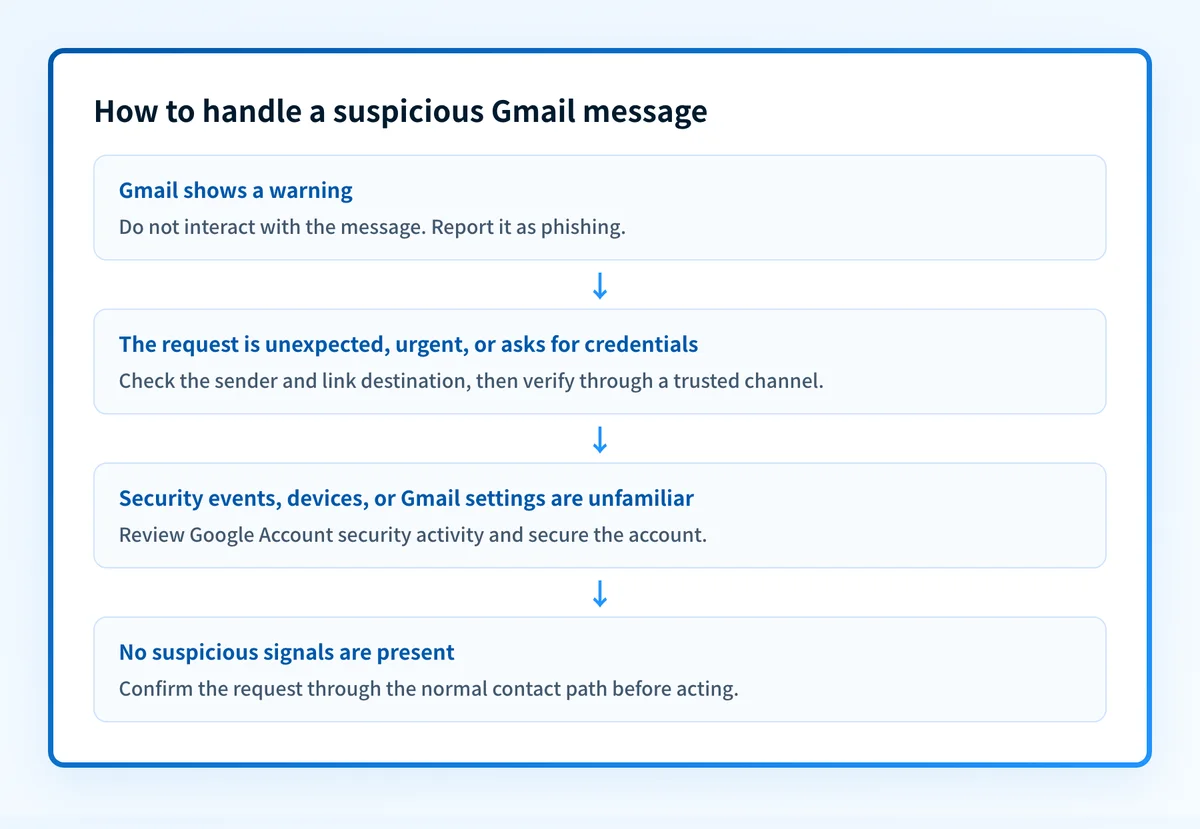
This rule separates two questions that are easy to merge: whether the email should be reported, and whether the Google Account may have been accessed. Reporting a suspicious message helps Gmail review it. It does not, by itself, prove who sent it or secure an account that has already been accessed.
Messages in Spam can also contain useful context. Gmail's spam guidance explains that Gmail may label a message as a phishing scam, a spoofed address, or a message from an unconfirmed sender. Those labels are a reason to pause. They do not replace verification of a business request through a trusted route.
What to do with the evidence you have
If the email is suspicious, preserve the message until you have reported it or your security team has reviewed it. Do not forward a suspicious link as part of a casual verification request. Instead, contact the purported sender through a phone number, website, or conversation you already know is legitimate.
On a computer, Gmail's documented reporting path is to open the message, select More beside Reply, then choose Report phishing. Google says a manually reported message is sent to Google for review. The control's location and availability can differ by client, so use Google's current Gmail reporting instructions for the interface you are using. The Gmail report phishing guide explains evidence preservation, the spam distinction, and what the mailbox action does not resolve.
If the concern is account access rather than one message, review recent security events and devices in the Google Account security area. Google also provides Gmail last-account-activity information that can show access types, IP addresses, and approximate locations. Multiple locations do not automatically mean compromise because mobile carriers, POP or IMAP clients, and Google services can affect what appears there.
For a wider review of email risks, controls, and organizational responsibilities, read Palisade's email security guide. A public email security score check can support an initial domain review when you administer the domain. It cannot prove why Gmail treated an individual message as suspicious, show every production sending path, or establish future inbox placement.
Review phishing protection beyond one Gmail inbox
A reported message and an account-security review address the immediate evidence. If you need to assess email-security responsibilities across a domain or team, use the broader email security guide to identify the controls and operating checks that belong outside an individual Gmail message.
That guide does not determine whether a specific Gmail email is safe, explain a private Gmail decision, or repair a compromised Google Account. Those outcomes depend on the message evidence and Google Account security review.
Evidence
Sources and further reading
Questions readers ask
Frequently asked questions
How do I report phishing emails to Gmail?
On a computer, open the suspicious message in Gmail, select More beside Reply, then select Report phishing. Google's Gmail Help instructions document that reporting path and state that Google receives the report for review.
What are the signs that your Gmail is hacked?
Google identifies unfamiliar security events, devices, and changes to security settings as possible signs that someone else is using the account. Unfamiliar Gmail settings, including forwarding, mail delegation, outgoing address, blocked addresses, or vacation responder changes, also need review. Google's compromised-account guidance lists the current account checks and recovery actions.
What does a Gmail phishing email look like?
A Gmail phishing email may imitate an organization or known person, ask for personal or financial information, request that you click a link or download software, or create urgency. Google's Gmail phishing guidance recommends checking the sender address, authentication, and the real destination of links before acting.
Does reporting a phishing email mean my Google Account is compromised?
No. Reporting means the message appears suspicious and should be reviewed by Gmail. Review Google Account security events and devices separately if you see unfamiliar activity, security alerts, or Gmail setting changes.

Written by
Ian BussieresCTO & Co-Founder, Palisade
Ian Bussieres is the CTO and co-founder of Palisade, agentic DMARC software for IT teams and MSPs.
More from Ian →