Mailgun DMARC setup
 ChatGPT
 Claude
 Gemini
 Perplexity
 Grok
In brief
Mailgun DMARC setup: verify Mailgun DNS, publish a separate DMARC record, and validate DNS, vendor status, delivered headers, and DMARC reports.
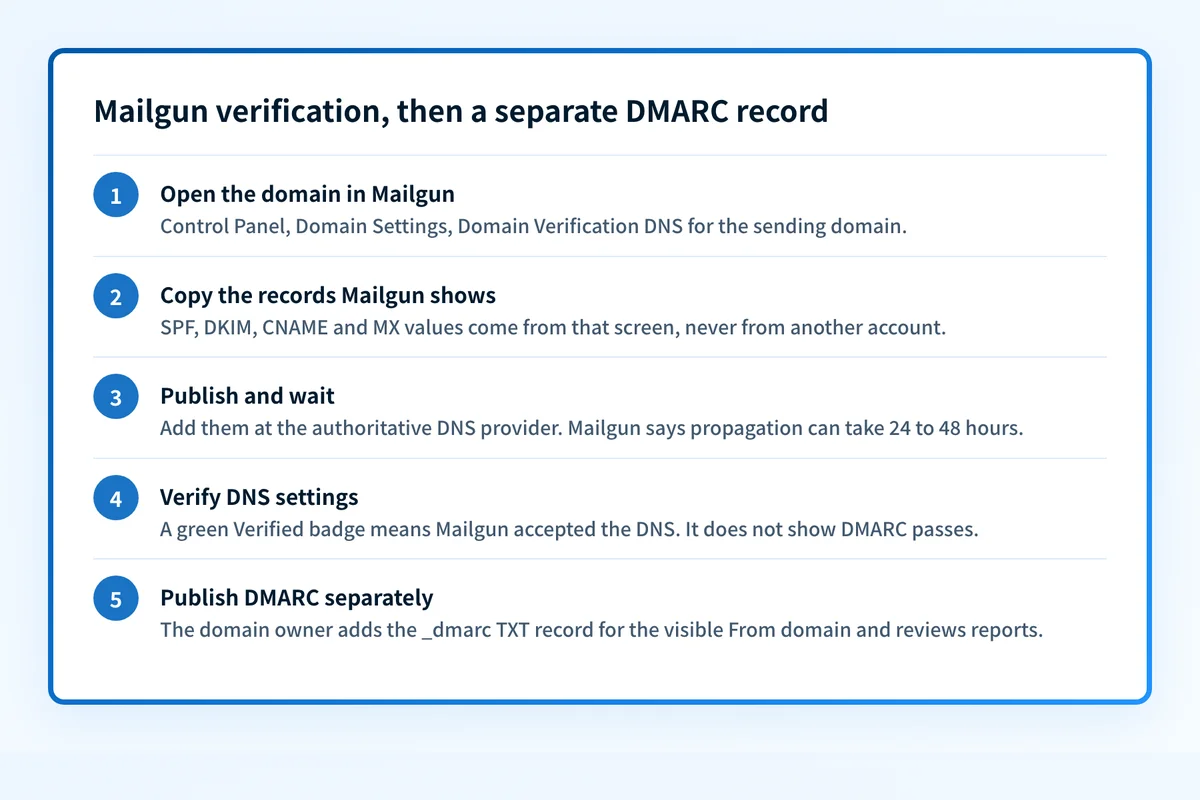
Mailgun DMARC setup starts by verifying the Mailgun sending domain, then publishing a separate DMARC TXT record for the visible From domain. Mailgun's documented workflow uses the Control Panel, Domain Settings, and "Verify DNS settings" to verify its DNS records. The DKIM record is account-specific, so copy it only from the Mailgun domain you are configuring.
At a glance
Quick takeaways
- Mailgun domain verification and DMARC publication are separate DNS tasks.
- Mailgun documents SPF, DKIM, CNAME, and MX records for domain verification.
- Obtain the DKIM record from the Domain Verification DNS section for the specific Mailgun domain.
- Mailgun says DNS changes can take 24-48 hours to fully propagate.
- A green Verified badge confirms Mailgun accepted the domain configuration. It does not prove a delivered message passes DMARC.
- Check the published DMARC record, Mailgun status, delivered-message headers, and DMARC reports separately.
What should I check before configuring Mailgun?
Confirm that Mailgun sends the messages in scope and identify the visible From domain used by that path. Mailgun can be one sender among several services using the same organizational domain, so inventory marketing, transactional, support, and application mail before changing authentication controls. The ESP setup hub can help organize that wider sender inventory.
You need access to the Mailgun account that owns the domain configuration and permission to edit the authoritative DNS zone. Confirm who can approve DNS changes, which DNS provider hosts the zone, and which mailbox can receive a test message with raw headers available.
Mailgun's domain verification documentation describes getting DNS records through the API or Control Panel, adding them at the DNS provider, waiting for propagation, then allowing automatic verification or using the verification action.
Copy DNS values from the account and domain you are configuring. Do not publish selectors, targets, tokens, or hostnames from another account or from an online example.
DMARC is a separate domain-owner record and policy, and it is not optional for every sender: Google and Yahoo both require DMARC from bulk senders. Mailgun's domain-verification documentation does not describe a DMARC record, policy choice, reporting address, or rollout procedure. For broader background before setting policy, see how to set up DMARC.
Which setup method should I use?
Use the Mailgun DNS records displayed for the specific sending domain in the Mailgun Control Panel. Mailgun documents both automatic verification after DNS propagation and a Control Panel verification action. The exact authenticated route for adding or managing a custom domain was not established in the published documentation, so use the documented Control Panel and Domain Settings labels rather than relying on an older interface path.
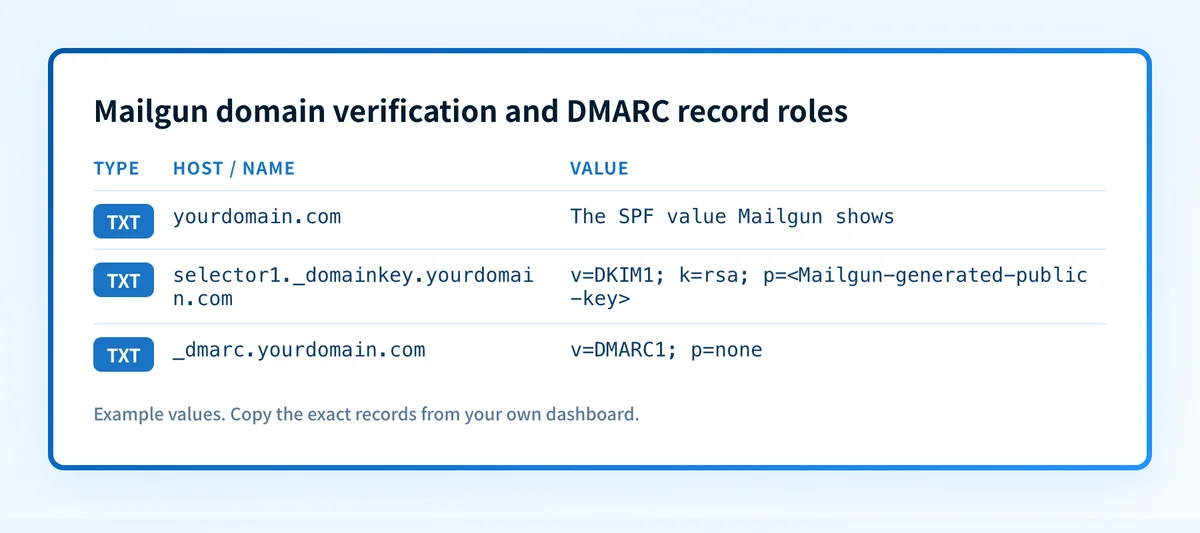
Mailgun documents TXT SPF, TXT DKIM, CNAME, and MX records as domain-verification records. Do not substitute values from a different Mailgun account. In particular, Mailgun directs administrators to find the DKIM record in the Domain Verification DNS section for their domain.
Use the configuration Mailgun supplies. Do not treat a generic SPF example, a sample DKIM selector, or a public MX target as a complete configuration for your account.
How do I configure SPF and DKIM for Mailgun?
Mailgun domain verification uses SPF and DKIM TXT records plus CNAME and MX records, all displayed for the selected domain in the Domain Verification DNS section of the Mailgun Control Panel. Copy each value from your own account, never from another domain or an example. Do not create a second SPF TXT record to add Mailgun. The full record-by-record steps are in how to set up SPF and DKIM for Mailgun. Finish that guide first, then publish the DMARC record described on this page.
1. Publish the Mailgun verification records
Use the linked guide to add the SPF, DKIM, CNAME, and MX records Mailgun displays for the selected domain, and check the final fully qualified record names before saving.
2. Verify DNS settings in Mailgun
After publishing the records, wait for DNS propagation and use Mailgun's documented verification workflow. Mailgun says DNS changes can take 24-48 hours to fully propagate. Once verification succeeds, the Mailgun Control Panel shows a green Verified badge for the domain.
Mailgun notes that successful signing depends on the DKIM key required by the domain configuration being correctly configured in DNS. Do not assume every displayed DKIM key needs verification.
3. Send a real test message
Send a new message through the exact Mailgun production path to a mailbox where you can inspect the raw source. Use the same Mailgun domain, visible From domain, and sending configuration used by the application or campaign.
A Mailgun Verified badge does not prove a receiver accepted a specific message, that DKIM survived the delivery path, or that the message passed DMARC. Preserve a redacted copy of the delivered headers with the DNS change record.
How does this setup affect DMARC?
Mailgun's SPF and DKIM records support authentication for Mailgun-sent mail, while the domain owner publishes the DMARC record for the visible From domain. A Mailgun verification result is not a documented DMARC setup result.
Use the Palisade DMARC checker to inspect the public DMARC record after publication. A public record check can show the DNS answer visible at that moment. It cannot prove Mailgun is using the intended sending path, inspect a receiver's private decision, or guarantee future message placement.
For cross-vendor context, ESP setup guides covers the distinction between a sender's authentication records and the wider domain posture.
How do I validate the setup?
Check public DNS
Query the exact owners Mailgun provided against the authoritative DNS server and at least one public resolver. Confirm that the returned SPF, DKIM, CNAME, and MX values match the Mailgun domain-verification screen.
dig +short TXT yourdomain.com
dig +short TXT selector1._domainkey.yourdomain.com
dig +short MX yourdomain.com
Check the DMARC owner separately:
dig +short TXT _dmarc.yourdomain.comCheck the Mailgun status
Return to the Mailgun Control Panel and confirm the selected domain has the green Verified badge. This verifies that Mailgun accepted the domain-verification DNS configuration. It does not verify the message path used by every application or campaign.
Inspect a delivered message
Inspect raw headers from a newly delivered Mailgun message. Confirm that the From domain is the expected visible domain and compare the authentication results with the selected Mailgun configuration.
Keep the receiver's Authentication-Results line in the evidence set. RFC 8601 defines Authentication-Results and its trust boundary, so treat results added by the receiving system as evidence from that receiver rather than trusting a similarly named header inserted earlier in transit.
Review DMARC reports
Review DMARC aggregate reports after they begin arriving. Separate Mailgun traffic from other sources that use the same visible From domain. This is the layer that can show whether observed Mailgun traffic aligns with the domain policy over time.
Palisade is agentic DMARC software that analyzes DMARC aggregate-report data, identifies sending sources and authentication or alignment issues, and creates prioritized remediation tickets. It proposes the next policy step for human review. It does not autonomously change the DMARC policy or guarantee future authentication.
Troubleshooting
Mailgun does not verify the domain
Compare the exact DNS owners and values in Mailgun with authoritative DNS answers. Mailgun documents a 24-48 hour propagation window, so allow that period before changing a record that is otherwise correct.
Check for a duplicated zone suffix, a truncated TXT value, or an existing CNAME at the same owner name.
SPF was added as a second TXT record
Review all TXT records at the SPF owner. Combine authorized sending mechanisms into one valid SPF record rather than publishing a separate SPF record for Mailgun. Do not remove another sender's mechanism until its owner confirms it is no longer used.
Mailgun shows Verified but the delivered message fails authentication
Compare the delivered message with the configured Mailgun domain. Check the visible From domain, the DKIM selector, and the receiver-added authentication result. A Verified domain proves Mailgun accepted the DNS configuration, not that every production application uses that domain or configuration.
The DKIM record is missing or does not match
Return to the Domain Verification DNS section for the selected Mailgun domain. Mailgun says to find the required DKIM record there. Do not replace it with a selector or key copied from another Mailgun account, another domain, or an online example.
A public DMARC lookup works but Mailgun traffic is still unclear
A public lookup only confirms the current DNS answer. Compare it with a real delivered message and later DMARC aggregate-report data. The public record does not identify which Mailgun sending path generated the message or whether every sender using the domain aligns.
Check the published DMARC record after Mailgun verification
After Mailgun shows the domain as Verified, check the published DMARC record for the visible From domain. Compare that public record with a new Mailgun message and the Mailgun domain-verification state before changing any policy.
A correct public DMARC record does not prove that Mailgun signs every production message as expected, repair an incorrect DNS record, monitor future sources, or reveal a receiver's private placement decision. If Mailgun is one of several senders for the domain, Palisade can help analyze the resulting DMARC reports and prioritize the remaining alignment work before a human approves a policy change. Start with Palisade.
Evidence
Sources and further reading
Questions readers ask
Frequently asked questions
Is DMARC mandatory now?
Yes, for bulk senders. Google requires a DMARC record from anyone sending more than 5,000 messages a day to Gmail accounts (Google sender guidelines), and Yahoo lists a valid DMARC policy of at least p=none among its requirements for bulk senders (Yahoo sender best practices). Yahoo does not define a volume threshold for bulk. Below Google's threshold, Google still recommends setting up all three. Whether DMARC is mandatory for you depends on how much mail you send to those providers, including mail sent through Mailgun.
Does Mailgun domain verification publish a DMARC record?
No. Mailgun's domain-verification documentation covers SPF, DKIM, CNAME and MX records and does not describe a DMARC record, policy choice, reporting address or rollout. The domain owner publishes the _dmarc TXT record separately at the authoritative DNS provider.
Where do I find the Mailgun DKIM record?
In the Domain Verification DNS section for the specific Mailgun domain, in the Control Panel under Domain Settings. The selector and public key are generated for that domain, so copy them from there and never from another account or an example.
Can I publish a second SPF record for Mailgun?
No. A domain should have one applicable SPF record. Merge the SPF value Mailgun displays for your domain into the existing SPF record after reviewing every current sender and the record's DNS lookup count.
How long does Mailgun DNS verification take?
Mailgun says DNS changes can take 24-48 hours to fully propagate. Verification can happen automatically after propagation, or you can use the Verify DNS settings action in the Control Panel.
Does a Mailgun Verified badge mean DMARC passes?
No. A Mailgun Verified badge means Mailgun accepted the domain-verification DNS configuration. Validate DMARC separately with the published DMARC record, a delivered message's receiver-added authentication results, and DMARC aggregate reports.

Written by
Samuel ChenardCEO & Co-Founder, Palisade
Samuel Chenard is the CEO and co-founder of Palisade, agentic DMARC software for IT teams and MSPs, from one domain to thousands.
More from Samuel →