Mailgun SPF and DKIM Setup: Exact DNS Records
 ChatGPT
 Claude
 Gemini
 Perplexity
 Grok
GrokIn brief
Set up Mailgun SPF and DKIM with the exact DNS records. Learn when to use DKIM CNAMEs, why send-only domains skip Mailgun MX, and how to verify alignment.

To set up SPF and DKIM for Mailgun, add your sending domain, then publish the sending DNS records Mailgun shows for that domain: Mailgun's SPF example is v=spf1 include:mailgun.org ~all, plus either a DKIM TXT record or the two DKIM CNAMEs used by Automatic Sender Security. Copy your dashboard's exact hostname and values. Mailgun MX records are for receiving mail at that domain; a send-only domain does not need its MX records pointed to Mailgun, and changing MX on a domain that receives mail elsewhere can reroute inbound mail.
After the domain verifies, check a real message or DMARC aggregate report: DNS verification alone does not prove that the SPF or DKIM identity aligns with the address in the visible From header.
At a glance
Quick Takeaways
- Mailgun's sending setup uses an SPF TXT record plus DKIM. DKIM may be one TXT record or two CNAME records, depending on whether Automatic Sender Security is enabled.
- Mailgun recommends separating transactional or marketing traffic on a sending subdomain such as
mg.yourdomain.com. - Mailgun's DKIM selector is not universal. Copy the TXT hostname or both
pdk1andpdk2CNAMEs shown for your domain. - The tracking CNAME enables Mailgun's click, open, and unsubscribe tracking; it is not an MX record.
- Mailgun MX records are only needed when Mailgun will receive mail for the domain. Do not replace the MX records of a domain receiving mail through another provider.
- A verified Mailgun domain can still fail DMARC if neither the SPF domain nor the DKIM signing domain aligns with the visible From domain.
- Verification can take up to 24 to 48 hours; trigger a manual check under Domain settings → DNS records.
What DNS records does Mailgun require?
Mailgun separates records needed for sending from records used for receiving. Its domain-verification documentation lists SPF and DKIM for sender authentication, a CNAME for tracking, and MX records for receiving and routing messages addressed to the Mailgun domain. Automatic Sender Security changes the DKIM part of that setup from one public-key TXT record to two delegated CNAME records.
| Record | Host and value example | When to publish it |
|---|---|---|
| SPF TXT | mg.yourdomain.com → v=spf1 include:mailgun.org ~all | Publish the exact sending record shown by Mailgun. If that hostname already has SPF, merge the Mailgun mechanism into the existing record. |
| DKIM TXT | mx._domainkey.mg.yourdomain.com → k=rsa; p=... | Publish this only when Mailgun shows manual DKIM for the domain. The selector and public key are domain-specific. |
| DKIM CNAMEs | pdk1._domainkey... and pdk2._domainkey... → Mailgun-hosted targets | Publish both when Automatic Sender Security is enabled; they replace the manual DKIM TXT record for those selectors. |
| Tracking CNAME | email.mg.yourdomain.com → the target shown by Mailgun | Publish when using Mailgun click, open, or unsubscribe tracking. |
| MX records | mxa.mailgun.org and mxb.mailgun.org, priority 10 | Publish only if Mailgun should receive mail for this domain. Skip them for a send-only domain that receives mail elsewhere. |
Verifying is worth doing immediately: per Mailgun's docs, unverified domains carry a 300-message daily limit and show a "sent via Mailgun.org" note to recipients.
Should you use a subdomain or your root domain?
Mailgun recommends separating transactional or marketing traffic on a dedicated domain or subdomain such as mg.yourdomain.com. A subdomain is especially useful when the root domain already receives corporate mail through Microsoft 365 or Google Workspace. Mailgun technically allows the visible From domain to differ from the sending domain, but its sending FAQ recommends matching them for deliverability.
A subdomain is the better choice for three practical reasons:
- Traffic separation. Bulk and transactional traffic builds a distinct subdomain sending history, though mailbox providers may still connect related domain signals.
- Fewer record conflicts. A root domain often already has SPF and MX records for Microsoft 365 or Google Workspace, which an MX record lookup will show you. A fresh subdomain lets you publish Mailgun's sending records without changing the root domain's inbound mail routing.
- Easier multi-service management. If you run email for clients as an MSP, a
mg.subdomain per client domain keeps each platform's records isolated and auditable.
include:mailgun.org into that record instead of creating a second SPF policy. Do not point the root domain's MX records to Mailgun unless Mailgun is meant to receive its inbound mail.
How do you add the Mailgun SPF record?
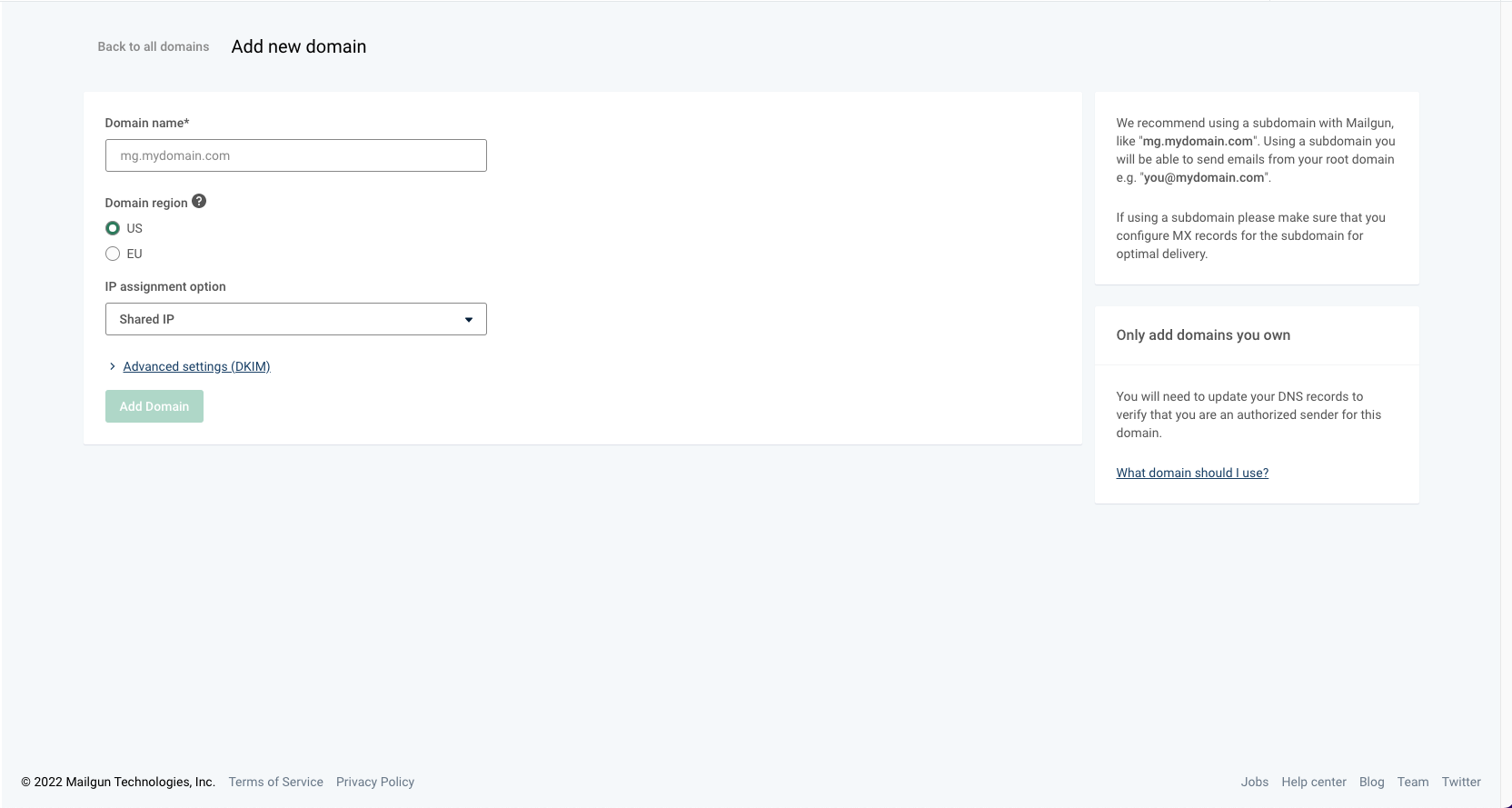
1. Open the Mailgun domain list
Log in to the Mailgun control panel, expand Sending in the left navigation, and click Domains.
2. Add the sending domain
Click Add New Domain, enter your sending domain (for example mg.yourdomain.com), and click Add Domain.
3. Publish the SPF record
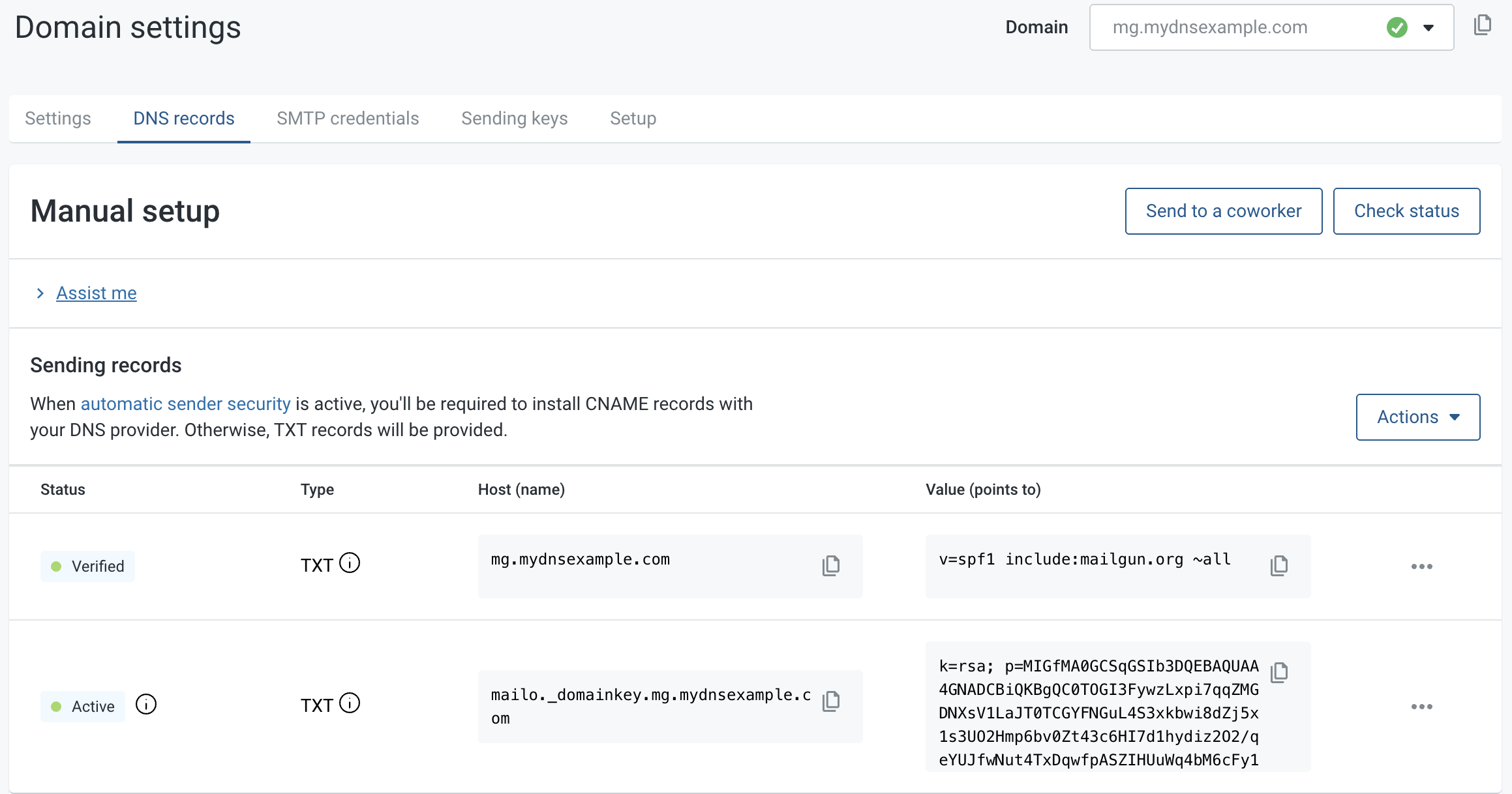
Mailgun shows the DNS records to publish. In your DNS host, create the SPF record on the sending domain:
Type:  TXT
Host:  mg.yourdomain.com
Value: v=spf1 include:mailgun.org ~all
If you are setting up the root domain and it already has an SPF record, do not create a second one. A hostname can only have one. Insert include:mailgun.org after v=spf1 and before the existing terminal all mechanism, preserving that mechanism's qualifier (-, ~, ?, or +). Mailgun's example uses ~all:
v=spf1 ip4:1.2.3.4 include:smtp.domain.tld include:mailgun.org ~allKeep the merged record under SPF's limit of 10 DNS lookups, or receivers will return a permerror. You can confirm the record resolves and stays within the limit with Palisade's free SPF checker.
4. Confirm the public record
Query the sending hostname after DNS propagates, then return to Mailgun's DNS records tab and click Check status. The result should expose one SPF policy containing include:mailgun.org.
How do you add the Mailgun DKIM record?
First check whether Automatic Sender Security is enabled for the Mailgun domain. With manual DKIM, Mailgun generates the key pair, keeps the private key, and gives you a TXT record containing the public key. The selector varies by domain, so always copy the exact hostname and value from the control panel:
Type:  TXT
Host:  mx._domainkey.mg.yourdomain.com
Value: k=rsa; p=MIGfMA0GCSqGSIb3DQEBAQUAA4... (copy the full key from Mailgun)
With Automatic Sender Security, publish both CNAME records shown by Mailgun instead of copying the manual TXT example. The CNAME hosts resemble pdk1._domainkey.mg.yourdomain.com and pdk2._domainkey.mg.yourdomain.com; their targets are account-specific Mailgun hostnames. The two records let Mailgun rotate the hosted public keys without another DNS edit.
Two details from Mailgun's DKIM documentation matter during verification:
- Key length. Mailgun supports 1024-bit and 2048-bit keys. 2048 is stronger, but the record value is significantly longer, which some DNS panels handle awkwardly.
- Rotation interval. Automatic Sender Security rotates keys every 120 days by default, and Mailgun allows the interval to be adjusted.
pdk1 and pdk2 CNAMEs to resolve to the targets Mailgun supplied. Our guide to managing multiple DKIM records explains how selectors let keys coexist. After publishing, use Palisade's DKIM checker to confirm the public record resolves, then inspect a message sent through Mailgun to confirm it carries a passing signature.
How do you verify your domain in the Mailgun dashboard?
Once the records are live, Mailgun's system checks them periodically and emails you when the domain flips to Verified. Propagation can take 24 to 48 hours, though it is usually much faster. To check manually:
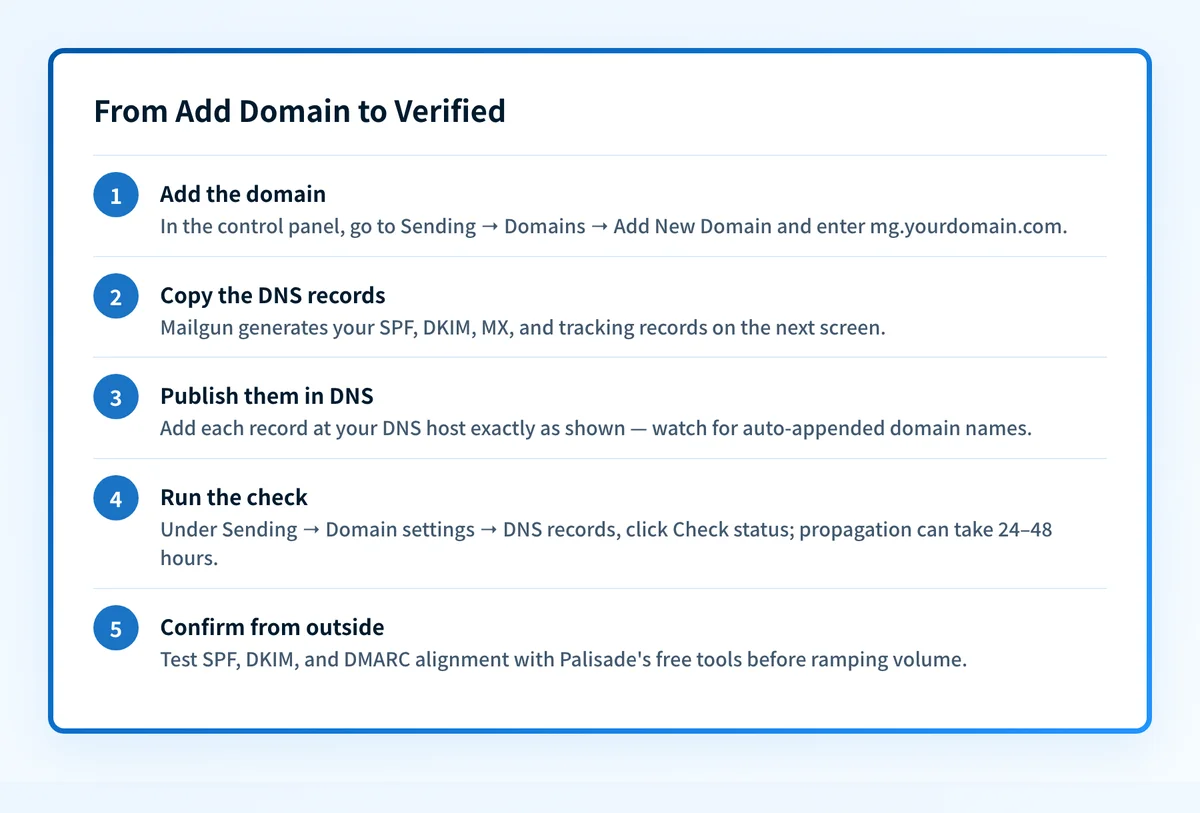 Mailgun also emails you automatically when the domain flips to Verified.
- In the control panel, expand Sending and click Domain settings.
- Open the DNS records tab.
- Pick the right domain in the Domain drop-down at the top right.
- Click Check status (Mailgun's setup guide calls the same control the Check DNS Records Now button on the DNS Settings page).
How does the setup affect DMARC alignment?
DMARC requires SPF or DKIM to pass with an authenticated domain aligned to the visible From domain. RFC 9989 defines relaxed alignment as sharing the same organizational domain and strict alignment as an exact domain match.
Here is how a Mailgun subdomain setup plays out when you send as you@yourdomain.com through mg.yourdomain.com:
- SPF: DMARC evaluates the SPF-authenticated MAIL FROM identity, often visible as the Return-Path. If it is
mg.yourdomain.comand the visible From domain isyourdomain.com, the two align in relaxed mode but not strict mode. - DKIM: DMARC evaluates the
d=domain on a passing DKIM signature. Ad=mg.yourdomain.comsignature aligns with a From domain ofyourdomain.comin relaxed mode but not strict mode. If Mailgun signs withd=yourdomain.com, it can align in either mode.
aspf=s, SPF alignment requires yourdomain.com and mg.yourdomain.com to match exactly; adkim=s applies the same exact-match rule to the DKIM d= domain. Keep relaxed alignment unless you have a tested reason to require strict matching: our guide to aspf, adkim, and subdomain policies explains the tradeoff. After your first sends, inspect a delivered message's Authentication-Results header and use DMARC aggregate reports to confirm which Mailgun identity passed and aligned.
What are common Mailgun SPF and DKIM setup problems?
Why does Mailgun still show the domain as Unverified?
An Unverified Mailgun domain usually means DNS is still propagating or a hostname or value was copied incorrectly. Verify each hostname with dig or an external lookup, then click Check status. Records must match Mailgun's values exactly.
Why is the Mailgun SPF record missing?
A missing Mailgun SPF record often means it was published at the wrong hostname. The SPF record belongs on the configured sending domain: mg.yourdomain.com for a Mailgun mg. subdomain, or the root only when the root itself is the Mailgun sending domain. Some DNS panels append the zone name automatically, so entering the full hostname can accidentally create mg.yourdomain.com.yourdomain.com.
Why does Mailgun report more than one SPF record?
Multiple SPF records at one hostname do not combine their authorizations. RFC 7208 requires SPF to return PermError when DNS yields more than one SPF record, so merge Mailgun's include with the other authorized mechanisms in one policy.
Why do Mailgun's DKIM CNAMEs conflict with existing records?
Mailgun's DKIM CNAMEs cannot share their exact pdk1._domainkey or pdk2._domainkey hostname with other DNS data. Remove the conflicting record only after confirming it is obsolete, or configure Mailgun with different selectors; do not delete an active key used by another sender.
Why does DMARC fail on Mailgun's sandbox domain?
Mailgun's shared sandbox domain is for testing with authorized recipients, not for authenticating your own From domain. Move real traffic to a verified custom domain and then check whether its SPF or DKIM identity aligns with the visible From domain.
Why can Mailgun SPF pass while DKIM fails alignment?
A Mailgun message can pass SPF while DKIM remains misaligned because DMARC evaluates the two authenticated domains separately. Check the message's DKIM d= value, the MAIL FROM or Return-Path domain, and the visible From domain; our guide to why DKIM signatures fail alignment covers the DKIM branch.
Evidence
Sources and further reading
- Mailgun: domain verification setup guide
- Mailgun: verify a domain
- Mailgun: DKIM key length and rotation
- Mailgun: sending and receiving domain FAQ
- Mailgun: From domain and sending domain FAQ
- RFC 9989: DMARC identifier alignment
- RFC 7208: multiple SPF records
- Google Workspace: MX record values for Gmail, the root-domain MX records this guide warns against replacing.
- Microsoft 365: domains FAQ, including MX and mail routing, the Microsoft 365 equivalent.
Questions readers ask
Frequently asked questions
Do I need Mailgun's MX records if I only send email?
No. A Mailgun send-only domain does not need its MX records pointed to Mailgun. Mailgun's domain FAQ explicitly says to omit its MX records when the domain sends through Mailgun but receives mail elsewhere. Add Mailgun MX records only when Mailgun should receive and route messages addressed to that domain.
Which DKIM selector does Mailgun use?
There is no single Mailgun DKIM selector. Manual DKIM may show a selector such as mx, while Automatic Sender Security uses pdk1 and pdk2 CNAMEs with account-specific targets. Treat the Mailgun DNS settings page as the source of truth and copy every hostname exactly.
Is the tracking CNAME required?
The tracking CNAME is required for Mailgun's click, open, and unsubscribe tracking, not for SPF or DKIM authentication. Publish the exact tracking hostname and target shown in the dashboard when you use those features; it does not replace either authentication record.
I already send through other platforms. Will Mailgun's records conflict?
Mailgun's records do not conflict with other sending platforms when you keep their hostnames and selectors distinct. DKIM keys can coexist when each service uses a unique selector. SPF needs one policy per hostname, which is another reason to give Mailgun its own subdomain. The pattern is the same one we walk through for Amazon SES and Klaviyo: one subdomain or selector per service, with the organizational domain's DMARC policy covering subdomains unless a more specific policy applies.

Written by
Dominic LandryDeliverability & DNS
Dominic Landry works on email deliverability and DNS configuration at Palisade, from SPF and DKIM records through to DMARC enforcement.
More from Dominic →