Postmark DMARC setup: DKIM, return-path, and monitoring
 ChatGPT
 Claude
 Gemini
 Perplexity
 Grok
In brief
Postmark DMARC setup covers DKIM, Custom Return-Path SPF alignment, p=none monitoring, and message validation for each sending domain before enforcement.
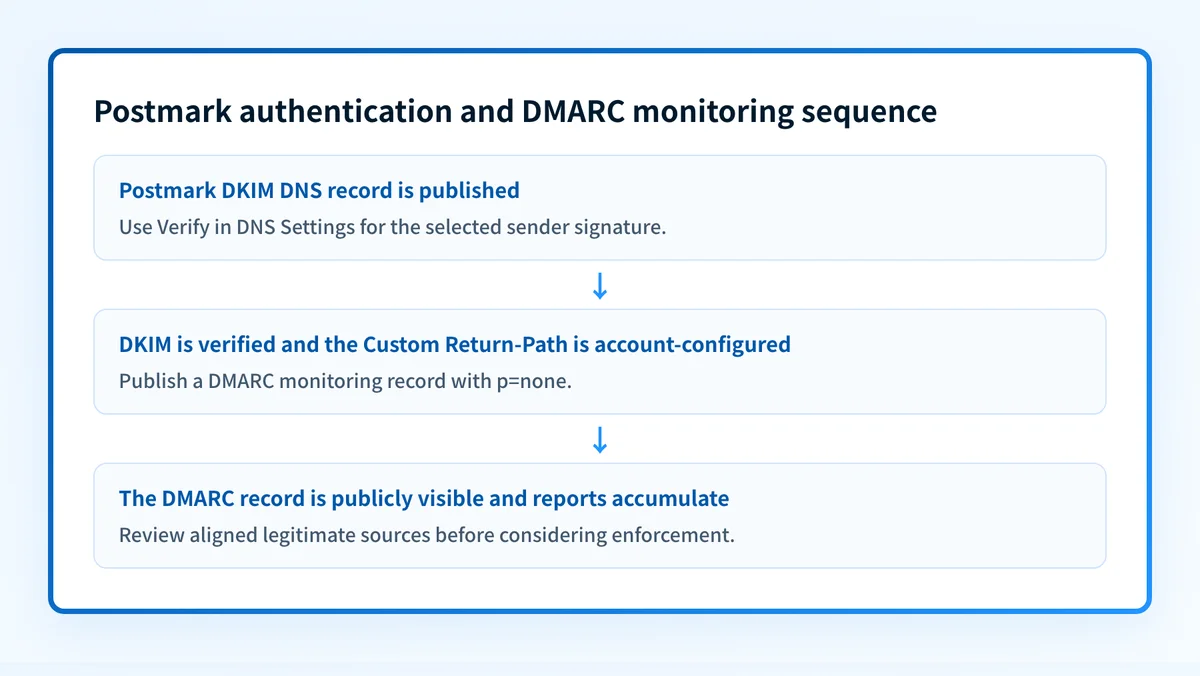
Postmark DMARC setup starts in Postmark under Sender Signatures: add or select the sending domain, open DNS Settings, publish the account-specific DKIM TXT record, and verify it. Then configure the account-generated Custom Return-Path for SPF alignment, publish a DMARC record with p=none, and review reports before considering enforcement. The DNS values shown by Postmark belong to the selected account and domain.
At a glance
Quick takeaways
- Postmark exposes DKIM details through Sender Signatures, then the selected domain's DNS Settings.
- The Postmark DKIM hostname and public key are unique to the selected Postmark account and domain.
- Postmark recommends a Custom Return-Path so SPF can align with the visible From domain for DMARC.
- Start DMARC monitoring with
p=nonebefore consideringquarantineorreject. - A green Postmark verification state does not prove that a production message passed authentication at its recipient.
- The ESP setup hub covers authentication setup across other sending platforms.
What should I check before configuring Postmark?
Confirm that Postmark sends the transactional or application mail in scope. This guide does not configure employee mailbox mail, marketing mail sent by another ESP, or messages routed through a separate relay after Postmark sends them.
You need access to the Postmark account that owns the sending domain and permission to edit the authoritative DNS zone. You also need a mailbox that can receive a fresh test message from the same Postmark Server and sender signature that production mail uses.
Postmark's DKIM documentation identifies the required path as Sender Signatures, then the selected domain's DNS Settings. For the broader relationship between vendor authentication and DMARC, see ESP setup guides.
Copy DNS values from the account and domain you are configuring. Do not publish selectors, targets, tokens, or hostnames from another account or from an online example.
Record which Postmark Server, From domain, DNS zone, change approver, and test recipient are in scope. A domain can have more than one sending service. Passing Postmark DKIM does not establish that mail from another service authenticates the same way.
Which setup method should I use?
Use Postmark's generated DKIM hostname and value for each sending domain. Postmark says the DKIM hostname usually follows an example format, but it is not a universal selector pattern. Copy the fields displayed for the selected domain rather than adapting an online example.
Use a Custom Return-Path when Postmark is part of a DMARC-aligned sending path. Postmark states that it handles SPF by default, while a Custom Return-Path helps make the sender domain fully aligned with DMARC policies. The exact workflow and DNS values for a Custom Return-Path are account-generated, so retrieve them from the relevant Postmark account or current Postmark documentation before publishing any DNS change.
Do not replace an existing working DKIM record or Return-Path configuration merely to resemble another domain. If the domain already has a configured sender signature, inspect the existing DNS entries and change history first.
How do I configure SPF and DKIM for Postmark?
1. Open Sender Signatures
In Postmark, open Sender Signatures. Select the sending domain, or select Add Domain if the domain has not yet been added.
Check that the selected domain matches the visible From domain used by the application or transactional sender. A domain in another Postmark Server can have different settings and DNS values.
2. Open the domain's DNS Settings
Open DNS Settings for the selected domain. Postmark documents that this page displays a DKIM Hostname and Value.
Treat both fields as configuration generated for the selected account and domain. Postmark's example hostname, 2023060112345pm._domainkey, illustrates a possible shape only. It is not a selector to reuse.
3. Publish the Postmark DKIM TXT record
Create the TXT record displayed in Postmark DNS Settings. The following is structural only. Postmark generates the actual hostname and public-key value for the selected domain.
Record type: TXT
Host (illustrative only):
selector1._domainkeyValue (illustrative only):
v=DKIM1; k=rsa; p=<Postmark-generated-public-key>Do not publish this example. Copy the exact Hostname and Value from the DNS Settings page for the selected Postmark domain.
Some DNS providers append the zone name automatically. If your zone is yourdomain.com, entering selector1._domainkey.yourdomain.com into a host field that appends the zone can create an incorrect duplicated owner name. Confirm the final fully qualified DNS owner before saving.
Also check for an existing record at the same owner name. Do not overwrite an active DKIM key without confirming which service uses it.
4. Verify the record in Postmark
Return to the selected domain's DNS Settings and use Verify. Postmark describes an unsuccessful result as Not Verified and says successful verification turns green.
Postmark says DNS propagation can take a few minutes to 24 hours. If verification remains unsuccessful, compare the public DNS response with the complete Hostname and Value currently shown for that Postmark domain. Do not substitute a selector or key from another account.
5. Configure the Custom Return-Path and send a test message
Postmark describes the Return-Path as the SMTP header that receives bounces. It is also called the bounce address, envelope from, or MAIL FROM. Postmark's Custom Return-Path announcement says a Custom Return-Path can use the sender's domain and support full DMARC alignment.
Postmark's current public documentation does not describe the sign-in screen path or the DNS record values for creating a Custom Return-Path. Obtain those values from the relevant Postmark account before changing DNS. Do not create a guessed CNAME, TXT, or MX record from an example.
After Postmark has accepted the DKIM record and the approved Return-Path configuration is in place, send a new message through the exact production Postmark path. Use a message sent after the change, not a historical message.
How does this setup affect DMARC?
DMARC evaluates whether SPF or DKIM passes with an authenticated domain that aligns with the visible From domain. Postmark recommends DKIM and SPF implementation, then alignment through a Custom Return-Path, before progressing through DMARC policy stages.
Postmark's published rollout starts with p=none, followed by report review. It says to move to quarantine and reject only after legitimate email reaches 100% alignment. Read what DMARC is before changing policy if the distinction between monitoring and enforcement is unfamiliar.
A DMARC monitoring record has this general shape:
v=DMARC1; p=none; rua=mailto:<account-generated-reporting-address>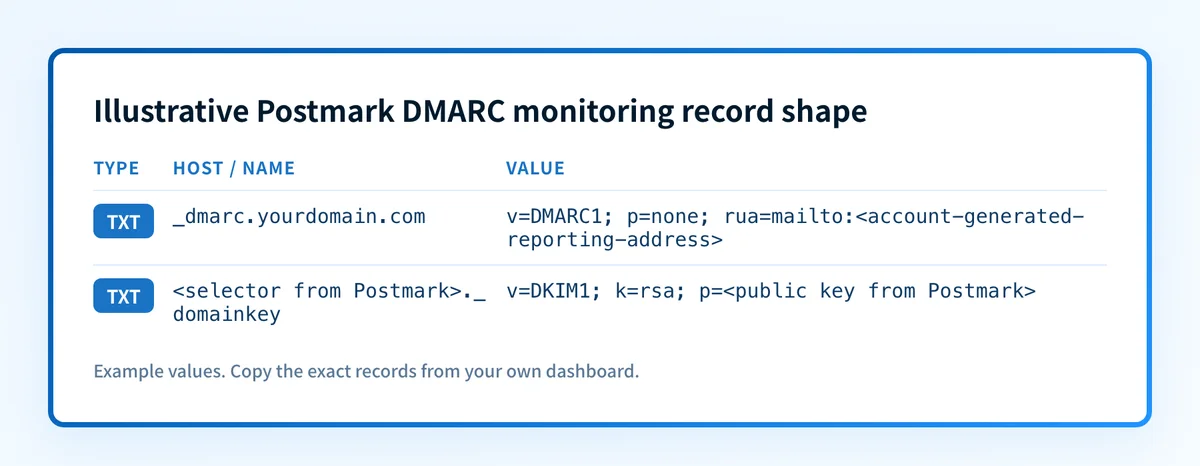
Postmark's DMARC monitoring service provides a generated record that includes an account-specific reporting address. Do not copy a reporting address from another account. Postmark states that a DMARC policy must be associated with the domain before it can collect ISP reports.
Use the DMARC checker after publishing the record to inspect the public DNS response. A public lookup cannot show whether every production message uses the expected Postmark path, whether recipients accepted mail, or whether future messages will authenticate.
How do I validate the setup?
Check public DNS
Query the exact DKIM owner that Postmark generated and confirm the authoritative zone returns the expected TXT record. Check the DMARC owner at _dmarc.yourdomain.com after publishing the monitoring policy.
dig +short TXT selector1._domainkey.yourdomain.com
dig +short TXT _dmarc.yourdomain.com
Compare the answers with the account-generated values, not with generic examples. If the owner does not resolve, check for a duplicated zone suffix or an incomplete TXT value.
Check the Postmark status
Return to DNS Settings for the selected sender signature and confirm Postmark no longer reports Not Verified. For Postmark DMARC monitoring, the service can show We’re working on verifying your DNS record. Postmark says verification can take up to 24 hours.
This confirms that Postmark can evaluate the relevant public DNS configuration. It does not prove a recipient received or authenticated a message from every sending route.
Inspect a delivered message
Inspect a fresh delivered message from the exact Postmark production path in a mailbox where raw headers are available. Confirm that the message is from the expected sender and retain a redacted copy of the results with the change record.
Postmark does not document how to inspect headers at a recipient or which result strings to expect. Follow the receiving provider's header documentation for the mailbox used in testing rather than treating a vendor status indicator as message evidence.
Review DMARC reports
After reports accumulate, review whether Postmark traffic passes and aligns with the visible From domain. Separate Postmark traffic from other legitimate systems that send as the same domain.
Postmark's monitoring flow requires a DMARC policy before it can collect ISP reports. DMARC reports help identify the traffic covered by the policy, but they do not replace testing a newly changed production route.
Troubleshooting
Postmark shows "Not Verified"
The likely evidence branch is missing or mismatched public DNS. Compare the exact Hostname and Value in the selected Postmark domain's DNS Settings with the authoritative DNS response.
Check for a duplicated zone suffix, a truncated public key, quotation changes introduced by the DNS provider, or a record published under a different domain. Postmark documents that propagation can take from a few minutes to 24 hours.
The DKIM record exists but belongs to a different selector
A DNS record can be valid while still not matching the selector Postmark generated for the selected account and domain. Inspect the current Postmark DNS Settings page and query that exact owner name.
Do not overwrite another sender's DKIM record to resolve this. Confirm which service owns the existing selector and use the Postmark-generated configuration for the selected sender signature.
SPF passes but DMARC alignment remains uncertain
Postmark states that its default SPF handling does not replace the value of a Custom Return-Path for full DMARC alignment. Check the account-generated Custom Return-Path configuration and the production message path.
Postmark's public documentation does not give a screen-by-screen procedure or universal DNS syntax for this feature. Stop before making a speculative DNS change and retrieve the exact record instructions from the Postmark account.
Postmark DMARC monitoring is still verifying
Postmark says DMARC verification can take up to 24 hours and displays We’re working on verifying your DNS record. Confirm that the _dmarc TXT record is publicly visible and that the record contains the account-generated reporting address.
Do not replace the reporting address with an example. If public DNS matches the generated record after the documented waiting period, use Postmark support to investigate the account-specific monitoring state.
Check the Postmark domain's published DMARC record
After Postmark DKIM is verified and you have published the monitoring policy, inspect the public DMARC record for the same From domain. This checks whether the DNS record is visible before you rely on Postmark monitoring or plan an enforcement change.
Check the Postmark domain's DMARC record
A public DMARC check cannot verify Postmark's account-specific Return-Path configuration, prove that every sender aligns, monitor later DNS changes, or guarantee recipient delivery. For the ongoing work of analyzing DMARC aggregate reports, identifying sending sources and alignment issues, and prioritizing remediation, Start with Palisade. Palisade proposes next policy steps from the evidence, while a human reviews and applies any DNS or DMARC policy change.
Evidence
Sources and further reading
Questions readers ask
Frequently asked questions
Where are Postmark DKIM settings?
Postmark DKIM settings are under Sender Signatures. Select or add the sending domain, then open DNS Settings to view the account-specific DKIM Hostname and Value.
Does Postmark provide SPF alignment for DMARC?
Only a Custom Return-Path can make Postmark's Return-Path use the sender's domain for the alignment approach Postmark describes. Postmark handles SPF by default, but recommends a Custom Return-Path for full DMARC alignment.
Should a Postmark DMARC record start with p=none?
Yes. Postmark's published rollout begins with p=none, followed by report review. Postmark says to consider quarantine and reject only after legitimate email is at 100% alignment.
How long does Postmark DKIM verification take?
Postmark says DNS changes can take from a few minutes to 24 hours to propagate. Verify the public DNS answer before changing a record that Postmark still shows as not verified.
Does a green Postmark status prove DMARC passes?
No. A green Postmark status shows that Postmark accepted the relevant DNS configuration. A delivered message and DMARC reports are separate validation layers for the exact production sending path.

Written by
Samuel ChenardCEO & Co-Founder, Palisade
Samuel Chenard is the CEO and co-founder of Palisade, agentic DMARC software for IT teams and MSPs, from one domain to thousands.
More from Samuel →