IONOS SPF setup
 ChatGPT
 Claude
 Gemini
 Perplexity
 Grok
GrokIn brief
IONOS SPF setup starts with your sending inventory, authoritative DNS access, and a safe validation plan before any TXT-record change in production.
IONOS SPF setup means publishing or updating the SPF TXT record for a domain whose DNS you manage through IONOS, then confirming the exact production sending path uses it as intended. Start by identifying every service that sends with the domain and locating the current DNS record. Do not add a second SPF record or copy a value from another account before you have the sender-specific instructions and a rollback plan.
At a glance
Quick takeaways
- SPF setup depends on the services that send mail for your domain, not on one universal IONOS value.
- IONOS offers domain and email products, but the DNS settings path and field labels must be confirmed in current IONOS documentation or your authenticated account.
- Record the existing DNS state before editing anything.
- Keep one change scoped to one domain and one approved sending inventory.
- Validate public DNS, sender status, a newly delivered message, and later DMARC reporting separately.
- A public SPF lookup cannot prove that every application uses the intended production sending path.
Scope and prerequisites
This procedure applies when IONOS is responsible for the DNS zone that publishes the domain's TXT records. IONOS lists domain and email offerings on its product homepage, but the homepage is not a DNS configuration guide. Confirm the current IONOS Help Center instructions or the authenticated DNS interface before changing records.
Identify the domain that appears in the envelope sender or return-path for the sending service you are configuring. The visible From domain alone does not identify the SPF identity to inspect. If different systems send mail for the organization, document each system separately before altering the record.
For the change window, assign these roles:
- The application owner confirms which service sends the message and provides its current SPF setup instructions.
- The DNS owner can inspect and publish records in the authoritative zone.
- The mail owner can send a new production-path test and obtain its delivered headers.
- The reviewer decides whether the evidence supports keeping the change or restoring the prior DNS state.
Use this change record as a minimum handoff:
domain: yourdomain.com
dns_owner: <approved DNS administrator>
existing_txt_records: <captured before change>
sending_service: <confirmed production sender>
sender_instruction: <official sender documentation URL>
test_recipient: <approved mailbox for header inspection>
rollback_record: <captured known-good DNS value>
The rollback condition is any result that conflicts with the intended record, an unexpected sender failure, or missing evidence about an existing record. Restore the captured known-good DNS state only after the DNS owner and application owner agree that the new change caused the issue.
For SPF concepts before making an IONOS DNS change, review Palisade's SPF learning hub and the overview of email authentication. SPF is one part of an authentication setup. It does not replace DKIM or DMARC planning.

Choose the implementation approach
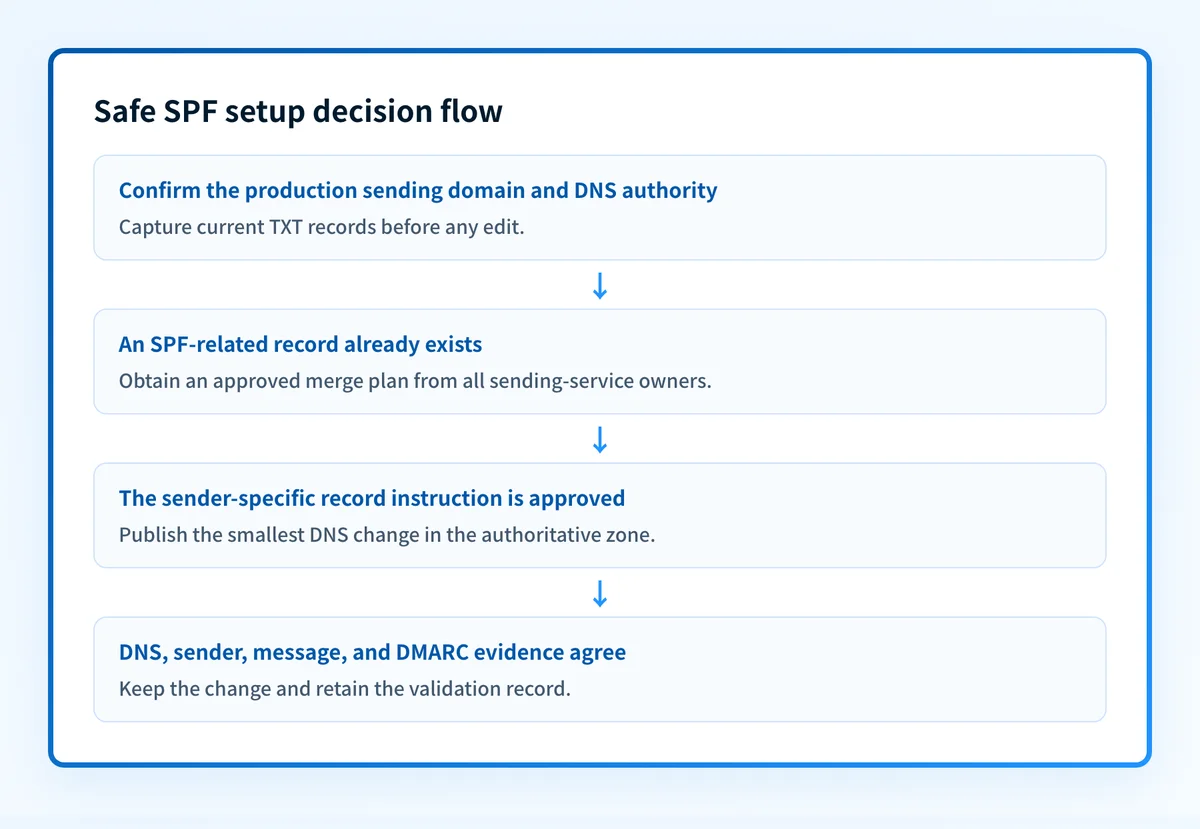
Choose the approach based on the sender inventory and the DNS record already published for the domain.
- If no SPF record exists, obtain the exact record instruction from every approved sending service before publishing a new record.
- If an SPF record already exists, treat the work as a controlled merge. Confirm how each approved sender's instruction fits into the existing value before editing.
- If a service sends through a different domain, subdomain, or return-path domain, do not assume the IONOS zone for the visible From domain is the place to edit.
- If ownership of the domain's DNS is unclear, identify the authoritative DNS provider before opening any IONOS setting.
The implementation decision is simple: publish the exact approved record only after you know whether it is a new record or an edit to the one existing SPF record. If that distinction is not clear, pause the change.
How to configure an SPF record in IONOS
1. Confirm the sending domain and current DNS authority
Start with a recent message sent through the exact application you need to authorize. Record the return-path or envelope-sender domain from the message evidence, then establish which organization controls the authoritative DNS zone for that domain.
Do not rely on an old implementation note. A domain can use IONOS for email, hosting, or registration while DNS is managed elsewhere.
2. Obtain the sender-specific SPF instruction
Open the official setup documentation for the service that sends the mail. Obtain its current SPF instruction, the domain it applies to, and any instruction about coexistence with other sending services.
The sender's documentation is the required source for the record value. Do not publish a universal IONOS SPF value because no such value applies to every sender configuration.
Do not replace a current TXT record until the DNS owner has captured it and the sending-service owner has approved the proposed merged state. A DNS record that looks unrelated may support another production mail stream.
3. Inspect the existing TXT records in the IONOS-managed zone
Use the current IONOS DNS documentation or authenticated control panel to locate the TXT records for the confirmed domain. The exact navigation path, form labels, and save behavior can change, so follow the current IONOS instructions rather than a copied screen path.
Look for records at the domain name and any relevant subdomain. Record what exists before creating or editing anything. If an SPF record is present, compare its full value with the sender inventory. Do not create another SPF record merely because a sender has supplied an additional mechanism.
The following is an illustrative change description, not a production DNS value:
Owner: yourdomain.com
Type: TXT
Value: <approved SPF value generated from the confirmed sending inventory>
Replace the placeholder only with a value approved from the current documentation for the services that send your mail. Do not publish a selector, hostname, token, or include value copied from another tenant.
4. Apply the approved DNS change
Make the smallest DNS change that implements the approved sender inventory. Keep a copy of the prior record and the exact new value entered. Record the time of the save and any TTL shown by the DNS interface.
If the IONOS interface shows a warning, conflict, or record-normalization message, do not infer what it means. Compare it with current official IONOS guidance or escalate it to the DNS owner before saving.
5. Keep the change scoped
Do not combine SPF work with DKIM, DMARC policy, MX, or mail-routing changes in the same unreviewed update. Separate changes make it possible to identify which action caused an unexpected result.
When a sender also needs DKIM, use its official instructions for that configuration. For example, Customer.io SPF and DKIM setup and HubSpot SPF and DKIM setup are separate sender-specific tasks.
How to validate the setup
Treat DNS publication, sender status, delivered-message authentication, and DMARC reporting as independent checks.
- DNS: Query the authoritative DNS source for the exact domain and compare the returned TXT record with the approved change. Then check at least one public resolver. Record the observed values and timestamps.
- Sender: Use the sending service's own status or verification method when it provides one. A green status does not prove that a new production message used the expected path.
- Message: Send a new message through the exact application, account, and route you configured. Inspect the recipient-side message headers and preserve the authentication result with sensitive data redacted.
- DMARC: Once aggregate-report data accumulates, inspect the production source's SPF result and alignment outcome over time. This is the layer that shows whether the observed sender appears in reporting, rather than only in one test message.
domain: yourdomain.com
sender: <application or mail system>
dns_result: <authoritative and public resolver observations>
sender_status: <service verification result, if available>
message_result: <redacted delivered-message authentication result>
dmarc_result: <aggregate-report observation after data accumulates>
checked_at: <UTC timestamp>
A passing DNS lookup means the public record can be retrieved. It does not prove that the application uses the expected return path, that all mail streams are covered, or that a receiving mailbox will make a particular delivery decision.
Troubleshooting
I cannot find the DNS record controls in IONOS
Confirm first that IONOS is authoritative for the domain's DNS. Then use current official IONOS Help Center guidance or ask the domain administrator for the documented DNS-management path. Do not use a third-party walkthrough as evidence for the current control-panel labels.
An SPF-related TXT record already exists
Do not add a second record before determining its purpose. Capture the complete record and compare it with the current sender inventory. Ask the sender owner for its official merge instructions when a new sending service must be added.
The public result does not match the record I entered
Compare the full domain name, record type, and value with the change log. Then query the authoritative DNS source and a public resolver. If the answers differ, preserve both observations and avoid further edits until the DNS owner confirms the intended state.
DNS looks correct but a new message still has an authentication problem
Check a newly delivered message from the exact production path. Confirm the application, account, return-path domain, and recipient are the ones you intended to test. A public DNS result does not establish that a sender used that record.
The sender's documentation conflicts with the existing record
Pause the change. The existing record may support a different approved source. Obtain an approved record plan from the owners of every sending system before changing DNS.
Check the SPF record before relying on the change
After the DNS owner has published the approved value, inspect the domain with Palisade's SPF checker. Compare the public result with the exact record captured in the change log, then compare both with a new message from the production sender.
For an ongoing domain portfolio, Palisade is agentic DMARC software that analyzes DMARC aggregate-report data, identifies sending sources and authentication or alignment issues, and creates prioritized remediation tickets. It can propose a next DMARC policy step when the evidence supports it, while a human reviews the evidence and applies the change. That workflow does not replace IONOS DNS ownership, change DNS automatically, or guarantee receiver delivery decisions.
The SPF checker inspects public DNS. It cannot prove the production sending path, continuously monitor later DNS changes, repair a sender configuration, or guarantee inbox placement.
Evidence
Sources and further reading
Questions readers ask
Frequently asked questions
Can I use one SPF value for every IONOS domain?
No. The SPF value must reflect the approved services that send mail for the specific domain. Obtain the value from the current documentation for those sending services.
Does a public SPF check prove that IONOS email is configured correctly?
No. A public check can inspect DNS. It does not prove that the mail application uses the expected production path or that a delivered message receives the intended authentication result.
Can I follow an old IONOS control-panel walkthrough?
Only if it matches current official IONOS documentation or the authenticated interface you can verify. DNS paths and field labels can change, so use current first-party guidance before editing a production record.
Do I need to test a real message after changing SPF?
Yes. Send a new message through the exact production application and inspect the delivered message evidence. DNS retrieval and a sender's verification status are separate from message-level validation.

Written by
Samuel ChenardCEO & Co-Founder, Palisade
Samuel Chenard is the CEO and co-founder of Palisade, agentic DMARC software for IT teams and MSPs, from one domain to thousands.
More from Samuel →