How do I set up SPF for Google Workspace?
 ChatGPT
 Claude
 Gemini
 Perplexity
 Grok
GrokIn brief
How to set up SPF for Google Workspace: publish Google's SPF TXT record, merge other senders safely, and validate DNS and delivered mail safely.

The SPF record for Gmail through Google Workspace is v=spf1 include:_spf.google.com ~all when Google Workspace is the domain's only approved sender. Publish it as a TXT record at the root of the sending domain. Make this change in authoritative DNS, not in the Google Admin console. If another service also sends mail using that domain, merge its approved SPF mechanism into the same record. Do not create a second SPF record.
At a glance
Quick takeaways
- Google Workspace SPF is published as a DNS TXT record for the sending domain.
- Google's documented SPF mechanism is
include:_spf.google.com. - A domain needs one SPF record beginning with
v=spf1. - Merge approved third-party senders into the existing SPF record before the final
~allor-all. - Public DNS, vendor configuration, a delivered message, and DMARC reports answer different validation questions.
- SPF authorizes an SMTP sending path. It does not by itself prove DMARC alignment or stop visible-From spoofing.
What should I check before configuring Google Workspace?
Confirm the exact mail stream in scope. This record covers messages sent by Google Workspace using the domain in the SMTP envelope sender, also called the return-path domain. It may not cover marketing platforms, help desks, website forms, or transactional services that send mail for the same organization.
You need access to the DNS zone that is authoritative for the domain. You should also identify every approved sender before changing the final SPF qualifier. Google documents its Workspace SPF setup and explains that the record must include Google's published sending infrastructure through include:_spf.google.com.
Run a TXT record lookup on the root domain to review the current TXT records before adding anything. A domain can have unrelated verification TXT records alongside SPF, but it must not have multiple records that begin with v=spf1. SPF evaluation can return a permanent error when multiple SPF records are present.
Copy DNS values from the account and domain you are configuring. Do not publish selectors, targets, tokens, or hostnames from another account or from an online example.
Record the current SPF value before editing it. If DNS is managed through infrastructure as code, identify the repository and change process before updating the zone. The SPF value for Google Workspace is public DNS data, but your complete record can identify services your organization uses.
Which setup method should I use?
Use the Google Workspace include mechanism when Google Workspace sends mail directly for the domain. It lets receivers evaluate Google's current sending infrastructure without copying individual IP addresses into your record.
Use a merged record when another approved sender also uses the same envelope-sender domain. Obtain that sender's SPF mechanism from its current official documentation, then add it to the existing policy before the final all mechanism.
Use a separate sending subdomain when a bulk or transactional platform can use one. That keeps the parent-domain SPF policy focused on its own mail streams and can make sender ownership easier to review. A subdomain has its own SPF scope. Publishing SPF at yourdomain.com does not authorize mail.yourdomain.com.
The SPF learning hub covers record syntax, mechanisms, lookup limits, alignment, and related troubleshooting outside this Google Workspace setup path.
How do I configure SPF for Google Workspace?
1. Open the DNS zone for the sending domain
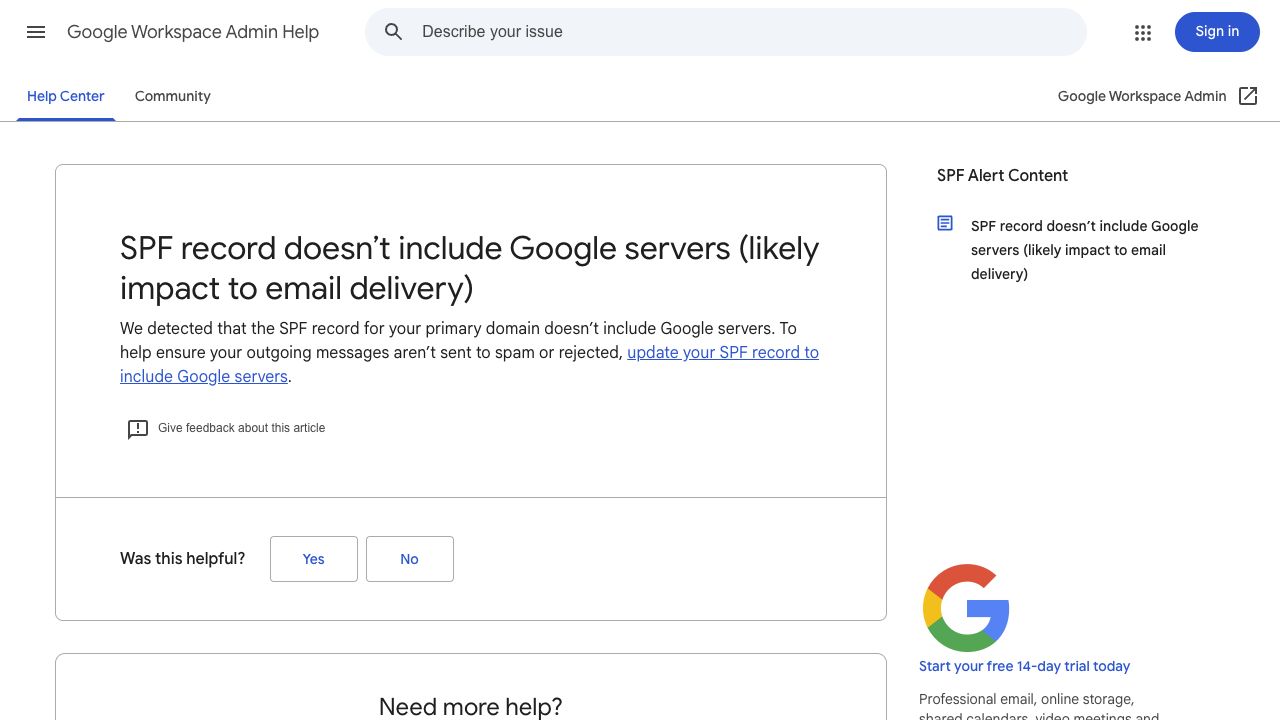
Open the DNS provider that hosts the authoritative zone for the domain used in your employee From addresses. The SPF record is not created in the Google Admin console. The current configuration path was verified from Google Workspace SPF documentation.
Check that you selected the correct zone before editing. A primary domain, an alias domain, and a sending subdomain can be separate DNS zones or have separate owners.
2. Find any existing SPF record
Search the root-domain TXT records for a value beginning with v=spf1. Preserve that record if it authorizes legitimate services.
If no such value exists, create one TXT record. If one exists, edit it to add Google's include mechanism. Do not add a new v=spf1 record beside the old one.
Publishing two SPF records for the same domain can cause SPF evaluation to return a permanent error. Merge authorized mechanisms into one record instead.
3. Publish the Google Workspace SPF mechanism
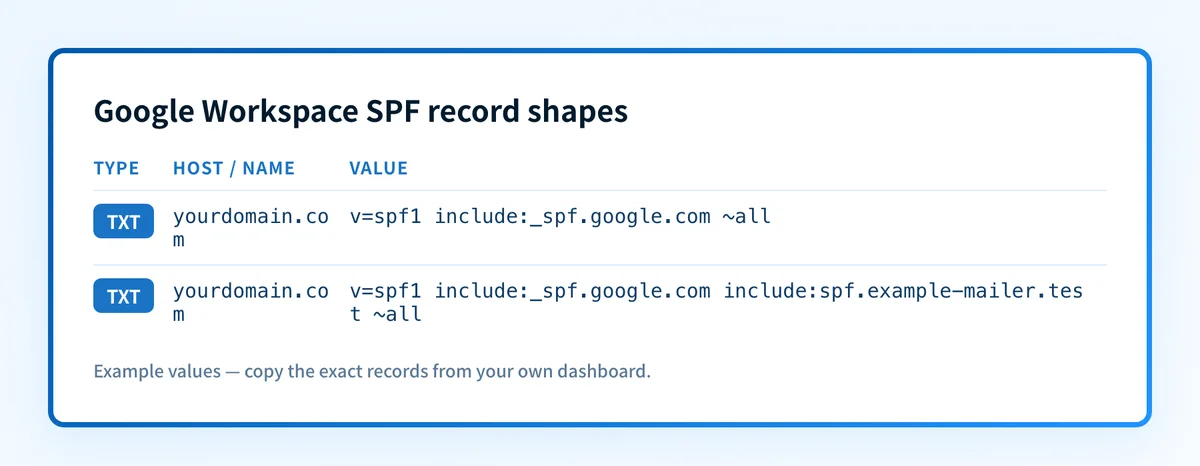
For a domain that sends only through Google Workspace, publish this record structure.
Record type: TXT
Host: @ or the provider's root-domain field
Value:
v=spf1 include:_spf.google.com ~allThis example is the documented Google Workspace SPF shape. Your DNS provider may ask for @, a blank host field, or the zone name to represent the root. Check the provider's resulting fully qualified owner name before saving.
Some DNS interfaces automatically append yourdomain.com to the host field. Entering yourdomain.com into a field that already appends the zone can create yourdomain.com.yourdomain.com, which leaves the intended root without an SPF record.
Google's record uses ~all, a soft fail for sending sources that do not match an earlier mechanism. Keep it. On a domain that sends mail, ~all plus an enforcing DMARC policy blocks spoofing just as -all does, and it does not risk the SMTP-time rejections that lose forwarded mail. Reserve -all for domains that send no mail at all.
4. Merge other approved senders into the same record
Add each approved sender's mechanism after Google's include and before the final qualifier. The following is illustrative only. Replace include:spf.example-mailer.test with the exact mechanism supplied by the relevant sender.
Record type: TXT
Host: @ or the provider's root-domain field
Value, illustrative only:
v=spf1 include:_spf.google.com include:spf.example-mailer.test ~allDo not publish the illustrative additional include. Copy the current SPF mechanism from the sender you have approved, and remove mechanisms for services that no longer send mail for the domain.
SPF has a DNS lookup limit during evaluation. RFC 7208 requires implementations to "limit the total number of those terms to 10" and to return permerror past that. Each include, redirect, and some other mechanisms can add lookups. Keep an inventory of why every mechanism exists, and remove obsolete services before adding another sender.
5. Send a real test message
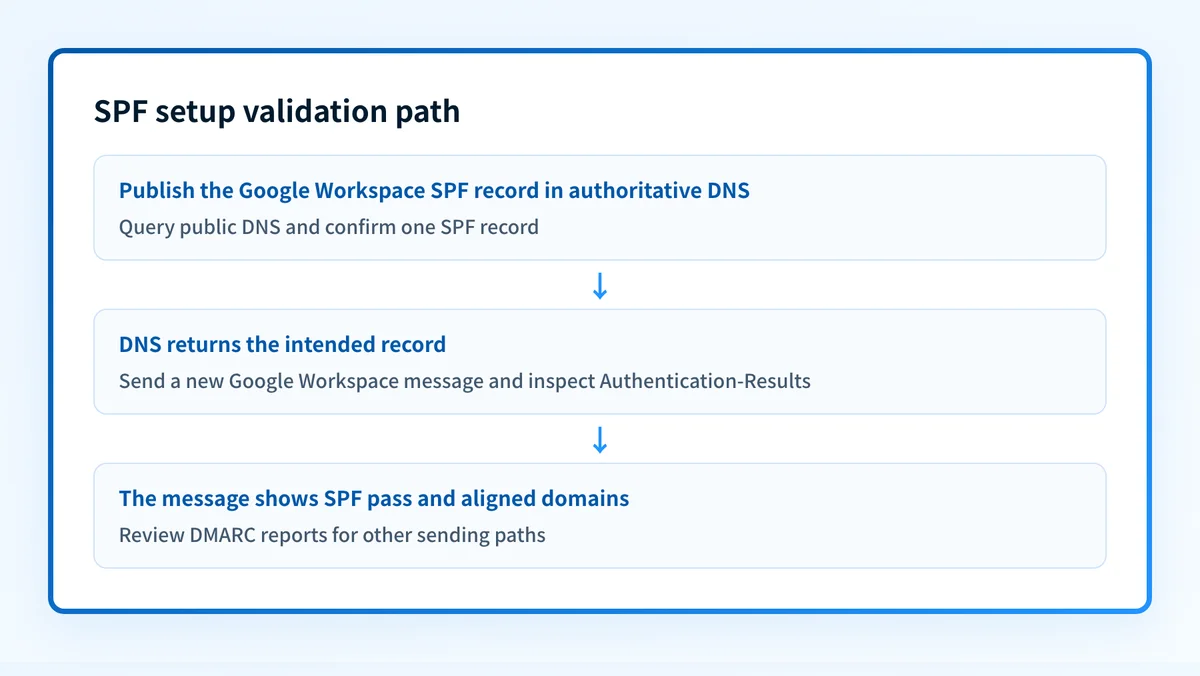
After public DNS returns the intended value, send a new message from the exact Google Workspace mailbox and route that production users normally use. Send it to a mailbox where you can inspect message source.
A test sent before the DNS change does not validate the new record. Test any materially different route separately, such as mail that passes through an outbound gateway or mail sent by a connected application. Those paths can use a different SMTP envelope sender.
Investigate this with your coding agent
Use this when your DNS zone is managed through a repository. Prepare the current redacted SPF value, the proposed Google Workspace mechanism, and the DNS record file path.
Agent handoff
Copy the prepared prompt
Give this to a coding agent that can inspect the relevant repository or configuration source of truth.
Problem: Google Workspace needs to be authorized in the SPF record for the production sending domain without creating a second SPF record.
Evidence: Redacted current root TXT records, the domain name, the proposed include:_spf.google.com mechanism, and the current DNS lookup or message-header result.
Repository scope: The DNS-as-code repository and files that define the sending domain's TXT records.
Constraints: Inspect before editing. Do not apply changes until I approve the proposed diff. Preserve unrelated TXT records, keep exactly one v=spf1 record, and do not include secrets, tokens, private keys, or customer data.
Requested output: Diagnosis, minimal proposed change, rollback, and unknowns.
Verification: Query the authoritative DNS answer and a public resolver, then send a new Google Workspace message and inspect its Authentication-Results.
Stop if: Credentials, private data, production mutation, or missing evidence is required.
Human approval required: Review the proposed diff and verification plan before allowing changes. Do not paste secrets, private keys, API tokens, unredacted headers, or customer data.
How does this setup affect DMARC?
SPF contributes to DMARC only when the SPF-authenticated domain aligns with the visible From domain under the domain's DMARC alignment policy. A Google Workspace message can pass SPF but still fail SPF alignment if its envelope-sender domain does not align with the visible From domain.
DKIM can independently satisfy DMARC when its signing domain aligns. Configure and test both protocols for Google Workspace with the related guide on setting up DKIM for Google Workspace.
Use Palisade's DMARC checker to inspect the published DMARC record before changing DMARC policy. A public record check cannot show whether a specific production message aligned, and it cannot predict a receiver's future delivery decision.
How do I validate the setup?
Check public DNS
Query the root TXT records through the authoritative DNS service and at least one public resolver. Confirm that there is one SPF record and that it includes _spf.google.com.
dig +short TXT yourdomain.comYou can also check the SPF record to inspect the public policy and identify syntax or lookup concerns. A public DNS result does not prove that Google Workspace used the expected envelope sender for a delivered message.
Check the vendor status in Google Workspace
Confirm that the selected mailboxes and domains are active in Google Workspace and that the intended users send through the expected Google Workspace path. Google Workspace does not use an SPF status indicator as proof that every outbound message path is covered.
Inspect a delivered message
Open the raw source for a newly delivered message. Inspect the receiver-added Authentication-Results field. RFC 8601 defines Authentication-Results and its trust boundary.
Look for spf=pass and compare the reported smtp.mailfrom domain with the visible From domain. A pass proves the receiver evaluated the tested SMTP path as authorized. It does not prove that a different application, gateway, or future sender will pass.
Review DMARC reports
After DMARC aggregate reports accumulate, review Google Workspace traffic separately from other sources using the domain. Look for SPF results, DKIM results, and alignment patterns. This is the layer that helps reveal senders that were not included in the original SPF inventory.
Troubleshooting
Public DNS has no SPF record
Check the final owner name shown by the DNS provider. The common failure is a duplicated zone name caused by entering a fully qualified domain into a host field that appends the zone automatically.
Query the bare sending domain again after correcting the record. Confirm the authoritative response before waiting for public resolvers to update.
SPF returns a permanent error
Look for more than one TXT value beginning with v=spf1 at the root. Consolidate the approved mechanisms into one record and remove the duplicate SPF policy.
Also inspect the record's lookup count. Excessive nested includes can cause SPF evaluation to exceed its lookup limit. Remove former services or move a suitable bulk sender to a dedicated subdomain.
Google Workspace mail passes SPF but DMARC fails
Inspect the message's smtp.mailfrom domain and visible From domain. SPF can pass for a domain that does not align with the visible From domain. Check DKIM alignment as well, because aligned DKIM can satisfy DMARC when SPF alignment does not.
Some employee mail passes but application mail does not
Compare raw headers from each path. An application, relay, or security gateway can use a different SMTP server or envelope sender than direct Google Workspace mail. Add only the approved sender's documented mechanism after confirming its ownership and purpose.
Mail passes SPF but delivery is still poor
SPF is an authorization check, not an inbox-placement guarantee. Review DKIM, DMARC, message content, recipient feedback, and the receiver's own diagnostics. For another vendor sending alongside Google Workspace, see how to set up SPF and DKIM for Amazon SES.
Check the SPF record before expanding DMARC coverage
Check the published record after DNS answers publicly, then compare it with a new delivered Google Workspace message. Palisade's SPF checker can inspect the current public SPF policy and help identify record-level issues before you add more sending sources.
For an ongoing domain portfolio, Palisade is agentic DMARC software that analyzes DMARC aggregate-report data, identifies sending sources and authentication or alignment issues, and creates prioritized remediation tickets. It proposes the next policy step when the evidence supports it, and a person reviews and applies every change.
Evidence
Sources and further reading
Questions readers ask
Frequently asked questions
What SPF record should I use for Google Workspace?
Use v=spf1 include:_spf.google.com ~all when Google Workspace is the only approved sender for the domain. If other services send mail using the same envelope-sender domain, merge their current approved mechanisms into that one record before the final qualifier.
Should I add a second SPF record for Google Workspace?
No. Add include:_spf.google.com to the existing SPF record if one already begins with v=spf1. Multiple SPF records for one domain can produce an SPF permanent error.
Does Google Workspace SPF go in the Admin console?
No. Publish the SPF TXT record with the DNS provider that hosts the authoritative zone for the sending domain. Google Workspace sends the mail, while DNS publishes the authorization policy receivers evaluate.
Does SPF pass mean DMARC passes?
No. SPF must also align with the visible From domain to satisfy DMARC through SPF. An aligned DKIM pass can satisfy DMARC independently, so inspect both results in the delivered message and later in DMARC reports.
Should I use ~all or -all for Google Workspace?
Use ~all. Google's documented Workspace SPF example ends in ~all, and Google warns that a hard fail qualifier makes failing messages more likely to be rejected and unusable for troubleshooting the record. Reserve -all for a domain that sends no mail.

Written by
Dominic LandryDeliverability & DNS
Dominic Landry works on email deliverability and DNS configuration at Palisade, from SPF and DKIM records through to DMARC enforcement.
More from Dominic →