How do I set up SPF and DKIM for Customer.io?
 ChatGPT
 Claude
 Gemini
 Perplexity
 Grok
GrokIn brief
Customer.io SPF and DKIM setup: add a sending domain, publish its account-generated DNS records, verify delivery, and check DMARC alignment.

Set up SPF and DKIM for Customer.io built-in delivery at Settings > Workspace Settings > Email in Customer.io. Add the domain used in your From address, choose automatic or manual setup, then publish and verify the account-generated DNS records. Customer.io generates values for the selected workspace and domain, so copy them only from the account you are configuring.
At a glance
Quick takeaways
- This workflow covers Customer.io's built-in delivery service, not custom SMTP.
- Customer.io puts its built-in delivery records on an account-specific subdomain.
- Automatic setup uses Entri when the DNS provider and change process support it.
- Manual setup requires the exact MX, SPF, and DKIM values Customer.io displays.
- A verified Customer.io domain does not prove a real production message passed authentication.
- DMARC still depends on an aligned SPF or DKIM pass for the visible From domain.
What should I check before configuring Customer.io?
Confirm that the messages in scope use Customer.io's built-in delivery service. Customer.io's sending-domain authentication documentation says custom SMTP senders authenticate with their SMTP provider instead. Link tracking and custom SMTP are separate configuration tasks.
You need access to Customer.io Workspace Settings, permission to add a sending domain, and access to the authoritative DNS zone. Select the domain that will appear in the production From address before adding records. Customer.io also requires a From address as part of its sending-domain setup.
Check the existing root-domain DNS records before making changes. Customer.io's built-in delivery records belong on an account-specific subdomain, so they should not replace the root SPF record used by other senders or your normal inbound MX records. For broader protocol context, see what email authentication is and why it matters.
Copy DNS values from the account and domain you are configuring. Do not publish selectors, targets, tokens, or hostnames from another account or from an online example.
Which setup method should I use?
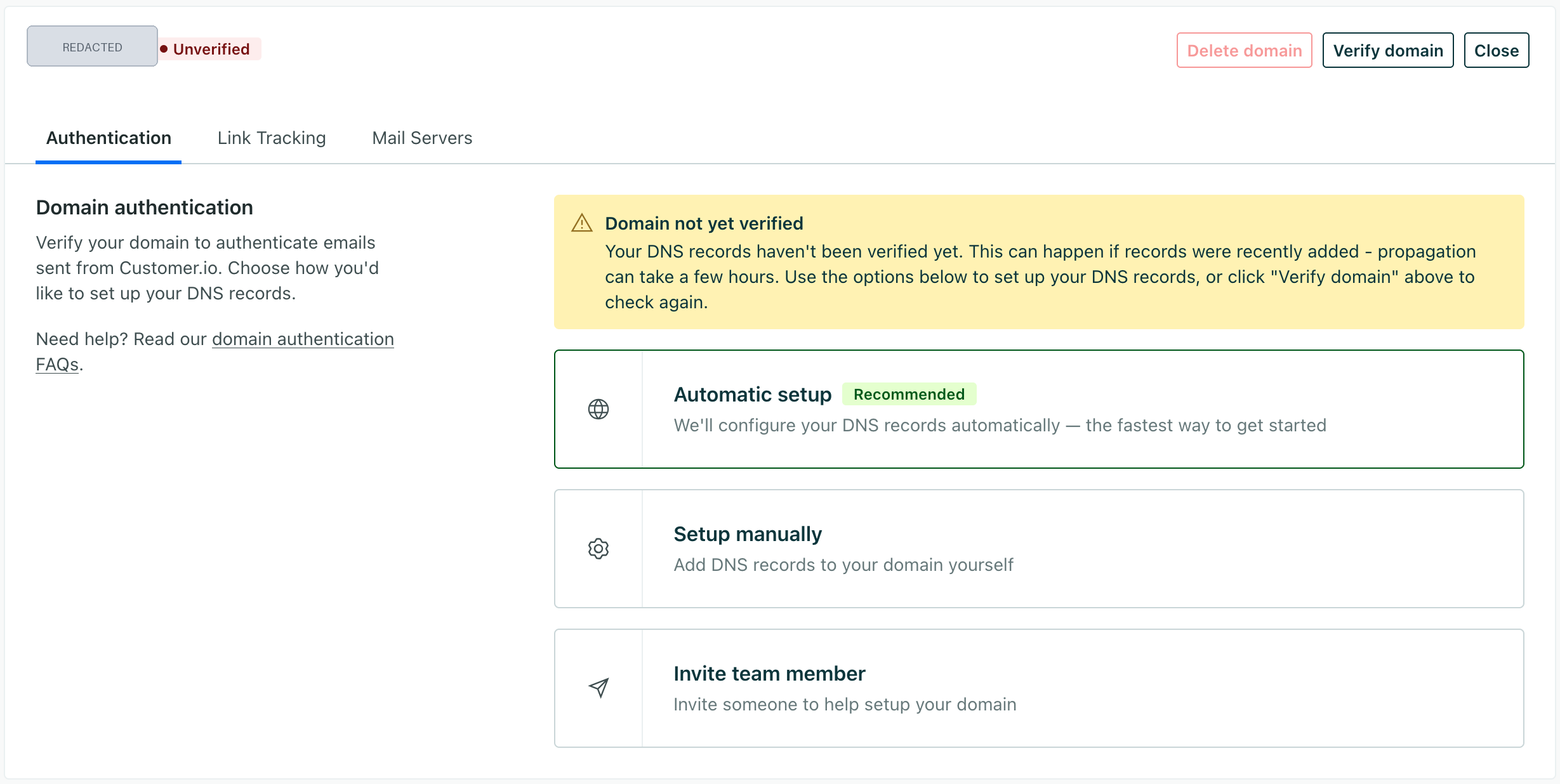
Use automatic setup if Customer.io offers your DNS provider through Entri and you are authorized to approve the DNS changes. Review the proposed records and their owners before authorizing them. Automatic setup reduces transcription errors, but public DNS, a Customer.io verification state, and a delivered message still need separate checks.
Use manual setup if another team controls DNS, the DNS provider is unavailable in the automatic flow, or your organization requires a reviewed DNS change. Customer.io displays the record set for the selected domain. Keep that page open while you enter the records.
Do not select a method solely because it is faster. The correct method is the one that preserves DNS ownership and review requirements while publishing the exact Customer.io values.
How do I configure SPF and DKIM for Customer.io?
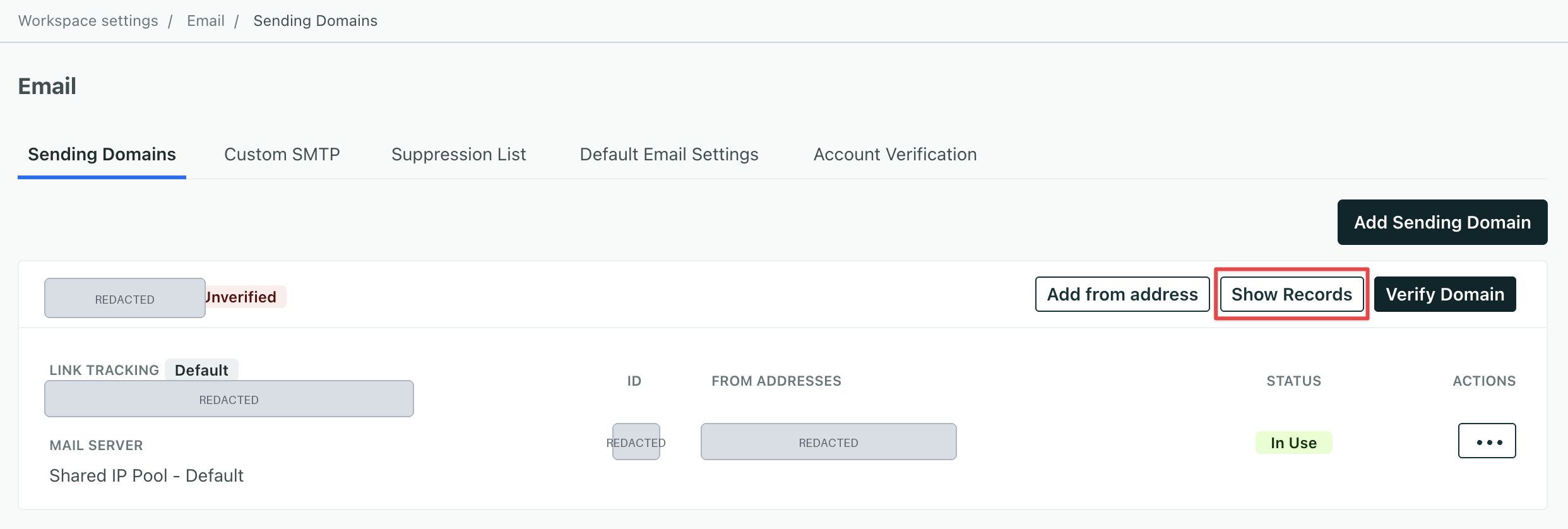
1. Open the sending-domain settings
Open Settings > Workspace Settings > Email and select Add Sending Domain. Enter the domain, display name, and From address used by the Customer.io messages you intend to send.
Check the workspace and domain before continuing. A workspace can contain more than one sending domain, and each configuration can produce different records.
2. Select automatic or manual setup
Choose automatic setup if the Entri connection is available and approved for your DNS provider. Otherwise, choose manual setup and display the generated records.
Copy each record's type, owner, value, and MX priority exactly as Customer.io shows them. The displayed values are configuration data for that Customer.io account and selected sending domain.
3. Publish the account-generated DNS records
Customer.io documents an account-specific set of MX, SPF, and DKIM records for manual built-in-delivery setup. The following shapes are illustrative only. Get the real owners, targets, selector, and key from Customer.io.
Return-path record
- Record type:
MX - Host: the Customer.io-generated subdomain
- Priority and value: the exact generated values
- Record type:
TXT - Host: the Customer.io-generated subdomain
- Value: the complete generated SPF policy
- Record type:
TXT - Host: the Customer.io-generated DKIM owner
- Value: the complete generated public key
Illustrative only
MX   cio.yourdomain.com                 <priority> <Customer.io-generated-target>
TXT  cio.yourdomain.com                 v=spf1 include:<Customer.io-generated-include> ~all
TXT  <selector>._domainkey.cio.yourdomain.com  v=DKIM1; k=rsa; p=<Customer.io-generated-public-key>
Do not publish this example. Copy the complete values from Customer.io for the exact workspace and sending domain. Do not merge its SPF value into the root-domain SPF record unless Customer.io specifically displays that root owner for your configuration.
Some DNS providers append the DNS zone automatically. If the zone is yourdomain.com, entering cio.yourdomain.com in a field that appends the zone can create cio.yourdomain.com.yourdomain.com. Confirm the final fully qualified owner after saving.
Do not overwrite a record at an existing DKIM selector. A CNAME cannot coexist with other DNS data at the same owner, and multiple unrelated DKIM keys at one selector can prevent a usable lookup. If the generated owner conflicts with an active record, stop and review the Customer.io record set and your DNS change plan.
4. Verify the domain in Customer.io
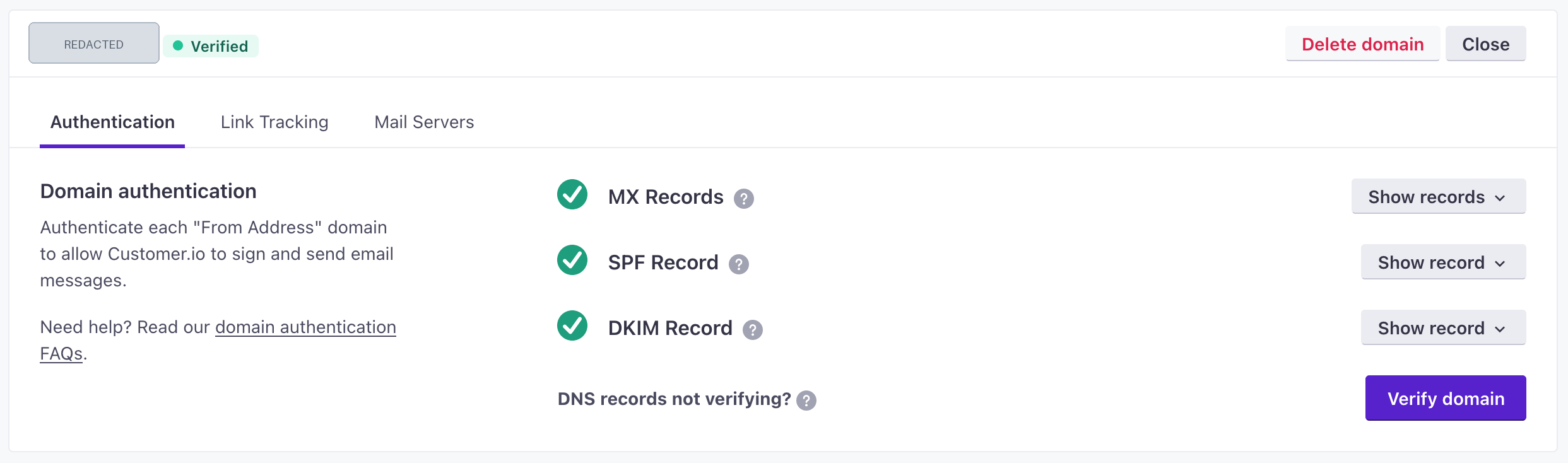
After the DNS records answer publicly, return to the sending-domain page and select the available verification action. Customer.io documents Verified, Unverified, and Undetermined states and notes that verification can take up to 72 hours.
Record when the DNS change was published and when Customer.io last checked it. If the status remains unverified, compare the authoritative DNS response with the complete Customer.io value before making another edit.
5. Send a real test message
Send a new message through the same Customer.io workspace, sending domain, and From address that production uses. Deliver it to a mailbox where you can inspect the raw message source.
Do not use a message sent before the domain was verified. If different campaigns, message types, or routing settings use different From domains, test each materially different path.
How does this setup affect DMARC?
Customer.io's account-specific return-path and signing identifiers can support relaxed alignment when they are organizationally aligned with the visible From domain. RFC 9989 defines DMARC evaluation: DMARC needs at least one passing SPF or DKIM result that aligns with the author domain.
Strict aspf=s or adkim=s alignment requires an exact domain match. Do not loosen an alignment mode to clear a status warning before inspecting a delivered Customer.io message. Confirm the SPF smtp.mailfrom domain and the DKIM d= domain first.
Use the DMARC checker to inspect the published root-domain policy. A public record check cannot prove which Customer.io identifier was used in a delivered message or predict a receiver's future placement decision.
How do I validate the setup?
Check public DNS
Query the exact MX, SPF, and DKIM owners generated by Customer.io through the authoritative DNS provider and at least one public resolver. Check the root-domain DMARC record separately.
dig +short TXT cio.yourdomain.com
dig +short TXT selector1._domainkey.cio.yourdomain.com
dig +short TXT _dmarc.yourdomain.com
Use Palisade's SPF checker and DKIM checker for public DNS inspection. These checks do not prove Customer.io is using the expected return path or selector on a real message.
Check the Customer.io status
Confirm that Customer.io reports the selected sending domain as verified. This shows Customer.io accepted the current DNS configuration for that domain. It does not establish that all production message paths are authenticated.
Inspect a delivered message
Open the raw source of the new test message. Inspect DKIM-Signature for the expected d= domain and selector, then examine the receiver-added Authentication-Results field. RFC 8601 defines Authentication-Results and its trust boundary.
Accept the setup only when the trusted receiver result shows the expected passing result and either SPF or DKIM aligns with the visible From domain for DMARC. Keep a redacted header copy with the DNS change record.
Review DMARC reports
After aggregate reports arrive, review Customer.io traffic separately from other sending sources. Look for SPF and DKIM pass rates, alignment outcomes, and any unexpected identifiers that use the same visible domain.
A single Customer.io repair does not inventory every sender that uses the domain. For another vendor setup pattern, compare this workflow with setting up SPF and DKIM for Amazon SES.
Troubleshooting
Customer.io cannot verify the domain
Compare each public DNS answer with the exact record Customer.io generated. Check the record type, MX priority, owner, target, SPF value, DKIM public key, and selected workspace domain. Customer.io documents that verification may take up to 72 hours.
The DNS owner name contains the domain twice
Check whether the DNS provider appends the zone name. Enter the relative label when the interface expects one, or the full owner only when the interface explicitly requires it. Query the final fully qualified name before requesting verification again.
The SPF record is at the root domain
Move only the Customer.io-generated SPF record to the account-specific owner Customer.io displayed. Do not create a second root SPF TXT record. SPF evaluation can produce a permanent error when a domain publishes multiple SPF records.
The DNS provider does not accept the DKIM owner
Some providers have restrictions around underscores or present an alternate input format. Confirm whether the provider expects the relative owner label and whether it supports the required DKIM TXT owner. Do not substitute a different selector or remove the underscore.
Customer.io is verified but DMARC fails
Inspect a fresh delivered message. Compare the visible From domain with smtp.mailfrom and the DKIM d= value. The Customer.io status confirms its DNS check, while DMARC depends on aligned results seen by the receiving system.
A test message passes but another campaign fails
Compare the workspace, sending domain, From address, and message route for both messages. Different Customer.io configurations can use different identifiers. Test the failing path rather than treating one header as evidence for every campaign.
Check the domain posture after Customer.io verification
After the Customer.io domain is verified, run the Email Security Score for the visible sending domain to inspect its public authentication posture. Compare the result with the delivered Customer.io headers and the root-domain DMARC policy.
A public score cannot prove Customer.io used the configured records, monitor future DNS drift, or explain a receiver's private delivery decision. If Customer.io is one of several senders using the domain, Start with Palisade to have the DMARC Agent analyze aggregate-report data, identify sources and alignment issues, and create prioritized remediation tickets. Palisade does not change Customer.io settings, guarantee delivery, or autonomously apply a DMARC policy change.
Evidence
Sources and further reading
Questions readers ask
Frequently asked questions
Do I need Customer.io SPF and DKIM if I use custom SMTP?
No. Customer.io's sending-domain authentication workflow applies to its built-in delivery service. Authenticate the sending domain with the custom SMTP provider instead, then validate the delivered message from that provider's production path.
Should I add Customer.io to my root-domain SPF record?
No. Customer.io documents its built-in delivery SPF record on an account-specific subdomain. Add the generated record at the owner Customer.io displays and preserve the existing root SPF record unless the generated configuration explicitly says otherwise.
Do I need both SPF and DKIM for Customer.io?
Yes. Publish the complete Customer.io-generated record set and validate both mechanisms. DMARC can pass through one aligned mechanism, but a full setup should not assume one passing result makes the other configuration unnecessary.
Can I authenticate more than one Customer.io sending domain?
Yes. Add and authenticate each sending domain in the Customer.io workspace. Treat each domain as a separate DNS and message-validation task because the generated records and production From addresses can differ.
Does a verified Customer.io domain guarantee DMARC passes?
No. Customer.io verification confirms its DNS check for the selected domain. DMARC pass depends on a real receiving system seeing an aligned SPF or DKIM pass for the visible From domain.

Written by
Dominic LandryDeliverability & DNS
Dominic Landry works on email deliverability and DNS configuration at Palisade, from SPF and DKIM records through to DMARC enforcement.
More from Dominic →