How do I set up SPF and DKIM for SendGrid?
 ChatGPT
 Claude
 Gemini
 Perplexity
 Grok
GrokIn brief
SendGrid SPF and DKIM setup: authenticate a domain, publish account-generated DNS records, verify SendGrid, inspect headers, and validate DMARC.

To set up SPF and DKIM for SendGrid, open Settings > Sender Authentication in Twilio SendGrid's Domain Authentication guide, select Domain Authentication, enter the domain used in your From addresses, and publish the DNS records SendGrid generates for that account and domain. Then verify the domain in SendGrid and inspect a newly delivered production message. The generated record owners and targets are account-specific.
At a glance
Quick takeaways
- SendGrid Domain Authentication configures branded sending authentication. It is different from Single Sender Verification.
- Automated security uses SendGrid-generated CNAME records, while manual security uses a different generated record set.
- Copy each DNS record from the SendGrid account, selected domain, and region you are configuring.
- A SendGrid verified status confirms public DNS validation, not the authentication result of every production message.
- DMARC needs aligned SPF or DKIM for the visible From domain.
- Validate DNS, SendGrid status, a delivered message, and DMARC reports as separate checks.
What should I check before configuring SendGrid?
This setup applies to outbound mail sent through Twilio SendGrid, including API, SMTP relay, and marketing paths that use Domain Authentication. It does not configure dedicated-IP reverse DNS, Inbound Parse, or a mailbox provider's own outbound mail.
Confirm which exact domain appears after the @ in the production From address. Also confirm whether the parent account or a subuser sends the mail. SendGrid's Domain Authentication instructions require DNS-host selection and a domain before SendGrid generates the record set.
You need permission to use the SendGrid account that sends the messages and permission to edit the domain's authoritative DNS zone. Check existing records at the owners SendGrid will generate before making the DNS change. A CNAME cannot share its owner name with another DNS record.
Copy DNS values from the account and domain you are configuring. Do not publish selectors, targets, tokens, or hostnames from another account or from an online example.
For a broader explanation of why SPF, DKIM, and DMARC need separate checks, see what email authentication is and why it matters.
Which setup method should I use?
Use automated security for the standard SendGrid configuration. SendGrid supplies CNAME delegations for its managed authentication configuration, so its generated targets handle the SPF and DKIM setup behind those records. Keep those CNAMEs intact after verification.
Use manual security only when your DNS policy requires direct control of the generated records. The manual path has a different record set, so do not convert values from one mode into another. Select the method before publishing anything, then copy the complete generated set exactly.
The documented path is verified from official Twilio documentation. This public tutorial capture illustrates the DNS-host selection state, but it is not evidence of a live account's current generated values.
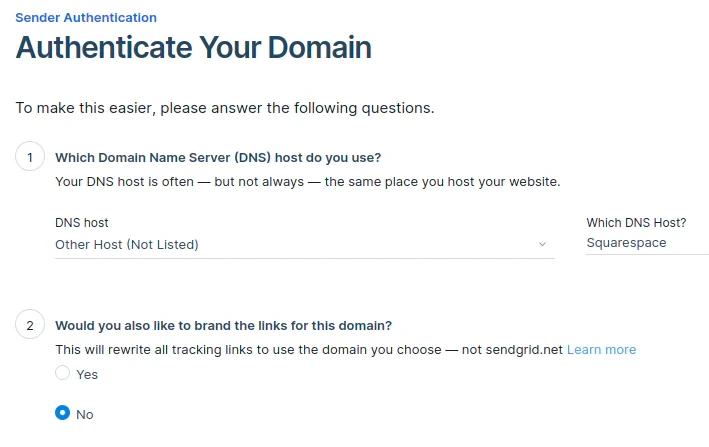
If your current SendGrid screen offers Domain Connect for your DNS provider, use it only when you are authorized to approve the DNS change. Otherwise, complete the normal DNS-host workflow.
How do I configure SPF and DKIM for SendGrid?
1. Open the Sender Authentication settings
Sign in to the SendGrid account that sends the mail. Open Settings > Sender Authentication, find Domain Authentication, and select Get Started, as described in Twilio's Domain Authentication setup instructions.
Do not substitute Single Sender Verification for Domain Authentication when you need a branded domain configuration.
2. Choose the DNS host and setup options
Select the provider that hosts the authoritative DNS zone. Choose the appropriate alternative when the provider is not listed.
Keep automated security enabled unless a DNS architecture or change-control requirement calls for manual security. Review the selected domain carefully before continuing. The domain must cover the From addresses used on the production sending path you plan to test.
3. Enter the sending domain and generate records
Enter the domain requested by SendGrid without a URL scheme or www. SendGrid then displays the record owners and values for that setup.
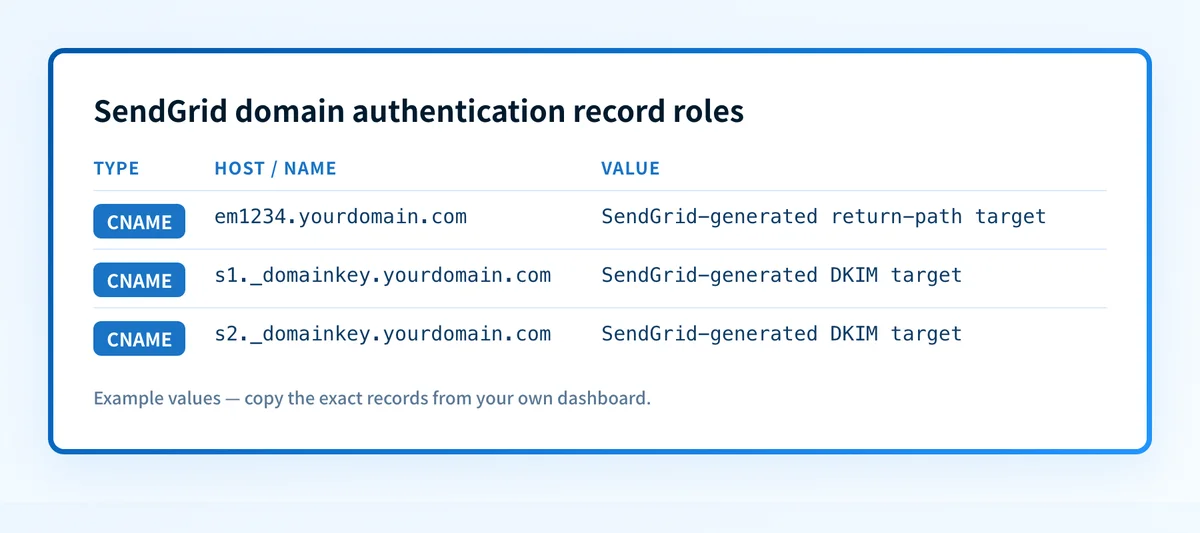
The following card shows record roles, not values to publish:
4. Publish every SendGrid-generated DNS record
With automated security selected, SendGrid provides CNAME records for its return-path and DKIM configuration. Copy the exact owner and target from the Domain Authentication screen.
Return-path and SPF delegation
- Record type:
CNAME - Host: account-generated return-path owner
- Value: account-generated SendGrid target
Illustrative only: em1234.yourdomain.com CNAME u12345678.wl.sendgrid.netFirst DKIM selector
- Record type:
CNAME - Host: account-generated selector under
_domainkey - Value: account-generated SendGrid target
Illustrative only: s1._domainkey.yourdomain.com CNAME s1.domainkey.u12345678.wl.sendgrid.netSecond DKIM selector
- Record type:
CNAME - Host: account-generated selector under
_domainkey - Value: account-generated SendGrid target
Illustrative only: s2._domainkey.yourdomain.com CNAME s2.domainkey.u12345678.wl.sendgrid.netDo not publish these examples. Generate the real records in the SendGrid account and domain you are configuring, then copy each complete value from that screen.
When manual security is selected, publish the TXT and MX records SendGrid generates instead. Do not add a second SPF TXT record to the same domain. SPF permits one effective SPF record, so merge provider-authorized mechanisms into the existing record only when the generated manual instructions require it.
Many DNS interfaces append the zone name to a host field. If the zone is yourdomain.com, entering s1._domainkey.yourdomain.com into a field that automatically appends the zone can create s1._domainkey.yourdomain.com.yourdomain.com. Check the final fully qualified owner after saving.
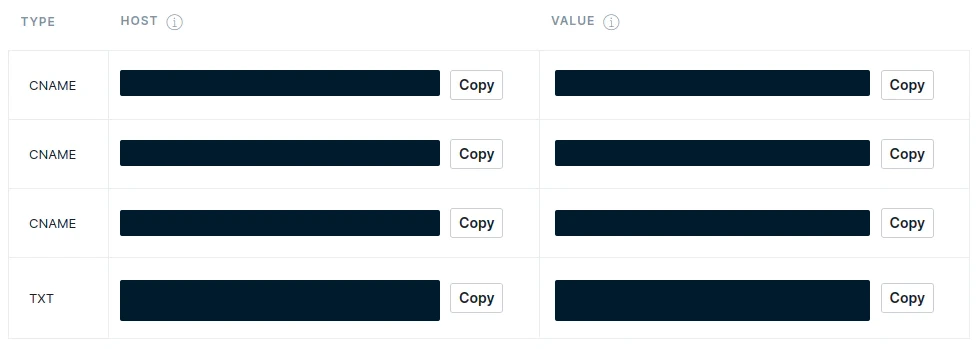
This official tutorial image shows the generated-record table format. Its values are redacted because SendGrid records must come from the account you are configuring.
5. Verify the domain and send a real test message
Wait for the records to resolve publicly, then select Verify in SendGrid. Twilio's Sender Authentication troubleshooting guide documents DNS propagation, invalid record, duplicate-domain, and underscore-related validation issues.
After SendGrid shows a verified result, send a new message through the same API key, SMTP relay, marketing workflow, parent account, or subuser that will send production mail. Use a From address covered by the authenticated domain.

How does this setup affect DMARC?
SendGrid SPF and DKIM support DMARC only when an SPF-authenticated identifier or DKIM signing domain aligns with the visible From domain. RFC 9989 defines DMARC evaluation and identifier alignment. A DKIM pass for an unrelated d= domain does not create a DKIM-aligned DMARC pass.
Use Palisade's DMARC checker to inspect the published DMARC policy before changing enforcement. A public record check does not prove which SendGrid path sent a message or how a receiving mailbox provider treated it.
How do I validate the setup?
Check public DNS
Query the exact owners SendGrid generated from both the authoritative DNS server and a public resolver. Confirm the owner names and targets match the SendGrid screen.
dig +short CNAME s1._domainkey.yourdomain.com
dig +short CNAME em1234.yourdomain.com
Use the SPF checker and DKIM checker for a public DNS review. Their results do not prove that SendGrid is signing a production message with the expected domain and selector.
Check the SendGrid status
Return to Settings > Sender Authentication and confirm the selected domain is verified. This shows SendGrid accepted the expected public DNS configuration. It does not prove that the actual sending path uses that domain for its From address.
Inspect a delivered message
Open the raw source for a message sent after verification. Check DKIM-Signature for the expected d= signing domain and selector. Then inspect the receiver-added Authentication-Results header. RFC 8601 defines Authentication-Results and explains its trust boundary.
Accept the result only when the trusted receiver result reports dkim=pass or an aligned spf=pass, and the passing identifier aligns with the visible From domain. Keep a redacted header sample with the DNS change record.
Review DMARC reports
After reports accumulate, review SendGrid traffic separately from other sources using the same domain. Look for SPF and DKIM alignment failures, unexpected sending sources, or traffic that uses a different From domain. A verified SendGrid domain does not inventory every sender that can use your domain.
Troubleshooting
SendGrid cannot verify the domain
Compare the generated owner and target with the authoritative DNS response. Twilio documents that DNS propagation can take time and advises checking each failing record in its Sender Authentication troubleshooting guidance.
Do not regenerate records before confirming that the selected SendGrid account, domain, and setup method are still correct.
The DNS owner has the domain twice
Inspect the fully qualified name returned by DNS. If it ends with the zone name twice, remove the duplicated suffix in the DNS provider's host field. This happens when a provider appends the zone automatically.
The DNS provider rejects an underscore
DKIM owner names normally use _domainkey. If the DNS interface rejects the underscore, check whether it has a separate validation rule or whether the record was entered into the wrong field. Twilio lists underscore support as a sender-authentication troubleshooting consideration.
A record conflicts with an existing DNS record
Do not overwrite another active CNAME, TXT, or MX record to make SendGrid verify. Find the existing service owner, then choose a different authenticated subdomain or follow the service's rotation or migration process.
SendGrid is verified but DMARC still fails
Inspect the new message's Authentication-Results, visible From domain, DKIM-Signature d=, and SPF-authenticated domain. The likely issue is alignment or a From-domain mismatch, not DNS reachability. Twilio documents authenticated-domain selection behavior for account and subuser contexts in its sender authentication troubleshooting documentation.
Check the domain beyond SendGrid verification
After a verified SendGrid domain and a header check, run Palisade's Email Security Score against the From domain to inspect public DMARC, SPF, DKIM, and related email-security signals. That check is useful because SendGrid's private verification state does not reveal root-domain policy gaps.
For ongoing work across domains or clients, Palisade is agentic DMARC software that analyzes DMARC aggregate-report data, identifies sending sources and alignment issues, and creates prioritized remediation tickets. It proposes the next policy stage while a person reviews the evidence and applies any DNS or policy change. Palisade does not configure SendGrid, control mailbox-provider decisions, or guarantee delivery or inbox placement.
Evidence
Sources and further reading
Questions readers ask
Frequently asked questions
Does SendGrid Domain Authentication set up both SPF and DKIM?
Yes. SendGrid Domain Authentication generates the DNS records needed for its selected authentication method. Automated security uses generated CNAME delegations, while manual security presents a different generated record set. Use the records shown in your own account.
Should I use automated security in SendGrid?
Yes, for the standard setup. Automated security lets SendGrid manage the authentication configuration behind its generated CNAME records. Use manual security only when a documented DNS or change-control requirement requires direct records.
Can I copy SendGrid DNS records from another domain?
No. SendGrid generates record owners and targets for the selected account and domain. Copying another account's values can authenticate the wrong configuration or fail verification.
Does a verified SendGrid domain prove DMARC passes?
No. Verification shows that SendGrid found the expected public DNS records. DMARC requires an aligned SPF or DKIM result on a real delivered message, then reports should confirm the continuing production pattern.
How long does SendGrid verification take?
It depends on DNS publication and resolver propagation. Check the authoritative DNS response first, then compare it with SendGrid's generated records. Twilio notes that propagation and DNS validation issues can delay verification.
Can I authenticate more than one SendGrid sending domain?
Yes. Configure and verify each sending domain in the SendGrid account that uses it. Validate each domain with a new message from its actual production path because one verified domain does not prove another domain or subuser configuration.

Written by
Dominic LandryDeliverability & DNS
Dominic Landry works on email deliverability and DNS configuration at Palisade, from SPF and DKIM records through to DMARC enforcement.
More from Dominic →