IONOS DMARC setup
 ChatGPT
 Claude
 Gemini
 Perplexity
 Grok
GrokIn brief
IONOS DMARC setup: add a TXT record at _dmarc in the IONOS DNS panel, start at p=none, then confirm the policy and your mail results before enforcing.
IONOS DMARC setup requires the current DMARC record instructions for your specific domain and access to the DNS zone that publishes the domain's records. IONOS offers E-Mail services, but a safe setup should use the exact record name and value shown in your account or confirmed by IONOS support. Publish nothing from a copied example until it matches the domain and sending paths you operate.
At a glance
Quick takeaways
- DMARC is a DNS-published policy that depends on SPF or DKIM authentication results for real mail.
- In the IONOS panel the record is a TXT entry with the host name
_dmarc; IONOS appends the domain for you. - Start at
p=nonewith anruaaddress, and move to enforcement only on report evidence. - A public DNS answer does not prove that IONOS Email or another sender uses the expected authentication settings.
- Keep a rollback path before publishing or replacing a DMARC record.
- Validate DNS, sender status, a delivered message, and DMARC reports as separate checks.
Scope and prerequisites
Start with one domain and one production sending path. Identify the visible From domain, every service that sends mail for it, the person responsible for each sender, and the person authorized to change DNS.
DMARC evaluates the domain shown in the visible From address. Read the DMARC learning hub and what DMARC is if the distinction between the visible From domain and a sender's technical return path is unclear.
Before changing DNS, collect:
- The domain you intend to protect, such as
yourdomain.com. - The DNS provider and account owner for that domain.
- A list of current senders, including employee mail, website forms, transactional systems, and marketing platforms.
- A recent delivered test message from each material sending path, with its full authentication results available to the responsible administrator.
- The existing DNS record at the intended DMARC hostname, if one exists.
- A rollback owner who can restore the prior known-good DNS value.
Do not replace an existing DMARC TXT record with an example from another domain. A replacement can change the policy seen by receiving mail systems and can affect legitimate mail that has not yet been checked.
IONOS presents E-Mail as an offering on its official website. That does not establish which DNS interface controls your domain, which IONOS email settings apply to your account, or which services send mail under your domain. Confirm those details before implementation.
Choose the implementation approach
Use the implementation path that matches where DNS is authoritative:
- If IONOS hosts the authoritative DNS zone, obtain the current record-publishing instructions from the IONOS account or support channel before editing the zone.
- If another provider hosts the authoritative DNS zone, publish the confirmed DMARC record there, even if IONOS provides the mailbox service.
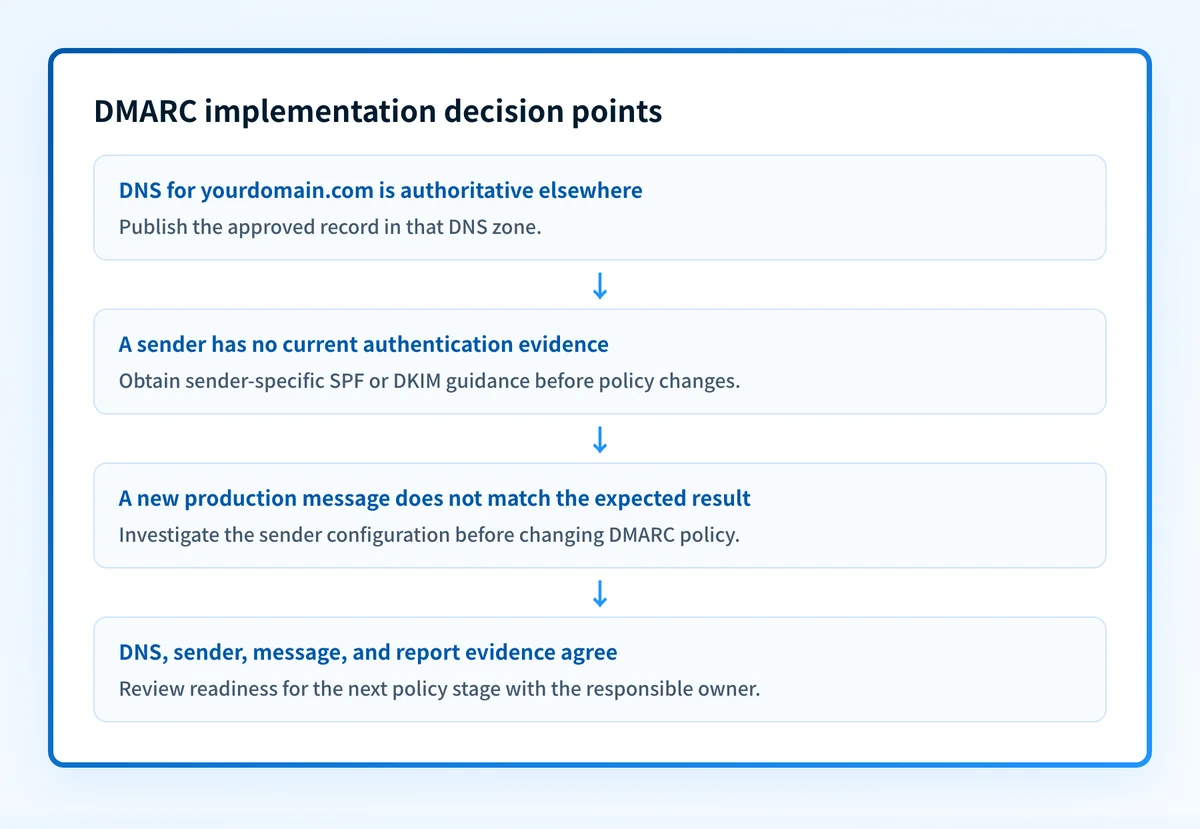
- If a third-party sender uses the domain, obtain its current SPF and DKIM instructions separately. A DMARC policy cannot correct a sender that is not authenticated or aligned.
- If an existing DMARC record is present, preserve it until you understand its current policy, reporting destinations, and any subdomain behavior.
How to configure DMARC for an IONOS domain
1. Confirm the DNS authority for the domain
Find the provider that hosts the authoritative DNS zone for the visible From domain. The service that provides mailboxes and the service that hosts DNS may be different.
Record the domain, DNS account, change owner, and current DNS value before making an edit. If the domain's nameservers point somewhere other than IONOS, publish the record in that zone instead; the IONOS panel only edits zones IONOS is authoritative for.
2. Decide the policy and reporting address
IONOS documents the DMARC record as a TXT record created at the subdomain name _dmarc, with tags separated by semicolons. Decide two values before you open the panel.
Start at p=none. A monitoring policy asks receivers to take no action while you collect evidence, which is what you want before any enforcement decision. Add an rua address so aggregate reports have somewhere to arrive.
Host name: _dmarc
Type:      TXT
Value:     v=DMARC1; p=none; rua=mailto:postmaster@yourdomain.com
Replace the reporting address with a mailbox you control. IONOS's own example uses p=reject, but do not publish an enforcement policy before report evidence shows every legitimate sender passes and aligns. If a DMARC record already exists at _dmarc, edit it rather than adding a second policy record at the same owner name.
Tag meanings are defined by the DMARC standard, not by IONOS: p sets the domain policy, sp sets the subdomain policy, rua receives aggregate reports, ruf receives failure reports, and adkim and aspf set alignment mode.
3. Preserve the existing sender configuration
Do not use a DMARC change to replace SPF or DKIM setup. Each sender needs its own approved authentication configuration. For example, a third-party sender may require a provider-generated DKIM record, while a different sender may use another authentication domain.
Keep a sender inventory beside the DNS change. The inventory should identify:
- The application or mailbox service.
- The visible From domain it uses.
- The expected SPF or DKIM authentication domain.
- The owner who can provide a current test message.
- The current verification state in that sender's own settings.
4. Publish the record in the IONOS DNS panel
IONOS documents this path in Configuring a DMARC Record for a Domain:
- Click the domain, and under Actions click the gear icon, then click DNS.
- Click ADD RECORD, and under Type select TXT.
- In Host name, enter
_dmarc. IONOS creates_dmarc.your-domain.comautomatically, so do not type the full domain here or the owner name ends up duplicated. - In Value, enter your tags separated by semicolons, for example
v=DMARC1; p=none; rua=mailto:postmaster@yourdomain.com. - Optionally set the TTL, then click Save.
abc.your-domain.com, enter _dmarc.abc.
IONOS states the change is effective immediately at IONOS, but it can take up to an hour to become visible everywhere because of DNS caching. Preserve a copy of any previous value so the rollback owner can restore it if the change is wrong.
5. Record the change and wait for DNS visibility
Record the change time, the intended hostname, the published value, and the person who approved it. Query the full hostname at the authoritative DNS service and at a public resolver after the change becomes visible.
A public DNS answer confirms only what DNS returns. It does not confirm that IONOS Email, a marketing sender, or any other application uses the authentication domains you expect.
How to validate the setup
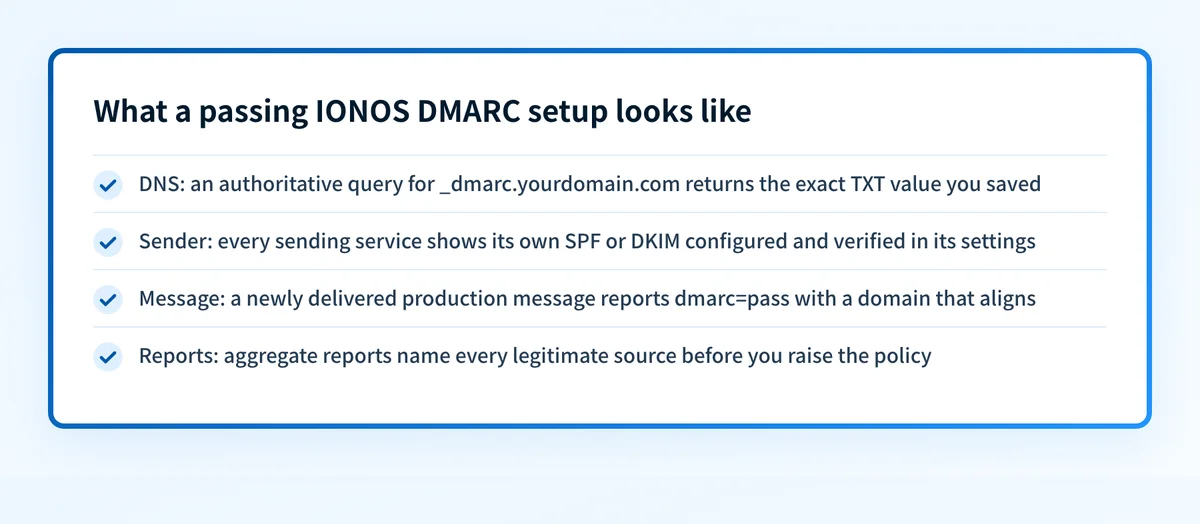
A working DMARC deployment needs evidence at four layers.
- DNS: Confirm that the intended DMARC hostname returns the approved TXT value from the authoritative DNS source and at least one public resolver.
- Sender: Check the relevant sender's current authentication or verification status. This is account-specific. A DNS answer alone cannot prove that a sender has enabled DKIM or uses the intended return path.
- Message: Send a new message through the exact production path and inspect the receiving system's authentication results. Test each materially different sender separately.
- DMARC: Review aggregate-report evidence after it has accumulated. Confirm which sources are sending for the domain and whether their authentication results align with the visible From domain.
Keep results in an acceptance record:
domain: yourdomain.com
dns_owner: authoritative-dns-provider
dmarc_dns_result: observed TXT value
sender: application-or-mail-service
sender_status: account-specific observed status
message_path: production sender and test recipient
authentication_results: redacted observed result
dmarc_report_status: pending or reviewed
checked_at: UTC timestamp
A setup is ready for the next policy decision only when the public record, sender configuration, delivered-message evidence, and report evidence agree. A passing result from one message does not prove every future message will authenticate or that a receiving system will place it in the inbox.
Troubleshooting
The DMARC record does not appear in public DNS
Check the full record owner, the DNS provider's suffix behavior, and the authoritative DNS zone. Compare the value in the zone with the approved account-specific instruction. Do not assume a cached result is a sender failure until the authoritative answer has been checked.
The record appears, but a sender still fails DMARC
Start with a new message sent through the affected production path. Compare its visible From domain, SPF result, DKIM result, and any available authentication-result details with the sender's own configuration.
The DNS record can be correct while the sender is unsigned, uses a different domain, or follows a different route than the one you tested. Work from message evidence before changing policy.
The sender's interface looks verified, but the delivered message differs
Treat the delivered message as the test of that production path. Confirm that the message was sent after the configuration change and that it came from the exact application under review. Then ask the sender owner to compare the observed result with its current account configuration.
A provider status indicator and a received message answer different questions. Keep both pieces of evidence.
You cannot find the IONOS DNS or email setting
Use the current IONOS account documentation or contact IONOS support with the domain, product name, and task: publish or review a DMARC TXT record for the domain. Do not share passwords, private keys, unredacted message headers, or customer data in a support request.
Check the public DMARC record before changing policy
After you have the exact record approved for the domain, inspect the public DNS result with the Palisade DMARC checker. Compare its result with the value in authoritative DNS and with a fresh delivered message from the sender you are testing.
A public record check cannot confirm an IONOS account setting, repair sender authentication, show every production sending source, or prove a receiving system's private delivery decision. If you need an ongoing workflow after DNS is correct, Palisade can analyze DMARC aggregate-report data, identify sending sources and authentication or alignment issues, and create prioritized remediation tickets. The agent investigates every sender, drafts every fix, and proposes each policy step, and you approve before anything ships.
Evidence
Sources and further reading
Questions readers ask
Frequently asked questions
How do I set up DMARC correctly?
Start by confirming the authoritative DNS provider, every sender that uses the visible From domain, and the exact record instruction approved for that domain. Then validate the published DNS answer, the sender's own status, a new delivered message, and DMARC reporting evidence before considering a stronger policy.
What should my DMARC be set to?
A DMARC value should be chosen from verified evidence about the senders that use the domain. Do not copy a policy or reporting address from another account. Begin with the account-specific instruction and keep a rollback copy of the prior DNS value.
Do I need to set up DMARC?
Only your organization's mail-sending and security requirements can determine that decision. If the domain sends mail, first inventory its senders and collect delivered-message evidence so that any DMARC policy does not disrupt legitimate mail.
Is IONOS email POP3 or IMAP?
Yes to both. IONOS Mail supports IMAP at imap.ionos.com on port 993 and POP3 at pop.ionos.com on port 995, each over SSL/TLS, with outgoing mail on smtp.ionos.com port 465. IONOS recommends IMAP, because POP3 usually downloads messages to one device and deletes them from the server, so nothing stays in sync. The mailbox protocol has no effect on DMARC, which the receiving system evaluates from the message and your DNS records.
Can a DMARC checker prove that IONOS email is configured correctly?
No. A public checker can inspect the DNS record that a domain publishes. It cannot prove that an IONOS account signs production mail correctly, that every sender aligns, or that a recipient will deliver a message to the inbox.

Written by
Samuel ChenardCEO & Co-Founder, Palisade
Samuel Chenard is the CEO and co-founder of Palisade, agentic DMARC software for IT teams and MSPs, from one domain to thousands.
More from Samuel →