How do I blacklist an email address in Gmail?
 ChatGPT
 Claude
 Gemini
 Perplexity
 Grok
GrokIn brief
Use Block Sender to route one address to spam, or a filter to delete it on arrival. Blocking one address will not stop a spoofer who rotates addresses.
To blacklist an email address in Gmail, open a message from the sender, open the message’s More menu, choose Block “sender”, and confirm. Gmail calls the action Block, not blacklist, and later mail from that address is directed to Spam. Use a delete filter when you need a stricter rule, and report spam or phishing when the message itself should be classified for Google.
At a glance
Quick takeaways
- Gmail’s personal control is named Block, not blacklist.
- Blocking acts on the sender address shown by Gmail and routes later messages to Spam.
- A filter can automatically delete mail that matches an exact address.
- Report spam and Report phishing send a classification; Block is a personal mailbox rule.
- One blocked address will not stop a sender who changes addresses or domains.
- If the mail is threatening, fraudulent, or tied to account access, preserve evidence before cleanup.
What blacklist means in Gmail
People use “blacklist” to mean several different actions: stop a sender from appearing in the inbox, delete matching mail automatically, report abuse, or prevent an organization from accepting a sender. Personal Gmail does not combine those outcomes in one blacklist screen.
The built-in Block action is the closest answer for one address. A filter is more forceful because it can delete matching messages. Report spam and Report phishing are classification actions. A managed Google Workspace account can also be subject to administrator controls that are separate from personal Gmail settings.
Pick the action from the outcome you want. Do not use a broad filter merely because the word blacklist sounds stronger.
Block an address from an open Gmail message
Open a message from the address you want to block. In the message header, open More, the menu shown with three vertical dots, then choose Block “sender” and confirm. On Gmail’s mobile apps, open the message and use the sender-specific More menu rather than the app-wide menu.
After you block the address, later messages from it are sent to Spam. The current message does not become evidence of phishing merely because you blocked it. If it is unwanted or deceptive, use the appropriate report action as well.
Check the full address before confirming. Gmail displays a friendly sender name prominently, but two messages with the same display name can come from different addresses. Blocking notices@example.com does not block a lookalike address or every address used by the same person.
Use a filter to delete mail from an exact address
If sending future matches to Spam is not strict enough, create a Gmail filter. In Gmail on the web, open Settings, choose See all settings, then Filters and Blocked Addresses. Choose Create a new filter, put the complete address in From, continue, select Delete it, and create the filter.
This rule sends matching future messages to Trash instead of leaving them in the inbox or Spam. Use it cautiously. Trash is easier to overlook, and an overly broad match can hide legitimate mail.
Prefer an exact address. Do not filter on a common display name, company word, or public mail domain. If a harasser or scammer rotates addresses, a broad personal rule can create more false matches without solving the underlying problem.
Block, filter, report spam, or report phishing?
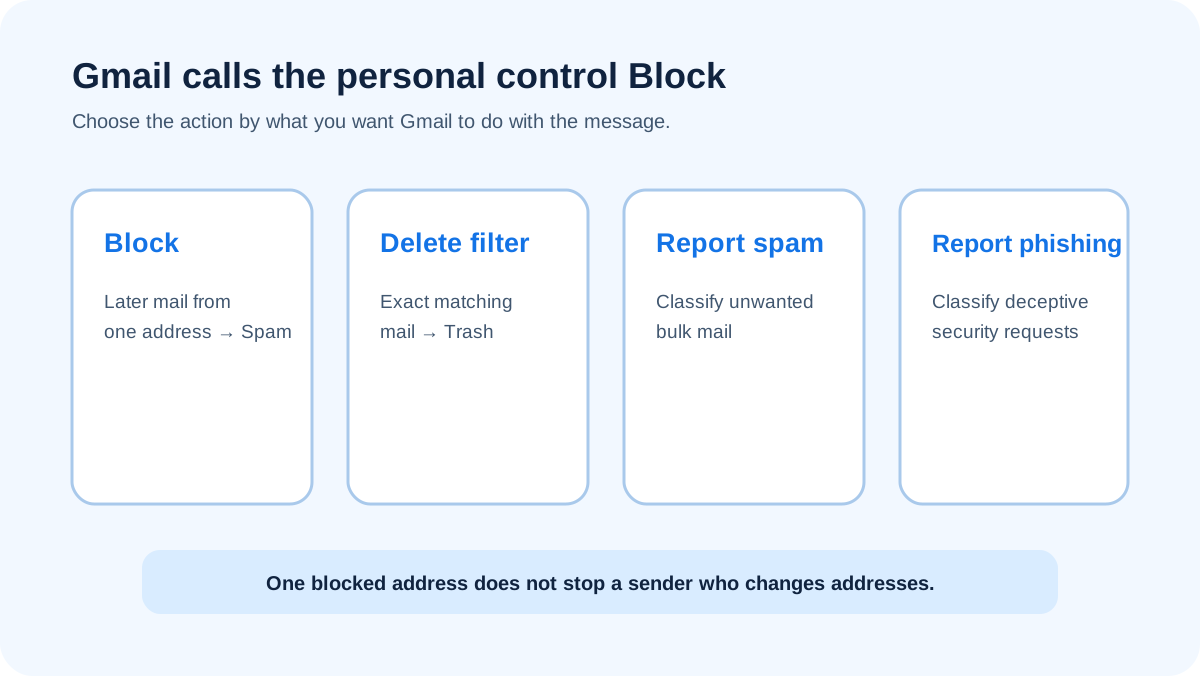
Use Block when you do not want later messages from one address in the inbox. Use a delete filter when exact matching mail should go to Trash. Use Report spam for unsolicited or unwanted bulk mail. Use Report phishing when the sender is impersonating someone or trying to obtain credentials, money, files, codes, or another unsafe action.
Google documents its spam-reporting control and what to do with incorrectly classified mail in its Gmail help pages (Google: Report spam in Gmail; Google: Fix issues with valid emails in Spam). Reporting and blocking can both be appropriate for the same message because they have different jobs.
Do not click an unsubscribe link in a message you believe is phishing. Report it through Gmail’s interface. For legitimate commercial mail, the service’s normal unsubscribe control may be more suitable than blocking.
Why blocking one address may not stop the mail
A block matches an address, not a person’s intent. Bulk senders can use several legitimate sending addresses. Abusive senders can rotate accounts, change domains, or place a familiar name over a different address. A forged visible address can also make unrelated messages appear connected.
When the address keeps changing, report each deceptive message through Gmail and look for a stable, narrow pattern before adding a filter. A filter based on a precise subject, address, and other consistent field can be safer than a rule based on one broad word, but it still needs review.
For an employer or school account, tell the security team when the messages target several people, imitate an internal sender, or continue after reporting. Organization controls and investigation can address a campaign that one user’s block cannot.
How to review or remove a block
You can unblock from a later message by opening the sender menu and choosing the unblock action. On Gmail on the web, you can also review personal blocks under Settings, See all settings, and Filters and Blocked Addresses.
Review the exact address before removing it. If a legitimate sender was blocked accidentally, unblock it and mark a valid message Not spam when necessary. If wanted messages continue to be misplaced, the Gmail safe sender list guide explains Contacts and the Never send it to Spam filter.
Review delete filters separately. A blocked address and a filter can both exist, so removing one does not remove the other. Delete obsolete rules and check Trash or Spam for unintended matches after a change.
Preserve evidence when the message is more than annoying
Do not rush to delete a message tied to threats, fraud, payment instructions, account access, identity information, or workplace compromise. Preserve the original in the approved mailbox process and record the receipt time, full sender address, subject, requested action, and what anyone did.
For a managed account, report through the organization’s security route. If credentials were entered, a file was opened, or money was sent, begin the relevant account, device, or financial recovery through a known channel. Blocking the address only changes later mailbox handling.
The Gmail phishing-reporting guide covers Gmail’s report action. Do not forward a live attachment or link to coworkers for informal review.
If recipients are blocking mail you send
A recipient block is a symptom, not a sender-side setting you can reverse. Do not ask recipients to allowlist mail until you have confirmed that they consented to receive it, the list is current, and the sending identity is authenticated.
Check SPF, DKIM, and DMARC for the domain you use, remove invalid or unengaged recipients according to your mailing policy, and make unsubscribe handling clear for legitimate bulk mail. The Gmail spam filter guide explains the broader delivery signals, and how to authenticate email for Gmail covers the sender-side setup.
This sender-side issue is separate from the recipient instructions above. You cannot remove a block in someone else’s Gmail account.
Evidence
Sources and further reading
Questions readers ask
Frequently asked questions
Does Gmail have a blacklist?
No. Gmail does not label its personal sender control “blacklist.” Use Block for one address, or create a narrow filter when you want matching mail deleted automatically.
What happens when I block an email address in Gmail?
Later messages from that address are directed to Spam. Blocking is a personal mailbox action. It does not report every message as phishing or prevent the sender from using another address.
Will the sender know I blocked them?
No. Gmail does not send the person a block notification through the normal Block action. The sender may infer that you are not responding, but the mailbox control does not announce the setting to them.
Can I blacklist a whole domain in Gmail?
Yes, but a filter that matches a domain is broader and riskier than one matching an exact address. It may delete legitimate mail from other people at the domain. Use the narrowest reliable match.
Is Block the same as Report spam?
No. Block changes where later mail from an address goes in your account. Report spam sends Google a classification about the selected message. Use both when both outcomes are needed.
How do I undo a Gmail block?
To undo a Gmail block, open a message from the sender and choose the unblock action, or review blocked addresses under Settings, See all settings, and Filters and Blocked Addresses on the web. Check for a separate delete filter too.

Written by
Dominic LandryDeliverability & DNS
Dominic Landry works on email deliverability and DNS configuration at Palisade, from SPF and DKIM records through to DMARC enforcement.
More from Dominic →