Gmail safe sender list: what Gmail uses instead
 ChatGPT
 Claude
 Gemini
 Perplexity
 Grok
GrokIn brief
Gmail has no literal safe sender list. Learn how contacts, Not spam, and a Never send it to Spam filter work, plus when each option is appropriate.
Gmail does not have a personal feature literally named Safe sender list. To keep wanted mail out of spam, add a known sender to Google Contacts, mark a misplaced message Not spam, or create a Gmail filter for the exact address and select Never send it to Spam. A filter is the closest match to an Outlook-style safe-sender entry, but it should be narrow and used only for a sender you have verified.
At a glance
Quick takeaways
- Gmail uses several controls instead of one personal safe-sender list.
- Not spam corrects a message that Gmail already placed in Spam.
- A Google Contact records the sender as someone you know, but it is not a guarantee that every message will reach the inbox.
- A Never send it to Spam filter is the strongest personal rule for a specific address.
- A filter does not prove that a message is genuine or override every organization policy.
- For a managed account, an administrator may control mail handling beyond your personal settings.
What Gmail provides instead of a safe sender list
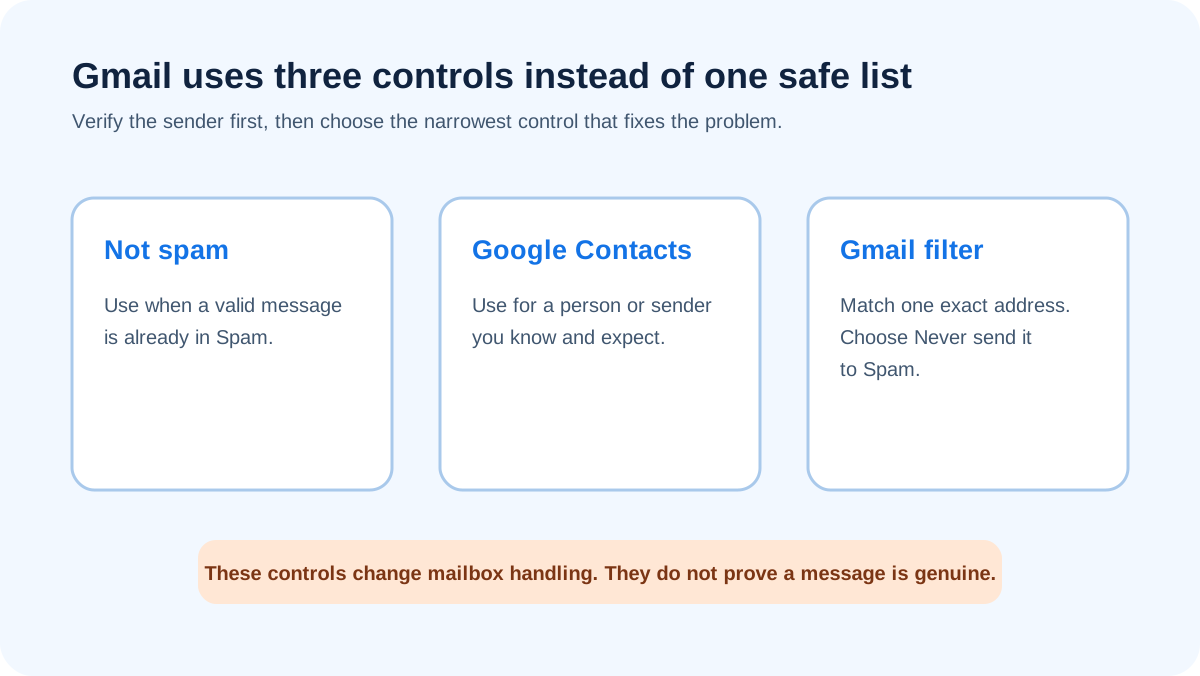
The phrase “safe sender list” usually describes an Outlook control that explicitly trusts an address or domain. Personal Gmail does not present that named list. Its nearest equivalents solve different problems: Contacts records an identity you recognize, Not spam corrects a classification, and a filter creates an ongoing mailbox rule.
Choose the least forceful control that fixes the problem. If one valid message landed in Spam, start with Not spam. If this is a person you genuinely correspond with, add the person to Contacts. If repeated, verified mail from one exact address continues to be classified as spam, create a narrow filter with Never send it to Spam.
Do not treat any of these choices as proof of identity. A mailbox rule acts on fields such as the visible From address. It does not turn an unauthenticated or impersonated message into a trustworthy one.
Mark a legitimate Gmail message as Not spam
Open Gmail and go to Spam. Select or open the wanted message, then choose Not spam. Gmail moves the message out of Spam. Google’s current help page for valid mail in Spam is the source to check if the label or placement changes (Google: Fix issues with valid emails in Spam).
Use this when Gmail has already made the wrong classification. It gives the service a direct correction tied to the message. It is not the same as creating a permanent exception for all mail claiming the same sender address.
Before correcting the classification, check that the message is really from the organization or person you expect. Open the service through a saved bookmark or known app when the message asks for a password, payment, private document, or account change. A familiar display name is not enough.
Add a verified sender to Google Contacts
For a person or organization you know, open Google Contacts from the Google apps menu, choose Create contact, and save the sender’s exact address. You can also open a Gmail message, point to the sender’s identity card, and use the available contact action when Gmail shows one.
Contacts is useful when the address belongs to someone you expect to hear from. It also helps Gmail recognize the relationship, but it should not be described as an absolute delivery rule. Spam classification can still consider the message, its authentication, its content, and account-level or organization-level controls.
Copy the address from a message you have independently verified or from the sender’s official site or directory. Do not add an address merely because a message asks to be allowlisted. A phisher can put a familiar name in the display-name field or use a lookalike address.
Create a Never send it to Spam filter
In Gmail on the web, open Settings, choose See all settings, then open Filters and Blocked Addresses. Choose Create a new filter. Put the exact verified address in the From field, continue with Create filter, select Never send it to Spam, and create the filter.
This is the closest personal Gmail equivalent to a safe-sender entry because it applies a continuing rule to messages that match the filter. It is also the option with the greatest risk if the match is too broad. Prefer a complete address such as billing@example.com over a display name or loose text fragment.
Gmail’s mobile apps can correct an existing message with Not spam, but filter creation is a web-setting task. If you are using a phone, open Gmail on a computer before trying to reproduce the filter path.
Make the filter narrow enough to be safe
Use the From field for one verified address whenever possible. Do not create a broad exception for an entire public email service, a common word, or a display name. Such a rule can match unrelated mail and keep it out of Spam.
If one organization sends from several legitimate addresses, verify each one through a trusted source and add separate narrow rules only when necessary. A domain-wide rule shifts more risk to the recipient. It is rarely justified for a personal mailbox when an exact address solves the problem.
Review the filter after creating it. Return to Settings, then Filters and Blocked Addresses, find the rule, and check its criteria and action. Remove or edit it when the relationship ends, the sender changes systems, or the rule catches mail you did not intend to trust.
What a Gmail safe-sender substitute does not do
A personal contact or filter changes handling in your mailbox. It does not fix the sender’s SPF, DKIM, or DMARC setup, improve delivery for other recipients, validate links, inspect attachments, or guarantee that a compromised sender account is safe.
It also does not create an organization-wide policy. A Google Workspace administrator can apply separate controls for managed accounts, and those controls may outweigh or restrict what a user can do. If the mailbox belongs to an employer or school, ask the administrator before creating an exception for business-critical or sensitive mail.
Never use Never send it to Spam to work around an unresolved security warning. First verify why the message is being classified and whether the visible From address matches the service’s documented sending address. An exception should follow verification, not replace it.
If wanted messages still go to Spam
Check whether the message is consistently coming from the same exact address. Look for forwarding, mailing-list, or alias behavior that changes the address you need to match. Confirm that the filter is enabled and that another filter is not deleting, archiving, or labeling the message first.
Mark each legitimate example Not spam rather than dragging it to the inbox without the classification action. Then review your personal filter and blocked-sender settings. The Gmail spam filter guide explains the sender-side causes that a recipient rule cannot repair.
If the message is suspicious, do not allowlist it just to make a warning disappear. Use Gmail’s own reporting control and follow how to report phishing in Gmail. The Gmail phishing protection guide explains how to verify a request outside the message.
Safe sender, block, and report solve different problems
A safe-sender substitute keeps verified wanted mail from being classified as spam. Blocking moves later mail from a specific address away from the inbox. Reporting supplies Gmail with a classification about unwanted or deceptive mail. One control is not a substitute for the others.
If you need the opposite of allowlisting, use how to blacklist an email address in Gmail. Use Report spam for unwanted bulk mail and Report phishing for deceptive requests involving credentials, money, files, or impersonation. Do not create an allowlist filter for a sender you have already reported as phishing.
The safest default is reversible and specific: correct one known message, verify the exact sender, then add a narrow rule only if the problem repeats.
Evidence
Sources and further reading
Questions readers ask
Frequently asked questions
Does Gmail have a safe sender list?
Not as a personal feature with that exact name. Gmail provides Contacts, Not spam, and filters. A filter for an exact address with Never send it to Spam is the closest ongoing personal rule.
How do I add a safe sender in Gmail?
Verify the exact address, add it to Google Contacts, and correct any valid message in Spam with Not spam. If repeated mail still goes to Spam, create a narrow web filter for the exact From address and select Never send it to Spam.
Is adding someone to Contacts enough?
No. It can help Gmail understand that you know the sender, but it is not an absolute inbox guarantee. Use Not spam to correct an existing message and a narrow filter only when a recurring classification problem remains.
Can I add a whole domain as a safe sender?
Yes, but a domain-wide Gmail filter is riskier than an exact-address rule. It can match more mail than intended. Use exact verified addresses unless an administrator has assessed a legitimate organizational need.
Can I create the filter in the Gmail mobile app?
No. Use Gmail on the web to create and review filters. The mobile app can mark an existing message Not spam, but it does not expose the same filter-creation settings.
Why did Gmail still put an allowlisted message in Spam?
The address may not match the filter, the sender may have changed addresses, another rule may affect the message, or an organization-level control may apply. Verify the message first, then review the exact filter criteria and ask the administrator when the account is managed.

Written by
Samuel ChenardCEO & Co-Founder, Palisade
Samuel Chenard is the CEO and co-founder of Palisade, agentic DMARC software for IT teams and MSPs, from one domain to thousands.
More from Samuel →