Office 365 Quarantine: Protecting Your Organization
 ChatGPT
 Claude
 Gemini
 Perplexity
 Grok
GrokIn brief
Office 365 quarantine explained: how Microsoft filters suspicious mail, how admins review and release messages, and how to tune your policies.

Office 365 quarantine is where Microsoft holds email that Exchange Online Protection (EOP) or Microsoft Defender for Office 365 flags as spam, phishing, malware, or a mail flow rule match, so it never reaches the user's inbox until an admin or the recipient reviews it. Quarantine policies decide what an end user can do with a held message, and each message is kept for a set retention period before it is deleted automatically.
This guide covers what quarantine does, how default and custom policies differ, how retention works, and how admins review and release messages in the Microsoft Defender portal. Quarantine filters mail arriving at your tenant; it does not stop attackers from spoofing your domain to other recipients, which is a DMARC problem covered at the end.
Overview of Office 365 Quarantine
Office 365 Quarantine is a vital feature within Microsoft's Office 365 suite, designed to safeguard organizations from malicious files and messages. It acts as a protective barrier, preventing potentially harmful content from reaching end-users inboxes, and reducing the risk of security breaches and data loss.
Importance of Protecting Organizations from Malicious Files and Messages
In today's digital landscape, cyber threats have become more sophisticated and relentless. Malicious files and messages can expose organizations to various risks, including malware infections, data breaches, and financial loss. By implementing Office 365 Quarantine, organizations can proactively mitigate these risks and ensure the security of their communication channels.
What is Office 365 Quarantine?
Purpose of Office 365 Quarantine
The primary purpose of Office 365 Quarantine is to identify and isolate suspicious messages and files within an organization's email ecosystem. By quarantining these potentially harmful elements, it allows administrators to review and take appropriate action, ensuring that only safe and legitimate content reaches end users.
Functionality of Quarantining Suspicious Messages
When a message is identified as potentially harmful, Office 365 Quarantine holds it in a secure location, away from users' inboxes. This allows administrators to assess the message's legitimacy and take appropriate action, such as releasing it to the intended recipient or permanently blocking it.
Holding Messages for a Certain Period of Time
Quarantined messages are held for a specific period, giving administrators ample time to review and process them. This retention period allows for thorough investigation and analysis, ensuring that no legitimate messages are mistakenly blocked while malicious content is intercepted and dealt with accordingly.
Components of Office 365 Quarantine
Microsoft Defender for Office 365 and Exchange Online Protection
Office 365 Quarantine leverages the capabilities of Microsoft Defender for Office 365 and Exchange Online Protection. These powerful security solutions provide advanced threat protection, ensuring that organizations have multiple layers of defense against various types of cyber threats.
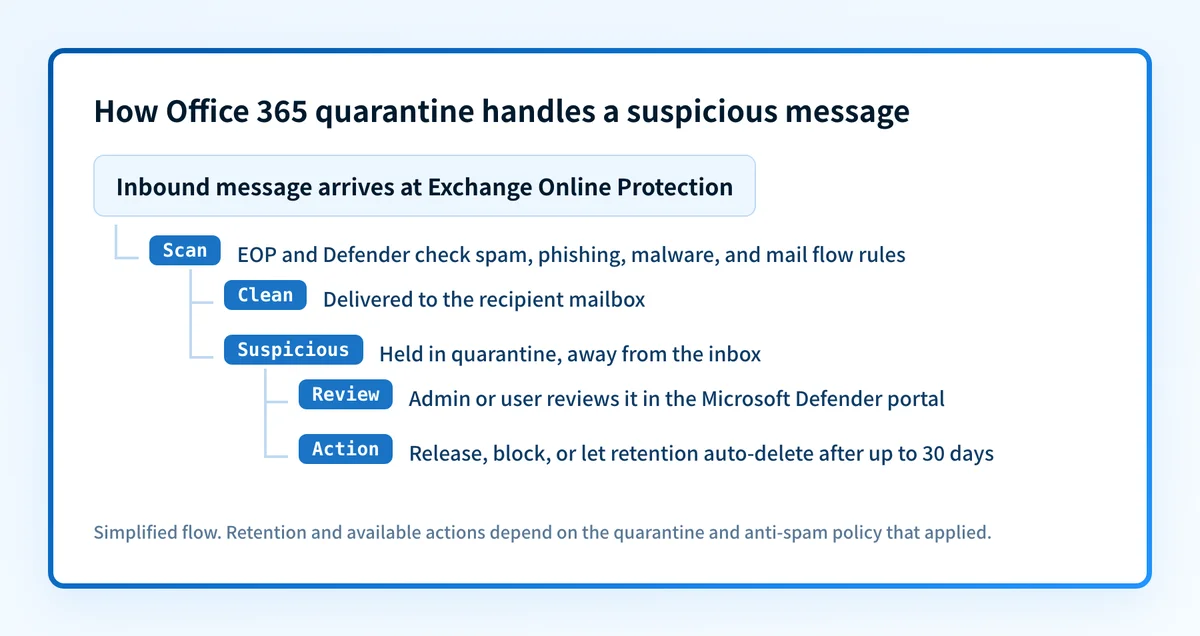
How a message reaches quarantine
The flow below shows where quarantine sits in the path a message takes through your tenant. EOP and Defender scan inbound mail first; clean messages are delivered, and anything that matches a detection is held in quarantine for review rather than dropped or sent straight to the inbox.
Protecting Users from Dangerous and Unwanted Messages
Limitations of Cybersecurity Awareness Campaigns
While cybersecurity awareness campaigns play a crucial role in educating users about potential threats, they have certain limitations. Human error, such as unintentionally clicking on malicious links or opening suspicious attachments, can still occur. Office 365 Quarantine provides an additional layer of defense, minimizing the impact of human fallibility.
Automated Spam Filters and Their Effectiveness
Office 365 Quarantine incorporates automated spam filters that proactively identify and block spam messages, reducing the clutter in users' inboxes. These filters use advanced algorithms and machine learning to adapt and evolve in the face of new and emerging threats, ensuring effective protection against unwanted messages.
Custom Quarantine Policies for Organizations
To meet specific organizational requirements, Office 365 Quarantine allows administrators to configure custom quarantine policies. These policies can be tailored to address the unique needs of your organization, providing granular control over which messages are quarantined, released, or permanently blocked.
Protecting Users from Malicious Files
Comprehensive Checks and Engines for Attachments
Office 365 Quarantine employs comprehensive checks and multiple scanning engines to detect and block malicious file attachments. These robust security measures help safeguard organizations from the risks associated with malware, ransomware, and other types of file-based attacks.
Mail Flow Rules for Blocking Uncheckable or Password-Protected Attachments
In addition to scanning attachments, Office 365 Quarantine allows administrators to set up mail flow rules to block uncheckable or password-protected attachments. This prevents potential threats from bypassing traditional security measures and reaching end-users.
Configurable Anti-Spam Policies for Inbound and Outbound Messages
Office 365 Quarantine enables organizations to configure anti-spam policies for both inbound and outbound messages. By customizing these policies, organizations can effectively filter out spam and ensure that sensitive information doesn't inadvertently leave the organization's network.
Managing Quarantined Messages
Microsoft Defender Portal for Accessing Quarantined Messages
Administrators can easily access and manage quarantined messages through the Microsoft Defender portal. This centralized platform provides a user-friendly interface to review, release, or block messages, streamlining the process of managing potentially harmful content.
Admin and End-User Access to Quarantine Sections
Office 365 Quarantine offers both administrators and end-users access to specific quarantine sections. This empowers end-users to have visibility into quarantined messages, allowing them to mark false positives and take action on messages they consider legitimate.
Filtering Options on the Quarantine Page
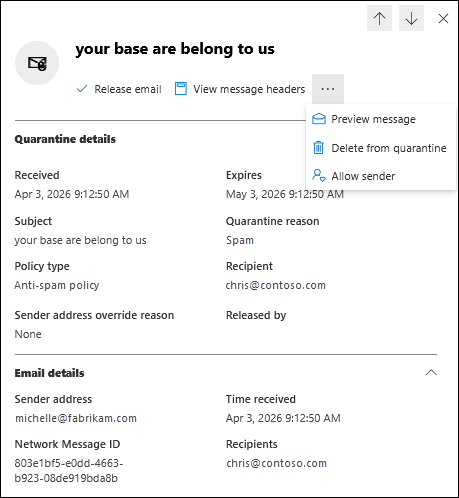
The Quarantine page within the Microsoft Defender portal provides various filtering options to streamline the management of quarantined messages. Administrators can filter messages based on criteria such as date, sender, recipient, or message status, enabling efficient triage and investigation.
Default Office 365 Quarantine Policies
Purpose and Activation of Default Policies
Upon implementation, Office 365 Quarantine comes with default policies that provide a baseline level of protection. These policies are automatically activated and help organizations get started with protecting their users from potential threats right away.
Basic Properties and Actions Covered by Default Policies
Default policies cover basic properties and actions related to quarantining messages. They include rules for spam detection, malware detection, and blocking of suspicious content. These predefined policies provide a solid foundation for securing your organization's communication channels.
Safe Attachments and Safe Links Protection Presets
Office 365 Quarantine incorporates Safe Attachments and Safe Links protection presets, enhancing your organization's defenses against threats. Safe Attachments protects users from potentially harmful email attachments, while Safe Links checks and verifies the safety of URLs within messages, preventing users from visiting malicious websites.
Custom Office 365 Quarantine Policies
Importance of Customizing Policies for Specific Organizational Requirements
While default policies offer a baseline level of protection, it's crucial to customize Office 365 Quarantine policies to align with your organization's specific needs. By tailoring these policies, you can address unique security concerns and ensure that the system works seamlessly within your organizational framework.
Redirection of Messages with Blocked, Monitored, or Replaced Attachments
Custom policies allow administrators to redirect messages with blocked, monitored, or replaced attachments to alternative destinations. This flexibility ensures that critical communication is not disrupted, while potentially harmful content is isolated and dealt with according to your organization's protocols.
Filtering Messages Based on Users, Groups, and Domains
Office 365 Quarantine enables granular control over message filtering by allowing administrators to define rules based on users, groups, and domains. This level of customization ensures that messages are appropriately handled based on specific user roles and organizational requirements.
Example of Dynamic Delivery Feature
The Dynamic Delivery feature within Office 365 Quarantine allows users to preview and interact with email messages while attachments are being scanned. This feature minimizes disruption and improves productivity, as users can access the message content immediately while the system ensures attachment safety in the background.
Setting Retention Periods for Quarantined Emails
Default Retention Periods for Different Policy Types
Office 365 Quarantine includes default retention periods that determine how long quarantined mail is held before it is deleted automatically. Microsoft documents a maximum retention of 30 days for most quarantined items. The spam and bulk-mail retention period is configurable from 1 to 30 days in the default and custom anti-spam policies, and Microsoft raised the retention window for malware detections to 30 days. Once the retention period expires, the message is deleted and cannot be recovered, so set the window long enough to investigate false positives before mail ages out.
Customization of Retention Periods in Custom Policies
Organizations can customize retention periods in custom Office 365 Quarantine policies. By aligning retention periods with specific organizational requirements, administrators can strike a balance between maintaining a secure environment and efficiently managing storage resources.
Accessing Quarantined Emails
Notification Emails for Quarantined Messages
When a message is quarantined, administrators and users receive notification emails informing them about the presence of potentially harmful content. These notifications contain instructions on how to access and review the quarantined messages, ensuring timely action can be taken.
Accessing the Quarantine Page on the Microsoft Defender Portal
To access and manage quarantined emails, administrators and users can navigate to the Quarantine page within the Microsoft Defender portal. This centralized location provides a comprehensive overview of quarantined messages, facilitating efficient management and decision-making.
Filtering and Reviewing Quarantined Messages
The Quarantine page offers filtering options and a detailed view of quarantined messages, allowing administrators and users to review and analyze each message's content and context. By carefully examining quarantined messages, administrators can make informed decisions regarding their disposition.
Taking Action on Quarantined Emails
Available Actions for Individual Quarantined Messages
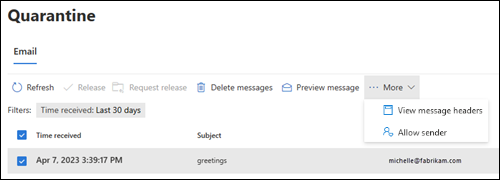
Office 365 Quarantine provides a range of actions that administrators can take on individual quarantined emails. These actions include releasing messages to recipients, permanently blocking messages, or allowing end-users to handle false positives, empowering organizations to maintain control over their communication channels.
Insight from Message Headers
When reviewing quarantined messages, administrators can gain valuable insights from message headers. Message headers provide information about the message source, routing, and any potential indicators of suspicious or malicious activity, aiding in the decision-making process.
Bulk Actions for Multiple Messages
To streamline the management of quarantined messages, Office 365 Quarantine offers bulk action capabilities. Administrators can apply actions to multiple messages simultaneously, saving time and effort when dealing with large volumes of potentially harmful content.
Microsoft Defender and Quarantine of Files
Safe Attachment Feature for Protecting Users from Malicious Email Attachments
In addition to securing emails, Office 365 Quarantine extends its protection to file attachments through the Safe Attachment feature. This feature scans attachments for malware and other threats, ensuring that users are shielded from potentially harmful content.
Removal of Malicious Attachments and Delivery of Cleaned Emails
When a malicious attachment is detected, Office 365 Quarantine removes the threat and delivers the cleaned email to the intended recipient. This proactive approach prevents users from unknowingly accessing harmful files while allowing them to continue their normal workflow.
Enabling Safe Attachments for SharePoint, OneDrive, and Microsoft Teams
To provide comprehensive protection, Office 365 Quarantine extends the Safe Attachment feature beyond emails. Organizations can enable Safe Attachments for SharePoint, OneDrive, and Microsoft Teams, ensuring that all file-sharing and collaboration platforms are safeguarded against malicious attachments.
Taking Action on Quarantined Files
Preventing Access to Blocked Files
When a file is identified as malicious or suspicious, Office 365 Quarantine prevents users from accessing or downloading it. This proactive measure ensures that potentially harmful files are not inadvertently opened or executed, minimizing the risk of infections and security breaches.
Options for Downloading or Deleting Blocked Files
Administrators have the flexibility to download or delete blocked files based on their evaluation and investigation. This allows for further analysis or forensic examination of the blocked content while ensuring that the organization's security posture remains intact.
Admin Control over File Management
Office 365 Quarantine provides administrators with control over file management within the quarantine environment. Administrators can define policies and permissions related to file access, ensuring that only authorized personnel can interact with and manage quarantined files.
Where quarantine ends and DMARC begins
Quarantine is an inbound control. It decides what happens to mail arriving at your Microsoft 365 tenant, and default plus custom quarantine policies give admins granular control over review, release, and retention. What it does not do is stop someone from spoofing your domain in mail sent to other people's inboxes. That is the job of email authentication, and the outbound half of the problem is worth checking while you tune quarantine.
If you want to see whether your domain can be spoofed, start with the published record. Run the DMARC checker to inspect the policy on your sending domain, or the email security score for a broader SPF, DKIM, DMARC, and BIMI read.
Palisade is agentic DMARC software that analyzes DMARC aggregate-report data, identifies which sources send as your domain and where authentication or alignment fails, and proposes prioritized remediation for a human to review and apply. It does not manage Microsoft quarantine policies. Get started with Palisade.
Related reading
- How to Stop Email Spoofing and Protect Your Brand
- Protect Yourself from Malicious Email Attachments | Tips & Prevention
- DMARC Policy Not Enabled: How to Fix It
Questions readers ask
Frequently asked questions
How long does Office 365 keep a message in quarantine?
Microsoft documents a maximum retention of 30 days for most quarantined items. The spam and bulk-mail window is configurable from 1 to 30 days in your anti-spam policy, and malware detections are retained for 30 days. After that the message is deleted and cannot be recovered.
Can end users release their own quarantined mail?
It depends on the quarantine policy applied to the detection. Default quarantine policies map to preset end-user capabilities, and a custom policy can allow a user to request release, release directly, or only view a message. High-confidence phishing and malware are typically restricted to admin action.
Where do admins review quarantined messages?
In the Microsoft Defender portal at security.microsoft.com, on the Quarantine page. Admins can filter by date, sender, recipient, and status, inspect message headers, and release, block, or delete individual or bulk messages.
Does quarantine stop attackers from spoofing my domain?
No. Quarantine filters mail coming into your tenant. Preventing others from sending mail that impersonates your domain is what SPF, DKIM, and a DMARC policy do. The two controls address different directions of the same threat.

Written by
Samuel ChenardCEO & Co-Founder, Palisade
Samuel Chenard is the CEO and co-founder of Palisade, agentic DMARC software for IT teams and MSPs, from one domain to thousands.
More from Samuel →