How to run the check
1. Start with the visible From domain
Use the domain after @ in the address recipients see in the From header. If different teams or systems send from different visible domains, check each domain separately. BIMI and DMARC decisions are tied to domains, so a parent company name or a sending platform hostname is not a substitute for the actual From domain.
2. Run the BIMI check
Open the Palisade BIMI Checker and submit the domain. The checker accepts a domain even if you paste a URL or email address because it normalizes the value before scanning. Use the final domain value as your test record.
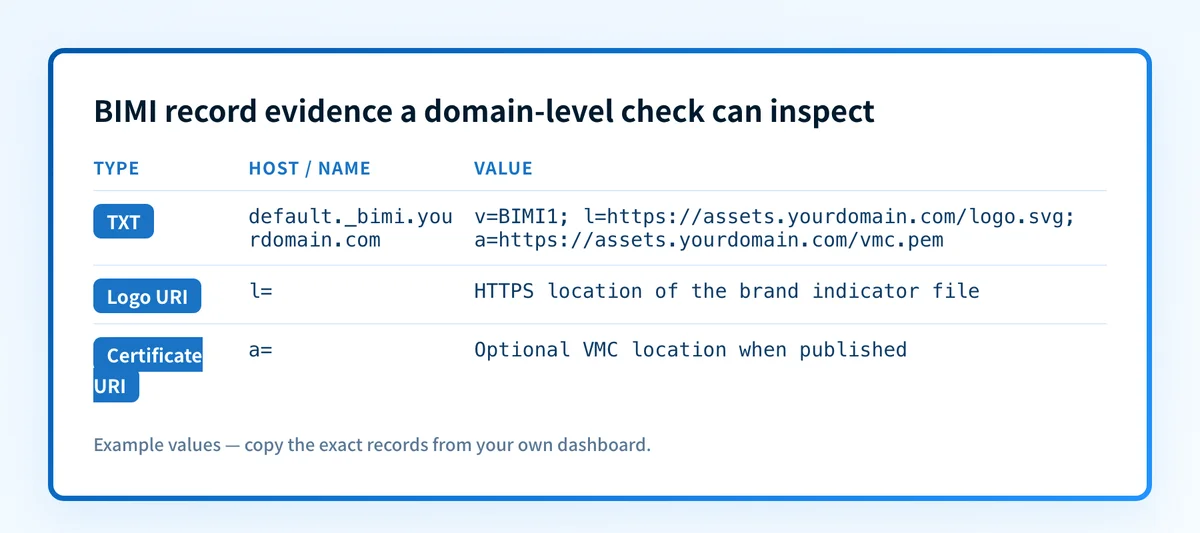
You can independently query the public BIMI policy owner with this illustrative lookup:
Terminal bash
dig +short TXT default._bimi.yourdomain.comThe BIMI Internet-Draft specifies that domain-owner preferences are DNS TXT records beneath _bimi, with the default selector published at default._bimi.example.com. This is a public lookup only. It does not test a sent email.
Source: Palisade. 3. Preserve the result before changing DNS
Copy the displayed headline, status, returned BIMI record, and technical-detail errors into the change ticket. If the card says "No BIMI record found," capture that fact with the domain and time of the lookup. If it displays l= and a=, retain those URLs as evidence without copying another organization's values into your own DNS.
Do not replace a BIMI record with an example from another domain. The logo URL, certificate URL, and certificate-domain relationship are account-specific.
How to interpret the results
Brand display and verified checkmark (BIMI) are certified
This is the checker’s passing headline. A live check of palisade.email returned a BIMI record with both l= and a= values, a fetched valid logo, and a complete trusted VMC chain where the logo matched the certificate and the certificate covered the domain.
Treat this as a strong public configuration result. Send a real message through the same production source and inspect its authentication evidence before claiming the full path is ready. Email authentication controls still determine whether the message can meet DMARC requirements.
Brand display and verified checkmark (BIMI) are missing
This is the headline for a missing BIMI record. Live checks of google.com and example.com returned this state, with no BIMI value, location, or assertion and the bimi-no-record error.
Confirm the exact From domain first. Then query default._bimi.yourdomain.com directly and compare the result with the authoritative DNS zone. The checker’s technical guidance for this error says: "Create a BIMI record with a valid, trademarked SVG (version 1.2) logo and a VMC to display your logo in your client’s inbox and increase your brand’s visibility."
The public result establishes that no BIMI record was found in that run. It does not establish why the record is absent or whether a DNS change has been approved.
Brand display and verified checkmark (BIMI) failed
This headline maps to the bimi-invalid state. It means the checker identified a BIMI configuration but did not validate it as required for a passing result. Review the raw record, l= value, a= value, and the technical details before changing anything.
The BIMI Internet-Draft requires an l= tag containing one HTTPS URI for the Brand Indicator file. It marks the a= certificate URI optional. Keep that protocol rule separate from display expectations. An a= value can be absent under the draft, while the checker may present a self-assertion warning about the absence of a VMC.
Brand display and verified checkmark (BIMI) requirements are not met
This headline maps to bimi-requirements-not-met. One defined assessment is bimi-requires-dmarc-enforcement: "BIMI record requires DMARC enforcement. This means DMARC must have a reject (any pct value) or quarantine (pct=100%) policy."
Repair DMARC enforcement before treating logo or certificate work as the next protocol threshold. The current BIMI Internet-Draft requires a strong DMARC policy on the organizational domain and the message's RFC5322.From domain. It says BIMI processing MUST NOT occur when either relevant DMARC policy is p=none. RFC 9989's DMARC policy definition defines the available p= values as none, quarantine, and reject.
Brand display and verified checkmark (BIMI) are not certified
This headline maps to bimi-uncertified. The BIMI record may be present, but the result does not establish certification. Inspect whether the output provides a logo value without an a= value or identifies a certificate-related condition. Do not infer which mailbox providers will display a logo from this state alone because provider display behavior is outside the evidence returned by a public configuration check.
VMC certificate expired
This headline maps to bimi-vmc-expired. Check the VMC URL shown as a= and the date presented by the checker. A certificate replacement must be generated and approved through the responsible certificate and DNS workflow. Recheck the public record after the replacement is published, then validate an actual message path separately.
How to act on the result
Start with the earliest failed prerequisite shown by the evidence.
For a missing record, confirm the visible From domain, inspect default._bimi.yourdomain.com, and obtain the domain-specific record values from the organization responsible for the logo and certificate.
For an enforcement requirement, repair DMARC policy only after reviewing aggregate-report evidence and the sending sources that would be affected. DMARC enforcement can change delivery outcomes for unauthenticated mail.
For a logo validation issue, review the actual file at l=. RFC 6170's certificate-image profile requires SVG Tiny 1.2 behavior, prohibits script elements, and prohibits external IRI references to information outside the image for specified content types. The checker may report that a logo is invalid without identifying the particular failed rule.
For a certificate condition, use the VMC owner’s current process to examine the a= resource and the domain relationship. Do not copy a certificate-chain URL from another tenant.
For a passing result, proceed to a delivered-message check and later aggregate-report review. A valid DNS and HTTPS configuration does not prove that every sender using the domain authenticates correctly.
If the work is specifically about preparing an eligible SVG and its trademark relationship, use
the logo and trademark guidance below . For protocol context before a change, see
what BIMI is and how its record works .
Getting your logo BIMI-ready
A failed logo validation usually traces back to the file itself. BIMI accepts only a constrained SVG profile, and most exported logos need conversion, a trademark decision, and a stable hosting location before the record can pass.
Convert the logo to SVG Tiny P/S
BIMI requires SVG Tiny 1.2 restricted to the Portable/Secure profile. The root baseProfile="tiny-ps" and version="1.2". The file must be square with a solid, opaque background, contain no scripts, hyperlinks, external references, or animation, include a </code> element describing the logo, and stay small, well under 32 KB.</p>
<p>Three conversion routes work:</p>
<ul><li><a href="/tools/bimi-svg-converter">Palisade's BIMI SVG converter</a> converts an uploaded logo to the Tiny P/S profile directly.</li>
<li>In Adobe Illustrator, or the free Inkscape, convert text to outlines, center the mark on a square artboard with padding, add a solid background rectangle, and save as SVG using the SVG Tiny 1.2 profile. Then open the file in a text editor, remove metadata and any scripts or external references, add the <code><title></code> element, and set <code>baseProfile</code> to <code>tiny-ps</code>.</li>
<li>Other web-based converters can transform simple logos directly in the browser, but they can mishandle gradients, fine detail, or text. Inspect the result and clean it up in a vector editor if needed. The BIMI Group also publishes <a href="https://bimigroup.org/svg-conversion-tools-released/" target="_blank" rel="noopener noreferrer">conversion tools</a> for turning an SVG 1.2 file into the P/S profile.</li>
</ul>
<figure class="article-figure"><img src="/images/figures/how-to-convert-your-company-logo-to-svg-understanding-sv-fig1.webp" alt="Five steps to convert a logo to SVG in Adobe Illustrator, from opening the file to saving as SVG." loading="lazy" decoding="async" width="1200" height="800" /><figcaption>Source: Palisade.</figcaption></figure>
<h3 id="meet-the-trademark-requirement">Meet the trademark requirement</h3>
<p>A VMC is issued only against a registered trademark. Check the <a href="https://www.wipo.int/branddb/en/" target="_blank" rel="noopener noreferrer">WIPO Global Brand Database</a> to confirm whether the logo is already registered, and search for conflicting marks before filing. Submit the application through the trademark office of your country, and confirm that country is recognized by the major VMC issuers before applying.</p>
<p>Expect real cost and lead time. US filing runs $350 per class of goods or services since January 2025, roughly £200 in the UK, and about $250 AUD in Australia, with separate fees for each class. Registration typically takes roughly 12 months or more in the US, around 4 months in the UK, 5 to 6 months in the EU, and up to 18 to 24 months in India. Respond promptly if the trademark office contacts you, or the application can be abandoned.</p>
<h3 id="vmc-or-cmc">VMC or CMC?</h3>
<p>A Verified Mark Certificate requires the registered trademark and adds Gmail's blue verified checkmark beside the logo. Since September 2024, Gmail also accepts a Common Mark Certificate, which displays the logo without the checkmark and requires proof that the logo has been in public use for at least 12 months instead of a trademark. Choose based on whether you own a registered trademark and whether the checkmark matters to you.</p>
<h3 id="host-the-file">Host the file</h3>
<p>Host the finished SVG at a public HTTPS URL you control. A path on your own domain or CDN is ideal, so the file cannot be changed out from under you. The record's <code>l=</code> tag points to that URL, and <code>a=</code> points to the certificate.</p>
<h3 id="common-logo-failures">Common logo failures</h3>
<ul><li>The SVG validates in a browser but fails BIMI: a browser renders full SVG, while BIMI accepts only the Tiny P/S profile. The usual culprits are a missing <code>baseProfile="tiny-ps"</code>, a transparent background, an embedded raster image, or a stray script or hyperlink.</li>
<li>The converted file looks blurry or jagged: the converter embedded the raster image inside an SVG wrapper instead of tracing it into vector paths. Re-trace the logo with Illustrator's Image Trace or Inkscape's Trace Bitmap.</li>
<li>The file is far larger than expected: automated tracers can generate thousands of unnecessary anchor points. Simplify paths and remove hidden or off-canvas elements before exporting.</li>
<li>Text renders wrong on other systems: a missing font gets substituted. Convert text to outlines so the letterforms travel with the file as shapes.</li>
<li>The logo appears cropped or off-center: providers crop BIMI logos to a circle. Center the mark on a square canvas with even padding on all sides.</li>
<li>The logo stopped showing after it worked: certificates are typically valid for one year. When the certificate at <code>a=</code> lapses, the logo stops displaying, so set a renewal reminder well before expiry.</li>
</ul>
<figure class="article-figure"><img src="/images/figures/how-to-make-your-company-logo-bimi-compatible-fig2.webp" alt="Checklist of the requirements a BIMI SVG logo must meet before it is uploaded." loading="lazy" decoding="async" width="1200" height="639" /><figcaption>Source: Palisade.</figcaption></figure>
<h2 id="how-to-retest">How to retest</h2>
<p>Run the same domain through the BIMI Checker after the authoritative DNS answer and referenced HTTPS resources have changed. The expected result depends on the repair:</p>
<ul><li>A missing record should change from "Brand display and verified checkmark (BIMI) are missing" to a result that shows the published record.</li>
<li>A corrected logo should produce a successful logo fetch and validation if the file meets the required profile.</li>
<li>A corrected certificate should update the displayed VMC validity information when the checker can validate the chain.</li>
<li>A DMARC repair should remove the enforcement prerequisite only after the relevant domains publish a qualifying policy.</li>
</ul>
Then send a new message through the exact application, sender identity, gateway, and recipient path that matters. Inspect the delivered message's authentication results, and use DMARC aggregate reports once they have accumulated. Public DNS and certificate checks cannot replace either layer.
<h2 id="check-the-bimi-record-before-changing-the-logo">Check the BIMI record before changing the logo</h2>
<p>If the evidence points to a missing record, expired VMC, or failed public validation, run the domain through the BIMI Checker and compare the returned <code>l=</code> and <code>a=</code> values with the approved domain configuration.</p>
<p><a href="/tools/bimi">Check the BIMI domain configuration</a></p>
<p>The check can inspect public BIMI DNS, the referenced logo, and certificate-chain evidence. It does not repair DNS, identify every SVG-profile violation, monitor future changes, prove the production sending path, or guarantee inbox logo display.</p>
<section class="article-sources"><p class="article-section-eyebrow">Evidence</p><h2 id="sources-and-further-reading">Sources and further reading</h2>
<ul><li><a href="/tools/bimi">Palisade BIMI Checker</a></li>
<li><a href="https://datatracker.ietf.org/doc/draft-brand-indicators-for-message-identification/" target="_blank" rel="noopener noreferrer">Brand Indicators for Message Identification, draft-14</a></li>
<li><a href="https://www.ietf.org/archive/id/draft-brand-indicators-for-message-identification-14.txt" target="_blank" rel="noopener noreferrer">BIMI Internet-Draft text, sections 4.3 and 7.1</a></li>
<li><a href="https://www.rfc-editor.org/rfc/rfc6170.html" target="_blank" rel="noopener noreferrer">RFC 6170: Internet X.509 Public Key Infrastructure - Certificate Image</a></li>
<li><a href="https://www.rfc-editor.org/rfc/rfc9989.html" target="_blank" rel="noopener noreferrer">RFC 9989: Domain-Based Message Authentication, Reporting, and Conformance</a></li>
</ul></section>
</div></div><section class="article-faq mt-12"><p class="mb-1 text-xs font-extrabold uppercase tracking-[0.13em] text-palisade-blue">Questions readers ask</p><h2 id="frequently-asked-questions" class="mt-0 text-2xl font-bold text-palisade-dark">Frequently asked questions</h2><div class="mt-5"><div class="divide-y divide-palisade-border-light rounded-[20px] border-card bg-white p-8 shadow-card" data-faq-component="default"><div data-faq-item="true"><button type="button" id="_R_7dinpfiv5b_-trigger-0" aria-expanded="false" aria-controls="_R_7dinpfiv5b_-panel-0" class="group flex w-full items-center justify-between py-5 text-left transition-colors duration-150 rounded-lg px-2 -mx-2"><h3 class="pr-4 text-base font-semibold leading-snug text-palisade-dark transition-colors duration-150 group-hover:text-palisade-blue-light">Does a BIMI logo checker accept an SVG file?</h3><svg class="h-5 w-5 flex-shrink-0 text-palisade-gray-400 transition-transform duration-200 " fill="none" viewBox="0 0 24 24" stroke="currentColor"><path stroke-linecap="round" stroke-linejoin="round" stroke-width="2" d="M19 9l-7 7-7-7"></path></svg></button><div id="_R_7dinpfiv5b_-panel-0" role="region" aria-labelledby="_R_7dinpfiv5b_-trigger-0" aria-hidden="true" class="faq-grid-expand "><div><div class="faq-inner px-5 pb-5"><div class="text-sm leading-relaxed text-palisade-gray-600 [&_a]:text-palisade-blue-light [&_a]:underline [&_li]:mb-1 [&_ol]:mb-3 [&_ol]:list-decimal [&_ol]:pl-5 [&_p]:mb-3 [&_ul]:mb-3 [&_ul]:list-disc [&_ul]:pl-5"><p>No. The Palisade BIMI Checker accepts a domain and checks the public BIMI configuration associated with that domain. It can fetch the logo referenced by the record, but it does not provide a logo-file upload or SVG paste field.</p></div></div></div></div></div><div data-faq-item="true"><button type="button" id="_R_7dinpfiv5b_-trigger-1" aria-expanded="false" aria-controls="_R_7dinpfiv5b_-panel-1" class="group flex w-full items-center justify-between py-5 text-left transition-colors duration-150 rounded-lg px-2 -mx-2"><h3 class="pr-4 text-base font-semibold leading-snug text-palisade-dark transition-colors duration-150 group-hover:text-palisade-blue-light">Is a VMC required in every BIMI record?</h3><svg class="h-5 w-5 flex-shrink-0 text-palisade-gray-400 transition-transform duration-200 " fill="none" viewBox="0 0 24 24" stroke="currentColor"><path stroke-linecap="round" stroke-linejoin="round" stroke-width="2" d="M19 9l-7 7-7-7"></path></svg></button><div id="_R_7dinpfiv5b_-panel-1" role="region" aria-labelledby="_R_7dinpfiv5b_-trigger-1" aria-hidden="true" class="faq-grid-expand "><div><div class="faq-inner px-5 pb-5"><div class="text-sm leading-relaxed text-palisade-gray-600 [&_a]:text-palisade-blue-light [&_a]:underline [&_li]:mb-1 [&_ol]:mb-3 [&_ol]:list-decimal [&_ol]:pl-5 [&_p]:mb-3 [&_ul]:mb-3 [&_ul]:list-disc [&_ul]:pl-5"><p>No. The current BIMI Internet-Draft marks the <code>a=</code> certificate URI as optional. The <code>l=</code> URI for the Brand Indicator file is required. A missing VMC can still affect the checker’s certification result and any provider-specific display outcome.</p></div></div></div></div></div><div data-faq-item="true"><button type="button" id="_R_7dinpfiv5b_-trigger-2" aria-expanded="false" aria-controls="_R_7dinpfiv5b_-panel-2" class="group flex w-full items-center justify-between py-5 text-left transition-colors duration-150 rounded-lg px-2 -mx-2"><h3 class="pr-4 text-base font-semibold leading-snug text-palisade-dark transition-colors duration-150 group-hover:text-palisade-blue-light">Does BIMI require DMARC enforcement?</h3><svg class="h-5 w-5 flex-shrink-0 text-palisade-gray-400 transition-transform duration-200 " fill="none" viewBox="0 0 24 24" stroke="currentColor"><path stroke-linecap="round" stroke-linejoin="round" stroke-width="2" d="M19 9l-7 7-7-7"></path></svg></button><div id="_R_7dinpfiv5b_-panel-2" role="region" aria-labelledby="_R_7dinpfiv5b_-trigger-2" aria-hidden="true" class="faq-grid-expand "><div><div class="faq-inner px-5 pb-5"><div class="text-sm leading-relaxed text-palisade-gray-600 [&_a]:text-palisade-blue-light [&_a]:underline [&_li]:mb-1 [&_ol]:mb-3 [&_ol]:list-decimal [&_ol]:pl-5 [&_p]:mb-3 [&_ul]:mb-3 [&_ul]:list-disc [&_ul]:pl-5"><p>Yes. The BIMI Internet-Draft requires a strong DMARC policy, either <code>p=quarantine</code> with <code>pct=100</code> or <code>p=reject</code>, on the organizational domain and the message's RFC5322.From domain. BIMI processing MUST NOT occur if the relevant policy is <code>p=none</code>. <a href="/learning/what-is-dmarcbis-rfc-9989-dmarc-standard">RFC 9989 has since retired <code>pct</code></a> from DMARC, so a current record simply omits the tag; the <code>pct=100</code> condition only bites on legacy records that still publish a lower value.</p></div></div></div></div></div><div data-faq-item="true"><button type="button" id="_R_7dinpfiv5b_-trigger-3" aria-expanded="false" aria-controls="_R_7dinpfiv5b_-panel-3" class="group flex w-full items-center justify-between py-5 text-left transition-colors duration-150 rounded-lg px-2 -mx-2"><h3 class="pr-4 text-base font-semibold leading-snug text-palisade-dark transition-colors duration-150 group-hover:text-palisade-blue-light">Can a valid BIMI result prove my logo will appear in every inbox?</h3><svg class="h-5 w-5 flex-shrink-0 text-palisade-gray-400 transition-transform duration-200 " fill="none" viewBox="0 0 24 24" stroke="currentColor"><path stroke-linecap="round" stroke-linejoin="round" stroke-width="2" d="M19 9l-7 7-7-7"></path></svg></button><div id="_R_7dinpfiv5b_-panel-3" role="region" aria-labelledby="_R_7dinpfiv5b_-trigger-3" aria-hidden="true" class="faq-grid-expand "><div><div class="faq-inner px-5 pb-5"><div class="text-sm leading-relaxed text-palisade-gray-600 [&_a]:text-palisade-blue-light [&_a]:underline [&_li]:mb-1 [&_ol]:mb-3 [&_ol]:list-decimal [&_ol]:pl-5 [&_p]:mb-3 [&_ul]:mb-3 [&_ul]:list-disc [&_ul]:pl-5"><p>No. A valid result proves public configuration evidence such as the BIMI record, logo fetch, and certificate validation where available. It cannot prove a mailbox provider's private display decision, the production sending path, or future message authentication.</p></div></div></div></div></div><div data-faq-item="true"><button type="button" id="_R_7dinpfiv5b_-trigger-4" aria-expanded="false" aria-controls="_R_7dinpfiv5b_-panel-4" class="group flex w-full items-center justify-between py-5 text-left transition-colors duration-150 rounded-lg px-2 -mx-2"><h3 class="pr-4 text-base font-semibold leading-snug text-palisade-dark transition-colors duration-150 group-hover:text-palisade-blue-light">Where is the BIMI DNS record published?</h3><svg class="h-5 w-5 flex-shrink-0 text-palisade-gray-400 transition-transform duration-200 " fill="none" viewBox="0 0 24 24" stroke="currentColor"><path stroke-linecap="round" stroke-linejoin="round" stroke-width="2" d="M19 9l-7 7-7-7"></path></svg></button><div id="_R_7dinpfiv5b_-panel-4" role="region" aria-labelledby="_R_7dinpfiv5b_-trigger-4" aria-hidden="true" class="faq-grid-expand "><div><div class="faq-inner px-5 pb-5"><div class="text-sm leading-relaxed text-palisade-gray-600 [&_a]:text-palisade-blue-light [&_a]:underline [&_li]:mb-1 [&_ol]:mb-3 [&_ol]:list-decimal [&_ol]:pl-5 [&_p]:mb-3 [&_ul]:mb-3 [&_ul]:list-disc [&_ul]:pl-5"><p>The default BIMI record is published as a TXT record at <code>default._bimi.yourdomain.com</code>. The domain-specific record must contain the correct values generated for that domain's logo and certificate arrangement.</p></div></div></div></div></div></div></div></section><section aria-labelledby="article-next-step" class="article-cta-card overflow-hidden rounded-[20px] mt-10" data-article-cta="bottom" data-article-cta-style="dither"><div aria-hidden="true" class="dither-field article-cta-dither absolute inset-0"><!--$!--><template data-dgst="BAILOUT_TO_CLIENT_SIDE_RENDERING"></template><div class="absolute inset-0 article-cta-dither-fallback"></div><!--/$--><!--$!--><template data-dgst="BAILOUT_TO_CLIENT_SIDE_RENDERING"></template><div class="absolute inset-0 article-cta-dither-fallback"></div><!--/$--><!--$!--><template data-dgst="BAILOUT_TO_CLIENT_SIDE_RENDERING"></template><div class="absolute inset-0 article-cta-dither-fallback"></div><!--/$--><!--$!--><template data-dgst="BAILOUT_TO_CLIENT_SIDE_RENDERING"></template><div class="absolute inset-0 article-cta-dither-fallback"></div><!--/$--></div><div class="article-cta-content relative z-10"><div class="article-cta-copy min-w-0 p-6 md:p-8"><h2 id="article-next-step" class="article-cta-item article-cta-item-1 text-balance text-xl font-bold leading-snug text-palisade-dark md:text-2xl">Check the published BIMI record and logo</h2><p class="article-cta-item article-cta-item-2 mt-3 max-w-xl text-sm leading-6 text-palisade-gray-700">Enter your domain.</p><div class="article-cta-item-3 mt-5 flex flex-col items-start gap-3 sm:flex-row"><a href="/tools/bimi" class="btn-primary inline-flex touch-manipulation items-center justify-center focus-visible:outline-none focus-visible:ring-2 focus-visible:ring-palisade-blue-light focus-visible:ring-offset-2">Check BIMI record</a><a href="https://app.palisade.email/signup?utm_source=palisade_learning&utm_medium=article&utm_campaign=bimi_check&utm_content=bimi-logo-checker" class="btn-secondary inline-flex touch-manipulation items-center justify-center focus-visible:outline-none focus-visible:ring-2 focus-visible:ring-palisade-blue-light focus-visible:ring-offset-2">Get started</a></div></div></div></section><div class="mt-12 border-t border-palisade-border pt-6"><p class="mb-3 text-sm font-medium text-palisade-dark">Share this article</p><div class="flex items-center gap-3"><a href="https://twitter.com/intent/tweet?url=https%3A%2F%2Fwww.palisade.email%2Flearning%2Fbimi-logo-checker&text=BIMI%20logo%20checker%3A%20check%20and%20interpret%20your%20BIMI%20record" target="_blank" rel="noopener noreferrer" aria-label="Share on X" class="card-hover flex h-10 w-10 items-center justify-center rounded-full border border-palisade-border text-palisade-gray-600 hover:text-palisade-blue-light"><svg class="h-4 w-4" viewBox="0 0 20 20" fill="currentColor"><path d="M15.3 1.7h2.9l-6.4 7.3 7.5 9.9h-5.9l-4.6-6-5.3 6H0.6l6.8-7.8L0 1.7h6l4.2 5.5 4.6-5.5zm-1 14.7h1.6L5.3 3.3H3.6l10.7 13.1z"></path></svg></a><a href="https://www.linkedin.com/sharing/share-offsite/?url=https%3A%2F%2Fwww.palisade.email%2Flearning%2Fbimi-logo-checker" target="_blank" rel="noopener noreferrer" aria-label="Share on LinkedIn" class="card-hover flex h-10 w-10 items-center justify-center rounded-full border border-palisade-border text-palisade-gray-600 hover:text-palisade-blue-light"><svg class="h-4 w-4" viewBox="0 0 20 20" fill="currentColor"><path d="M18.52 0H1.48C0.66 0 0 0.66 0 1.48v17.04C0 19.34 0.66 20 1.48 20h17.04c0.82 0 1.48-0.66 1.48-1.48V1.48C20 0.66 19.34 0 18.52 0zM5.96 17.04H2.95V7.49h3.01v9.55zM4.46 6.16a1.75 1.75 0 110-3.5 1.75 1.75 0 010 3.5zm12.58 10.88h-3v-4.82c0-1.54-0.65-2.01-1.5-2.01-0.89 0-1.77 0.67-1.77 2.05v4.78h-3V7.49h2.89v1.32h0.04c0.29-0.59 1.31-1.59 2.86-1.59 1.68 0 3.49 1 3.49 3.91v5.91z"></path></svg></a></div></div><div class="mt-10"><div class="flex items-start gap-4"><a class="relative block h-16 w-16 shrink-0 overflow-hidden rounded-full" href="/author/samuel-chenard"><img alt="Samuel Chenard" loading="lazy" decoding="async" data-nimg="fill" class="object-cover" style="position:absolute;height:100%;width:100%;left:0;top:0;right:0;bottom:0;color:transparent" sizes="64px" srcSet="/_next/image?url=%2Fimages%2FPalisade-Profess-Sam.jpg&w=32&q=75&dpl=dpl_F2rQVA2ziYVzW5r4LMF4NMhkxhNJ 32w, /_next/image?url=%2Fimages%2FPalisade-Profess-Sam.jpg&w=48&q=75&dpl=dpl_F2rQVA2ziYVzW5r4LMF4NMhkxhNJ 48w, /_next/image?url=%2Fimages%2FPalisade-Profess-Sam.jpg&w=64&q=75&dpl=dpl_F2rQVA2ziYVzW5r4LMF4NMhkxhNJ 64w, /_next/image?url=%2Fimages%2FPalisade-Profess-Sam.jpg&w=96&q=75&dpl=dpl_F2rQVA2ziYVzW5r4LMF4NMhkxhNJ 96w, /_next/image?url=%2Fimages%2FPalisade-Profess-Sam.jpg&w=128&q=75&dpl=dpl_F2rQVA2ziYVzW5r4LMF4NMhkxhNJ 128w, /_next/image?url=%2Fimages%2FPalisade-Profess-Sam.jpg&w=256&q=75&dpl=dpl_F2rQVA2ziYVzW5r4LMF4NMhkxhNJ 256w, /_next/image?url=%2Fimages%2FPalisade-Profess-Sam.jpg&w=384&q=75&dpl=dpl_F2rQVA2ziYVzW5r4LMF4NMhkxhNJ 384w, /_next/image?url=%2Fimages%2FPalisade-Profess-Sam.jpg&w=640&q=75&dpl=dpl_F2rQVA2ziYVzW5r4LMF4NMhkxhNJ 640w, /_next/image?url=%2Fimages%2FPalisade-Profess-Sam.jpg&w=750&q=75&dpl=dpl_F2rQVA2ziYVzW5r4LMF4NMhkxhNJ 750w, /_next/image?url=%2Fimages%2FPalisade-Profess-Sam.jpg&w=828&q=75&dpl=dpl_F2rQVA2ziYVzW5r4LMF4NMhkxhNJ 828w, /_next/image?url=%2Fimages%2FPalisade-Profess-Sam.jpg&w=1080&q=75&dpl=dpl_F2rQVA2ziYVzW5r4LMF4NMhkxhNJ 1080w, /_next/image?url=%2Fimages%2FPalisade-Profess-Sam.jpg&w=1200&q=75&dpl=dpl_F2rQVA2ziYVzW5r4LMF4NMhkxhNJ 1200w, /_next/image?url=%2Fimages%2FPalisade-Profess-Sam.jpg&w=1920&q=75&dpl=dpl_F2rQVA2ziYVzW5r4LMF4NMhkxhNJ 1920w, /_next/image?url=%2Fimages%2FPalisade-Profess-Sam.jpg&w=2048&q=75&dpl=dpl_F2rQVA2ziYVzW5r4LMF4NMhkxhNJ 2048w, /_next/image?url=%2Fimages%2FPalisade-Profess-Sam.jpg&w=3840&q=75&dpl=dpl_F2rQVA2ziYVzW5r4LMF4NMhkxhNJ 3840w" src="/_next/image?url=%2Fimages%2FPalisade-Profess-Sam.jpg&w=3840&q=75&dpl=dpl_F2rQVA2ziYVzW5r4LMF4NMhkxhNJ"/></a><div class="min-w-0"><p class="text-xs font-bold uppercase tracking-wide text-palisade-gray-500">Written by</p><a class="mt-1 inline-block text-lg font-semibold text-palisade-dark hover:text-palisade-blue-light" href="/author/samuel-chenard">Samuel Chenard</a><p class="text-sm text-palisade-gray-500">CEO & Co-Founder, Palisade</p><p class="mt-2 text-sm leading-relaxed text-palisade-gray-600">Samuel Chenard is the CEO and co-founder of Palisade, AI-first DMARC software for IT teams and MSPs, from one domain to thousands.</p><a class="mt-2 inline-block text-sm font-medium text-palisade-blue-light hover:underline" href="/author/samuel-chenard">More from <!-- -->Samuel<!-- --> →</a><div class="mt-4 flex items-center gap-2"><a href="https://www.linkedin.com/in/samuelchenard/" target="_blank" rel="noopener noreferrer" aria-label="Samuel Chenard on LinkedIn" class="card-hover flex h-9 w-9 items-center justify-center rounded-full border border-palisade-border text-palisade-gray-600 hover:text-palisade-blue-light"><svg class="h-4 w-4" viewBox="0 0 20 20" fill="currentColor"><path d="M18.52 0H1.48C0.66 0 0 0.66 0 1.48v17.04C0 19.34 0.66 20 1.48 20h17.04c0.82 0 1.48-0.66 1.48-1.48V1.48C20 0.66 19.34 0 18.52 0zM5.96 17.04H2.95V7.49h3.01v9.55zM4.46 6.16a1.75 1.75 0 110-3.5 1.75 1.75 0 010 3.5zm12.58 10.88h-3v-4.82c0-1.54-0.65-2.01-1.5-2.01-0.89 0-1.77 0.67-1.77 2.05v4.78h-3V7.49h2.89v1.32h0.04c0.29-0.59 1.31-1.59 2.86-1.59 1.68 0 3.49 1 3.49 3.91v5.91z"></path></svg></a></div></div></div></div></article><aside class="article-toc-sidebar"><div class="article-toc-sidebar-inner"><style data-article-toc-styles="true">
.article-toc-nav {
display: none;
}
.article-toc-label {
position: sticky;
top: 0;
z-index: 10;
padding-bottom: 0.25rem;
background: #fff;
}
.article-toc-rail,
.article-toc-indicator {
position: absolute;
left: 3px;
width: 2px;
}
.article-toc-rail {
inset-block: 0;
background-image: repeating-linear-gradient(
to bottom,
#cbd5df 0 2px,
transparent 2px 6px
);
}
.article-toc-indicator {
background-image: repeating-linear-gradient(
to bottom,
var(--color-palisade-blue-light) 0 3px,
transparent 3px 6px
);
transition:
height 300ms ease-out,
transform 300ms ease-out,
opacity 300ms ease-out;
}
@media (min-width: 48rem) {
.article-toc-sidebar {
position: sticky;
top: 6rem;
align-self: flex-start;
}
.article-toc-sidebar-inner {
display: flex;
max-height: calc(100vh - 7.5rem);
flex-direction: column;
}
.article-toc-nav {
display: block;
min-height: 0;
margin-bottom: 1.5rem;
padding-right: 0.5rem;
overflow-y: auto;
}
.article-toc-sidebar-card {
flex-shrink: 0;
}
}
@media (prefers-reduced-motion: reduce) {
.article-toc-indicator {
transition: none;
}
}
</style><nav aria-label="Table of contents" class="article-toc-nav"><p class="article-toc-label text-xs font-bold uppercase tracking-wide text-palisade-gray-500">On this page</p><div class="relative mt-3"><span aria-hidden="true" class="article-toc-rail"></span><span aria-hidden="true" class="article-toc-indicator" style="height:0;opacity:0;transform:translate3d(0, 0px, 0)"></span><ul class="flex flex-col gap-2 pl-5"><li><a href="#quick-takeaways" aria-current="location" class="block text-sm leading-snug transition-colors font-semibold text-palisade-blue-light">Quick takeaways</a></li><li><a href="#what-this-tool-checks" class="block text-sm leading-snug transition-colors text-palisade-gray-600 hover:text-palisade-blue-light">What this tool checks</a></li><li><a href="#how-to-run-the-check" class="block text-sm leading-snug transition-colors text-palisade-gray-600 hover:text-palisade-blue-light">How to run the check</a></li><li><a href="#1-start-with-the-visible-from-domain" class="block text-sm leading-snug transition-colors pl-3 text-palisade-gray-600 hover:text-palisade-blue-light">1. Start with the visible From domain</a></li><li><a href="#2-run-the-bimi-check" class="block text-sm leading-snug transition-colors pl-3 text-palisade-gray-600 hover:text-palisade-blue-light">2. Run the BIMI check</a></li><li><a href="#3-preserve-the-result-before-changing-dns" class="block text-sm leading-snug transition-colors pl-3 text-palisade-gray-600 hover:text-palisade-blue-light">3. Preserve the result before changing DNS</a></li><li><a href="#how-to-interpret-the-results" class="block text-sm leading-snug transition-colors text-palisade-gray-600 hover:text-palisade-blue-light">How to interpret the results</a></li><li><a href="#brand-display-and-verified-checkmark-bimi-are-certified" class="block text-sm leading-snug transition-colors pl-3 text-palisade-gray-600 hover:text-palisade-blue-light">Brand display and verified checkmark (BIMI) are certified</a></li><li><a href="#brand-display-and-verified-checkmark-bimi-are-missing" class="block text-sm leading-snug transition-colors pl-3 text-palisade-gray-600 hover:text-palisade-blue-light">Brand display and verified checkmark (BIMI) are missing</a></li><li><a href="#brand-display-and-verified-checkmark-bimi-failed" class="block text-sm leading-snug transition-colors pl-3 text-palisade-gray-600 hover:text-palisade-blue-light">Brand display and verified checkmark (BIMI) failed</a></li><li><a href="#brand-display-and-verified-checkmark-bimi-requirements-are-not-met" class="block text-sm leading-snug transition-colors pl-3 text-palisade-gray-600 hover:text-palisade-blue-light">Brand display and verified checkmark (BIMI) requirements are not met</a></li><li><a href="#brand-display-and-verified-checkmark-bimi-are-not-certified" class="block text-sm leading-snug transition-colors pl-3 text-palisade-gray-600 hover:text-palisade-blue-light">Brand display and verified checkmark (BIMI) are not certified</a></li><li><a href="#vmc-certificate-expired" class="block text-sm leading-snug transition-colors pl-3 text-palisade-gray-600 hover:text-palisade-blue-light">VMC certificate expired</a></li><li><a href="#how-to-act-on-the-result" class="block text-sm leading-snug transition-colors text-palisade-gray-600 hover:text-palisade-blue-light">How to act on the result</a></li><li><a href="#getting-your-logo-bimi-ready" class="block text-sm leading-snug transition-colors text-palisade-gray-600 hover:text-palisade-blue-light">Getting your logo BIMI-ready</a></li><li><a href="#convert-the-logo-to-svg-tiny-ps" class="block text-sm leading-snug transition-colors pl-3 text-palisade-gray-600 hover:text-palisade-blue-light">Convert the logo to SVG Tiny P/S</a></li><li><a href="#meet-the-trademark-requirement" class="block text-sm leading-snug transition-colors pl-3 text-palisade-gray-600 hover:text-palisade-blue-light">Meet the trademark requirement</a></li><li><a href="#vmc-or-cmc" class="block text-sm leading-snug transition-colors pl-3 text-palisade-gray-600 hover:text-palisade-blue-light">VMC or CMC?</a></li><li><a href="#host-the-file" class="block text-sm leading-snug transition-colors pl-3 text-palisade-gray-600 hover:text-palisade-blue-light">Host the file</a></li><li><a href="#common-logo-failures" class="block text-sm leading-snug transition-colors pl-3 text-palisade-gray-600 hover:text-palisade-blue-light">Common logo failures</a></li><li><a href="#how-to-retest" class="block text-sm leading-snug transition-colors text-palisade-gray-600 hover:text-palisade-blue-light">How to retest</a></li><li><a href="#check-the-bimi-record-before-changing-the-logo" class="block text-sm leading-snug transition-colors text-palisade-gray-600 hover:text-palisade-blue-light">Check the BIMI record before changing the logo</a></li><li><a href="#sources-and-further-reading" class="block text-sm leading-snug transition-colors text-palisade-gray-600 hover:text-palisade-blue-light">Sources and further reading</a></li><li><a href="#frequently-asked-questions" class="block text-sm leading-snug transition-colors text-palisade-gray-600 hover:text-palisade-blue-light">Frequently asked questions</a></li></ul></div></nav></div></aside></div><section class="mt-16"><h2 class="text-2xl font-bold text-palisade-dark">Related articles and tools</h2><div class="mt-6 grid gap-6 sm:grid-cols-2 lg:grid-cols-4"><a class="group flex h-full flex-col rounded-[20px] border border-palisade-border bg-white p-5 shadow-card transition hover:border-palisade-blue-light hover:-translate-y-0.5" href="/learning/what-is-bimi"><div class="relative mb-4 aspect-video w-full overflow-hidden rounded-lg"><img alt="What is BIMI? Brand Indicators for Message Identification" loading="lazy" decoding="async" data-nimg="fill" class="object-cover transition-transform group-hover:scale-[1.02]" style="position:absolute;height:100%;width:100%;left:0;top:0;right:0;bottom:0;color:transparent" sizes="(max-width: 640px) 100vw, (max-width: 1024px) 50vw, 25vw" srcSet="/_next/image?url=%2Fimages%2Feditorial%2Fwhat-is-bimi%2Fwhat-is-bimi-hero.png&w=256&q=75&dpl=dpl_F2rQVA2ziYVzW5r4LMF4NMhkxhNJ 256w, /_next/image?url=%2Fimages%2Feditorial%2Fwhat-is-bimi%2Fwhat-is-bimi-hero.png&w=384&q=75&dpl=dpl_F2rQVA2ziYVzW5r4LMF4NMhkxhNJ 384w, /_next/image?url=%2Fimages%2Feditorial%2Fwhat-is-bimi%2Fwhat-is-bimi-hero.png&w=640&q=75&dpl=dpl_F2rQVA2ziYVzW5r4LMF4NMhkxhNJ 640w, /_next/image?url=%2Fimages%2Feditorial%2Fwhat-is-bimi%2Fwhat-is-bimi-hero.png&w=750&q=75&dpl=dpl_F2rQVA2ziYVzW5r4LMF4NMhkxhNJ 750w, /_next/image?url=%2Fimages%2Feditorial%2Fwhat-is-bimi%2Fwhat-is-bimi-hero.png&w=828&q=75&dpl=dpl_F2rQVA2ziYVzW5r4LMF4NMhkxhNJ 828w, /_next/image?url=%2Fimages%2Feditorial%2Fwhat-is-bimi%2Fwhat-is-bimi-hero.png&w=1080&q=75&dpl=dpl_F2rQVA2ziYVzW5r4LMF4NMhkxhNJ 1080w, /_next/image?url=%2Fimages%2Feditorial%2Fwhat-is-bimi%2Fwhat-is-bimi-hero.png&w=1200&q=75&dpl=dpl_F2rQVA2ziYVzW5r4LMF4NMhkxhNJ 1200w, /_next/image?url=%2Fimages%2Feditorial%2Fwhat-is-bimi%2Fwhat-is-bimi-hero.png&w=1920&q=75&dpl=dpl_F2rQVA2ziYVzW5r4LMF4NMhkxhNJ 1920w, /_next/image?url=%2Fimages%2Feditorial%2Fwhat-is-bimi%2Fwhat-is-bimi-hero.png&w=2048&q=75&dpl=dpl_F2rQVA2ziYVzW5r4LMF4NMhkxhNJ 2048w, /_next/image?url=%2Fimages%2Feditorial%2Fwhat-is-bimi%2Fwhat-is-bimi-hero.png&w=3840&q=75&dpl=dpl_F2rQVA2ziYVzW5r4LMF4NMhkxhNJ 3840w" src="/_next/image?url=%2Fimages%2Feditorial%2Fwhat-is-bimi%2Fwhat-is-bimi-hero.png&w=3840&q=75&dpl=dpl_F2rQVA2ziYVzW5r4LMF4NMhkxhNJ"/></div><span class="text-xs font-semibold uppercase tracking-wide text-palisade-blue-light">Explainer</span><span class="mt-1.5 text-base font-semibold leading-snug text-palisade-dark group-hover:text-palisade-blue-light">What is BIMI? Brand Indicators for Message Identification</span><span class="mt-2 text-sm leading-relaxed text-palisade-gray-500">BIMI is an email standard that lets supporting inboxes display a verified brand logo after DMARC authentication and…</span></a><a class="group flex h-full flex-col rounded-[20px] border border-palisade-border bg-white p-5 shadow-card transition hover:border-palisade-blue-light hover:-translate-y-0.5" href="/learning/email-reverse-dns-lookup"><div class="relative mb-4 aspect-video w-full overflow-hidden rounded-lg"><img alt="Email reverse DNS lookup: check and interpret a PTR record" loading="lazy" decoding="async" data-nimg="fill" class="object-cover transition-transform group-hover:scale-[1.02]" style="position:absolute;height:100%;width:100%;left:0;top:0;right:0;bottom:0;color:transparent" sizes="(max-width: 640px) 100vw, (max-width: 1024px) 50vw, 25vw" srcSet="/_next/image?url=%2Fimages%2Feditorial%2Femail-reverse-dns-lookup%2Femail-reverse-dns-lookup-hero.png&w=256&q=75&dpl=dpl_F2rQVA2ziYVzW5r4LMF4NMhkxhNJ 256w, /_next/image?url=%2Fimages%2Feditorial%2Femail-reverse-dns-lookup%2Femail-reverse-dns-lookup-hero.png&w=384&q=75&dpl=dpl_F2rQVA2ziYVzW5r4LMF4NMhkxhNJ 384w, /_next/image?url=%2Fimages%2Feditorial%2Femail-reverse-dns-lookup%2Femail-reverse-dns-lookup-hero.png&w=640&q=75&dpl=dpl_F2rQVA2ziYVzW5r4LMF4NMhkxhNJ 640w, /_next/image?url=%2Fimages%2Feditorial%2Femail-reverse-dns-lookup%2Femail-reverse-dns-lookup-hero.png&w=750&q=75&dpl=dpl_F2rQVA2ziYVzW5r4LMF4NMhkxhNJ 750w, /_next/image?url=%2Fimages%2Feditorial%2Femail-reverse-dns-lookup%2Femail-reverse-dns-lookup-hero.png&w=828&q=75&dpl=dpl_F2rQVA2ziYVzW5r4LMF4NMhkxhNJ 828w, /_next/image?url=%2Fimages%2Feditorial%2Femail-reverse-dns-lookup%2Femail-reverse-dns-lookup-hero.png&w=1080&q=75&dpl=dpl_F2rQVA2ziYVzW5r4LMF4NMhkxhNJ 1080w, /_next/image?url=%2Fimages%2Feditorial%2Femail-reverse-dns-lookup%2Femail-reverse-dns-lookup-hero.png&w=1200&q=75&dpl=dpl_F2rQVA2ziYVzW5r4LMF4NMhkxhNJ 1200w, /_next/image?url=%2Fimages%2Feditorial%2Femail-reverse-dns-lookup%2Femail-reverse-dns-lookup-hero.png&w=1920&q=75&dpl=dpl_F2rQVA2ziYVzW5r4LMF4NMhkxhNJ 1920w, /_next/image?url=%2Fimages%2Feditorial%2Femail-reverse-dns-lookup%2Femail-reverse-dns-lookup-hero.png&w=2048&q=75&dpl=dpl_F2rQVA2ziYVzW5r4LMF4NMhkxhNJ 2048w, /_next/image?url=%2Fimages%2Feditorial%2Femail-reverse-dns-lookup%2Femail-reverse-dns-lookup-hero.png&w=3840&q=75&dpl=dpl_F2rQVA2ziYVzW5r4LMF4NMhkxhNJ 3840w" src="/_next/image?url=%2Fimages%2Feditorial%2Femail-reverse-dns-lookup%2Femail-reverse-dns-lookup-hero.png&w=3840&q=75&dpl=dpl_F2rQVA2ziYVzW5r4LMF4NMhkxhNJ"/></div><span class="text-xs font-semibold uppercase tracking-wide text-palisade-blue-light">Tool guide</span><span class="mt-1.5 text-base font-semibold leading-snug text-palisade-dark group-hover:text-palisade-blue-light">Email reverse DNS lookup: check and interpret a PTR record</span><span class="mt-2 text-sm leading-relaxed text-palisade-gray-500">Email reverse DNS lookup: check an SMTP sending IP's PTR record, confirm forward DNS, interpret results, and retest the…</span></a><a class="group flex h-full flex-col rounded-[20px] border border-palisade-border bg-white p-5 shadow-card transition hover:border-palisade-blue-light hover:-translate-y-0.5" href="/learning/reverse-dns-lookup-email-validation"><div class="relative mb-4 aspect-video w-full overflow-hidden rounded-lg"><img alt="Reverse DNS lookup email validation" loading="lazy" decoding="async" data-nimg="fill" class="object-cover transition-transform group-hover:scale-[1.02]" style="position:absolute;height:100%;width:100%;left:0;top:0;right:0;bottom:0;color:transparent" sizes="(max-width: 640px) 100vw, (max-width: 1024px) 50vw, 25vw" srcSet="/_next/image?url=%2Fimages%2Feditorial%2Freverse-dns-lookup-email-validation%2Freverse-dns-lookup-email-validation-hero.png&w=256&q=75&dpl=dpl_F2rQVA2ziYVzW5r4LMF4NMhkxhNJ 256w, /_next/image?url=%2Fimages%2Feditorial%2Freverse-dns-lookup-email-validation%2Freverse-dns-lookup-email-validation-hero.png&w=384&q=75&dpl=dpl_F2rQVA2ziYVzW5r4LMF4NMhkxhNJ 384w, /_next/image?url=%2Fimages%2Feditorial%2Freverse-dns-lookup-email-validation%2Freverse-dns-lookup-email-validation-hero.png&w=640&q=75&dpl=dpl_F2rQVA2ziYVzW5r4LMF4NMhkxhNJ 640w, /_next/image?url=%2Fimages%2Feditorial%2Freverse-dns-lookup-email-validation%2Freverse-dns-lookup-email-validation-hero.png&w=750&q=75&dpl=dpl_F2rQVA2ziYVzW5r4LMF4NMhkxhNJ 750w, /_next/image?url=%2Fimages%2Feditorial%2Freverse-dns-lookup-email-validation%2Freverse-dns-lookup-email-validation-hero.png&w=828&q=75&dpl=dpl_F2rQVA2ziYVzW5r4LMF4NMhkxhNJ 828w, /_next/image?url=%2Fimages%2Feditorial%2Freverse-dns-lookup-email-validation%2Freverse-dns-lookup-email-validation-hero.png&w=1080&q=75&dpl=dpl_F2rQVA2ziYVzW5r4LMF4NMhkxhNJ 1080w, /_next/image?url=%2Fimages%2Feditorial%2Freverse-dns-lookup-email-validation%2Freverse-dns-lookup-email-validation-hero.png&w=1200&q=75&dpl=dpl_F2rQVA2ziYVzW5r4LMF4NMhkxhNJ 1200w, /_next/image?url=%2Fimages%2Feditorial%2Freverse-dns-lookup-email-validation%2Freverse-dns-lookup-email-validation-hero.png&w=1920&q=75&dpl=dpl_F2rQVA2ziYVzW5r4LMF4NMhkxhNJ 1920w, /_next/image?url=%2Fimages%2Feditorial%2Freverse-dns-lookup-email-validation%2Freverse-dns-lookup-email-validation-hero.png&w=2048&q=75&dpl=dpl_F2rQVA2ziYVzW5r4LMF4NMhkxhNJ 2048w, /_next/image?url=%2Fimages%2Feditorial%2Freverse-dns-lookup-email-validation%2Freverse-dns-lookup-email-validation-hero.png&w=3840&q=75&dpl=dpl_F2rQVA2ziYVzW5r4LMF4NMhkxhNJ 3840w" src="/_next/image?url=%2Fimages%2Feditorial%2Freverse-dns-lookup-email-validation%2Freverse-dns-lookup-email-validation-hero.png&w=3840&q=75&dpl=dpl_F2rQVA2ziYVzW5r4LMF4NMhkxhNJ"/></div><span class="text-xs font-semibold uppercase tracking-wide text-palisade-blue-light">Tool guide</span><span class="mt-1.5 text-base font-semibold leading-snug text-palisade-dark group-hover:text-palisade-blue-light">Reverse DNS lookup email validation</span><span class="mt-2 text-sm leading-relaxed text-palisade-gray-500">Reverse DNS lookup email validation checks whether an IP address has a PTR hostname. Learn what PTR results show and…</span></a><a class="group flex h-full flex-col rounded-[20px] border border-palisade-border bg-white p-5 shadow-card transition hover:border-palisade-blue-light hover:-translate-y-0.5" href="/tools/bimi-generator"><div class="relative mb-4 aspect-video w-full overflow-hidden rounded-lg"><img alt="BIMI Record Generator" loading="lazy" decoding="async" data-nimg="fill" class="object-cover transition-transform group-hover:scale-[1.02]" style="position:absolute;height:100%;width:100%;left:0;top:0;right:0;bottom:0;color:transparent" src="/tools/bimi-generator/opengraph-image.png?dpl=dpl_F2rQVA2ziYVzW5r4LMF4NMhkxhNJ"/></div><span class="text-xs font-semibold uppercase tracking-wide text-palisade-blue-light">Free tool</span><span class="mt-1.5 text-base font-semibold leading-snug text-palisade-dark group-hover:text-palisade-blue-light">BIMI Record Generator</span><span class="mt-2 text-sm leading-relaxed text-palisade-gray-500">Create Your BIMI Record</span><span class="mt-auto pt-4 text-sm font-semibold text-palisade-blue-light">Open tool<!-- --> →</span></a></div></section></div><!--$--><!--/$--></main><footer class="mb-[74px] border-t border-palisade-border bg-white max-[768px]:mb-0 max-[768px]:pt-0 max-[768px]:pb-0 max-[480px]:px-[25px]"><div class="mx-auto max-w-[1300px] px-[25px] pt-12 pb-[90px]"><div class="grid grid-cols-2 gap-x-8 gap-y-8 md:grid-cols-3 lg:grid-cols-[180px_1fr_1fr_1fr_1fr_1fr]"><div class="col-span-2 md:col-span-3 lg:col-span-1"><a href="/"><img alt="Palisade" loading="lazy" width="101" height="12" decoding="async" data-nimg="1" style="color:transparent" srcSet="/_next/image?url=%2Fimages%2FPalisade%20Logo.png&w=128&q=75&dpl=dpl_F2rQVA2ziYVzW5r4LMF4NMhkxhNJ 1x, /_next/image?url=%2Fimages%2FPalisade%20Logo.png&w=256&q=75&dpl=dpl_F2rQVA2ziYVzW5r4LMF4NMhkxhNJ 2x" src="/_next/image?url=%2Fimages%2FPalisade%20Logo.png&w=256&q=75&dpl=dpl_F2rQVA2ziYVzW5r4LMF4NMhkxhNJ"/></a><a href="mailto:hello@palisade.email" class="mt-4 block text-sm text-palisade-dark hover:text-palisade-blue-light">hello@palisade.email</a><div class="mt-4 flex gap-3"><a href="https://twitter.com/Palisade_email" target="_blank" rel="noopener noreferrer" class="text-palisade-gray-400 hover:text-palisade-dark" aria-label="Twitter"><svg class="h-5 w-5" fill="currentColor" viewBox="0 0 24 24"><path d="M18.244 2.25h3.308l-7.227 8.26 8.502 11.24H16.17l-5.214-6.817L4.99 21.75H1.68l7.73-8.835L1.254 2.25H8.08l4.713 6.231zm-1.161 17.52h1.833L7.084 4.126H5.117z"></path></svg></a><a href="https://www.linkedin.com/company/palisadetech" target="_blank" rel="noopener noreferrer" class="text-palisade-gray-400 hover:text-palisade-dark" aria-label="LinkedIn"><svg class="h-5 w-5" fill="currentColor" viewBox="0 0 24 24"><path d="M20.447 20.452h-3.554v-5.569c0-1.328-.027-3.037-1.852-3.037-1.853 0-2.136 1.445-2.136 2.939v5.667H9.351V9h3.414v1.561h.046c.477-.9 1.637-1.85 3.37-1.85 3.601 0 4.267 2.37 4.267 5.455v6.286zM5.337 7.433a2.062 2.062 0 01-2.063-2.065 2.064 2.064 0 112.063 2.065zm1.782 13.019H3.555V9h3.564v11.452zM22.225 0H1.771C.792 0 0 .774 0 1.729v20.542C0 23.227.792 24 1.771 24h20.451C23.2 24 24 23.227 24 22.271V1.729C24 .774 23.2 0 22.222 0h.003z"></path></svg></a></div></div><div><h3 class="mb-4 text-base font-semibold text-palisade-dark">Products</h3><ul class="flex flex-col gap-[14px]"><li><a href="https://app.palisade.email/signup?utm_source=www&utm_medium=site&utm_content=footer-products" target="_blank" rel="noopener noreferrer" class="text-sm text-palisade-dark hover:text-palisade-blue-light">Palisade AI-first DMARC</a></li><li><a class="text-sm text-palisade-dark hover:text-palisade-blue-light" href="/pricing">Pricing</a></li><li><a class="text-sm text-palisade-dark hover:text-palisade-blue-light" href="/features">Platform</a></li><li><a class="text-sm text-palisade-dark hover:text-palisade-blue-light" href="/features/dmarc-agent">DMARC Agent</a></li><li><a class="text-sm text-palisade-dark hover:text-palisade-blue-light" href="/features/email-deliverability">Deliverability Platform</a></li><li><a class="text-sm text-palisade-dark hover:text-palisade-blue-light" href="/features/dns-deployment">Smart DNS Deployment</a></li><li><a class="text-sm text-palisade-dark hover:text-palisade-blue-light" href="/features/hosted-dns">Hosted DNS</a></li><li><a class="text-sm text-palisade-dark hover:text-palisade-blue-light" href="/features/spf-flattening">SPF Flattening</a></li><li><a class="text-sm text-palisade-dark hover:text-palisade-blue-light" href="/features/white-label-reports">Client Reporting</a></li><li><a class="text-sm text-palisade-dark hover:text-palisade-blue-light" href="/features/bimi">BIMI</a></li><li><a class="text-sm text-palisade-dark hover:text-palisade-blue-light" href="/tools/email-security-score">Email Security Score</a></li><li><a class="text-sm text-palisade-dark hover:text-palisade-blue-light" href="/mcp">MCP Server</a></li><li><a href="https://developer.palisade.email/guide/guide" target="_blank" rel="noopener noreferrer" class="text-sm text-palisade-dark hover:text-palisade-blue-light">Palisade API</a></li></ul></div><div><h3 class="mb-4 text-base font-semibold text-palisade-dark">Free tools</h3><ul class="flex flex-col gap-[14px]"><li><a class="text-sm text-palisade-dark hover:text-palisade-blue-light" href="/tools">All tools</a></li><li><a class="text-sm text-palisade-dark hover:text-palisade-blue-light" href="/tools/email-security-score">Email Security Score</a></li><li><a class="text-sm text-palisade-dark hover:text-palisade-blue-light" href="/tools/dmarc">DMARC Checker</a></li><li><a class="text-sm text-palisade-dark hover:text-palisade-blue-light" href="/tools/spf">SPF Checker</a></li><li><a class="text-sm text-palisade-dark hover:text-palisade-blue-light" href="/tools/dkim">DKIM Checker</a></li><li><a class="text-sm text-palisade-dark hover:text-palisade-blue-light" href="/tools/mx">MX Checker</a></li><li><a class="text-sm text-palisade-dark hover:text-palisade-blue-light" href="/tools/bimi">BIMI Checker</a></li><li><a class="text-sm text-palisade-dark hover:text-palisade-blue-light" href="/tools/domain-reputation">Domain Reputation</a></li><li><a class="text-sm text-palisade-dark hover:text-palisade-blue-light" href="/tools/ip-reputation">IP Reputation</a></li><li><a class="text-sm text-palisade-dark hover:text-palisade-blue-light" href="/tools/url-reputation">URL Reputation</a></li><li><a class="text-sm text-palisade-dark hover:text-palisade-blue-light" href="/tools/dns-lookup">DNS Lookup</a></li></ul></div><div><h3 class="mb-4 text-base font-semibold text-palisade-dark">Learn</h3><ul class="flex flex-col gap-[14px]"><li><a class="text-sm text-palisade-dark hover:text-palisade-blue-light" href="/resources">All Resources</a></li><li><a class="text-sm text-palisade-dark hover:text-palisade-blue-light" href="/learning">Learning Center</a></li><li><a class="text-sm text-palisade-dark hover:text-palisade-blue-light" href="/games/dmarc-starfighter">DMARC Star Fighter Game</a></li><li><a class="text-sm text-palisade-dark hover:text-palisade-blue-light" href="/games/dmarc-starfighter/leaderboard">Star Fighter Leaderboard</a></li><li><a class="text-sm text-palisade-dark hover:text-palisade-blue-light" href="/research">Original Research</a></li><li><a class="text-sm text-palisade-dark hover:text-palisade-blue-light" href="/learning/glossary">Email Auth Glossary</a></li><li><a class="text-sm text-palisade-dark hover:text-palisade-blue-light" href="/learning/smtp-error-codes">SMTP Error Codes</a></li><li><a class="text-sm text-palisade-dark hover:text-palisade-blue-light" href="/email-deliverability">Email Deliverability</a></li><li><a class="text-sm text-palisade-dark hover:text-palisade-blue-light" href="/learning/dmarc">DMARC</a></li><li><a class="text-sm text-palisade-dark hover:text-palisade-blue-light" href="/learning/spf">SPF</a></li><li><a class="text-sm text-palisade-dark hover:text-palisade-blue-light" href="/learning/dkim">DKIM</a></li><li><a class="text-sm text-palisade-dark hover:text-palisade-blue-light" href="/learning/threats">Email threats</a></li><li><a class="text-sm text-palisade-dark hover:text-palisade-blue-light" href="/learning/infrastructure">Email infrastructure</a></li><li><a class="text-sm text-palisade-dark hover:text-palisade-blue-light" href="/learning/delivery-errors">Delivery errors</a></li><li><a class="text-sm text-palisade-dark hover:text-palisade-blue-light" href="/learning/esp-setup">ESP setup</a></li><li><a class="text-sm text-palisade-dark hover:text-palisade-blue-light" href="/learning/msp">DMARC for MSPs</a></li></ul></div><div><h3 class="mb-4 text-base font-semibold text-palisade-dark">Compare</h3><ul class="flex flex-col gap-[14px]"><li><a class="text-sm text-palisade-dark hover:text-palisade-blue-light" href="/compare">All comparisons</a></li><li><a class="text-sm text-palisade-dark hover:text-palisade-blue-light" href="/powerdmarc-alternative">PowerDMARC</a></li><li><a class="text-sm text-palisade-dark hover:text-palisade-blue-light" href="/easydmarc-dmarc-alternative">EasyDMARC</a></li><li><a class="text-sm text-palisade-dark hover:text-palisade-blue-light" href="/dmarcian-dmarc-alternative">DMARCIAN</a></li><li><a class="text-sm text-palisade-dark hover:text-palisade-blue-light" href="/sendmarc-dmarc-alternative">SendMARC</a></li><li><a class="text-sm text-palisade-dark hover:text-palisade-blue-light" href="/valimail-alternative">Valimail</a></li><li><a class="text-sm text-palisade-dark hover:text-palisade-blue-light" href="/suped-alternative">Suped</a></li><li><a class="text-sm text-palisade-dark hover:text-palisade-blue-light" href="/dmarcly-alternative">DMARCLY</a></li><li><a class="text-sm text-palisade-dark hover:text-palisade-blue-light" href="/postmark-dmarc-alternative">Postmark DMARC</a></li><li><a class="text-sm text-palisade-dark hover:text-palisade-blue-light" href="/cloudflare-dmarc-alternative">Cloudflare</a></li><li><a class="text-sm text-palisade-dark hover:text-palisade-blue-light" href="/uriports-alternative">URIports</a></li></ul></div><div><h3 class="mb-4 text-base font-semibold text-palisade-dark">Company</h3><ul class="flex flex-col gap-[14px]"><li><a class="text-sm text-palisade-dark hover:text-palisade-blue-light" href="/about">About Palisade</a></li><li><a class="text-sm text-palisade-dark hover:text-palisade-blue-light" href="/contact-us">Contact us</a></li><li><a class="text-sm text-palisade-dark hover:text-palisade-blue-light" href="/schedule-a-call">Book a demo</a></li><li><a class="text-sm text-palisade-dark hover:text-palisade-blue-light" href="/terms-conditions">Terms & Conditions</a></li><li><a class="text-sm text-palisade-dark hover:text-palisade-blue-light" href="/privacy-policy">Privacy Policy</a></li></ul><div class="mt-6"><img src="/images/Vector-5.svg" alt="DigiCert" class="h-auto w-[120px]"/><span class="mt-1 block text-xs font-medium text-palisade-gray-500">Official Partner</span></div></div></div><div class="mt-12 flex flex-wrap items-center justify-between gap-3 border-t border-palisade-border pt-6"><p class="text-sm text-palisade-gray-400">© <!-- -->2026<!-- --> Palisade</p><a href="https://logo.dev" class="text-[10px] text-palisade-gray-400 underline decoration-palisade-gray-300 underline-offset-4 hover:text-palisade-blue-light">Logos provided by Logo.dev</a></div></div></footer><!--$!--><template data-dgst="BAILOUT_TO_CLIENT_SIDE_RENDERING"></template><!--/$--><!--$!--><template data-dgst="BAILOUT_TO_CLIENT_SIDE_RENDERING"></template><!--/$--><script src="/_next/static/chunks/webpack-2c50dbe49bdb8a44.js?dpl=dpl_F2rQVA2ziYVzW5r4LMF4NMhkxhNJ" id="_R_" async=""></script><script>(self.__next_f=self.__next_f||[]).push([0])</script><script>self.__next_f.push([1,"1:\"$Sreact.fragment\"\n2:I[42593,[\"8500\",\"static/chunks/8500-98e13bcce54aa7a0.js?dpl=dpl_F2rQVA2ziYVzW5r4LMF4NMhkxhNJ\",\"8437\",\"static/chunks/8437-91756204f606bcb9.js?dpl=dpl_F2rQVA2ziYVzW5r4LMF4NMhkxhNJ\",\"3516\",\"static/chunks/3516-b4e31e20551a7256.js?dpl=dpl_F2rQVA2ziYVzW5r4LMF4NMhkxhNJ\",\"765\",\"static/chunks/765-c59803dc0efc44ab.js?dpl=dpl_F2rQVA2ziYVzW5r4LMF4NMhkxhNJ\",\"4193\",\"static/chunks/4193-6d3c710c3bbcd4f6.js?dpl=dpl_F2rQVA2ziYVzW5r4LMF4NMhkxhNJ\",\"6042\",\"static/chunks/6042-42c8c758a41cc791.js?dpl=dpl_F2rQVA2ziYVzW5r4LMF4NMhkxhNJ\",\"7177\",\"static/chunks/app/layout-938b5cb74b408683.js?dpl=dpl_F2rQVA2ziYVzW5r4LMF4NMhkxhNJ\"],\"\"]\ne:I[27123,[],\"\"]\n:HL[\"/_next/static/media/9354a58bc4def402-s.p.woff2\",\"font\",{\"crossOrigin\":\"\",\"type\":\"font/woff2\"}]\n:HL[\"/_next/static/css/7a5db7a310c483af.css?dpl=dpl_F2rQVA2ziYVzW5r4LMF4NMhkxhNJ\",\"style\"]\n:HL[\"/_next/static/css/a4ed875357efa5fd.css?dpl=dpl_F2rQVA2ziYVzW5r4LMF4NMhkxhNJ\",\"style\"]\n3:T712,"])</script><script>self.__next_f.push([1,"!function(t,e){var o,n,p,r;e.__SV||(window.posthog\u0026\u0026window.posthog.__loaded)||(window.posthog=e,e._i=[],e.init=function(i,s,a){function g(t,e){var o=e.split(\".\");2==o.length\u0026\u0026(t=t[o[0]],e=o[1]),t[e]=function(){t.push([e].concat(Array.prototype.slice.call(arguments,0)))}}(p=t.createElement(\"script\")).type=\"text/javascript\",p.crossOrigin=\"anonymous\",p.async=!0,p.src=s.api_host.replace(\".i.posthog.com\",\"-assets.i.posthog.com\")+\"/static/array.js\",(r=t.getElementsByTagName(\"script\")[0]).parentNode.insertBefore(p,r);var u=e;for(void 0!==a?u=e[a]=[]:a=\"posthog\",u.people=u.people||[],u.toString=function(t){var e=\"posthog\";return\"posthog\"!==a\u0026\u0026(e+=\".\"+a),t||(e+=\" (stub)\"),e},u.people.toString=function(){return u.toString(1)+\".people (stub)\"},o=\"init capture identify alias people set_config register register_once unregister opt_out_capturing has_opted_out_capturing opt_in_capturing reset isFeatureEnabled onFeatureFlags getFeatureFlag getFeatureFlagPayload reloadFeatureFlags group updateEarlyAccessFeatureEnrollment getEarlyAccessFeatures getActiveMatchingSurveys getSurveys onSessionId setPersonProperties captureException startSessionRecording stopSessionRecording\".split(\" \"),n=0;n\u003co.length;n++)g(u,o[n]);e._i.push([i,s,a])},e.__SV=1)}(document,window.posthog||[]);posthog.init('phc_McCRlmeXhWNpfpD6IoTBpKCRbNmWJkfefEJgH1dLkA1',{api_host:'https://us.i.posthog.com',defaults:'2025-11-30',person_profiles:'identified_only',disable_session_recording:true,disable_surveys:true,capture_dead_clicks:true,capture_performance:{web_vitals:true},capture_exceptions:true,loaded:function(p){try{if(sessionStorage.getItem('pal_replay')==='1')p.startSessionRecording()}catch(e){}}});posthog.register(function(){var e=window.__palExperiments,p={};if(e){for(var k in e){p[\"exp_\"+k.replace(/-/g,\"_\")]=e[k]}}return p}());"])</script><script>self.__next_f.push([1,"0:{\"P\":null,\"b\":\"-LiTqUP4TocUerE7-cjq4\",\"c\":[\"\",\"learning\",\"bimi-logo-checker\"],\"q\":\"\",\"i\":false,\"f\":[[[\"\",{\"children\":[\"learning\",{\"children\":[[\"slug\",\"bimi-logo-checker\",\"d\"],{\"children\":[\"__PAGE__\",{}]}]}]},\"$undefined\",\"$undefined\",true],[[\"$\",\"$1\",\"c\",{\"children\":[[[\"$\",\"link\",\"0\",{\"rel\":\"stylesheet\",\"href\":\"/_next/static/css/7a5db7a310c483af.css?dpl=dpl_F2rQVA2ziYVzW5r4LMF4NMhkxhNJ\",\"precedence\":\"next\",\"crossOrigin\":\"$undefined\",\"nonce\":\"$undefined\"}],[\"$\",\"link\",\"1\",{\"rel\":\"stylesheet\",\"href\":\"/_next/static/css/a4ed875357efa5fd.css?dpl=dpl_F2rQVA2ziYVzW5r4LMF4NMhkxhNJ\",\"precedence\":\"next\",\"crossOrigin\":\"$undefined\",\"nonce\":\"$undefined\"}]],[\"$\",\"html\",null,{\"lang\":\"en\",\"className\":\"__variable_e25338\",\"suppressHydrationWarning\":true,\"children\":[[\"$\",\"head\",null,{\"children\":[[\"$\",\"link\",null,{\"rel\":\"alternate\",\"type\":\"application/rss+xml\",\"title\":\"Palisade: DMARC \u0026 Email Security\",\"href\":\"/feed.xml\"}],[\"$\",\"script\",null,{\"type\":\"application/ld+json\",\"dangerouslySetInnerHTML\":{\"__html\":\"{\\\"@context\\\":\\\"https://schema.org\\\",\\\"@type\\\":\\\"Organization\\\",\\\"@id\\\":\\\"https://www.palisade.email#organization\\\",\\\"name\\\":\\\"Palisade\\\",\\\"url\\\":\\\"https://www.palisade.email\\\",\\\"logo\\\":{\\\"@type\\\":\\\"ImageObject\\\",\\\"url\\\":\\\"https://www.palisade.email/images/Palisade-Logo-1.png\\\"},\\\"email\\\":\\\"hello@palisade.email\\\",\\\"description\\\":\\\"An agentic DMARC platform for IT teams and MSPs, from one domain to thousands.\\\",\\\"sameAs\\\":[\\\"https://www.wikidata.org/wiki/Q140774716\\\",\\\"https://www.linkedin.com/company/palisadetech\\\",\\\"https://twitter.com/Palisade_email\\\"]}\"}}],[\"$\",\"script\",null,{\"type\":\"application/ld+json\",\"dangerouslySetInnerHTML\":{\"__html\":\"{\\\"@context\\\":\\\"https://schema.org\\\",\\\"@type\\\":\\\"WebSite\\\",\\\"@id\\\":\\\"https://www.palisade.email#website\\\",\\\"name\\\":\\\"Palisade\\\",\\\"url\\\":\\\"https://www.palisade.email\\\",\\\"description\\\":\\\"An agentic DMARC platform for IT teams and MSPs, from one domain to thousands.\\\",\\\"inLanguage\\\":\\\"en\\\",\\\"publisher\\\":{\\\"@id\\\":\\\"https://www.palisade.email#organization\\\"}}\"}}]]}],[\"$\",\"body\",null,{\"className\":\"font-sans antialiased\",\"children\":[[\"$\",\"script\",null,{\"dangerouslySetInnerHTML\":{\"__html\":\"(function(){try{var E=[],A={};for(var i=0;i\u003cE.length;i++){var k=E[i][0],vs=E[i][1],ws=E[i][2],sk=\\\"pal_exp_\\\"+k,v=null;try{v=localStorage.getItem(sk)}catch(e){}if(!v||vs.indexOf(v)\u003c0){var r=Math.random(),c=0;for(var j=0;j\u003cvs.length;j++){c+=ws[j];if(r\u003cc||j===vs.length-1){v=vs[j];break}}try{localStorage.setItem(sk,v)}catch(e){}}A[k]=v;document.documentElement.setAttribute(\\\"data-exp-\\\"+k,v)}window.__palExperiments=A}catch(e){}})();\"}}],[[\"$\",\"$L2\",null,{\"src\":\"https://www.googletagmanager.com/gtag/js?id=G-57N9JZ1N9K\",\"strategy\":\"lazyOnload\"}],[\"$\",\"$L2\",null,{\"id\":\"gtag-init\",\"strategy\":\"lazyOnload\",\"children\":\"window.dataLayer=window.dataLayer||[];function gtag(){dataLayer.push(arguments);}gtag('js',new Date());gtag('config','G-57N9JZ1N9K');gtag('config','AW-17577916135');\"}],[\"$\",\"$L2\",null,{\"id\":\"posthog-init\",\"strategy\":\"lazyOnload\",\"children\":\"$3\"}],\"$L4\"],\"$L5\",\"$L6\",\"$L7\",\"$L8\",\"$L9\"]}]]}]]}],{\"children\":[\"$La\",{\"children\":[\"$Lb\",{\"children\":[\"$Lc\",{},null,false,false]},null,false,false]},null,false,false]},null,false,false],\"$Ld\",false]],\"m\":\"$undefined\",\"G\":[\"$e\",[]],\"S\":true}\n"])</script><script>self.__next_f.push([1,"f:\"$Sreact.suspense\"\n10:I[84232,[\"8500\",\"static/chunks/8500-98e13bcce54aa7a0.js?dpl=dpl_F2rQVA2ziYVzW5r4LMF4NMhkxhNJ\",\"8437\",\"static/chunks/8437-91756204f606bcb9.js?dpl=dpl_F2rQVA2ziYVzW5r4LMF4NMhkxhNJ\",\"3516\",\"static/chunks/3516-b4e31e20551a7256.js?dpl=dpl_F2rQVA2ziYVzW5r4LMF4NMhkxhNJ\",\"765\",\"static/chunks/765-c59803dc0efc44ab.js?dpl=dpl_F2rQVA2ziYVzW5r4LMF4NMhkxhNJ\",\"4193\",\"static/chunks/4193-6d3c710c3bbcd4f6.js?dpl=dpl_F2rQVA2ziYVzW5r4LMF4NMhkxhNJ\",\"6042\",\"static/chunks/6042-42c8c758a41cc791.js?dpl=dpl_F2rQVA2ziYVzW5r4LMF4NMhkxhNJ\",\"7177\",\"static/chunks/app/layout-938b5cb74b408683.js?dpl=dpl_F2rQVA2ziYVzW5r4LMF4NMhkxhNJ\"],\"default\"]\n11:I[61474,[\"8500\",\"static/chunks/8500-98e13bcce54aa7a0.js?dpl=dpl_F2rQVA2ziYVzW5r4LMF4NMhkxhNJ\",\"8437\",\"static/chunks/8437-91756204f606bcb9.js?dpl=dpl_F2rQVA2ziYVzW5r4LMF4NMhkxhNJ\",\"3516\",\"static/chunks/3516-b4e31e20551a7256.js?dpl=dpl_F2rQVA2ziYVzW5r4LMF4NMhkxhNJ\",\"765\",\"static/chunks/765-c59803dc0efc44ab.js?dpl=dpl_F2rQVA2ziYVzW5r4LMF4NMhkxhNJ\",\"4193\",\"static/chunks/4193-6d3c710c3bbcd4f6.js?dpl=dpl_F2rQVA2ziYVzW5r4LMF4NMhkxhNJ\",\"6042\",\"static/chunks/6042-42c8c758a41cc791.js?dpl=dpl_F2rQVA2ziYVzW5r4LMF4NMhkxhNJ\",\"7177\",\"static/chunks/app/layout-938b5cb74b408683.js?dpl=dpl_F2rQVA2ziYVzW5r4LMF4NMhkxhNJ\"],\"default\"]\n12:I[57121,[],\"\"]\n13:I[74581,[],\"\"]\n14:I[98500,[\"8500\",\"static/chunks/8500-98e13bcce54aa7a0.js?dpl=dpl_F2rQVA2ziYVzW5r4LMF4NMhkxhNJ\",\"8437\",\"static/chunks/8437-91756204f606bcb9.js?dpl=dpl_F2rQVA2ziYVzW5r4LMF4NMhkxhNJ\",\"4193\",\"static/chunks/4193-6d3c710c3bbcd4f6.js?dpl=dpl_F2rQVA2ziYVzW5r4LMF4NMhkxhNJ\",\"3929\",\"static/chunks/3929-840a9b9ec33b250a.js?dpl=dpl_F2rQVA2ziYVzW5r4LMF4NMhkxhNJ\",\"2350\",\"static/chunks/2350-b6d005844d030eeb.js?dpl=dpl_F2rQVA2ziYVzW5r4LMF4NMhkxhNJ\",\"317\",\"static/chunks/317-f3c1f875fcbf424d.js?dpl=dpl_F2rQVA2ziYVzW5r4LMF4NMhkxhNJ\",\"2047\",\"static/chunks/app/learning/%5Bslug%5D/page-2889bbf49b6b1fe1.js?dpl=dpl_F2rQVA2ziYVzW5r4LMF4NMhkxhNJ\"],\"\"]\n15:I[38437,[\"8500\",\"static/chunks/8500-98e13bcce54aa7a0.js?dpl=dpl_F2rQVA2ziYVzW5r4LMF4NMhkxhNJ\",\"8437\",\"static/chunks/8437-91756204f606bcb9.js?dpl=dpl_F2rQVA2ziYVzW5r4LMF4NMhkxhNJ\",\"4193\",\"static/chunks/4193-6d3c710c3bbcd4f6.js?dpl=dpl_F2rQVA2ziYVzW5r4LMF4NMhkxhNJ\",\"3929\",\"static/chunks/3929-840a9b9ec33b250a.js?dpl=dpl_F2rQVA2ziYVzW5r4LMF4NMhkxhNJ\",\"2350\",\"static/chunks/2350-b6d005844d030eeb.js?dpl=dpl_F2rQVA2ziYVzW5r4LMF4NMhkxhNJ\",\"317\",\"static/chunks/317-f3c1f875fcbf424d.js?dpl=dpl_F2rQVA2ziYVzW5r4LMF4NMhkxhNJ\",\"2047\",\"static/chunks/app/learning/%5Bslug%5D/page-2889bbf49b6b1fe1.js?dpl=dpl_F2rQVA2ziYVzW5r4LMF4NMhkxhNJ\"],\"Image\"]\n20:I[34917,[\"8500\",\"static/chunks/8500-98e13bcce54aa7a0.js?dpl=dpl_F2rQVA2ziYVzW5r4LMF4NMhkxhNJ\",\"8437\",\"static/chunks/8437-91756204f606bcb9.js?dpl=dpl_F2rQVA2ziYVzW5r4LMF4NMhkxhNJ\",\"3516\",\"static/chunks/3516-b4e31e20551a7256.js?dpl=dpl_F2rQVA2ziYVzW5r4LMF4NMhkxhNJ\",\"765\",\"static/chunks/765-c59803dc0efc44ab.js?dpl=dpl_F2rQVA2ziYVzW5r4LMF4NMhkxhNJ\",\"4193\",\"static/chunks/4193-6d3c710c3bbcd4f6.js?dpl=dpl_F2rQVA2ziYVzW5r4LMF4NMhkxhNJ\",\"6042\",\"static/chunks/6042-42c8c758a41cc791.js?dpl=dpl_F2rQVA2ziYVzW5r4LMF4NMhkxhNJ\",\"7177\",\"static/chunks/app/layout-938b5cb74b408683.js?dpl=dpl_F2rQVA2ziYVzW5r4LMF4NMhkxhNJ\"],\"SpeedInsights\"]\n21:I[30282,[\"8500\",\"static/chunks/8500-98e13bcce54aa7a0.js?dpl=dpl_F2rQVA2ziYVzW5r4LMF4NMhkxhNJ\",\"8437\",\"static/chunks/8437-91756204f606bcb9.js?dpl=dpl_F2rQVA2ziYVzW5r4LMF4NMhkxhNJ\",\"3516\",\"static/chunks/3516-b4e31e20551a7256.js?dpl=dpl_F2rQVA2ziYVzW5r4LMF4NMhkxhNJ\",\"765\",\"static/chunks/765-c59803dc0efc44ab.js?dpl=dpl_F2rQVA2ziYVzW5r4LMF4NMhkxhNJ\",\"4193\",\"static/chunks/4193-6d3c710c3bbcd4f6.js?dpl=dpl_F2rQVA2ziYVzW5r4LMF4NMhkxhNJ\",\"6042\",\"static/chunks/6042-42c8c758a41cc791.js?dpl=dpl_F2rQVA2ziYVzW5r4LMF4NMhkxhNJ\",\"7177\",\"static/chunks/app/layout-938b5cb74b408683.js?dpl=dpl_F2rQVA2ziYVzW5r4LMF4NMhkxhNJ\"],\"Analytics\"]\n23:I[90484,[],\"OutletBoundary\"]\n25:I[90484,[],\"ViewportBoundary\"]\n27:I[90484,[],\"MetadataBoundary\"]\n4:[\"$\",\"$f\",null,{\"fallback\":null,\"children\":[\"$\",\"$L10\",null,{}]}]\n5:[\"$\",\"$L11\",null,{}]\n6:[\"$\",\"main\",null,{\"children\":[\"$\",\"$L12\",null,{\"parallelRouterKey\":\"child"])</script><script>self.__next_f.push([1,"ren\",\"error\":\"$undefined\",\"errorStyles\":\"$undefined\",\"errorScripts\":\"$undefined\",\"template\":[\"$\",\"$L13\",null,{}],\"templateStyles\":\"$undefined\",\"templateScripts\":\"$undefined\",\"notFound\":[[\"$\",\"div\",null,{\"className\":\"mx-auto flex min-h-[60vh] max-w-[600px] flex-col items-center justify-center px-[25px] text-center\",\"children\":[[\"$\",\"h1\",null,{\"className\":\"gradient-text text-6xl font-bold\",\"children\":\"404\"}],[\"$\",\"p\",null,{\"className\":\"mt-4 text-lg text-palisade-gray-600\",\"children\":\"This page could not be found.\"}],[\"$\",\"$L14\",null,{\"href\":\"/\",\"className\":\"btn-primary mt-8\",\"children\":\"Back to home\"}]]}],[]],\"forbidden\":\"$undefined\",\"unauthorized\":\"$undefined\"}]}]\n"])</script><script>self.__next_f.push([1,"7:[\"$\",\"footer\",null,{\"className\":\"mb-[74px] border-t border-palisade-border bg-white max-[768px]:mb-0 max-[768px]:pt-0 max-[768px]:pb-0 max-[480px]:px-[25px]\",\"children\":[\"$\",\"div\",null,{\"className\":\"mx-auto max-w-[1300px] px-[25px] pt-12 pb-[90px]\",\"children\":[[\"$\",\"div\",null,{\"className\":\"grid grid-cols-2 gap-x-8 gap-y-8 md:grid-cols-3 lg:grid-cols-[180px_1fr_1fr_1fr_1fr_1fr]\",\"children\":[[\"$\",\"div\",null,{\"className\":\"col-span-2 md:col-span-3 lg:col-span-1\",\"children\":[[\"$\",\"$L14\",null,{\"href\":\"/\",\"children\":[\"$\",\"$L15\",null,{\"src\":\"/images/Palisade Logo.png\",\"alt\":\"Palisade\",\"width\":101,\"height\":12}]}],[\"$\",\"a\",null,{\"href\":\"mailto:hello@palisade.email\",\"className\":\"mt-4 block text-sm text-palisade-dark hover:text-palisade-blue-light\",\"children\":\"hello@palisade.email\"}],[\"$\",\"div\",null,{\"className\":\"mt-4 flex gap-3\",\"children\":[[\"$\",\"a\",null,{\"href\":\"https://twitter.com/Palisade_email\",\"target\":\"_blank\",\"rel\":\"noopener noreferrer\",\"className\":\"text-palisade-gray-400 hover:text-palisade-dark\",\"aria-label\":\"Twitter\",\"children\":[\"$\",\"svg\",null,{\"className\":\"h-5 w-5\",\"fill\":\"currentColor\",\"viewBox\":\"0 0 24 24\",\"children\":[\"$\",\"path\",null,{\"d\":\"M18.244 2.25h3.308l-7.227 8.26 8.502 11.24H16.17l-5.214-6.817L4.99 21.75H1.68l7.73-8.835L1.254 2.25H8.08l4.713 6.231zm-1.161 17.52h1.833L7.084 4.126H5.117z\"}]}]}],[\"$\",\"a\",null,{\"href\":\"https://www.linkedin.com/company/palisadetech\",\"target\":\"_blank\",\"rel\":\"noopener noreferrer\",\"className\":\"text-palisade-gray-400 hover:text-palisade-dark\",\"aria-label\":\"LinkedIn\",\"children\":[\"$\",\"svg\",null,{\"className\":\"h-5 w-5\",\"fill\":\"currentColor\",\"viewBox\":\"0 0 24 24\",\"children\":[\"$\",\"path\",null,{\"d\":\"M20.447 20.452h-3.554v-5.569c0-1.328-.027-3.037-1.852-3.037-1.853 0-2.136 1.445-2.136 2.939v5.667H9.351V9h3.414v1.561h.046c.477-.9 1.637-1.85 3.37-1.85 3.601 0 4.267 2.37 4.267 5.455v6.286zM5.337 7.433a2.062 2.062 0 01-2.063-2.065 2.064 2.064 0 112.063 2.065zm1.782 13.019H3.555V9h3.564v11.452zM22.225 0H1.771C.792 0 0 .774 0 1.729v20.542C0 23.227.792 24 1.771 24h20.451C23.2 24 24 23.227 24 22.271V1.729C24 .774 23.2 0 22.222 0h.003z\"}]}]}]]}]]}],[[\"$\",\"div\",\"Products\",{\"children\":[[\"$\",\"h3\",null,{\"className\":\"mb-4 text-base font-semibold text-palisade-dark\",\"children\":\"Products\"}],[\"$\",\"ul\",null,{\"className\":\"flex flex-col gap-[14px]\",\"children\":[[\"$\",\"li\",\"https://app.palisade.email/signup?utm_source=www\u0026utm_medium=site\u0026utm_content=footer-products\",{\"children\":[\"$\",\"a\",null,{\"href\":\"https://app.palisade.email/signup?utm_source=www\u0026utm_medium=site\u0026utm_content=footer-products\",\"target\":\"_blank\",\"rel\":\"noopener noreferrer\",\"className\":\"text-sm text-palisade-dark hover:text-palisade-blue-light\",\"children\":\"Palisade AI-first DMARC\"}]}],[\"$\",\"li\",\"/pricing\",{\"children\":[\"$\",\"$L14\",null,{\"href\":\"/pricing\",\"className\":\"text-sm text-palisade-dark hover:text-palisade-blue-light\",\"children\":\"Pricing\"}]}],[\"$\",\"li\",\"/features\",{\"children\":[\"$\",\"$L14\",null,{\"href\":\"/features\",\"className\":\"text-sm text-palisade-dark hover:text-palisade-blue-light\",\"children\":\"Platform\"}]}],[\"$\",\"li\",\"/features/dmarc-agent\",{\"children\":[\"$\",\"$L14\",null,{\"href\":\"/features/dmarc-agent\",\"className\":\"text-sm text-palisade-dark hover:text-palisade-blue-light\",\"children\":\"DMARC Agent\"}]}],[\"$\",\"li\",\"/features/email-deliverability\",{\"children\":[\"$\",\"$L14\",null,{\"href\":\"/features/email-deliverability\",\"className\":\"text-sm text-palisade-dark hover:text-palisade-blue-light\",\"children\":\"Deliverability Platform\"}]}],[\"$\",\"li\",\"/features/dns-deployment\",{\"children\":[\"$\",\"$L14\",null,{\"href\":\"/features/dns-deployment\",\"className\":\"text-sm text-palisade-dark hover:text-palisade-blue-light\",\"children\":\"Smart DNS Deployment\"}]}],[\"$\",\"li\",\"/features/hosted-dns\",{\"children\":[\"$\",\"$L14\",null,{\"href\":\"/features/hosted-dns\",\"className\":\"text-sm text-palisade-dark hover:text-palisade-blue-light\",\"children\":\"Hosted DNS\"}]}],[\"$\",\"li\",\"/features/spf-flattening\",{\"children\":[\"$\",\"$L14\",null,{\"href\":\"/features/spf-flattening\",\"className\":\"text-sm text-palisade-dark hover:text-palisade-blue-light\",\"children\":\"SPF Flattening\"}]}],\"$L16\",\"$L17\",\"$L18\",\"$L19\",\"$L1a\"]}],\"$undefined\"]}],\"$L1b\",\"$L1c\",\"$L1d\",\"$L1e\"]]}],\"$L1f\"]}]}]\n"])</script><script>self.__next_f.push([1,"8:[\"$\",\"$L20\",null,{}]\n9:[\"$\",\"$L21\",null,{}]\na:[\"$\",\"$1\",\"c\",{\"children\":[null,[\"$\",\"$L12\",null,{\"parallelRouterKey\":\"children\",\"error\":\"$undefined\",\"errorStyles\":\"$undefined\",\"errorScripts\":\"$undefined\",\"template\":[\"$\",\"$L13\",null,{}],\"templateStyles\":\"$undefined\",\"templateScripts\":\"$undefined\",\"notFound\":\"$undefined\",\"forbidden\":\"$undefined\",\"unauthorized\":\"$undefined\"}]]}]\nb:[\"$\",\"$1\",\"c\",{\"children\":[null,[\"$\",\"$L12\",null,{\"parallelRouterKey\":\"children\",\"error\":\"$undefined\",\"errorStyles\":\"$undefined\",\"errorScripts\":\"$undefined\",\"template\":[\"$\",\"$L13\",null,{}],\"templateStyles\":\"$undefined\",\"templateScripts\":\"$undefined\",\"notFound\":\"$undefined\",\"forbidden\":\"$undefined\",\"unauthorized\":\"$undefined\"}]]}]\nc:[\"$\",\"$1\",\"c\",{\"children\":[\"$L22\",null,[\"$\",\"$L23\",null,{\"children\":[\"$\",\"$f\",null,{\"name\":\"Next.MetadataOutlet\",\"children\":\"$@24\"}]}]]}]\nd:[\"$\",\"$1\",\"h\",{\"children\":[null,[\"$\",\"$L25\",null,{\"children\":\"$L26\"}],[\"$\",\"div\",null,{\"hidden\":true,\"children\":[\"$\",\"$L27\",null,{\"children\":[\"$\",\"$f\",null,{\"name\":\"Next.Metadata\",\"children\":\"$L28\"}]}]}],[\"$\",\"meta\",null,{\"name\":\"next-size-adjust\",\"content\":\"\"}]]}]\n"])</script><script>self.__next_f.push([1,":HL[\"/images/Vector-5.svg\",\"image\"]\n16:[\"$\",\"li\",\"/features/white-label-reports\",{\"children\":[\"$\",\"$L14\",null,{\"href\":\"/features/white-label-reports\",\"className\":\"text-sm text-palisade-dark hover:text-palisade-blue-light\",\"children\":\"Client Reporting\"}]}]\n17:[\"$\",\"li\",\"/features/bimi\",{\"children\":[\"$\",\"$L14\",null,{\"href\":\"/features/bimi\",\"className\":\"text-sm text-palisade-dark hover:text-palisade-blue-light\",\"children\":\"BIMI\"}]}]\n18:[\"$\",\"li\",\"/tools/email-security-score\",{\"children\":[\"$\",\"$L14\",null,{\"href\":\"/tools/email-security-score\",\"className\":\"text-sm text-palisade-dark hover:text-palisade-blue-light\",\"children\":\"Email Security Score\"}]}]\n19:[\"$\",\"li\",\"/mcp\",{\"children\":[\"$\",\"$L14\",null,{\"href\":\"/mcp\",\"className\":\"text-sm text-palisade-dark hover:text-palisade-blue-light\",\"children\":\"MCP Server\"}]}]\n1a:[\"$\",\"li\",\"https://developer.palisade.email/guide/guide\",{\"children\":[\"$\",\"a\",null,{\"href\":\"https://developer.palisade.email/guide/guide\",\"target\":\"_blank\",\"rel\":\"noopener noreferrer\",\"className\":\"text-sm text-palisade-dark hover:text-palisade-blue-light\",\"children\":\"Palisade API\"}]}]\n"])</script><script>self.__next_f.push([1,"1b:[\"$\",\"div\",\"Free tools\",{\"children\":[[\"$\",\"h3\",null,{\"className\":\"mb-4 text-base font-semibold text-palisade-dark\",\"children\":\"Free tools\"}],[\"$\",\"ul\",null,{\"className\":\"flex flex-col gap-[14px]\",\"children\":[[\"$\",\"li\",\"/tools\",{\"children\":[\"$\",\"$L14\",null,{\"href\":\"/tools\",\"className\":\"text-sm text-palisade-dark hover:text-palisade-blue-light\",\"children\":\"All tools\"}]}],[\"$\",\"li\",\"/tools/email-security-score\",{\"children\":[\"$\",\"$L14\",null,{\"href\":\"/tools/email-security-score\",\"className\":\"text-sm text-palisade-dark hover:text-palisade-blue-light\",\"children\":\"Email Security Score\"}]}],[\"$\",\"li\",\"/tools/dmarc\",{\"children\":[\"$\",\"$L14\",null,{\"href\":\"/tools/dmarc\",\"className\":\"text-sm text-palisade-dark hover:text-palisade-blue-light\",\"children\":\"DMARC Checker\"}]}],[\"$\",\"li\",\"/tools/spf\",{\"children\":[\"$\",\"$L14\",null,{\"href\":\"/tools/spf\",\"className\":\"text-sm text-palisade-dark hover:text-palisade-blue-light\",\"children\":\"SPF Checker\"}]}],[\"$\",\"li\",\"/tools/dkim\",{\"children\":[\"$\",\"$L14\",null,{\"href\":\"/tools/dkim\",\"className\":\"text-sm text-palisade-dark hover:text-palisade-blue-light\",\"children\":\"DKIM Checker\"}]}],[\"$\",\"li\",\"/tools/mx\",{\"children\":[\"$\",\"$L14\",null,{\"href\":\"/tools/mx\",\"className\":\"text-sm text-palisade-dark hover:text-palisade-blue-light\",\"children\":\"MX Checker\"}]}],[\"$\",\"li\",\"/tools/bimi\",{\"children\":[\"$\",\"$L14\",null,{\"href\":\"/tools/bimi\",\"className\":\"text-sm text-palisade-dark hover:text-palisade-blue-light\",\"children\":\"BIMI Checker\"}]}],[\"$\",\"li\",\"/tools/domain-reputation\",{\"children\":[\"$\",\"$L14\",null,{\"href\":\"/tools/domain-reputation\",\"className\":\"text-sm text-palisade-dark hover:text-palisade-blue-light\",\"children\":\"Domain Reputation\"}]}],[\"$\",\"li\",\"/tools/ip-reputation\",{\"children\":[\"$\",\"$L14\",null,{\"href\":\"/tools/ip-reputation\",\"className\":\"text-sm text-palisade-dark hover:text-palisade-blue-light\",\"children\":\"IP Reputation\"}]}],[\"$\",\"li\",\"/tools/url-reputation\",{\"children\":[\"$\",\"$L14\",null,{\"href\":\"/tools/url-reputation\",\"className\":\"text-sm text-palisade-dark hover:text-palisade-blue-light\",\"children\":\"URL Reputation\"}]}],[\"$\",\"li\",\"/tools/dns-lookup\",{\"children\":[\"$\",\"$L14\",null,{\"href\":\"/tools/dns-lookup\",\"className\":\"text-sm text-palisade-dark hover:text-palisade-blue-light\",\"children\":\"DNS Lookup\"}]}]]}],\"$undefined\"]}]\n"])</script><script>self.__next_f.push([1,"1c:[\"$\",\"div\",\"Learn\",{\"children\":[[\"$\",\"h3\",null,{\"className\":\"mb-4 text-base font-semibold text-palisade-dark\",\"children\":\"Learn\"}],[\"$\",\"ul\",null,{\"className\":\"flex flex-col gap-[14px]\",\"children\":[[\"$\",\"li\",\"/resources\",{\"children\":[\"$\",\"$L14\",null,{\"href\":\"/resources\",\"className\":\"text-sm text-palisade-dark hover:text-palisade-blue-light\",\"children\":\"All Resources\"}]}],[\"$\",\"li\",\"/learning\",{\"children\":[\"$\",\"$L14\",null,{\"href\":\"/learning\",\"className\":\"text-sm text-palisade-dark hover:text-palisade-blue-light\",\"children\":\"Learning Center\"}]}],[\"$\",\"li\",\"/games/dmarc-starfighter\",{\"children\":[\"$\",\"$L14\",null,{\"href\":\"/games/dmarc-starfighter\",\"className\":\"text-sm text-palisade-dark hover:text-palisade-blue-light\",\"children\":\"DMARC Star Fighter Game\"}]}],[\"$\",\"li\",\"/games/dmarc-starfighter/leaderboard\",{\"children\":[\"$\",\"$L14\",null,{\"href\":\"/games/dmarc-starfighter/leaderboard\",\"className\":\"text-sm text-palisade-dark hover:text-palisade-blue-light\",\"children\":\"Star Fighter Leaderboard\"}]}],[\"$\",\"li\",\"/research\",{\"children\":[\"$\",\"$L14\",null,{\"href\":\"/research\",\"className\":\"text-sm text-palisade-dark hover:text-palisade-blue-light\",\"children\":\"Original Research\"}]}],[\"$\",\"li\",\"/learning/glossary\",{\"children\":[\"$\",\"$L14\",null,{\"href\":\"/learning/glossary\",\"className\":\"text-sm text-palisade-dark hover:text-palisade-blue-light\",\"children\":\"Email Auth Glossary\"}]}],[\"$\",\"li\",\"/learning/smtp-error-codes\",{\"children\":[\"$\",\"$L14\",null,{\"href\":\"/learning/smtp-error-codes\",\"className\":\"text-sm text-palisade-dark hover:text-palisade-blue-light\",\"children\":\"SMTP Error Codes\"}]}],[\"$\",\"li\",\"/email-deliverability\",{\"children\":[\"$\",\"$L14\",null,{\"href\":\"/email-deliverability\",\"className\":\"text-sm text-palisade-dark hover:text-palisade-blue-light\",\"children\":\"Email Deliverability\"}]}],[\"$\",\"li\",\"/learning/dmarc\",{\"children\":[\"$\",\"$L14\",null,{\"href\":\"/learning/dmarc\",\"className\":\"text-sm text-palisade-dark hover:text-palisade-blue-light\",\"children\":\"DMARC\"}]}],[\"$\",\"li\",\"/learning/spf\",{\"children\":[\"$\",\"$L14\",null,{\"href\":\"/learning/spf\",\"className\":\"text-sm text-palisade-dark hover:text-palisade-blue-light\",\"children\":\"SPF\"}]}],[\"$\",\"li\",\"/learning/dkim\",{\"children\":[\"$\",\"$L14\",null,{\"href\":\"/learning/dkim\",\"className\":\"text-sm text-palisade-dark hover:text-palisade-blue-light\",\"children\":\"DKIM\"}]}],[\"$\",\"li\",\"/learning/threats\",{\"children\":[\"$\",\"$L14\",null,{\"href\":\"/learning/threats\",\"className\":\"text-sm text-palisade-dark hover:text-palisade-blue-light\",\"children\":\"Email threats\"}]}],[\"$\",\"li\",\"/learning/infrastructure\",{\"children\":[\"$\",\"$L14\",null,{\"href\":\"/learning/infrastructure\",\"className\":\"text-sm text-palisade-dark hover:text-palisade-blue-light\",\"children\":\"Email infrastructure\"}]}],[\"$\",\"li\",\"/learning/delivery-errors\",{\"children\":[\"$\",\"$L14\",null,{\"href\":\"/learning/delivery-errors\",\"className\":\"text-sm text-palisade-dark hover:text-palisade-blue-light\",\"children\":\"Delivery errors\"}]}],[\"$\",\"li\",\"/learning/esp-setup\",{\"children\":[\"$\",\"$L14\",null,{\"href\":\"/learning/esp-setup\",\"className\":\"text-sm text-palisade-dark hover:text-palisade-blue-light\",\"children\":\"ESP setup\"}]}],[\"$\",\"li\",\"/learning/msp\",{\"children\":[\"$\",\"$L14\",null,{\"href\":\"/learning/msp\",\"className\":\"text-sm text-palisade-dark hover:text-palisade-blue-light\",\"children\":\"DMARC for MSPs\"}]}]]}],\"$undefined\"]}]\n"])</script><script>self.__next_f.push([1,"1d:[\"$\",\"div\",\"Compare\",{\"children\":[[\"$\",\"h3\",null,{\"className\":\"mb-4 text-base font-semibold text-palisade-dark\",\"children\":\"Compare\"}],[\"$\",\"ul\",null,{\"className\":\"flex flex-col gap-[14px]\",\"children\":[[\"$\",\"li\",\"/compare\",{\"children\":[\"$\",\"$L14\",null,{\"href\":\"/compare\",\"className\":\"text-sm text-palisade-dark hover:text-palisade-blue-light\",\"children\":\"All comparisons\"}]}],[\"$\",\"li\",\"/powerdmarc-alternative\",{\"children\":[\"$\",\"$L14\",null,{\"href\":\"/powerdmarc-alternative\",\"className\":\"text-sm text-palisade-dark hover:text-palisade-blue-light\",\"children\":\"PowerDMARC\"}]}],[\"$\",\"li\",\"/easydmarc-dmarc-alternative\",{\"children\":[\"$\",\"$L14\",null,{\"href\":\"/easydmarc-dmarc-alternative\",\"className\":\"text-sm text-palisade-dark hover:text-palisade-blue-light\",\"children\":\"EasyDMARC\"}]}],[\"$\",\"li\",\"/dmarcian-dmarc-alternative\",{\"children\":[\"$\",\"$L14\",null,{\"href\":\"/dmarcian-dmarc-alternative\",\"className\":\"text-sm text-palisade-dark hover:text-palisade-blue-light\",\"children\":\"DMARCIAN\"}]}],[\"$\",\"li\",\"/sendmarc-dmarc-alternative\",{\"children\":[\"$\",\"$L14\",null,{\"href\":\"/sendmarc-dmarc-alternative\",\"className\":\"text-sm text-palisade-dark hover:text-palisade-blue-light\",\"children\":\"SendMARC\"}]}],[\"$\",\"li\",\"/valimail-alternative\",{\"children\":[\"$\",\"$L14\",null,{\"href\":\"/valimail-alternative\",\"className\":\"text-sm text-palisade-dark hover:text-palisade-blue-light\",\"children\":\"Valimail\"}]}],[\"$\",\"li\",\"/suped-alternative\",{\"children\":[\"$\",\"$L14\",null,{\"href\":\"/suped-alternative\",\"className\":\"text-sm text-palisade-dark hover:text-palisade-blue-light\",\"children\":\"Suped\"}]}],[\"$\",\"li\",\"/dmarcly-alternative\",{\"children\":[\"$\",\"$L14\",null,{\"href\":\"/dmarcly-alternative\",\"className\":\"text-sm text-palisade-dark hover:text-palisade-blue-light\",\"children\":\"DMARCLY\"}]}],[\"$\",\"li\",\"/postmark-dmarc-alternative\",{\"children\":[\"$\",\"$L14\",null,{\"href\":\"/postmark-dmarc-alternative\",\"className\":\"text-sm text-palisade-dark hover:text-palisade-blue-light\",\"children\":\"Postmark DMARC\"}]}],[\"$\",\"li\",\"/cloudflare-dmarc-alternative\",{\"children\":[\"$\",\"$L14\",null,{\"href\":\"/cloudflare-dmarc-alternative\",\"className\":\"text-sm text-palisade-dark hover:text-palisade-blue-light\",\"children\":\"Cloudflare\"}]}],[\"$\",\"li\",\"/uriports-alternative\",{\"children\":[\"$\",\"$L14\",null,{\"href\":\"/uriports-alternative\",\"className\":\"text-sm text-palisade-dark hover:text-palisade-blue-light\",\"children\":\"URIports\"}]}]]}],\"$undefined\"]}]\n"])</script><script>self.__next_f.push([1,"1e:[\"$\",\"div\",\"Company\",{\"children\":[[\"$\",\"h3\",null,{\"className\":\"mb-4 text-base font-semibold text-palisade-dark\",\"children\":\"Company\"}],[\"$\",\"ul\",null,{\"className\":\"flex flex-col gap-[14px]\",\"children\":[[\"$\",\"li\",\"/about\",{\"children\":[\"$\",\"$L14\",null,{\"href\":\"/about\",\"className\":\"text-sm text-palisade-dark hover:text-palisade-blue-light\",\"children\":\"About Palisade\"}]}],[\"$\",\"li\",\"/contact-us\",{\"children\":[\"$\",\"$L14\",null,{\"href\":\"/contact-us\",\"className\":\"text-sm text-palisade-dark hover:text-palisade-blue-light\",\"children\":\"Contact us\"}]}],[\"$\",\"li\",\"/schedule-a-call\",{\"children\":[\"$\",\"$L14\",null,{\"href\":\"/schedule-a-call\",\"className\":\"text-sm text-palisade-dark hover:text-palisade-blue-light\",\"children\":\"Book a demo\"}]}],[\"$\",\"li\",\"/terms-conditions\",{\"children\":[\"$\",\"$L14\",null,{\"href\":\"/terms-conditions\",\"className\":\"text-sm text-palisade-dark hover:text-palisade-blue-light\",\"children\":\"Terms \u0026 Conditions\"}]}],[\"$\",\"li\",\"/privacy-policy\",{\"children\":[\"$\",\"$L14\",null,{\"href\":\"/privacy-policy\",\"className\":\"text-sm text-palisade-dark hover:text-palisade-blue-light\",\"children\":\"Privacy Policy\"}]}]]}],[\"$\",\"div\",null,{\"className\":\"mt-6\",\"children\":[[\"$\",\"img\",null,{\"src\":\"/images/Vector-5.svg\",\"alt\":\"DigiCert\",\"className\":\"h-auto w-[120px]\"}],[\"$\",\"span\",null,{\"className\":\"mt-1 block text-xs font-medium text-palisade-gray-500\",\"children\":\"Official Partner\"}]]}]]}]\n"])</script><script>self.__next_f.push([1,"1f:[\"$\",\"div\",null,{\"className\":\"mt-12 flex flex-wrap items-center justify-between gap-3 border-t border-palisade-border pt-6\",\"children\":[[\"$\",\"p\",null,{\"className\":\"text-sm text-palisade-gray-400\",\"children\":[\"© \",2026,\" Palisade\"]}],[\"$\",\"a\",null,{\"href\":\"https://logo.dev\",\"className\":\"text-[10px] text-palisade-gray-400 underline decoration-palisade-gray-300 underline-offset-4 hover:text-palisade-blue-light\",\"children\":\"Logos provided by Logo.dev\"}]]}]\n"])</script><script>self.__next_f.push([1,"29:T41e,{\"@context\":\"https://schema.org\",\"@type\":\"Article\",\"@id\":\"https://www.palisade.email/learning/bimi-logo-checker#article\",\"headline\":\"BIMI logo checker: check and interpret your BIMI record\",\"description\":\"BIMI logo checker guide: check a domain's BIMI record, interpret Palisade results, repair DMARC enforcement or record issues, and retest now.\",\"image\":\"https://www.palisade.email/images/editorial/bimi-logo-checker/bimi-logo-checker-hero.png\",\"url\":\"https://www.palisade.email/learning/bimi-logo-checker\",\"inLanguage\":\"en\",\"isAccessibleForFree\":true,\"wordCount\":2662,\"articleSection\":\"email-authentication\",\"datePublished\":\"2026-08-13T12:00:00.000Z\",\"dateModified\":\"2026-08-14T18:00:00.000Z\",\"author\":{\"@type\":\"Person\",\"name\":\"Samuel Chenard\",\"url\":\"https://www.palisade.email/author/samuel-chenard\"},\"publisher\":{\"@type\":\"Organization\",\"name\":\"Palisade\",\"logo\":{\"@type\":\"ImageObject\",\"url\":\"https://www.palisade.email/images/Palisade-Logo-1.png\"}},\"mainEntityOfPage\":{\"@type\":\"WebPage\",\"@id\":\"https://www.palisade.email/learning/bimi-logo-checker\"}}2a:T1166,"])</script><script>self.__next_f.push([1,"{\"@context\":\"https://schema.org\",\"@type\":\"FAQPage\",\"@id\":\"https://www.palisade.email/learning/bimi-logo-checker#faq\",\"url\":\"https://www.palisade.email/learning/bimi-logo-checker#faq\",\"inLanguage\":\"en-US\",\"mainEntity\":[{\"@type\":\"Question\",\"@id\":\"https://www.palisade.email/learning/bimi-logo-checker#faq-does-a-bimi-logo-checker-accept-an-svg-file\",\"url\":\"https://www.palisade.email/learning/bimi-logo-checker#faq-does-a-bimi-logo-checker-accept-an-svg-file\",\"name\":\"Does a BIMI logo checker accept an SVG file?\",\"acceptedAnswer\":{\"@type\":\"Answer\",\"@id\":\"https://www.palisade.email/learning/bimi-logo-checker#faq-does-a-bimi-logo-checker-accept-an-svg-file-answer\",\"url\":\"https://www.palisade.email/learning/bimi-logo-checker#faq-does-a-bimi-logo-checker-accept-an-svg-file-answer\",\"text\":\"No. The Palisade BIMI Checker accepts a domain and checks the public BIMI configuration associated with that domain. It can fetch the logo referenced by the record, but it does not provide a logo-file upload or SVG paste field.\"}},{\"@type\":\"Question\",\"@id\":\"https://www.palisade.email/learning/bimi-logo-checker#faq-is-a-vmc-required-in-every-bimi-record\",\"url\":\"https://www.palisade.email/learning/bimi-logo-checker#faq-is-a-vmc-required-in-every-bimi-record\",\"name\":\"Is a VMC required in every BIMI record?\",\"acceptedAnswer\":{\"@type\":\"Answer\",\"@id\":\"https://www.palisade.email/learning/bimi-logo-checker#faq-is-a-vmc-required-in-every-bimi-record-answer\",\"url\":\"https://www.palisade.email/learning/bimi-logo-checker#faq-is-a-vmc-required-in-every-bimi-record-answer\",\"text\":\"No. The current BIMI Internet-Draft marks the a= certificate URI as optional. The l= URI for the Brand Indicator file is required. A missing VMC can still affect the checker’s certification result and any provider-specific display outcome.\"}},{\"@type\":\"Question\",\"@id\":\"https://www.palisade.email/learning/bimi-logo-checker#faq-does-bimi-require-dmarc-enforcement\",\"url\":\"https://www.palisade.email/learning/bimi-logo-checker#faq-does-bimi-require-dmarc-enforcement\",\"name\":\"Does BIMI require DMARC enforcement?\",\"acceptedAnswer\":{\"@type\":\"Answer\",\"@id\":\"https://www.palisade.email/learning/bimi-logo-checker#faq-does-bimi-require-dmarc-enforcement-answer\",\"url\":\"https://www.palisade.email/learning/bimi-logo-checker#faq-does-bimi-require-dmarc-enforcement-answer\",\"text\":\"Yes. The BIMI Internet-Draft requires a strong DMARC policy, either p=quarantine with pct=100 or p=reject, on the organizational domain and the message's RFC5322.From domain. BIMI processing MUST NOT occur if the relevant policy is p=none. RFC 9989 has since retired pct from DMARC, so a current record simply omits the tag; the pct=100 condition only bites on legacy records that still publish a lower value.\"}},{\"@type\":\"Question\",\"@id\":\"https://www.palisade.email/learning/bimi-logo-checker#faq-can-a-valid-bimi-result-prove-my-logo-will-appear-in-every-inbox\",\"url\":\"https://www.palisade.email/learning/bimi-logo-checker#faq-can-a-valid-bimi-result-prove-my-logo-will-appear-in-every-inbox\",\"name\":\"Can a valid BIMI result prove my logo will appear in every inbox?\",\"acceptedAnswer\":{\"@type\":\"Answer\",\"@id\":\"https://www.palisade.email/learning/bimi-logo-checker#faq-can-a-valid-bimi-result-prove-my-logo-will-appear-in-every-inbox-answer\",\"url\":\"https://www.palisade.email/learning/bimi-logo-checker#faq-can-a-valid-bimi-result-prove-my-logo-will-appear-in-every-inbox-answer\",\"text\":\"No. A valid result proves public configuration evidence such as the BIMI record, logo fetch, and certificate validation where available. It cannot prove a mailbox provider's private display decision, the production sending path, or future message authentication.\"}},{\"@type\":\"Question\",\"@id\":\"https://www.palisade.email/learning/bimi-logo-checker#faq-where-is-the-bimi-dns-record-published\",\"url\":\"https://www.palisade.email/learning/bimi-logo-checker#faq-where-is-the-bimi-dns-record-published\",\"name\":\"Where is the BIMI DNS record published?\",\"acceptedAnswer\":{\"@type\":\"Answer\",\"@id\":\"https://www.palisade.email/learning/bimi-logo-checker#faq-where-is-the-bimi-dns-record-published-answer\",\"url\":\"https://www.palisade.email/learning/bimi-logo-checker#faq-where-is-the-bimi-dns-record-published-answer\",\"text\":\"The default BIMI record is published as a TXT record at default._bimi.yourdomain.com. The domain-specific record must contain the correct values generated for that domain's logo and certificate arrangement.\"}}]}"])</script><script>self.__next_f.push([1,"22:[\"$\",\"div\",null,{\"className\":\"mx-auto w-full min-w-0 max-w-[1280px] px-[25px] py-12\",\"children\":[[[\"$\",\"script\",null,{\"type\":\"application/ld+json\",\"dangerouslySetInnerHTML\":{\"__html\":\"$29\"}}],[\"$\",\"script\",null,{\"type\":\"application/ld+json\",\"dangerouslySetInnerHTML\":{\"__html\":\"{\\\"@context\\\":\\\"https://schema.org\\\",\\\"@type\\\":\\\"BreadcrumbList\\\",\\\"itemListElement\\\":[{\\\"@type\\\":\\\"ListItem\\\",\\\"position\\\":1,\\\"name\\\":\\\"Home\\\",\\\"item\\\":\\\"https://www.palisade.email\\\"},{\\\"@type\\\":\\\"ListItem\\\",\\\"position\\\":2,\\\"name\\\":\\\"Back to Learning Center\\\",\\\"item\\\":\\\"https://www.palisade.email/learning\\\"},{\\\"@type\\\":\\\"ListItem\\\",\\\"position\\\":3,\\\"name\\\":\\\"BIMI logo checker: check and interpret your BIMI record\\\",\\\"item\\\":\\\"https://www.palisade.email/learning/bimi-logo-checker\\\"}]}\"}}],null,[\"$\",\"script\",null,{\"type\":\"application/ld+json\",\"dangerouslySetInnerHTML\":{\"__html\":\"$2a\"}}]],\"$L2b\",\"$L2c\"]}]\n"])</script><script>self.__next_f.push([1,"2d:I[59856,[\"8500\",\"static/chunks/8500-98e13bcce54aa7a0.js?dpl=dpl_F2rQVA2ziYVzW5r4LMF4NMhkxhNJ\",\"8437\",\"static/chunks/8437-91756204f606bcb9.js?dpl=dpl_F2rQVA2ziYVzW5r4LMF4NMhkxhNJ\",\"4193\",\"static/chunks/4193-6d3c710c3bbcd4f6.js?dpl=dpl_F2rQVA2ziYVzW5r4LMF4NMhkxhNJ\",\"3929\",\"static/chunks/3929-840a9b9ec33b250a.js?dpl=dpl_F2rQVA2ziYVzW5r4LMF4NMhkxhNJ\",\"2350\",\"static/chunks/2350-b6d005844d030eeb.js?dpl=dpl_F2rQVA2ziYVzW5r4LMF4NMhkxhNJ\",\"317\",\"static/chunks/317-f3c1f875fcbf424d.js?dpl=dpl_F2rQVA2ziYVzW5r4LMF4NMhkxhNJ\",\"2047\",\"static/chunks/app/learning/%5Bslug%5D/page-2889bbf49b6b1fe1.js?dpl=dpl_F2rQVA2ziYVzW5r4LMF4NMhkxhNJ\"],\"default\"]\n2e:I[70135,[\"8500\",\"static/chunks/8500-98e13bcce54aa7a0.js?dpl=dpl_F2rQVA2ziYVzW5r4LMF4NMhkxhNJ\",\"8437\",\"static/chunks/8437-91756204f606bcb9.js?dpl=dpl_F2rQVA2ziYVzW5r4LMF4NMhkxhNJ\",\"4193\",\"static/chunks/4193-6d3c710c3bbcd4f6.js?dpl=dpl_F2rQVA2ziYVzW5r4LMF4NMhkxhNJ\",\"3929\",\"static/chunks/3929-840a9b9ec33b250a.js?dpl=dpl_F2rQVA2ziYVzW5r4LMF4NMhkxhNJ\",\"2350\",\"static/chunks/2350-b6d005844d030eeb.js?dpl=dpl_F2rQVA2ziYVzW5r4LMF4NMhkxhNJ\",\"317\",\"static/chunks/317-f3c1f875fcbf424d.js?dpl=dpl_F2rQVA2ziYVzW5r4LMF4NMhkxhNJ\",\"2047\",\"static/chunks/app/learning/%5Bslug%5D/page-2889bbf49b6b1fe1.js?dpl=dpl_F2rQVA2ziYVzW5r4LMF4NMhkxhNJ\"],\"default\"]\n"])</script><script>self.__next_f.push([1,"2b:[\"$\",\"div\",null,{\"className\":\"grid min-w-0 grid-cols-1 gap-8 md:grid-cols-[minmax(0,1fr)_240px] xl:grid-cols-[minmax(0,1fr)_280px] xl:gap-10\",\"children\":[[\"$\",\"article\",null,{\"className\":\"mx-auto w-full min-w-0 max-w-[760px]\",\"children\":[[\"$\",\"$L14\",null,{\"href\":\"/learning\",\"className\":\"mb-8 inline-flex items-center gap-1 text-sm text-palisade-gray-500 hover:text-palisade-blue-light\",\"children\":[[\"$\",\"svg\",null,{\"className\":\"h-4 w-4\",\"fill\":\"none\",\"viewBox\":\"0 0 24 24\",\"stroke\":\"currentColor\",\"children\":[\"$\",\"path\",null,{\"strokeLinecap\":\"round\",\"strokeLinejoin\":\"round\",\"strokeWidth\":2,\"d\":\"M15 19l-7-7 7-7\"}]}],\"Back to Learning Center\"]}],\"$undefined\",[\"$\",\"$L14\",null,{\"href\":\"/category/email-authentication\",\"className\":\"mb-3 flex w-fit rounded-full border border-palisade-border px-3 py-1 text-xs font-semibold uppercase tracking-wide text-palisade-blue hover:border-palisade-blue-light hover:text-palisade-blue-light\",\"children\":\"Email Authentication\"}],[\"$\",\"h1\",null,{\"className\":\"gradient-text h1-page font-bold text-balance\",\"children\":\"BIMI logo checker: check and interpret your BIMI record\"}],[\"$\",\"div\",null,{\"className\":\"mt-4 flex flex-wrap items-center gap-x-2 gap-y-1 text-sm text-palisade-gray-500\",\"children\":[[\"$\",\"$L14\",null,{\"href\":\"/author/samuel-chenard\",\"className\":\"font-medium text-palisade-dark underline-offset-2 hover:text-palisade-blue-light hover:underline\",\"children\":[\"By \",\"Samuel Chenard\"]}],[\"$\",\"span\",null,{\"aria-hidden\":\"true\",\"children\":\"·\"}],[\"$\",\"span\",null,{\"children\":\"August 13, 2026\"}],\"\",[\"$\",\"span\",null,{\"aria-hidden\":\"true\",\"children\":\"·\"}],[\"$\",\"span\",null,{\"children\":[14,\" min read\"]}]]}],[\"$\",\"div\",null,{\"className\":\"mt-5\",\"children\":[\"$\",\"div\",null,{\"className\":\"flex max-w-full flex-wrap items-center gap-2\",\"children\":[[\"$\",\"span\",null,{\"className\":\"text-sm text-palisade-gray-500\",\"children\":\"Ask AI to explain\"}],[[\"$\",\"$L2d\",\"chatgpt\",{\"href\":\"https://chatgpt.com/?q=Read%20and%20summarize%20this%20page%20(%22BIMI%20logo%20checker%3A%20check%20and%20interpret%20your%20BIMI%20record%22)%2C%20then%20flag%20anything%20unclear%2C%20missing%2C%20or%20out%20of%20date%3A%20https%3A%2F%2Fwww.palisade.email%2Flearning%2Fbimi-logo-checker\",\"event\":\"ask_ai_clicked\",\"eventProps\":{\"platform\":\"chatgpt\",\"question\":\"summarize\",\"placement\":\"article_top\"},\"target\":\"_blank\",\"rel\":\"noopener noreferrer\",\"className\":\"inline-flex max-w-full items-center rounded-full border-card bg-white font-medium text-palisade-dark transition-colors hover:border-palisade-blue-light hover:text-palisade-blue-light gap-1.5 px-3 py-1.5 text-sm\",\"children\":[[\"$\",\"$L15\",null,{\"src\":\"/images/ai/chatgpt.png\",\"alt\":\"\",\"width\":16,\"height\":16,\"className\":\"h-4 w-4 shrink-0 rounded-[3px] object-contain\"}],\"ChatGPT\"]}],[\"$\",\"$L2d\",\"claude\",{\"href\":\"https://claude.ai/new?q=Read%20and%20summarize%20this%20page%20(%22BIMI%20logo%20checker%3A%20check%20and%20interpret%20your%20BIMI%20record%22)%2C%20then%20flag%20anything%20unclear%2C%20missing%2C%20or%20out%20of%20date%3A%20https%3A%2F%2Fwww.palisade.email%2Flearning%2Fbimi-logo-checker\",\"event\":\"ask_ai_clicked\",\"eventProps\":{\"platform\":\"claude\",\"question\":\"summarize\",\"placement\":\"article_top\"},\"target\":\"_blank\",\"rel\":\"noopener noreferrer\",\"className\":\"inline-flex max-w-full items-center rounded-full border-card bg-white font-medium text-palisade-dark transition-colors hover:border-palisade-blue-light hover:text-palisade-blue-light gap-1.5 px-3 py-1.5 text-sm\",\"children\":[[\"$\",\"$L15\",null,{\"src\":\"/images/ai/claude.png\",\"alt\":\"\",\"width\":16,\"height\":16,\"className\":\"h-4 w-4 shrink-0 rounded-[3px] object-contain\"}],\"Claude\"]}],[\"$\",\"$L2e\",\"gemini\",{\"href\":\"https://gemini.google.com/app\",\"prompt\":\"Read and summarize this page (\\\"BIMI logo checker: check and interpret your BIMI record\\\"), then flag anything unclear, missing, or out of date: https://www.palisade.email/learning/bimi-logo-checker\",\"label\":\"Gemini\",\"event\":\"ask_ai_clicked\",\"eventProps\":{\"platform\":\"gemini\",\"question\":\"summarize\",\"placement\":\"article_top\"},\"title\":\"Copies the prompt so you can paste it into Gemini, which cannot accept it from a link\",\"className\":\"inline-flex max-w-full items-center rounded-full border-card bg-white font-medium text-palisade-dark transition-colors hover:border-palisade-blue-light hover:text-palisade-blue-light gap-1.5 px-3 py-1.5 text-sm\",\"children\":\"$L2f\"}],\"$L30\",\"$L31\"]]}]}],\"$L32\",\"$L33\",\"$L34\",null,\"$L35\",\"$L36\",\"$L37\",\"$L38\"]}],\"$L39\"]}]\n"])</script><script>self.__next_f.push([1,"2c:[\"$\",\"section\",null,{\"className\":\"mt-16\",\"children\":[[\"$\",\"h2\",null,{\"className\":\"text-2xl font-bold text-palisade-dark\",\"children\":\"Related articles and tools\"}],[\"$\",\"div\",null,{\"className\":\"mt-6 grid gap-6 sm:grid-cols-2 lg:grid-cols-4\",\"children\":[[\"$\",\"$L14\",\"/learning/what-is-bimi\",{\"href\":\"/learning/what-is-bimi\",\"className\":\"group flex h-full flex-col rounded-[20px] border border-palisade-border bg-white p-5 shadow-card transition hover:border-palisade-blue-light hover:-translate-y-0.5\",\"children\":[[\"$\",\"div\",null,{\"className\":\"relative mb-4 aspect-video w-full overflow-hidden rounded-lg\",\"children\":[\"$\",\"$L15\",null,{\"src\":\"/images/editorial/what-is-bimi/what-is-bimi-hero.png\",\"alt\":\"What is BIMI? Brand Indicators for Message Identification\",\"fill\":true,\"unoptimized\":false,\"className\":\"object-cover transition-transform group-hover:scale-[1.02]\",\"sizes\":\"(max-width: 640px) 100vw, (max-width: 1024px) 50vw, 25vw\"}]}],[\"$\",\"span\",null,{\"className\":\"text-xs font-semibold uppercase tracking-wide text-palisade-blue-light\",\"children\":\"Explainer\"}],[\"$\",\"span\",null,{\"className\":\"mt-1.5 text-base font-semibold leading-snug text-palisade-dark group-hover:text-palisade-blue-light\",\"children\":\"What is BIMI? Brand Indicators for Message Identification\"}],[\"$\",\"span\",null,{\"className\":\"mt-2 text-sm leading-relaxed text-palisade-gray-500\",\"children\":\"BIMI is an email standard that lets supporting inboxes display a verified brand logo after DMARC authentication and…\"}],false]}],[\"$\",\"$L14\",\"/learning/email-reverse-dns-lookup\",{\"href\":\"/learning/email-reverse-dns-lookup\",\"className\":\"group flex h-full flex-col rounded-[20px] border border-palisade-border bg-white p-5 shadow-card transition hover:border-palisade-blue-light hover:-translate-y-0.5\",\"children\":[[\"$\",\"div\",null,{\"className\":\"relative mb-4 aspect-video w-full overflow-hidden rounded-lg\",\"children\":[\"$\",\"$L15\",null,{\"src\":\"/images/editorial/email-reverse-dns-lookup/email-reverse-dns-lookup-hero.png\",\"alt\":\"Email reverse DNS lookup: check and interpret a PTR record\",\"fill\":true,\"unoptimized\":false,\"className\":\"object-cover transition-transform group-hover:scale-[1.02]\",\"sizes\":\"(max-width: 640px) 100vw, (max-width: 1024px) 50vw, 25vw\"}]}],[\"$\",\"span\",null,{\"className\":\"text-xs font-semibold uppercase tracking-wide text-palisade-blue-light\",\"children\":\"Tool guide\"}],[\"$\",\"span\",null,{\"className\":\"mt-1.5 text-base font-semibold leading-snug text-palisade-dark group-hover:text-palisade-blue-light\",\"children\":\"Email reverse DNS lookup: check and interpret a PTR record\"}],[\"$\",\"span\",null,{\"className\":\"mt-2 text-sm leading-relaxed text-palisade-gray-500\",\"children\":\"Email reverse DNS lookup: check an SMTP sending IP's PTR record, confirm forward DNS, interpret results, and retest the…\"}],false]}],[\"$\",\"$L14\",\"/learning/reverse-dns-lookup-email-validation\",{\"href\":\"/learning/reverse-dns-lookup-email-validation\",\"className\":\"group flex h-full flex-col rounded-[20px] border border-palisade-border bg-white p-5 shadow-card transition hover:border-palisade-blue-light hover:-translate-y-0.5\",\"children\":[[\"$\",\"div\",null,{\"className\":\"relative mb-4 aspect-video w-full overflow-hidden rounded-lg\",\"children\":[\"$\",\"$L15\",null,{\"src\":\"/images/editorial/reverse-dns-lookup-email-validation/reverse-dns-lookup-email-validation-hero.png\",\"alt\":\"Reverse DNS lookup email validation\",\"fill\":true,\"unoptimized\":false,\"className\":\"object-cover transition-transform group-hover:scale-[1.02]\",\"sizes\":\"(max-width: 640px) 100vw, (max-width: 1024px) 50vw, 25vw\"}]}],[\"$\",\"span\",null,{\"className\":\"text-xs font-semibold uppercase tracking-wide text-palisade-blue-light\",\"children\":\"Tool guide\"}],[\"$\",\"span\",null,{\"className\":\"mt-1.5 text-base font-semibold leading-snug text-palisade-dark group-hover:text-palisade-blue-light\",\"children\":\"Reverse DNS lookup email validation\"}],\"$L3a\",false]}],\"$L3b\"]}]]}]\n"])</script><script>self.__next_f.push([1,"3c:I[24478,[\"8500\",\"static/chunks/8500-98e13bcce54aa7a0.js?dpl=dpl_F2rQVA2ziYVzW5r4LMF4NMhkxhNJ\",\"8437\",\"static/chunks/8437-91756204f606bcb9.js?dpl=dpl_F2rQVA2ziYVzW5r4LMF4NMhkxhNJ\",\"4193\",\"static/chunks/4193-6d3c710c3bbcd4f6.js?dpl=dpl_F2rQVA2ziYVzW5r4LMF4NMhkxhNJ\",\"3929\",\"static/chunks/3929-840a9b9ec33b250a.js?dpl=dpl_F2rQVA2ziYVzW5r4LMF4NMhkxhNJ\",\"2350\",\"static/chunks/2350-b6d005844d030eeb.js?dpl=dpl_F2rQVA2ziYVzW5r4LMF4NMhkxhNJ\",\"317\",\"static/chunks/317-f3c1f875fcbf424d.js?dpl=dpl_F2rQVA2ziYVzW5r4LMF4NMhkxhNJ\",\"2047\",\"static/chunks/app/learning/%5Bslug%5D/page-2889bbf49b6b1fe1.js?dpl=dpl_F2rQVA2ziYVzW5r4LMF4NMhkxhNJ\"],\"default\"]\n40:I[14966,[\"8500\",\"static/chunks/8500-98e13bcce54aa7a0.js?dpl=dpl_F2rQVA2ziYVzW5r4LMF4NMhkxhNJ\",\"8437\",\"static/chunks/8437-91756204f606bcb9.js?dpl=dpl_F2rQVA2ziYVzW5r4LMF4NMhkxhNJ\",\"4193\",\"static/chunks/4193-6d3c710c3bbcd4f6.js?dpl=dpl_F2rQVA2ziYVzW5r4LMF4NMhkxhNJ\",\"3929\",\"static/chunks/3929-840a9b9ec33b250a.js?dpl=dpl_F2rQVA2ziYVzW5r4LMF4NMhkxhNJ\",\"2350\",\"static/chunks/2350-b6d005844d030eeb.js?dpl=dpl_F2rQVA2ziYVzW5r4LMF4NMhkxhNJ\",\"317\",\"static/chunks/317-f3c1f875fcbf424d.js?dpl=dpl_F2rQVA2ziYVzW5r4LMF4NMhkxhNJ\",\"2047\",\"static/chunks/app/learning/%5Bslug%5D/page-2889bbf49b6b1fe1.js?dpl=dpl_F2rQVA2ziYVzW5r4LMF4NMhkxhNJ\"],\"default\"]\n41:I[43929,[\"8500\",\"static/chunks/8500-98e13bcce54aa7a0.js?dpl=dpl_F2rQVA2ziYVzW5r4LMF4NMhkxhNJ\",\"8437\",\"static/chunks/8437-91756204f606bcb9.js?dpl=dpl_F2rQVA2ziYVzW5r4LMF4NMhkxhNJ\",\"4193\",\"static/chunks/4193-6d3c710c3bbcd4f6.js?dpl=dpl_F2rQVA2ziYVzW5r4LMF4NMhkxhNJ\",\"3929\",\"static/chunks/3929-840a9b9ec33b250a.js?dpl=dpl_F2rQVA2ziYVzW5r4LMF4NMhkxhNJ\",\"2350\",\"static/chunks/2350-b6d005844d030eeb.js?dpl=dpl_F2rQVA2ziYVzW5r4LMF4NMhkxhNJ\",\"317\",\"static/chunks/317-f3c1f875fcbf424d.js?dpl=dpl_F2rQVA2ziYVzW5r4LMF4NMhkxhNJ\",\"2047\",\"static/chunks/app/learning/%5Bslug%5D/page-2889bbf49b6b1fe1.js?dpl=dpl_F2rQVA2ziYVzW5r4LMF4NMhkxhNJ\"],\"default\"]\n42:I[24005,[\"8500\",\"static/chunks/8500-98e13bcce54aa7a0.js?dpl=dpl_F2rQVA2ziYVzW5r4LMF4NMhkxhNJ\",\"8437\",\"static/chunks/8437-91756204f606bcb9.js?dpl=dpl_F2rQVA2ziYVzW5r4LMF4NMhkxhNJ\",\"4193\",\"static/chunks/4193-6d3c710c3bbcd4f6.js?dpl=dpl_F2rQVA2ziYVzW5r4LMF4NMhkxhNJ\",\"3929\",\"static/chunks/3929-840a9b9ec33b250a.js?dpl=dpl_F2rQVA2ziYVzW5r4LMF4NMhkxhNJ\",\"2350\",\"static/chunks/2350-b6d005844d030eeb.js?dpl=dpl_F2rQVA2ziYVzW5r4LMF4NMhkxhNJ\",\"317\",\"static/chunks/317-f3c1f875fcbf424d.js?dpl=dpl_F2rQVA2ziYVzW5r4LMF4NMhkxhNJ\",\"2047\",\"static/chunks/app/learning/%5Bslug%5D/page-2889bbf49b6b1fe1.js?dpl=dpl_F2rQVA2ziYVzW5r4LMF4NMhkxhNJ\"],\"default\"]\n2f:[\"$\",\"$L15\",null,{\"src\":\"/images/ai/gemini.png\",\"alt\":\"\",\"width\":16,\"height\":16,\"className\":\"h-4 w-4 shrink-0 rounded-[3px] object-contain\"}]\n30:[\"$\",\"$L2d\",\"perplexity\",{\"href\":\"https://www.perplexity.ai/search?q=Read%20and%20summarize%20this%20page%20(%22BIMI%20logo%20checker%3A%20check%20and%20interpret%20your%20BIMI%20record%22)%2C%20then%20flag%20anything%20unclear%2C%20missing%2C%20or%20out%20of%20date%3A%20https%3A%2F%2Fwww.palisade.email%2Flearning%2Fbimi-logo-checker\",\"event\":\"ask_ai_clicked\",\"eventProps\":{\"platform\":\"perplexity\",\"question\":\"summarize\",\"placement\":\"article_top\"},\"target\":\"_blank\",\"rel\":\"noopener noreferrer\",\"className\":\"inline-flex max-w-full items-center rounded-full border-card bg-white font-medium text-palisade-dark transition-colors hover:border-palisade-blue-light hover:text-palisade-blue-light gap-1.5 px-3 py-1.5 text-sm\",\"children\":[[\"$\",\"$L15\",null,{\"src\":\"/images/ai/perplexity.png\",\"alt\":\"\",\"width\":16,\"height\":16,\"className\":\"h-4 w-4 shrink-0 rounded-[3px] object-contain\"}],\"Perplexity\"]}]\n31:[\"$\",\"$L2d\",\"grok\",{\"href\":\"https://grok.com/?q=Read%20and%20summarize%20this%20page%20(%22BIMI%20logo%20checker%3A%20check%20and%20interpret%20your%20BIMI%20record%22)%2C%20then%20flag%20anything%20unclear%2C%20missing%2C%20or%20out%20of%20date%3A%20https%3A%2F%2Fwww.palisade.email%2Flearning%2Fbimi-logo-checker\",\"event\":\"ask_ai_clicked\",\"eventProps\":{\"platform\":\"grok\",\"question\":\"summarize\",\"placement\":\"article_top\"},\"target\":\"_blank\",\"rel\":\"noopener noreferrer\",\"className\":\"inli"])</script><script>self.__next_f.push([1,"ne-flex max-w-full items-center rounded-full border-card bg-white font-medium text-palisade-dark transition-colors hover:border-palisade-blue-light hover:text-palisade-blue-light gap-1.5 px-3 py-1.5 text-sm\",\"children\":[[\"$\",\"$L15\",null,{\"src\":\"/images/ai/grok.png\",\"alt\":\"\",\"width\":16,\"height\":16,\"className\":\"h-4 w-4 shrink-0 rounded-[3px] object-contain\"}],\"Grok\"]}]\n32:[\"$\",\"section\",null,{\"aria-label\":\"Article summary\",\"className\":\"mt-6 rounded-[20px] border border-palisade-blue-light/20 bg-palisade-bg-blue px-5 py-4\",\"data-article-answer-summary\":\"true\",\"children\":[[\"$\",\"p\",null,{\"className\":\"text-xs font-extrabold uppercase tracking-[0.13em] text-palisade-blue\",\"children\":\"In brief\"}],[\"$\",\"p\",null,{\"className\":\"mt-2 text-base leading-7 text-palisade-gray-700\",\"children\":\"BIMI logo checker guide: check a domain's BIMI record, interpret Palisade results, repair DMARC enforcement or record issues, and retest now.\"}]]}]\n33:[\"$\",\"div\",null,{\"className\":\"relative mt-8 aspect-video w-full overflow-hidden rounded-[20px]\",\"children\":[\"$\",\"$L3c\",null,{\"src\":\"/images/editorial/bimi-logo-checker/bimi-logo-checker-hero.png\",\"alt\":\"BIMI logo checker: check and interpret your BIMI record\",\"version\":\"2026-08-14T18:00:00.000Z\"}]}]\n3d:Te0e,"])</script><script>self.__next_f.push([1,"\u003cp\u003eA BIMI logo checker checks the BIMI configuration published for a domain. Enter the sending domain in the \u003ca href=\"/tools/bimi\"\u003ePalisade BIMI Checker\u003c/a\u003e, then use the result to separate a missing BIMI DNS record from a certificate, logo, or DMARC-enforcement issue. The result is useful public evidence, but it cannot prove that a mailbox provider will display a logo for every future message.\u003c/p\u003e\n\u003csection class=\"article-takeaways\"\u003e\u003cp class=\"article-section-eyebrow\"\u003eAt a glance\u003c/p\u003e\u003ch2 id=\"quick-takeaways\"\u003eQuick takeaways\u003c/h2\u003e\n\u003cul\u003e\u003cli\u003ePalisade's BIMI Checker accepts a domain, not an uploaded logo file or SVG URL.\u003c/li\u003e\n\u003cli\u003eBIMI policy is normally published as a DNS TXT record at \u003ccode\u003edefault._bimi.yourdomain.com\u003c/code\u003e.\u003c/li\u003e\n\u003cli\u003eA BIMI \u003ccode\u003el=\u003c/code\u003e tag points to the brand indicator file over HTTPS.\u003c/li\u003e\n\u003cli\u003eBIMI participation requires DMARC enforcement: \u003ccode\u003ep=quarantine\u003c/code\u003e or \u003ccode\u003ep=reject\u003c/code\u003e. RFC 9989 retired \u003ca href=\"/learning/glossary/dmarc-pct\"\u003e\u003ccode\u003epct\u003c/code\u003e\u003c/a\u003e, so a current record omits it, but a legacy record publishing \u003ccode\u003epct\u003c/code\u003e below 100 fails BIMI.\u003c/li\u003e\n\u003cli\u003eA BIMI record can exist while its logo or VMC certificate still needs attention. If the logo itself fails validation, see \u003ca href=\"#getting-your-logo-bimi-ready\"\u003eGetting your logo BIMI-ready\u003c/a\u003e.\u003c/li\u003e\n\u003cli\u003eA public check does not prove the production sending path, delivered-message authentication result, continuous state, or a provider's private display decision.\u003c/li\u003e\n\u003c/ul\u003e\u003c/section\u003e\n\u003ch2 id=\"what-this-tool-checks\"\u003eWhat this tool checks\u003c/h2\u003e\n\u003cp\u003eThe \u003ca href=\"/tools/bimi\"\u003ePalisade BIMI Checker\u003c/a\u003e is a domain-level check for \"Brand Display and Verified Checkmark (BIMI).\" It normalizes a submitted domain, queries the public BIMI configuration, and can fetch and validate the referenced logo and certificate chain. It does not accept a logo file, SVG markup, or a standalone logo URL.\u003c/p\u003e\n\u003cp\u003eBIMI belongs in the broader set of \u003ca href=\"/learning/infrastructure\"\u003esender-domain infrastructure controls\u003c/a\u003e that depend on DNS and message authentication. The checker can return a public configuration result with a \u003ccode\u003epass\u003c/code\u003e, \u003ccode\u003ewarn\u003c/code\u003e, or \u003ccode\u003efail\u003c/code\u003e status. Its defined result headlines are:\u003c/p\u003e\n\u003cul\u003e\u003cli\u003e\"Brand display and verified checkmark (BIMI) are certified\"\u003c/li\u003e\n\u003cli\u003e\"Brand display and verified checkmark (BIMI) are missing\"\u003c/li\u003e\n\u003cli\u003e\"Brand display and verified checkmark (BIMI) failed\"\u003c/li\u003e\n\u003cli\u003e\"Brand display and verified checkmark (BIMI) requirements are not met\"\u003c/li\u003e\n\u003cli\u003e\"Brand display and verified checkmark (BIMI) are not certified\"\u003c/li\u003e\n\u003cli\u003e\"VMC certificate expired\"\u003c/li\u003e\n\u003c/ul\u003e\nThe checker can show the BIMI record, the \u003ccode\u003el=\u003c/code\u003e logo location, the \u003ccode\u003ea=\u003c/code\u003e VMC location, and, when a logo URL is available, the certificate-validity date. A successful public result can also confirm that the logo was fetched and valid, the VMC chain was trusted, the logo matched the certificate, and the certificate covered the domain.\n\u003cp\u003eThat is still bounded evidence. The logo-validation response does not identify the exact SVG profile rule that failed. It also cannot prove that the application which sends production mail is using the intended From domain, that a receiver authenticated a delivered message, or that a particular provider will render the logo or verified checkmark.\u003c/p\u003e\n\u003cfigure class=\"article-figure\"\u003e\u003cimg src=\"/images/editorial/bimi-logo-checker/bimi-logo-checker-shot-1.webp\" alt=\"Palisade BIMI checker product overview\" loading=\"lazy\" decoding=\"async\" width=\"1600\" height=\"900\" /\u003e\u003cfigcaption\u003eSource: Palisade.\u003c/figcaption\u003e\u003c/figure\u003e\n"])</script><script>self.__next_f.push([1,"34:[[\"$\",\"div\",null,{\"className\":\"prose mt-10\",\"children\":[[\"$\",\"div\",\"article-markdown-0\",{\"dangerouslySetInnerHTML\":{\"__html\":\"$3d\"}}]]}],\"$L3e\",\"$L3f\"]\n"])</script><script>self.__next_f.push([1,"35:[\"$\",\"section\",null,{\"className\":\"article-faq mt-12\",\"children\":[[\"$\",\"p\",null,{\"className\":\"mb-1 text-xs font-extrabold uppercase tracking-[0.13em] text-palisade-blue\",\"children\":\"Questions readers ask\"}],[\"$\",\"h2\",null,{\"id\":\"frequently-asked-questions\",\"className\":\"mt-0 text-2xl font-bold text-palisade-dark\",\"children\":\"Frequently asked questions\"}],[\"$\",\"div\",null,{\"className\":\"mt-5\",\"children\":[\"$\",\"$L40\",null,{\"items\":[{\"q\":\"Does a BIMI logo checker accept an SVG file?\",\"a\":\"\u003cp\u003eNo. The Palisade BIMI Checker accepts a domain and checks the public BIMI configuration associated with that domain. It can fetch the logo referenced by the record, but it does not provide a logo-file upload or SVG paste field.\u003c/p\u003e\"},{\"q\":\"Is a VMC required in every BIMI record?\",\"a\":\"\u003cp\u003eNo. The current BIMI Internet-Draft marks the \u003ccode\u003ea=\u003c/code\u003e certificate URI as optional. The \u003ccode\u003el=\u003c/code\u003e URI for the Brand Indicator file is required. A missing VMC can still affect the checker’s certification result and any provider-specific display outcome.\u003c/p\u003e\"},{\"q\":\"Does BIMI require DMARC enforcement?\",\"a\":\"\u003cp\u003eYes. The BIMI Internet-Draft requires a strong DMARC policy, either \u003ccode\u003ep=quarantine\u003c/code\u003e with \u003ccode\u003epct=100\u003c/code\u003e or \u003ccode\u003ep=reject\u003c/code\u003e, on the organizational domain and the message's RFC5322.From domain. BIMI processing MUST NOT occur if the relevant policy is \u003ccode\u003ep=none\u003c/code\u003e. \u003ca href=\\\"/learning/what-is-dmarcbis-rfc-9989-dmarc-standard\\\"\u003eRFC 9989 has since retired \u003ccode\u003epct\u003c/code\u003e\u003c/a\u003e from DMARC, so a current record simply omits the tag; the \u003ccode\u003epct=100\u003c/code\u003e condition only bites on legacy records that still publish a lower value.\u003c/p\u003e\"},{\"q\":\"Can a valid BIMI result prove my logo will appear in every inbox?\",\"a\":\"\u003cp\u003eNo. A valid result proves public configuration evidence such as the BIMI record, logo fetch, and certificate validation where available. It cannot prove a mailbox provider's private display decision, the production sending path, or future message authentication.\u003c/p\u003e\"},{\"q\":\"Where is the BIMI DNS record published?\",\"a\":\"\u003cp\u003eThe default BIMI record is published as a TXT record at \u003ccode\u003edefault._bimi.yourdomain.com\u003c/code\u003e. The domain-specific record must contain the correct values generated for that domain's logo and certificate arrangement.\u003c/p\u003e\"}],\"html\":true}]}]]}]\n"])</script><script>self.__next_f.push([1,"36:[\"$\",\"section\",null,{\"aria-labelledby\":\"article-next-step\",\"className\":\"article-cta-card overflow-hidden rounded-[20px] mt-10\",\"data-article-cta\":\"bottom\",\"data-article-cta-style\":\"dither\",\"children\":[[\"$\",\"$L41\",null,{\"preset\":\"articleCta\",\"className\":\"absolute inset-0\"}],[\"$\",\"div\",null,{\"className\":\"article-cta-content relative z-10\",\"children\":[[\"$\",\"div\",null,{\"className\":\"article-cta-copy min-w-0 p-6 md:p-8\",\"children\":[[\"$\",\"h2\",null,{\"id\":\"article-next-step\",\"className\":\"article-cta-item article-cta-item-1 text-balance text-xl font-bold leading-snug text-palisade-dark md:text-2xl\",\"children\":\"Check the published BIMI record and logo\"}],[\"$\",\"p\",null,{\"className\":\"article-cta-item article-cta-item-2 mt-3 max-w-xl text-sm leading-6 text-palisade-gray-700\",\"children\":\"Enter your domain.\"}],[\"$\",\"div\",null,{\"className\":\"article-cta-item-3 mt-5 flex flex-col items-start gap-3 sm:flex-row\",\"children\":[[\"$\",\"$L2d\",null,{\"href\":\"/tools/bimi\",\"event\":\"article_tool_cta_clicked\",\"eventProps\":{\"tool\":\"bimi\",\"article_slug\":\"bimi-logo-checker\",\"placement\":\"end\",\"entered\":false},\"className\":\"btn-primary inline-flex touch-manipulation items-center justify-center focus-visible:outline-none focus-visible:ring-2 focus-visible:ring-palisade-blue-light focus-visible:ring-offset-2\",\"children\":\"Check BIMI record\"}],[\"$\",\"$L2d\",null,{\"cta\":true,\"href\":\"https://app.palisade.email/signup?utm_source=palisade_learning\u0026utm_medium=article\u0026utm_campaign=bimi_check\u0026utm_content=bimi-logo-checker\",\"eventProps\":{\"location\":\"article_end\",\"article_slug\":\"bimi-logo-checker\",\"slot\":\"secondary\",\"label\":\"Get started\"},\"className\":\"btn-secondary inline-flex touch-manipulation items-center justify-center focus-visible:outline-none focus-visible:ring-2 focus-visible:ring-palisade-blue-light focus-visible:ring-offset-2\",\"children\":\"Get started\"}]]}]]}],\"$undefined\"]}]]}]\n"])</script><script>self.__next_f.push([1,"37:[\"$\",\"div\",null,{\"className\":\"mt-12 border-t border-palisade-border pt-6\",\"children\":[[\"$\",\"p\",null,{\"className\":\"mb-3 text-sm font-medium text-palisade-dark\",\"children\":\"Share this article\"}],[\"$\",\"div\",null,{\"className\":\"flex items-center gap-3\",\"children\":[[\"$\",\"a\",null,{\"href\":\"https://twitter.com/intent/tweet?url=https%3A%2F%2Fwww.palisade.email%2Flearning%2Fbimi-logo-checker\u0026text=BIMI%20logo%20checker%3A%20check%20and%20interpret%20your%20BIMI%20record\",\"target\":\"_blank\",\"rel\":\"noopener noreferrer\",\"aria-label\":\"Share on X\",\"className\":\"card-hover flex h-10 w-10 items-center justify-center rounded-full border border-palisade-border text-palisade-gray-600 hover:text-palisade-blue-light\",\"children\":[\"$\",\"svg\",null,{\"className\":\"h-4 w-4\",\"viewBox\":\"0 0 20 20\",\"fill\":\"currentColor\",\"children\":[\"$\",\"path\",null,{\"d\":\"M15.3 1.7h2.9l-6.4 7.3 7.5 9.9h-5.9l-4.6-6-5.3 6H0.6l6.8-7.8L0 1.7h6l4.2 5.5 4.6-5.5zm-1 14.7h1.6L5.3 3.3H3.6l10.7 13.1z\"}]}]}],[\"$\",\"a\",null,{\"href\":\"https://www.linkedin.com/sharing/share-offsite/?url=https%3A%2F%2Fwww.palisade.email%2Flearning%2Fbimi-logo-checker\",\"target\":\"_blank\",\"rel\":\"noopener noreferrer\",\"aria-label\":\"Share on LinkedIn\",\"className\":\"card-hover flex h-10 w-10 items-center justify-center rounded-full border border-palisade-border text-palisade-gray-600 hover:text-palisade-blue-light\",\"children\":[\"$\",\"svg\",null,{\"className\":\"h-4 w-4\",\"viewBox\":\"0 0 20 20\",\"fill\":\"currentColor\",\"children\":[\"$\",\"path\",null,{\"d\":\"M18.52 0H1.48C0.66 0 0 0.66 0 1.48v17.04C0 19.34 0.66 20 1.48 20h17.04c0.82 0 1.48-0.66 1.48-1.48V1.48C20 0.66 19.34 0 18.52 0zM5.96 17.04H2.95V7.49h3.01v9.55zM4.46 6.16a1.75 1.75 0 110-3.5 1.75 1.75 0 010 3.5zm12.58 10.88h-3v-4.82c0-1.54-0.65-2.01-1.5-2.01-0.89 0-1.77 0.67-1.77 2.05v4.78h-3V7.49h2.89v1.32h0.04c0.29-0.59 1.31-1.59 2.86-1.59 1.68 0 3.49 1 3.49 3.91v5.91z\"}]}]}]]}]]}]\n"])</script><script>self.__next_f.push([1,"38:[\"$\",\"div\",null,{\"className\":\"mt-10\",\"children\":[\"$\",\"div\",null,{\"className\":\"flex items-start gap-4\",\"children\":[[\"$\",\"$L14\",null,{\"href\":\"/author/samuel-chenard\",\"className\":\"relative block h-16 w-16 shrink-0 overflow-hidden rounded-full\",\"children\":[\"$\",\"$L15\",null,{\"src\":\"/images/Palisade-Profess-Sam.jpg\",\"alt\":\"Samuel Chenard\",\"fill\":true,\"className\":\"object-cover\",\"sizes\":\"64px\"}]}],[\"$\",\"div\",null,{\"className\":\"min-w-0\",\"children\":[[\"$\",\"p\",null,{\"className\":\"text-xs font-bold uppercase tracking-wide text-palisade-gray-500\",\"children\":\"Written by\"}],[\"$\",\"$L14\",null,{\"href\":\"/author/samuel-chenard\",\"className\":\"mt-1 inline-block text-lg font-semibold text-palisade-dark hover:text-palisade-blue-light\",\"children\":\"Samuel Chenard\"}],[\"$\",\"p\",null,{\"className\":\"text-sm text-palisade-gray-500\",\"children\":\"CEO \u0026 Co-Founder, Palisade\"}],[\"$\",\"p\",null,{\"className\":\"mt-2 text-sm leading-relaxed text-palisade-gray-600\",\"children\":\"Samuel Chenard is the CEO and co-founder of Palisade, AI-first DMARC software for IT teams and MSPs, from one domain to thousands.\"}],[\"$\",\"$L14\",null,{\"href\":\"/author/samuel-chenard\",\"className\":\"mt-2 inline-block text-sm font-medium text-palisade-blue-light hover:underline\",\"children\":[\"More from \",\"Samuel\",\" →\"]}],[\"$\",\"div\",null,{\"className\":\"mt-4 flex items-center gap-2\",\"children\":[\"\",[\"$\",\"a\",null,{\"href\":\"https://www.linkedin.com/in/samuelchenard/\",\"target\":\"_blank\",\"rel\":\"noopener noreferrer\",\"aria-label\":\"Samuel Chenard on LinkedIn\",\"className\":\"card-hover flex h-9 w-9 items-center justify-center rounded-full border border-palisade-border text-palisade-gray-600 hover:text-palisade-blue-light\",\"children\":[\"$\",\"svg\",null,{\"className\":\"h-4 w-4\",\"viewBox\":\"0 0 20 20\",\"fill\":\"currentColor\",\"children\":[\"$\",\"path\",null,{\"d\":\"M18.52 0H1.48C0.66 0 0 0.66 0 1.48v17.04C0 19.34 0.66 20 1.48 20h17.04c0.82 0 1.48-0.66 1.48-1.48V1.48C20 0.66 19.34 0 18.52 0zM5.96 17.04H2.95V7.49h3.01v9.55zM4.46 6.16a1.75 1.75 0 110-3.5 1.75 1.75 0 010 3.5zm12.58 10.88h-3v-4.82c0-1.54-0.65-2.01-1.5-2.01-0.89 0-1.77 0.67-1.77 2.05v4.78h-3V7.49h2.89v1.32h0.04c0.29-0.59 1.31-1.59 2.86-1.59 1.68 0 3.49 1 3.49 3.91v5.91z\"}]}]}]]}]]}]]}]}]\n"])</script><script>self.__next_f.push([1,"39:[\"$\",\"aside\",null,{\"className\":\"article-toc-sidebar\",\"children\":[\"$\",\"div\",null,{\"className\":\"article-toc-sidebar-inner\",\"children\":[[\"$\",\"$L42\",null,{\"headings\":[{\"level\":2,\"text\":\"Quick takeaways\",\"id\":\"quick-takeaways\"},{\"level\":2,\"text\":\"What this tool checks\",\"id\":\"what-this-tool-checks\"},{\"level\":2,\"text\":\"How to run the check\",\"id\":\"how-to-run-the-check\"},{\"level\":3,\"text\":\"1. Start with the visible From domain\",\"id\":\"1-start-with-the-visible-from-domain\"},{\"level\":3,\"text\":\"2. Run the BIMI check\",\"id\":\"2-run-the-bimi-check\"},{\"level\":3,\"text\":\"3. Preserve the result before changing DNS\",\"id\":\"3-preserve-the-result-before-changing-dns\"},{\"level\":2,\"text\":\"How to interpret the results\",\"id\":\"how-to-interpret-the-results\"},{\"level\":3,\"text\":\"Brand display and verified checkmark (BIMI) are certified\",\"id\":\"brand-display-and-verified-checkmark-bimi-are-certified\"},{\"level\":3,\"text\":\"Brand display and verified checkmark (BIMI) are missing\",\"id\":\"brand-display-and-verified-checkmark-bimi-are-missing\"},{\"level\":3,\"text\":\"Brand display and verified checkmark (BIMI) failed\",\"id\":\"brand-display-and-verified-checkmark-bimi-failed\"},{\"level\":3,\"text\":\"Brand display and verified checkmark (BIMI) requirements are not met\",\"id\":\"brand-display-and-verified-checkmark-bimi-requirements-are-not-met\"},{\"level\":3,\"text\":\"Brand display and verified checkmark (BIMI) are not certified\",\"id\":\"brand-display-and-verified-checkmark-bimi-are-not-certified\"},{\"level\":3,\"text\":\"VMC certificate expired\",\"id\":\"vmc-certificate-expired\"},{\"level\":2,\"text\":\"How to act on the result\",\"id\":\"how-to-act-on-the-result\"},{\"level\":2,\"text\":\"Getting your logo BIMI-ready\",\"id\":\"getting-your-logo-bimi-ready\"},{\"level\":3,\"text\":\"Convert the logo to SVG Tiny P/S\",\"id\":\"convert-the-logo-to-svg-tiny-ps\"},{\"level\":3,\"text\":\"Meet the trademark requirement\",\"id\":\"meet-the-trademark-requirement\"},{\"level\":3,\"text\":\"VMC or CMC?\",\"id\":\"vmc-or-cmc\"},{\"level\":3,\"text\":\"Host the file\",\"id\":\"host-the-file\"},{\"level\":3,\"text\":\"Common logo failures\",\"id\":\"common-logo-failures\"},{\"level\":2,\"text\":\"How to retest\",\"id\":\"how-to-retest\"},{\"level\":2,\"text\":\"Check the BIMI record before changing the logo\",\"id\":\"check-the-bimi-record-before-changing-the-logo\"},{\"level\":2,\"text\":\"Sources and further reading\",\"id\":\"sources-and-further-reading\"},{\"level\":2,\"text\":\"Frequently asked questions\",\"id\":\"frequently-asked-questions\"}]}],\"$undefined\"]}]}]\n"])</script><script>self.__next_f.push([1,"3a:[\"$\",\"span\",null,{\"className\":\"mt-2 text-sm leading-relaxed text-palisade-gray-500\",\"children\":\"Reverse DNS lookup email validation checks whether an IP address has a PTR hostname. Learn what PTR results show and…\"}]\n3b:[\"$\",\"$L14\",\"/tools/bimi-generator\",{\"href\":\"/tools/bimi-generator\",\"className\":\"group flex h-full flex-col rounded-[20px] border border-palisade-border bg-white p-5 shadow-card transition hover:border-palisade-blue-light hover:-translate-y-0.5\",\"children\":[[\"$\",\"div\",null,{\"className\":\"relative mb-4 aspect-video w-full overflow-hidden rounded-lg\",\"children\":[\"$\",\"$L15\",null,{\"src\":\"/tools/bimi-generator/opengraph-image.png\",\"alt\":\"BIMI Record Generator\",\"fill\":true,\"unoptimized\":true,\"className\":\"object-cover transition-transform group-hover:scale-[1.02]\",\"sizes\":\"(max-width: 640px) 100vw, (max-width: 1024px) 50vw, 25vw\"}]}],[\"$\",\"span\",null,{\"className\":\"text-xs font-semibold uppercase tracking-wide text-palisade-blue-light\",\"children\":\"Free tool\"}],[\"$\",\"span\",null,{\"className\":\"mt-1.5 text-base font-semibold leading-snug text-palisade-dark group-hover:text-palisade-blue-light\",\"children\":\"BIMI Record Generator\"}],[\"$\",\"span\",null,{\"className\":\"mt-2 text-sm leading-relaxed text-palisade-gray-500\",\"children\":\"Create Your BIMI Record\"}],[\"$\",\"span\",null,{\"className\":\"mt-auto pt-4 text-sm font-semibold text-palisade-blue-light\",\"children\":[\"Open tool\",\" →\"]}]]}]\n"])</script><script>self.__next_f.push([1,"43:I[73257,[\"8500\",\"static/chunks/8500-98e13bcce54aa7a0.js?dpl=dpl_F2rQVA2ziYVzW5r4LMF4NMhkxhNJ\",\"8437\",\"static/chunks/8437-91756204f606bcb9.js?dpl=dpl_F2rQVA2ziYVzW5r4LMF4NMhkxhNJ\",\"4193\",\"static/chunks/4193-6d3c710c3bbcd4f6.js?dpl=dpl_F2rQVA2ziYVzW5r4LMF4NMhkxhNJ\",\"3929\",\"static/chunks/3929-840a9b9ec33b250a.js?dpl=dpl_F2rQVA2ziYVzW5r4LMF4NMhkxhNJ\",\"2350\",\"static/chunks/2350-b6d005844d030eeb.js?dpl=dpl_F2rQVA2ziYVzW5r4LMF4NMhkxhNJ\",\"317\",\"static/chunks/317-f3c1f875fcbf424d.js?dpl=dpl_F2rQVA2ziYVzW5r4LMF4NMhkxhNJ\",\"2047\",\"static/chunks/app/learning/%5Bslug%5D/page-2889bbf49b6b1fe1.js?dpl=dpl_F2rQVA2ziYVzW5r4LMF4NMhkxhNJ\"],\"default\"]\n3e:[\"$\",\"$L43\",null,{\"cta\":{\"href\":\"/tools/bimi\",\"tool\":\"bimi\",\"title\":\"BIMI Checker\",\"prompt\":\"Enter your domain.\",\"buttonLabel\":\"Check BIMI record\",\"boundary\":\"A valid record cannot guarantee logo display.\",\"inputParam\":\"domain\",\"inputPlaceholder\":\"yourdomain.com\",\"embedded\":true},\"articleSlug\":\"bimi-logo-checker\",\"placement\":\"inline\"}]\n44:T41f0,"])</script><script>self.__next_f.push([1,"\u003ch2 id=\"how-to-run-the-check\"\u003eHow to run the check\u003c/h2\u003e\n\u003ch3 class=\"article-step-heading\" id=\"1-start-with-the-visible-from-domain\"\u003e1. Start with the visible From domain\u003c/h3\u003e\n\u003cp\u003eUse the domain after \u003ccode\u003e@\u003c/code\u003e in the address recipients see in the From header. If different teams or systems send from different visible domains, check each domain separately. BIMI and DMARC decisions are tied to domains, so a parent company name or a sending platform hostname is not a substitute for the actual From domain.\u003c/p\u003e\n\u003ch3 class=\"article-step-heading\" id=\"2-run-the-bimi-check\"\u003e2. Run the BIMI check\u003c/h3\u003e\n\u003cp\u003eOpen the \u003ca href=\"/tools/bimi\"\u003ePalisade BIMI Checker\u003c/a\u003e and submit the domain. The checker accepts a domain even if you paste a URL or email address because it normalizes the value before scanning. Use the final domain value as your test record.\u003c/p\u003e\n\u003cp\u003eYou can independently query the public BIMI policy owner with this illustrative lookup:\u003c/p\u003e\n\u003cdiv class=\"article-code\"\u003e\u003cdiv class=\"article-code-bar\"\u003e\u003cspan\u003eTerminal\u003c/span\u003e\u003cspan\u003ebash\u003c/span\u003e\u003c/div\u003e\u003cpre\u003e\u003ccode data-language=\"bash\"\u003edig +short TXT default._bimi.yourdomain.com\u003c/code\u003e\u003c/pre\u003e\u003c/div\u003e\n\u003cp\u003eThe BIMI Internet-Draft specifies that domain-owner preferences are DNS TXT records beneath \u003ccode\u003e_bimi\u003c/code\u003e, with the default selector published at \u003ccode\u003edefault._bimi.example.com\u003c/code\u003e. This is a public lookup only. It does not test a sent email.\u003c/p\u003e\n\u003cfigure class=\"article-figure\"\u003e\u003cimg src=\"/images/editorial/bimi-logo-checker/bimi-logo-checker-records.webp\" alt=\"BIMI record components used by a domain-level checker\" loading=\"lazy\" decoding=\"async\" width=\"1200\" height=\"533\" /\u003e\u003cfigcaption\u003eSource: Palisade.\u003c/figcaption\u003e\u003c/figure\u003e\n\u003ch3 class=\"article-step-heading\" id=\"3-preserve-the-result-before-changing-dns\"\u003e3. Preserve the result before changing DNS\u003c/h3\u003e\n\u003cp\u003eCopy the displayed headline, status, returned BIMI record, and technical-detail errors into the change ticket. If the card says \"No BIMI record found,\" capture that fact with the domain and time of the lookup. If it displays \u003ccode\u003el=\u003c/code\u003e and \u003ccode\u003ea=\u003c/code\u003e, retain those URLs as evidence without copying another organization's values into your own DNS.\u003c/p\u003e\n\u003cblockquote\u003eDo not replace a BIMI record with an example from another domain. The logo URL, certificate URL, and certificate-domain relationship are account-specific.\u003c/blockquote\u003e\n\u003ch2 id=\"how-to-interpret-the-results\"\u003eHow to interpret the results\u003c/h2\u003e\n\u003ch3 id=\"brand-display-and-verified-checkmark-bimi-are-certified\"\u003eBrand display and verified checkmark (BIMI) are certified\u003c/h3\u003e\n\u003cp\u003eThis is the checker’s passing headline. A live check of \u003ccode\u003epalisade.email\u003c/code\u003e returned a BIMI record with both \u003ccode\u003el=\u003c/code\u003e and \u003ccode\u003ea=\u003c/code\u003e values, a fetched valid logo, and a complete trusted VMC chain where the logo matched the certificate and the certificate covered the domain.\u003c/p\u003e\n\u003cp\u003eTreat this as a strong public configuration result. Send a real message through the same production source and inspect its authentication evidence before claiming the full path is ready. \u003ca href=\"/learning\"\u003eEmail authentication\u003c/a\u003e controls still determine whether the message can meet DMARC requirements.\u003c/p\u003e\n\u003ch3 id=\"brand-display-and-verified-checkmark-bimi-are-missing\"\u003eBrand display and verified checkmark (BIMI) are missing\u003c/h3\u003e\n\u003cp\u003eThis is the headline for a missing BIMI record. Live checks of \u003ccode\u003egoogle.com\u003c/code\u003e and \u003ccode\u003eexample.com\u003c/code\u003e returned this state, with no BIMI value, location, or assertion and the \u003ccode\u003ebimi-no-record\u003c/code\u003e error.\u003c/p\u003e\n\u003cp\u003eConfirm the exact From domain first. Then query \u003ccode\u003edefault._bimi.yourdomain.com\u003c/code\u003e directly and compare the result with the authoritative DNS zone. The checker’s technical guidance for this error says: \"Create a BIMI record with a valid, trademarked SVG (version 1.2) logo and a VMC to display your logo in your client’s inbox and increase your brand’s visibility.\"\u003c/p\u003e\n\u003cp\u003eThe public result establishes that no BIMI record was found in that run. It does not establish why the record is absent or whether a DNS change has been approved.\u003c/p\u003e\n\u003ch3 id=\"brand-display-and-verified-checkmark-bimi-failed\"\u003eBrand display and verified checkmark (BIMI) failed\u003c/h3\u003e\n\u003cp\u003eThis headline maps to the \u003ccode\u003ebimi-invalid\u003c/code\u003e state. It means the checker identified a BIMI configuration but did not validate it as required for a passing result. Review the raw record, \u003ccode\u003el=\u003c/code\u003e value, \u003ccode\u003ea=\u003c/code\u003e value, and the technical details before changing anything.\u003c/p\u003e\n\u003cp\u003eThe BIMI Internet-Draft requires an \u003ccode\u003el=\u003c/code\u003e tag containing one HTTPS URI for the Brand Indicator file. It marks the \u003ccode\u003ea=\u003c/code\u003e certificate URI optional. Keep that protocol rule separate from display expectations. An \u003ccode\u003ea=\u003c/code\u003e value can be absent under the draft, while the checker may present a self-assertion warning about the absence of a VMC.\u003c/p\u003e\n\u003ch3 id=\"brand-display-and-verified-checkmark-bimi-requirements-are-not-met\"\u003eBrand display and verified checkmark (BIMI) requirements are not met\u003c/h3\u003e\n\u003cp\u003eThis headline maps to \u003ccode\u003ebimi-requirements-not-met\u003c/code\u003e. One defined assessment is \u003ccode\u003ebimi-requires-dmarc-enforcement\u003c/code\u003e: \"BIMI record requires DMARC enforcement. This means DMARC must have a reject (any pct value) or quarantine (pct=100%) policy.\"\u003c/p\u003e\n\u003cp\u003eRepair DMARC enforcement before treating logo or certificate work as the next protocol threshold. The current BIMI Internet-Draft requires a strong DMARC policy on the organizational domain and the message's RFC5322.From domain. It says BIMI processing MUST NOT occur when either relevant DMARC policy is \u003ccode\u003ep=none\u003c/code\u003e. \u003ca href=\"https://www.rfc-editor.org/rfc/rfc9989.html\" target=\"_blank\" rel=\"noopener noreferrer\"\u003eRFC 9989's DMARC policy definition\u003c/a\u003e defines the available \u003ccode\u003ep=\u003c/code\u003e values as \u003ccode\u003enone\u003c/code\u003e, \u003ccode\u003equarantine\u003c/code\u003e, and \u003ccode\u003ereject\u003c/code\u003e.\u003c/p\u003e\n\u003ch3 id=\"brand-display-and-verified-checkmark-bimi-are-not-certified\"\u003eBrand display and verified checkmark (BIMI) are not certified\u003c/h3\u003e\n\u003cp\u003eThis headline maps to \u003ccode\u003ebimi-uncertified\u003c/code\u003e. The BIMI record may be present, but the result does not establish certification. Inspect whether the output provides a logo value without an \u003ccode\u003ea=\u003c/code\u003e value or identifies a certificate-related condition. Do not infer which mailbox providers will display a logo from this state alone because provider display behavior is outside the evidence returned by a public configuration check.\u003c/p\u003e\n\u003ch3 id=\"vmc-certificate-expired\"\u003eVMC certificate expired\u003c/h3\u003e\n\u003cp\u003eThis headline maps to \u003ccode\u003ebimi-vmc-expired\u003c/code\u003e. Check the VMC URL shown as \u003ccode\u003ea=\u003c/code\u003e and the date presented by the checker. A certificate replacement must be generated and approved through the responsible certificate and DNS workflow. Recheck the public record after the replacement is published, then validate an actual message path separately.\u003c/p\u003e\n\u003ch2 id=\"how-to-act-on-the-result\"\u003eHow to act on the result\u003c/h2\u003e\n\u003cp\u003eStart with the earliest failed prerequisite shown by the evidence.\u003c/p\u003e\n\u003cul\u003e\u003cli\u003eFor a missing record, confirm the visible From domain, inspect \u003ccode\u003edefault._bimi.yourdomain.com\u003c/code\u003e, and obtain the domain-specific record values from the organization responsible for the logo and certificate.\u003c/li\u003e\n\u003cli\u003eFor an enforcement requirement, repair DMARC policy only after reviewing aggregate-report evidence and the sending sources that would be affected. DMARC enforcement can change delivery outcomes for unauthenticated mail.\u003c/li\u003e\n\u003cli\u003eFor a logo validation issue, review the actual file at \u003ccode\u003el=\u003c/code\u003e. \u003ca href=\"https://www.rfc-editor.org/rfc/rfc6170.html\" target=\"_blank\" rel=\"noopener noreferrer\"\u003eRFC 6170's certificate-image profile\u003c/a\u003e requires SVG Tiny 1.2 behavior, prohibits \u003ccode\u003escript\u003c/code\u003e elements, and prohibits external IRI references to information outside the image for specified content types. The checker may report that a logo is invalid without identifying the particular failed rule.\u003c/li\u003e\n\u003cli\u003eFor a certificate condition, use the VMC owner’s current process to examine the \u003ccode\u003ea=\u003c/code\u003e resource and the domain relationship. Do not copy a certificate-chain URL from another tenant.\u003c/li\u003e\n\u003cli\u003eFor a passing result, proceed to a delivered-message check and later aggregate-report review. A valid DNS and HTTPS configuration does not prove that every sender using the domain authenticates correctly.\u003c/li\u003e\n\u003c/ul\u003e\nIf the work is specifically about preparing an eligible SVG and its trademark relationship, use \u003ca href=\"#getting-your-logo-bimi-ready\"\u003ethe logo and trademark guidance below\u003c/a\u003e. For protocol context before a change, see \u003ca href=\"/learning/what-is-bimi\"\u003ewhat BIMI is and how its record works\u003c/a\u003e.\n\u003ch2 id=\"getting-your-logo-bimi-ready\"\u003eGetting your logo BIMI-ready\u003c/h2\u003e\n\u003cp\u003eA failed logo validation usually traces back to the file itself. BIMI accepts only a constrained SVG profile, and most exported logos need conversion, a trademark decision, and a stable hosting location before the record can pass.\u003c/p\u003e\n\u003ch3 id=\"convert-the-logo-to-svg-tiny-ps\"\u003eConvert the logo to SVG Tiny P/S\u003c/h3\u003e\n\u003cp\u003eBIMI requires SVG Tiny 1.2 restricted to the Portable/Secure profile. The root \u003ccode\u003e\u003csvg\u003e\u003c/code\u003e element must declare \u003ccode\u003ebaseProfile=\"tiny-ps\"\u003c/code\u003e and \u003ccode\u003eversion=\"1.2\"\u003c/code\u003e. The file must be square with a solid, opaque background, contain no scripts, hyperlinks, external references, or animation, include a \u003ccode\u003e\u003ctitle\u003e\u003c/code\u003e element describing the logo, and stay small, well under 32 KB.\u003c/p\u003e\n\u003cp\u003eThree conversion routes work:\u003c/p\u003e\n\u003cul\u003e\u003cli\u003e\u003ca href=\"/tools/bimi-svg-converter\"\u003ePalisade's BIMI SVG converter\u003c/a\u003e converts an uploaded logo to the Tiny P/S profile directly.\u003c/li\u003e\n\u003cli\u003eIn Adobe Illustrator, or the free Inkscape, convert text to outlines, center the mark on a square artboard with padding, add a solid background rectangle, and save as SVG using the SVG Tiny 1.2 profile. Then open the file in a text editor, remove metadata and any scripts or external references, add the \u003ccode\u003e\u003ctitle\u003e\u003c/code\u003e element, and set \u003ccode\u003ebaseProfile\u003c/code\u003e to \u003ccode\u003etiny-ps\u003c/code\u003e.\u003c/li\u003e\n\u003cli\u003eOther web-based converters can transform simple logos directly in the browser, but they can mishandle gradients, fine detail, or text. Inspect the result and clean it up in a vector editor if needed. The BIMI Group also publishes \u003ca href=\"https://bimigroup.org/svg-conversion-tools-released/\" target=\"_blank\" rel=\"noopener noreferrer\"\u003econversion tools\u003c/a\u003e for turning an SVG 1.2 file into the P/S profile.\u003c/li\u003e\n\u003c/ul\u003e\n\u003cfigure class=\"article-figure\"\u003e\u003cimg src=\"/images/figures/how-to-convert-your-company-logo-to-svg-understanding-sv-fig1.webp\" alt=\"Five steps to convert a logo to SVG in Adobe Illustrator, from opening the file to saving as SVG.\" loading=\"lazy\" decoding=\"async\" width=\"1200\" height=\"800\" /\u003e\u003cfigcaption\u003eSource: Palisade.\u003c/figcaption\u003e\u003c/figure\u003e\n\u003ch3 id=\"meet-the-trademark-requirement\"\u003eMeet the trademark requirement\u003c/h3\u003e\n\u003cp\u003eA VMC is issued only against a registered trademark. Check the \u003ca href=\"https://www.wipo.int/branddb/en/\" target=\"_blank\" rel=\"noopener noreferrer\"\u003eWIPO Global Brand Database\u003c/a\u003e to confirm whether the logo is already registered, and search for conflicting marks before filing. Submit the application through the trademark office of your country, and confirm that country is recognized by the major VMC issuers before applying.\u003c/p\u003e\n\u003cp\u003eExpect real cost and lead time. US filing runs $350 per class of goods or services since January 2025, roughly £200 in the UK, and about $250 AUD in Australia, with separate fees for each class. Registration typically takes roughly 12 months or more in the US, around 4 months in the UK, 5 to 6 months in the EU, and up to 18 to 24 months in India. Respond promptly if the trademark office contacts you, or the application can be abandoned.\u003c/p\u003e\n\u003ch3 id=\"vmc-or-cmc\"\u003eVMC or CMC?\u003c/h3\u003e\n\u003cp\u003eA Verified Mark Certificate requires the registered trademark and adds Gmail's blue verified checkmark beside the logo. Since September 2024, Gmail also accepts a Common Mark Certificate, which displays the logo without the checkmark and requires proof that the logo has been in public use for at least 12 months instead of a trademark. Choose based on whether you own a registered trademark and whether the checkmark matters to you.\u003c/p\u003e\n\u003ch3 id=\"host-the-file\"\u003eHost the file\u003c/h3\u003e\n\u003cp\u003eHost the finished SVG at a public HTTPS URL you control. A path on your own domain or CDN is ideal, so the file cannot be changed out from under you. The record's \u003ccode\u003el=\u003c/code\u003e tag points to that URL, and \u003ccode\u003ea=\u003c/code\u003e points to the certificate.\u003c/p\u003e\n\u003ch3 id=\"common-logo-failures\"\u003eCommon logo failures\u003c/h3\u003e\n\u003cul\u003e\u003cli\u003eThe SVG validates in a browser but fails BIMI: a browser renders full SVG, while BIMI accepts only the Tiny P/S profile. The usual culprits are a missing \u003ccode\u003ebaseProfile=\"tiny-ps\"\u003c/code\u003e, a transparent background, an embedded raster image, or a stray script or hyperlink.\u003c/li\u003e\n\u003cli\u003eThe converted file looks blurry or jagged: the converter embedded the raster image inside an SVG wrapper instead of tracing it into vector paths. Re-trace the logo with Illustrator's Image Trace or Inkscape's Trace Bitmap.\u003c/li\u003e\n\u003cli\u003eThe file is far larger than expected: automated tracers can generate thousands of unnecessary anchor points. Simplify paths and remove hidden or off-canvas elements before exporting.\u003c/li\u003e\n\u003cli\u003eText renders wrong on other systems: a missing font gets substituted. Convert text to outlines so the letterforms travel with the file as shapes.\u003c/li\u003e\n\u003cli\u003eThe logo appears cropped or off-center: providers crop BIMI logos to a circle. Center the mark on a square canvas with even padding on all sides.\u003c/li\u003e\n\u003cli\u003eThe logo stopped showing after it worked: certificates are typically valid for one year. When the certificate at \u003ccode\u003ea=\u003c/code\u003e lapses, the logo stops displaying, so set a renewal reminder well before expiry.\u003c/li\u003e\n\u003c/ul\u003e\n\u003cfigure class=\"article-figure\"\u003e\u003cimg src=\"/images/figures/how-to-make-your-company-logo-bimi-compatible-fig2.webp\" alt=\"Checklist of the requirements a BIMI SVG logo must meet before it is uploaded.\" loading=\"lazy\" decoding=\"async\" width=\"1200\" height=\"639\" /\u003e\u003cfigcaption\u003eSource: Palisade.\u003c/figcaption\u003e\u003c/figure\u003e\n\u003ch2 id=\"how-to-retest\"\u003eHow to retest\u003c/h2\u003e\n\u003cp\u003eRun the same domain through the BIMI Checker after the authoritative DNS answer and referenced HTTPS resources have changed. The expected result depends on the repair:\u003c/p\u003e\n\u003cul\u003e\u003cli\u003eA missing record should change from \"Brand display and verified checkmark (BIMI) are missing\" to a result that shows the published record.\u003c/li\u003e\n\u003cli\u003eA corrected logo should produce a successful logo fetch and validation if the file meets the required profile.\u003c/li\u003e\n\u003cli\u003eA corrected certificate should update the displayed VMC validity information when the checker can validate the chain.\u003c/li\u003e\n\u003cli\u003eA DMARC repair should remove the enforcement prerequisite only after the relevant domains publish a qualifying policy.\u003c/li\u003e\n\u003c/ul\u003e\nThen send a new message through the exact application, sender identity, gateway, and recipient path that matters. Inspect the delivered message's authentication results, and use DMARC aggregate reports once they have accumulated. Public DNS and certificate checks cannot replace either layer.\n\u003ch2 id=\"check-the-bimi-record-before-changing-the-logo\"\u003eCheck the BIMI record before changing the logo\u003c/h2\u003e\n\u003cp\u003eIf the evidence points to a missing record, expired VMC, or failed public validation, run the domain through the BIMI Checker and compare the returned \u003ccode\u003el=\u003c/code\u003e and \u003ccode\u003ea=\u003c/code\u003e values with the approved domain configuration.\u003c/p\u003e\n\u003cp\u003e\u003ca href=\"/tools/bimi\"\u003eCheck the BIMI domain configuration\u003c/a\u003e\u003c/p\u003e\n\u003cp\u003eThe check can inspect public BIMI DNS, the referenced logo, and certificate-chain evidence. It does not repair DNS, identify every SVG-profile violation, monitor future changes, prove the production sending path, or guarantee inbox logo display.\u003c/p\u003e\n\u003csection class=\"article-sources\"\u003e\u003cp class=\"article-section-eyebrow\"\u003eEvidence\u003c/p\u003e\u003ch2 id=\"sources-and-further-reading\"\u003eSources and further reading\u003c/h2\u003e\n\u003cul\u003e\u003cli\u003e\u003ca href=\"/tools/bimi\"\u003ePalisade BIMI Checker\u003c/a\u003e\u003c/li\u003e\n\u003cli\u003e\u003ca href=\"https://datatracker.ietf.org/doc/draft-brand-indicators-for-message-identification/\" target=\"_blank\" rel=\"noopener noreferrer\"\u003eBrand Indicators for Message Identification, draft-14\u003c/a\u003e\u003c/li\u003e\n\u003cli\u003e\u003ca href=\"https://www.ietf.org/archive/id/draft-brand-indicators-for-message-identification-14.txt\" target=\"_blank\" rel=\"noopener noreferrer\"\u003eBIMI Internet-Draft text, sections 4.3 and 7.1\u003c/a\u003e\u003c/li\u003e\n\u003cli\u003e\u003ca href=\"https://www.rfc-editor.org/rfc/rfc6170.html\" target=\"_blank\" rel=\"noopener noreferrer\"\u003eRFC 6170: Internet X.509 Public Key Infrastructure - Certificate Image\u003c/a\u003e\u003c/li\u003e\n\u003cli\u003e\u003ca href=\"https://www.rfc-editor.org/rfc/rfc9989.html\" target=\"_blank\" rel=\"noopener noreferrer\"\u003eRFC 9989: Domain-Based Message Authentication, Reporting, and Conformance\u003c/a\u003e\u003c/li\u003e\n\u003c/ul\u003e\u003c/section\u003e\n"])</script><script>self.__next_f.push([1,"3f:[\"$\",\"div\",null,{\"className\":\"prose\",\"children\":[[\"$\",\"div\",\"article-markdown-0\",{\"dangerouslySetInnerHTML\":{\"__html\":\"$44\"}}]]}]\n"])</script><script>self.__next_f.push([1,"26:[[\"$\",\"meta\",\"0\",{\"charSet\":\"utf-8\"}],[\"$\",\"meta\",\"1\",{\"name\":\"viewport\",\"content\":\"width=device-width, initial-scale=1\"}]]\n"])</script><script>self.__next_f.push([1,"45:I[86869,[],\"IconMark\"]\n24:null\n"])</script><script>self.__next_f.push([1,"28:[[\"$\",\"title\",\"0\",{\"children\":\"BIMI logo checker: check and interpret your BIMI record | Palisade\"}],[\"$\",\"meta\",\"1\",{\"name\":\"description\",\"content\":\"BIMI logo checker guide: check a domain's BIMI record, interpret Palisade results, repair DMARC enforcement or record issues, and retest now.\"}],[\"$\",\"link\",\"2\",{\"rel\":\"canonical\",\"href\":\"https://www.palisade.email/learning/bimi-logo-checker\"}],[\"$\",\"link\",\"3\",{\"rel\":\"alternate\",\"type\":\"text/markdown\",\"href\":\"https://www.palisade.email/learning/bimi-logo-checker.md\"}],[\"$\",\"meta\",\"4\",{\"property\":\"og:title\",\"content\":\"BIMI logo checker: check and interpret your BIMI record\"}],[\"$\",\"meta\",\"5\",{\"property\":\"og:description\",\"content\":\"BIMI logo checker guide: check a domain's BIMI record, interpret Palisade results, repair DMARC enforcement or record issues, and retest now.\"}],[\"$\",\"meta\",\"6\",{\"property\":\"og:url\",\"content\":\"https://www.palisade.email/learning/bimi-logo-checker\"}],[\"$\",\"meta\",\"7\",{\"property\":\"og:image\",\"content\":\"https://www.palisade.email/images/editorial/bimi-logo-checker/bimi-logo-checker-hero.png\"}],[\"$\",\"meta\",\"8\",{\"property\":\"og:type\",\"content\":\"article\"}],[\"$\",\"meta\",\"9\",{\"property\":\"article:published_time\",\"content\":\"2026-08-13T12:00:00.000Z\"}],[\"$\",\"meta\",\"10\",{\"property\":\"article:modified_time\",\"content\":\"2026-08-14T18:00:00.000Z\"}],[\"$\",\"meta\",\"11\",{\"property\":\"article:author\",\"content\":\"Samuel Chenard\"}],[\"$\",\"meta\",\"12\",{\"name\":\"twitter:card\",\"content\":\"summary_large_image\"}],[\"$\",\"meta\",\"13\",{\"name\":\"twitter:title\",\"content\":\"BIMI logo checker: check and interpret your BIMI record\"}],[\"$\",\"meta\",\"14\",{\"name\":\"twitter:description\",\"content\":\"BIMI logo checker guide: check a domain's BIMI record, interpret Palisade results, repair DMARC enforcement or record issues, and retest now.\"}],[\"$\",\"meta\",\"15\",{\"name\":\"twitter:image\",\"content\":\"https://www.palisade.email/images/editorial/bimi-logo-checker/bimi-logo-checker-hero.png\"}],[\"$\",\"link\",\"16\",{\"rel\":\"icon\",\"href\":\"/favicon.ico?87f90ccd1e657f0d\",\"type\":\"image/x-icon\",\"sizes\":\"16x16\"}],[\"$\",\"link\",\"17\",{\"rel\":\"icon\",\"href\":\"/icon.png?1623f9878240e906\",\"type\":\"image/png\",\"sizes\":\"402x402\"}],[\"$\",\"link\",\"18\",{\"rel\":\"apple-touch-icon\",\"href\":\"/apple-icon.png?30c9851b26a345a9\",\"type\":\"image/png\",\"sizes\":\"180x180\"}],[\"$\",\"$L45\",\"19\",{}]]\n"])</script></body></html>
 ChatGPT
 Claude
 Gemini
 Perplexity
 Grok
Grok