SendGrid DMARC setup
 ChatGPT
 Claude
 Gemini
 Perplexity
 Grok
In brief
SendGrid DMARC setup: authenticate your sending domain, publish SendGrid-generated DNS records, add DMARC, and validate mail at four layers.

SendGrid DMARC setup starts with SendGrid domain authentication: generate DNS records for the sending domain in your SendGrid account, publish the exact records it supplies, then publish or confirm a DMARC TXT record for the visible From domain. SendGrid generates account-specific DNS values, so copy them only from the account and domain you are configuring. This is one provider-specific path within a broader ESP authentication setup program.
At a glance
Quick takeaways
- SendGrid treats SPF, DKIM, and DMARC as separate DNS-based email authentication methods.
- SendGrid generates four domain-authentication DNS records, with the record types depending on whether Automated Security is enabled.
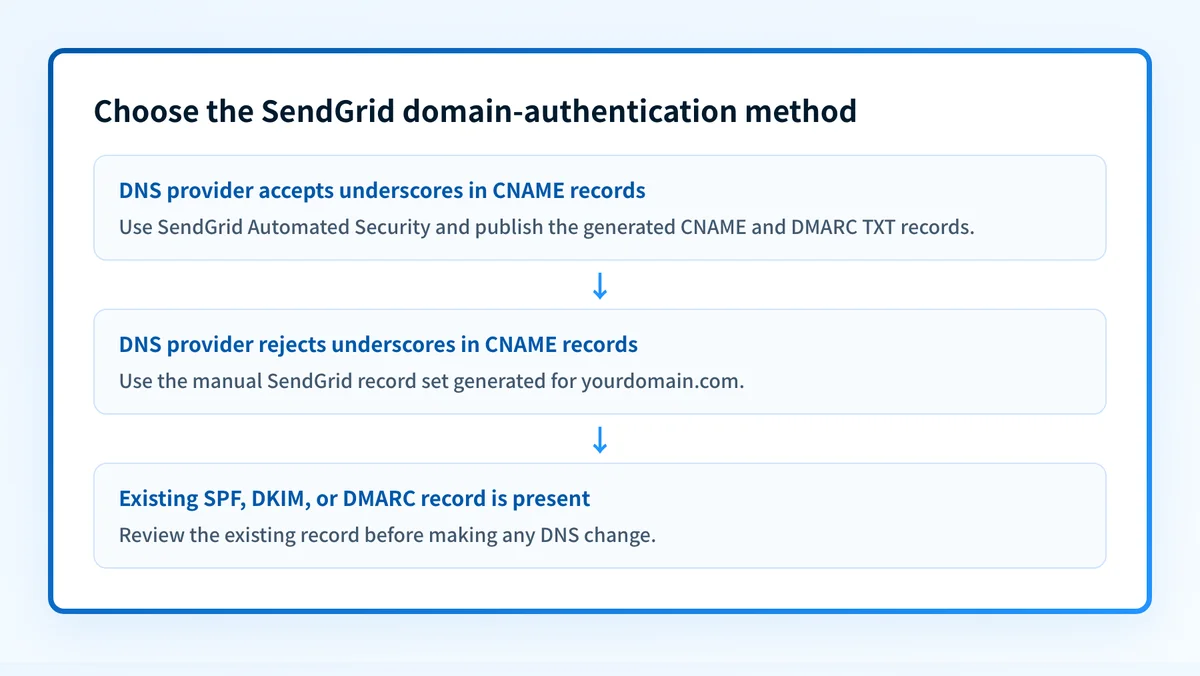
- Automated Security is enabled by default, but it cannot be used with DNS providers that reject underscores in CNAME records.
- SendGrid-generated hosts and values are specific to the selected account and domain.
- A DMARC record tells receiving systems how to process messages that fail DMARC authentication checks.
- Public DNS, SendGrid status, delivered-message headers, and DMARC reports each answer different validation questions.
What should I check before configuring SendGrid DMARC?
Confirm that SendGrid is the service sending the messages in scope. Marketing mail sent through SendGrid may use a different domain or subdomain from transactional mail, support notifications, or employee mail sent through a mailbox provider. The DMARC record belongs to the visible From domain you intend to protect, so identify that domain first.
You need permission to update the authoritative DNS zone for that domain. Identify who can approve DNS changes before you publish anything. A person approves every DNS change before it is published, and that includes a DMARC record.
Check for an existing DMARC record before adding anything:
- An existing DMARC record may already govern the organizational domain. The SendGrid example does not establish whether an existing policy should be replaced or amended, so retain the current record and use the domain owner's approved DMARC change process.
- DNS consoles often append the zone name to the host field. Check the final fully qualified name before saving so
_dmarc.example.comis not duplicated.
Copy DNS values from the account and domain you are configuring. Do not publish selectors, targets, or hostnames from another account or from an online example.
Which setup method should I use?
For DMARC, the setup method is about which records arrive with the DMARC TXT record. Both of SendGrid's domain-authentication methods include one, so the choice does not decide whether DMARC is present. It decides which other records come with it. SendGrid documents Automated Security as enabled by default. With it enabled, SendGrid supplies four records, one of which is the DMARC TXT record.
If your DNS provider does not accept underscores in CNAME records, SendGrid says Automated Security cannot be used. In the manual method, SendGrid documents one MX record plus SPF, DKIM, and DMARC TXT records. The account owner must update those DNS values when SendGrid email configuration changes.
SPF and DKIM are set up in the same SendGrid domain-authentication workflow, and that workflow has its own guide: how to set up SPF and DKIM for SendGrid. Finish it first, because DMARC passes only when SPF or DKIM passes and aligns with the visible From domain. This article covers the DMARC record, alignment, and validation that come after.
How do I configure SendGrid DMARC?
1. Find the DMARC record SendGrid generated
Open the domain-authentication settings for the domain in your SendGrid account and locate the DMARC TXT record in the generated set. SendGrid's domain authentication guide describes the record-generation options, but SendGrid's guide covers the record options, not the current console labels, so use the labels your account shows.
Copy the host, type, and value exactly as the account shows them. Do not choose a record from an online DNS example.
2. Compare it with the shape of a DMARC record
The following is illustrative only. It shows the shape of the DMARC TXT record in SendGrid's DMARC documentation, not a complete SendGrid record set.
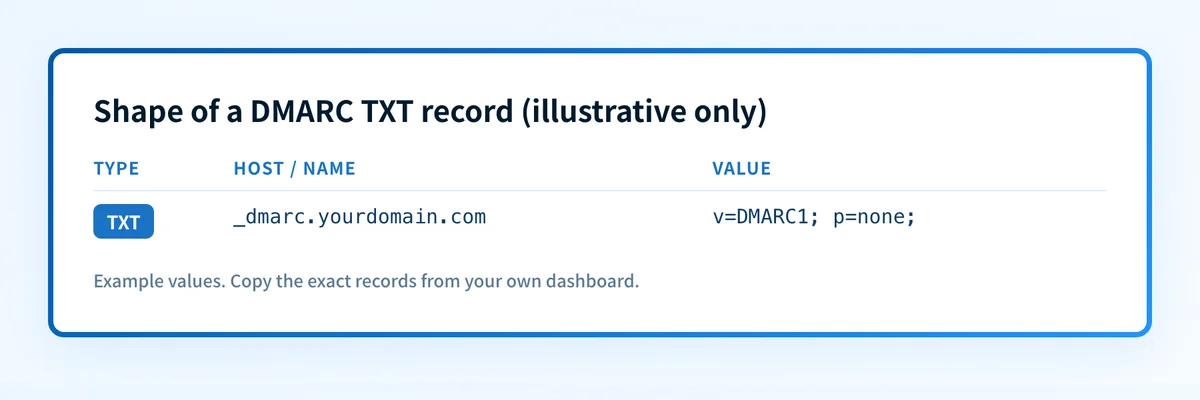
Do not publish this example as your production DMARC policy. Copy the exact SendGrid-generated record from your account, and preserve an existing approved DMARC policy until the domain owner has reviewed the intended change.
3. Publish it in authoritative DNS
Add the record to the authoritative zone for the sending domain, after the person who approves DNS changes has signed off. Enter only the host portion your DNS provider requires. If the interface automatically appends yourdomain.com, entering the complete owner name can produce an invalid doubled name such as _dmarc.yourdomain.com.yourdomain.com.
Before saving, compare the proposed owner name with the records already at that name. Do not replace a known working record to make it resemble an example.
4. Send a new message through SendGrid
Send a new message through the exact SendGrid production path to a mailbox where you can inspect raw headers. Do not use a message sent before the DMARC record and the SendGrid configuration were active. SendGrid's public documentation does not document a propagation interval, so compare any mismatch with the authoritative DNS answer before editing the record again.
How does this setup affect DMARC?
SendGrid describes DMARC as building on SPF and DKIM. DMARC provides receiver instructions and reporting for messages that fail the relevant authentication checks. A published p=none record is monitoring-oriented policy syntax, but it does not itself prove that SendGrid traffic passes authentication or aligns with the visible From domain.
For DMARC, a passing SPF or DKIM result must also align with the visible From domain. A passing signature from an unrelated domain does not satisfy DMARC through DKIM alignment. RFC 9989 defines DMARC alignment rules.
Use the DMARC checker to inspect the publicly visible DMARC TXT record before changing policy. A public check cannot prove which SendGrid route sent a particular message, a receiver's private evaluation, or future inbox placement.
How do I validate the setup?
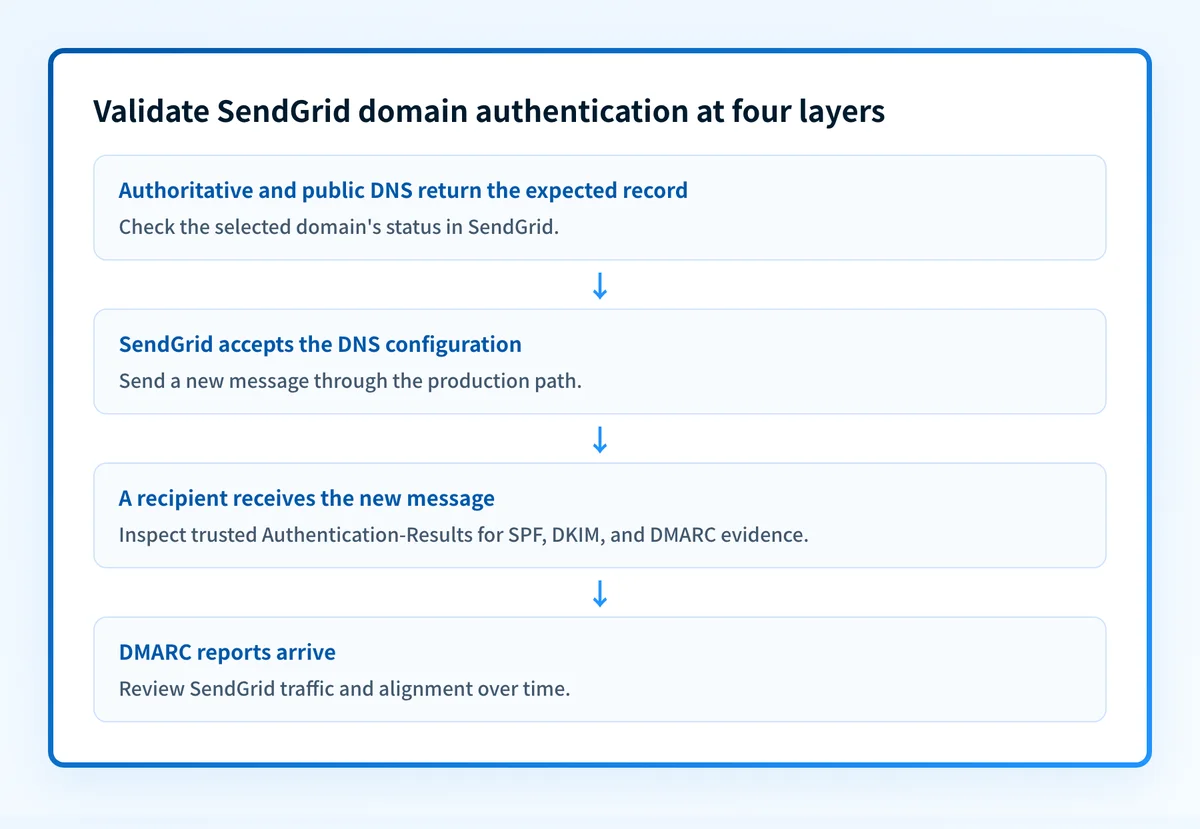
Check public DNS for the DMARC record
Query the DMARC owner name against the authoritative DNS service and at least one public resolver. Confirm that the record type, owner, and complete value match the record you approved.
dig +short TXT _dmarc.yourdomain.comA public DNS answer confirms what resolvers can see. It does not confirm SendGrid acceptance or delivered-message behavior.
Check the SendGrid status
Review the selected domain in SendGrid after public DNS answers correctly, using the status your account shows. A successful vendor status shows that the account accepted the configuration it checked. It is not proof that every production sending path uses the configuration or that a recipient will evaluate a message as aligned.
Inspect a delivered message
Inspect raw source from a newly delivered message sent through SendGrid. Look for the receiver-added Authentication-Results field, then compare its SPF and DKIM outcomes with the visible From domain. RFC 8601 defines Authentication-Results and its trust boundary.
Treat headers added by the receiving system as the useful evaluation evidence. Do not rely only on a sender-supplied header or a green SendGrid indicator. Save a redacted header sample with the DNS change record.
Review DMARC reports
After aggregate reports accumulate, review SendGrid traffic separately from other authorized and unauthorized sources using the domain. DMARC reports help show whether the observed sources pass authentication and alignment over time. They do not guarantee that every future message will authenticate.
Troubleshooting
The DMARC record does not resolve after publishing
First query the authoritative DNS answer and compare it character for character with the approved value. Check for a duplicated zone suffix, a truncated TXT value, a wrong record type, or a record created in the wrong DNS zone. The SendGrid documentation does not establish a retry schedule, so do not assume a particular propagation wait before checking the record.
A DMARC record already existed
Do not overwrite it with SendGrid's example. Review the current policy, its reporting addresses, and every other source that sends as the domain, then agree the change with the domain owner.
DKIM passes, but DMARC fails
Compare the DKIM signing domain with the visible From domain. DMARC requires alignment, not only a valid DKIM signature. Check the trusted receiver-added Authentication-Results header and the SendGrid configuration for the exact path that sent the message. If DKIM or SPF itself is failing, work through the SendGrid SPF and DKIM guide.
The DMARC record is visible, but mail still fails
A visible DMARC record only proves public DNS publication. Inspect a new delivered message and determine whether SPF or DKIM passed with alignment. The record cannot repair a signing, return-path, or message-routing problem by itself.
Check the DMARC record behind your SendGrid configuration
Run the sending domain through the Palisade DMARC checker after you publish or confirm the record. Compare the public record with the visible From domain and the delivered-message results you collected from the SendGrid path.
For ongoing work, Palisade is agentic DMARC software that analyzes DMARC aggregate-report data, identifies sending sources and authentication or alignment issues, and proposes the next policy step for human review. It does not change the DMARC policy for you, repair every sender automatically, or guarantee delivery.
Evidence
Sources and further reading
Questions readers ask
Frequently asked questions
Does SendGrid create a DMARC record?
Yes. SendGrid domain authentication documentation states that Automated Security generates a DMARC TXT record as part of its four-record set. The value shown in your account is specific to the selected configuration, so do not substitute an example from another domain.
Is the DMARC record the same under Automated Security and the manual method?
Yes, both methods include a DMARC TXT record, but the value shown in your account is specific to the selected configuration. Copy the record from your own account for the method you chose rather than from an example.
How do I know SendGrid mail passes DMARC?
Send a new message through SendGrid and read the receiver-added Authentication-Results header for an aligned SPF or DKIM pass. Then review DMARC aggregate reports as they accumulate. A SendGrid verification status shows only that the account accepted the DNS configuration it checked.
Should I replace my existing DMARC record with SendGrid's example?
No. The SendGrid documentation shows a DMARC example, but it does not establish a safe replacement rule for an existing organizational DMARC policy. Preserve the existing policy until the domain owner reviews the required change and its effect on all sending sources.
Can a public DMARC lookup prove SendGrid mail will reach the inbox?
No. A public DMARC lookup can show the currently published TXT record. It cannot prove the production SendGrid path, a receiving provider's private filtering decision, or future message placement.

Written by
Samuel ChenardCEO & Co-Founder, Palisade
Samuel Chenard is the CEO and co-founder of Palisade, agentic DMARC software for IT teams and MSPs, from one domain to thousands.
More from Samuel →