How do I report a phishing email in Outlook?
 ChatGPT
 Claude
 Gemini
 Perplexity
 Grok
GrokIn brief
Use Report, then Report phishing in new Outlook and on the web, or the Report Message add-in in classic Outlook. Tell IT if you clicked or entered data.
To report a phishing email in Outlook, select or open the suspicious message and use Outlook's Report control, then choose Report phishing. The location differs by client: new Outlook and Outlook on the web use the message toolbar or More actions, while classic Outlook may show Report, Report Message, or Report Phishing on the ribbon depending on its build and your organization's configuration. Use your employer's security route as well when policy requires it.
At a glance
Quick takeaways
- Use Outlook's own Report control, not a button inside the message.
- New Outlook and Outlook on the web share a similar toolbar-based workflow.
- Classic Outlook can show a built-in command or a deployed reporting add-in.
- A phishing report is different from Block sender and Report junk.
- Managed Microsoft 365 reporting depends on tenant configuration.
- Reported mail does not replace account, device, or payment recovery.
Before you report the message
Do not click a link, open an attachment, scan a QR code, reply, call a listed number, or use an unsubscribe link in a message you suspect is phishing. Microsoft's phishing guidance advises checking the full sender address and examining links before selecting them, then reporting suspicious messages rather than interacting with their content (Microsoft phishing guidance).
For a work or school account, follow the organization's evidence policy before moving or deleting the message. Some teams want the original message preserved in place until the report action captures it. Others use a separate add-in that creates a security case and removes the message. Do not forward an active attachment to colleagues for informal review.
Write down whether anyone interacted. A report is the correct mailbox action for the message, but it is not enough after credential entry, an approved sign-in, a file launch, software installation, payment, or bank-detail change.
Report phishing in new Outlook for Windows
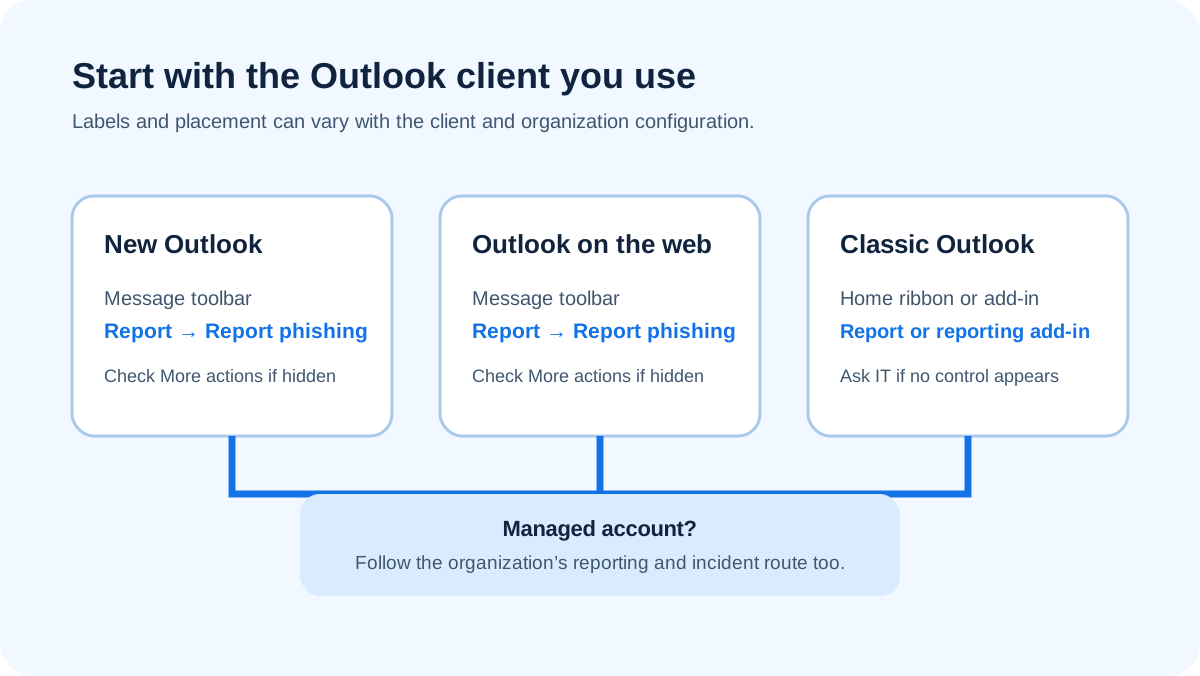
Select or open the message. Look for Report on the message toolbar and choose Report phishing. If the toolbar is condensed, open More actions and find the reporting command there. Complete the confirmation that Outlook presents.
Microsoft's current Outlook support page describes phishing and suspicious-message reporting in Outlook and is the source to check when labels move (Microsoft: Phishing and suspicious behavior in Outlook). The sender cannot control Outlook's application toolbar. That is why the application command is different from an image or link inside the email that says "Report," "Secure message," or "Unsubscribe."
Do not choose Block sender as a substitute for the report. Blocking addresses later mail from one displayed address in your mailbox. Reporting phishing submits the deceptive message through Outlook's reporting workflow. You may use both when appropriate, but the report should carry the security classification.
Report phishing in Outlook on the web
Open Outlook on the web in a browser through your organization's normal Microsoft 365 sign-in route. Select the suspicious message, choose Report from the message toolbar, then choose Report phishing. If the visible toolbar does not show Report, check More actions for the same command.
The web app can change independently from desktop Outlook, and an administrator can customize the reporting experience. Follow the control visible in the Outlook interface and the current Microsoft page linked above. Do not assume a third-party mail client connected to the same mailbox sends the same report data.
After reporting, note whether the message moved, disappeared, stayed selected, or generated an organization-specific confirmation. Those observations help the help desk distinguish a completed provider action from a report that never reached the intended security workflow.
Report phishing in classic Outlook for Windows
Classic Outlook has more variation. With the message selected, look on the Home ribbon for Report and choose Report phishing. Some organizations and older deployments instead expose a Report Message or Report Phishing add-in. Its button may appear in the ribbon or the message's additional actions.
Do not claim the command is missing until you confirm which Outlook client and build you are using. The New Outlook switch, ribbon layout, add-in policy, and organization settings can change what you see. If there is no supported reporting command, stop and use the security route documented by your employer or school. Do not guess at an external forwarding address.
An add-in can submit to a different destination than Microsoft's built-in control. The label alone does not tell you whether the report goes to Microsoft, an internal mailbox, or a security product. Ask the administrator what the deployed control does before documenting it for other users.
Report phishing on Mac, iOS, and Android
The built-in Report button is not Windows-only. Microsoft documents it in Outlook for Mac version 16.89 (24090815) or later, Outlook for iOS version 4.2511 or later, and Outlook for Android version 4.2446 or later, alongside the new Outlook for Windows and Outlook on the web.
On the mobile clients the control sits in the message's own overflow menu rather than a toolbar: open the message, use the ellipsis at the top of the message, and choose the report option. On Mac it follows the desktop pattern and appears in the message toolbar.
Two conditions apply everywhere. The build has to meet the minimum above, and your administrator has to have user reporting turned on. If the option is missing on one device but present on another, check the build number before assuming the tenant blocks it. On the versions marked by Microsoft, the built-in button also supports reporting from a shared or delegated mailbox, provided the delegate holds Send As permission.
What happens to the message after reporting?
Microsoft documents the outcome plainly: a message reported as phishing is deleted, and a message reported as junk is moved to the Junk Email folder with the sender added to your Blocked Senders list (Microsoft: report messages in Outlook). Plan for that before you report: if someone needs the original preserved, capture it first, because the Report button removes it from view. Deletion is a mailbox outcome, not proof that the sender is blocked everywhere or that copies were removed from other mailboxes.
Microsoft's reporting behavior and your organization's behavior can be separate. A consumer Outlook.com account uses Microsoft's service workflow. A managed Microsoft 365 tenant may also route user reports according to administrator settings. A deployed security add-in may create its own case, attach the original message, or ask the user for additional context.
Do not promise a specific investigation, takedown, sender notification, or response time. Microsoft's public guidance explains how to recognize and report suspicious behavior, but one report does not establish what enforcement will follow. Keep the confirmation or case number if the organization provides one.
What does the Microsoft 365 administrator see?
The honest answer is configuration-dependent. A tenant can use Microsoft's reporting experience, an organization reporting mailbox, a security product, or a combination. The administrator should document which user button is supported, where the report arrives, what message content and metadata it includes, who triages it, and which actions close the case.
For a useful handoff, include the mailbox, subject, receipt time, displayed sender, reported time, and whether the user clicked, opened, replied, approved, paid, or entered information. The original message contains more evidence than a screenshot because it can preserve addresses, destinations, attachment names, routing headers, and authentication results.
An Outlook report does not automatically tell the administrator whether credentials were entered on another site or whether a device executed a file. The user still needs to say what happened. The administrator should separate message triage, account containment, endpoint response, and payment response rather than treating the report button as all four.
Report phishing, junk, or block sender?
Choose Report phishing when the message impersonates someone, requests credentials or money, leads to a suspicious login, carries a harmful attachment, or tries to cause another deceptive action. Choose the junk or spam action for unwanted mail without that deceptive security request. Use Block sender when you want later mail associated with one address handled away from your inbox.
A message can be both bulk and phishing. Use the phishing classification when the deceptive action is the important risk. You do not need a forensic conclusion before using the safe reporting route your organization provides.
If you are trying to change future handling rather than submit this message, read how to block phishing emails. To improve recognition before any click, use how to avoid phishing emails. For destinations outside Outlook, use where to send a phishing email. The general phishing-reporting decision guide covers route verification.
When Outlook reporting is not enough
Escalate immediately when someone entered a password, shared a verification code, approved a sign-in, opened an unexpected file, installed software, disclosed personal data, changed payment instructions, or sent money. Use trusted account and financial channels, not contact details from the message.
For a work device or account, contact the authorized security or IT team and follow its instructions before deleting mail, browser history, files, or logs. For a payment event, contact the bank or payment provider through a known route. For a personal Microsoft account, open account security through a typed Microsoft address or saved app, then review activity and sessions.
You can still submit the Outlook report. It helps route the message, while recovery addresses the harm that may already have occurred.
Evidence
Sources and further reading
Questions readers ask
Frequently asked questions
Is the Outlook web workflow the same as classic Outlook?
No. Outlook on the web uses a toolbar-based Report action similar to new Outlook. Classic Outlook may expose Report on the ribbon or a separately deployed Report Message or Report Phishing add-in. Confirm the client before giving someone a menu path.
Does reporting phishing block the sender?
No. Reporting submits the suspicious message through the configured reporting workflow. Blocking is a separate mailbox action tied to later mail from an address. One report also does not guarantee organization-wide removal or future blocking.
Will my administrator receive the report?
Only if the tenant's reporting configuration or deployed add-in routes it to an organizational destination. The administrator should document whether reports go to Microsoft, an internal mailbox, a security platform, or more than one destination.
Can I report phishing after I clicked?
Yes, you can still report phishing after you clicked, but the report is no longer the complete response. Tell the security team or account provider what you did and begin the relevant credential, device, or payment recovery through a trusted channel.
Should I delete the email after reporting it?
Not automatically. Delete the email only after following the mailbox or organization evidence policy. A security team may need the original message, headers, attachment details, delivery time, and report confirmation before deletion.

Written by
Ian BussieresCTO & Co-Founder, Palisade
Ian Bussieres is the CTO and co-founder of Palisade, agentic DMARC software for IT teams and MSPs.
More from Ian →