Google
 Workspace MX records: smtp.google.com and old aspmx
 ChatGPT
 Claude
 Gemini
 Perplexity
 Grok
In brief
Google Workspace uses one MX record: smtp.google.com at priority 1. How to publish it, what to do with old aspmx records, and how to check it works.
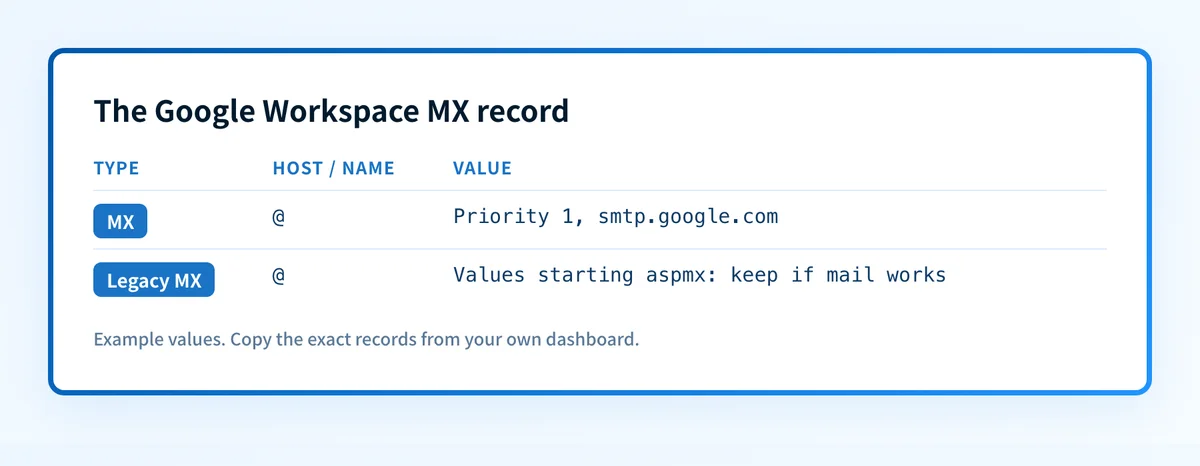
The Google Workspace MX record is a single record: smtp.google.com at priority 1, published at the root of your domain. Add it at your DNS host, remove every other MX record, then activate Gmail in the Google Admin console. If your domain still uses the older records that start with aspmx and mail works, Google says you do not need to change anything (Google Workspace Help: Set up MX records, checked 2026-11-23).
At a glance
Quick takeaways
| Field | Value |
|---|---|
| Type | MX |
| Host | @ or blank (the root domain) |
| Priority | 1 |
| Value | smtp.google.com (some DNS hosts want smtp.google.com. with a final period) |
| TTL | Your DNS host's default, or 1 |
- Google's single-record value works for any Google Workspace account.
- Remove every other MX record on the same name when you switch to it.
- Older
aspmxrecords still work. Google says no change is needed if mail is flowing. - Google can take up to 72 hours to recognize a new MX record.
- An MX record only controls where incoming mail goes. It does not set up SPF, DKIM or DMARC.
What do you need before changing Google Workspace MX records?
Changing Google Workspace MX records needs two kinds of access: edit rights on the domain's authoritative DNS zone, and a Google Workspace admin with the Domain settings administrator privilege. The admin finishes the job in the Admin console at Menu > Account > Domains > Manage domains, where Google shows Activate Gmail for the domain.
Confirm you are editing the domain whose mailboxes live in Google Workspace. An MX record decides where mail addressed to that domain is delivered. Changing it moves all incoming mail at once, so plan the switch if another mail system receives mail for the domain today. For the general idea of MX records and priorities, see what an MX record is.
Do you need to replace old aspmx records?
You do not need to replace old aspmx records if mail is working. Google's help page says domains that started using Google Workspace before 2023 may have MX values beginning with aspmx, that these are still supported, and that "If your email is working, no changes are required."
Switch to smtp.google.com when you set up a new domain, when the current MX records are wrong, or when you have decided to tidy up and are ready to replace the whole set. Google's current page no longer lists the old record-by-record aspmx set, so do not rebuild one from a blog post or another domain. Keep a working legacy set as it is, or replace it entirely. Never mix the two.
How do you set up the Google Workspace MX record?
1. Open the authoritative DNS zone
Sign in to the provider that hosts DNS for the domain. That is the provider your domain's nameservers point to, which is not always the registrar or the website host. Open the DNS records for the exact domain that receives mail.
2. List the MX records you have now
Write down every MX record on the root domain (or on the subdomain you are setting up). Note whether they are Google's older aspmx records, another provider's records, or both. If they are working aspmx records, you can stop here.
3. Add the Google Workspace MX record
Create one MX record:
| Field | Enter |
|---|---|
| Type | MX |
| Host or name | @, or leave it blank |
| Priority | 1 |
| Value, points to, or mail server | smtp.google.com |
| TTL | Your DNS host's default, or 1 |
Google says some providers need a final period after the value, smtp.google.com., which is the same destination. Google's own TTL advice is "Use your domain registrar's default value, or enter 1"; check whether your DNS host counts TTL in seconds or hours before typing a number.
For a subdomain added to your Workspace account, enter the subdomain label as the host. Google's example is support for support.your-company.com.
After saving, look at the record the DNS host actually stored. A host that adds your domain to every value can turn the target into smtp.google.com.yourdomain.com. If you see that, re-enter the value with the final period.
4. Remove every other MX record
Delete the other MX records on the same name, as Google instructs. A leftover record is not a harmless backup. Sending servers try the lowest priority number first (RFC 5321, section 5.1), so an old record at priority 0 takes all your mail, one at priority 1 shares it with Google, and a higher number still gets mail whenever Google cannot be reached.
5. Activate Gmail
Once the record shows in public DNS, open Menu > Account > Domains > Manage domains in the Admin console and select Activate Gmail for the domain. Google can take up to 72 hours to recognize the new record, so do not keep editing a correct record during that time.
How do you check the Google Workspace MX record works?
Check the setup in three places, because each proves something different.
- Public DNS. Query the domain without
www:
dig +short MX yourdomain.comYou should see 1 smtp.google.com. and nothing else. Google suggests its Admin Toolbox Dig tool for the same check, and the MX record checker shows it in your browser.
- The Admin console. Go back to Manage domains and confirm Gmail shows as active for the domain.
- A real message. Send a new email from an account outside your organization to a mailbox on the domain. It should land in Google Workspace.
Does the MX record affect SPF, DKIM or DMARC?
The MX record does not affect SPF, DKIM or DMARC. MX controls where mail sent to your domain is delivered. SPF, DKIM and DMARC check mail sent from your domain, and each needs its own DNS record. Once incoming mail works, set up DKIM for Google Workspace, the SPF record for Google Workspace and DMARC for Google Workspace.
Troubleshooting Google Workspace MX records
Gmail activation does not see the record
Check the record is in the zone your nameservers point to, and that the host, priority and value match Google's. If the record is new, wait out the 72 hours before replacing it. Repeated edits often add a second record or a typo.
The value shows your domain twice
The DNS host added your domain to the value. Re-enter it as smtp.google.com. with the final period, or follow your host's rule for full hostnames.
Some mail arrives and some does not
Look for leftover MX records on the same name. Also check that the senders are writing to the domain you set up, not a different subdomain or alias with its own MX records.
DNS looks right but mail still fails
Confirm Gmail is activated in the Admin console and the 72 hours have passed. If only one sender fails, read its bounce message: the problem is likely on that sender's side, not in your MX record.
How Palisade helps with the Google Workspace MX record
Run your domain through the MX record checker to see what is published now.
When a domain has no MX record yet, Palisade opens a Set up MX record ticket that proposes the Google Workspace record and publishes it only after you approve the change, through a DNS account connection (Cloudflare, GoDaddy or Amazon Route 53) or a one-time sign-in to your DNS provider. Palisade re-reads the zone at the moment of writing and never changes DNS by itself (Palisade docs: DNS connections). For many domains at once, see DNS deployment. Moving a domain from another provider is still your change to make, including removing the old MX records. Start with Palisade to handle the MX record alongside the domain's SPF, DKIM and DMARC work.
Evidence
Sources and further reading
Questions readers ask
Frequently asked questions
What are the Google Workspace MX records?
The Google Workspace MX record is one record with priority 1 and the value smtp.google.com, with the host set to @ or left blank for the root domain. Older domains may use records starting with aspmx, which still work.
Do I need to replace legacy aspmx MX records?
No, not if your mail works. Google says domains that began using Google Workspace before 2023 may have MX values beginning with aspmx, and no change is required when email is working.
Should I remove other MX records for Google Workspace?
Yes. When you switch to Google's single smtp.google.com record, remove every other MX record on the same name. A leftover record with a lower or equal priority number still receives mail.
How long does Google Workspace take to recognize MX records?
Google Workspace can take up to 72 hours to recognize a new MX record. Check the public DNS answer and the Gmail activation status before changing a correct record again.
Does the Google Workspace MX record affect SPF, DKIM or DMARC?
No. The MX record only routes incoming mail to Google Workspace. SPF, DKIM and DMARC check outgoing mail and each needs its own DNS record.

Written by
Samuel ChenardCEO & Co-Founder, Palisade
Samuel Chenard is the CEO and co-founder of Palisade, agentic DMARC software for IT teams and MSPs, from one domain to thousands.
More from Samuel →