Google Postmaster Tools DMARC: what the data means
 ChatGPT
 Claude
 Gemini
 Perplexity
 Grok
GrokIn brief
Google Postmaster Tools DMARC data shows Gmail DMARC pass rates. Check its limits, inspect your published record, repair evidence, and retest.
Google Postmaster Tools shows the percentage of mail that passes DMARC for messages sent to personal Gmail accounts with your domain in the From header. Use that percentage as a Gmail-specific signal, then inspect the published record separately and validate authentication on real delivered messages. It does not document why a particular percentage changed, whether a DMARC policy enforces, or how mail performs at other receivers.
At a glance
Quick takeaways
- Google Postmaster Tools Authentication reports the percentage of email that passes SPF, DKIM, and DMARC.
- Its dashboard data applies only to mail sent to personal Gmail accounts, including
@gmail.comand@googlemail.com. - Google can omit data on low-volume days, and it does not publish the volume threshold.
- A DMARC pass-rate percentage does not identify the failing sending source, alignment failure, or published
p=policy. - The Palisade DMARC checker reads the public DMARC DNS record, not Google Postmaster Tools data or DMARC aggregate reports.
- A working DMARC workflow needs DNS evidence, sender verification, a delivered message, and aggregate-report evidence after reports accumulate.
What this tool checks
Google's Postmaster Tools Authentication dashboard documentation says the dashboard displays the percent of email that passes SPF, DKIM, and DMARC. Postmaster Tools has eight dashboards, including Authentication, Compliance status, Spam rate, IP Reputation, Domain Reputation, Feedback loop, Encryption, and Delivery errors.
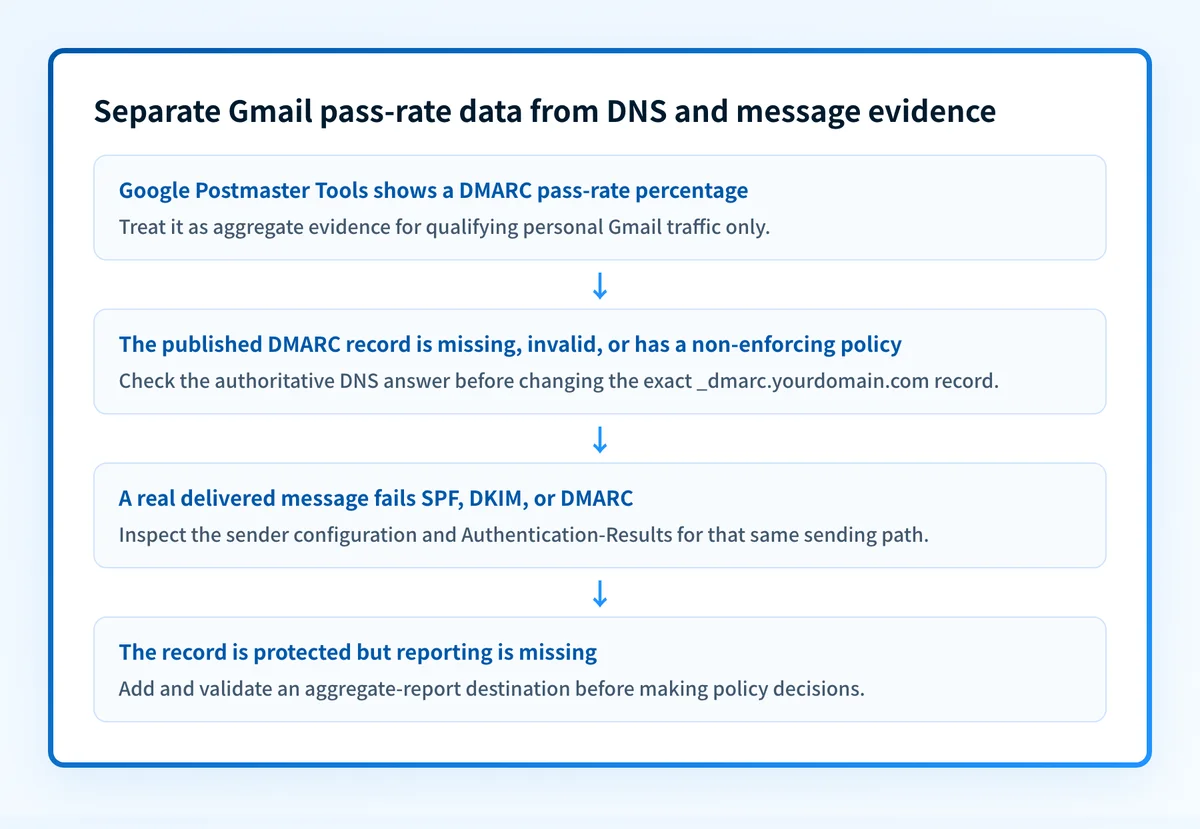
For DMARC, the important boundary is scope. Google says dashboard data applies only to messages with your sending domain in the From header that were sent to personal Gmail accounts. It is useful evidence about that Gmail audience. It is not a complete view of every mailbox provider, every recipient, or every sending path that uses the domain.
The Palisade DMARC checker answers a different question. It accepts a domain and checks its currently published public DNS record. It can show whether the record has an enforcing policy and whether reporting addresses are present, but it cannot see a production message, the sender's signing configuration, Google Postmaster Tools percentages, continuous state, or why one receiver rejected one message.
For broader protocol context, see the DMARC learning hub and what DMARC is.
How to run the check
1. Add the domain to Google Postmaster Tools
Google's Postmaster Tools setup instructions say to add either the DKIM d= domain or the SPF Return-Path domain. Verify control of that domain with the DNS TXT or CNAME record that Google generates.
Google states that verification is usually immediate, though the status can take up to 10 minutes to update. Do not use a record copied from another account. Publish the value generated for the domain you are verifying.
2. Open the Authentication dashboard
After verification, open Authentication in Postmaster Tools and select the domain. Google uses messages signed with SPF, DKIM, or both for dashboard data. Review the DMARC percentage as an aggregate Gmail signal, not as a per-message diagnosis.
If the dashboard has no data for a day, do not infer that DMARC passed or failed. Google says it might omit data when outgoing volume is too low to protect Gmail user privacy, and does not disclose the threshold.
3. Check the published DMARC record independently
Enter the visible From domain in the Palisade DMARC checker. A public lookup is repeatable outside either interface:
dig +short TXT _dmarc.yourdomain.comA structural example of a DMARC record is:
v=DMARC1; p=none; rua=mailto:dmarc-reports@yourdomain.comDo not publish an example reporting mailbox unless you control it. Use the reporting address and authorization setup appropriate for your own domain and report processor.
The DNS answer establishes what receivers can retrieve now. It does not prove that the sender uses aligned SPF or DKIM, and it does not explain a Google Postmaster Tools percentage.
4. Preserve a real-message sample
Send a new message through the same application, marketing platform, or transactional sender that is under review. Keep its raw headers with private addresses and identifiers redacted. The receiver-added Authentication-Results header is the message-layer evidence for SPF, DKIM, and DMARC outcomes. RFC 8601 defines that header field and its authentication-method results.
This separates a valid record from a valid production sending path.
How to interpret the results
Google Postmaster Tools shows a DMARC percentage
The Authentication dashboard's DMARC number is the percentage of qualifying mail that passes DMARC in Google's documented scope. It does not provide a documented mapping from a percentage to an alignment problem, a source IP, a particular sender, or a DMARC enforcement setting.
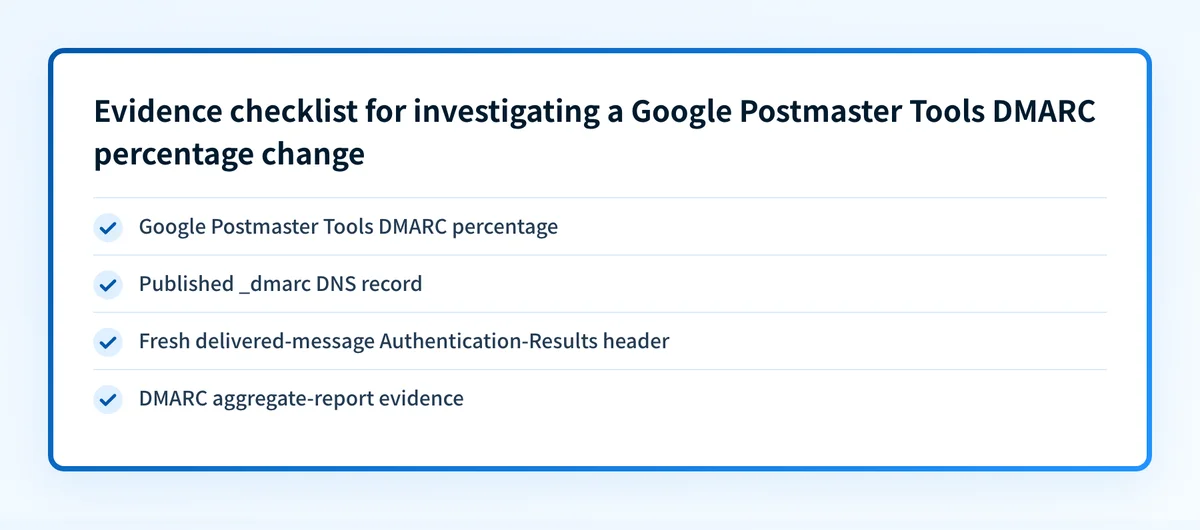
Do not set an invented repair threshold such as a target percentage. Google does not document one. Instead, use a percentage change as a reason to collect stronger evidence: compare a recent delivered message, confirm the DNS record, and investigate sending sources through DMARC aggregate reports.
Google Postmaster Tools has missing data
Missing dashboard data can result from low daily volume. Google's documentation explicitly allows this privacy-related omission. Wait for more qualifying mail, then review the dashboard again. A missing day is not proof that your configuration is broken.
The Palisade checker shows "Domain protected"
The checker uses "Domain protected" when its policy state is dmarc-policy-reject-full, meaning it found a published p=reject record with pct=100 or an equivalent full-reject state. That result is DNS evidence about the published policy.
It still does not establish that all production messages authenticate or align. Check the sender configuration and a delivered message before treating the policy as operationally effective.
The Palisade checker shows "Domain partially protected"
The checker uses "Domain partially protected" for its partial quarantine and partial reject policy states. This means the published policy does not meet the tool's full-reject state. Inspect the record details before changing it, because a stricter policy can affect legitimate mail that has not yet been identified and aligned.
The Palisade checker shows "Domain not defended" or "Domain defense is invalid"
"Domain not defended" corresponds to the dmarc-policy-none state. "Domain defense is invalid" corresponds to dmarc-invalid. A missing record maps to "Domain not protected." These are public DNS diagnoses, so first confirm the exact domain and authoritative answer before editing DNS.
Google's email sender guidelines require bulk senders to set up DMARC, but state that the DMARC enforcement policy may be none. A DMARC record is therefore distinct from an enforcing policy.
The monitoring status needs separate attention
The checker joins its policy state and monitoring state in one headline. "Monitoring is not in place" indicates missing reporting configuration. "Monitoring is invalid" indicates invalid monitoring configuration. "Double check monitoring emails" indicates external monitoring, while "Monitoring with Palisade" indicates Palisade-managed monitoring.
A record can be protected while monitoring is absent. For example, a full p=reject record without a reporting address can still produce the protected policy state and a missing-monitoring state. That is why policy strength and report visibility need separate checks.
How to act on the result
Start with the evidence closest to the failure.
- If the Postmaster Tools percentage changed, identify the sending applications that use the From domain. Check each application's SPF and DKIM configuration, then inspect a fresh message from each path. A Gmail percentage alone does not identify the responsible source.
- If the published record is missing or invalid, query the authoritative DNS provider and at least one public resolver before changing it. Correct the exact
_dmarcowner, not a similarly named subdomain. - If the record uses
p=none, collect and review aggregate reports before moving to quarantine or reject. A policy change affects receivers' handling of mail that fails DMARC. - If monitoring is absent, add a valid aggregate-report destination. The checker describes a missing
rua=tag as missing aggregate reporting needed to analyze DMARC vulnerabilities. - If DNS is correct but a real message fails DMARC, inspect its SPF and DKIM results and alignment against the visible From domain. DNS validity does not prove the application's production settings.
Investigate this with your coding agent
Use this when a public DMARC check and the Postmaster Tools view do not give enough evidence to identify the sender or record behavior. Prepare a redacted checker result, a redacted delivered-message result, and the exact DNS owner you intend to inspect.
Agent handoff
Copy the prepared prompt
Give this to a coding agent that can inspect the relevant repository or configuration source of truth.
Problem: Google Postmaster Tools shows a DMARC pass-rate change, but the published DMARC record and production sender outcome need to be separated.
Evidence: Redacted Palisade DMARC checker result for yourdomain.com, redacted Authentication-Results header from a new message, and the current _dmarc.yourdomain.com TXT answer.
Repository scope: The DMARC checker route, DNS parser, and deterministic parser tests in this repository.
Constraints: Inspect before editing. Do not apply changes until I approve the proposed diff. Do not use credentials, private keys, tokens, unredacted headers, customer data, or make DNS or production changes.
Requested output: Diagnosis, minimal proposed change, rollback, and unknowns.
Verification: Re-run the same public DMARC lookup for yourdomain.com and compare a newly delivered message from the same sending path.
Stop if: Credentials, private data, production mutation, or missing evidence is required.
Human approval required: Review the proposed diff and verification plan before allowing changes. Do not paste secrets, private keys, API tokens, unredacted headers, or customer data.
How to retest
After a DNS correction, query the same _dmarc owner again and rerun the Palisade checker with the same domain. If you changed a sender configuration, send a new message through that exact sender and inspect the new Authentication-Results header.
Then allow time for later Google Postmaster Tools data to appear and compare like-for-like Gmail traffic. The expected change is evidence that the public record is now valid and that the tested message passes the intended authentication branch. A later percentage movement can support that diagnosis for personal Gmail traffic, but it does not prove future inbox placement or all-recipient performance.
Check the record behind the Gmail signal
Use the Palisade DMARC checker to inspect the published record for the same From domain that appears in Postmaster Tools. Compare its policy and monitoring states with a fresh delivered-message result before changing enforcement.
A DNS check cannot explain a specific Google Postmaster Tools percentage, identify every production sender, monitor future changes, or guarantee delivery.
If your team needs to inventory senders and work through DMARC aggregate-report evidence over time, Start with Palisade. Palisade analyzes DMARC aggregate-report data, identifies authentication or alignment issues, and proposes prioritized remediation work. A human reviews the evidence and applies any DNS or policy change.
Evidence
Sources and further reading
Questions readers ask
Frequently asked questions
Does Google Postmaster Tools show DMARC alignment failures?
No. Google's Authentication dashboard documentation says it displays the percentage of email that passes DMARC. It does not document an alignment breakdown, per-message view, or per-source diagnosis.
Does Google Postmaster Tools cover all recipients of my domain's mail?
No. Google says its dashboard data applies only to messages sent to personal Gmail accounts with the sending domain in the From header. It is not a view of other mailbox providers or every recipient.
Does a Google Postmaster Tools DMARC percentage show my DMARC policy?
No. Google does not document Authentication as a view of the published p= value, subdomain policy, or enforcement status. Query the public _dmarc DNS record to inspect the published policy.
Can a missing Postmaster Tools day mean DMARC failed?
No. Google says dashboard data can be missing when daily volume is too low, to protect Gmail user privacy. The published documentation does not state the threshold.
Does a passing DMARC record check prove every sender is configured correctly?
No. A public record check shows the DNS record available to receivers. Confirm each production sender with its configuration and a delivered message's authentication results.

Written by
Johanie DupontBrand & Ecommerce Email
Johanie Dupont works on brand and ecommerce email at Palisade: BIMI and verified marks, sender requirements, and getting marketing mail into the inbox.
More from Johanie →