How to enable phishing and malware protection in Google Workspace
 ChatGPT
 Claude
 Gemini
 Perplexity
 Grok
GrokIn brief
Enable phishing and malware protection in Google Workspace by configuring Gmail Safety controls, actions, organizational units, and message checks.

Enable phishing and malware protection in Google Workspace from the Google Admin console under Apps > Google Workspace > Gmail > Safety. Select the organizational unit that should receive the policy, configure the relevant phishing, malicious-link, attachment, spoofing, and authentication protections, then save and verify the applied scope. The available controls and actions are documented in Google's advanced phishing and malware protection guidance. Settings affect the selected Gmail scope. They do not guarantee that every malicious message will be detected.
At a glance
Quick takeaways
- Gmail Safety settings can be applied to a selected organizational unit instead of every user in the Workspace account.
- Google groups phishing, malicious-link, attachment, spoofing, and authentication-related protections in its advanced Gmail safety controls.
- Choose an action that matches the risk and business impact of each protection, then test with approved, safe evidence.
- A saved Admin console policy is different from proof that a real message was filtered as expected.
- Sender authentication and inbound phishing protection solve different parts of email security.
- Review the Gmail setting scope after changes so child organizational units do not inherit an unintended policy.
What should I check before configuring Google Workspace?
Confirm that the mailboxes in scope receive mail through Gmail in the Google Workspace account you will administer. These Gmail protections apply to inbound mail handling. They do not configure a marketing platform, transactional email service, or another mailbox provider that receives mail elsewhere.
You need access to the Google Admin console, permission to manage Gmail settings, and a clear organizational-unit decision. Start with a written scope: the organizational unit, included users, any child organizational units, the business reason for a stricter or less strict action, and a test mailbox.
Google documents the settings path and available protections in its advanced phishing and malware protection documentation. The path in this guide was verified from that official documentation. Review the current console before making a change because Google can update labels and available choices.
Copy DNS values from the account and domain you are configuring. Do not publish selectors, targets, tokens, or hostnames from another account or from an online example.
This workflow does not normally require publishing a DNS record. If you also change SPF, DKIM, or DMARC while investigating spoofed mail, treat those as separate changes with their own owner, approval, and message validation. Gmail filtering does not authenticate your organization's outbound domain.
Which setup method should I use?
Use a phased organizational-unit rollout when your account has different risk profiles or operational needs. For example, apply a proposed policy to a small pilot organizational unit, inspect the outcome with safe test messages and administrator evidence, then extend it after the team accepts the action behavior.
Use a broader organizational-unit policy when the same protection and action are appropriate for all users covered by that unit. Do not assume that a parent setting is correct for every child unit. Confirm the scope shown in the Admin console before saving.
Choose the action based on the consequence of a false positive. A stricter action can reduce exposure to suspicious mail, but it can also interrupt legitimate business messages. Google's documentation describes the protection groups and the actions available in the current Gmail Safety configuration. Preserve a change record with the prior setting, new setting, scope, approver, and test result.
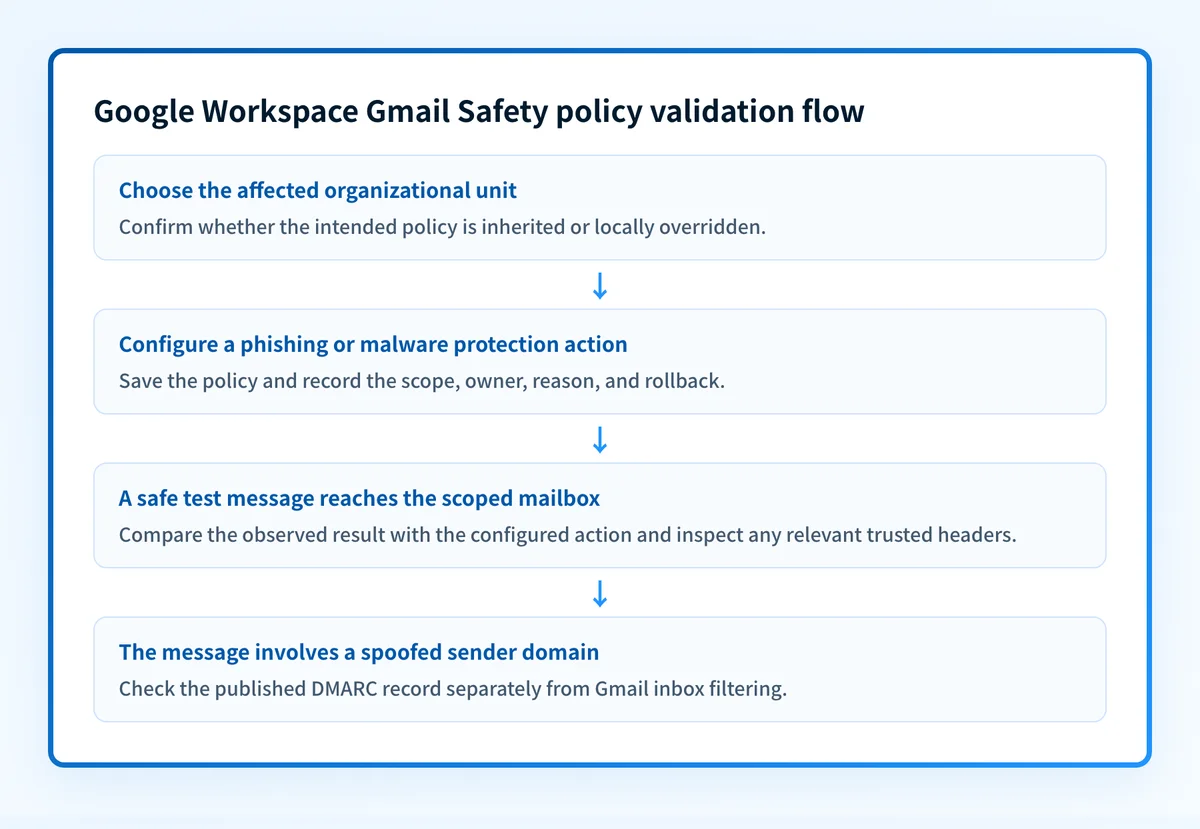
How do I configure phishing and malware protection in Google Workspace?
1. Open Gmail Safety settings
Sign in to the Google Admin console and open Apps > Google Workspace > Gmail > Safety. Use Google's advanced phishing and malware protection guide to confirm the current path if the console layout differs from this wording.
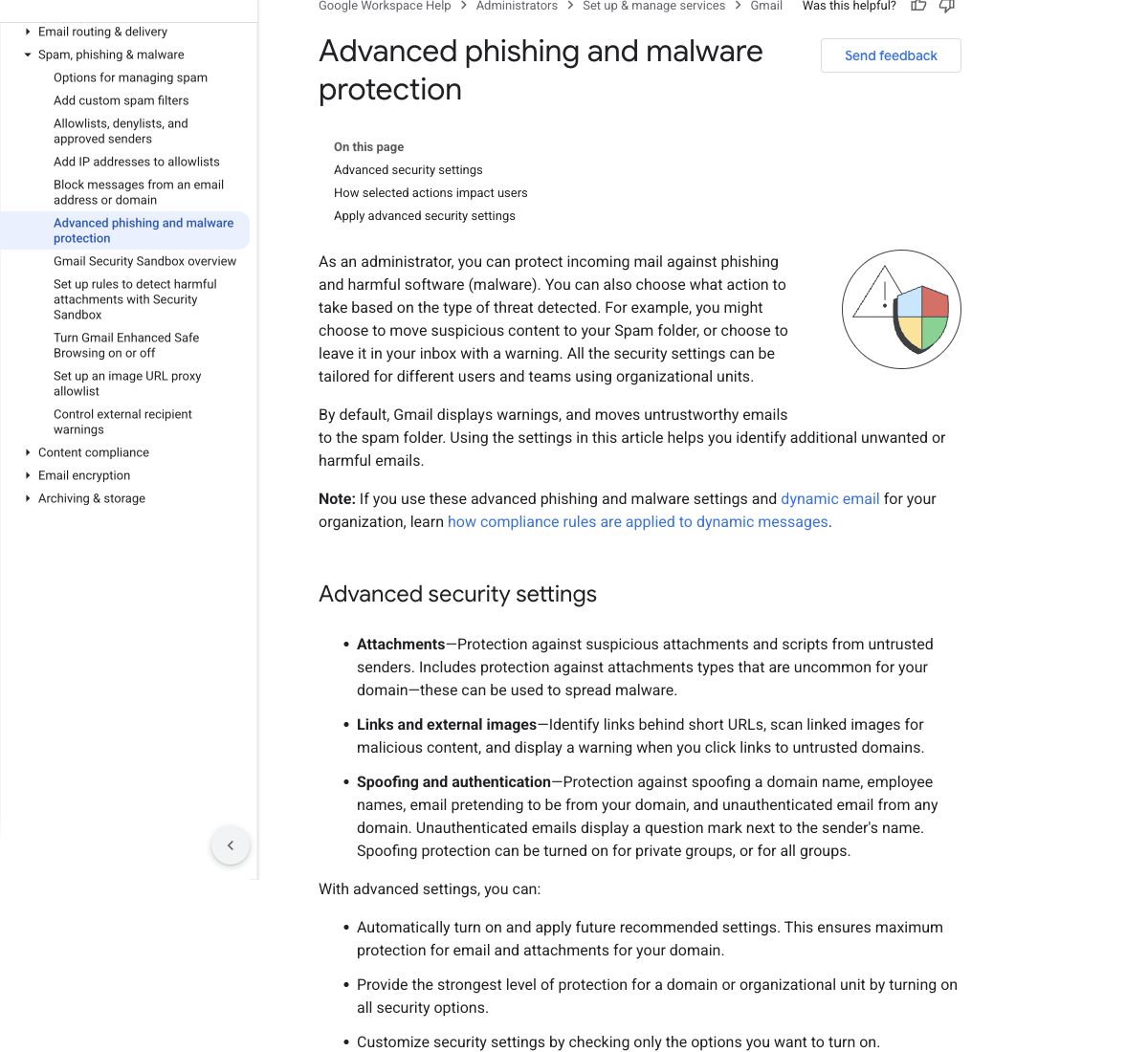
Record the selected organizational unit before changing any control. A policy applied to the wrong unit can leave intended recipients uncovered or affect users who were not in scope.
2. Select the organizational unit
Choose the organizational unit for the mailboxes you are protecting. Review whether the setting inherits from a parent organizational unit or overrides it locally.
If you need different treatment for executives, finance staff, shared mailboxes, or a pilot group, define the boundary before changing Gmail Safety controls. Avoid creating exceptions without an owner and review date.
3. Configure phishing, link, attachment, spoofing, and authentication protections
Open each relevant protection group and select the action documented for that control. Google's current guidance covers protections for phishing and malware, suspicious links, attachments, spoofed messages, and unauthenticated messages.
Use the specific evidence that caused the review to decide which setting needs adjustment. A suspicious attachment problem does not automatically justify changing a spoofing control. A sender-authentication failure may need a DMARC, SPF, or DKIM investigation rather than an inbox-filtering exception.
Document the setting in an operational format such as this:
scope: "Finance organizational unit"
change: "Gmail Safety protection action"
reason: "Approved response to observed mail risk"
owner: "Workspace administrator"
evidence: "Redacted message details and administrator review"
test: "New safe test message to the scoped mailbox"
rollback: "Restore the previous documented action"
Do not copy a policy choice from an online example without comparing it to your account's current control label, available action, and organizational-unit scope.
4. Save the policy and verify the applied scope
Save the Gmail Safety setting. Return to the selected organizational unit and confirm that the intended protection is active there, rather than inherited from an unexpected parent policy.
Google provides a separate Gmail settings health monitoring workflow for reviewing the health of Gmail settings. Use it to identify settings that need administrator attention after the policy change.
A visible setting is evidence that the console stored the policy. It is not message-level evidence that Gmail made the expected decision for a specific delivered message.
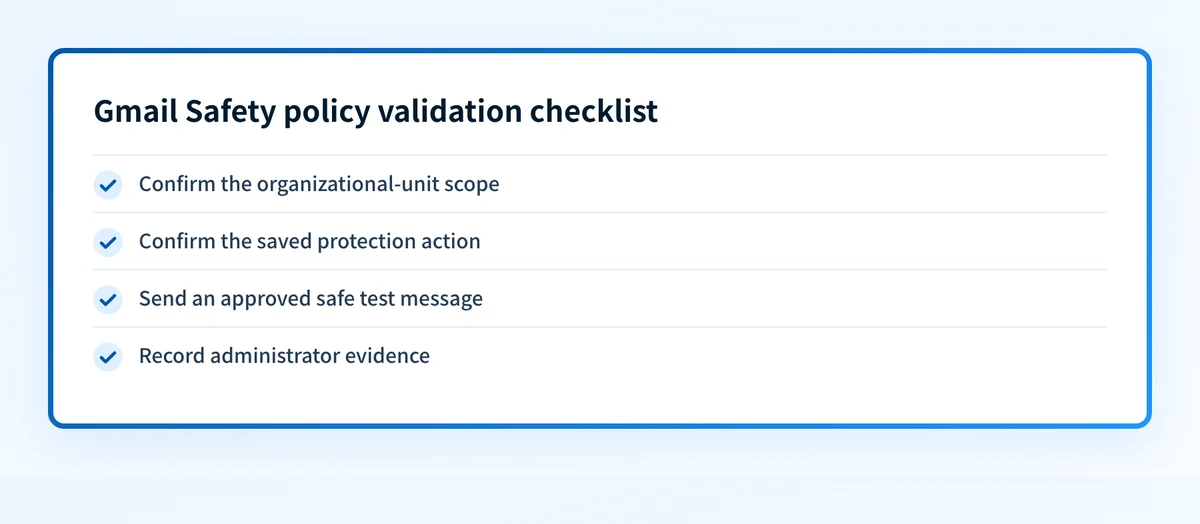
5. Send a safe, real test message
Send a newly created, safe test message to a mailbox in the affected organizational unit. Use a controlled test that your security team approves. Do not distribute live malware, credential-harvesting URLs, or harmful attachments to test a Gmail protection.
Record the sender, recipient organizational unit, send time, expected result, observed result, and any relevant administrator evidence. If the result differs from the configured action, confirm the recipient's organizational unit and check for inherited or conflicting Gmail settings before changing the policy again.
How does this setup affect DMARC?
Google Workspace phishing and malware protections inspect inbound mail risk. DMARC evaluates whether a message's aligned SPF or DKIM authentication passes for the visible From domain. These controls can work together, but one does not replace the other.
A message can pass DMARC and still contain a malicious link. A message can also fail DMARC because the sender configured authentication incorrectly, without proving that the message is malicious. RFC 9989 defines DMARC alignment and evaluation.
Use Palisade's DMARC checker to inspect the published DMARC record for a sending domain involved in a spoofing investigation. A public DNS check cannot show the Gmail policy applied to a mailbox, prove a production message path, or reveal Gmail's decision for a future message.
For the broader relationship between sender controls, user reporting, and incident handling, see Palisade's email security guidance. The related guide to preventing email spoofing explains why domain authentication still needs separate ownership.
How do I validate the setup?
Check public DNS
If the incident includes a spoofed sender domain, inspect its published DMARC record with the DMARC checker. Compare the record with the domain you saw in the visible From field.
Do not use this step as proof that Gmail Safety is enabled. Public DNS does not expose organizational-unit policy, inbox filtering decisions, or the sender's actual production configuration.
Validate the vendor policy in Google Workspace
Return to Apps > Google Workspace > Gmail > Safety and confirm the selected organizational unit, the saved action, and the inheritance state. Then review the relevant checks described in Google's Gmail settings health monitoring documentation.
Keep a dated record of the setting and scope. This is the vendor layer of validation.
Inspect a delivered message
Inspect a newly delivered safe test message in the mailbox that belongs to the scoped organizational unit. Capture the observed inbox outcome and, where appropriate, redacted message headers.
Authentication-Results is a receiver-added field. RFC 8601 defines its syntax and trust boundary. Do not treat a copied header from an untrusted source as proof of Gmail's decision.
Review DMARC reports
After DMARC aggregate reports accumulate, review how legitimate sending sources authenticate for your domain. DMARC reporting helps identify sources and alignment failures. It does not report every inbound phishing message that Gmail filtered.
Troubleshooting
The setting appears to affect the wrong users
Check the organizational unit selected when the policy was saved and whether a parent policy is inherited. Compare the affected mailbox's assigned organizational unit with the scope shown in Gmail Safety.
Correct the scope before adjusting the protection action. Keep the previous policy available as a rollback reference.
Gmail Safety shows the correct policy but the test result differs
Confirm that the test message reached a mailbox in the selected organizational unit and was sent after the setting was saved. Check for another Gmail policy that applies to the recipient.
Use a new, approved safe test message. Do not use a real phishing payload to force a detection result.
A legitimate sender is affected by a phishing or spoofing protection
Preserve redacted message evidence, including the visible From domain and trusted authentication result where available. Determine whether the sender has an authentication issue, a changed sending path, or a legitimate message pattern that requires an approved exception.
Do not broadly weaken Gmail Safety to accommodate one sender until the evidence identifies the relevant control and scope.
DMARC passes but the message is still suspicious
DMARC pass is authentication evidence, not proof that the content is safe. Review the message content, links, attachment behavior, and the Gmail Safety action separately.
For a broader assessment of organizational controls, use Palisade's email security score tool. Its result is a point-in-time assessment and cannot prove inbox filtering or user behavior.
Users cannot find a phishing-reporting control
A user's reporting option is separate from the administrator's Gmail Safety settings. Confirm your user-reporting process and train users to report suspicious mail through the approved channel. For a protection program that includes reporting and response, see how to build an anti-phishing program.
Build the operating process around the Gmail policy
The Gmail Safety configuration is one control in an anti-phishing program. After you verify the intended organizational-unit scope, define how users report suspicious mail, who investigates reports, how affected users are notified, and when the policy is reviewed after a false positive or incident.
Read how to build an anti-phishing program to connect the Google Workspace setting to reporting, incident response, and user training. Google Workspace protections reduce risk, but they do not guarantee detection of every malicious message or replace an incident-response process.
Evidence
Sources and further reading
Questions readers ask
Frequently asked questions
How do I turn on malware protection?
Open Apps > Google Workspace > Gmail > Safety in the Google Admin console, select the intended organizational unit, configure the relevant advanced phishing and malware protection action, and save the setting. Then verify the scope and use an approved safe test message. A saved policy does not guarantee Gmail will detect every future malicious message.
Is it better to delete or report phishing?
Yes, report suspected phishing through your organization's approved reporting channel before deleting it when reporting is safe and practical. Reporting gives the security team evidence to investigate and may help protect other recipients. Do not click links, open attachments, or reply to obtain more evidence.
What should you never open in spam mail?
Never open an attachment or follow a link in spam mail when you cannot independently verify the sender and expected content. A familiar display name is not enough. Use a known contact method to verify an unexpected request, especially one involving credentials, payment, or account access.
Does Gmail phishing protection replace DMARC?
No. Gmail phishing protection is an inbound mailbox protection control. DMARC checks whether aligned SPF or DKIM authentication passes for the visible From domain. Both can reduce different risks, but neither proves that every message is safe or that every future message will authenticate.

Written by
Ian BussieresCTO & Co-Founder, Palisade
Ian Bussieres is the CTO and co-founder of Palisade, agentic DMARC software for IT teams and MSPs.
More from Ian →