DKIM fail Gmail: fix Google Workspace authentication
 ChatGPT
 Claude
 Gemini
 Perplexity
 Grok
In brief
DKIM fail Gmail troubleshooting: publish the Google Workspace DKIM record, start authentication, inspect headers, and validate the sending path.
A DKIM failure in Gmail usually means Google Workspace cannot authenticate the selected sending domain, or a recipient cannot validate the signature after the message leaves Google. In the Google Admin console, open Menu > Apps > Google Workspace > Gmail > Authenticate email, select the domain under Selected domain, publish that account's generated DNS record, and choose Start authentication when needed. Never copy a selector or TXT key from another Workspace account.
At a glance
Quick takeaways
- Google Workspace DKIM records are generated for the selected account and domain.
- A blank hostname and TXT-record value means Google has no DKIM record to authenticate for that domain.
Not authenticatingcan require selectingStart authenticationafter the DNS record is published.- A public DNS answer does not prove that the production mail path is signing messages.
body hash did not verifyinAuthentication-results:indicates that the message changed after it was signed, for example when a footer is added in transit.- A DKIM pass alone does not prove DMARC alignment with the visible From domain.
What should I check before configuring Google Workspace?
Confirm that Google Workspace sends the mail you are investigating. This workflow covers mail sent through Gmail and Google Workspace, not marketing platforms, transactional services, or security gateways that sign mail with their own DKIM domains. Use the ESP setup guides to inventory other senders that use the same visible From domain.
You need access to the Google Workspace Admin console and the authoritative DNS zone for the selected domain. Record the exact sending address and route you will test. A message sent through an outbound gateway can have a different signature result from a message sent directly by Gmail.
Copy DNS values from the account and domain you are configuring. Do not publish selectors, targets, tokens, or hostnames from another account or from an online example.
Do not replace an existing DKIM selector without first confirming who uses it. DKIM verification retrieves a public key for the signing domain and checks the message signature against that key. RFC 6376 describes this DKIM verification model.
Which setup method should I use?
Use the hostname and TXT value that Google Workspace displays for the selected domain. The Google Workspace DKIM troubleshooting guidance directs administrators to generate a key pair and add the resulting record at the domain host when no hostname or TXT value appears.
Use manual DNS publication when your DNS provider is managed separately from Google Workspace. Do not reuse a record from an old domain, a different Workspace tenant, or an online example. Google documents that most DKIM TXT records can contain up to 255 characters, so a 2048-bit key may need quoted strings entered consecutively when the DNS provider has that limit.
How do I configure DKIM for Google Workspace?
Google Workspace's documented DKIM troubleshooting path is Menu > Apps > Google Workspace > Gmail > Authenticate email. This page is the failure path: it checks what is already in place and fixes what is broken. First-time setup is covered at DKIM for Google Workspace. Do not publish a second SPF record.
1. Open Authenticate email
In the Google Admin console, open Gmail DKIM troubleshooting, then follow the documented path to Authenticate email. Select the affected domain in Selected domain.
Confirm that this domain matches the visible From domain used by the failing message. A different Workspace domain can have its own DKIM state and DNS record.
2. Check whether Google has generated a DKIM record
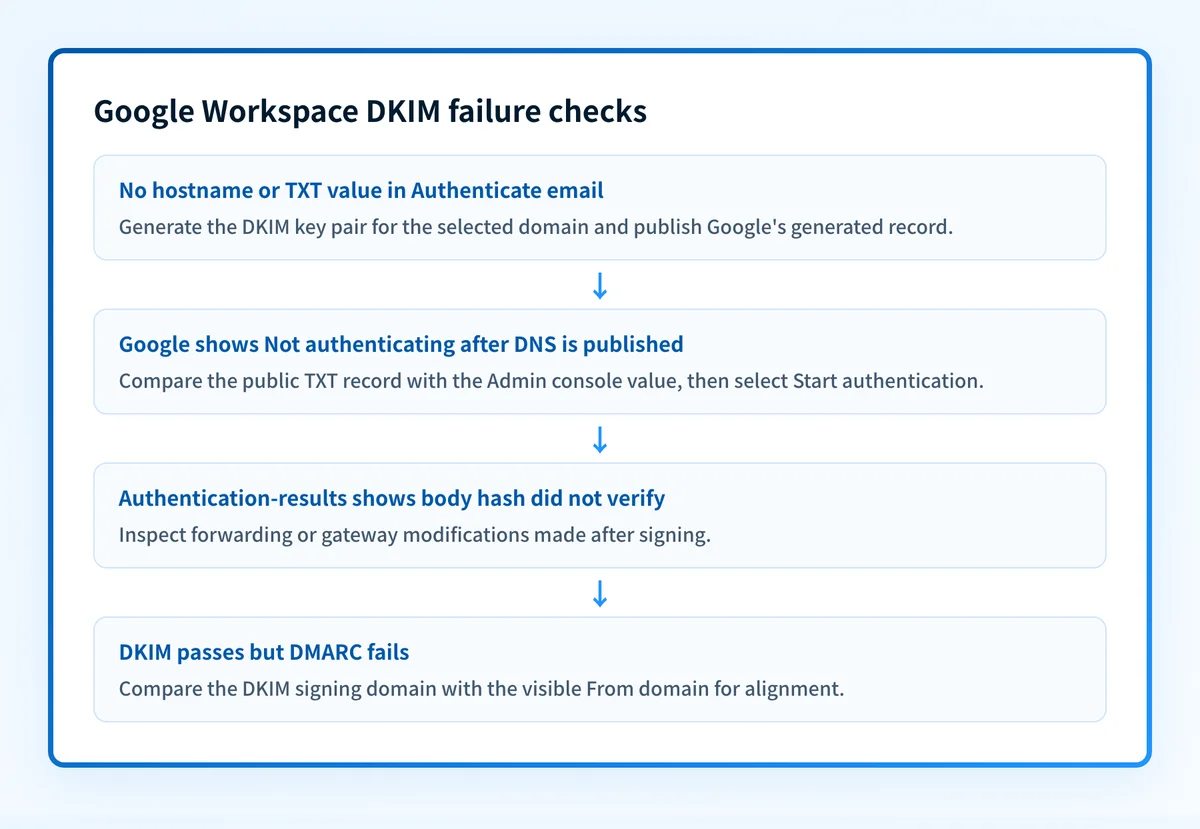
Inspect the hostname and TXT-record fields for the selected domain. Google states that blank values indicate no DKIM record exists for that domain. Generate the DKIM key pair in that account, then copy the hostname and complete TXT value supplied by Google.
Those values are account-generated configuration, so copy the hostname and complete TXT value from the Google Admin console for the selected domain. Do not reuse an example. Some DNS interfaces append the zone name automatically, so check the fully qualified owner before saving: entering the full name in such a field can produce a doubled yourdomain.com.
3. Publish the generated TXT record
Add the Google-generated TXT record at the domain's authoritative DNS provider. Preserve the full value, including every quoted string if Google or the DNS provider requires the key to be split for length.
Do not create a CNAME at the same owner as the DKIM TXT record. Do not overwrite an active selector until you know the existing signing system no longer uses it. RFC 6376 defines the DKIM public-key record lookup, but Google Workspace is the source of the account-specific selector and key.
4. Start authentication in Google Workspace
Return to Authenticate email after the DNS record answers publicly. If Google shows Not authenticating, select Start authentication. Google identifies Authenticating email with DKIM as the successful status for this workflow.
The Google status applies to the selected Workspace domain. It does not prove that a gateway, forwarding service, or separate email platform preserves the signature.
5. Send a real Gmail test message
Send a new message through the exact production path to a mailbox where you can inspect the original source. In Gmail on the web, open the message, select More beside Reply, choose Show original, and use Copy to clipboard if you need to retain a redacted header sample. This is Google's documented header-inspection workflow.
Find Authentication-results: and the DKIM result. Keep the test message separate from older mail sent before the DNS change or before authentication was started.
How does this setup affect DMARC?
Google Workspace DKIM helps DMARC only when the DKIM signing domain aligns with the visible From domain. A valid DKIM signature for an unrelated domain can pass DKIM while failing DMARC alignment. For that branch, see why a DKIM signature can fail alignment.
Use a DMARC lookup to inspect the published DMARC policy before changing enforcement. A public record lookup cannot show whether a specific Gmail message signed correctly or whether a recipient will accept future mail.
How do I validate the setup?
Check public DNS
Query the exact hostname Google generated through the authoritative DNS provider and a public resolver. The published value must match the current Admin console value for the selected domain.
dig +short TXT selector1._domainkey.yourdomain.comYou can also check the published DKIM record. A DKIM lookup checks public DNS, but it cannot prove that Gmail used that selector on a production message.
Check the Google Workspace vendor status
Return to Authenticate email and inspect the status for the selected domain. Authenticating email with DKIM shows that Google Workspace accepted the configured setup. If it still shows Not authenticating, compare the DNS hostname and complete TXT value with the values Google displays before changing anything.
A green vendor status is not a delivered-message check. Continue with a message sent through the same route that produced the failure.
Inspect a delivered Gmail message
Open a newly delivered message with Gmail's Show original workflow and find Authentication-results:. Confirm that the result reports the expected DKIM outcome for the message under review.
Google states that Gmail checks only the first 5 signatures listed in Authentication-Results:. If the authenticating signature is outside those first five, the message fails DKIM authentication and might also fail DMARC. Preserve a redacted header sample with the change record.
Review DMARC reports
After DMARC aggregate reports accumulate, separate Google Workspace traffic from other sources that use the same domain. Look for DKIM authentication and alignment results for the Google source rather than treating a successful test message as evidence for every sender.
Palisade analyzes DMARC aggregate-report data, identifies sending sources and authentication or alignment issues, and creates prioritized remediation tickets. It can propose a next policy step when the evidence supports it, while a human reviews the evidence and applies the change.
Troubleshooting
Google shows blank hostname and TXT-record values
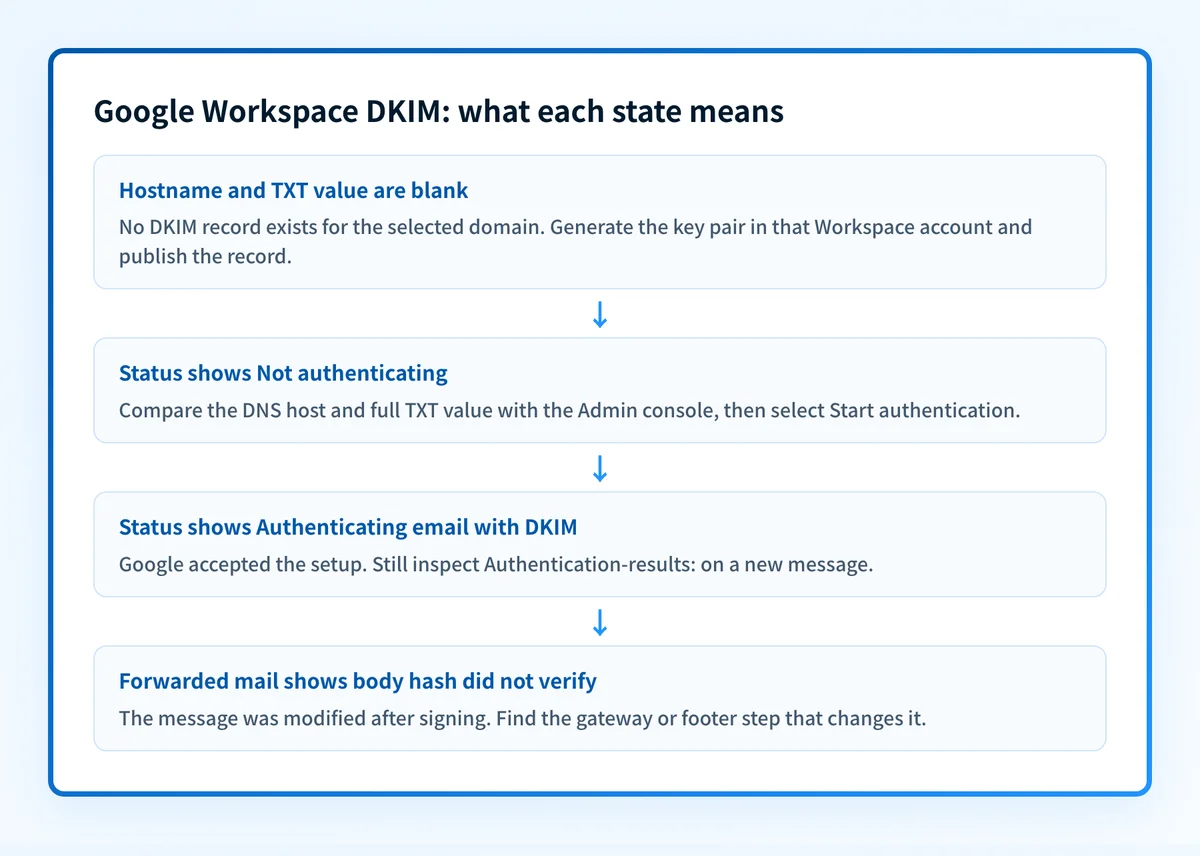
Google states that blank values mean no DKIM record exists for the selected domain. Generate the key pair in that Workspace account, then publish the resulting record at the authoritative DNS provider.
Do not use a key copied from another account. A public DKIM key is specific to the corresponding private signing key.
Google shows Not authenticating
Compare the DNS hostname and full TXT value against the values displayed for the selected domain. If they match and the record answers publicly, open Authenticate email and select Start authentication, as Google's troubleshooting guidance directs.
Check for a duplicated zone suffix, a truncated TXT value, or a record published under a different domain before regenerating a key.
The TXT record is too long for one field
Google documents that most DKIM TXT records allow up to 255 characters. Enter the generated 2048-bit key as consecutive quoted strings when the DNS provider requires that format.
Do not remove characters or insert spaces into the base64 key material. Compare the published DNS answer with the full value Google generated.
DKIM fails after forwarding
Inspect Authentication-results: in the received message. Google identifies body hash did not verify as evidence that the message was modified in transit. An outbound gateway that adds a footer can create this failure after Gmail signs the message.
Test one message sent directly through Gmail and one through the forwarding or gateway route. Fix the confirmed post-signing modification, or arrange for the final sending path to sign after that modification.
DKIM passes but DMARC still fails
Compare the DKIM signing domain with the visible From domain. This article covers Google Workspace DKIM setup, while the DKIM alignment guide covers the separate DMARC alignment question.
Check the published Google Workspace DKIM record
After comparing the generated hostname and TXT value with DNS, inspect the public DKIM record for the sending domain. The result helps you catch a missing owner, duplicated domain suffix, or malformed public record before repeating the Google Workspace workflow.
A public DKIM check cannot repair the Google Workspace configuration, prove the production message path, monitor later changes, or guarantee recipient acceptance. For ongoing DMARC-report analysis across Google Workspace and other senders, Start with Palisade.
Evidence
Sources and further reading
Questions readers ask
Frequently asked questions
How to fix a DKIM failure?
A DKIM failure in Gmail means the recipient could not validate the message's DKIM signature. Verify that the hostname and TXT value in authoritative DNS match the values generated for the selected Google Workspace domain. If Google Workspace shows Not authenticating, open Authenticate email and select Start authentication. For forwarded mail, inspect Authentication-results: for body hash did not verify, which Google identifies as post-signing message modification.
How to enable DKIM on Gmail?
Enable DKIM for Workspace mail in the Google Admin console. Open Menu > Apps > Google Workspace > Gmail > Authenticate email, select the domain, generate and publish the account-specific DKIM record, then select Start authentication when Google shows Not authenticating.
What does it mean if an email fails DKIM?
An email fails DKIM when the recipient cannot validate its DKIM signature using the signing domain's published public key. A forwarded message with body hash did not verify was modified in transit, according to Google's DKIM troubleshooting documentation.
How do I fix authentication failed on Gmail?
If Google Workspace reports Not authenticating, verify the selected domain, DNS hostname, and complete TXT value against the Admin console. When the record is publicly available, return to Authenticate email and choose Start authentication, then test a new message through the same route.
Can a Gmail message pass DKIM and still fail DMARC?
Yes. A Gmail message can pass DKIM while failing DMARC if the DKIM signing domain does not align with the visible From domain. Check the delivered message headers and DMARC aggregate-report results before changing the DMARC policy.

Written by
Samuel ChenardCEO & Co-Founder, Palisade
Samuel Chenard is the CEO and co-founder of Palisade, agentic DMARC software for IT teams and MSPs, from one domain to thousands.
More from Samuel →