

Autotask DMARC integration
Palisade integrates with Autotask on MSP accounts to import client domains, create DMARC tickets and synchronize recurring-service quantities. Map your Autotask companies to Palisade groups, choose a ticket queue, and connect each client’s billing contract.
By Samuel Chenard, Palisade
Last verified: · Documentation and connector review
On this page
What data flows between Palisade and Autotask?
Palisade reads Autotask clients and configuration for import and mapping. Palisade sends DMARC task updates and billable domain quantities to the linked Autotask records.
| Data | Direction | What happens |
|---|---|---|
| Companies and contact domains | Autotask → Palisade | Import selected clients, map them to Palisade groups and discover domains from company contact email addresses. |
| Ticket and billing configuration | Autotask → Palisade | Read queues, statuses, priorities, contracts and recurring services for your mappings. |
| DMARC tasks and status updates | Palisade → Autotask | Create tickets in the selected queue and update their mapped status and priority as the Palisade task changes. |
| Contract-service units | Palisade → Autotask | Synchronize the mapped client’s billable domain count to units of the selected recurring service on its contract. |
Two-way synchronization between Palisade and Autotask refers to these different data flows. It does not mean that every ticket field is mirrored in both directions.
How does Autotask client import work?
Palisade imports selected Autotask companies and maps each one to a group within your MSP account. The client mapping associates that group’s domains and tickets with the correct Autotask company.
Palisade reads the emailAddress field on company contacts to discover domains. The API user needs permission to view Contacts under CRM. Review the discovered domains before onboarding a client; domains absent from contact addresses may need to be added separately.
Each Autotask client mapping uses a Palisade group to keep its domains together. Review the group and its imported domains before activating the client’s service.
How do Autotask tickets and statuses stay connected?
Palisade creates Autotask tickets in your selected queue and sends mapped task status and priority updates. Configure the queue, status, priority, issue and sub-issue mappings to match your service desk’s email-authentication workflow.
The linked Autotask ticket belongs to the company mapped to that Palisade client group. Keep the status mapping complete so Pending, Done and other Palisade states reach the intended Autotask workflow state.
The Autotask task configuration guide covers the ticket destination and mappings. Palisade’s task-type controls determine which new tasks open Autotask tickets: disabling a type stops new tickets, existing tickets keep receiving updates, and re-enabling a type does not backfill earlier tasks.
The Palisade DMARC agent investigates issues and prepares fixes. Your technician reviews and approves DNS or policy changes; the Autotask ticket tracks the work.
How are Autotask recurring-service quantities updated?
Palisade synchronizes each mapped client group’s billable domain count to the units of its selected Autotask contract service. Create a recurring service for Palisade, select it in the integration settings, and map client groups to their contracts.
A change from five to seven billable domains should result in seven service units for that mapped group. Autotask retains your contract rates and invoice process. Domain import and paid service activation are separate steps, so an audit inventory should not be treated as the billing quantity.
Verify both the contract mapping and the recurring service when a quantity does not update. Billing can be paused while task synchronization continues.
Use the Autotask billing setup instructions to configure the client mappings and check the resulting quantity before invoicing.
Which Palisade plans support Autotask?
The Autotask connector requires a Palisade MSP account. MSPs pay $9 per client domain per month for up to 100 client domains, $7 up to 1,000, and $5 beyond. New MSP accounts are billed for a minimum of 5 client domains. Your own MSP domain is included as a free Not-For-Resale license. MSP rates apply to client domains you manage for other organizations; your own organization's domains belong on an IT-team plan.
IT-team accounts need MSP enrollment to use PSA integrations. Explore the MSP program or see how MSP pricing works.
What is required to set up Autotask?
Autotask setup requires a Palisade MSP account and an API-only user’s key and secret, with access to companies, contacts, tickets and recurring contract services. Activate Palisade Email in the Autotask Integration Center before completing the connection. Keep credentials in your team’s credential manager and enter them only in the integration’s credential form.
- API user
- Create an API User under Admin > Resources with the API-only security level. Generate its key and secret and select the Palisade integration tracking identifier.
- CRM
- Read companies and view Contacts so Palisade can discover domains from client contact emails.
- Ticket workflow
- Access the queue and ticket configuration; allow the connector to create and update tickets.
- Contract billing
- Read the mapped contracts and recurring service and allow updates to its contract-service units.
The Autotask technical guide provides the credential fields and configuration screens. Work through these steps with one test client first.
- Create the Autotask API user.
In Admin > Resources, create an API User with the API-only security level. Generate and store its key and secret, and choose Palisade as the tracking identifier.
- Activate Palisade Email.
Open Admin > Extensions & Integrations > Integration Center in Autotask. Find Palisade Email and activate the integration.
- Connect and map the client workflow.
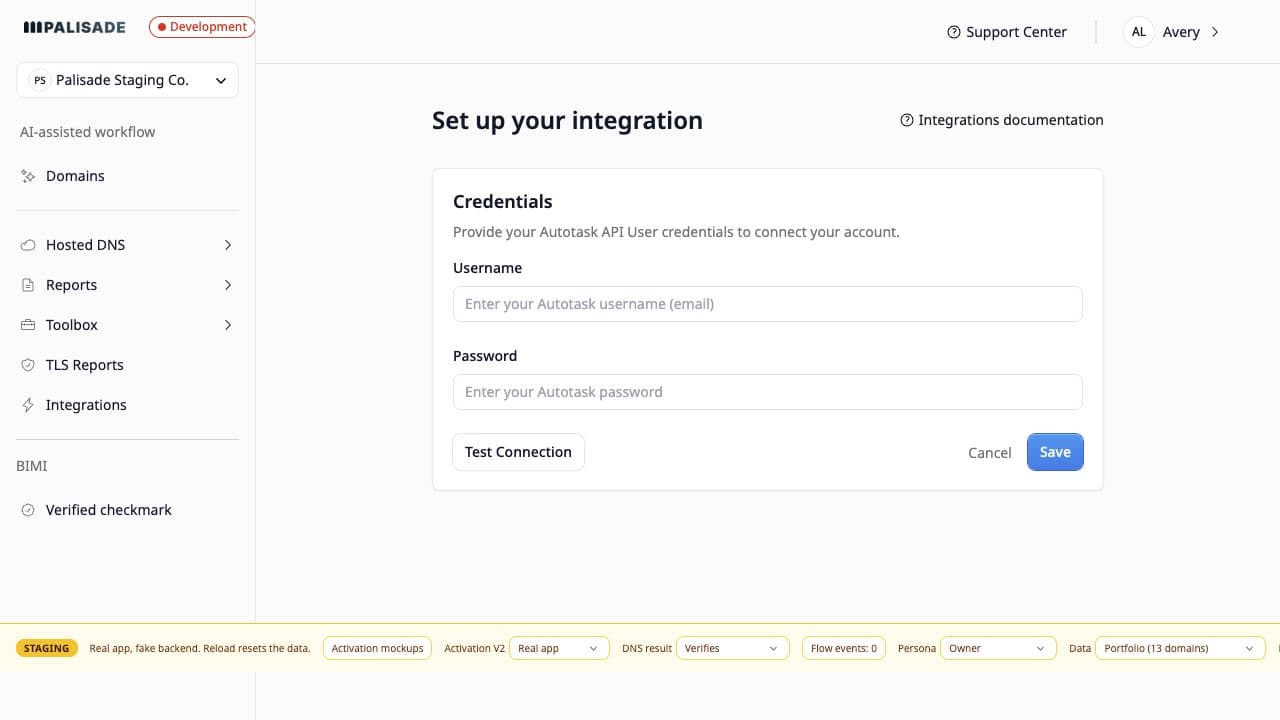
Select Autotask in Palisade Integrations and enter the API user credentials in the form’s Username and Password fields. Set the queue, statuses, priorities and issue types, then import and map your clients.
- Map recurring-service billing.
Create and select the Palisade recurring service, then map each client to its contract. Verify a client-domain import, a ticket update and a billable-domain unit change before rollout.
What should you verify before rolling out to clients?
Start with a test client in Autotask and confirm the mapping, ticket and billing results your team will rely on.
- The Autotask API user can read the selected company’s contacts, and its expected domains appear under the correct Palisade group.
- A Palisade task reaches the chosen Autotask queue and company; a Palisade status change updates the linked ticket.
- The selected recurring service belongs to the mapped contract, and its units match the group’s billable domains.
Autotask integration FAQ
Does Palisade have an official Autotask integration listing?
Yes. Datto publishes a Palisade listing in its official integration directory. Palisade also provides an Autotask setup guide covering API-user creation, activation, ticket mapping and recurring-service billing.
What does two-way Autotask synchronization mean?
Palisade reads Autotask client and configuration data for import and mapping, then sends DMARC tickets, mapped task updates and billing quantities back to Autotask. The direction depends on the data type; it does not mean every field is mirrored both ways.
Which Palisade plan includes the Autotask connector?
The Autotask connector requires a Palisade MSP account. The MSP program uses per-client-domain pricing and includes your own MSP domain as a free Not-For-Resale license.
Why does an Autotask client import without its domains?
Autotask domain discovery uses the client’s contact email addresses. Check that the API user can view Contacts under CRM and that the client has the expected email addresses. Review the Palisade group mapping and add any missing domain separately.
Sources and related integration guides
- Autotask technical documentation: credentials, configuration and setup checks.
- Palisade in the official Datto integration directory. Datto lists Palisade as an Autotask integration and describes the connection between client onboarding, ticketing and billing.
- Compare all Palisade PSA integrations.
- ConnectWise PSA integration: data flow and setup.
- HaloPSA integration: data flow and setup.