Provider deliverability · Outlook (Outlook.com and Microsoft 365 mailboxes)
Why does Outlook move emails to junk after they arrive?

By Samuel Chenard · CEO & Co-Founder, Palisade · Reviewed September 19, 2026
Outlook re-files delivered mail for six reasons. On Microsoft 365 and Exchange Online mailboxes, the one that re-scores mail already in the inbox is zero-hour auto purge (ZAP), re-scanning the last 48 hours against updated spam and phishing signatures. Three of the six junk it outright: ZAP, a falling complaint reputation, and the Outlook desktop client's own filter. A recipient blocking you sends later mail to Junk or to quarantine, whichever the tenant's policy says. An inbox or Sweep rule deletes it, and a tightened tenant policy quarantines it.
The 30-second check
A post-delivery move produces no bounce: your logs show a clean 250 accepted while the message quietly leaves the inbox. So start with the one thing you can test from outside. The free Microsoft compliance checker verifies SPF, DKIM, DMARC, and Microsoft's sender requirements for your domain, the exact signals that decide how much benefit of the doubt Outlook's filters extend to your mail after delivery.
Check your domain now
Enter your sending domain and the check runs instantly on the next page. Free, no signup.
Why Outlook moves your email to junk after delivery
| Likely cause | What's happening |
|---|---|
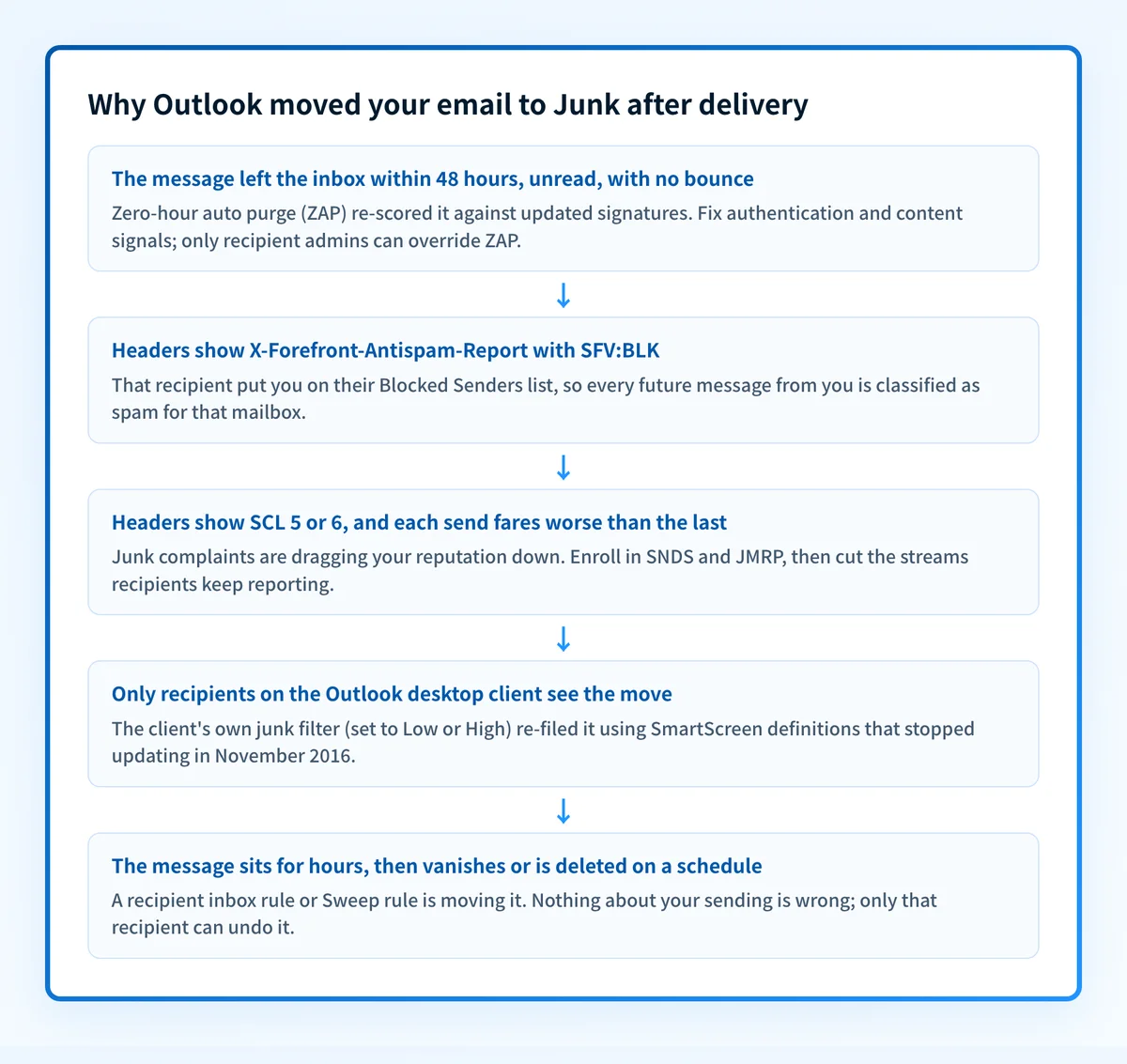
| Zero-hour auto purge (ZAP) re-scored the message | On Microsoft 365 and Exchange Online mailboxes, ZAP retroactively re-checks delivered mail against spam and malware signatures that update in real time, and its search covers the last 48 hours of delivered email. When the verdict flips to spam, the default action moves the message to the Junk Email folder; for spam verdicts ZAP only acts on unread messages, and Microsoft states users aren't notified when it moves one. This is the literal arrived-then-moved mechanism (per Microsoft's ZAP documentation, checked 2026-07-17). |
| The recipient blocked you or reported your mail as junk | Microsoft 365 stamps messages from senders on a mailbox's Blocked Senders list with the header X-Forefront-Antispam-Report: SFV:BLK, and "any future messages from that sender are classified as spam." Where they land is the recipient tenant's choice, not a fixed outcome: the message "is delivered to the user's Junk Email folder or to quarantine based on the action configured in the applicable anti-spam policy". One message read in the inbox followed by every later one junked — or disappearing with no trace the recipient can see — for one specific recipient, is this pattern. |
| Junk complaints are dragging your sender reputation down | Microsoft's postmaster tools are built around complaint feedback: SNDS shows how recipients are rating the mail from your IPs, and JMRP reports the junk complaints Outlook.com users file back to you. As complaints accumulate and your reputation slides, new messages start scoring SCL 5 or 6 and get delivered straight to Junk. From your side this looks like Outlook changed its mind about mail that used to land, when really each message is being scored worse than the one before it. |
| The Outlook desktop client's own junk filter re-filed it | When Outlook's built-in Junk Email Filter is set to Low or High, the client uses its own SmartScreen filter technology to move spam to Junk after delivery, and it ignores the SCL verdict Microsoft 365 already stamped (unless the message was marked to skip spam filtering, e.g. SCL -1). Even at the default "No automatic filtering", the client still moves mail from blocked senders after delivery. |
| A recipient inbox rule or Sweep rule moves your mail | Inbox rules run as soon as mail arrives and are what actually move messages from a sender to another folder. Sweep rules in Outlook.com and Outlook on the web are blunter: they automatically delete all incoming email from a particular sender (or keep only the latest, or delete mail older than 10 days), and Microsoft documents that Sweep rules run once per day while inbox rules run as mail arrives. So a swept message can sit in the inbox for hours and then vanish on schedule, deleted rather than junked. Nothing about your sending is wrong here; only that recipient can undo it. |
| The recipient organization tightened its anti-spam policy | Microsoft 365 tenants on the Standard or Strict preset security policies quarantine high confidence spam instead of junking it, and domain-level Safe Senders entries are not honored for quarantine actions. Mail that previously survived on a safe-sender domain entry can start disappearing entirely after a policy change on the recipient side, which gets reported back to you as "it arrived, then it was gone". |
Confirm the pattern in Outlook's own sender data
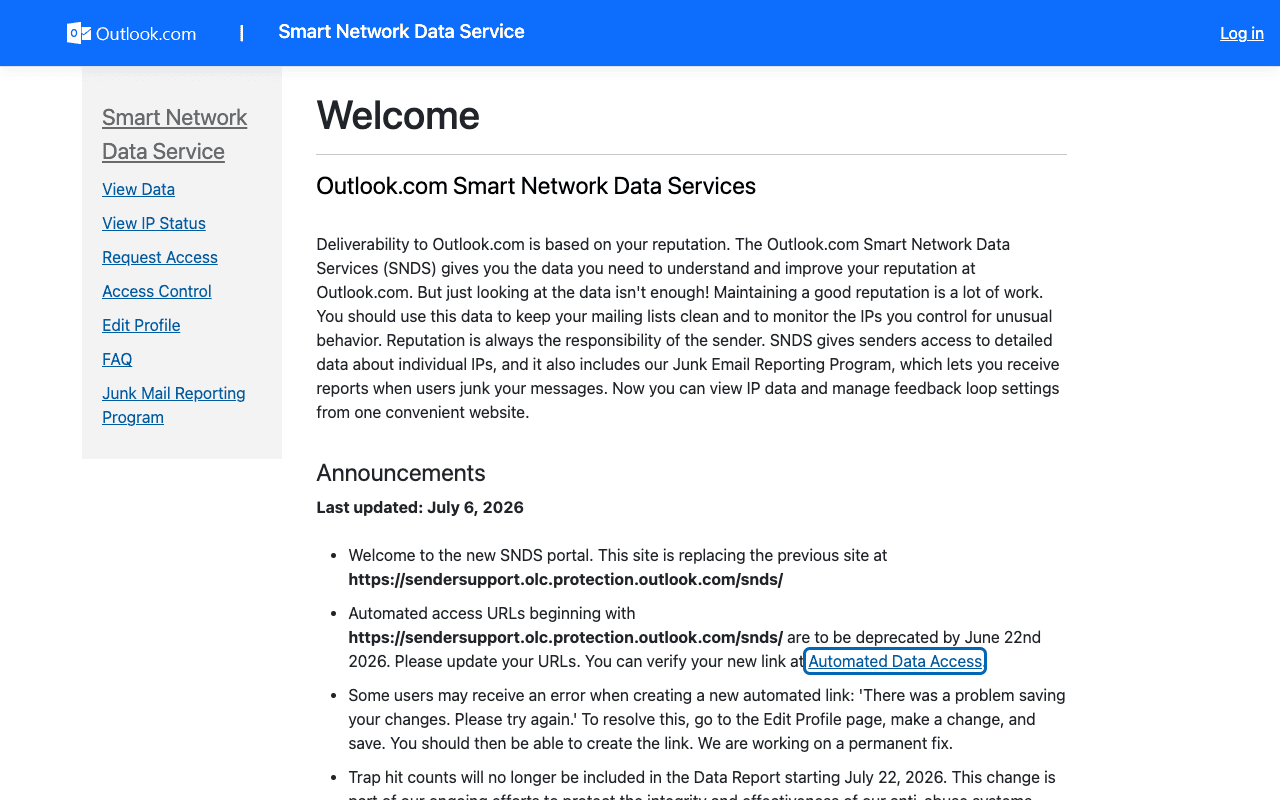
Outlook publishes its own sender data separately from your DNS. Use it to confirm the provider-side symptom after you have checked the public authentication records below.
Check the public signals before changing settings
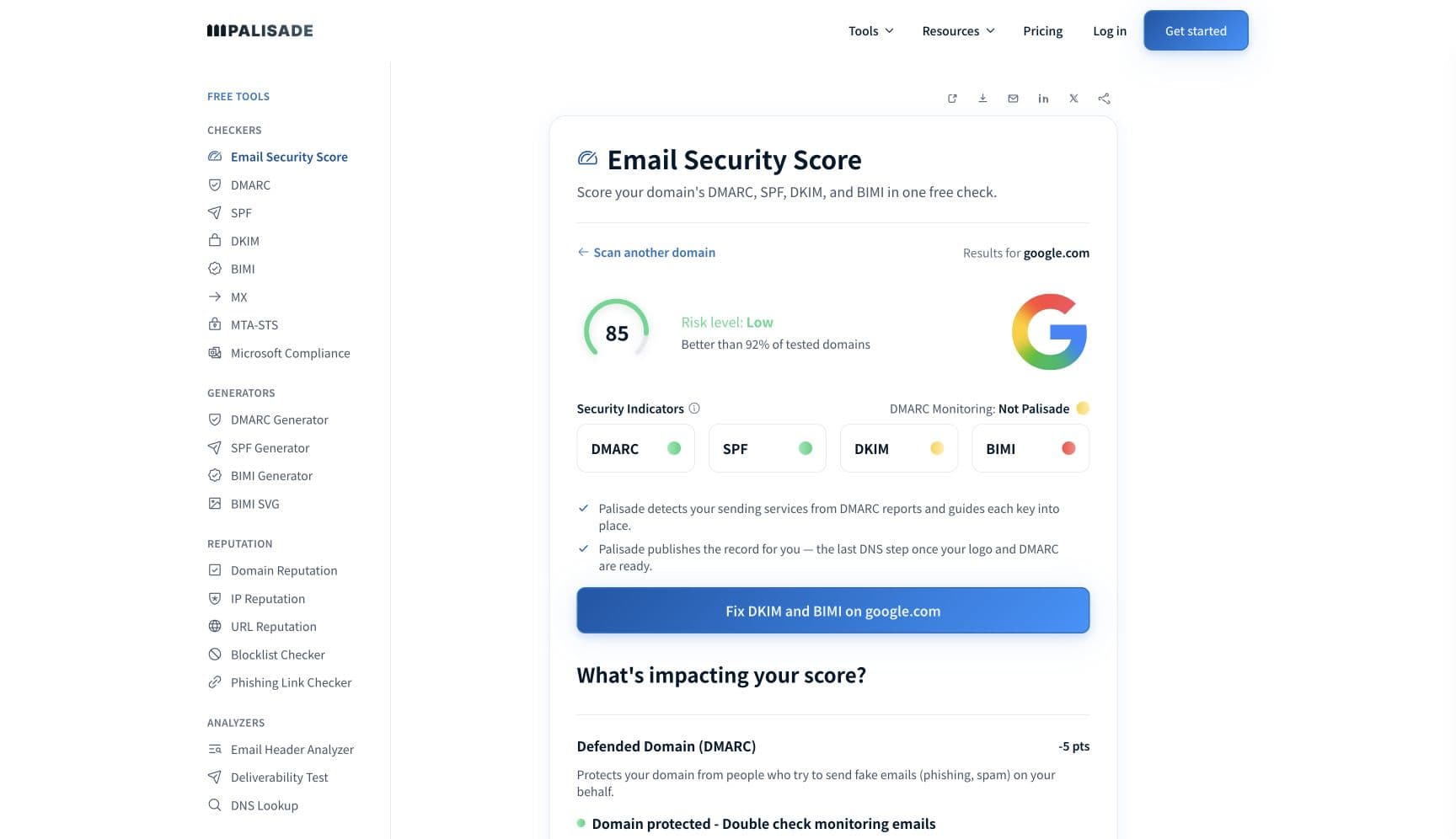
The free check above gives you a fast public baseline for how Outlook sees your mail. It does not replace the provider's private reputation or placement data, but it tells you whether the problem is visible from outside before you edit a sending platform.
How to fix it, step by step
Run the Microsoft compliance check on your sending domain
Use the free checker above, or open the Microsoft compliance checker page directly. It verifies SPF, DKIM, and DMARC exactly as Microsoft's sender requirements define them. Weak or misaligned authentication is the cheapest signal for a re-scoring filter to act on, so rule it out first.
Get the full headers from a moved message
Ask one affected recipient to open the Junk copy and send you the internet headers. X-Forefront-Antispam-Report containing SFV:BLK means you're on that mailbox's Blocked Senders list; the SCL value shows the filter's verdict (5 or 6 is the spam range); Authentication-Results shows which of SPF, DKIM, or DMARC failed. There is no bounce for a post-delivery move, so headers are your only evidence.
Fix SPF, DKIM, and DMARC alignment for every sending service
Add each platform that sends as your domain to SPF, enable DKIM signing with your own domain rather than the provider's default, and publish a DMARC policy. Verify with the free SPF, DKIM, and DMARC checkers; Microsoft requires the passing domain to align with your From address.
Enroll in SNDS and JMRP, then cut what draws complaints
SNDS shows how Microsoft rates your IP space and JMRP reports every junk complaint from Outlook.com recipients back to you. Complaints are the feedback loop behind post-delivery junking, so use JMRP data to identify and stop the specific streams recipients are reporting: stale lists, over-frequent sends, mail nobody opted into.
Remove the content signals that re-scoring acts on
ZAP fires when updated signatures match already-delivered mail, so avoid looking like the phish it hunts: no URL shorteners or open redirects, link domains that match your sending domain, a display name that matches your From address, and steady volume instead of bursts.
Re-test over 48 hours and keep DMARC reports flowing
Send a test to an Outlook.com mailbox you control, confirm spf=pass, dkim=pass, and dmarc=pass in the received headers, and check it is still in the inbox two days later (ZAP's window is the last 48 hours). Then monitor DMARC aggregate reports so the next failing sender shows up in a report, not in a recipient's Junk folder.
Related free tools: DMARC checker · SPF checker · DKIM checker · Domain reputation · Email security score
If you send in volume: Outlook's published rules
Microsoft's sender requirements are directly relevant to this symptom. Since May 5, 2025, domains sending more than 5,000 messages a day to Outlook.com consumer addresses (outlook.com, hotmail.com, live.com) must pass SPF, DKIM, and aligned DMARC, and Microsoft's rollout routed non-compliant mail to the Junk folder first, with outright rejection (the 550 5.7.515 bounce) to follow (per Microsoft's postmaster site, checked 2026-07-17). If your mail began sliding to Junk in mid-2025, rule this out before anything else; below 5,000 a day the same checks still steer filtering.
Check your standing with Outlook
- Smart Network Data Services (SNDS)
Microsoft's own view of your IP space: filter results, complaint rates, and trap hits per sending IP. Free; register the IPs you send from.
- Junk Email Reporting Program (JMRP)
Reports the junk email issues Outlook.com users flag back to you, which is exactly the complaint stream that precedes post-delivery junking.
- Outlook.com postmaster site
Microsoft's sender documentation hub: requirements, reputation factors, and troubleshooting for junked or blocked mail.
If it bounces instead: the codes Outlook returns
Nothing bounces when a provider is moving to junk after delivery instead of refusing the mail, but Outlook returns one of these readings and codes when it does refuse the mail outright. Match yours below; where a code has a full guide, it is linked.
- None at first: a post-delivery move to Junk generates no bounce, so your logs show a clean 250 accepted
- 550 SC-004 "A block has been placed against your IP address because we have received complaints concerning mail coming from that IP address": the bounce that follows when complaint-driven junking escalates to an outright IP block; Microsoft's stated remedy is JMRP enrollment
- 550 5.7.1: the generic policy rejection senders often see once a block is in place Full guide →
- 550 5.7.509: the sending domain fails DMARC verification; junk placement is often the stage before this bounce Full guide →
The real root cause: unenforced authentication
Almost every mechanism above keys off the same underlying question: can Outlook prove this mail is really you? Unauthenticated or misaligned mail is the easiest thing for a re-scoring pass to reclassify, junk complaints land hardest on domains Microsoft's filters already distrust, and a spoofer sending as your unprotected domain generates complaints you pay for. The way out is to make authentication a settled fact: correct SPF and DKIM for every sending service, DMARC alignment on the From domain, and a policy enforced at p=reject so nobody else can spend your reputation. Monitoring tells you which senders are failing; enforcement is what makes the silent Junk moves stop.
DMARC software that does the work
Palisade's AI agent takes domains all the way to enforcement: hosted SPF, DKIM, DMARC, and MTA-STS records on paid plans, DMARC reports monitored continuously, and every policy step drafted for your approval on the way to p=reject. The full product is open for a 15-day trial, and nothing is charged until it ends.
15-day full-product trial. Nothing is charged until it ends.
Fixing this across every client domain
Post-delivery junking is the worst ticket type an MSP inherits: there is no bounce to attach, the client insists the mail "was there and then disappeared", and the evidence lives in a recipient's Junk folder that empties itself after 14 days. Multiply that across a fleet where every tenant domain has its own SPF, DKIM, DMARC, complaint rate, and safe-sender politics. Palisade does the root-cause work once per fleet: it hosts and manages SPF, DKIM, DMARC, and MTA-STS records for every client domain, surfaces failing senders from DMARC reports before recipients start reporting junk, and carries each domain to p=reject, with your team approving each step. Tickets land in ConnectWise, HaloPSA, or Autotask through native PSA integrations, pricing is per client domain with rates that improve as the portfolio grows, and your own MSP domain is a free NFR domain to prove it on.
Questions readers ask
Frequently asked questions
Does moving an email to junk stop future emails from that sender?
Why did my email disappear from the recipient's inbox in Outlook?
What is zero-hour auto purge (ZAP) in Outlook?
Why does Outlook junk my emails even after recipients add me as a safe sender?
Does Outlook tell recipients when it moves a message to junk?
Why do my first emails reach the inbox but later ones go to junk in Outlook?
How can I tell why Outlook moved my email to junk?
Can I stop ZAP from moving my emails to junk?
Sources and last verified
Every claim about Outlook on this page links to the source it came from, each with the date it was last checked. Provider policies change; if a detail looks off, the linked source is authoritative.
- ZAP retroactively detects and neutralizes delivered spam/phishing/malware in cloud mailboxes; its search is limited to the last 48 hours of delivered email; spam ZAP acts on unread messages; default action for spam is Move message to Junk Email, and ZAP quarantines malware and phishing; users aren't notified; enabled by default; allowlists and Exchange mail flow rules can override it; no special licensinglearn.microsoft.com · checked 2026-07-17
- SCL values and default actions: -1 skipped filtering (safe sender), 0-1 inbox, 5-6 spam delivered to Junk Email by default, 7-9 high confidence spam (Junk by default, quarantined under Standard/Strict presets); SCL 2, 3, 4 are never stampedlearn.microsoft.com · checked 2026-07-17
- Blocked Senders list stamps X-Forefront-Antispam-Report: SFV:BLK and "any future messages from that sender are classified as spam"; Safe Senders mail skips content filtering at SCL -1 but domain entries aren't honored for quarantine actions; Outlook's client-side Junk Email Filter at Low/High uses its own SmartScreen filter technology, ignores the Microsoft 365 SCL, and moves messages to Junk after delivery; blocked-sender mail "is delivered to the user's Junk Email folder or to quarantine based on the action configured in the applicable anti-spam policy"; at No automatic filtering the client still moves safelist-collection matches after deliverylearn.microsoft.com · checked 2026-07-17
- Blocking a sender sends their future messages to the Junk Email folder; "Email is automatically removed from the Junk Email folder after 14 days and can't be recovered after that."support.microsoft.com · checked 2026-07-17
- Sweep rules run once per day while inbox rules run as mail arrives; Sweep can automatically delete all incoming email from a particular sender, keep only the latest email, or delete email older than 10 dayssupport.microsoft.com · checked 2026-07-17
- SNDS gives high-level insight on how users are rating the email they receive from your IPs; JMRP is a free service providing reports on junk email issues reported by Outlook.com users; since May 5, 2025 domains sending 5,000+ daily messages to Outlook.com consumer addresses must pass SPF, DKIM, and aligned DMARC, with non-compliant mail junked first and rejected latersubstrate.office.com · checked 2026-07-17
- 550 SC-004: "A block has been placed against your IP address because we have received complaints concerning mail coming from that IP address." Microsoft recommends enrolling in JMRP to remove unwanted recipients from the listsubstrate.office.com · checked 2026-07-17
Related guides
550 5.7.1550 5.7.509p=rejectp=quarantineadkim / aspf