How to configure SPF and DKIM for Chargebee
 ChatGPT
 Claude
 Gemini
 Perplexity
 Grok
GrokIn brief
Configure SPF and DKIM for Chargebee by authenticating the custom SMTP provider, connecting it in Chargebee, and validating a real notification.

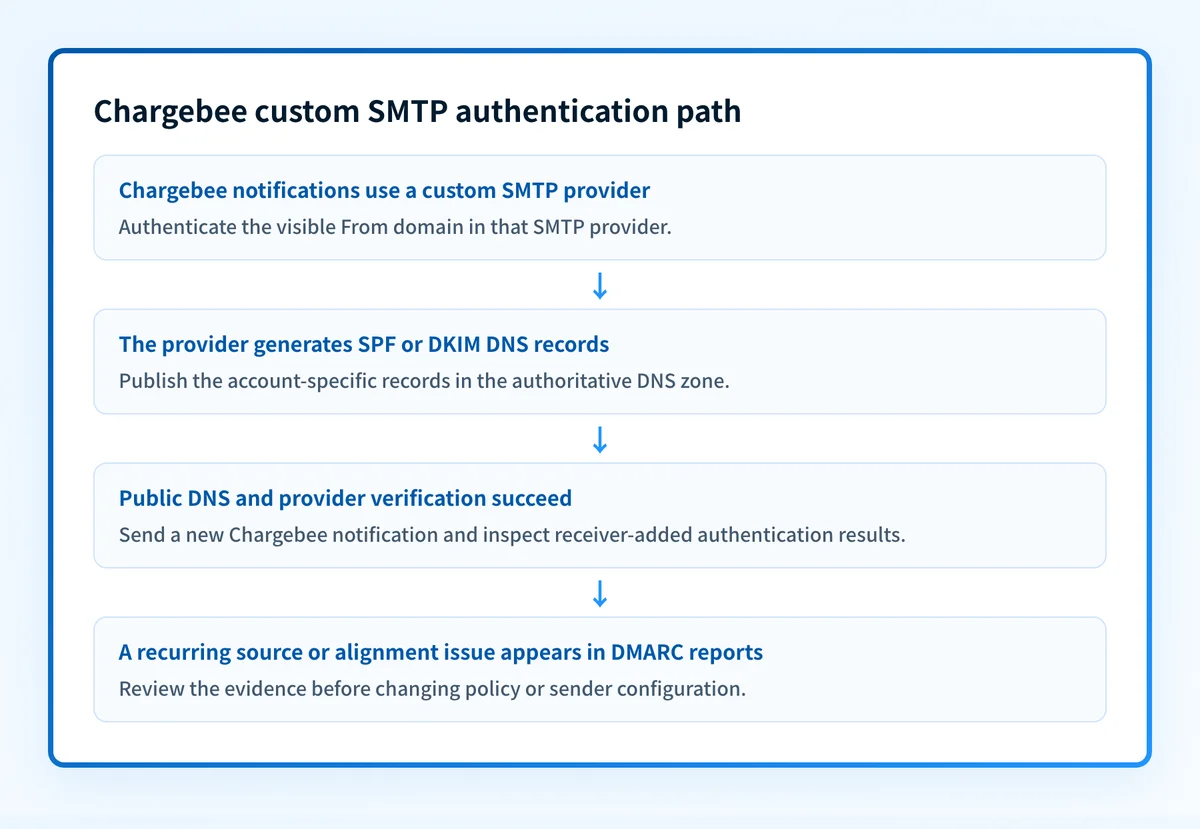
To configure SPF and DKIM for Chargebee notifications, authenticate the sending domain with the custom SMTP provider that will deliver the mail, then connect that provider in Chargebee under Settings > Configure Chargebee > Email Notifications > Configure SMTP. Chargebee passes notifications to that SMTP service, so the provider generates the account-specific SPF and DKIM DNS values. The documented path was verified from Chargebee's official documentation.
At a glance
Quick takeaways
- Chargebee notifications can use Chargebee SMTP or a customer-managed custom SMTP connection.
- When Chargebee uses custom SMTP, the SMTP provider supplies the domain-authentication records.
- Publish only one SPF policy for a domain, even when several services send mail for it.
- DKIM selectors and DNS targets are account-specific. Copy them from the selected SMTP provider account.
- A successful connection in Chargebee does not prove that a delivered notification passed SPF, DKIM, or DMARC.
- Test a new Chargebee notification through the same configured SMTP path and inspect the received message headers.
What should I check before configuring Chargebee?
Confirm which Chargebee notifications are in scope, such as invoices, payment receipts, renewal reminders, or dunning emails. This guide covers notifications sent by Chargebee through a custom SMTP provider. It does not configure employee mailbox mail, transactional applications that bypass Chargebee, or marketing campaigns sent directly from another platform.
You need access to the Chargebee site, permission to configure the SMTP connection, access to the SMTP provider account that sends the notification, and authority to change the sending domain's DNS zone. Chargebee's custom SMTP instructions list the connection fields required for the provider.
Decide which visible From domain the notification will use before making DNS changes. Chargebee documents that a mismatch between the configured From address and the authenticated SMTP identity can cause SPF and DKIM problems for DMARC-enabled domains in its authentication troubleshooting guidance.
Copy DNS values from the account and domain you are configuring. Do not publish selectors, targets, tokens, or hostnames from another account or from an online example.
Which setup method should I use?
Use Chargebee SMTP only if its authentication approach fits the domain and notification workflow you need. Use custom SMTP when your organization already operates an SMTP provider for the domain and can authenticate that provider's sending path. Chargebee documents both options in its email notification settings.
For a custom SMTP setup, authentication belongs to the SMTP provider, not the Chargebee form. The provider determines whether it needs an SPF include, DKIM TXT record, DKIM CNAME records, a branded return path, or another domain-verification step. Do not assume a provider's example record applies to your account.
The available Chargebee documentation does not establish a universal automatic authentication option or dedicated-IP requirement for custom SMTP. Follow the selected SMTP provider's current domain-authentication documentation for those choices.
How do I configure SPF and DKIM for Chargebee?
1. Open the Chargebee SMTP settings
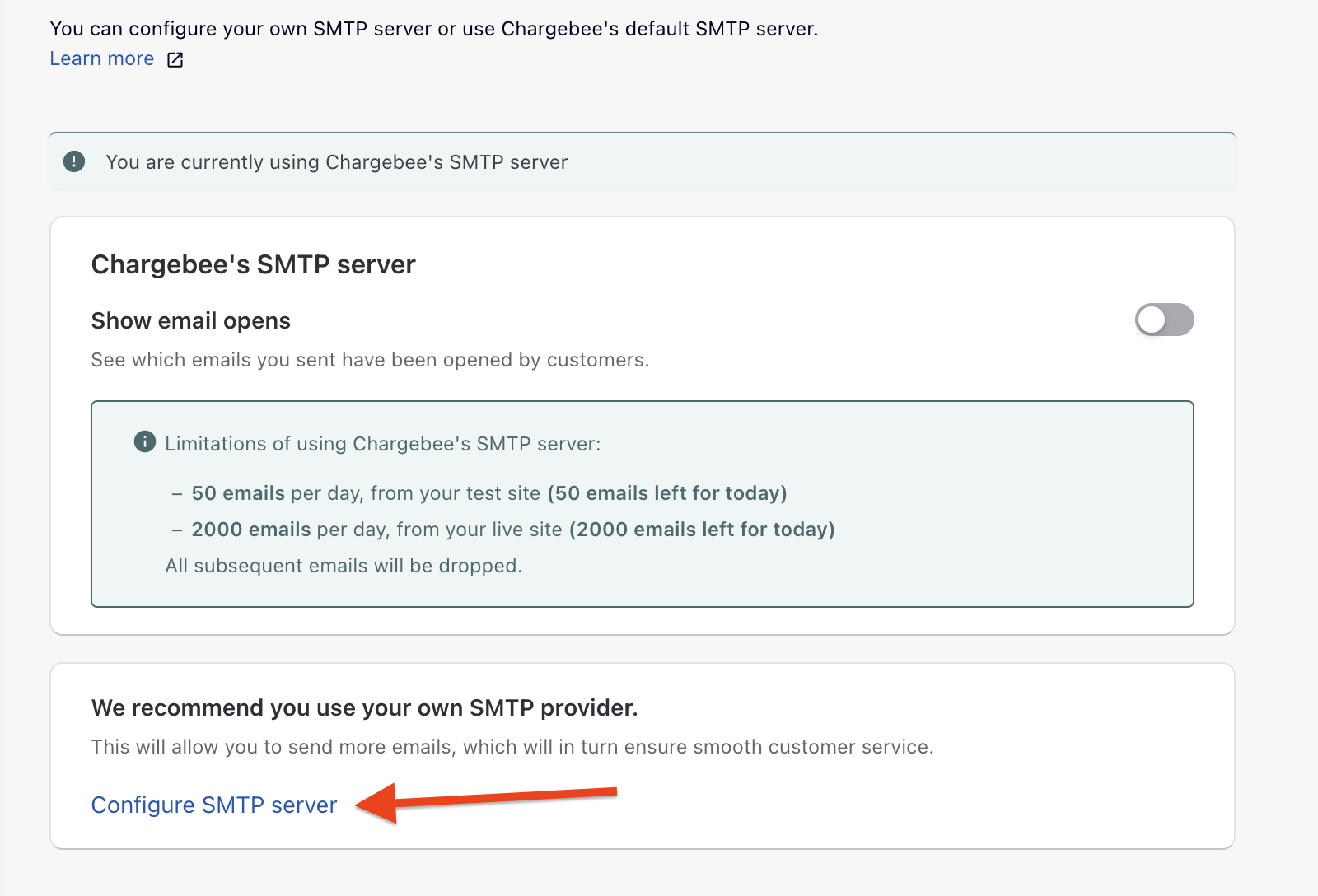
In Chargebee, open Settings > Configure Chargebee > Email Notifications, then select Configure SMTP and choose the option to send notifications through your own SMTP server. Confirm the site and notification configuration before entering credentials.
The SMTP connection determines the production route to test. Record the selected sending domain, From address, SMTP provider, and test recipient with the change request.
2. Select and authenticate the sending domain in the SMTP provider
Open the SMTP provider account that will receive Chargebee's connection. Add or select the domain used in the visible From address, then use the provider's domain-authentication workflow to generate its DNS records.
The provider's values are specific to its account and your domain. Do not reuse an SPF include, DKIM selector, CNAME target, or return-path target from another provider account.
A structural example of the DNS records you may receive is below. It is illustrative only. Your SMTP provider generates the real host names and values.
Record type: TXT
Host (illustrative only):
yourdomain.comValue (illustrative only):
v=spf1 include:spf.smtp-provider.example -allRecord type: CNAME
Host (illustrative only):
selector1._domainkey.yourdomain.comValue (illustrative only):
selector1.yourdomain.com.dkim.smtp-provider.exampleDo not publish these examples. Copy the complete records generated by the SMTP provider for the account and domain you are configuring.
3. Publish the provider-generated DNS records
Add each provider-generated record to the authoritative DNS zone. Before saving an SPF change, inspect the current TXT records at the root domain. RFC 7208 says a domain must not publish multiple SPF records that are selected during evaluation.
Merge an authorized provider mechanism into the existing SPF policy when one already exists. Do not create a second v=spf1 record. Keep each DKIM selector separate and avoid overwriting an active selector without the provider's rotation procedure.
Many DNS providers automatically append the zone name to the host field. If the zone is yourdomain.com, entering selector1._domainkey.yourdomain.com where the interface expects only a relative host can create a duplicated owner name. Check the final fully qualified DNS name before publishing.
4. Enter the SMTP provider credentials in Chargebee
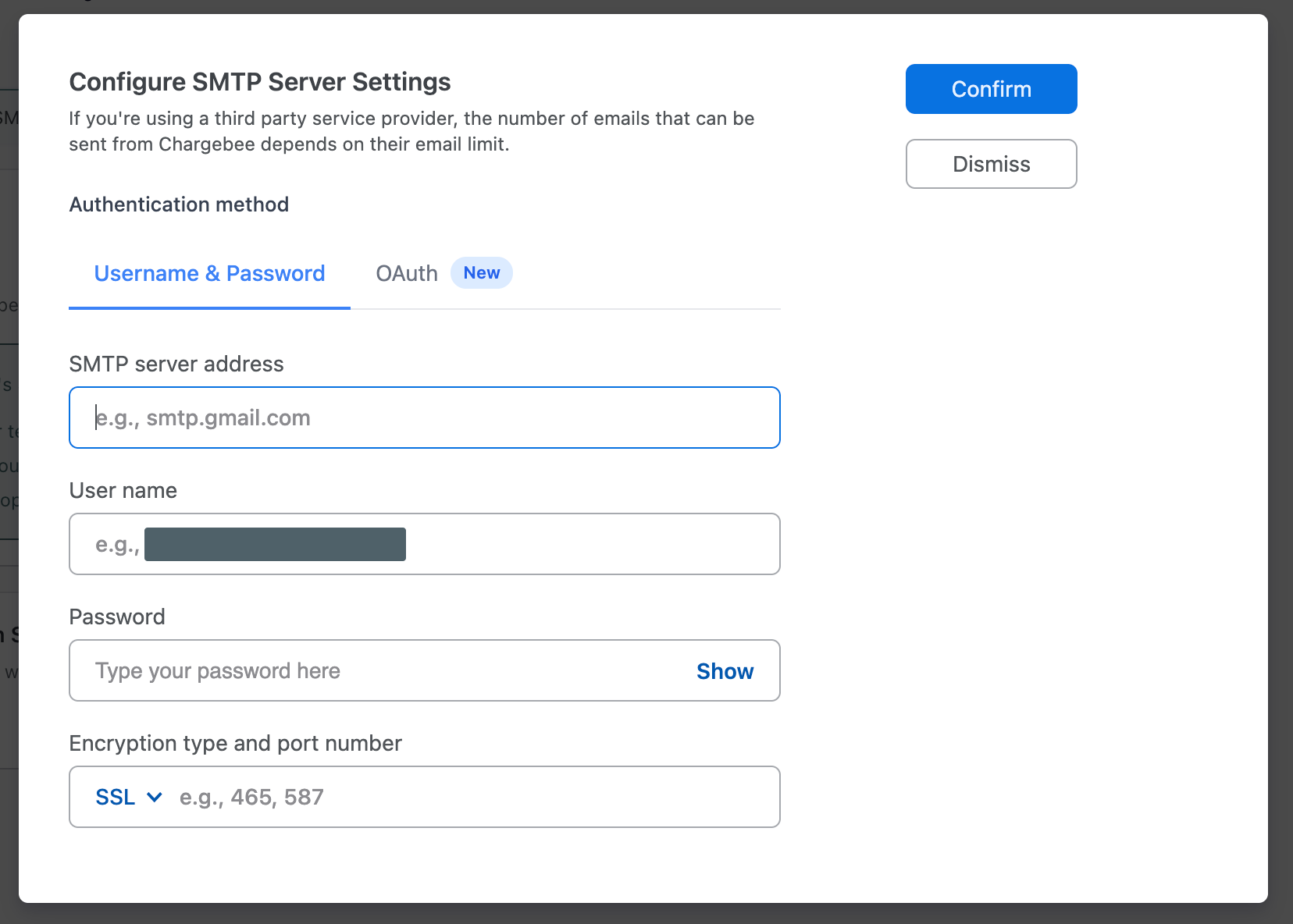
Return to the Chargebee SMTP form and enter the hostname, port, username, password, and encryption settings from the SMTP provider. These are connection credentials, not SPF or DKIM values. Keep passwords, API keys, and tokens out of ticket comments, screenshots, and shared header files.
Chargebee's custom SMTP documentation identifies these fields as part of the connection configuration. The current interface example below shows the connection form. It does not evidence the correct settings for a particular SMTP provider.
5. Verify the provider and send a real notification
Complete the SMTP provider's own verification workflow after public DNS answers with the expected records. Then send a new invoice, receipt, or other notification from Chargebee to a mailbox where you can inspect raw source.
Do not accept a successful Chargebee connection alone as proof of authentication. It proves that Chargebee connected to the configured SMTP service. It does not prove the visible From domain, envelope sender, DKIM signing domain, or receiver result on a delivered notification.
How does this setup affect DMARC?
DMARC passes when SPF passes and aligns with the visible From domain, DKIM passes and aligns with the visible From domain, or both. RFC 9989 defines DMARC evaluation and aligned identifier requirements.
For a Chargebee custom SMTP path, compare three identities in a received notification:
- The visible
From:domain. - The SPF-authenticated envelope sender shown as
smtp.mailfrom. - The DKIM signing domain shown by the
d=value inDKIM-Signature.
d= domain aligns instead.
Use Palisade's DMARC checker to inspect the published policy. A public DNS result does not prove that Chargebee used the expected SMTP identity for a notification.
How do I validate the setup?
Check public DNS
Query the authoritative DNS server and at least one public resolver for the exact SPF owner and DKIM selector generated by the SMTP provider. Use the SPF checker to inspect the public SPF policy and the DKIM checker to spot-check available DKIM records.
dig +short TXT yourdomain.com
dig +short CNAME selector1._domainkey.yourdomain.com
Public DNS checks show published records. They do not prove the configured Chargebee path, a provider verification state, or future receiver placement.
Check the vendor status
In the SMTP provider, confirm that the selected domain is verified or authenticated according to that provider's documented status. In Chargebee, confirm that the custom SMTP configuration is saved and enabled for the notification workflow.
A green provider indicator is not a delivered-message check. It does not show whether Chargebee sent the notification with the expected From address.
Inspect a delivered message
Send a fresh Chargebee notification and open its raw source in the receiving mailbox. Inspect DKIM-Signature and the receiver-added Authentication-Results field. RFC 8601 defines Authentication-Results and its receiving-service trust boundary.
Confirm spf=pass, dkim=pass, and dmarc=pass where the receiver reports them. Also confirm that the SPF or DKIM identifier aligns with the visible From domain. Redact recipient addresses, message IDs, and account data before retaining headers with the change record.
Review DMARC reports
After DMARC aggregate reports accumulate, review the Chargebee notification source alongside other senders using the domain. A real-message test proves one observed route. DMARC reporting can reveal recurring alignment failures or sources that were not included in the original change.
Troubleshooting
Chargebee saves the SMTP configuration but notifications still fail
Check the SMTP provider logs first. Chargebee documents that it cannot inspect customer-managed SMTP logs. Compare the failing notification time with the provider's accepted, deferred, or rejected event and verify the configured hostname, port, encryption, and credentials.
SPF passes but DMARC fails
Inspect smtp.mailfrom and the visible From domain. SPF can pass for an SMTP provider return path that does not align with the From domain. Check whether DKIM passes with an aligned d= domain, then use the SMTP provider's branded-domain or return-path options if its documentation supports them.
DKIM is missing or fails on the received notification
Confirm the exact selector and record type generated by the SMTP provider. Query the fully qualified selector name, then compare the public answer with the provider status. If DNS is correct, compare the provider's signing configuration and the delivered message. A valid DNS record does not prove that the provider signed this specific Chargebee notification.
DNS appears correct but the provider cannot verify the domain
Check for a duplicated zone suffix, a truncated TXT value, an old conflicting record, or a CNAME placed at an owner that already has another record. Wait only for the provider's documented DNS propagation window before changing records again.
The notification uses a different From address than expected
Compare the Chargebee notification sender setting, the SMTP provider's authenticated domain, and the received From: header. Chargebee's troubleshooting guidance identifies From-address mismatch as a risk for SPF and DKIM settings. Correct the configured sender identity or authenticate the domain actually used.
Check the public authentication posture for the sending domain
After validating a real Chargebee notification, run the sending domain through Palisade's Email Security Score. It can inspect the public SPF, DKIM, DMARC, and BIMI posture that supports this sending path.
The score cannot prove that Chargebee used the configured SMTP identity or that a specific notification passed at a receiver. For recurring visibility after the message test, Palisade analyzes aggregate-report data, identifies observed sending sources and authentication or alignment issues, and creates prioritized remediation tickets for human review. It does not configure Chargebee or the SMTP provider, and it does not guarantee a receiver's handling of future mail.
If Chargebee notifications are one of several changing sources on the domain, Start with Palisade to review the DMARC evidence and proposed next policy step before a human applies any DNS change.
Evidence
Sources and further reading
Questions readers ask
Frequently asked questions
Does Chargebee create SPF and DKIM records for custom SMTP?
No. For a custom SMTP connection, the SMTP provider generates the domain-authentication records and Chargebee uses that provider to send notifications. Copy the records from the provider account that owns the sending domain.
Can I publish a second SPF record for Chargebee?
No. A domain must not publish multiple SPF records that can be selected during SPF evaluation. Add the SMTP provider's authorized mechanism to the existing SPF policy when required, then validate the complete record.
Does a successful Chargebee SMTP connection mean DMARC passes?
No. A successful connection does not prove the authentication result on a delivered notification. Inspect a new received message for receiver-added SPF, DKIM, and DMARC results, then confirm alignment with the visible From domain.
Can DKIM pass while DMARC fails for a Chargebee notification?
Yes. DKIM can pass for a signing domain that does not align with the visible From domain. DMARC requires an aligned SPF pass or an aligned DKIM pass.
Should I use Chargebee SMTP or custom SMTP?
No, use custom SMTP when the chosen SMTP provider is the authenticated sender for the domain and you can validate the whole notification path. Use Chargebee SMTP only after confirming its documented authentication approach fits the domain and notification workflow.

Written by
Samuel ChenardCEO & Co-Founder, Palisade
Samuel Chenard is the CEO and co-founder of Palisade, agentic DMARC software for IT teams and MSPs, from one domain to thousands.
More from Samuel →