Why does Gmail show 'Looks safe' and hide images?
 ChatGPT
 Claude
 Gemini
 Perplexity
 Grok
GrokIn brief
Gmail shows 'Looks safe' and hides images when it treats a message or sender as suspicious. See what to inspect before trusting it or changing the sender.
Gmail can show a "Looks safe" action and withhold external images when it treats a specific message or sender as suspicious. That observation does not identify one broken DNS record or expose Gmail's private safety logic. Preserve the affected message, verify the request outside email, inspect trusted authentication results and image-hosting evidence, then retest only the sending path that the evidence identifies.
At a glance
Quick takeaways
- A Gmail safety banner is a message-specific observation, not proof of one DNS or DMARC failure.
- Gmail can ask before showing external images because of an account setting or because a sender or message appears suspicious.
- Do not select "Looks safe", open links, load images, or reply until the request is verified through a separate trusted channel.
- Trusted
Authentication-Resultsfields can show SPF, DKIM, DMARC, and ARC results, but they do not disclose Gmail's private classifier decision. - A public DNS check can confirm published records, but it cannot prove the production application used them or predict Gmail's future rendering decision.
- Retest with a newly delivered message through the same route after correcting an observable sending or image-hosting issue.
Scope and prerequisites
Use this procedure for an affected Gmail message that shows a scam warning, a "Looks safe" action, hidden external images, or more than one of these conditions. Keep a known-good message from the same application or sending route when possible.
You need the original message source or full headers, the exact Gmail observation, the visible From address, the sending application or gateway, and access to the relevant sender configuration and DNS zone. Record the owner of the sending route and the person authorized to approve a change.
Google's Gmail safety-warning guidance explains that Gmail can warn about messages that look like scams, including messages from an address in a recipient's contacts. Google also says Gmail might not automatically show images when it considers a sender or message suspicious.
Stop before making broad DNS or sender changes when the evidence does not identify the affected route. If a tested change creates fresh authentication failures, restore the previous known-good sender configuration. Do not lower a DMARC policy to try to remove a Gmail warning. For broader protection guidance, see the Palisade email security learning hub.
Choose the implementation approach
Separate the evidence into three layers before choosing a repair:
- Sender-controlled evidence: published SPF, DKIM, and DMARC records, sender configuration, authenticated domains, and image-host responses.
- Gmail observation: the visible safety banner, image prompt, and behavior in a specific recipient account.
- Private classifier logic: Gmail's unpublished internal decision process. The first two layers can be investigated. The third cannot be reconstructed from a message header or DNS lookup.
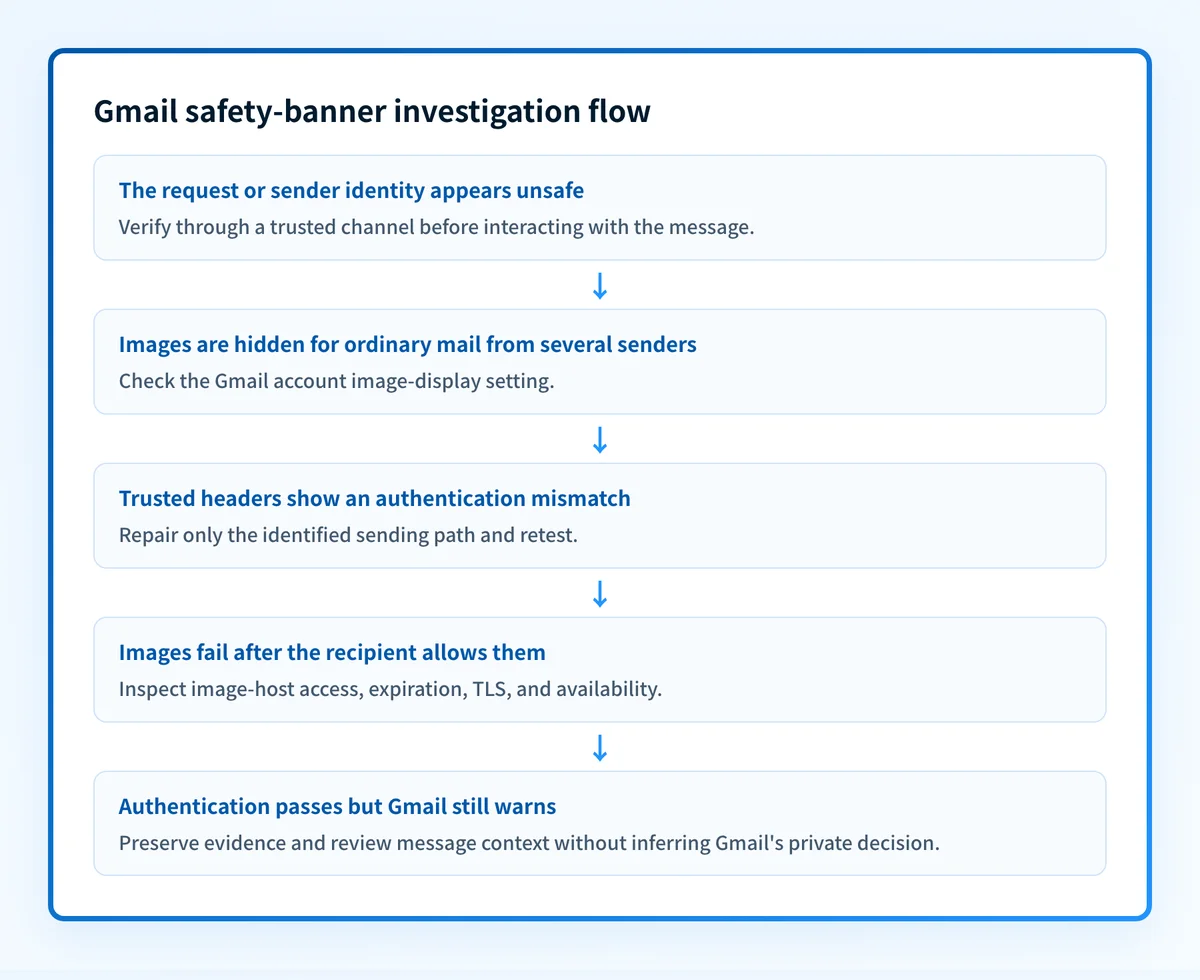
- If the request, links, attachment, or sender identity appears unsafe, verify it through a known phone number, bookmarked site, or newly composed message to a known address. Do not interact with the affected message.
- If an image fails after the recipient chooses to display it, inspect the image URL's hosting, access control, TLS response, and availability. That is an image-delivery or rendering issue, not evidence of Gmail's safety rationale.
- If trusted headers show an authentication mismatch, repair only the sender route that created it, then send a new test message.
- If authentication passes and the same Gmail-specific result repeats, preserve the evidence and review message content, links, Reply-To handling, and image-hosting context. Google does not publish a complete cause-to-banner mapping.
How to configure a sender-side investigation
1. Preserve the message and verify the request separately
Ask the recipient not to select "Looks safe", open attachments, follow links, reply, or load images until the request is confirmed through a separate trusted channel. A familiar display name, contact entry, or existing thread does not establish that a message is safe.
Record the exact warning, image behavior, visible From address, recipient account, and time. A cropped screenshot can document what Gmail displayed, but it cannot preserve the routing and authentication evidence required for a sender-side diagnosis.
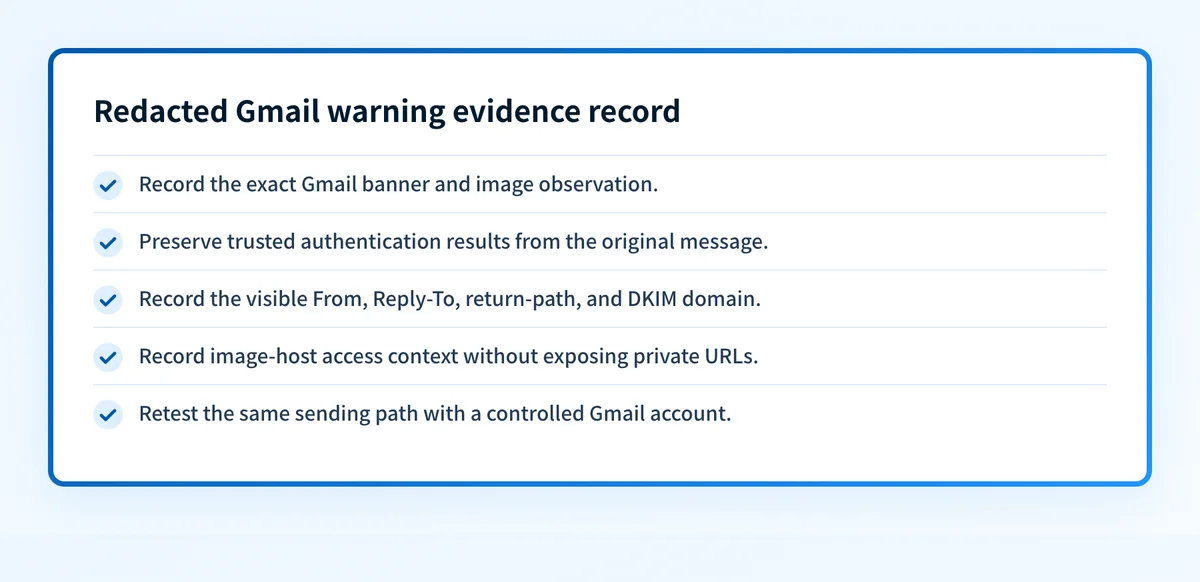
2. Create a redacted message-and-rendering evidence record
Export the original delivered message or full headers from the Gmail recipient. Do not rely on a forwarded copy because forwarding can add routing fields and change the evidence available to the receiver.
Use a redacted record such as this:
message_id: <Message-ID value>
received_at_utc: <UTC timestamp>
visible_from: alerts@yourdomain.com
reply_to: support@yourdomain.com
return_path: bounce@mailer.yourdomain.com
trusted_authentication_results: <receiver-added SPF, DKIM, DMARC, ARC results if available>
authenticated_sender_domain: yourdomain.com
image_url_context: https://images.yourdomain.com/... <do not open suspicious content>
image_hosting_context: <public, authenticated, expired, blocked, or unknown>
gmail_banner_observation: <exact displayed wording>
gmail_image_observation: <exact prompt or hidden-image behavior>
recipient_test_account: <redacted Gmail account or controlled test account>
retest_date_utc: <UTC timestamp after any change>
This record separates sender-controlled facts from the Gmail observation. Do not copy private message content, recipient addresses, tracking parameters, credentials, tokens, or unredacted headers into a ticket shared outside the investigation.
Authentication-Results is a receiver-added header field. RFC 8601 defines its syntax and says recipients should trust results added by the receiving system, rather than a similarly named field supplied by an untrusted sender.
3. Identify the image condition
Ask whether the recipient's Gmail account is configured to ask before displaying external images for ordinary messages, or whether Gmail withheld images only for this sender or message. Google's Gmail image settings guidance documents the account setting that asks before external images are shown.
If Gmail displays images after the recipient allows them but an image is broken, inspect the image host separately. Check whether the URL requires a login, has expired, returns an error, or is blocked by a network control. Do not open a suspicious URL as part of the investigation. Use a known-safe administrative or hosting path to inspect the asset instead.
4. Compare the delivered message with the intended sender
Compare the visible From domain, Reply-To domain, return-path domain, DKIM d= domain, and sender route against the intended configuration for this message stream. Google documents how recipients can inspect sender details such as "Mailed by" and "Signed by" in Gmail sender details, though full original headers are stronger evidence for an operator.
For DMARC, an aligned SPF or DKIM identifier must correspond to the visible From domain under the DMARC alignment rules in RFC 9989. An SPF pass for an unrelated return-path domain or a DKIM pass for an unrelated d= domain does not alone establish a DMARC-aligned pass.
5. Repair only an identified sending-path issue
Apply a change only when the original message identifies a mismatch or failure.
- For SPF, add authorization only for the legitimate service that sends with the affected envelope domain. Preserve existing mechanisms because SPF has one policy record for a domain.
- For DKIM, publish the sender-generated record for the selector and signing domain used by the affected route. Do not invent a selector or copy a key from another account.
- For DMARC, keep one valid policy record for the visible From domain. Use aggregate-report evidence before changing enforcement.
- For image hosting, correct the specific access, expiration, TLS, or availability condition found in the controlled inspection.
Do not replace an existing SPF or DMARC record with an example record. A blind replacement can break authorization or reporting for other legitimate mail streams.
An illustrative DMARC record shape is:
_dmarc.yourdomain.com TXT "v=DMARC1; p=none; rua=mailto:dmarc-reports@yourdomain.com"This is illustrative only. Use the existing record as the starting point and preserve its legitimate tags and reporting destinations. A DMARC rollout should begin with monitoring, then move to quarantine and reject only when aggregate-report evidence shows that legitimate sources authenticate and align.
How to validate the setup
Validate the repaired route at four separate layers:
- DNS: query the affected domain against its authoritative DNS server and at least one public resolver. Confirm the intended SPF, DKIM, or DMARC record answers without removing existing valid records. The Palisade DMARC checker can help confirm the published record.
- Sender: check the relevant application, ESP, or gateway authentication status for the exact sending domain and selector. A green vendor indicator does not prove a delivered message used that setting.
- Message: send a new test message through the same application, account, and gateway. Inspect receiver-added
Authentication-Results, visible From, return-path, Reply-To, and DKIMd=values. - DMARC: after reports accumulate, verify that the source IPs and identifiers for the repaired route pass and align in aggregate-report data.
If the corrected message still shows a warning or hidden images despite passing authentication, record that result without claiming the protocol repair failed. The remaining issue may be message content, destination links, image-hosting context, recipient account settings, or Gmail's unpublished safety decision.
Troubleshooting
Gmail hides images for all ordinary messages
Check the recipient account's image-display setting first. Google's image-display instructions distinguish an account preference to ask before displaying external images from a message-specific safety decision. This is a recipient-side setting, so changing sender DNS will not alter it.
Gmail hides images only for one sender or message
Preserve the exact warning and compare the message with a known-good message from the same sender. Check trusted headers, visible identity, Reply-To handling, links, and image-host access. Treat any conclusion about Gmail's private classifier as an inference because Google does not publish a complete mapping of message features to safety warnings.
SPF or DKIM passes but DMARC fails
Compare the authenticated identifiers with the visible From domain. DMARC needs an aligned SPF or DKIM pass, not only a passing result. Review the smtp.mailfrom value for SPF and the DKIM header.d value where the receiver reports them.
The image URL works for an administrator but not a recipient
Check whether the image host requires a session cookie, signed URL, private network access, or a non-expired token. Test through the controlled recipient context without opening a suspicious message URL. Correct the image-host condition separately from the Gmail safety investigation.
A DNS checker passes but Gmail still shows the banner
A DNS result only confirms what public DNS returned at the time of the check. It cannot show which application sent the message, whether that application signed it, Gmail's private decision, or future rendering behavior. Return to the original delivered message and compare it with the test message from the exact production route.
Inspect the headers behind the Gmail warning
Use the original message headers to inspect the identity and authentication evidence before changing DNS. Palisade's email header analyzer is appropriate when you have a redacted raw header from the affected message.
A header analysis cannot prove why Gmail showed a safety warning, test the recipient's image setting, repair image hosting, or predict a future Gmail decision.
If the same domain has recurring sources that fail authentication or alignment after the immediate issue is understood, Palisade is agentic DMARC software that analyzes DMARC aggregate-report data, identifies sources and authentication or alignment issues, and creates prioritized remediation tickets. It can propose the next policy step when evidence supports it, while a human reviews the evidence and applies any DNS or DMARC policy change.
Palisade does not change Gmail's private safety decision, automatically change a DMARC policy, prove every future message will authenticate, or guarantee inbox placement.
Evidence
Sources and further reading
Questions readers ask
Frequently asked questions
Can Gmail hide images because of a recipient setting?
Yes. Gmail has an account setting that asks before external images are shown. Check whether the behavior affects ordinary messages from several senders before treating it as a sender-side incident.
Should a recipient click "Looks safe" to test the message?
No. Verify the request through a trusted channel first. Do not use the suspicious message's links, attachments, reply controls, or image controls to establish whether it is legitimate.
Can passing SPF and DKIM still leave a DMARC problem?
Yes. A DMARC pass needs an aligned SPF or DKIM identifier. A passing result for an unrelated envelope domain or DKIM signing domain does not by itself create an aligned DMARC pass.
Can a public DNS check explain Gmail's safety warning?
No. Public DNS can show the records published for a domain. It cannot prove the production application used those records, disclose Gmail's private classifier logic, or predict future Gmail rendering behavior.

Written by
Samuel ChenardCEO & Co-Founder, Palisade
Samuel Chenard is the CEO and co-founder of Palisade, agentic DMARC software for IT teams and MSPs, from one domain to thousands.
More from Samuel →