M365 DMARC setup
 ChatGPT
 Claude
 Gemini
 Perplexity
 Grok
In brief
M365 DMARC setup: publish a DMARC TXT record, verify Microsoft 365 SPF and DKIM alignment, then validate delivered-message results and review reports.
M365 DMARC setup means publishing a DMARC TXT record for the visible From domain, then confirming that Microsoft 365 mail has an aligned SPF or DKIM pass. Start with a monitoring policy, inspect real Microsoft 365 messages and aggregate reports, then move to quarantine and reject only after every legitimate sending path is accounted for.
At a glance
Quick takeaways
- DMARC is published as a TXT record at
_dmarc.yourdomain.com. - A Microsoft 365 message passes DMARC when aligned SPF or aligned DKIM passes.
- Start with
p=noneto collect evidence without requesting a delivery action. - Microsoft 365 is only one possible sender for a domain. CRM, helpdesk, payroll, and transactional platforms need separate checks.
- A public DNS lookup confirms the published record, not that Microsoft 365 is signing or that every recipient will accept future mail.
- Move from monitoring to quarantine and then reject only after aggregate-report evidence supports the change.
Scope and prerequisites
This setup covers a domain that sends mail through Microsoft 365. It does not configure recipient-side anti-phishing policy or replace the foundational explanation in what DMARC is. Use the DMARC learning hub for the broader protocol and policy workflow.
Before editing DNS, identify the visible From domain, the DNS zone and its change owner, the Microsoft 365 tenant owner, every application that sends as the domain, and a mailbox where you can inspect a newly delivered message. Also choose an aggregate-report destination that the responsible team can access and review.
Microsoft explains that SPF identifies valid sources for the MAIL FROM domain, while DMARC evaluates whether SPF or DKIM authenticates and aligns with the From domain. A DMARC failure occurs only when both alignment paths fail. Microsoft's email-authentication guidance describes how these controls work together for Microsoft 365 mail.
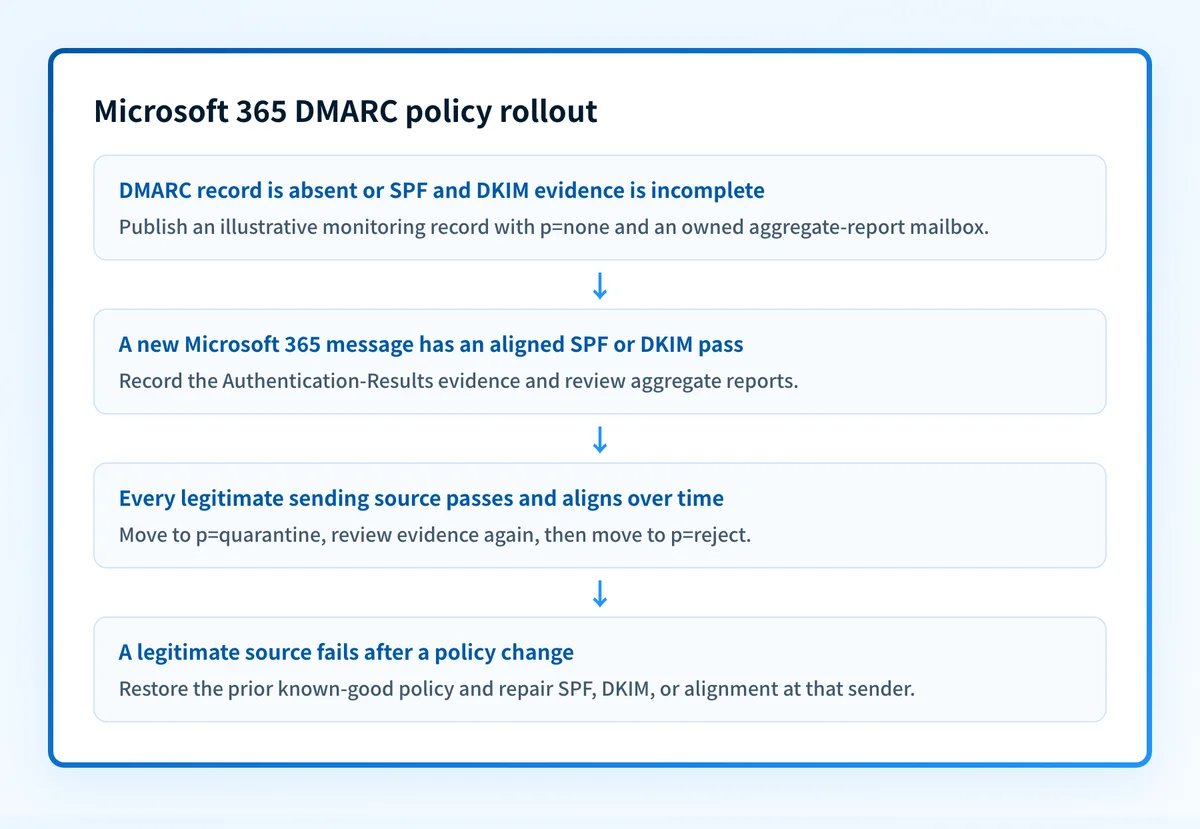
The rollback condition is clear: if a policy change causes legitimate mail to be quarantined or rejected, restore the prior known-good DMARC policy while you isolate the sending path and authentication failure. Do not remove SPF or DKIM records as a response to a DMARC issue.
Choose the implementation approach
Use a monitoring record when you do not yet have evidence for every source sending as the domain. The DMARC specification uses p=none to request aggregate feedback without requesting that receivers alter message handling. RFC 7489's monitoring example uses this approach to confirm authorized sources before an enforcement policy.
Choose the policy based on the evidence you have:
p=nonecollects aggregate-report evidence and does not request a delivery action.p=quarantinerequests that a receiver treat DMARC failures as suspicious.p=rejectrequests that a receiver reject DMARC failures during SMTP.
Use relaxed alignment unless you have evidence that strict alignment fits every legitimate sender. Microsoft documents relaxed alignment as allowing organizational-domain matching, while strict alignment requires an exact fully qualified domain match.
How to configure DMARC for Microsoft 365
1. Inventory every visible From domain and sending path
List Microsoft 365 mailboxes, shared mailboxes, applications using SMTP or connectors, and non-Microsoft platforms that send with the same From domain. Record the expected MAIL FROM domain and DKIM d= domain for each source.
Microsoft 365 outbound mail is not proof that another platform sending as the same domain has SPF or DKIM configured. Keep each source in scope until a delivered message and aggregate-report data show an aligned pass.
2. Confirm Microsoft 365 SPF and DKIM are ready
Check the current SPF record before publishing DMARC. Preserve its existing mechanisms and do not create a second SPF TXT record. SPF records must represent all authorized senders for the MAIL FROM domain.
Then confirm the Microsoft 365 DKIM configuration for the domain. In the Defender portal, the DKIM tab of the Email authentication settings page shows the two CNAME records to publish for a custom domain. Publish them at your DNS host, give Microsoft time to detect them, and then turn on the Sign messages for this domain with DKIM signatures toggle. Microsoft says the main factor that determines when a custom domain starts signing is CNAME record detection in DNS, as described in Microsoft's DKIM configuration guide. Microsoft also identifies a missing DKIM configuration as a sender-side issue in its authentication operations guide.
Do not move top=quarantineorp=rejectbecause Microsoft 365 mail passes one test. A different application using the same From domain can still fail DMARC and lose mail.
3. Create the DMARC TXT record
Create one TXT record at the _dmarc host in the authoritative DNS zone for the visible From domain. This is an illustrative monitoring record, not a tenant-generated value:
_dmarc.yourdomain.com TXT "v=DMARC1; p=none; rua=mailto:dmarc-reports@yourdomain.com"Replace yourdomain.com and the reporting mailbox with domains and a mailbox your organization controls. Do not copy this example into a DNS provider that automatically appends the zone name without checking how its host field works.
The record has three parts:
v=DMARC1declares the DMARC version.p=nonerequests monitoring only.rua=mailto:identifies an aggregate-report destination.
4. Check authoritative and public DNS
Query the complete owner name at the authoritative name server, then check a public resolver. Confirm there is one syntactically valid DMARC record and that its policy and report address match the intended change.
dig +short TXT _dmarc.yourdomain.com
nslookup -type=TXT _dmarc.yourdomain.com
Microsoft provides a PowerShell alternative for checking the TXT record:
Resolve-DnsName -Name "_dmarc.yourdomain.com" -Type TXT | Select-Object -ExpandProperty StringsMicrosoft's DMARC troubleshooting commands include this lookup and a command to review DKIM signing configuration.
5. Send a new message through Microsoft 365
Send a new message from the exact Microsoft 365 mailbox or application path you are validating. Inspect the delivered message's full headers at the receiving mailbox and locate Authentication-Results.
The target result is dmarc=pass, supported by an aligned SPF or DKIM result. Record the visible From domain, SPF-authenticated domain, DKIM d= domain, and the receiver's result. A green Microsoft 365 configuration status or a public TXT result does not prove this delivered-message layer.
6. Review reports before enforcing policy
Wait for aggregate reports from participating receivers, then identify all legitimate source IPs and authentication outcomes. Correct SPF, DKIM, or alignment issues at the sender before changing policy.
When reports show that legitimate production sources pass and align, update the policy to p=quarantine. Repeat the review, then progress to p=reject when the evidence still supports it. RFC 7489 defines these policy values and their requested receiver treatment.
How to validate the setup
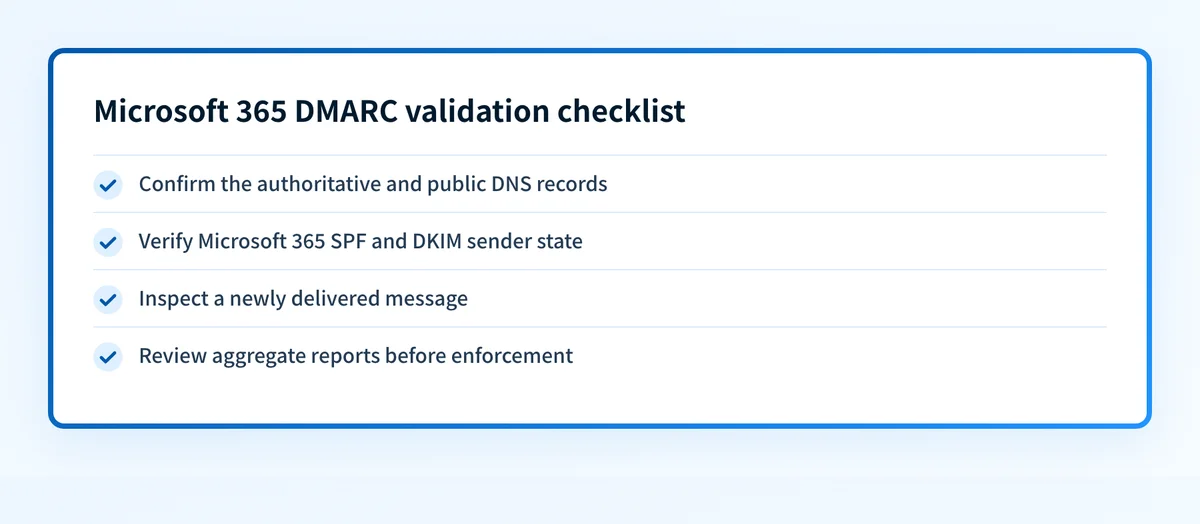
Validate M365 DMARC setup at four separate layers:
- DNS: The authoritative server and a public resolver return the intended
_dmarcTXT record. - Microsoft 365 sender state: SPF is current for the sending path and DKIM is enabled for the domain where Microsoft 365 signs mail.
- Delivered message: A newly delivered message shows
dmarc=passand reveals the SPF or DKIM domain that supplied the aligned pass. - DMARC reporting: Aggregate reports show legitimate sources passing over time and identify sources that still need remediation.
Troubleshooting
The DMARC record does not appear in DNS
Check the record owner, zone-selection behavior, and record type first. A DNS console may append yourdomain.com automatically, so entering the full domain in its host field can create a duplicated name. Compare the authoritative answer with the intended fully qualified record name before treating this as propagation delay.
Microsoft 365 mail has dmarc=fail
Read Authentication-Results before changing DNS. Confirm whether SPF failed or lacks alignment, whether DKIM failed or lacks alignment, or whether both paths failed. Microsoft states that the sender should ensure SPF or DKIM passes and that the MAIL FROM domain or DKIM signing domain aligns with the From domain. Microsoft's DMARC failure guidance separates these sender-side repairs from recipient routing cases.
A third-party application fails after enforcement
Identify the application from its message headers and aggregate-report source data. Verify whether it uses its own MAIL FROM domain, whether it signs with an unaligned DKIM domain, and whether its required DNS records remain intact. Fix authentication at that sender before adding an exception.
Reports are not arriving from Microsoft 365
Microsoft states that it sends aggregate reports to domains with a valid rua=mailto: address when the Microsoft 365 domain's MX record points directly to Microsoft 365. Microsoft does not send DMARC forensic reports, even when ruf=mailto: is present. Review the Microsoft aggregate-report conditions and verify the report address and MX routing.
Check the Microsoft 365 domain's DMARC record
Check the published DMARC record before changing policy. Compare the public result with a newly delivered Microsoft 365 message and the aggregate reports that identify all active sending sources.
A DNS check cannot prove which production sources are still failing alignment, repair a sender's configuration, monitor new sources, or determine a receiver's private delivery decision.
For recurring report review across Microsoft 365 and other senders, Palisade is agentic DMARC software that analyzes aggregate-report data, identifies sources and alignment issues, and creates prioritized remediation tickets. It proposes the next policy step, while your team reviews the evidence and applies the DNS change.
Palisade does not autonomously change the DMARC policy, repair every sender, or guarantee that future mail will authenticate or reach the inbox.
Evidence
Sources and further reading
Questions readers ask
Frequently asked questions
Does Microsoft 365 require a tenant-side DMARC switch?
No. For outbound mail, DMARC is published in DNS only. For inbound mail into Microsoft 365, the Honor DMARC record policy setting in the anti-phishing policy decides whether a quarantine or reject policy is applied. Keep it on. Microsoft 365 sender configuration still matters for outbound mail because SPF and DKIM must provide an aligned pass for production mail.
Should an M365 DMARC setup begin with p=reject?
No. Begin with p=none unless aggregate-report and delivered-message evidence already confirms every legitimate sender using the domain. p=reject can affect legitimate mail that fails both aligned SPF and DKIM.
Can a Microsoft 365 message pass DMARC when SPF fails?
Yes. A Microsoft 365 message can pass DMARC when DKIM passes and aligns with the visible From domain. DMARC requires an aligned pass from SPF or DKIM, not both.
Does a DMARC checker prove Microsoft 365 is configured correctly?
No. A DMARC checker can inspect the public DNS record. It cannot verify Microsoft 365 tenant state, a delivered message's authentication results, aggregate-report history, or a recipient's delivery decision.
Why does a third-party sender matter to M365 DMARC setup?
A DMARC record applies to mail using the protected From domain, including mail sent by applications outside Microsoft 365. Each third-party sender needs an aligned SPF or DKIM path before enforcement.

Written by
Samuel ChenardCEO & Co-Founder, Palisade
Samuel Chenard is the CEO and co-founder of Palisade, agentic DMARC software for IT teams and MSPs, from one domain to thousands.
More from Samuel →