How to get a DKIM record
 ChatGPT
 Claude
 Gemini
 Perplexity
 Grok
GrokIn brief
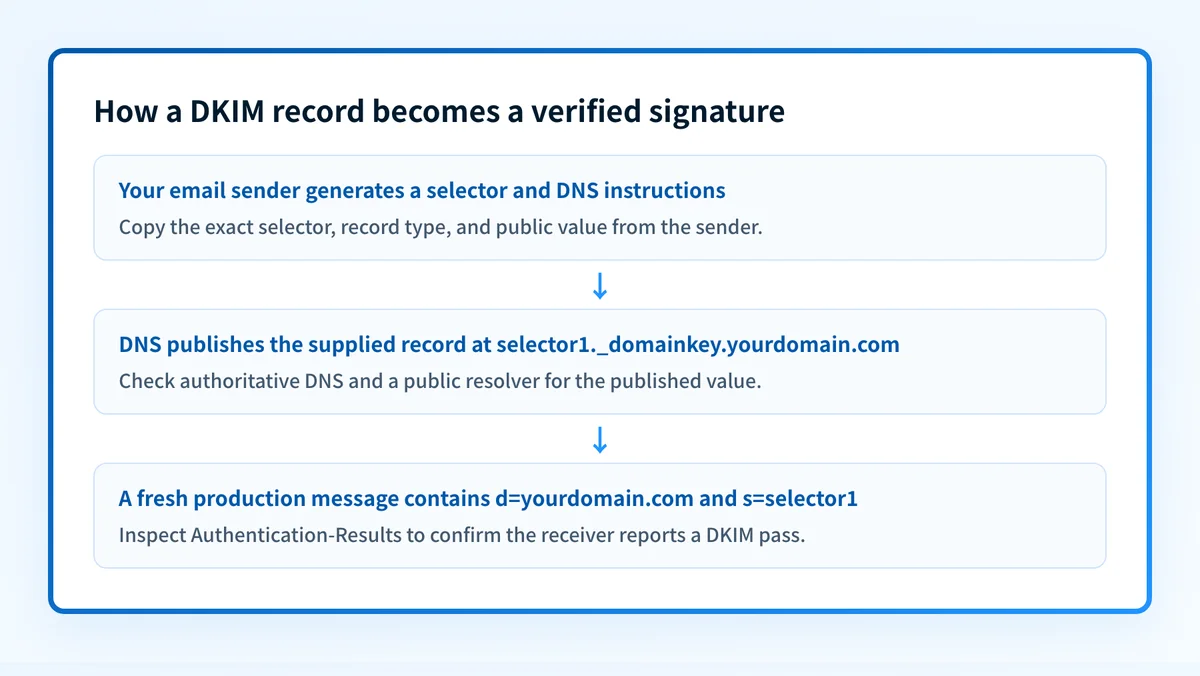
How to get a DKIM record: generate the selector and key with your sender, publish its exact DNS value, then verify a delivered message passes.
To get a DKIM record, obtain the selector and DNS value from the email service that sends your mail, then publish that exact value at the selector's _domainkey hostname. The record is usually a TXT record containing a public key, but some services provide a CNAME instead. Publishing DNS alone does not prove the sender is signing mail. Send a fresh message through the production path and inspect its DKIM result.
At a glance
Quick takeaways
- Your email sender generates the DKIM private key and tells you what public DNS record to publish.
- A DKIM lookup needs both a selector and a signing domain, not only the visible From domain.
- DKIM public keys are normally published at
._domainkey. - Some providers use a CNAME record that points to provider-managed DKIM data instead of a TXT public key.
- A public DNS result confirms publication, but a delivered message confirms whether the sender used the matching private key.
- DKIM works with DMARC when the DKIM signing domain aligns with the visible From domain.
How a DKIM record works
DKIM lets a sending system sign parts of an email with a private key. The receiving system reads the signature's d= signing domain and s= selector, then retrieves the matching public key through DNS.
The selector scopes the lookup. For a message signed with d=yourdomain.com and s=selector1, the receiver looks for:
selector1._domainkey.yourdomain.comThe sender chooses or generates the selector through its account or configuration. There is no universal DKIM record that can be retrieved from a bare domain without knowing which selector the sender used.
A traditional DKIM key record is a DNS TXT record with DKIM tags. RFC 6376 section 3.6 defines the key-record format and the selector-based lookup. Current DKIM guidance in RFC 8301 recommends RSA keys of at least 1024 bits and says verifiers must be able to support RSA keys from 1024 through 2048 bits.
For the protocol context, see what DKIM is. If you need to review the published value rather than create one, use the separate guide on how to check a DKIM record.
When the answer changes
The way you get the record depends on who controls the sending service and DNS.
- If your email provider generates DKIM keys, use its account-generated selector and record value. Do not copy a DKIM public key from another domain, tenant, or provider.
- If the provider instructs you to create a TXT record, publish the full public-key value exactly as provided.
- If the provider instructs you to create a CNAME record, publish the CNAME target exactly as provided. The provider may host or rotate the underlying key.
- If you manage a mail server directly, your mail-signing software generates the key pair and selector. Publish only the public-key data in DNS. Keep the private key private.
- If you have a delivered message, use its
s=andd=values to identify the exact public record the receiver attempted to use.
Do not replace an existing DKIM record until you know which sending systems use it. Removing a selector that an active sender still signs with can cause its DKIM validation to fail.
Worked DKIM record example
This is an illustrative TXT-record shape only. Your sender generates the actual selector and public-key value. Do not publish this example.
Host: selector1._domainkey.yourdomain.com
Type: TXT
Value: v=DKIM1; k=rsa; p=BASE64_PUBLIC_KEY_FROM_YOUR_SENDER
In this example:
selector1is the selector named by the sender's DKIM signature._domainkeyis the DKIM DNS namespace.yourdomain.comis thed=signing domain.v=DKIM1identifies the record as a DKIM key record.k=rsaidentifies the key type.p=contains the public key. The private key remains with the sending system.
A CNAME-based setup has a different DNS shape:
Host: selector1._domainkey.yourdomain.com
Type: CNAME
Value: selector1.provider-example.net
Use only the hostname and record type supplied by your provider. A CNAME is not interchangeable with a TXT public-key record. Follow the sender's instructions for that selector.
For more detail on the fields inside a TXT key record, see DKIM DNS record examples.
Get and validate the right DKIM record
Start with the evidence you have.
- If you are setting up a sender, open that sender's DKIM or domain-authentication settings and generate or retrieve its DNS instructions. Record the selector, signing domain, DNS record type, and exact value.
- If you administer DNS, publish the supplied record at the full hostname. Query the authoritative DNS server and at least one public resolver after the change propagates.
- If you have a delivered message, inspect its
DKIM-Signatureheader ford=ands=. Then inspect the receiver'sAuthentication-Resultsheader. RFC 8601 defines this header field for reporting authentication results. - If the message fails DKIM, compare the selector and signing domain in the message with the DNS record that is publicly available. A failure can involve DNS publication, the sender's signing configuration, or a mismatch between the key used to sign and the public key retrieved by the receiver.
For a broader operating model across SPF, DKIM, and DMARC, visit the email authentication learning hub.
Check the published DKIM record
Once you have the selector and signing domain, inspect the public record before troubleshooting signing or delivery.
Check the published DKIM record
A public DNS check cannot reveal the private key, enable signing in the sender, prove an unseen message passed DKIM, or guarantee delivery.
Evidence
Sources and further reading
Questions readers ask
Frequently asked questions
Can I get a DKIM record from my domain registrar?
Only if the registrar also operates the email sender or exposes the sender's DKIM setup. A DNS provider can publish the record, but the email service that signs messages supplies the selector and the public-key or CNAME value.
Is a DKIM record always a TXT record?
No. A traditional DKIM key record is a TXT record containing the public key, but some email providers instruct customers to publish CNAME records that point to provider-managed DKIM data.
Can one domain have multiple DKIM records?
Yes. A domain can publish multiple selectors, often because different email services sign mail for the same domain or because a sender is rotating keys. Each active sender must use its matching selector and public key.
Does a published DKIM record mean DKIM is working?
No. It proves only that a public DNS record is available at the name checked. A newly delivered message with a DKIM pass result is needed to show that the sender used a corresponding private key for that message.
Can I copy a DKIM key from another domain?
No. The public record must correspond to the private key used by your sender for your signing domain and selector. Obtain the values from the specific sender account or mail-signing system that will send your mail.

Written by
Dominic LandryDeliverability & DNS
Dominic Landry works on email deliverability and DNS configuration at Palisade, from SPF and DKIM records through to DMARC enforcement.
More from Dominic →