DKIM setup in GoDaddy
 ChatGPT
 Claude
 Gemini
 Perplexity
 Grok
Grok
DKIM setup in GoDaddy means getting the exact DKIM DNS record from the system that sends your mail, then publishing that TXT or CNAME record in GoDaddy Domain Portfolio under the domain's DNS settings. GoDaddy manages the DNS record, but it does not generate a universal DKIM key for every sender. Use the selected sender's account-specific values, save them in the authoritative GoDaddy zone, and validate the production mail path afterward.
At a glance
Quick takeaways
- GoDaddy is the DNS publisher in this workflow, while the mail sender generates the DKIM selector and record value.
- A GoDaddy cPanel hosting-email account can provide its suggested DKIM record through cPanel Email Deliverability.
- Microsoft 365 domains managed in GoDaddy use the Microsoft 365 DKIM process and publish the CNAME records Microsoft provides.
- Do not overwrite an existing DKIM selector, SPF record, or DMARC record to make an example match your domain.
- A public DNS result does not prove that the sender holds the matching private key or that a delivered message passes DKIM.
- DMARC can use DKIM only when the passing
d=signing domain aligns with the visible From domain.
What should I check before configuring GoDaddy?
First identify the exact sender that needs DKIM. A GoDaddy domain may send mail through GoDaddy cPanel hosting email, Microsoft 365, an email marketing platform, a transactional service, or several of these. Each sending path can generate different DNS values and use a different selector.
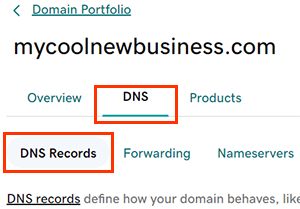
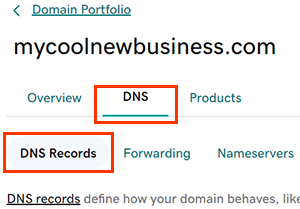
Confirm that you can sign in to the GoDaddy account that controls the authoritative DNS zone and can edit the selected domain. GoDaddy's TXT record instructions place this workflow in Domain Portfolio: select the domain, open DNS, then add a record. Also confirm that you can access the sender's administration area, because that is where the real DKIM values originate.
If you use GoDaddy cPanel hosting email, GoDaddy directs administrators to cPanel Email Deliverability for its suggested SPF, DKIM, and DMARC records. If you use Microsoft 365, use Microsoft's DKIM configuration instructions to obtain the required CNAME records.
Read what DKIM is before changing records if the difference between a selector, public key, and signing domain is unclear.
Copy DNS values from the account and domain you are configuring. Do not publish selectors, targets, tokens, or hostnames from another account or from an online example.
Which setup method should I use?
Use the record type your actual sender gives you.
- Use a
TXTrecord when the sender provides a selector and DKIM public key. GoDaddy hosting email can expose this type of record through cPanel Email Deliverability. - Use a
CNAMErecord when the sender directs the selector to a provider-managed hostname. Microsoft 365 DKIM commonly uses this approach. - Keep an existing working selector in place unless the sender's documented key-rotation process tells you to replace it.
Do not choose a record type based on a blog example. RFC 6376 defines DKIM public keys as selector-scoped DNS data, but the sender determines the selector and how it publishes or delegates that data.
How do I configure SPF and DKIM for GoDaddy?
1. Open the sender's domain-authentication settings
Open the administration area for the system that sends the mail. For GoDaddy cPanel hosting email, open cPanel > Email Deliverability and locate the suggested DKIM record for the domain. For Microsoft 365, follow the Microsoft 365 DKIM setup path to generate or view the CNAME values for the custom domain.
Record the sender, visible From domain, DKIM selector, record type, and expected signing domain before touching DNS. These values provide the baseline for testing later.
2. Select the matching GoDaddy domain
In GoDaddy Domain Portfolio, select the domain whose DNS is authoritative for the owner name the sender supplied. Open DNS and choose the option to add a new record, as described in GoDaddy's DNS record management documentation.
Check the domain suffix shown in GoDaddy before adding the record. Some DNS interfaces append the zone name automatically. If you paste a fully qualified owner into a field that already appends the zone, the resulting owner can become duplicated.
3. Publish the sender-generated DKIM record
Select the record type that your sender supplied. The following shapes are illustrative only. They are not usable DKIM records and must not be published.
For a TXT-based DKIM record:
Record type: TXT
Host (illustrative only):
selector1._domainkeyValue (illustrative only):
v=DKIM1; k=rsa; p=example-public-key-from-your-senderDo not publish this example. Copy the complete host and value generated by the sender account that will sign mail for your domain.
For a CNAME-based setup, the sender supplies both the selector owner and destination:
Record type: CNAME
Host (illustrative only):
selector1._domainkeyValue (illustrative only):
selector1-yourdomain-com._domainkey.provider.exampleDo not publish this example. Copy the exact CNAME destination generated by your sender, such as Microsoft 365, for the domain being configured.
Before saving, inspect existing records at the same owner name. A CNAME cannot coexist with other DNS data at that owner. Do not replace a TXT key or CNAME selector that another active sender still uses.
SPF is separate from DKIM. If the sender also gives you SPF instructions, merge its approved mechanism into the one existing SPF TXT record for the domain. Do not create a second v=spf1 record. The same caution applies to DMARC: publish or edit the single _dmarc TXT record only when the policy change is planned and reviewed.
4. Verify the record with the sender
Return to the sender's authentication screen and use its verification action, if it provides one. A successful sender status means that the selected sender accepted the DNS configuration it checked.
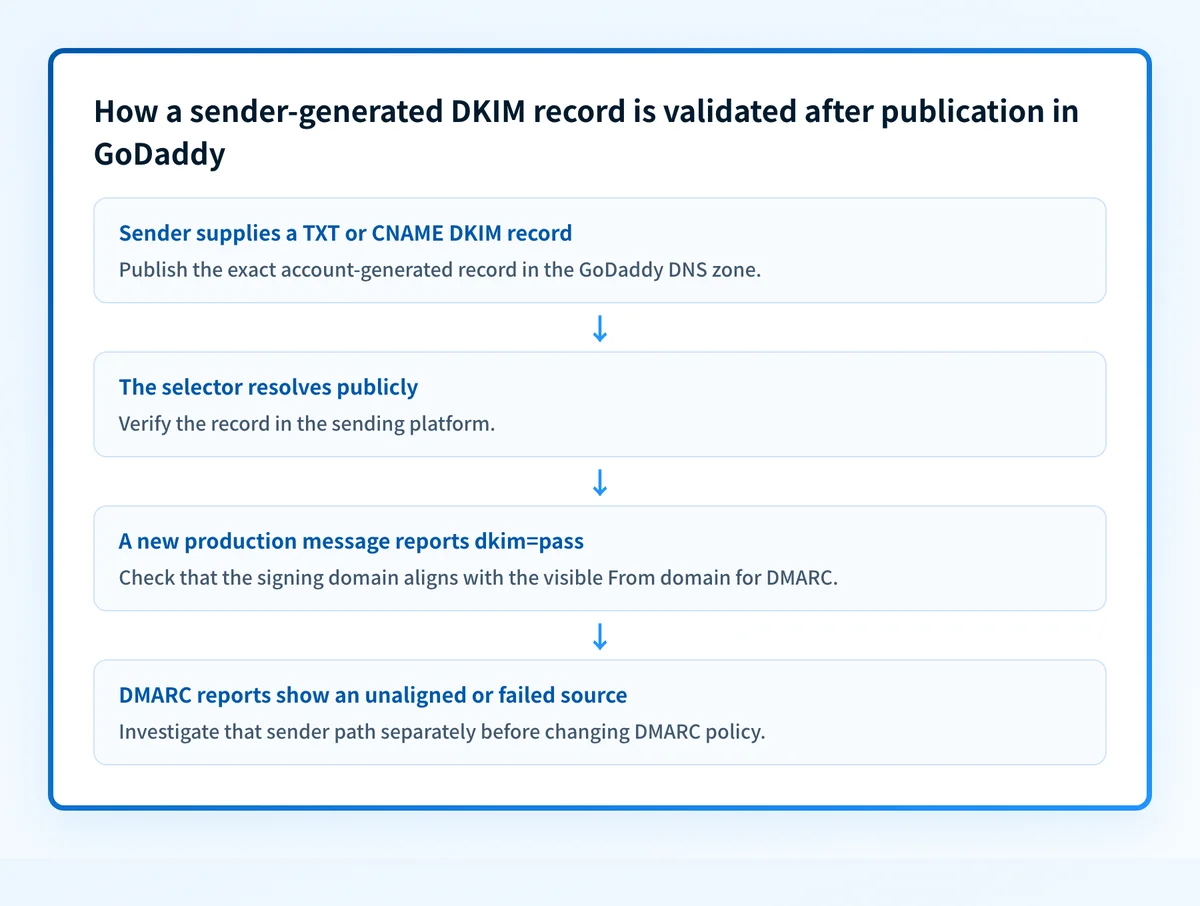
A green status does not prove that every production route signs messages. A different relay, application, or outbound security gateway can alter the message after signing or use another signing domain.
5. Send a real test message
Send a new message through the exact production path. Use a mailbox where you can inspect full message source. Do not test with a message sent before the DKIM change or from a different system that happens to use the same From domain.
Look for the sender's DKIM-Signature header, including its d= signing domain and s= selector. Then check the receiver-added authentication result. RFC 8601 defines Authentication-Results and explains that its result should be trusted only from the receiver or a trusted intermediary that added it.
How does this setup affect DMARC?
DKIM supports DMARC when the receiving system reports dkim=pass and the DKIM d= domain aligns with the visible From domain. A signature can be valid but still fail DMARC alignment when it signs for an unrelated domain.
For example, a message with From: billing@yourdomain.com may pass DKIM for provider.example, but that pass does not satisfy aligned DKIM for yourdomain.com. Review DKIM for subdomains when the sender signs with a subdomain or uses a delegated sending domain.
Use Palisade's DMARC checker to inspect the published DMARC policy before changing enforcement. A public record check cannot show whether all live senders align or how an individual mailbox provider handled a specific message.
How do I validate the setup?
Check public DNS
Query the exact selector and signing domain provided by the sender. Check the authoritative DNS response and at least one public resolver.
dig +short TXT selector1._domainkey.yourdomain.comFor a CNAME setup, query the same owner as CNAME instead:
dig +short CNAME selector1._domainkey.yourdomain.comCompare the response with the sender-generated value. If no record appears, use the DKIM record troubleshooting guide to check the selector, record type, and final owner name.
Check the sender status
Return to the sender's domain-authentication page and confirm that it recognizes the published record. If the sender reports an error, compare the exact type, host, and full value with the GoDaddy record. Do not shorten a DKIM public key or substitute a target from another account.
Inspect a delivered message
Inspect a message sent after verification. Confirm that the DKIM-Signature selector matches the intended selector and that a trusted Authentication-Results field reports dkim=pass. Confirm that the d= domain aligns with the visible From domain when you expect DKIM to satisfy DMARC.
Review DMARC reports
After DMARC aggregate reports arrive, review the sending source and authentication results for the domain. This layer shows whether the production source appears in reporting and whether DKIM aligns over time. It can also reveal another sender that still needs separate authentication work.
Troubleshooting
GoDaddy saves the record but DNS cannot find it
Check the final fully qualified owner name. A duplicated zone suffix is common when a DNS host field automatically appends yourdomain.com and the full domain was pasted into that field. Also confirm that the record was saved in the authoritative GoDaddy zone, not a DNS zone that is no longer delegated.
The sender reports that the DKIM record is missing
Compare the record type first. A CNAME selector cannot be published as a TXT record, and a TXT public key cannot be published as a CNAME. Then compare the complete owner and value with the sender interface. Account-generated values must match exactly.
GoDaddy cPanel shows a different suggested record
Use the value currently shown in cPanel Email Deliverability for that account and domain. Do not reuse a prior selector or public key from another hosting account. If the old selector is still used by mail in transit, follow the sender's rotation guidance before removing it.
DKIM passes but DMARC fails
Inspect the visible From domain and the passing DKIM d= value. The signature may be valid but unaligned. Check the sender's configured branded domain, custom domain, or return-path settings, then retest the same production route.
One sender passes and another sender fails
Treat each sender as a separate authentication path. A GoDaddy DNS record for Microsoft 365 does not configure a marketing platform, cPanel mail, or a transactional sender. Identify the failed message's selector and d= value, then obtain that sender's own required record.
Check the published GoDaddy DKIM selector
Once you have the selector and signing domain from the sender, use Palisade's DKIM checker to inspect whether a public DKIM record is visible for the domain. Compare the result with the exact owner and record type you saved in GoDaddy.
The checker can inspect public DNS. It cannot generate the sender's private key, configure GoDaddy, force the sender to sign, prove DKIM alignment, or validate a message you have not inspected.
Evidence
Sources and further reading
Questions readers ask
Frequently asked questions
Keep going with AI
Ask AI how this applies to you
Take this guide to your assistant — each question opens pre-filled, with a link back to this page so it can read the details.
- What should I check before configuring GoDaddy?


- How does this apply to my domain?
- What should I do about it, step by step?

Written by
Samuel ChenardCEO & Co-Founder, Palisade
Samuel Chenard is the CEO and co-founder of Palisade, AI-first DMARC software for IT teams and MSPs, from one domain to thousands.
More from Samuel →