How to check a DKIM record and interpret the result
 ChatGPT
 Claude
 Gemini
 Perplexity
 Grok
Grok
To check a DKIM record, find the signing domain in d= and selector in s= from a delivered message's DKIM-Signature header or from the sending provider. The public lookup name is
Quick takeaways
- DKIM lookup needs the signing domain and selector, not just the From address.
- The selector-scoped host is
._domainkey. - A published public key does not prove the sender is signing.
- "No record" can mean the selector, domain, DNS host, or publication is wrong.
- Retest DNS, then send through the same production path and inspect the result.
What this tool checks
The Palisade checker accepts a domain, scans for public DKIM selectors, and reports the records it finds. This is a public DNS check. It can show that a selector returns a usable public key, but it cannot access private signing keys, guarantee complete selector discovery, or evaluate a message that was not supplied.
An exact-selector lookup is more conclusive than a domain-only scan when you already have d= and s= from a message. Whether a checker accepts separate fields or a complete selector-scoped hostname, the evidence comes from the same public DNS name. The input format does not create a separate message-verification layer.
How do selector inputs map to the same lookup?
DKIM checkers may accept the signing domain and selector in separate fields or accept the complete selector._domainkey.domain hostname. In either case, the verifier needs the d= signing domain and s= selector from the message's DKIM-Signature field.
These formats query the same selector-scoped DNS name described in RFC 6376. They are not extra DKIM verification methods. If you move the task to Palisade's domain-first checker, preserve the selector from the message and confirm that it appears in the discovered results.
How to run the check
1. Find the signing domain and selector
Open a message from the sending path you want to test and view its full headers. In DKIM-Signature, copy the d= signing domain and s= selector:
DKIM-Signature: v=1; a=rsa-sha256;
  d=example.com; s=selector1; ...
That signature tells a verifier to retrieve:
selector1._domainkey.example.comRFC 6376 defines the selector and signing-domain fields. If the sender is not active yet, use the exact account-generated values in its setup screen.
Use the signature from the message path that is actually failing. A domain can use one selector for Google Workspace, another for a marketing platform, and another during rotation. Finding any valid selector for the domain does not validate the selector in the message. If several DKIM-Signature fields appear, evaluate each d= and s= pair separately and compare them with the receiver's Authentication-Results.
2. Run the domain check
Use the Palisade DKIM checker and enter the domain. The current checker discovers common and published selectors for the domain, then reports whether it found usable keys. Confirm that the selector from your provider or message appears in the result; discovery can miss an unusual or private selector.
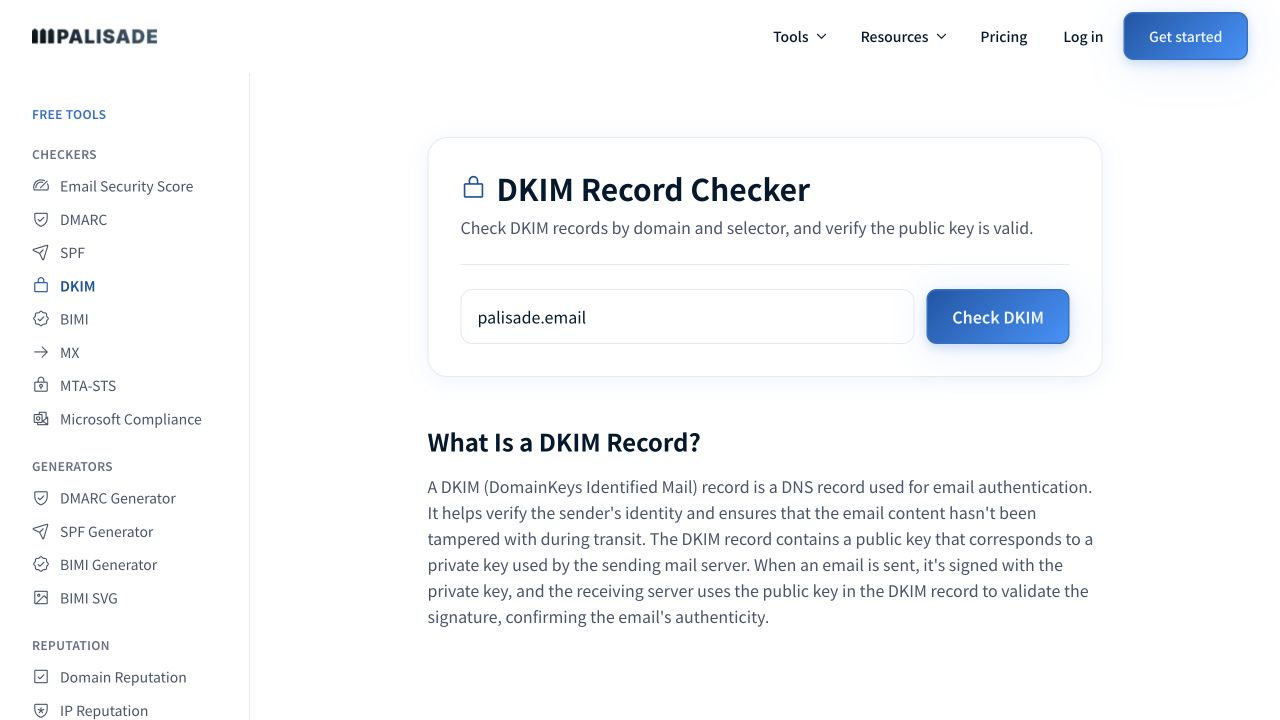
Source: Palisade DKIM checker, captured 2026-07-27 using the public palisade.email domain. Open the full-size capture.
3. Match the expected selector
In a public check on July 27, 2026, the tool found three selectors for palisade.email and returned its configured result state. This confirms that the scanner retrieved public key material for the selectors it discovered. It does not establish that those are the only selectors in use, that every Palisade message is signed, or that a receiver verified a particular signature.
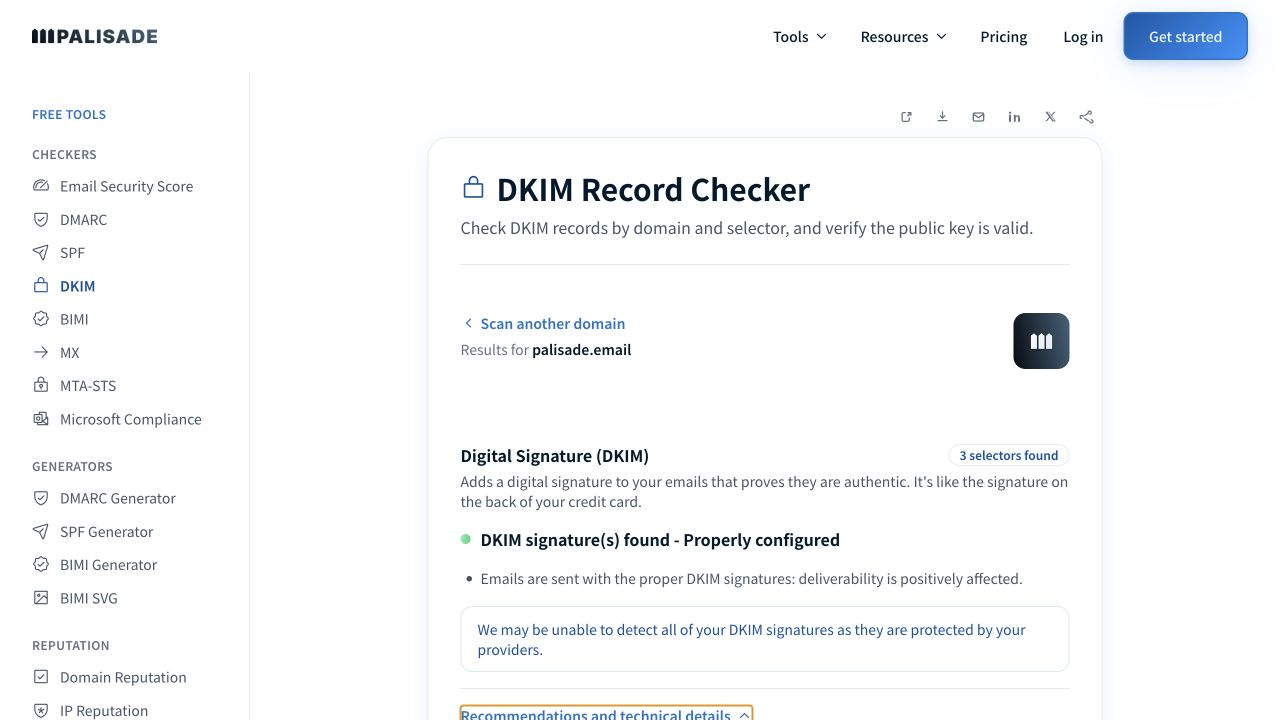
Source: Palisade DKIM checker, captured 2026-07-27 using public palisade.email DNS. Public DKIM keys are verification material; the private signing keys are not exposed. Open the full-size capture.
How to interpret the results
Record present with a usable p= key
  DNS publication works
  next: inspect a message signed with the same d= and s=

No TXT answer or NXDOMAIN
  wrong selector, wrong signing domain, or unpublished record
  next: compare provider values and authoritative DNS

Malformed or incomplete value
  record may have been copied, split, or quoted incorrectly
  next: compare the assembled DNS answer character for character

Empty p= value
  the selector is revoked
  next: stop using that private key and activate a current selector

Valid key but dkim=fail in the message
  DNS is not the failing layer
  next: inspect body hash, signed headers, canonicalization, and key match
A long TXT answer may be returned in multiple quoted strings; DNS resolvers concatenate them. Do not create multiple independent DKIM records at the same selector to work around a display limit.
What if the selector is a CNAME?
Some providers publish a CNAME at
Record both the customer-facing selector name and the final provider target while troubleshooting. The DNS owner may control the first name while the sending provider controls the destination. That ownership boundary determines who can repair the failure.
How to act on the result
If no record resolves, start with the no DKIM record guide. Confirm the authoritative DNS provider, the exact hostname, and whether the provider appends the domain to the Name field.
If a record resolves but is malformed, republish the value generated by the sending provider. Never generate a replacement key unless you can also install its private half in the sender.
If the DNS host automatically appends the zone name, enter only the host label your sender supplied. Use the DKIM record anatomy to keep the selector host and provider-generated value in the correct fields. After saving, query the full selector-scoped name from public DNS before changing anything in the sending service.
If the public key is valid but the message fails, inspect the message path. Gateways, list software, and footers can change signed content. A mismatch between d= and the visible From domain can also make DMARC fail even when DKIM itself passes; DKIM alignment troubleshooting separates those cases.
For planned key changes, use a controlled DKIM key-rotation procedure so old and new selectors overlap safely.
During rotation, publish the new selector before enabling it in the sender, verify that it resolves publicly, then test a message signed with the new key. Keep the previous selector available while it may still be referenced by in-flight or recently delivered messages. Remove it only after the sender has stopped using the old private key and the rollback window has closed. RFC 6376 defines an empty p= value as a revoked key; it is not a temporary value for an unpublished key.
How to retest
Run the DKIM checker again with the same domain and confirm that the selector from the message or provider is present. The lookup cannot access the private key, force a sender to sign, validate a message it has not seen, or change DNS.
Then send a new message through the same production application and route. Confirm the expected d= and s= in DKIM-Signature, look for dkim=pass in a receiver-added Authentication-Results field, and check DMARC alignment separately against the visible From domain. Trust only the result added inside the receiving service's trusted boundary; an upstream sender can insert a lookalike header. RFC 8601 defines that trust model. The DNS step proves publication; the trusted message result tests one live signing path.
If the remaining task is recurring sender discovery and alignment review, Palisade's DMARC Agent workflow can organize aggregate-report evidence into prioritized SPF, DKIM, and DMARC actions for human review. It cannot create a sender's private key, force signing, change external DNS without your team, or guarantee delivery.
The email-authentication hub connects this check to SPF, DMARC, and sender-inventory work.
Check the public key for the selector that signed your mail
If you have the signing domain and selector from the affected message, run that domain through the Palisade checker and confirm that the expected selector appears. Compare the public result with a fresh message from the same production route.
The checker can inspect public DNS. It cannot prove private-key possession, validate an unseen message, discover every selector, change DNS, or guarantee delivery.
Sources and further reading
Frequently asked questions
Keep going with AI
Ask AI how this applies to you
Take this guide to your assistant — each question opens pre-filled, with a link back to this page so it can read the details.
- How do selector inputs map to the same lookup?


- How does this apply to my domain?
- What should I do about it, step by step?

Written by
Samuel ChenardCEO & Co-Founder, Palisade
Samuel Chenard is the CEO and co-founder of Palisade, AI-first DMARC software for IT teams and MSPs, from one domain to thousands.
More from Samuel →