Fix '550 5.1.1' Bounce: Recipient Address Not Found
 ChatGPT
 Claude
 Gemini
 Perplexity
 Grok
GrokIn brief
The 550 5.1.1 bounce means the recipient address failed lookup. Fix typos, stale contacts, and directory sync issues — and stop the NDRs.
Running into the 550 5.1.1 Server temporarily unavailable error? We get it, nothing’s more frustrating than emails bouncing back when you’re trying to connect with recipients, especially on platforms like Microsoft 365. This SMTP error typically signals a temporary glitch with the recipient’s server or an authentication hiccup on your end. As of mid-2025, email providers have ramped up security, making proper setup more crucial than ever. Our goal? We are here to help you fix this fast and get your emails delivered.
In essence, this error means the recipient’s server is either down for the moment or rejecting your email due to issues like missing SPF, DKIM, or DMARC records, or perhaps a blocklist problem. No need to panic, we’ll walk you through the solution, step by step.
Why does the 550 5.1.1 error happen
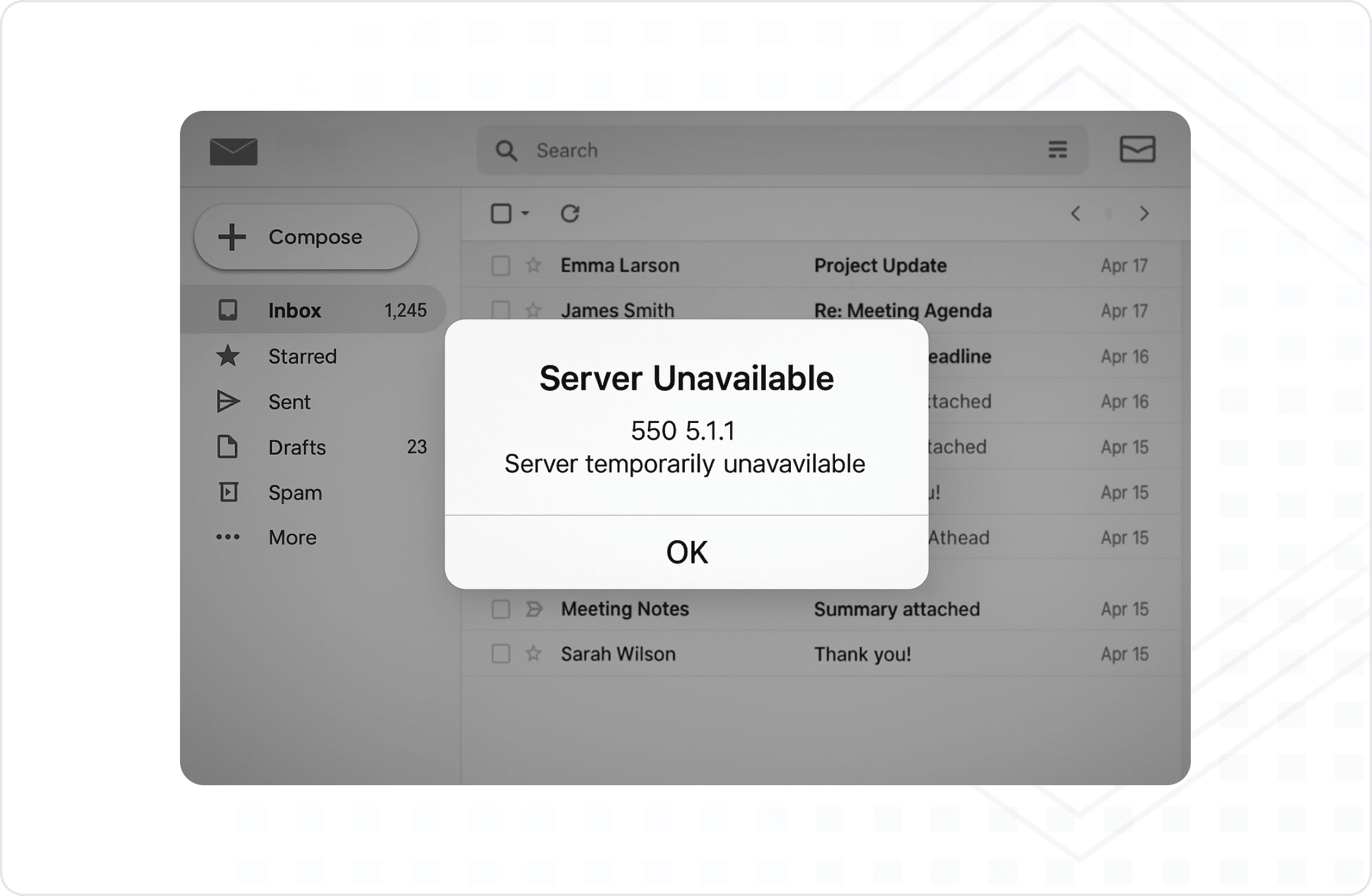
The 550 5.1.1 Server temporarily unavailable error pops up when the recipient’s mail server can’t process your email right now. Here’s what might be causing it:
- Server Downtime: The recipient’s server could be overloaded, under maintenance, or facing temporary outages.
- Authentication Issues: Without proper SPF, DKIM, or DMARC records, the server might not trust your email.
- Access Blocks: Your domain or IP might be restricted by the recipient’s security settings or listed on a blocklist.
- Immediate Bounce: You’ll see "550 5.1.1 Server temporarily unavailable" in the bounce message, signaling a quick rejection.
Consequences of ignoring the error
Letting the 550 5.1.1 error slide can mess with your email game plan. Here’s why it matters:
- Undelivered Emails: Your messages won’t reach their target, stalling important conversations.
- Reputation Hit: Frequent bounces can tank your sender reputation, making email deliverability tougher.
- Lost Business: Missed emails could mean missed sales or customer trust.
- Security Risks: A Weak setup might let scammers spoof your domain, damaging your brand.
Understanding the 550 5.1.1 error
The 550 5.1.1 Server temporarily unavailable error means the recipient’s server is temporarily out of reach or rejecting your email. Common culprits include:
- Server Hiccups: Traffic spikes, maintenance, or outages on the recipient’s end.
- Authentication Gaps: Missing SPF, DKIM, or DMARC setups can trigger distrust.
- Restricted Access: Your sending IP or domain might be blocked or not allowlisted.
- Mailbox Limits: The recipient’s email might only accept internal or approved senders.
How to fix the 550 5.1.1 server temporarily unavailable error
The 550 5.1.1 error might seem like a roadblock, but it’s one you can clear. It’s telling you the recipient’s server is either down or doesn’t trust your email yet. Here’s how to fix it:
Step 1: Wait and retry
Since this is often a temporary issue, pause for a few hours, then resend. Server overloads or maintenance might sort themselves out.
Step 2: Audit your email setup
Run a scan with Palisade’s Email Score tool to check your SPF, DKIM, and DMARC records. It’ll flag any setup errors causing authentication failures.
Step 3: Verify the recipient address
Double-check the email address for typos or inactivity. If you can, ask the recipient or their IT team if external emails are blocked.
Step 4: Set up or fix SPF and DKIM
Authentication is your ticket out of this mess. Here’s the drill:
- SPF: Add your mail servers to your DNS records with an SPF entry. Keep it under 10 lookups.
- DKIM: Get a DKIM key from your email provider and plug it into your DNS to sign your messages.
Step 5: Implement DMARC monitoring
Start with a basic DMARC policy to watch your email traffic:
v=DMARC1; p=none; rua=mailto:reports@example.com; This lets you monitor without rejecting emails, giving you a clear view of what’s failing.
Step 6: Analyze DMARC reports and check blocklists
Give it a few days to two weeks for DMARC reports to roll in. They’ll show if your emails pass authentication. Also, use tools like Spamhaus or MXToolbox to see if your domain or IP is blocklisted. If it is, follow their delisting steps.
Step 7: Strengthen DMARC and coordinate with the recipient
Once your setup’s solid, tighten your DMARC policy:
- Switch to quarantine:
v=DMARC1; p=quarantine; rua=mailto:reports@example.com;
- Then to reject:
Summary: What you’ve done and what’s next
Here’s what you’ve tackled to beat the 550 5.1.1 error:
- Waited and retried the email.
- Checked your setup with Palisade’s Email Score tool.
- Confirmed the recipient’s address.
- Fixed SPF and DKIM.
- Set up DMARC monitoring.
- Reviewed reports and blocklists.
- Locked down DMARC and checked with the recipient.
Resolve the 550 5.1.1 error with Palisade’s AI
Palisade cannot repair a recipient server or create a missing mailbox. When a 550 response traces back to email authentication, its AI-first DMARC agent can investigate the sending source, work through SPF and DKIM alignment, and move the domain toward DMARC enforcement.
Why Palisade:
Questions readers ask
Frequently Asked Questions (FAQ)

Written by
Taylor TabusaCo-Founder & Head of Business Development, Palisade
Taylor Tabusa is the co-founder and Head of Business Development at Palisade, helping managed service providers turn email security into a practical, valuable service.
More from Taylor →