Fix '550 5.7.1 Unauthenticated Email Is Prohibited'
 ChatGPT
 Claude
 Gemini
 Perplexity
 Grok
GrokIn brief
The 'unauthenticated mail is prohibited' bounce means DMARC rejected your message. How to diagnose SPF/DKIM alignment and fix delivery fast.
Understanding DMARC
DMARC is your domain’s defense against phishing and spoofing, ensuring only legitimate emails reach their destination. However, when DMARC isn’t configured properly, you might encounter delivery failures like the 550 5.7.1 Unauthenticated Email Error.
This issue often arises from incomplete SPF records, misconfigured sender domains, or unauthorized sending servers. In this guide, we’ll explain what the 550 5.7.1 error means, why it occurs, and how to fix it with a clear, actionable approach.
Clarifying the Error Message
When emails bounce, you’ll spot error codes in the non-delivery report (NDR).
Here’s what the 550 5.7.1 error entails:
- 550 5.7.1 Unauthenticated Email Error
This error highlights an authentication failure, your email can’t prove its legitimacy. The fix lies in strengthening your domain’s authentication setup.
Diagnosing the Issue
Before applying fixes, identify the root cause:
- Check Email Headers: Examine the headers of a bounced email in your email client (MUA) to review DMARC alignment and authentication results. Look for clues about SPF, DKIM, or server issues.
- Set Up DMARC Monitoring: Add a DMARC record with reporting (e.g., rua=mailto:reports@yourdomain.com) to track failures in real time.
- Review Bounce Messages: These often include details—like specific SPF or DKIM errors—to guide your troubleshooting.
Common Causes and Their Fixes
The 550 5.7.1 error stems from several common issues. Here’s how to address them:
- Unauthorized Sending Server
- Incomplete SPF/DKIM Configuration
- Misconfigured Sender Domain
- Strict Anti-Spam Filters
How to Fix the 550 5.7.1 Error:
Follow this detailed process to resolve the 550 5.7.1 Unauthenticated Email Error and enhance your email authentication. Each step includes instructions, examples, and tips to ensure successful delivery.
Step 1: Audit Your Current Setup
- What to Do: Use tools like Palisade’s Email Score to check your SPF, DKIM, and DMARC records. Enter your domain and review the results.
- Also Do: This bounce is an alignment failure, and a record check cannot show alignment. Run the free email deliverability test on a message you actually send — it reports whether SPF and DKIM passed and whether each aligned with your From domain, which is what DMARC evaluates.
- What to Look For: Missing records, syntax errors, or incomplete sender lists (e.g., omitting a third-party service like Mailchimp).
- Example: An SPF record like v=spf1 include:_spf.google.com ~all missing your CRM’s server will cause failures.
- Tip: Watch for SPF’s 10-DNS-lookup limit, which can invalidate records.
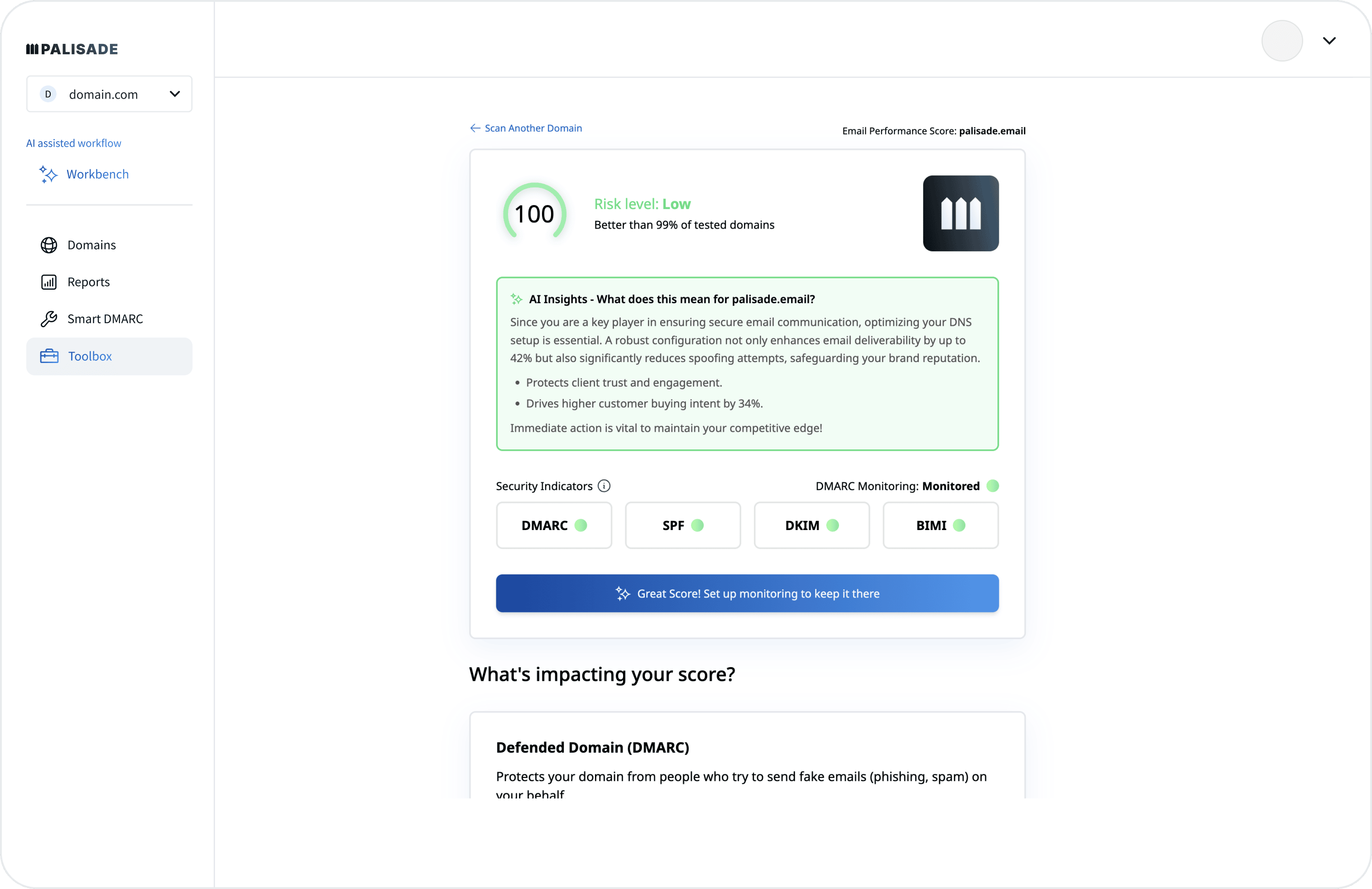 Palisade Email Security Score
Step 2: Implement DMARC Monitoring
Palisade Email Security Score
Step 2: Implement DMARC Monitoring
- What to Do: Add a DMARC record to your DNS with a “none” policy:
- Explanation: p=none monitors without blocking; rua sends reports to the specified email.
- How: Create a TXT record for _dmarc.yourdomain.com via your DNS provider (e.g., Cloudflare).
- Tip: Use a dedicated email for reports to stay organized.
- What to Do: Review XML reports sent to your rua address for:
- How: Use the Palisade DMARC report analyzer for a simplified view.
- Update your SPF record to include all senders:
- List mail server IPs and include third-party services.
- Flatten records if nearing the 10-DNS-lookup limit.
- Fix DKIM:
- Validation: Test both with Palisade SPF Checker and DKIM Checker to confirm accuracy.
- Gradually update your DMARC record to p=quarantine:
- Move to p=reject after confirming no legitimate emails are flagged:
v=DMARC1; p=reject; rua=mailto:reports@yourdomain.com;
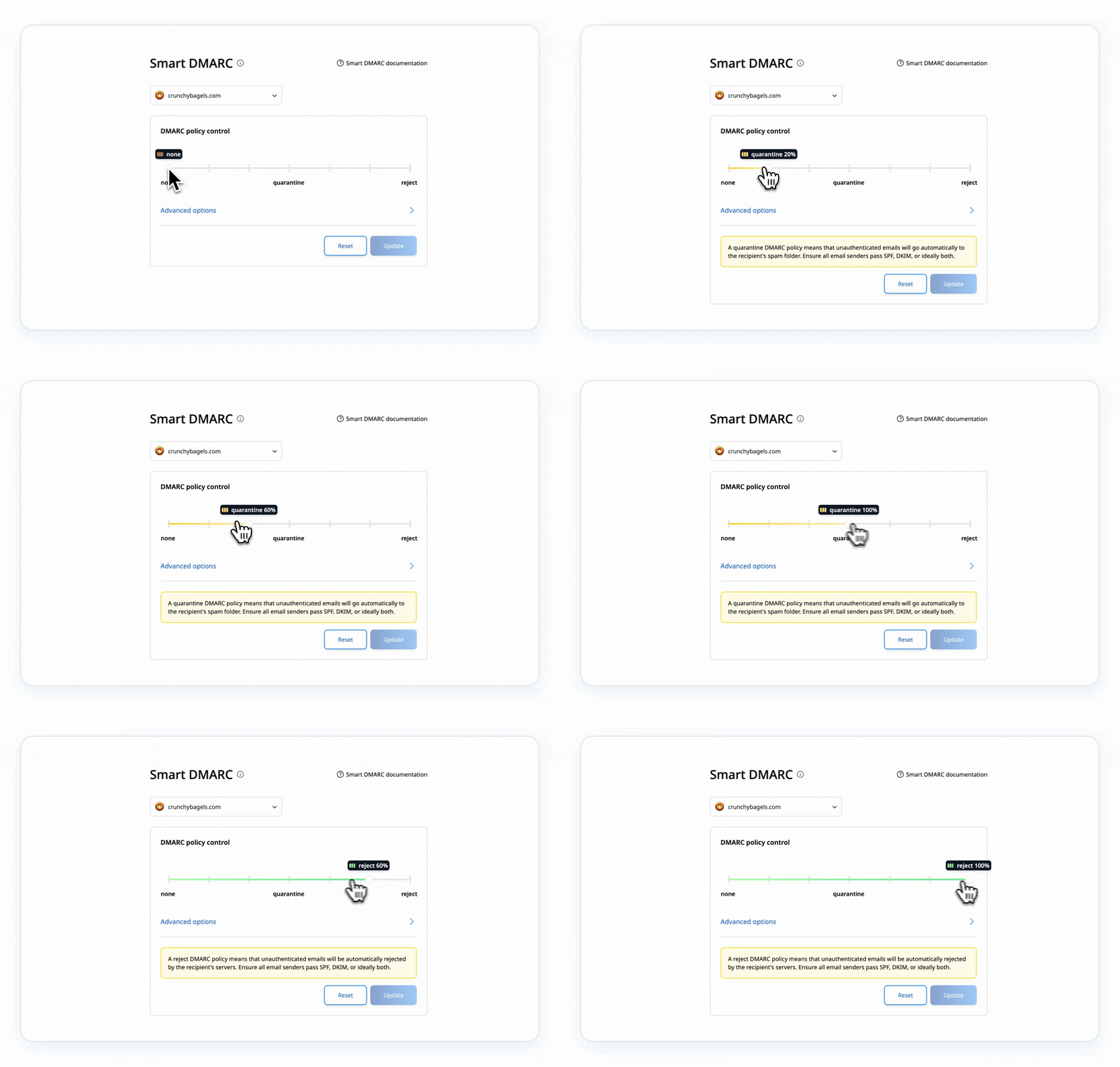 Palisade's Workbench DMARC Policy controlStep 6: Test and Validate
- What to Do:
Authentication-Results: spf=pass; dkim=pass; dmarc=pass
Step 7: Maintain Ongoing Security
- What to Do:
DMARC setup becomes harder when a domain has many sending services or unclear ownership. Palisade's AI-first DMARC agent investigates those sources, works through SPF and DKIM alignment, and moves the domain toward enforcement. Passing DMARC supports domain authentication, but it does not guarantee inbox placement.
Other Best Practices for Ongoing Email Security
Keep errors at bay with these practices:
- Monitor Regularly: Check DMARC reports weekly for new issues.
- Update SPF: Adjust for new senders as your setup evolves.
- Refresh DKIM: Rotate keys every 6-12 months.
- Clean Your List: Remove inactive addresses to boost reputation.
- Mind Your Content: Avoid spammy phrasing or excessive links.
Conclusion
The 550 5.7.1 Unauthenticated Email Error can disrupt your communication, but it’s fixable. By understanding the error, diagnosing the problem, and applying targeted fixes, you can protect your brand and ensure delivery. Palisade removes the guesswork, quickly fixing your setup and keeping your emails inbox-bound.
If the failure is caused by authentication, use Palisade's AI-first DMARC agent to investigate the source and alignment result.
Questions readers ask
Frequently Asked Questions (FAQ)

Written by
Ian BussieresCTO & Co-Founder, Palisade
Ian Bussieres is the CTO and co-founder of Palisade, AI-first DMARC software for IT teams and MSPs.
More from Ian →