How to Detect and Verify Fake Email Senders?
 ChatGPT
 Claude
 Gemini
 Perplexity
 Grok
Grok
A fake email sender is a message forged to look like it came from a person or company you trust. Because plain SMTP never verifies the From: address, spotting one comes down to two things: reading the signals a human can see (the domain, the display name, the tone) and reading the signals machines leave behind (the headers and the SPF, DKIM, and DMARC results). This guide walks through both, then shows how to stop spoofed mail reaching your own recipients in the first place.
Why verifying email senders matters
Confirming who really sent a message protects you on three fronts:
- Reputation and deliverability. Reliably distinguishing genuine correspondents keeps you from acting on forged instructions and helps you keep your own communication trustworthy.
- Security of communications. Verifying that a sender is who they claim reduces the risk of falling for phishing and hands attackers far less room to slip malware or credential-harvesting links past you.
- Fraud and identity theft. Fake senders are the delivery vehicle for wire-transfer fraud and account takeover. Catching them early is the cheapest point at which to stop the loss.
5 effective ways to identify a fake email sender
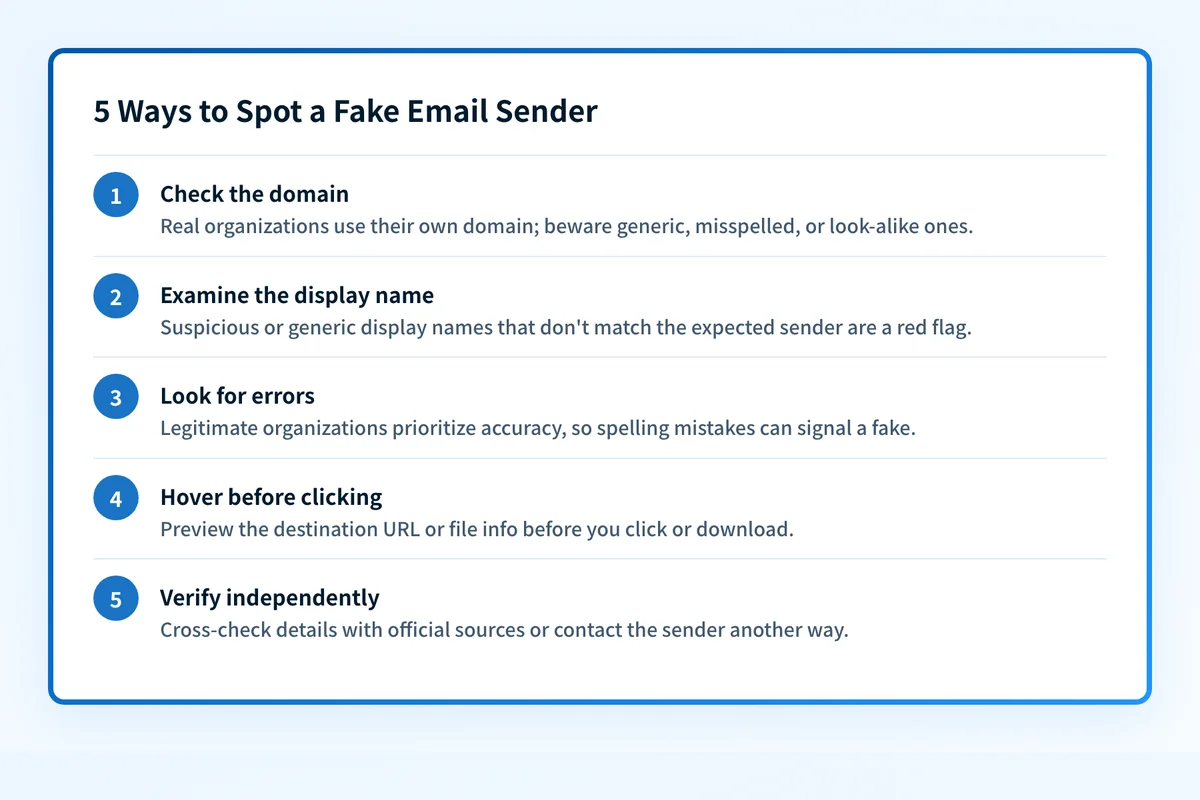 Five checks to run on any suspicious email.
Scrutinize the email address domain
Start with the part after the @. Legitimate organizations send from their own domain (billing@company.com), not a free mailbox or a look-alike. Watch for subtle swaps — rn for m, an extra hyphen, a .co where you expect .com, or a brand name pushed into a subdomain like paypal.security-check.com. These near-misses are the single most common tell of a spoofed sender.
Examine the sender's display name
Display names are trivial to set to anything, so a friendly name is not proof of anything. A message that reads "Microsoft Support" but comes from a random Gmail address is an immediate red flag. Always judge the address behind the name, not the name itself.
Detect misspelled words or grammatical errors
Attackers often work quickly or in a second language, so awkward phrasing, inconsistent formatting, and misspellings are common — especially in the subject line and opening. Reputable organizations proofread transactional mail, so obvious errors in a "bank" or "invoice" message deserve suspicion.
Hover over links and attachments
Before clicking anything, hover to preview the real destination URL. If the visible text says one thing but the link points somewhere else — a shortened URL, a mismatched domain, an IP address — don't click. Treat unexpected attachments, particularly .html, .zip, or macro-enabled Office files, as hostile until proven otherwise. A phishing link checker can inspect a suspicious URL safely.
Verify the sender's information independently
When a message asks for money, credentials, or a change to payment details, confirm it through a channel you already trust — a phone number from the company's real website, not one printed in the email. This one habit defeats most business email compromise, because the attacker controls only the email thread.
Here's how those five checks map to what you're looking for:
| Method | What to check |
|---|---|
| Scrutinize the email address domain | Generic mailboxes, misspellings, or look-alike domains resembling a known brand |
| Examine the sender's display name | Friendly names that don't match the underlying address |
| Detect spelling and grammar errors | Awkward phrasing or mistakes in supposedly official mail |
| Hover over links and attachments | Destination URLs that differ from the visible text; unexpected file types |
| Verify the sender independently | The request confirmed through a separate, trusted channel |
How to read email headers to confirm a sender
The visible message can lie; the headers are harder to fake. Open the full headers (in Gmail, Show original; in Outlook, File → Properties) and look for the authentication results the receiving server recorded:
spf=pass/fail— whether the sending IP was authorized by the domain's SPF record.dkim=pass/fail— whether the message carried a valid signature from the claimed domain.dmarc=pass/fail— whether SPF or DKIM passed and aligned with the visibleFrom:domain. This is the line that matters most: a message can technically pass SPF for the attacker's own domain yet fail DMARC for the brand it's impersonating.
Received: chain from the bottom up to see the real path the message took, and watch for a Reply-To: that points somewhere different from the From: address — a classic redirect used to route your reply to the attacker. An email header analyzer parses all of this for you and flags the failures automatically.
Common issues when verifying email senders
Why does a message from a real contact still fail SPF or DKIM?
Legitimate mail can fail authentication after being forwarded or sent through a mailing list, because forwarding changes the sending IP (breaking SPF) and list servers sometimes modify the body (breaking DKIM). Don't treat a single failure as proof of forgery — check the full DMARC result and the Received: path, and confirm through a trusted channel if the request is sensitive.
The domain looks correct but something feels off — now what?
Attackers sometimes send from a genuinely compromised mailbox, so the domain and authentication can all pass while the message is still fraudulent. Fall back to behavioural signals: an unusual request, urgency, a change of payment details, or a reply address that doesn't match. When the ask is financial, verify by phone regardless of what the headers say.
I can't find the "show original" or full headers option
Every major client exposes raw headers, just under different names — Gmail's Show original, Outlook's Message → Properties → Internet headers, Apple Mail's View → Message → All Headers. On mobile apps the option is often missing entirely, so forward the message to yourself and open it on desktop, or paste the headers into an email header analyzer.
The links look fine but I'm still unsure
Visible link text and even the hovered domain can be disguised with redirects and URL shorteners. Rather than click, run the URL through a phishing link checker or URL reputation tool, which resolves redirects and checks the destination against known-bad lists without exposing your device.
Stopping fake senders on your own domain with DMARC
Detecting fakes protects you; publishing authentication protects everyone who receives mail claiming to be from you. The three records work together:
- SPF lists the servers authorized to send for your domain, so receivers can reject mail from anywhere else.
- DKIM signs your messages, letting receivers confirm they weren't altered and genuinely came from you.
- DMARC ties the two together, requires alignment with your visible
From:address, and tells receivers toquarantineorrejectanything that fails — while sending you reports of every attempt.
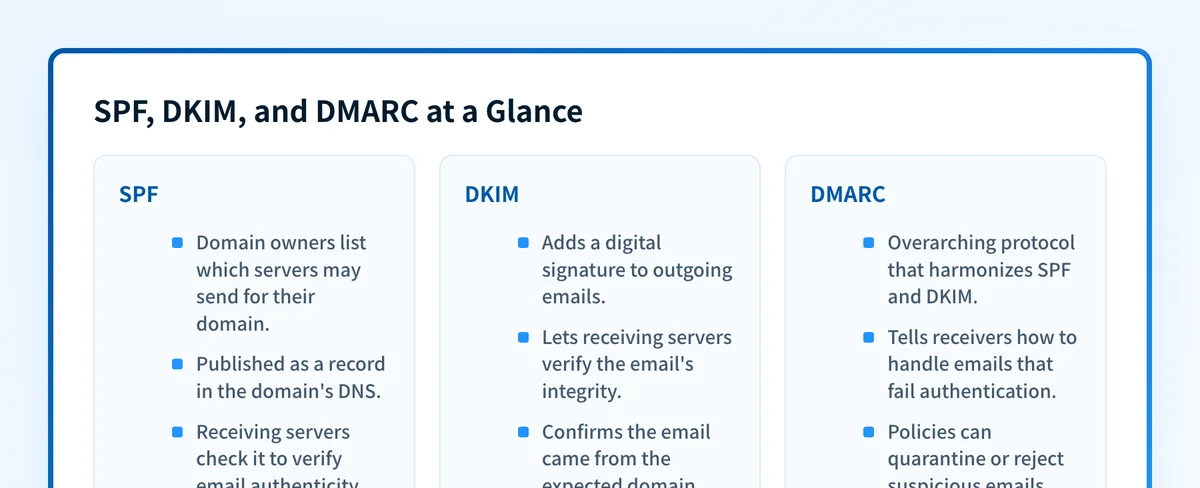 The three protocols that make up DMARC-based email authentication.
Moving your DMARC policy to enforcement is what actually stops attackers from landing spoofed mail in your customers' inboxes. If you're not there yet, our guide to stopping email spoofing and the ultimate guide to preventing phishing attacks walk through the rollout, and the DMARC checker shows exactly where your domain stands today.
Related reading
Questions readers ask
Frequently asked questions
Keep going with AI
Ask AI how this applies to you
Take this guide to your assistant — each question opens pre-filled, with a link back to this page so it can read the details.
- How to Detect and Verify Fake Email Senders?


- How does this apply to my domain?
- What should I do about it, step by step?

Written by
Samuel ChenardCEO & Co-Founder, Palisade
Samuel Chenard is the CEO and co-founder of Palisade, AI-first DMARC software for IT teams and MSPs, from one domain to thousands.
More from Samuel →